
Crashes, No Sound, or Screen Glitches?
Random freezes, missing sound and display glitches usually trace back to one bad driver. Find and replace yours safely.Free scan · under a minutePC Slower Than It Used to Be?
A free scan shows the junk files, broken settings and background clutter dragging Windows down - then fixes them in one click.Free scan · Windows 10 & 11iTechGuides is reader-supported. When you buy through links on our site, we may earn an affiliate commission. As an Amazon Associate I earn from qualifying purchases. Learn more
Have you replaced the hard drive on your PC and need help reinstalling Windows 10 on the new hard drive? I have provided all the steps you need to complete this task.
Step 1: Get what you Need to Install Windows 10
To install Windows 10 on a hard drive you need the following:
- Window 10 DVD
- Valid Windows 10 key (Home, Pro or Enterprise)
- A PC that meets the Windows 10 installation requirements (See Step 3 below)
Step 2: Create a Windows 10 Installation DVD
The first step to install Windows 10 on a new hard drive is to create a Windows 10 DVD.
Free tools Windows power users keep installed
One-click scans. No signup required.
If you already have a Windows 10 installation DVD proceed to the next step.
Popular on Amazon

- Perfect for installs that are corrupted or full of viruses. Works on any make or model computer.Repair boot manager is missing, NTLDR is missing, Blue Screens of Death (BSOD) and more. This item does not include a key code or a license. You must have your own key code to use the install option otherwise you will get a non-genuine message.
If you need to create an installation DVD, here are the steps:
- Download Windows 10 ISO with Media Creation Tool. Use the steps in this guide – How to Download Windows 10 ISO with Media Creation Tool.
- After downloading the ISO file, insert a blank DVD into your PC. Then right-click the ISO file and select Burn disk image.

Step 3: Confirm that Your PC Meets the Installation Requirements
If you attempt to install Windows 10 on a PC that do not meet the minimum installation requirement, the installation is likely to fail.
To ensure your PC meets the requirement review the following information.
Below are the Windows 10 minimum installation requirements:
- Processor: 1 gigahertz (GHz) or faster processor or SoC
- RAM: 1 gigabyte (GB) for 32-bit Windows 10 or 2 GB for 64-bits
- Hard disk space: 16 GB for 32-bit OS 20 GB for 64-bit OS
- Graphics card: DirectX 9 or later with WDDM 1.0 driver
- Display: 800×600
Here are my recommended requirements for maximum performance:
- Processor: 2.5 GHz Dual Core minimum (faster processor is better)
- RAM: 4 gigabyte (GB) for 32-bit or 8 GB for 64-bit
- Hard disk space: 320 GB (or more)
- Graphics card: DirectX 9 or later with WDDM 1.0 driver (Any modern graphics card should do)
- Display: 1920X1080 (Full HD)
Step 4: Determine Windows 10 Edition You Need to Install
The table below list the core features offered by Home and Pro editions of Windows 10.
Based on the features in each edition, determine the edition that meets your needs.
Do these 3 things before closing this tab:
1Clear out junk files and repair common Windows errors2Fix the driver behind crashes, sound loss and screen glitches3Repair Windows errors before they cause bigger problemsAlso popular on Amazon

- Bootable DVD. Install, repair, restore & recove your OS. Perfect for damaged, corrupted or full of viruses operating system. Repair BOOTMGR is missing, NTLDR is missing, Blue Screens of Death (BSOD) and more.
- Works on any make or model computer. Install a fresh copy of as long as you have a valid product key code. It does not include a key code.
You need this information to determine the Windows 10 licence you will purchase in the next section.
| Features | Home Edition | Pro Edition |
| Maximum RAM | 4 GB on IA-32, 128 GB on x86-64 | 4 GB on IA-32 2 TB (2048 GB) on x86-64 |
| Family Safety and Parental Controls | ✔ | X |
| Microsoft Edge | ✔ | ✔ |
| Mobile device management | ✔ | ✔ |
| Microsoft Store suggestions | ✔ | ✔ |
| Windows Subsystem for Linux | Available in 64-bits | Available in 64-bits |
| Hyper-V | X | Available in 64-bits |
| BitLocker | X | ✔ |
| AppLocker | X | X |
| Windows Information Protection | X | ✔ |
The edition comparison table above is for none business users. If you are learning how to install Windows 10 for business use, click Compare Windows 10 editions.
Also, for the table above, I included the features that I believe is required by most users. For the full feature comparison, click Windows 10 editions.
Step 5: Purchase a valid Windows 10 Product Licence Key
Now that you have made a choice what edition of Windows 10 to install, the next step in how to install Windows 10 to a new hard drive is to purchase a license.
You can buy Widows 10 license keys directly from Microsoft. The links below will take you to the Microsoft pages where you can buy Windows 10 Pro and Home respectively.
Step 6: Configure Boot Sequence to Boot from CD or DVD

When your PC boots it locates Operating System boot files in available boot media on the computer. The boot sequence on the computer BIOS determines the first place the PC looks for boot files.
To install Windows 10 to a new hard drive, modify your computers boot sequence to boot from CD.
Also popular on Amazon
- [MISSING OR FORGOTTEN PASSWORD?] Are you locked out of your computer because of a lost or forgotten password or pin? Don’t’ worry, PassReset DVD will reset any Windows User Password or PIN instantly, including Administrator. 100% Success Rate!
- [EASY TO USE] 1: Boot the locked PC from the PassReset DVD. 2: Select the User account to reset password. 3: Click “Remove Password”. That’s it! Your computer is unlocked.
- [COMPATIBILITY] This DVD will reset user passwords on all versions of Windows including 11, 10, 8, 7, Vista, Server. Also works on all PC Brands that have Windows as an operating system.
- [SAFE] This DVD will reset any Windows User password instantly without having to reinstall your operating system or lose any data. Other Passwords such as Wi-Fi, Email Account, BIOS, Bitlocker, etc are not supported.
- [100% GUARANTEED] Easily reset recover any Windows User password instantly. 100% sucess rate!
Here are the steps:
- Press the power button to start your PC
- Most PCs will splash a screen with a key to press to boot to BIOS. This normally happens very quickly so you need to press the function key fast enough…
- When your PC boots to BIOS, locate the setup to modify boot sequence. Then change it to boot from CD or DVD.
The image below is for illustration purposes only. It is a boot sequence configuration for a Hyper-V virtual machine.
The Tool Desk
Outbyte PC Repair FREERepair Windows errors before they cause bigger problemsFix Now →Outbyte Driver Updater FREEScan for outdated or missing drivers - takes under a minuteDriver Scan →- Save the changes and exit BIOS
Step 7: Install Windows 10
Now you are ready to install Windows 10 on a new hard drive!
Here are the detailed steps:
- Press the power button to boot your PC.
- Your PC will display this screen. Press any key to boot from the DVD.

- Then at the first screen of Windows 10 installation, click Next.

- At the install screen, click Install now.

- When Activate Windows screen loads, type your product key and click Next.

- At Applicable notices and licence terms screen, check I accept the licence terms. Then click Next.

- Then select Custom: Install Windows only (advanced).

- Then select the hard drive you wish to install the OS and click Next.

- Wait for the installation to complete the first steps to install Windows 10 to a new hard drive. This step will take a while.

- When the installation steps are completed, your PC will display a restart notification countdown. To restart immediately, click Restart now. See the second image below.
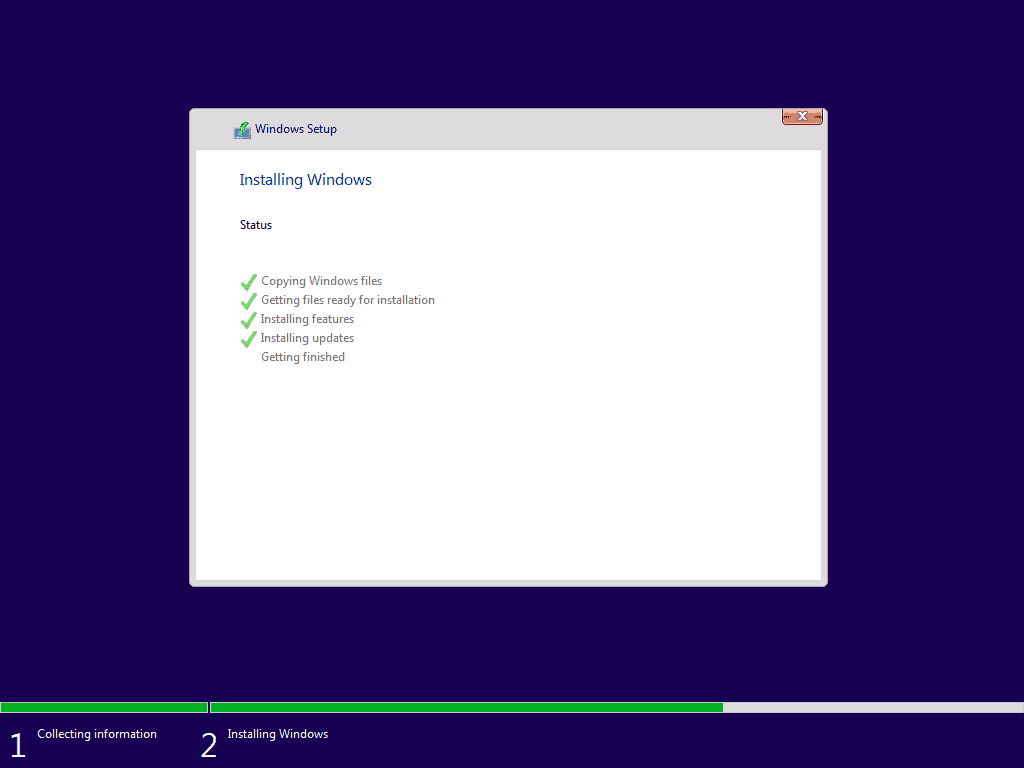

- The restart will take a while. Then your PC will display the following screens. It may stay on the Getting ready screen for a while.


- After the Getting ready screen, your PC will restart again..

Step 8: Complete the Final Steps to Install Windows 10
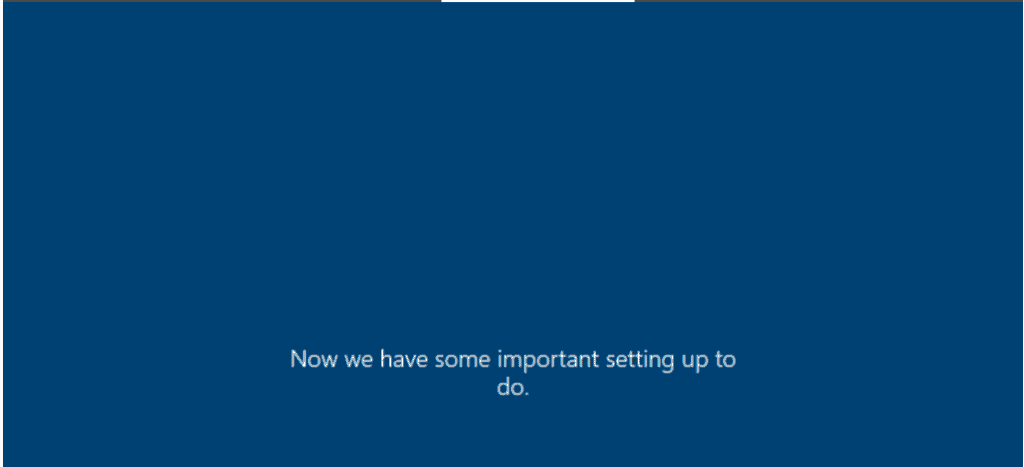
When your computer restarts, follow these steps to complete the final steps to install Windows 10 on a hard drive:
- Check that your region is correct. Then click Yes to continue. Otherwise, select your region and click Yes.

- Then confirm that your keyboard is correct and click Yes. Or select a new keyboard.

- At the option to add a second keyboard, to add a new keyboard click Add layout. Otherwise, click Skip.

- Then wait for the next screen to load…

- The installer will begin configuring some additional setups.

- Then you will be offered the option to choose whether you are installing Windows for personal use or for a company. Select an option and click Next. For this demo, I will select Setup for personal use.

- At the Sign in with Microsoft screen, enter your Microsoft account. Then click Next.

- Then type the password for your Microsoft account and click Next.

- On the Create a PIN screen, click Create PIN.

- Then enter a 4-digit PIN and click OK.

- If you require this service configure it. Otherwise, click Do it later.

- Then, on the Back up your files with OneDrive screen click Only save files to this PC.

- Finally, on the next set of screens, configure various privacy options including Cortana. For most of the screens, select an option then click Yes or No…or Accept or Decline…
- After making your selections, the installer will perform some final configurations…Then you will be automatically signed in.


Conclusion
You have just installed Windows 10 on a new hard drive!
I hope you found this guide helpful. If you did, followed the steps in this guide, and were able to install Windows 10, kindly share your experience using the comment form at the bottom of this page. Alternatively, you can respond to the “Was this page helpful?” question below.
Quick wins for a faster PC:
Fix the driver behind crashes, sound loss and screen glitchesFind Drivers →Clear out junk files and repair common Windows errorsFree Scan →Scan for outdated or missing drivers - takes under a minuteDriver Scan →Finally, visit our Windows How To page for more Windows 10 guides.
Quick Recap
Product prices and availability are accurate as of the date/time indicated and are subject to change. Any price and availability information displayed on Amazon at the time of purchase will apply.



