

Do these 3 things before closing this tab:
1Clear out junk files and repair common Windows errors2Fix the driver behind crashes, sound loss and screen glitches3Repair Windows errors before they cause bigger problemsiTechGuides is reader-supported. When you buy through links on our site, we may earn an affiliate commission. As an Amazon Associate I earn from qualifying purchases. Learn more
Are you starting in PowerShell and want to learn the most useful commands? This guide explains the 18 PowerShell commands I use regularly.
Powershell Commands to Find and Get Help with Cmdlets
You cannot talk about the most useful PowerShell commands without learning how to find them. Below are the PowerShell commands that will help you find Cmdlets.


Get-Command
The Get-Command Cmdlet is the first and most important PS a PowerShell newbie should learn and know how to use. Why? It helps you find other PowerShell Cmdlets. What command can be more important than a command that can do this?
To find all PS Commands in your computer, simply execute this command below:
Popular on Amazon
Get-Command
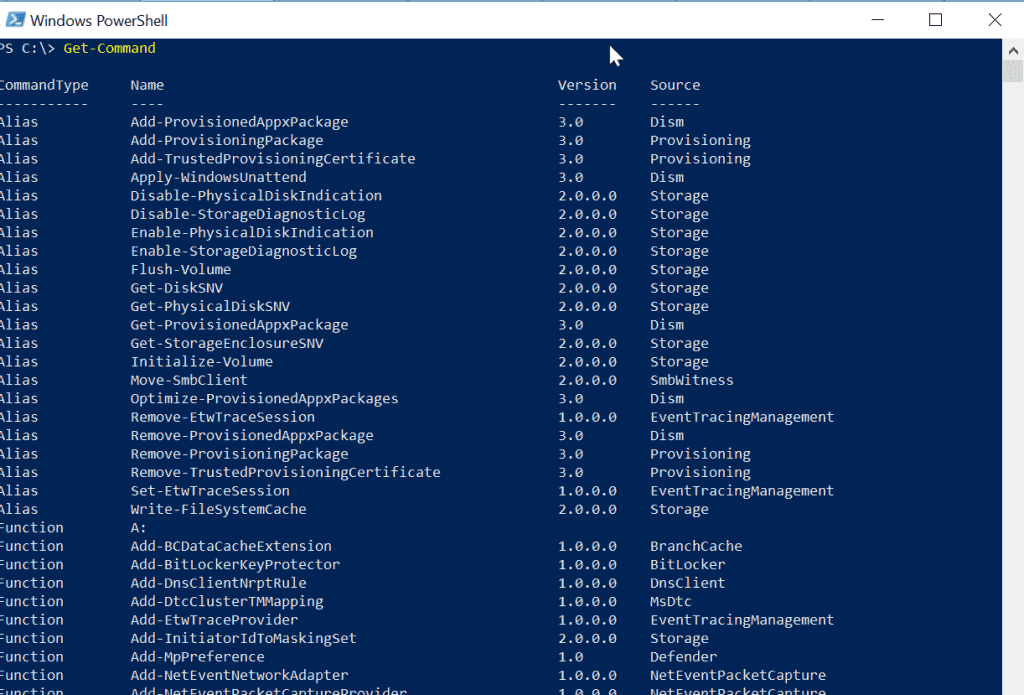
Understanding the Results of the Get-Command Cmdlet
There are four columns in the results of the Get-Command Output
- CommandType: This tells you whether command is an Alias, a Cmdlet, or a Function.
- Name: The name is the actual command you execute.
- Version: This is the PowerShell version
- Source: The module of the PS command.
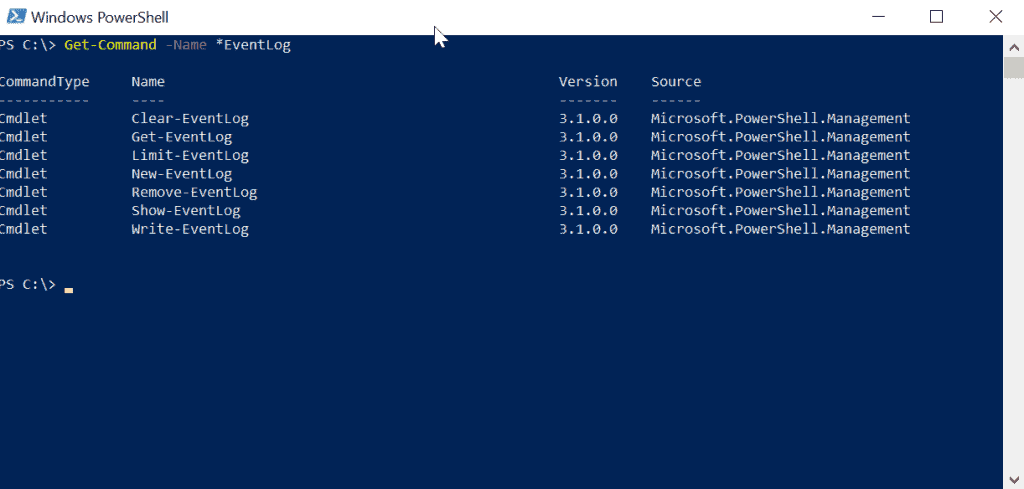
With this information, you can filter the results from Get-Command. Say you want to see PowerShell commands containing the word “EventLog”, running the command below will get the job done:
Get-Command -Name *EventLog
Notice where I added the asterisks. This is because I am aware that
“EventLog” is the “Noun” part of the Cmdlets. However, if you don’t even know you could try adding the asterisks at the beginning then try the end.
Windows Errors? Fix Them Before They Spread
Repair common Windows errors and clear accumulated junk for a smoother, more stable PC - no reinstall needed.Free scan · no reinstallOutdated Drivers Are Slowing You Down
One free scan finds every outdated or missing driver and matches the right update for your exact hardware.Free scan · exact hardware matchBelow is the result of the previous command.
Get-Command Parameters
Lastly, before we move on, lets discuss the parameters of the Get-Command Cmdlet.
To get all the parameters and information about the Get-Command command, execute this command below:
Get-Help Get-Command -Full
This will give you all the information regarding the Get-Command Cmdlet.
Get-Help
While the Get-Command Cmdlet finds the Cmdlet you need the Get-Help PowerShell command gives you the information you need to run the command.
Free tools Windows power users keep installed
One-click scans. No signup required.
The easiest wat to use the Get-Help Cmdlet is to enter Get-Help followed by the command you want information on. To find more information about the Get-EventLog Cmdlet, run the command below:
Get-Help Get-EventLog
This will give you the basic information about Get-EventLog PowerShell Command. See result below:

Some Important Parameters of the Get-Help Command
Like any other PowerShell Cmdlet, the Get-Help Cmdlet has a number of parameters. Below are the most important parameters you will need.
- -Detailed: The Detailed parameter gives you the command SYNTAX, PARAMTERS, ALIASES, and REMARKS.
- -Full: The Full gives similar information provided by the Detailed parameter with more information about each parameter
- -Examples: Gives examples of how to use the Cmdlet. This can be very useful if you have never used the Cmdlet before and at a loss how to proceed.
- -Online: Opens the online help page of the Cmdlet.
Powershell Commands to Manage Files and Folders
Now that you know how to find PowerShell commands, lets get you in the hood. The next set of the most useful powershell commands are Cmdlets to help you manage files and folders.
Also popular on Amazon

- Used Book in Good Condition
Get-ChildItem
Gets items in a specified location. To list the folders in my drive C, I will run the command below:
Get-ChildItem c:/
This will list all the top level folders. To list all files, folders include sub-folders use the –Recurse parameter.
You can combine the Get-ChildItem Cmdlet let with other Cmdlet to calculate the size of each folder in a specified directory.
Copy-Item and Move-Item
You could use the Get-ChildItem Cmdlet to list items in a folder, then pipe the result to Copy-Item Cmdlet to copy the items to a new location. The command below will do the job:
Get-ChildItem C:\Dropbox | Copy-Item -Destination C:\NewFolder
Get-ChildItem C:\Dropbox -Recurse | Copy-Item -Destination C:\NewFolder
While the Copy-Item Cmdlet copies items from one location to another the Move-Item Cmdlet moves the item.
Recommended Free Tools
Remove-Item
This Cmdlet deletes specified items. Like the Copy-Item and Move-Item Cmdlets you could pipe the output of Get-ChildItem to Remove-Item.
By piping the output of Get-ChildItem to Remove-Item, you could create a simple script that will delete some log files on regular bases. You could schedule the PS script to run at specified time using Windows Scheduler.
Powershell Commands for Reporting
There are 3 sets of PowerShell commands that you can use to export items to CVS, export to text file and to HTML files. We will discuss these 3 next.
Export-Csv
Export-Csv converts a set of string into CSV and saves in a file. This Cmdlet is very important in reporting.
To demonstrate the use of Export-CSV, run the command below:
Quick wins for a faster PC:
Fix the driver behind crashes, sound loss and screen glitchesFind Drivers →Clear out junk files and repair common Windows errorsFree Scan →Get-Command -Verb Export
Here is the result of the command.

You can pipe the output of the previous command into Export-CSV to create a CVS report of the results shown in the previous image.
Here is the command to accomplish this task.
Get-Command -Verb Export | Select-Object CommandType, Name, Version, Source | Export-Csv -NoTypeInformation -Path C:\NewFolder\ExportCommands.CSV
Note that I had to include the CSV file name to the path. I also have another parameter -NoTypeInformation. To learn more about -NoTypeInformation, read this article PowerShell NoTypeInformation: Applications and Uses.
There is another Cmdlet in the previous command, Select-Object. This Cmdlet was used to specify the columns to return and export to CSV. If I excluded Select-Object the output of the CSV will contain a lot of unwanted data. Later in this tutorial, I will cover Select-Object.
Also popular on Amazon

- Book - powershell for sysadmins: workflow automation made easy
- Language: english
- Binding: paperback
For your reference, below is the output of the CSV file.
The Tool Desk
Outbyte Driver Updater FREEFix the driver behind crashes, sound loss and screen glitchesFind Drivers →Outbyte PC Repair FREERepair Windows errors before they cause bigger problemsFix Now →
While this report is very similar to the output shown in the previous image, it is more useful as a report. You could send the CSV file to your boss!
Out-File
The Out-file Cmdlet sends output to a text file
The command below will export the out of the Get-Command PowerShell Cmdlet to a text file instead of a CSV:
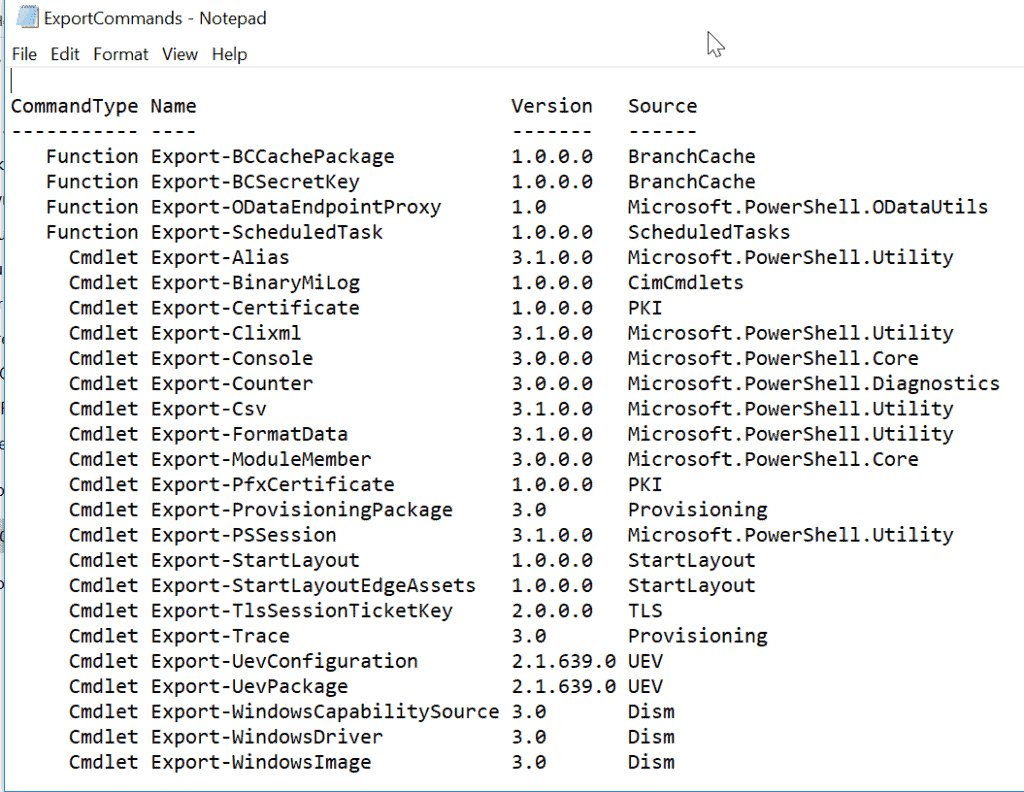
Get-Command -Verb Export | Select-Object CommandType, Name, Version, Source | Out-File C:\NewFolder\ExportCommands.txt
Here is the result in a text file: The same report, now in a text file! How good is that!
What if you run this report daily and do not want to over-right the content from the previous day but rather append. This command will do the job.
What’s actually slowing this PC down?
Pick the symptom - the matching free tool is one click away.
Get-Command -Verb Export | Select-Object CommandType, Name, Version, Source | Out-File C:\NewFolder\ExportCommands.txt -Append
Powershell Commands to Manage Processes
Another set of most useful PowerShell commands for Windows administrators are Cmdlets to manage Windows processes. Let look at them.
Get-Process
This PowerShell Cmdlet list all the processes running on a local computer . It could also get the processes running on a remote computer – with the –ComputerName parameter.
However, when you run the Get-Process PowerShell Cmdlet without any parameter, it returns all processes running on the local computer. To try this, execute the command below. The result is shown in the image below.
Get-Process

Start-Process and Stop-Process PowerShell Commands
The Get-Process PowerShell Command can work with the Start-Process and Stop-Process PowerShell Cmdlets to start or stop a process or set of processes.
Let’s say you executed the Get-Process PowerShell command but you wish to stop a process with a specific process ID 10500, the command below will do the job.
Get-Process -Id 10500 | Stop-Process
Use the Stop-Process PowerShell Cmdlet with caution as stopping the wrong process could make your computer unstable.
To start the process, pipe the output of the Get-Process PowerShell command to the Stop-Process PowerShell Cmdlet.
Also popular on Amazon
PowerShell Commands to Manage Event Logs
Event log management is one of the most important tasks for Windows Administrators. So, the next set of PowerShell commands will help you manage event logs.
Get-EventLog
The Get-EventLog PowerShell Cmdlet gets events in a specified event log. You can get events in a local or remote computer. To get events from a remote computer, use the –ComputerName parameter to specify the remote computer. However, note that you will require the right permissions to access the remote computer.
To get the last 5 events logged in the System event log, execute the command below
Get-EventLog -LogName System -Newest 5
The last command could be used for troubleshooting purposes.
Clear-EventLog
As you would expect there are more event log Cmdlets but we will cover this 2 for this tutorial.
The Clear-EventLog clears all events in the specified event log. The Cmdlet can clear event logs on both local and remote computers.
The command below clears all events with name “Windows PowerShell” from the local computer
Clear-EventLog "Windows PowerShell"
PowerShell Commands to Get Information about Your Computer
If you need to collect data about computers on your network – Computer Name, BIOS Version, RAM size, Disk Information, etc – Get-WmiObject PowerShell Cmdlet is your friend! lets explore this powerful Cmdlet, shall we?
Get-WmiObject
Get-WmiObject -List -Class Win32*
Once you know the name of the WMI class, you can execute Get-WmiObject to return useful information from a local or remote computer. Below is a list of the most important WMI classes you may need
- Win32_PhysicalMemory – information about available memory
- Win32_Processor – Processor information
- Win32_LogicalDisk – Logical disk drive information
- Win32_DiskDrive – Physical disk information
- Win32_OperatingSystem – Information about the operating system
- Win32_BaseBoard – Get information about motherboard
To get information about the operating system, run the command below:
Get-WmiObject -Class Win32_OperatingSystem
PowerShell Commands to Manage Remote PowerShell Sessions
You cannot discuss PowerShell commands without talking about PS remoting. As a Windows Systems Administrator, you will need to remotely connect to computers using PowerShell.
Here are the commands you will need.
Enter-PSSession and Exit-PSSession PowerShell Commands
The Enter-PSSession PowerShell command allows you to interactively start a remote PS session on a single computer. When you finish with the remote computer, end the session with the Exit-PSSession command.
Also popular on Amazon
To open a remote PS session with a computer called Computer1, run the command below:
Enter-PSSession Computer1
Invoke-Command
While the Enter-PSSession PowerShell Cmdlet allows you to execute commands on a single remote computer, the Invoke-Command Cmdlet allows you to execute commands on one or more remote computers.
If you wish to execute Get-Process command on Computer1, Computer2, Computer3, execute this command:
What’s actually slowing this PC down?
Pick the symptom - the matching free tool is one click away.
Invoke-Command -ComputerName Computer1, Computer2, Computer3, -ScriptBlock {Get-Process}
New-PSSession
The New-PSSession PowerShell Cmdlet allows you to open a persistent session with a remote computer. Because the session is persistent, it is a good idea to add the remote session in a variable.
To open a persistent remote PS session on computers Computer1, Computer2, execute the command below:
$session = New-PSSession -ComputerName Computer1, Computer2
With the PS session established and stored in the $session variable, you can execute normal PowerShell commands on the remote session using the
Invoke-Command PowerShell Cmdlet.
As a final example in remote PowerShell sessions, to execute the Get-Process on the remote computers, run the command:
Invoke-Command -Session $session {$Processes = Get-Process}
Conclusion
There you have it – my ultimate list of the most useful PowerShell commands! I hope you found this Itechguide helpful.
You’re welcome to leave your comments using the “Leave a Reply” form at the bottom of this page. Alternatively, you can respond to the “Was this page helpful?” question below.
Finally, for more PowerShell Itechguides, visit our Windows PowerShell page.
Quick Recap
Product prices and availability are accurate as of the date/time indicated and are subject to change. Any price and availability information displayed on Amazon at the time of purchase will apply.
Free tools Windows power users keep installed
One-click scans. No signup required.



Hi Victor, nice and useful tips. However, when I run
Get-Command -Name *EventLog
in PS 7 I get nothing
running the same command in older version on same machine I get back the 6 eventlog commands