
The Tool Desk
Outbyte Driver Updater FREEScan for outdated or missing drivers - takes under a minuteDriver Scan →Outbyte PC Repair FREEClear out junk files and repair common Windows errorsFree Scan →iTechGuides is reader-supported. When you buy through links on our site, we may earn an affiliate commission. As an Amazon Associate I earn from qualifying purchases. Learn more
Do you want to install or reinstall Windows 10 from USB? Get the full steps below.
Step 1: Create the USB Installation Media
The first step to installing Windows 10 from USB is to create Windows 10 USB installation media.
Use the steps in How to Create Windows 10 Installation Media with Media Creation Tool.
Outdated Drivers Are Slowing You Down
One free scan finds every outdated or missing driver and matches the right update for your exact hardware.Free scan · exact hardware matchWindows Errors? Fix Them Before They Spread
Repair common Windows errors and clear accumulated junk for a smoother, more stable PC - no reinstall needed.Free scan · no reinstallStep 2: Install Windows 10 from the USB
The steps covered in this guide is for a fresh Windows 10 installation. If you are upgrading Windows 7 to Windows 10, use the steps in this guide – How to Upgrade Windows 7 to Windows 10.
Popular on Amazon
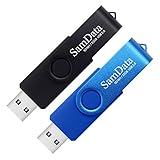
- [Package Offer]: 2 Pack USB 2.0 Flash Drive 32GB Available in 2 different colors - Black and Blue. The different colors can help you to store different content.
- [Plug and Play]: No need to install any software, Just plug in and use it. The metal clip rotates 360° round the ABS plastic body which. The capless design can avoid lossing of cap, and providing efficient protection to the USB port.
- [Compatibilty and Interface]: Supports Windows 7 / 8 / 10 / Vista / XP / 2000 / ME / NT Linux and Mac OS. Compatible with USB 2.0 and below. High speed USB 2.0, LED Indicator - Transfer status at a glance.
- [Suitable for All Uses and Data]: Suitable for storing digital data for school, business or daily usage. Apply to data storage of music, photos, movies, software, and other files.
- [Warranty Policy]: 12-month warranty, our products are of good quality and we promise that any problem about the product within one year since you buy, it will be guaranteed for free.
Detailed steps:
- Insert Windows 10 installation USB into your computer
- Boot the PC to BIOS and modify the boot sequence to boot first from USB. Save your changes and restart your PC.
- If you receive a prompt to boot from CD, click any key to continue.

- When Windows 10 setup starts, click Next.

- Then at the next screen click Install now.

- On the Activate Windows screen, enter your Windows 10 product key. Then click Next. If you don’t have a key yet, click I don’t have a product key.

- Accept Windows 10 License terms. Then click Next.

- On the Which type of installation do you want screen, Select Custom: Install Windows only (advanced).

- On the Where do you want to install Windows screen, select the disk to install Windows. Then click New.

- The option to select the partition size will be displayed. To use the entire disk, click Apply. Alternatively, if you wish to use a smaller portion of the drive, enter the value in the Size field (in MB), then click Apply. If you receive the notification in the second image below, click OK.


- Finally, select the Primary partition and click Format. Then click OK at the data loss warning.


- If you receive “We couldn’t format the selected partition. [Error: 0x80070057]”, use the steps in How to Fix “We Couldn’t Format the Selected Partition” to format the drive. The start the installation again.

- When you click Next, Windows 10 installation will begin.

- When the installer finishes all the steps, it will restart your computer.

- Wait for this screen to load. Then move to the final step of this guide.

Step 3: Complete the Final Steps of the Installation
- After the installer completes the installation, it will load the screen below. From this point, it is easy to follow the wizard.
Here is a summary of the remaining steps to completely install windows 10 from USB:
- From the last screen above, select your region. Then click Yes.
- Then wait for the keyboard selection screen to load. Confirm that the wizard selected the right keyboard for you and click Yes. If not, change the keyboard and click Yes.
- You will then be offered the option to add a second keyboard layout. Add one or simply click Skip.
- Windows will take some time to perform “some important setup..”. Wait…

- Then you will receive the option to setup for personal personal use or for an organization. If you are a home user, select the first option. But if you are setting up Windows 10 for your company, the second option is for you. After making your selection, click Next.

- The option you selected from the last screen will determine what is displayed next. For this demo, I selected Setup for personal use.
- You will be offered the option to Sign in with a Microsoft account. Type the email for your Microsoft account. Then click Next. You could also create an offline account. For this guide I will continue with a Microsoft account.

- Type the password for your Microsoft account. Then click Next. The wizard will take sometime to authenticate your account.

- Then you will be offered the screen to Create a PIN. Click Create a PIN. Enter your PIN. Confirm it and click OK.


- You can provide your phone number here if you require the service. Otherwise, click Do it later.

- Then, if you want to backup your files to OneDrive, click Next. Otherwise, click Only save files to this PC.

- From this point, it is simply click an option, then click Accept or Decline…or Simply Yes or No…

- When you finish making your selections, the wizard will take some time to configure the final settings…

- When the final setup is completed, you will automatically logged into Widows 10!

Conclusion
Installing Windows from a USB is a two-step process. Firstly, you must create a USB installation media using the Media Creation Tool.
Also popular on Amazon

- Bulk USB Flash Drives: 10 pack 32GB flash drives with 10 lanyards. MECHEER USB thumb drives with flexible storage and color options! Perfect for business needs, events, giveaways, or personal use. These versatile storage solutions work great whether you're handling corporate projects, or just organizing your digital life.
- Durable & Portable: This pocket-sized USB flash drive(2.27" x 0.75") travels effortlessly with you. USB thumb drive featuring a 360-degree metal swivel cap that safeguards the USB port, the USB stick rugged aluminum casing withstands daily wear & tear. The flash drive USB is equipped with a detachable lanyard and easily attach to your key chain or bags to avoid from losing and for easy carrying.
- Zero-Setup Convenience: Plug and play flashdrive, no need to install any software - even your grandma can use it. USB memory stick can instantly works on any device - just plug in and start transferring files. Jump drive universal compatibility with windows: XP, Vista, 7, 8, 10 & 11. USB 2.0 flash drive pack backwardly compatible with 1.1 ports, perfect for older laptops and car stereos.
- FAT32 Format: The default file system for 32GB thumbdrive is FAT32, providing read/write compatibility with both Windows and macOS. This format is ideal for storing music, photos, videos, software installers and general document files. Pro Tip: Maximize performance by reformatting to your optimal file system.(FAT32: Universal compatibility (files under 4GB); exFAT: Cross-platform large file support; NTFS: Advanced Windows features (encryption/compression))
- LED Indicator: The end of the USB key is designed with an indicator. The LED indicator lights up when you plug the zip drive USB into the devices, the light blinks while write/read activities are in process. In this case, do not remove the memoria USB pen drive. Otherwise, data integrity and the service life of the memorias USB are affected.
Finally, you install the OS by booting your PC from the USB media. If you found this guide helpful, let is know by responding to the “Was this page helpful?” question below.
For more Windows guides, visit our Windows How To page.
Quick Recap
Also popular on Amazon

- GOOD VALUE PACKAGE - 1 Pack 32GB Memory Stick USB 2.0 Flash Drives with great cost performance and high quality.
- BIG CAPACITY - The available capacity: 29.10GB-29.8GB, You can save the data of movies, music, photos, designs, programs, manuals, handouts in a high speed.Good performance in digital data storing, transferring and sharing with families, friends, workmates, clients and machines.
- EASY TO USE & PLUG AND WORK - Support windows 7 / 8 / 10 / Vista / XP / 2000 / ME / NT Linux and Mac OS, Compatible with USB2.0 and below.
- TWISTTURN DESIGN & EASY CARRY - The metal clip rotates 360° round the ABS plastic body which with rubber oil skin feeling finish. The capless design can avoid lossing of cap, and providing efficient protection to the USB port.
- WARRANTY & SUPPORT - SIMMAX logo is laser printed on the USB connector surface, our products are of good quality and we promise that any problem about the product within one year since you buy.
Also popular on Amazon
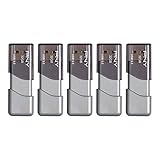
- The durable, light-weight design of the Turbo Attaché 3 USB 3.0 Flash Drive is the essential mobile storage solution
- Perfect for transferring large files such as movies, videos, photos, music & documents
- Transfer speeds up to 10 times faster than standard USB 2.0 flash drives
- Convenient sliding collar, and cap-less design protects your content when not in use
- Compatible with most PC and Mac laptop and desktop computers with USB 3.0 ports
Also popular on Amazon

- Ultra-compact and portable contoured styling
- Share your photos, videos, songs and other files between computers with ease
- Protect your private files with included SanDisk SecureAccess software (Password protection uses 128-bit AES encryption and is supported by Windows Vista, Windows 7, Windows 8, Windows 10 and Mac OS X v10.6+ (Software download required for Mac, see official SanDisk Secure Access website for more details.))
- Store more with capacities up to 32GB (1 gigabyte (GB) = 1 billion bytes. Some capacity not available for data storage.)
Product prices and availability are accurate as of the date/time indicated and are subject to change. Any price and availability information displayed on Amazon at the time of purchase will apply.



