

iTechGuides is reader-supported. When you buy through links on our site, we may earn an affiliate commission. As an Amazon Associate I earn from qualifying purchases. Learn more
Do you wish to change your user name and rename your user folder In Windows 10? In this guide, I share a detailed step-by-step with screenshots.
Overview
In this guide, I will change the user name of my account and rename the user folder from victo to VictorA. See the screenshot below.

When you change a user login name, it is important to change the user folder as well. Moreover, to preserve all settings associated with the user profile, it is also important to change the user’s ProfileImagePath settings in the registry.
Before you can perform any of the tasks in this guide, you need to login in with a different administrator account. Furthermore, if the computer already has an administrator (apart from your account), skip the first section below.
Popular on Amazon

- Easily store and access 5TB of content on the go with the Seagate portable drive, a USB external hard Drive
- Designed to work with Windows or Mac computers, this external hard drive makes backup a snap just drag and drop
- To get set up, connect the portable hard drive to a computer for automatic recognition software required
- This USB drive provides plug and play simplicity with the included 18 inch USB 3.0 cable
- The available storage capacity may vary.
Otherwise, follow the steps in the first section to create a new administrator account.
Changing your Windows 10 user name may affect some applications. For example, Outlook may not load, and you may have to create a new Outlook profile.
Step 1: Create a Local Windows Admin Account (Optional)
You cannot change a user name or rename a user folder in Windows while logged in with the same account. Therefore, as I already mentioned earlier, the first step is to restart the computer and login with another.
If there is no existing administrator account, to create a new administrator account, follow the steps below:
Also popular on Amazon
- Easily store and access 1TB to content on the go with the Seagate Portable Drive, a USB external hard drive.Specific uses: Personal
- Designed to work with Windows or Mac computers, this external hard drive makes backup a snap just drag and drop. Reformatting may be required for Mac
- To get set up, connect the portable hard drive to a computer for automatic recognition no software required
- This USB drive provides plug and play simplicity with the included 18 inch USB 3.0 cable
- The available storage capacity may vary.
- Search netplwiz, then click it from the search results. This opens the User Account tool.

- Then, on the bottom right of the User Accounts tool, click Add.

- On the first screen of the page that opens, click Sign in without a Microsoft account.

- Then, on the Add user screen, click Local account.

- Finally, enter a username and password for the new user. Then, on the final screen, click Finish.
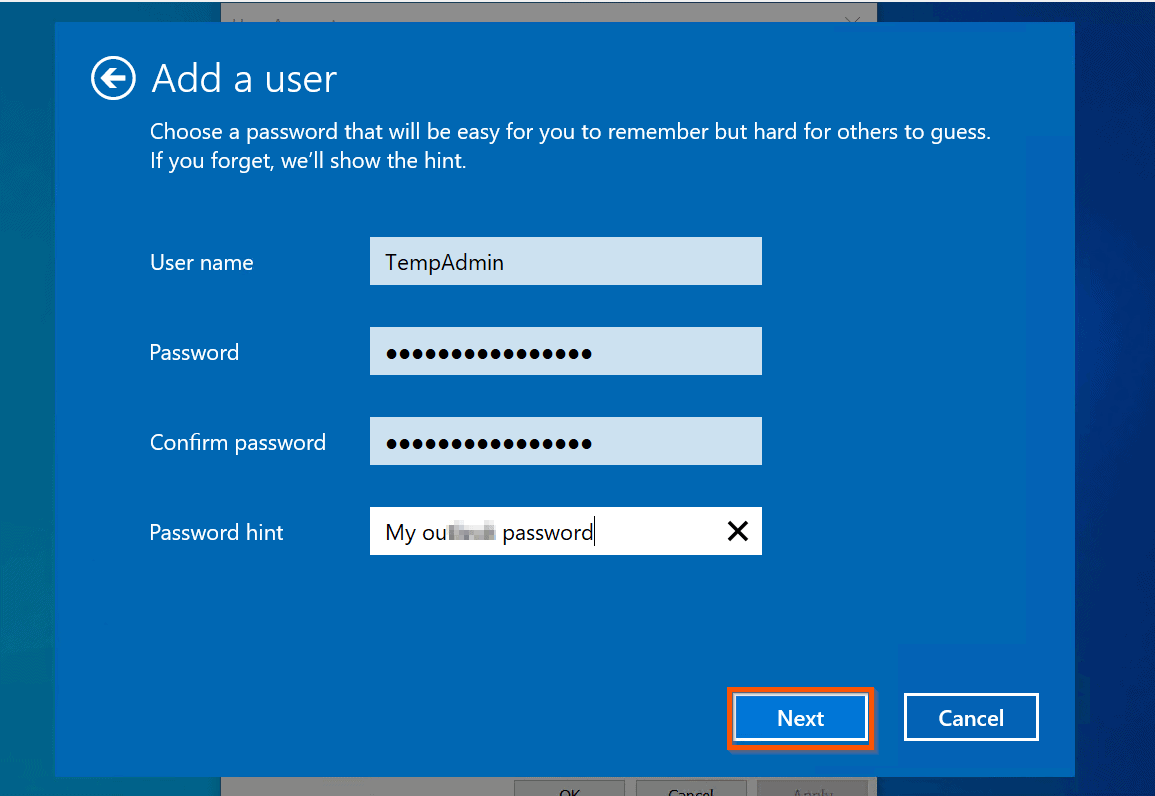

- Back on the User Accounts tool, select the new account you just created. Then, at the bottom right, click Properties.

- Finally, on the new user’s account properties, click the Group Membership tab, select Administrator, and click OK.

- Restart the computer. When the computer restarts sign in with the new administrator account and proceed with the next steps below.
Step 2: Change the Windows 10 User Name
This section teaches you how to change the windows 10 user name you wish to change. In the next and final section, I will teach you how to rename the user folder and change the profile path in the Windows 10 registry.
Follow the steps below to change the user name of the original Windows 10 user you wish to change:
- Sign in to your Windows 10 PC with the new administrator account you created in the last section. If the computer had an existing administrator account, you can also sign in with that account.


- Once you are signed in, search netplwiz and open it.

- When the User Accounts tool opens, select your primary account – the account you want to change its user name. Then, click Properties.

- Then, on the Properties screen of the user account, to change the Windows 10 user name, change the name in the User name field. Then, click OK.

When you return to the User Accounts tool, the user name of the account would have been updated to the new user name.
Also popular on Amazon
- Easily store and access 4TB of content on the go with the Seagate Portable Drive, a USB external hard drive.Specific uses: Personal
- Designed to work with Windows or Mac computers, this external hard drive makes backup a snap just drag and drop
- To get set up, connect the portable hard drive to a computer for automatic recognition no software required
- This USB drive provides plug and play simplicity with the included 18 inch USB 3.0 cable
- The available storage capacity may vary.

Step 3: Rename the Windows User Folder
To complete the tasks in this section and the next, please stay signed in with the new administrator account you created in the first section of this guide.
- Search %SYSTEMDRIVE%\Users and open the folder from the search result.

- Then, right-click the user folder for your original user name and rename it.


- Finally, rename the user folder.

Step 4: Change the User’s ProfileImagePath in Windows Registry
This is the final section of this long guide. Remember to stay signed in as the new admin account you created earlier.
Follow the steps below to change the user’s ProfileImagePath. This final step is essential to preserve all settings associated with the user profile.
Also popular on Amazon

- [Upgraded Version] - This external hard drive features a mirrored logo stripe combined with a striped anti-slip design, and the rounded corners of the casing make it easier to grip. The stripes also have a heat dissipation function, ensuring stable and fast data transfer.
- 【Ultra-thin and quiet】 - The motherboard adopts JMicron 578 noise-free solution, giving you a quiet working environment. Lightweight and portable size designed to fit in your pocket for easy portability.
- 【Ultra-Fast Data Transfers】 - Pairing this external hard drive with JMicron 578 solution USB 3.0 and USB 2.0 interfaces enables blazing-fast data transfer. It boasts theoretical read speeds of up to 125MB/s and write speeds of up to 103MB/s.
- 【Plug and Play】 - With no software to install, just plug it in and the drive is ready to use.The hard disk chip is wrapped with an aluminum anti-interference layer to increase heat dissipation and protect data.
- 【What You Get】 - 1 x Portable Hard Drive, 1 x USB 3.0 Cable, 1 x User Manual, Gift-type shell packaging ,Three-year manufacturer's warranty and free technical support services.
- Search registry and open Registry Editor.

- Then, on Windows Registry Editor, navigate to the path below:
HKEY_LOCAL_MACHINE\SOFTWARE\Microsoft\Windows NT\CurrentVersion\ProfileList\

- To determine the right sub-key, click on the sub-key. Then, on the details pane, review the ProfileImagePath. The key Data should have the path to the old username you wish to change. Double-click ProfileImagePath string to open it.

- Finally, change the last bit of the Value data field to the same new user name you have used so far – then, click OK.
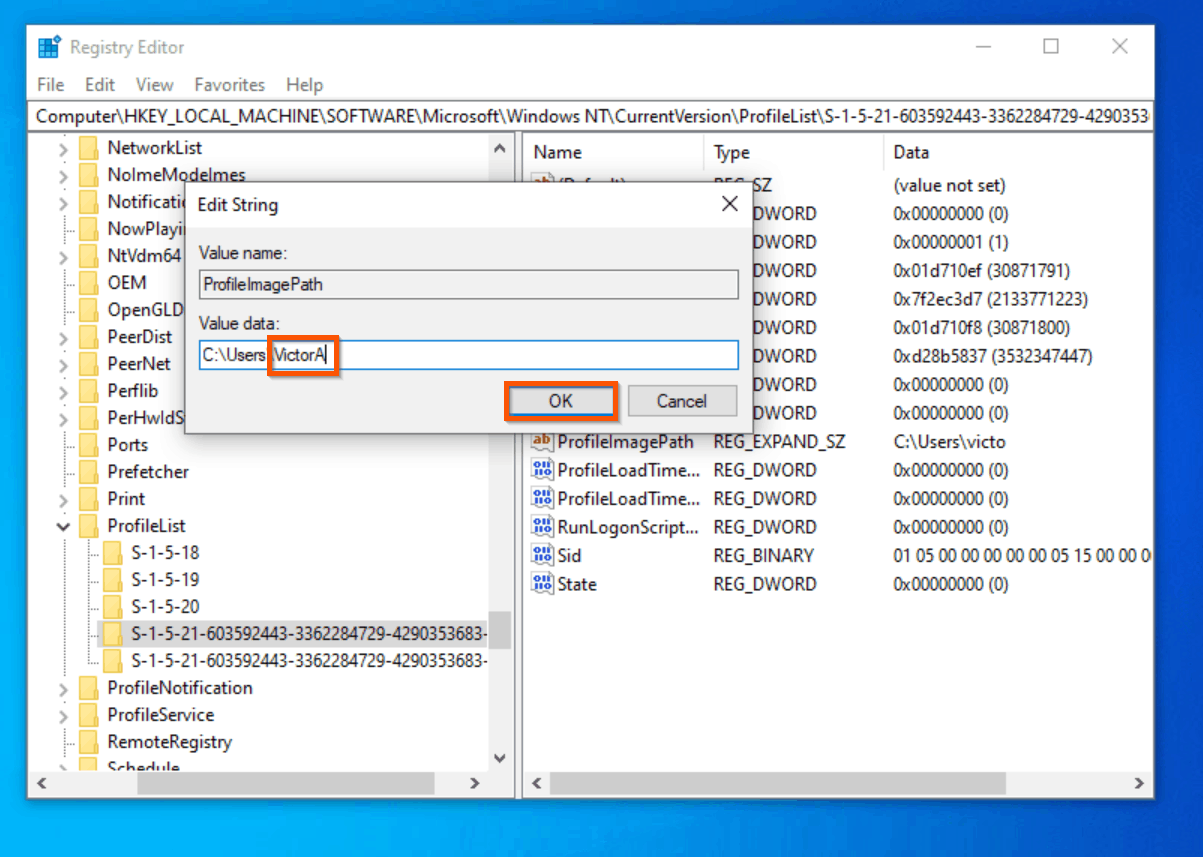
When you login with your original account, Windows 10 may take you through some final setup process.
Do not worry, select the options you prefer and allow Windows to do its thing. When it finishes, you will be signed in to your original profile.
The Tool Desk
Outbyte Driver Updater FREEFix the driver behind crashes, sound loss and screen glitchesFind Drivers →Outbyte PC Repair FREERepair Windows errors before they cause bigger problemsFix Now →

Changing your Windows 10 user name may affect some applications. For example, Outlook may not load, and you may have to create a new Outlook profile.
Conclusion
If you were able to change your user name in windows 10 and rename your user profile folder with the steps in this guide, please share your experience using the “Leave a Reply” form at the bottom of this page.
Also popular on Amazon

- High capacity in a small enclosure – The small, lightweight design offers up to 6TB* capacity, making WD Elements portable hard drives the ideal companion for consumers on the go.
- Plug-and-play expandability
- Vast capacities up to 6TB[1] to store your photos, videos, music, important documents and more
- SuperSpeed USB 3.2 Gen 1 (5Gbps)
Alternatively, you can respond to the “Was this page helpful?” question below.
Finally, for more Windows 10 guides, visit our Windows 10 How-To page. You may also find our Get Help With File Explorer In Windows 10 guide helpful.



Perfectly worked! Thanks a lot!
Just wanted to leave a quick comment to say how helpful this was! Thank you for covering the process start to finish! This method still works great.
This was extremely helpful, coming from a beginner who doesn’t really know how computers work. I added a heart emoticon into my user location file and unfortunately was unable to download Java, lol! I was able to change it thanks to these instructions though. Even though there was a chance that I could break my computer, your clear and simple instructions made this way less daunting. Thank you!
Very glad you found the guide helpful!
None of this works in the latest May 2020 release of Windows 10 — there is no option in either Control Panel or Settings to change user name.
Hello. I’m trying to change the name of the ‘user’ folder because it is miss spelt and i’m unable to do to being signed into that account; as stated in your note below. How do I change it though; do I need to make another user, change it and then delete the not needed user?
Thank You!
Tip
You cannot rename a user folder for the account you are logged in with. If right-click the user folder, Rename option will not be available.
1. Sin into the PC with the current user (the user you want to change name for)
2. Create a new user – https://www.itechguides.com/how-to-change-administrator-on-windows-10/ – follow the whole steps
3. Sign out of the PC
4. Sign into the PC with the new admin user you created in step 2
5. Rename the current admin account – Use one of these – https://www.itechguides.com/how-to-change-administrator-name-in-windows-10/ OR https://www.itechguides.com/how-to-change-username-on-windows-10/
6. Note the new login name. You may also use the steps in this Itechguide to rename the user folder for your previous login
7. Sign off the PC
8. Finally, sign in with the renamed (your old user name)