
iTechGuides is reader-supported. When you buy through links on our site, we may earn an affiliate commission. As an Amazon Associate I earn from qualifying purchases. Learn more
This Itechguide teaches you how to change administrator on Windows 10. The guide covers 2 steps with 5 methods to change the administrator on Windows 10.
Step 1: Add a New Local or Microsoft Account
The first step to changing the administrator on Windows 10 is to add the user to the PC. There are 2 methods to perform this task. If you want to add a local user account, use the steps in method 1. Otherwise, to add a Microsoft account, use the steps in method 2.
| # | Preview | Product | Price | |
|---|---|---|---|---|
| 1 |
|
Windows 10 For Dummies (For Dummies (Computer/Tech)) | $13.31 | Buy on Amazon |
| 2 |
|
Windows 10 For Seniors For Dummies (For Dummies (Computer/Tech)) | $13.90 | Buy on Amazon |
| 3 |

|
Windows 10 for Dummies | $10.50 | Buy on Amazon |
| 4 |

|
Windows 10 All-in-One For Dummies,, 4th Edition | $30.32 | Buy on Amazon |
| 5 |

|
Windows 10 for Seniors for Dummies | $13.00 | Buy on Amazon |
1. Add a Local User Account
Use the steps in this section to add a local user to Windows 10. If you prefer to add a user with a Microsoft account, use the steps in How to Add a Microsoft Account on Windows 10.
Recommended Free Tools
- Right-click the Windows 10 Start menu and select Computer Management.
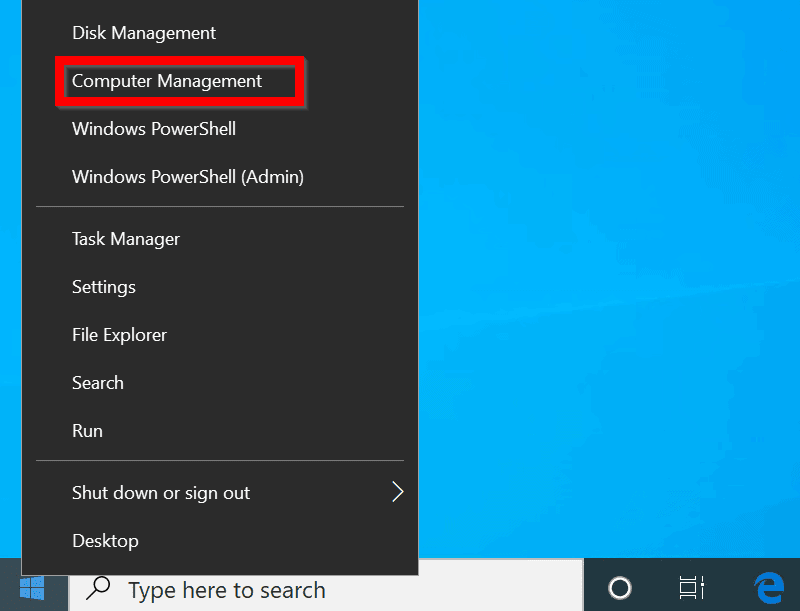
- When Computer Management opens, expand Local Users and Groups. Then click on the Users node.
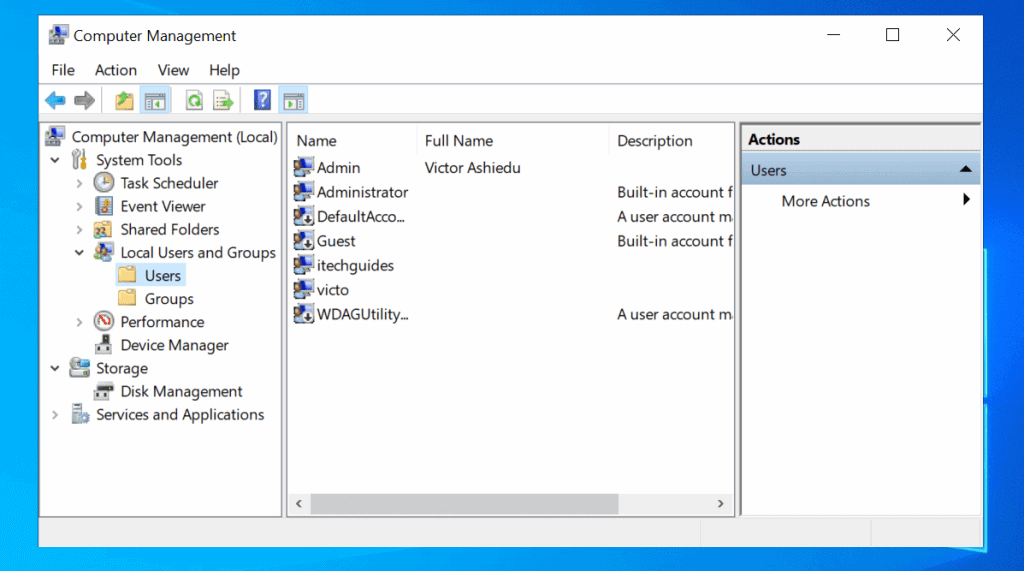
- To create a new user, right-click the Users node and select New User.

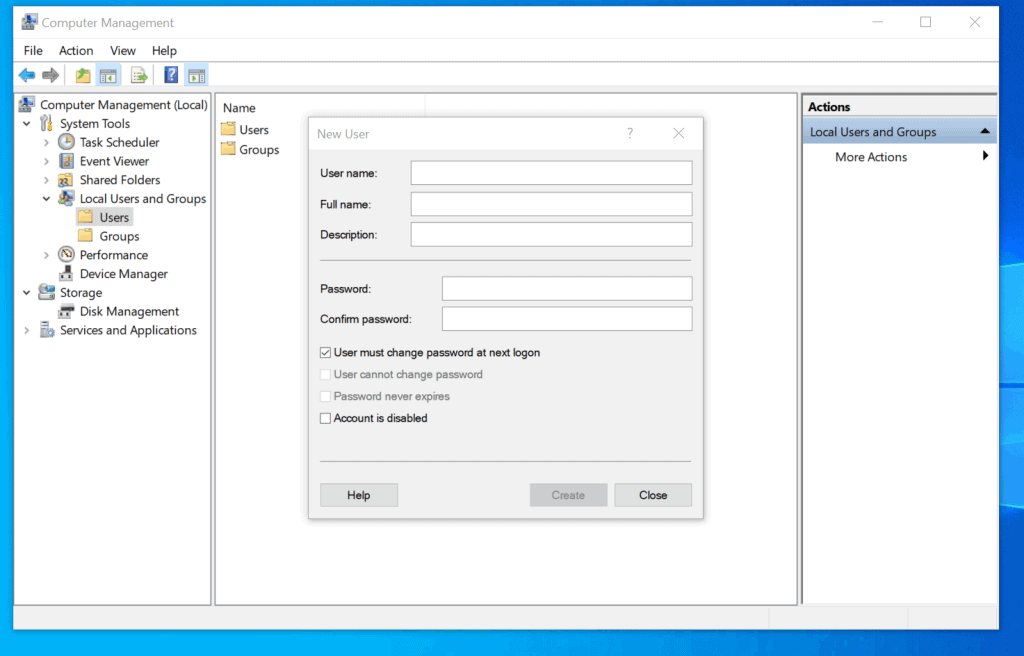
- Then, on the New User screen, enter the User name, Full Name (optional), and Description (optional) for the new user you want to create.
- Then enter a password in the Password field. Re-enter the same password in the Confirm Password field.
- Finally, uncheck the checkbox beside “User must change password at next logon”.
- When you finish, click Create.

- The new user will be created and the fields in the New User screen will become blank. To close the New User screen, on the bottom right of the screen, click Close.
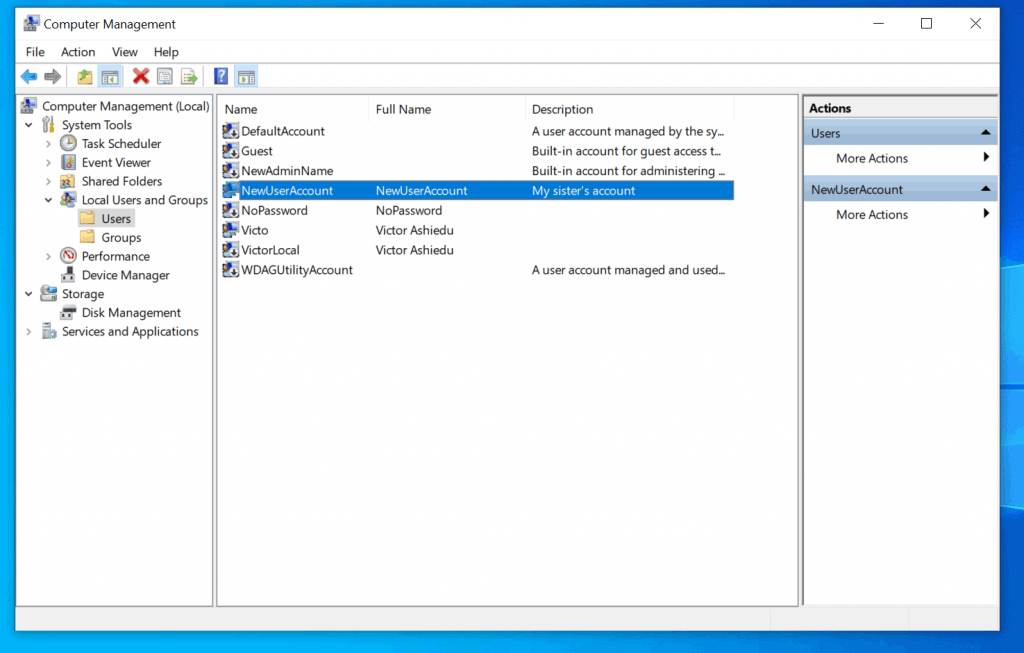
Once you have created the user account, click this link to proceed to step 2 of this guide. Then, use one of the methods listed in that section to make the user an administrator on the computer.
Popular on Amazon
2. Add a Microsoft Account
If the user you want to add has a Microsoft account, use the steps below to add the user to Windows 10.
- Right-click the Windows 10 Start menu and click Settings.

- On the Windows Settings screen, click Accounts.
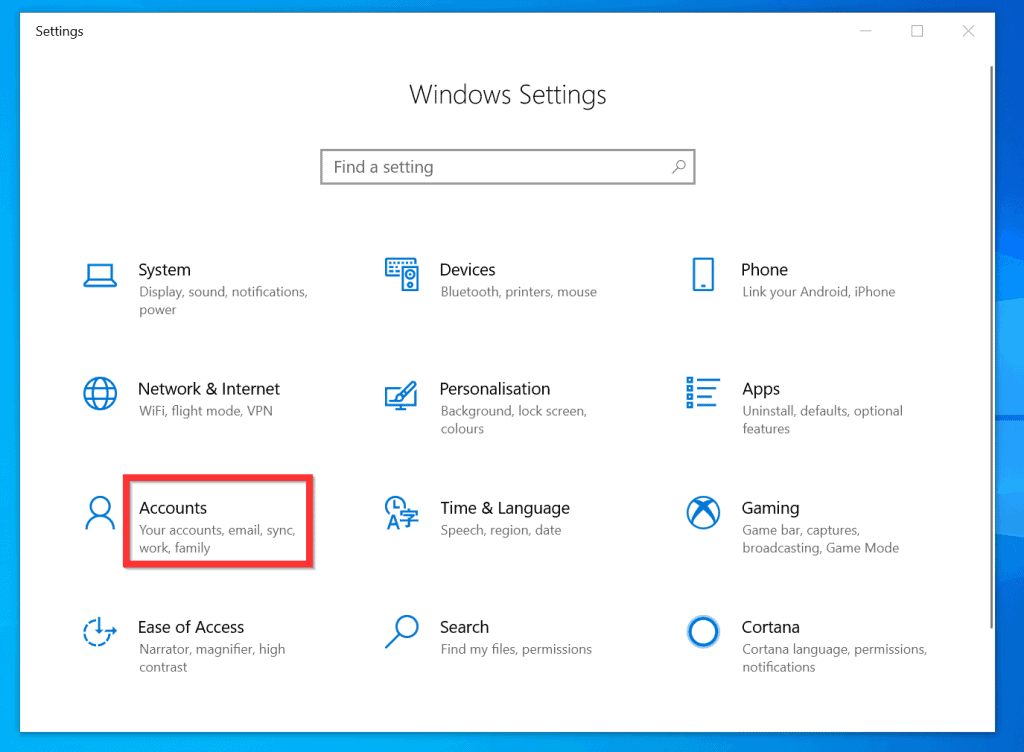
- Then, on the left pane of Your info screen, click Family & other users.
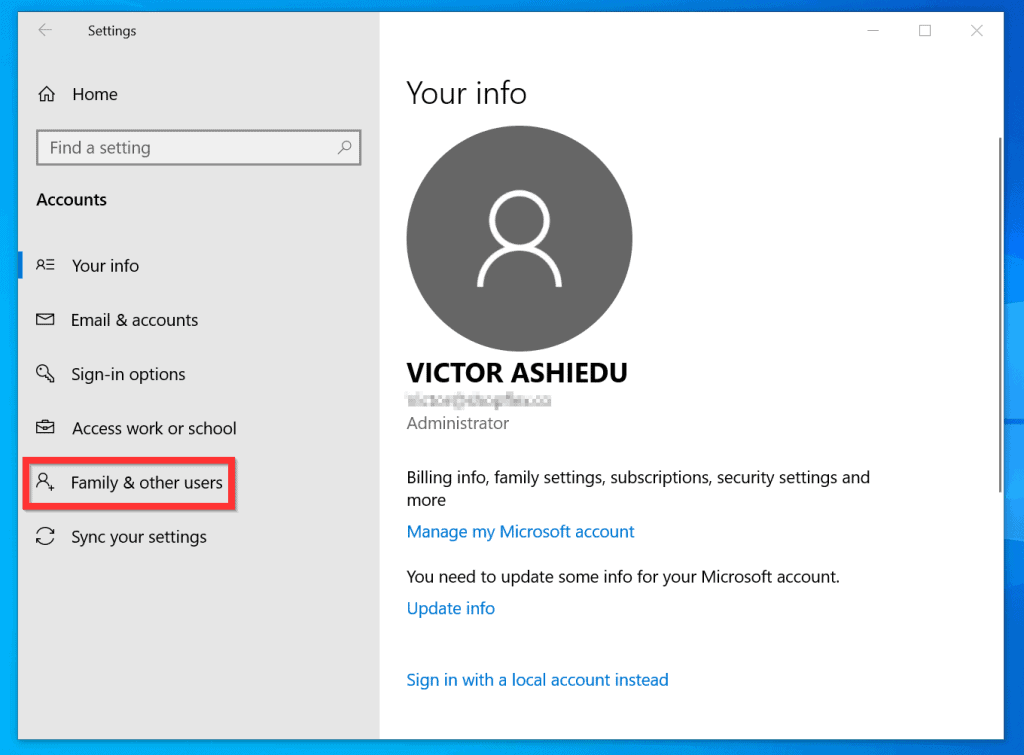
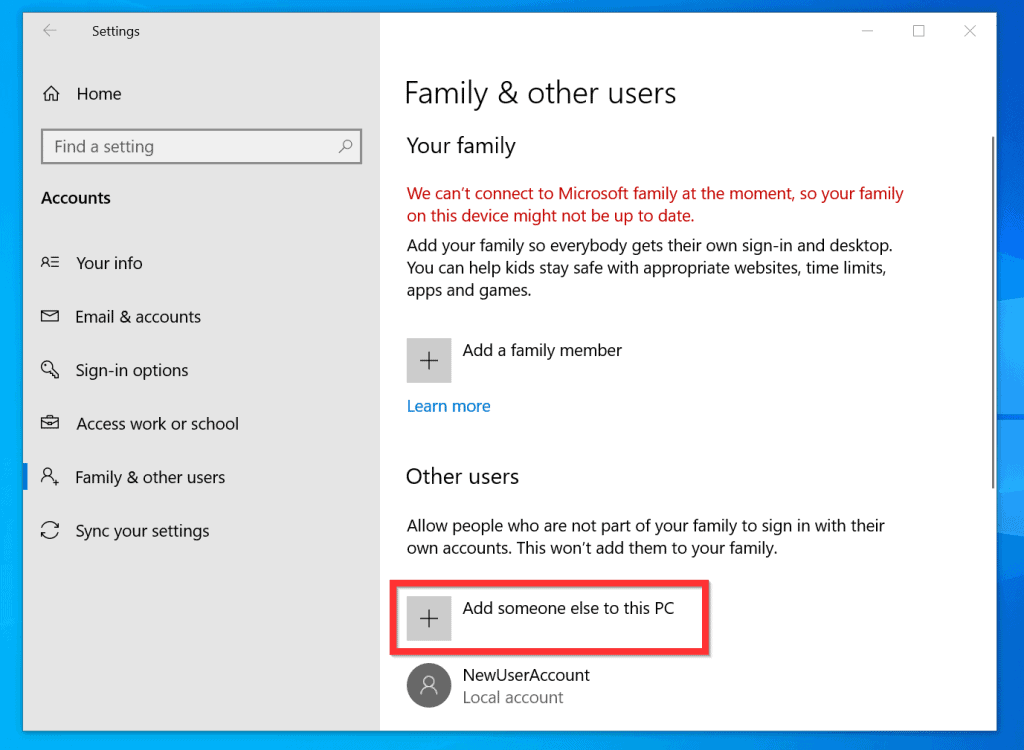
- When Family & other users screen opens, beneath Other users, click Add someone else to this PC. Then wait for the Microsoft account details screen to launch.
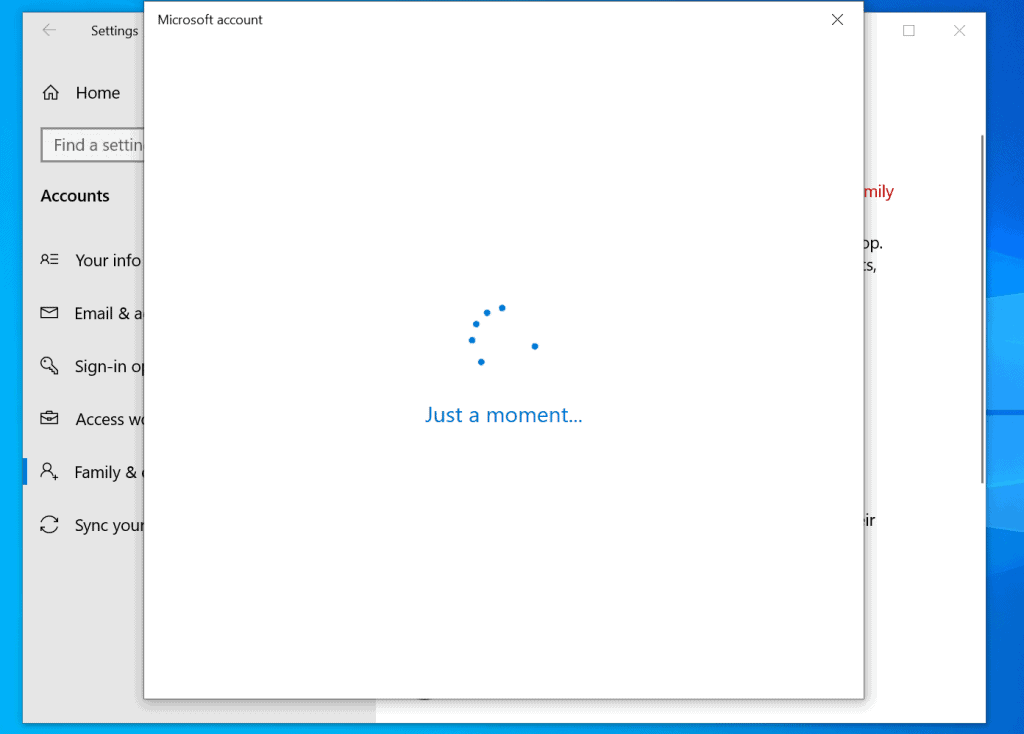
- On the How will this person sign in screen, enter the email address for the person’s Microsoft account and click Next.

- Once the Microsoft account is added, on the confirmation screen, click Finish.

- You will be returned to Family & other users. The account will be listed under Other users.
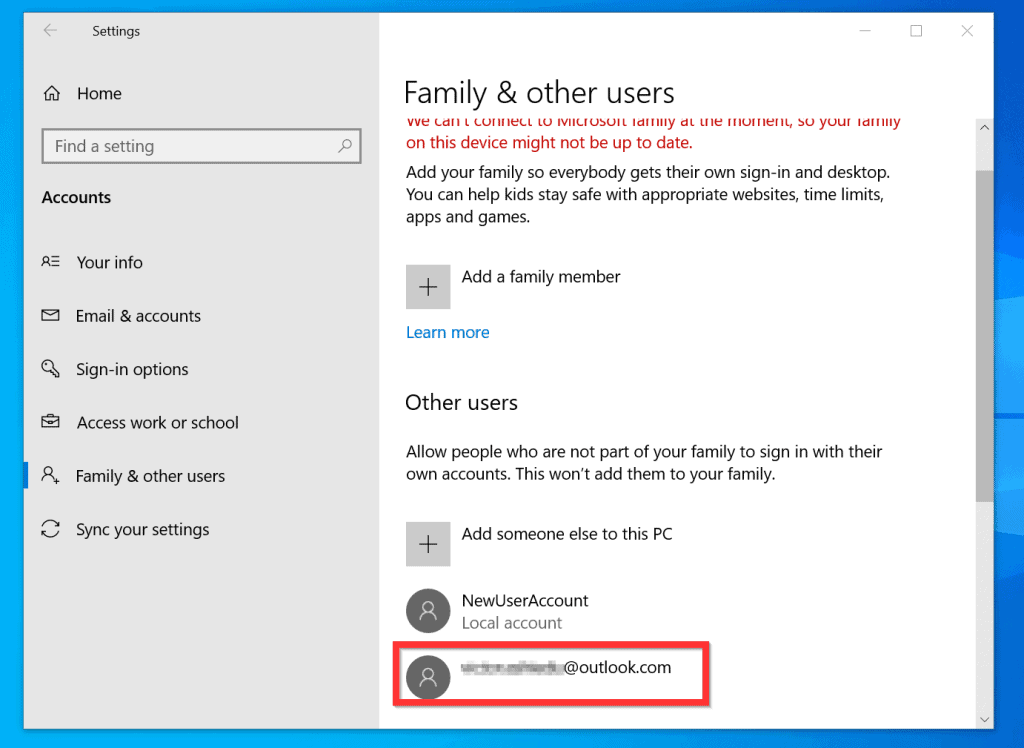
Once you have added the person’s Microsoft account, proceed to the next section. Then use on of the methods to add the user as a local administrator.
Also popular on Amazon
Step 2: Change Administrator
The final step to change Administrator on Windows 10 is to add the user to the local administrators’ group. Use one of the methods below to complete this task…
The Tool Desk
Outbyte PC Repair FREEClear out junk files and repair common Windows errorsFree Scan →Outbyte Driver Updater FREEFix the driver behind crashes, sound loss and screen glitchesFind Drivers →Method 1: Add a User to the Local Administrator’s Group from Settings
- Right-click the Windows 10 Start menu and click Settings.
- On the Windows Settings screen, click Accounts.
- Then, on the left pane of Your info screen, click Family & other users.
- When Family & other users open, under Other users, click the account you want to add to the local administrator’s group. The account will expand.
- Beneath the account, click Change account type.
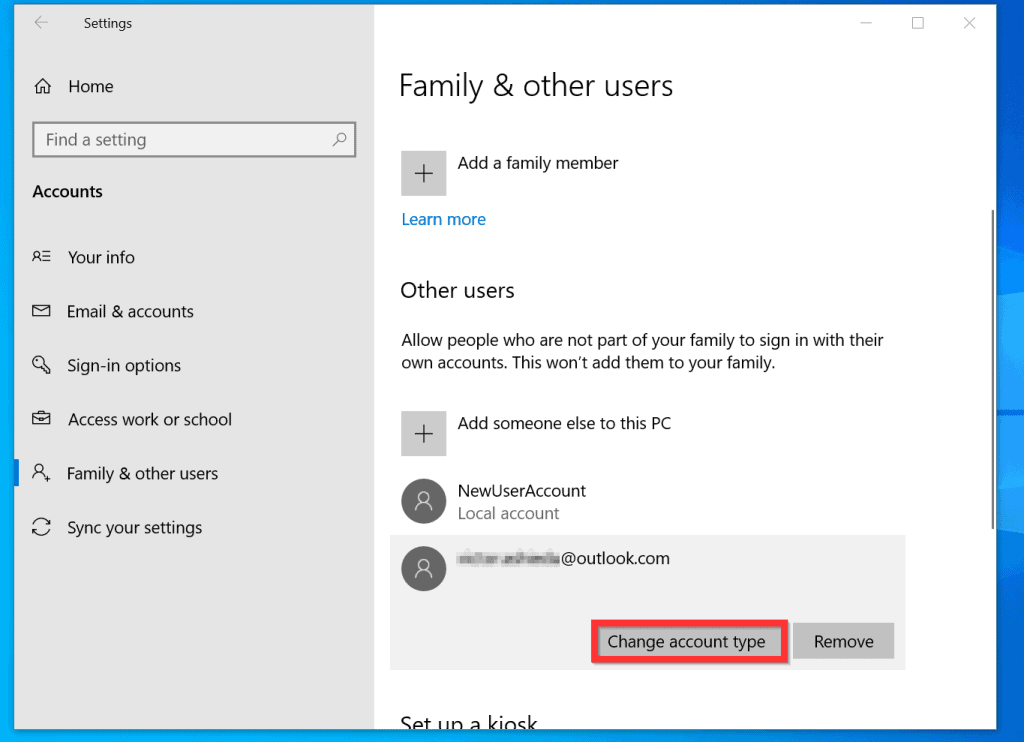
- Then, on the Change account type pop-up, click the Change account drop-down and select Administrator.

- Finally, to save your changes, on the bottom right of the pop-up, click OK. You will be returned to Family & other users screen.

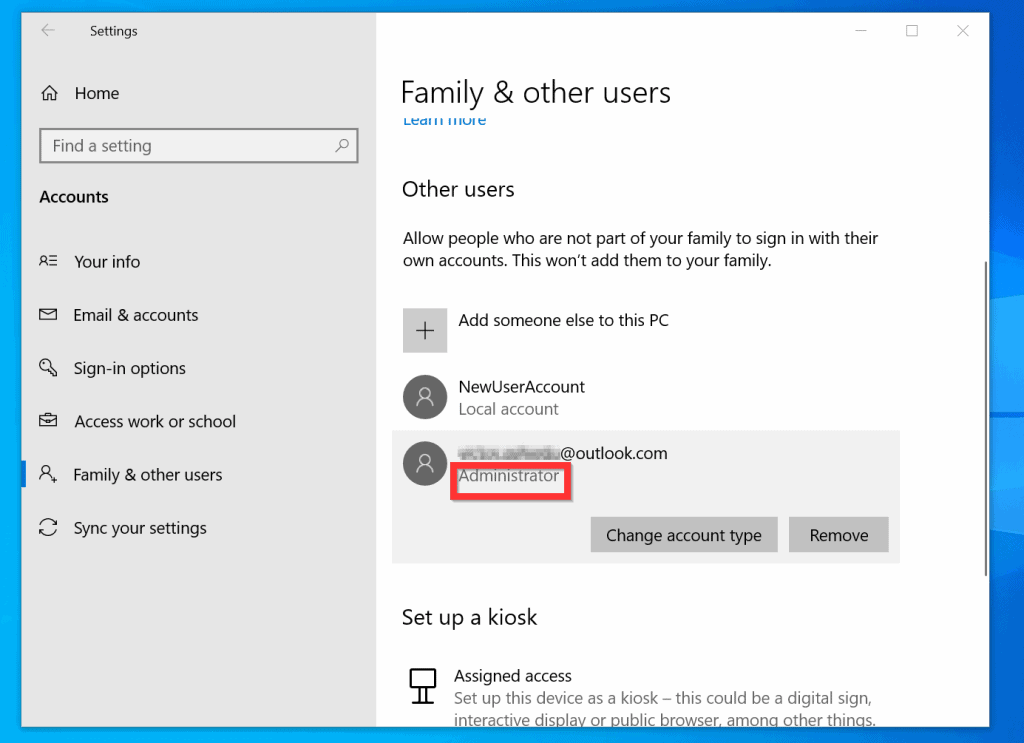
- The user will now be listed as an administrator.
Method 2: Make a User the Local Administrator from Computer Management
You can also make a user an administrator from the Local Users and Groups node in Computer Management. Here are the steps…
Also popular on Amazon
- Right-click Start menu and select Computer Management.
- Then, on Computer Management MMC, expand Local Users and Groups. Then click on the Users node. All users on the PC will be listed on the right pane of the Users node.

- To add a user to the administrator’s group, right-click the user and select Properties.

- Then, on the user’s Properties, click the Member Of tab.

- On the bottom left of the Member Of tab, click Add.

- Then, on the Enter the object names to select field, type administrators and click Check Names.
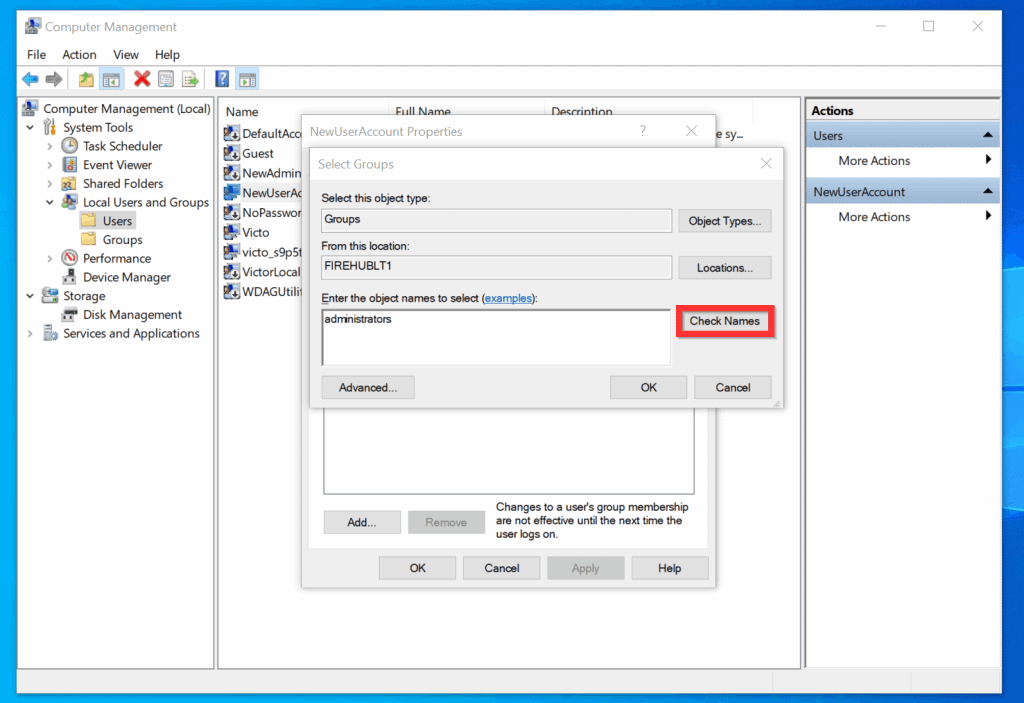
- On the bottom right of the Select Groups window, click OK.
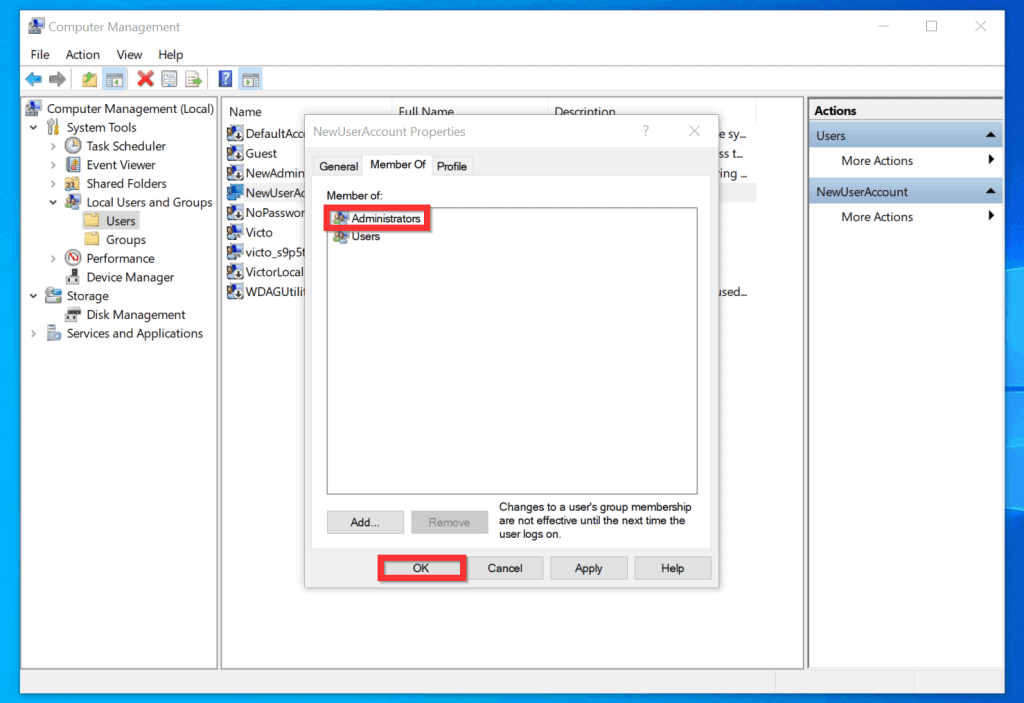
- You will be returned to the user’s Properties screen.

- Finally, on the bottom left of the user’s account Properties, click OK.
It is very easy to change administrator on Windows 10! I hope you found this Itechguide helpful. If you found it helpful, click on “Yes” beside the “Was this page helpful” question below.
You may also express your thoughts and opinions by using the “Leave a Comment” form at the bottom of this page.
Also popular on Amazon
Finally, for more Windows 10 Itechguides, visit our Windows How-To page.
Quick wins for a faster PC:
Repair Windows errors before they cause bigger problemsFix Now →Fix the driver behind crashes, sound loss and screen glitchesFind Drivers →Clear out junk files and repair common Windows errorsFree Scan →Quick Recap
Also popular on Amazon
Product prices and availability are accurate as of the date/time indicated and are subject to change. Any price and availability information displayed on Amazon at the time of purchase will apply.



