
iTechGuides is reader-supported. When you buy through links on our site, we may earn an affiliate commission. As an Amazon Associate I earn from qualifying purchases. Learn more
If your Windows 10 PC does not boot immediately after installing a Windows update, use the first step below to uninstall the update. Then, use the second step to stop the update from reinstalling.
Step 1: Uninstall Windows Updates
Follow the steps below to uninstall the updates and get your computer to boot:
- Start your computer and wait for Windows 10 boot process to begin. Windows 10 boot process begins when you see circular dots on the screen. See the screenshot below.

- Then press and hold the power button on your computer until it powers down.
- Power up the computer again, wait for the boot process to begin, and power it down.
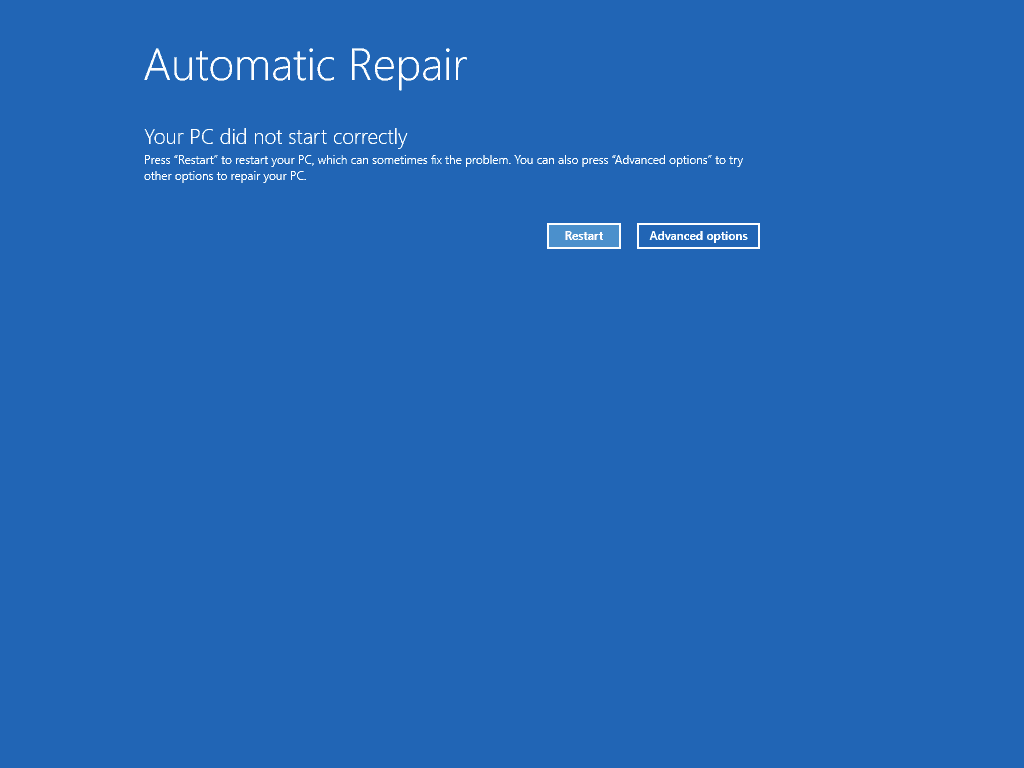
- When you power it up again, it will initiate automatic repair. Wait for the screen below to display. Then, click Advanced options.

- On the Choose an option screen, select Troubleshoot.

- On the Troubleshoot screen, select Advanced options.

- The, on the Advanced options screen, select Uninstall Updates.

- Finally, to fix windows 10 not booting after update problem, select Uninstall the latest quality update.

- Follow the steps to uninstall the updates. Then, restart your computer. Your computer should start normally.
Step 2: Stop Windows Updates Reinstalling
In my experience after uninstalling the update that broke your computer, Windows may reinstall it again.
If the update is reinstalled and breaks your computer again, follow the steps above to uninstall the update. Then, follow these steps to stop Windows reinstalling the updates:
Popular on Amazon

- Fresh USB Install With Key code Included
- 24/7 Tech Support from expert Technician
- Top product with Great Reviews
- On the bottom right of your taskbar, click your Wi-Fi icon

- Then, beneath the connected Wi-Fi, click Properties.

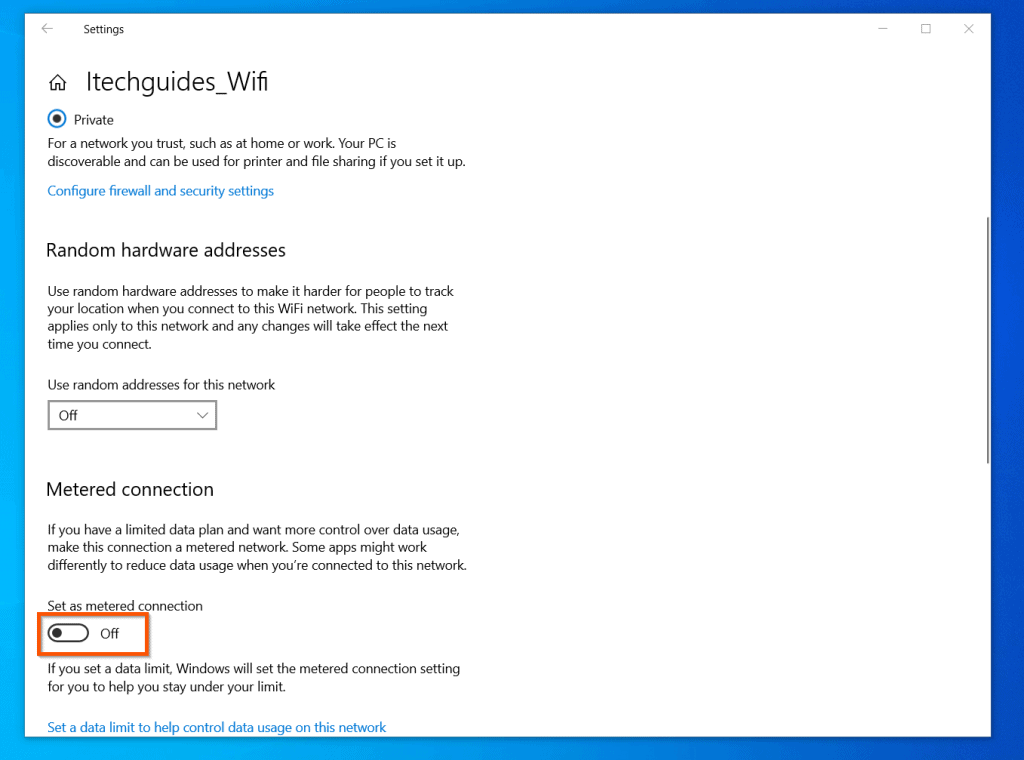
- Finally, scroll down to the Metered connection section and flip the Set as metered connection switch On.

Frequently Asked Questions
This section answers commonly asked questions about Windows 10 update boot problems.
Boot Windows 10 to recovery mode by interrupting the boot twice (power the computer down just when Windows 10 starts booting). When you power up the PC the third time, it will start in recovery mode. Then, click Advanced options -> Troubleshoot -> Advanced options -> Uninstall Updates -> 1, Uninstall the latest quality update. 2, Uninstall the latest feature update. Restart your computer.
Between 1 hour 10 minutes and 1 hour 30 minutes depending on the update and the speed of your computer.
If Windows 10 stops booting after update, restart Windows 10 in recovery mode and uninstall the update. See the details in answer to FAQ 1 above.
Yes, Windows 10 has a built-in Troubleshooter. To open Windows Troubleshooter, open Settings -> Update & security -> Troubleshoot (left pane).
For more Troubleshooters, beneath Troubleshooters, click Additional Troubleshooters. You will be offered a long list of Troubleshooters.
Also popular on Amazon

- Comprehensive Solution: This Windows 10 reinstall DVD provides a complete solution for resolving various system issues, including crashes, malware infections, boot failures, and performance slowdowns. Repair, Recover, Restore, and Reinstall any version of Windows.
- USB will work on any type of computer (make or model). Creates a new copy of Windows! DOES NOT INCLUDE product key.
- Windows not starting up? NT Loader missing? Repair Windows Boot Manager (BOOTMGR), NTLDR, and so much more with this DVD. Clean Installation: Allows you to perform a fresh installation of Windows 11 64-bit, effectively wiping the system and starting from a clean slate.
- Step by Step instructions on how to fix Windows 10 issues. Whether it be broken, viruses, running slow, or corrupted our disc will serve you well
- Please remember that this DVD does not come with a KEY CODE. You will need to obtain a Windows Key Code in order to use the reinstall option
1. Right-click Start Menu, point to Shutdown or sign out, then select Restart.
2. Left-click Start Menu, click the power icon, then select Restart
4. Open PowerShell, enter Restart-Computer and press enter key on your keyboard
Conclusion
The fastest way to get your PC to boot if its broken by a Windows Update is to uninstall the update. After that, it is a smart idea to stop the update from reinstalling.
In this guide, I discussed the details of these two steps.
I hope you found this guide helpful. If you found this article helpful, kindly spare 2 minutes to share your experience with us by responding to the “Was this page helpful?” question below.
Finally, for more Windows 10 guides, visit our Windows 10 page.
Quick Recap
Product prices and availability are accurate as of the date/time indicated and are subject to change. Any price and availability information displayed on Amazon at the time of purchase will apply.


Windows is a nightmare, just like Bill Gates.
Can’t uninstall the update because it doesn’t even begin the boot process. No HP logo and no circular dots. Just a black screen.
Tried shutting it down several times but still just a black screen.
After today’s updates my pc froze and I had to manually shut down. It rebooted but then froze again, and I once again manually shut down. But now Windows 10 won’t start at all. I switch on the pc, but a few seconds after the keyboard num lock light turns on the disk goes into sleep mode. I don’t get the Asus logo and cannot access the BIOS. The pc is running, but it seems like it is asleep and is non-responsive. The monitor does not detect a signal either.
Hello Victor!
I am stuck at “Diagnosing your PC”. Is there anything I can do?
Have you gone through the steps to uninstall the latest updates?
tried all of what you’ve mentioned, and got to deleting the latest quality updates….it came back saying we ran into a problem, and won’t be able to uninstall the latest quality update of Windows !!!
Might sound silly, but when my windows updated, then turned off automatically after it had finished, on trying to start it up the very next day nothing happened, it boots up but its as though there is NO WINDOWS 10 on my laptop anymore, hence why it can’t do anything.
I DO NOT have a disk because originally I was on windows 7 and took advantage of the free windows 10 upgrade, which was done automatically…..wish i hadn’t have bothered now…got all my wedding photos, and children/ grandchildren photos on there, plus lots of stuff close to my heart, and it appears lost forever now i can’t get on my laptop at all…..HELP IF YOU CAN !
Hello Steve,
I am so sorry to hear about the problems you’re having with your Windows 10 PC. Based on what you described I am almost certain that Windows 10 is still on your Hard Drive. So, it is most unlikely that you have lost your files.
My recommendation will be to reinstall Windows 10 via automatic repair. To do this, you DO NOT need any external Windows 10 DVD.
Follow the steps in this guide https://www.itechguides.com/how-to-reset-windows-10-without-password/
Before you proceed, please NOTE the following:
1. The guide has 2 parts.
2. The second step is titled “Reset PC with the “Remove everything” Option”. Please DO NOT select “Remove everything” in this step. Instead, select the “Keep my files” option. Specifically, you make this selection in part 2, step 3. The guide instructed that you select “Remove everything”. Please DO NOT select this option as it will wipe ALL your DATA.
Once again, instead, select “Keep my files” option.
Please let me know whether this worked for you.