

iTechGuides is reader-supported. When you buy through links on our site, we may earn an affiliate commission. As an Amazon Associate I earn from qualifying purchases. Learn more
Receiving the “inaccessible boot device” error in Windows Server 2016 (or any Windows Server) can cause serious concern. Here are the steps to fix this error.
Cause of this Windows Server Error
When you install a new Software, or driver on your Windows server, it may corrupt some Windows OS files and this may lead to the “inaccessible boot device” error.
Another known action that could cause this error is Windows Update. Finally, bad sectors on the Operating System hard drive can also cause this error.
Essentially, anything that affects essential boot files of your Windows Server can trigger this disturbing error.
Popular on Amazon

- Server 2022 Standard 16 Core
Here are the possible fixes for this error. The fix that works for you depends on the reason for the error.
Step 1: Boot Windows Server 2016 to Recovery Mode
Follow the steps below:
- Press the power button on your server to boot it up. Wait for the circles to show up. Then press the power button to shut the server down.

- Press the power button to boot the server again. When the circles show up, power the server off using the power button.
- When you boot the third time, Windows Server will start Recovery mode.

Step 2 (Option 1): Roll Back Recent Updates
If you received “inaccessible boot device” error after installing a Windows update, here are the steps to fix it:
- Interrupt Windows Server boot to force it to boot to Repair mode.

- Next, click See advanced repair options.

- Then click Troubleshoot.
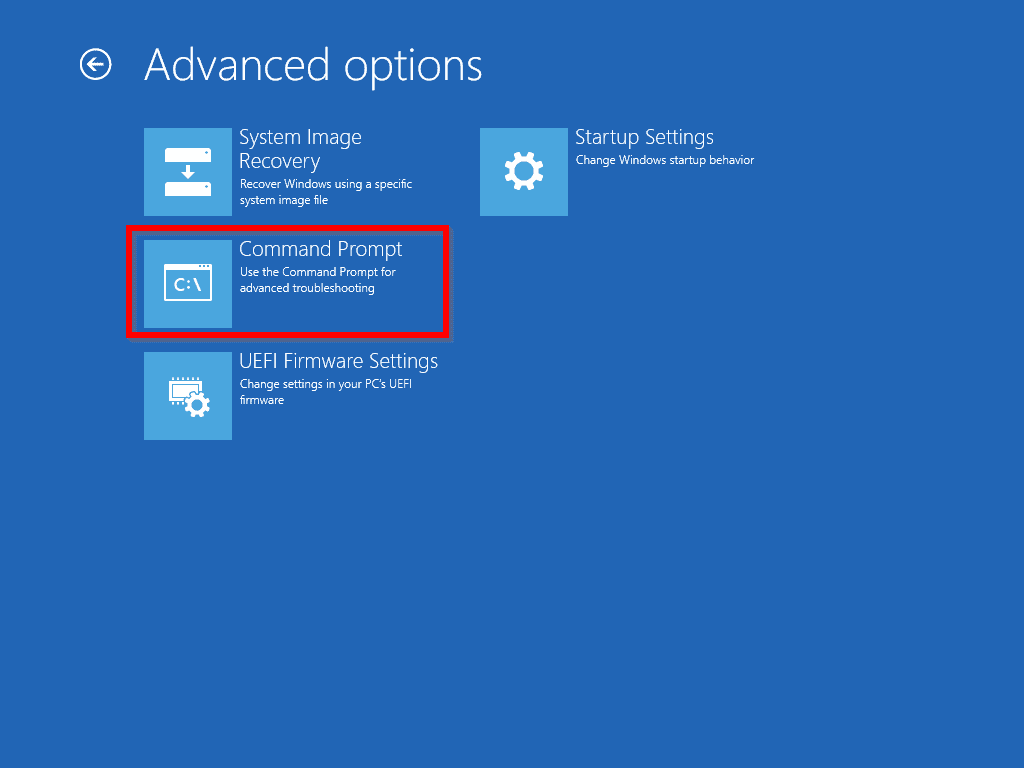
- Next, click Command Prompt. Then click the Admin account to load Command Prompt.

- Enter the password for the administrator account and click Continue. Windows Command Prompt will load as shown in the second image below.


- At the Command Prompt, type the following command and press Enter:
reg load HKLM\temp c:\windows\system32\config\software

- Next, you need to delete the SessionsPending registry key. Execute the command below:
reg delete "HKLM\temp\Microsoft\Windows\CurrentVersion\Component Based Servicing\SessionsPending" /v Exclusive
- When you press Enter to execute the command above, you will be prompted to confirm. Type Y. Then press Enter key.

- Before you proceed to the next step, unload the registry using the command:
reg unload HKLM\temp

Delete “Install Pending” Packages
The next step to fix this error is to delete all “Install Pending” Packages. Follow the steps below:
Do these 3 things before closing this tab:
1Repair Windows errors before they cause bigger problems2Fix the driver behind crashes, sound loss and screen glitches3Clear out junk files and repair common Windows errors- Create a temp folder to move the “bad” updates to. Type the command below:
MKDIR c:\temp\BadUpdates
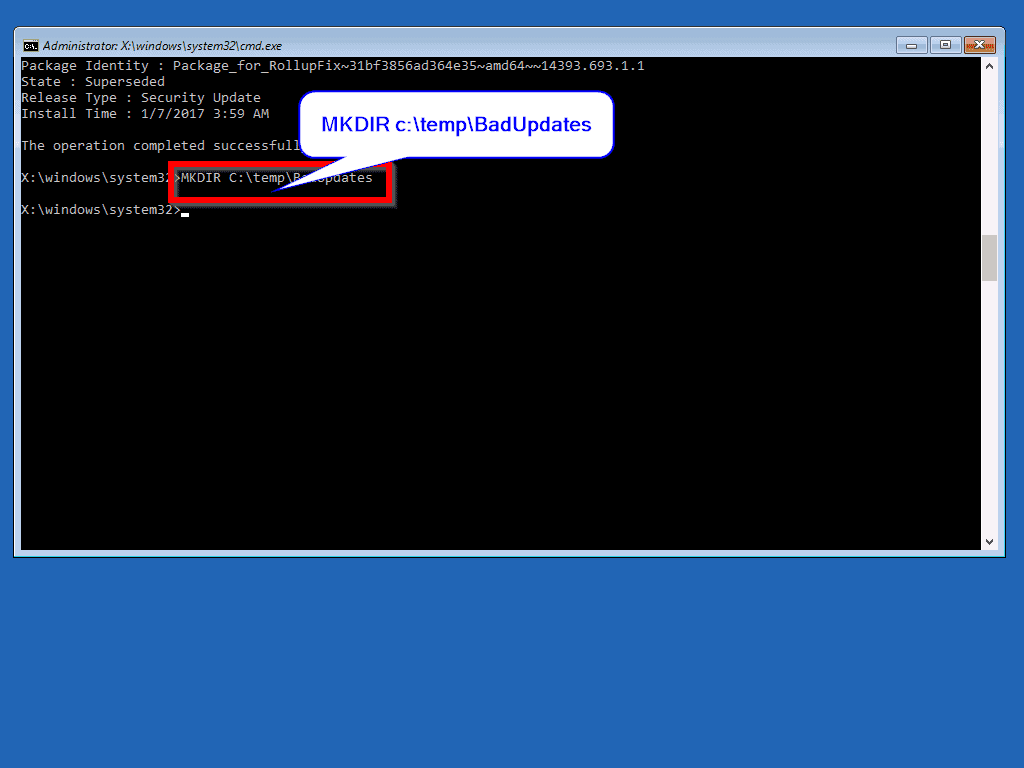
- The next step is to list al installed updates. To list all installed packages, at the command prompt, type the command below. Then press Enter.
dism /image:C:\ /get-packages

- To remove a package with “Install Pending” status, run the command below:
dism /image:c:\ /remove-package /packagename:Package-Identity /scratchdir:c:\temp\BadUpdates
Step 2 (Option 2): Uninstall Newly Installed Device Drivers or Software
If you received the error after installing a device driver or software, follow the steps below to fix the problem.
Also popular on Amazon

- Drivers Pack for Internet, Wireless, Lan Ethernet, Video Graphics, Audio Sound, USB 3.0, Motherboard, Webcams, Bluetooth, Chipset. It will scan your Windows and install the latest drivers. No Internet connection is required. Perfect to update drivers, installing new hard drive or installing a missing driver. Supports Windows 10, 7, 8, 8.1, Vista, & XP in 64 & 32 Bit. In 42 Languages
- Interrupt Windows Server boot to force it to boot to Repair mode.
- Then select See advanced repair options.
- Next, click Troubleshoot.

- Then click Startup Settings. Finally, click Restart.

- When your server restarts, it will load Advanced boot options. Use the up/down arrow key to select Safe Mode. Then press Enter to boot to safe mode.

- When your server boots, login as normal. Then uninstall any recently installed device driver or software.

Step 2 (Option 3 Fix): Fix the Boot Record with the BootRec Command
This is the last method that could fix the error message. Follow the steps outline in this guide Run BootRec /FIXMBR.
Conclusion
I hope you were able to get your Windows Server up and running using one of the methods in this guide.
If you have any questions or comments use the “Leave a Reply” form at the end of the page. Alternatively, use our one-click feedback by responding to the “Was this page helpful?” question below.
Quick Recap
Product prices and availability are accurate as of the date/time indicated and are subject to change. Any price and availability information displayed on Amazon at the time of purchase will apply.


nenhum comando descrito aqui funcionou em uma situação onde o Boot Device esta Inacessível