

iTechGuides is reader-supported. When you buy through links on our site, we may earn an affiliate commission. As an Amazon Associate I earn from qualifying purchases. Learn more
This guide demos how to create a file in Linux.
Option 1: Create a File with echo command
Ideally, the echo command is used to writes a given string to the terminal. But if combined with the redirection operator (>), echo can create a new file as well.
Here are the steps to create a new file with echo:
- Change to the directory you wish to create the file. For this example, I want to create a file in my home directory victora. To change to this directory, I will type the command below. Then press enter.
cd /home/victora
Here is the command in Linux…

- To create a file called NewFile1, type the command below. Then press enter.
echo -n > NewFile1.txt
- To confirm that the file was created successfully, type dir and press enter.

Option 2: Create a File with Redirection Operator (>)
You can also create a new file using just the redirection operator (>). Normally, when you execute a command in Linux, the output is displayed on the terminal. But if you use >, you can ask the command to send the output to say a file.


Interestingly, the redirection operator can also be used to create a new file. Here are the steps:
- Use cd command to change to the directory you want to create the file.
- Then, to create a file called NewFile2 type the command below. Then press enter.
> NewFile2.txt
- To confirm that the file was created, use the dir command as shown in the example below…

How to Create a file in Linux with touch command

You can also create a file in Linux using the touch command.
Popular on Amazon
Here are the detailed steps for this method:
- Use cd command to change to the directory you want to create the new file. For example, to change to your home directory, use a command similar to the one below..
cd /home/victora
- To create a new file, NewFile3 with touch command, type this command. Then press enter.
touch NewFile3.txt
- You can confirm that the file was created by running the dir command.
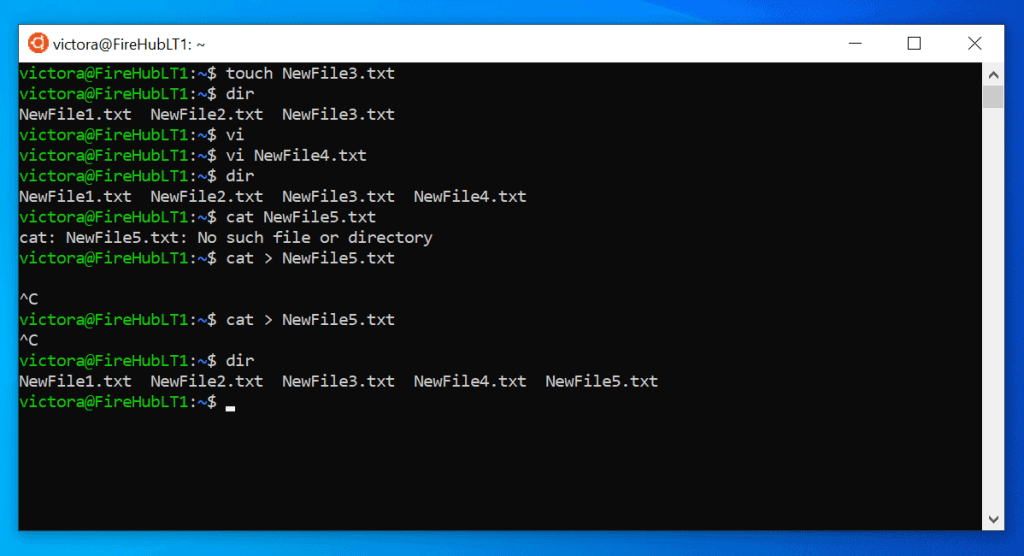
Option 3: Create a File with cat command
Another easy way to create a file in Linux is to use the cat command. To create a new file with cat requires combining cat with the redirection operator (>).
Here are the steps:
- cd to the directory you want to create your file.
- Then run this command to create a text file called NewFile5.
cat > NewFile5.txt
- If the terminal does not return, type Ctrl + C.
- Finally, to confirm that the file was created, use the dir command.
Option 4: Create a File with vi Editor
The vi editor is one of the oldest editors in Unix. It is used to modify a text file but it can also be used to create a new text file.
Also popular on Amazon
All the methods discussed in this guide so far are used to create empty files. With vi editor, you can create a new file, add contents to it then save the file.
Quick wins for a faster PC:
Scan for outdated or missing drivers - takes under a minuteDriver Scan →Clear out junk files and repair common Windows errorsFree Scan →The steps below demos how to create a new file with vi editor.
Also popular on Amazon
- Use the cd command to navigate to the directory you wish to create a file
- Then type the command below and press enter. In this example, I want to create a file called NewFile4.
vi NewFile4.txt
- The editor will open the new file in vi editor…

- Type whatever you want into the text file. When you finish, press the Esc key. Then press Shift + : keys.
- When you press Shift + : keys, : will be displayed at the bottom of vi editor. Type wq then press enter.
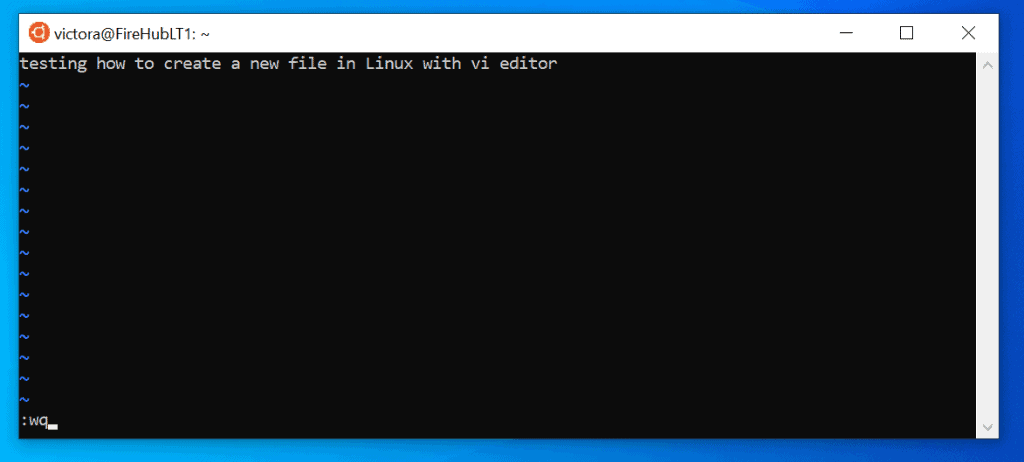
- You’ll be returned to the terminal. To confirm that the file was created, use the dir command.
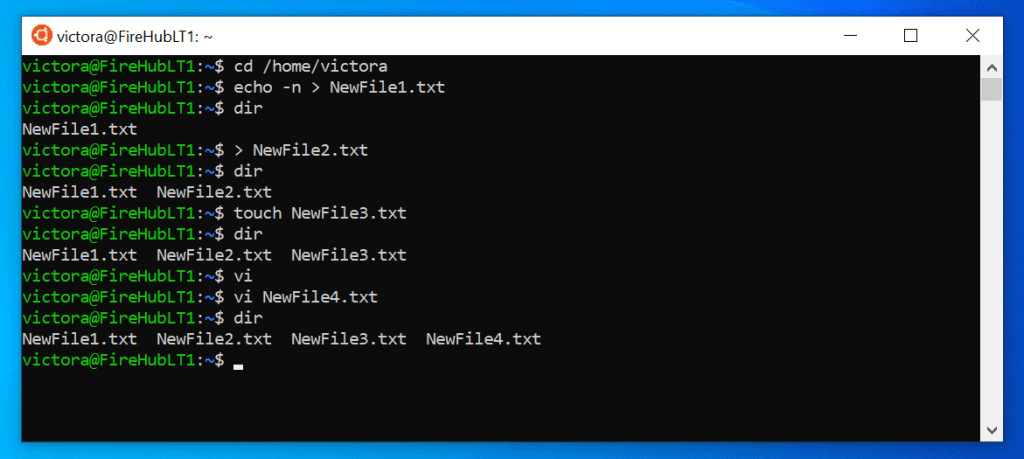
It is that easy to create a file in Linux! This guide offered 5 easy methods.
I hope this post was helpful to you. If the post was helpful to you, click on “Yes” beside the “Was this page helpful” question below.
Also popular on Amazon
You may also express your thoughts and opinions by using the “Leave a Comment” form at the bottom of this page.
Finally, for more Linux guides, visit our Linux How To page.
Quick Recap
Also popular on Amazon
Product prices and availability are accurate as of the date/time indicated and are subject to change. Any price and availability information displayed on Amazon at the time of purchase will apply.



