

Quick wins for a faster PC:
Clear out junk files and repair common Windows errorsFree Scan →Fix the driver behind crashes, sound loss and screen glitchesFind Drivers →iTechGuides is reader-supported. When you buy through links on our site, we may earn an affiliate commission. As an Amazon Associate I earn from qualifying purchases. Learn more
Do you need help alphabetizing your Word document? In this article, I’ll show you how to arrange a list or a table in alphabetical order in Microsoft Word.
Option 1: Alphabetize a List
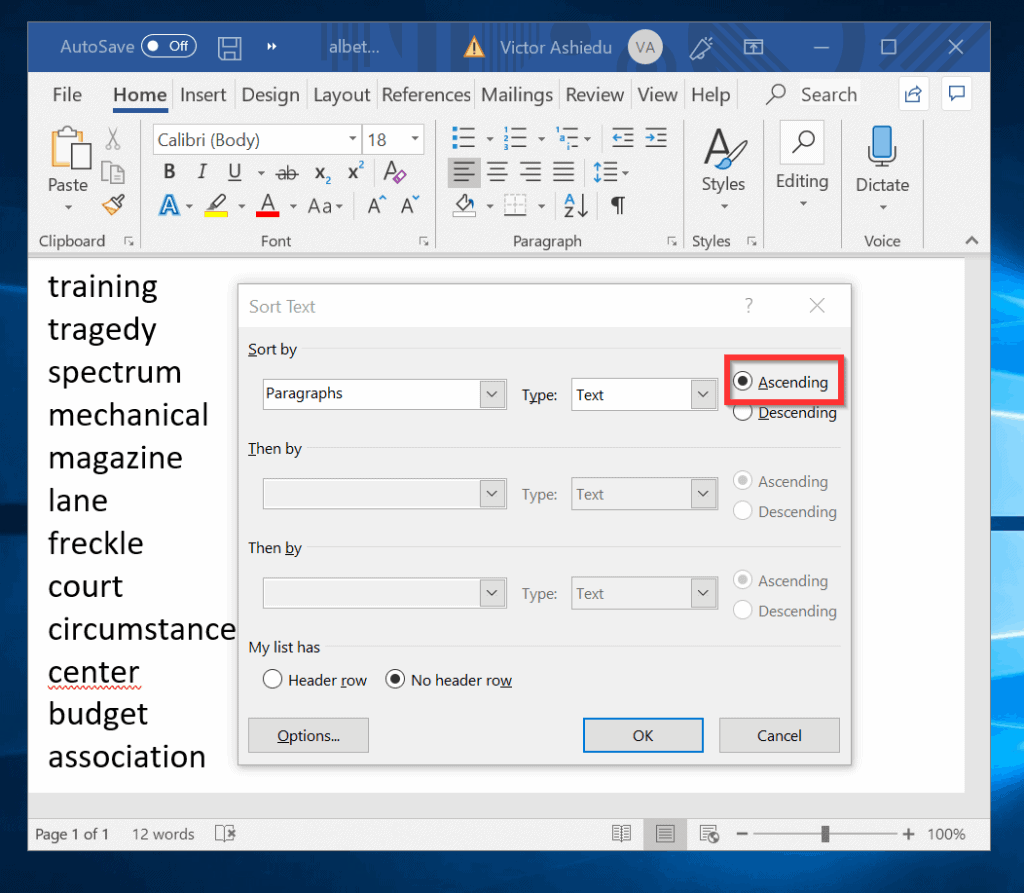
- Ensure you are on the Home tab. Then, on the Paragraph section click Sort (highlighted in the image). The Sort Text window will open.

- To sort the list from Z to A (Descending), click Ok. Here is the result.

- If you wish to alphabetize the list in the above Word Document, click Sort. But this time select Ascending and click Ok. See the result in the second image.

Option 2: Alphabetize a Single-header Table
The sorting feature of Microsoft Word is particularly useful when used in a table. Its most application is in sorting a table with numbers, words, and dates.
| # | Preview | Product | Price | |
|---|---|---|---|---|
| 1 |

|
Microsoft 365 Word For Dummies | $20.99 | Buy on Amazon |
| 2 |

|
Microsoft 365 Word For Professionals For Dummies | $12.00 | Buy on Amazon |
| 3 |
|
Microsoft Word 2007 Old Version | $306.46 | Buy on Amazon |
| 4 |

|
Word for Microsoft 365 Reference and Cheat Sheet: The unofficial cheat sheet reference for Microsoft... | $7.99 | Buy on Amazon |
| 5 |

|
Microsoft 365 Outlook For Dummies | $15.98 | Buy on Amazon |
You can alphabetize (sort) a table in Word by a single or multiple headers.
Follow the steps below to alphabetize the table by one header:
Popular on Amazon
- Hover over the table and click the tiny box that appears on the top left. This selects the entire table.

- When the table is selected, click Sort. The Sort option opens (see the second image below).


- Click the Sort by drop-down (With the S/N).

- To sort the table by the numbering column, select S/N [labelled 1] from the drop down list. Microsoft Word will automatically select Number in the Type drop-down. To sort in Ascending order (1-10), select Ascending. Then click Ok.


- To sort in Descending order, Select it as shown in the table below. Then click Ok. The table is now sorted by 10, 9, 8, etc (second image).


- Finally, for this section, let’s alphabetize the table by the Date of Birth (DoB) and Student Name headers. The first image below shows how to sort by DoB header. The second image shows the table sorted by DoB. The last image shows the table alphabetized by Student Name.


Option 3: Alphabetize a Multiple-header Table
In the last section I demonstrated how to alphabetize using a single header. However, you can also sort a table by multiple headers.
Here is how:
- Highlight the table. Then click Sort.
- On the Sort by drop-down select S/N. Number is automatically selected as the Type. You can decide to sort in Descending or Ascending. On the Then by section (beneath Sort by) select Student Name in the drop-down. Finally, in the next Then by section, select Date of Birth. When you finish click Ok. See the second image for the result.


Conclusion
It is this easy to sort your Word document alphabetically and I hope you found it helpful. Don’t hesitate to leave your feedback by completing the “Leave a Reply” form found at the bottom of this page.
Also popular on Amazon
You could also use the “Was this page helpful?” buttons below to give us your feedback.
Finally, for more Itechguides like this one, visit our Microsoft Office How-to page.
Quick Recap
Also popular on Amazon
Also popular on Amazon
Also popular on Amazon
- Document authoring program helps people create and share great-looking documents
- Combines a comprehensive set of writing tools with an easy-to-use interface
- Quickly construct documents from predefined parts and styles; compose and publish blogs directly from within Word
- Add Building Blocks of predefined content and reduce the errors associated with copying and pasting frequently used content;
- Quick Styles function saves you time by helping you format text and tables throughout your document
Product prices and availability are accurate as of the date/time indicated and are subject to change. Any price and availability information displayed on Amazon at the time of purchase will apply.



