

Recommended Free Tools
iTechGuides is reader-supported. When you buy through links on our site, we may earn an affiliate commission. As an Amazon Associate I earn from qualifying purchases. Learn more
Is your Windows 11 PC experiencing the critical process died BSOD error? Read this guide, as it features various solutions for this error.
Step 1: Boot Into Safe Mode
In most cases, whenever this BSOD error occurs, you won’t be able to boot into Windows 11 normally. Hence, the only way to fix the error is through safe mode.
Nevertheless, if you can log into your Windows 11 computer normally, skip this section and move on to the other sections below. Otherwise, firstly boot your PC into safe mode using the procedures in this section.
Then, implement the solutions in the next section to fix this BSOD error on your computer.
Popular on Amazon

- Ultra-Portable: Slim, portable, and light weight allowing you to protect your investment wherever you go
- Ergonomic Comfort: Doubles as an ergonomic stand with two adjustable height settings
- Optimized for Laptop Carrying: The metal mesh provides your laptop with a stable laptop carrying surface
- Ultra-Quiet Fans: Three ultra-quiet fans create a noise-free environment for you
- Extra Usb Ports: Extra USB port and power switch design allows for connecting more USB devices. Warm Tips: The packaged cable is USB to USB connection. Type C connection devices need to prepare an Type C to USB adapter
- Press and hold your Windows 11 computer’s power button for 5 – 10 seconds until it shuts down.
- Thereafter, press the power button again to turn on the computer. However, while Windows 11 is starting up, press and hold the power button again for a few seconds until the PC shuts down.
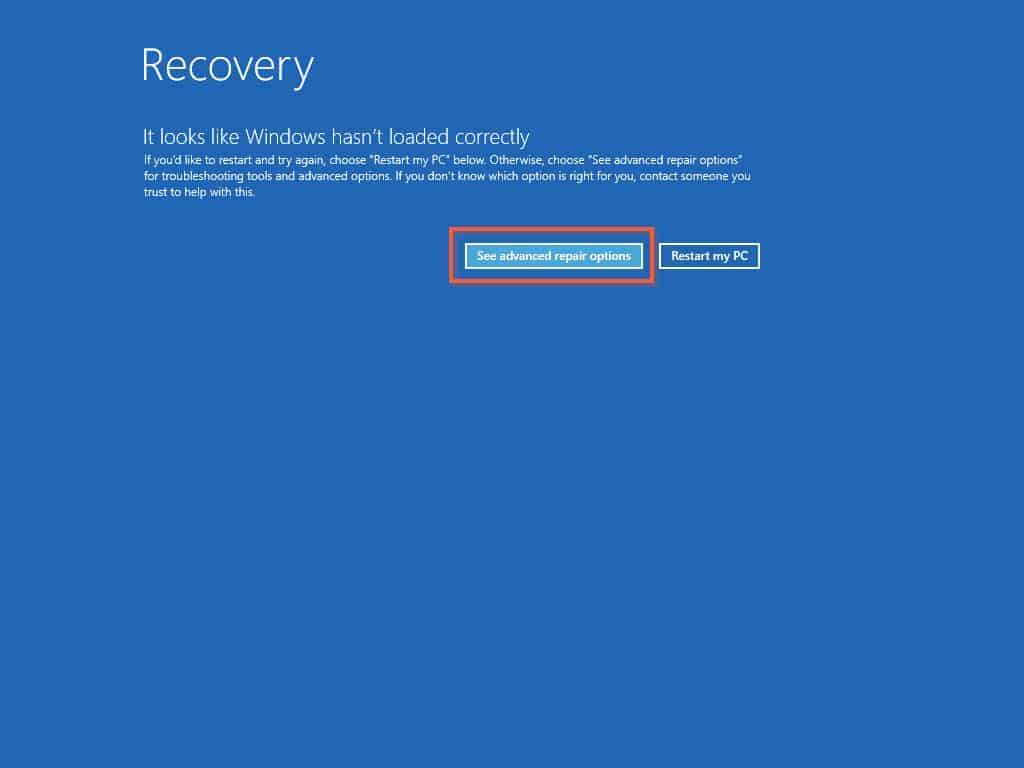
- When you boot your Windows 11 computer for the third time, it should boot into the Recovery mode environment.
- Then, click the See advanced repair options option on the Recovery blue screen.
- Following that, select Troubleshoot on the Choose an option page.

- On the Troubleshoot blue screen, click Advanced options.

- After doing that, select Startup settings on the Advanced options page.

- Afterward, click the Restart button in Startup Settings.

- Finally, to boot your Windows 11 computer into safe mode, press “F4” or “4” on your keyboard.

Step 2: Fix Critical Process Died Error From Safe Mode
When you have successfully booted your Windows 11 computer into safe mode, implement the solutions below to fix this BSOD error. Also, if you can boot into your Windows 11 PC normally, carry out the solutions below to fix the error.
Solution 1: Run Hardware and Devices Troubleshooter
One of the quickest and less-complex fixes for this error is to run the hardware and devices troubleshooter. The following steps, including screenshot images, demonstrate how to run the hardware and devices troubleshooter in Windows 11.
- Use the Windows + R keys to open the Run dialog. Then, input “msdt.exe -id DeviceDiagnostic” in the Run input box and press the enter key on your keyboard.

- Consequently, the Hardware and Devices troubleshooter should open. Hence, click the Next button at the bottom of the window to proceed.

- Following that, Windows will begin to detect this BSOD error, among other problems. If it detects the error, you will be prompted to fix it.

- After everything, restart your Windows 11 computer. Hopefully, this BSOD error will be resolved.
However, if the error isn’t resolved after implementing this solution, try out the other solutions in the sub-sections below.
Solution 2: Reinstall Corrupt Drivers
A major culprit for this error in Windows 11 is corrupt drivers. If that’s the case, reinstalling the corrupt drivers on your Windows 11 computer should fix the issue.
What’s actually slowing this PC down?
Pick the symptom - the matching free tool is one click away.
Also popular on Amazon

- Dual USB Hub: With a built-in dual USB hub, the laptop fan enables you to connect additional USB devices to your laptop, providing extra connectivity options for your peripherals. Warm tips: The packaged cable is a USB-to-USB connection. Type C connection devices require a Type C to USB adapter. Please plug the cooling pad's USB cable into a 5V 1A adapter for best performance; otherwise, the fans may fail to spin or run at very low speed.
- Whisper-Quiet Operation: Enjoy a noise-free and interference-free environment with super quiet fans, allowing you to focus on your work or entertainment without distractions.
- Enhanced Cooling Performance: The laptop cooling pad features 5 built-in fans (big fan: 4.72-inch, small fans: 2.76-inch), all with blue LEDs. 2 On/Off switches enable simultaneous control of all 5 fans and LEDs. Simply press the switch to select 1 fan working, 4 fans working, or all 5 working together.
- Ergonomic Design: The laptop cooling stand also serves as an ergonomic stand, offering 6 adjustable height settings that enable you to customize the angle for optimal comfort during gaming, movie watching, or working for extended periods. Ideal gift for both the back-to-school season and Father's Day.
- Secure and Universal Compatibility: Designed with 2 stoppers on the front surface, this laptop cooler prevents laptops from slipping and keeps 12-17 inch laptops—including Apple Macbook Pro Air, HP, Alienware, Dell, ASUS, and more—cool and secure during use.
Below are the steps to reinstall the corrupt driver(s) in Windows 11.
- On your Windows 11 taskbar, right-click the Start menu button and select Device Manager from the options that pop up.

- On the Device Manager window, locate and right-click any device driver that features a yellow exclamation mark sign. Then, select Uninstall device from the displayed options.

- After that, click Uninstall in the prompt that appears.

- Finally, restart your Windows 11 computer after the driver has been uninstalled. Hence, upon restart, Windows will automatically install the most compatible driver to replace it.
Hopefully, that fixes the critical process died error on your Windows 11 computer. If it doesn’t, check out the third solution in the sub-section below.
Solution 3: Run SFC and DISM Scans
In some instances, corrupt system files can cause this BSOD error in Windows 11. If that’s the case, running the SFC and DISM scans should resolve the error.
Follow the subsequent procedures below to run the SFC, and DISM scans on your Windows 11 computer.
Also popular on Amazon

- SMART COOLING — From idle to full load, keep the laptop running smoothly with our first laptop cooling pad that changes fan speeds automatically to manage system temperatures based on the settings
- AIRTIGHT PRESSURE CHAMBER — Included foam seals ensure no cool air leakage and works in tandem with a long lifespan 140 mm brushless fan that spins up to 3000 RPM to significantly reduce CPU, GPU, and surface temperatures
- WORKS WITH MOST LAPTOPS — Whether you've got an ultra-portable 14″ laptop or an 18″ powerhouse, choose between three magnetic frames that maximize cool air pressure and circulation
- PRESET & CUSTOM FAN CURVES — Keep the system cool in any scenario with our recommended presets or calibrate the fan to adjust for noise level or desired internal temperature via Razer Synapse
- 3-PORT USB TYPE A HUB — From webcams to controllers to drawing tablets, plug in more devices to the laptop without solely relying on its native USB ports
- Left-click the magnifying glass icon on the taskbar in Windows 11 to start the search feature.

- Then, type “cmd” in the search box. Afterward, right-click the Command Prompt application from the search result and select Run as administrator.

- When Command Prompt opens, run the following commands one after the other to execute the SFC and DISM scans.
sfc /scannow
DISM.exe /Online /Cleanup-image /Restorehealth
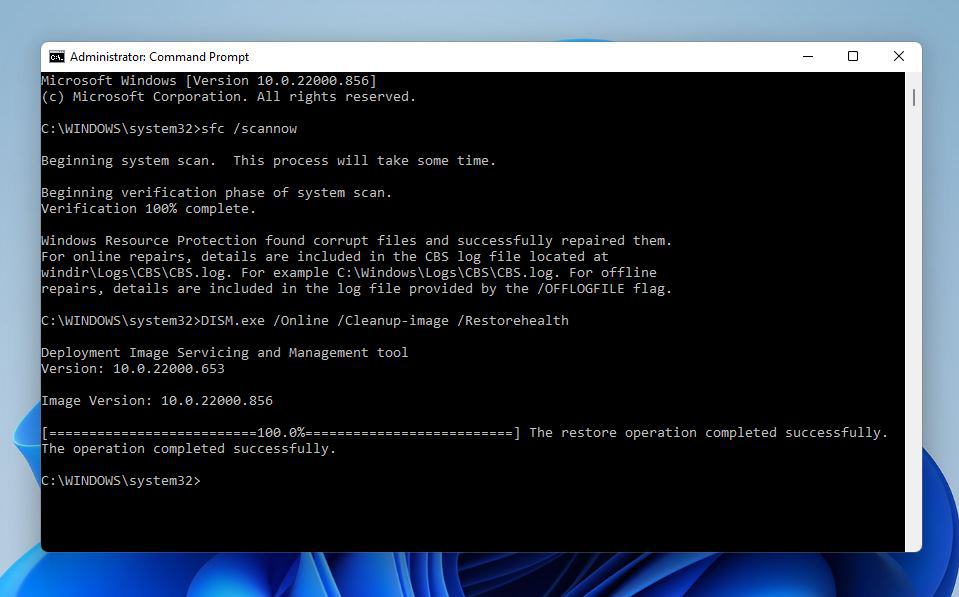
- After the scans have been completed, restart your Windows 11 PC. Hopefully, the critical process died BSOD error on your Windows 11 PC will be resolved.
Otherwise, move on to this guide’s final solution below.
Solution 4: Perform a System Restore
This error should also be resolved by running a system restore to a point before your PC starts to experience the BSOD error. Follow the subsequent instructions to perform a system restore on Windows 11.
- Use the Windows key + R keyboard shortcut to open the Run dialog.

- In the Run input box, type “rstrui” (without the quotes) and press Enter.

- When the System Restore window opens, click the Next button at the bottom.

- Afterward, check the Show more restore points box.

- Then, select a restore point before the period your PC started experiencing this BSOD error and click Next.

- Thereafter, click the Finish button to begin the system restore. Now, hold back for the restore process to complete.

- After the system restore is completed, your Windows 11 computer should automatically reboot. Therefore, the critical process died error should be resolved on your PC.
Frequently Asked Questions
In Windows 11, a blue screen of death is mostly caused by a compatibility issue, hardware problem, or corrupt or missing driver.
Yes, you can boot your Windows 11 PC into safe mode. To accomplish that, read How To Start Windows 11 In Safe Mode.
Also popular on Amazon

- 👍【Triple Efficient Fans】TECKNET laptop cooling pad with 3 powerful fans works at 1200 RPM to pull in cool air from the bottom to prevent your laptop, notebook, netbook, Ultrabook, Apple MacBook Pro cool from overheating during extended use or intense gaming.
- ✌️【Easy to Use】Powered directly by your laptop's USB port, the 110mm fans operate quietly and feature a dedicated on/off switch. No external power adapter is needed.
- 👑【Double USB Ports】One USB port can power the laptop cooler, the other one can be connected to external devices, such as keyboard, mouse, audio, etc. Blue LED indicators confirm the fans are running. Note: The included cable is USB-A to USB-A.
- 👍【Ergonomic Comfort】Choose between two adjustable height settings to achieve a more comfortable viewing angle. Integrated rubber pads on the surface and base keep your laptop securely in place.
- 👌【Wide Compatibility】Compatible with various laptop sizes from 12 up to 17 inches, such as Apple MacBook Pro Air, HP, Alienware, Dell, Lenovo, ASUS, etc (USB cable included). The laptop fan can also accurately dissipate heat for your tablet, router, game console.
Yes, the “critical process died” error is a blue screen of death error.
Yes, most blue screen of death in the Windows OS is fixable.
Some viruses, particularly those that affect the master boot record (MBR) or boot sector, can result in a blue screen of death.
Also popular on Amazon

- PLEASE NOTE: Due to the extremely low hardness of thermally conductive pads, a more demanding installation is to be expected. Please refer to the User Manual
- MINIMIZATION OF THERMAL RESISTANCE: The thinner the pad, the lower the thermal resistance. Thanks to its good compression properties, the very soft heat conduction pad is particularly a good heat conductor
- HIGH PERFORMANCE: Based on silicone and a special filler, TP-3 also outperforms high-performance pads, especially when height differences of closely spaced chips
- VERSATILE APPLICATIONS: Heat-conducting, vibration-damping, mouldable, electrically insulating - can be easily cut to size. Ideal for RAM, chipset, IC in PC, laptop, console, graphic cards
- SAFE HANDLING: The pad contains no metal particles, is electrically insulating and non-capacitive. Handling is therefore safe, as contact with electrical parts will not cause damage
Conclusion
The critical process died error is a common BSOD error in the Windows OS that is mostly caused by corrupt drivers or malicious applications. As a matter of fact, many users have reported that they are unable to start their Windows 11 PCs normally when they face this BSOD error.
Nonetheless, this guide discussed various solutions to resolve this error. However, because you might not be able to log into Windows 11 normally when you face this error, I firstly provided steps to boot into safe mode.
Then, we learned how to fix the issue by running the hardware and devices troubleshooter and reinstalling corrupt drivers. This guide also taught us how to fix the error by executing the SFC and DISM scans and performing a system restore.
Quick wins for a faster PC:
Repair Windows errors before they cause bigger problemsFix Now →Scan for outdated or missing drivers - takes under a minuteDriver Scan →Clear out junk files and repair common Windows errorsFree Scan →I honestly hope this guide was able to resolve the critical process died BSOD error on your Windows 11 PC. If it was, click on “Yes” beside the “Was this page helpful” question below.
You may also express your thoughts and opinions by using the “Leave a Comment” form at the bottom of this page.
Finally, visit our Windows 11 Fix Guides page to get more Windows 11 fix guides.


