
Recommended Free Tools
iTechGuides is reader-supported. When you buy through links on our site, we may earn an affiliate commission. As an Amazon Associate I earn from qualifying purchases. Learn more
Welcome to your ultimate guide on Windows Hello in Windows 10. This Itechguide teaches you all you need to know about Windows Hello in Windows 10.
What is Windows Hello?
Windows Hello is a set of secure sign-in options. This feature offers secure sign-in to Windows 10 via fingerprint, facial recognition, or a secure PIN.
Windows 10 also offers a feature called Dynamic Lock. This allows you to automatically lock your Windows 10 if you step too far from your computer.
What’s actually slowing this PC down?
Pick the symptom - the matching free tool is one click away.
Dynamic lock works by pairing a device such as your phone with your Windows 10 via Bluetooth. When your phone is out of range, Windows 10 will know that you are away from your PC and automatically lock it. How cool is that!
Popular on Amazon

- BIOMETRIC SECURITY: USB fingerprint reader provides advanced biometric authentication to secure your computer and protect sensitive data with your unique fingerprint.
- ONE-TOUCH COMPUTER LOCK: Instantly lock your Windows computer with a single touch using the Win + L shortcut, providing quick security when stepping away from your desk.
- FAST AND ACCURATE SCANNING: High-precision optical sensor delivers reliable fingerprint recognition with quick response time for seamless login and authentication.
- PLUG AND PLAY CONVENIENCE: Simple USB connection with easy setup process allows you to start using fingerprint security within minutes without complex installation.
- COMPACT DESIGN: Sleek and portable biometric scanner features a space-saving footprint that fits comfortably on any desk without cluttering your workspace.
Think of Windows Hello as your Windows 10 security partner. If you use facial recognition, fingerprint, or PIN to sign in to your smartphone, working with Windows Hello will be familiar to you.
Windows Hello Requirements
Before you can set up Windows Hello, your PC MUST meet some minimum hardware requirements. This section discusses Windows Hello requirements for facial recognition and fingerprint authentication.
Facial Recognition Camera Requirements
As far as Windows Hello is concerned, all webcams are not born equal! Your computer may have a webcam, however, the camera may not have what it takes to work with Windows Hello.
Do these 3 things before closing this tab:
1Fix the driver behind crashes, sound loss and screen glitches2Clear out junk files and repair common Windows errors3Scan for outdated or missing drivers - takes under a minuteSo, what does it take for a webcam to work with Windows Hello? The camera must meet the following hardware requirements:
- The webcam must be a camera with an integrated special infrared (IR) sensor and software.
- The sensor in the camera for facial recognition must have anti-spoofing features.
- Finally, the camera must also have a:
- False Accept Rate (FAR) of <0.001%,
- False Reject Rate (FRR) without Anti-spoofing or liveness detection of <5%
- Effective, real-world FRR with Anti-spoofing or liveness detection of <10%
- Must have the sum of the True Accept Rate (TAR) and False Reject Rate (FRR) of 1.
Fingerprint Reader Requirements
Apart from facial recognition authentication, Windows Hello in Windows 10 also offers fingerprint authentication. Moreover, like facial recognition, there are specific requirements for the fingerprint reader device.
For the fingerprint reader in your PC to work with Windows Hello, it must meet the following requirements:
- The PC must have a fingerprint sensor and software
- The fingerprint sensor can be a small or large touch or swipe sensor
- It must include anti-spoofing features
- Finally, the fingerprint sensor must meet the following authentication requirements:
- False Accept Rate (FAR) between <0.001 – 0.002%
- Effective, real-world FRR with Anti-spoofing or liveness detection of <10%
Windows Hello Setup
Now that you know what Windows Hello is and the requirements to get it to work, it is time to look at how to set it up.
The Tool Desk
Outbyte Driver Updater FREEFix the driver behind crashes, sound loss and screen glitchesFind Drivers →Outbyte PC Repair FREERepair Windows errors before they cause bigger problemsFix Now →Also popular on Amazon
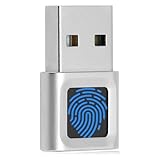
- WINDOWS HELLO LOGIN FOR WINDOWS 10/11 — NOT FOR MAC - Only works with Windows Hello on Windows 10/11 PCs and laptops. Plug the USB fingerprint reader into your computer and sign in with one touch. Not compatible with Mac, macOS, Linux, or Chrome OS. Requires Windows Hello PIN setup first for fingerprint enrollment.
- PLUG-AND-PLAY, NO DRIVERS NEEDED - No extra app or driver needed on most genuine Windows 10/11 systems. Insert the USB fingerprint scanner, go to Windows Settings > Accounts > Sign-in options, and set up fingerprint sign-in. Works with desktops, laptops, and shared computers without built-in sensors
- FAST 0.5S 360° CAPACITIVE RECOGNITION - Capacitive fingerprint technology delivers quick authentication in about 0.5 seconds. 360° touch recognition reads your fingerprint from different angles. Compared to optical sensors, capacitive sensors are more accurate and less prone to misreads—ideal for shared PCs.
- MULTI-USER & SMART-ID SECURITY - Supports multiple Windows accounts and up to 10 fingerprints per account. Smart-ID security helps protect saved passwords and encrypted folders with fingerprint access. Compatible with most Windows 10/11 laptops and desktops, including Dell, HP, Lenovo, and ASUS. For USB-C only laptops, a USB-A to USB-C adapter is required (not included). 1-year warranty.
- IMPORTANT NOTES — PLEASE READ BEFORE PURCHASE - Supports Win10/11 32/64-bit original system. Not for streamlined/Lite versions (biometric component removed).Only supports Windows Hello. Does not encrypt USB drives/files. Windows only — not for Mac.Prefer motherboard USB 2.0 port. USB 3.0 hubs/docking stations may cause unstable recognition.
In the first part of this section, I will be discussing Windows Hello sign-in Options in Windows 10. Moreover, the second section walks you through the steps to set up Windows Hello.
Windows Hello Sign-In Options
Windows Hello offers three sign-in options. You can configure Windows Hello Face, Windows Hello Fingerprint, and Windows Hello PIN.
Windows Hello Face
Windows Hello Face uses Microsoft face authentication technology to verify the identity of a person before granting the person access to a Windows 10 PC. As discussed in the Windows Hello Requirements section of this guide – Windows Hello Face makes use of cameras with near-infrared (IR) technology for authentication.
Here is the simplified version of the last statement: When you setup your Windows 10 PC to use Windows Hello Face, to sign in to your computer, you scan your face on the webcam on your laptop.
To read more technical details and how this works, visit the Microsoft documentation page – Windows Hello face authentication (link opens in a new browser tab).
Windows Hello Fingerprint
Unlike Windows Hello Face which identifies a person using facial recognition, Windows Hello Fingerprint identifies and authenticates with a fingerprint.
If your PC meets specific Windows Hello fingerprint sensor requirements, you can set up your Windows 10 to sign in with your fingerprint.
Also popular on Amazon

- Certified to Microsoft’s highest fingerprint security standards (ESS & SDCP) for robust, hardware-isolated authentication. Supports next-gen Windows features, including Copilot Recall and Windows Hello with ESS support.
- Windows Hello ready for fast, password free fingerprint login to Windows and Microsoft 365 accounts
- On device fingerprint storage keeps biometric data securely within the key. Supports privacy regulations (GDPR, BIPA, CCPA) through on device biometric processing; TAA compliant.
- Reliable wired USB fingerprint authentication with USB C and USB A compatibility for desktop PCs.
- Consistent, all condition 360° fingerprint recognition.
According to Microsoft documentation, starting from Windows 10 version 19H1 (also known as May 2019 or 1903 update) – Windows Hello Fingerprint supports an intuitive enrollment experience that makes fingerprint registration easier for users.
Free tools Windows power users keep installed
One-click scans. No signup required.
To read more technical details, visit the Windows Hello fingerprint authentication (link opens in a new browser tab) page.
Windows Hello PIN
Windows Hello PIN is the least difficult to setup. It is also the Windows Hello option with the most basic requirements.
All you need to set up Windows Hello PIN is to sign in to Windows 10 with a Microsoft account. Microsoft strongly recommends that you sign in to Windows 10 with a PIN, instead of a password.
Furthermore, signing in to your Windows 10 with a PIN is more secure than signing in with a user name and password. One reason for this is that your Microsoft user name and password are stored on the internet.
Crashes, No Sound, or Screen Glitches?
Random freezes, missing sound and display glitches usually trace back to one bad driver. Find and replace yours safely.Free scan · under a minutePC Slower Than It Used to Be?
A free scan shows the junk files, broken settings and background clutter dragging Windows down - then fixes them in one click.Free scan · Windows 10 & 11The implication of signing in with a user name and a password is that the process of authentication goes through the internet – increasing the risk of your account being compromised.
On the other hand, a PIN is stored locally on your computer. When you authenticate (sign in) with a PIN, every part of the process happens in your local PC – reducing the risk of your account being compromised.
Also popular on Amazon

- Instant Windows Hello Integration: Seamlessly access your Windows 10/11 PC with Microsoft-certified biometric authentication. Replace cumbersome passwords with one-touch fingerprint login through the native Windows Hello framework-no third-party software required
- Microsoft-Certified Security: Officially supports Windows Biometric Framework and Windows Hello. 0.001% False Acceptance Rate and 0.1% False Rejection Rate-bank-grade security for your desktop
- Plug & Play No Drivers Needed: Zero driver installation for genuine Windows systems-automatic recognition upon connection (95%+ compatibility). For custom Windows builds, a free driver update is available via the included quick-start guide
- 10 Fingerprints Fast for Everyone: Store up to 10 unique fingerprints for family members or shared workstations. Lightning-fast authentication in under 0.5 seconds-no waiting, no frustration
- One-Click Lock Privacy at Your Fingertips: Lock your PC instantly with a single keystroke when you step away from your desk. Includes 1.5m/5ft extension cable for flexible, ergonomic desktop placement
To read more about why you should set up Windows Hello PIN, instead of using a user name and password in Windows 10, visit the Microsoft page that explains Why a PIN is better than a password (link opens in a new browser tab).
Other Windows 10 Sign In Options And Account Protection
Apart from the three sign-in options offered by Windows Hello, Windows 10 offers Security key sign-in as well. This option – which is primarily applicable to business environments – allows you to sign in to Windows 10 with a physical security key.
Furthermore, Windows 10 offers additional ways to secure your computer. One such option is the Require sign in feature.
With Require sign in, you can configure your PC to require sign in when PC wakes up from sleep. This is the default configuration of this feature. However, you can change it to Never – more on this later in this guide.
Finally, Windows 10 also offers a feature known as Dynamic Lock. If you set up Dynamic Lock, Windows 10 will automatically lock your PC if a paired device (like your phone) goes out of range.
The theory behind Dynamic Lock is that if your phone goes out of range from your computer, it is assumed that you are away from your PC. By locking your PC automatically, when you are away, an unauthorized person cannot gain access to the computer.
To read more about these sign-in options and account security features – including Windows Hello, click Windows 10 sign-in options and account protection (link opens in a new browser tab).
Also popular on Amazon

- Designed for Windows 10: Supports Windows Hello Authentication
- Fast Fingerprint Authentication
- Documents/Folder Encryption
- 360° Fingerprint Recognition | Multi-Fingerprint Registration
- [24/7 Customer Support] Please send a message directly to our store to assist you if you are encountering any difficulty with using this item. Our team is always here happy to assist you. Kindly see the product description below for the troubleshooting instruction with installing the driver for this device.
How to Setup Windows Hello in Windows 10
We are now getting to the fun bit! If your PC meets the requirements to use any of the Windows Hello authentication methods, follow the steps below to set up Windows Hello:
- Right-click Start Menu and select Settings.

- Then, on the Windows 10 Settings screen, click Accounts. “Your Info” accounts settings screen will open.

- On the left pane of “Your Info” screen, click Sign-in options.

- Finally, on the right-pane of Sign-in options, click on the Windows Hello option you want to setup. Then, follow the steps to complete the setup. At the minimum, you should be able to set up Windows Hello PIN.

- The default configurations for the additional account protection options are as shown in the screenshot below.
- To stop requiring Windows Hello sign-in for Microsoft accounts, toggle the button from ON to OFF.
- You may also want to turn off Require sign-in. To do this, click the Require sign-in drop-down and select Never.
- Finally, to set up Dynamic Lock, check the checkbox “Allow Windows to lock your device automatically when you’re away”. Once you check the checkbox, if you have not already paired a device, you will be prompted to do so – see the second screenshot below.


Frequently Asked Questions
If you previously set up a Windows Hello authentication but no longer want it – right-click Start Menu and select Settings. Then click Accounts -> Sign-in options.
Finally, click on the Windows Hello sign-in option you want to get rid of, then click Remove and follow the steps to complete the process.
Yes, you can. Enter windows hello in the Windows 10 search box. Then, from the search results, click Sign-in options. Finally, on the Sign-in options screen, click Windows Hello Face, and click Remove.
To see whether your device meets the Windows Hello hardware requirements and set up Windows Hello, open Windows 10 Settings, click Accounts -> Sign-in options.
Finally, on the right pane of the Sign-in options screen, to see if your device meets the requirements to set up a specific Windows Hello sign-in, click on that option.
If your device does not meet the requirement for that option, it will display “This option is currently unavailable”.
The easiest way to disable or bypass Windows Hello is to sign in to your computer with a local account instead of a Microsoft account.
Note that there are implications of not signing in to Windows 10 with a Microsoft account. One drawback is that you will NOT be able to use a PIN to sign in to Windows 10 – signing in with a PIN is more secure than using the traditional user name and password.
Secondly, if you sign in with a local account, you will not be able to sync your Windows 10 settings across your devices.
If you have not set up Windows Hello Face before and receive “This option is currently unavailable” when you try to set it up, it may be that your device webcam does not meet the hardware requirements for Windows Hello Face.
However, Windows Hello Face was working before and suddenly stopped working, in most instances, restarting your device fixes the problem.
Additionally, if restarting your device does not fix the problem, you may try updating the device driver for the webcam on your device.
If you click Windows Hello PIN, the Remove option may be grayed out. The reason it may be grayed out is that Require Windows Hello sign-in for Microsoft accounts is toggled ON.
To enable the Remove option in Windows Hello PIN, toggle the Require Windows Hello sign-in for Microsoft accounts OFF. Then, close Windows Settings, come back to the Sign-in options screen again, and click Windows Hello PIN – the Remove option will become available.
Conclusion
I hope you found this Windows Hello In Windows 10 guide helpful? If you found this article helpful, kindly spare 2 minutes to share your experience by responding to the “Was this page helpful?” question below.
Finally, for more Windows command Itechguides, visit our Windows 10 How-To page.
Quick Recap
Product prices and availability are accurate as of the date/time indicated and are subject to change. Any price and availability information displayed on Amazon at the time of purchase will apply.