

Recommended Free Tools
iTechGuides is reader-supported. When you buy through links on our site, we may earn an affiliate commission. As an Amazon Associate I earn from qualifying purchases. Learn more
If the Windows 10 store stops working, try these 3 fixes that have proven to restore the app.
Option 1: Set the Correct Date and Time
If your Microsoft store app is not opening on your computer, the first thing to confirm is that date and time are correctly set on your computer.
| # | Preview | Product | Price | |
|---|---|---|---|---|
| 1 |
|
Windows 10 For Dummies (For Dummies (Computer/Tech)) | $13.31 | Buy on Amazon |
| 2 |
|
Windows 10 For Seniors For Dummies (For Dummies (Computer/Tech)) | $13.90 | Buy on Amazon |
| 3 |

|
Windows 10 for Dummies | $11.78 | Buy on Amazon |
| 4 |

|
Windows 10 All-in-One For Dummies,, 4th Edition | $25.00 | Buy on Amazon |
| 5 |

|
Windows 10 for Seniors for Dummies | $13.00 | Buy on Amazon |
Here are the steps for this fix:
- Type Date in the search bar. Then select Date & time settings.

- Flip the switch beneath Set time automatically ON. Then flip the one beneath Set time zone automatically OFF.

- Then scroll down to Time zone and select your correct time zone from the drop-down.

- Next, click Sync now and wait for your time to sync.
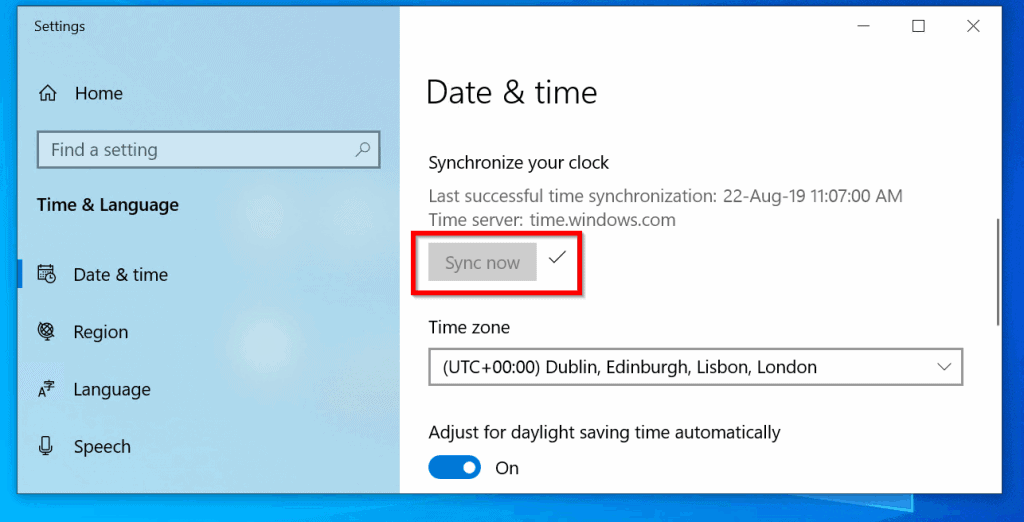
Restart and check whether “Windows 10 store not working” problem is resolved. If you still cannot open Windows store, try the next fix.
Option 2: Re-register the Windows Store App
If the store app on your Windows 10 is corrupt, re-registering it may fix the problem.
Popular on Amazon
Here are the steps:
- Type PowerShell in the search bar. Then select right-click Windows PowerShell and select Run as administrator.

- Click Yes to the User Account Control prompt.

- Then at PowerShell command prompt type (or copy and pasted) the commands below and press enter. Run the command one after the other.
Set-ExecutionPolicy Unrestricted -Force
Get-AppXPackage | Foreach {Add-AppxPackage -DisableDevelopmentMode -Register "$($_.InstallLocation)\AppXManifest.xml"}
If the last command does not work for you, try this one:
Get-AppXPackage -AllUsers | Foreach {Add-AppxPackage -DisableDevelopmentMode -Register "$($_.InstallLocation)\AppXManifest.xml"}
- Reboot your computer. Then open Windows 10 store.
If the error is still not resolved:
- Create a new administrator account.
- Login with the new account
- Open Windows 10 store. If it fails to open, repeat the steps in this method from the beginning.
If windows 10 store is still not working, try the following:
Also popular on Amazon
Option 3: Run DISM and SFC
- Type Command in the search bar. Then right-click Command Prompt and select Run as administrator.

- At the command prompt type the command below. Then press enter.
DISM.exe /Online /Cleanup-Image /Restorehealth
- Wait for the command to complete. Then type this command and press enter.
SFC /scannow
When both commands completes successfully, restart your computer. Then try opening Windows 10 store. If Windows store is till not opening, try the last fix below.
Do these 3 things before closing this tab:
1Repair Windows errors before they cause bigger problems2Scan for outdated or missing drivers - takes under a minute3Clear out junk files and repair common Windows errorsReset Windows 10
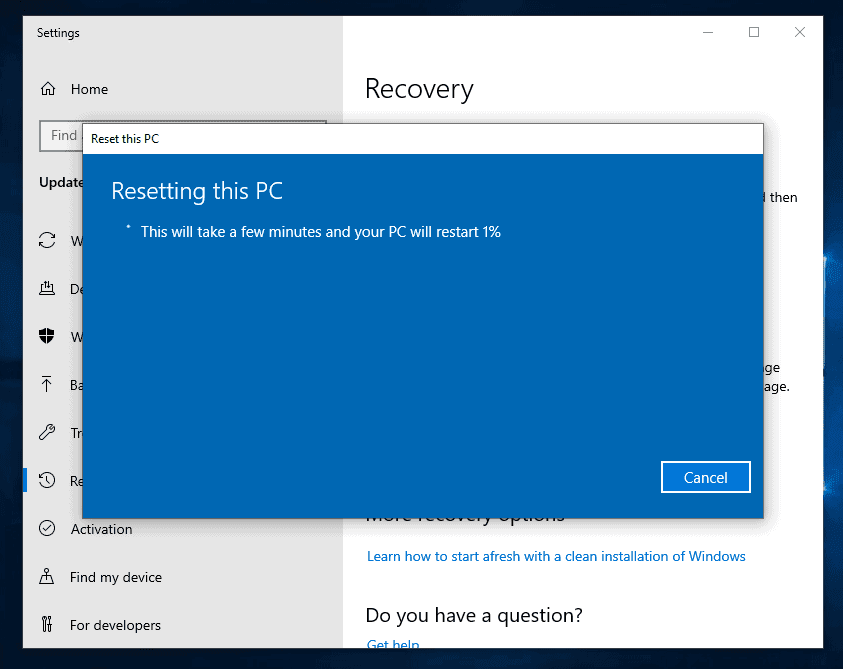
Resetting Windows 10 fixes so may problems. The only thing to note is that you will have to reinstall your apps manually.
Also popular on Amazon
For a steps to reset your PC, use this guide How to Reset Windows 10 from with Windows 10.
Independent reader supportYour contribution helps us test, update, and keep practical guides available for everyone.Conclusion
From my experience and feedback from a number of Windows 10 users, one of the fixes prescribed in this guide should fix your Windows 10 store app.
Also popular on Amazon
Was this guide helpful? If it was, kindly spare a few minutes of your time to share your experience at [discourse_topic_url].
However, if the solutions provided didn’t fix your problems or you have any questions, don’t hesitate to post them at [discourse_topic_url]. Our team will attend to your questions as soon as possible.
Also popular on Amazon
Furthermore, for more Windows 10 fixes visit our Windows 10 Fix page.


