
Do these 3 things before closing this tab:
1Scan for outdated or missing drivers - takes under a minute2Clear out junk files and repair common Windows errors3Fix the driver behind crashes, sound loss and screen glitchesiTechGuides is reader-supported. When you buy through links on our site, we may earn an affiliate commission. As an Amazon Associate I earn from qualifying purchases. Learn more
This Itechguide teaches you how to unshare a Google Doc document. The guide covers steps to unshare a Google Doc document from a PC or from the Apps (Android and iPhone Apps).
Option 1: Unshare a Google Doc from a PC
- Open Google Drive (Drive.Google.com). Then login with your Google account.
- Locate and right-click the Google Docs document you want to unshare. Then select Share.

- On the Share with others pop up window, click Advanced.

- Then, on the Sharing settings windows, beneath Who can access, click Change.
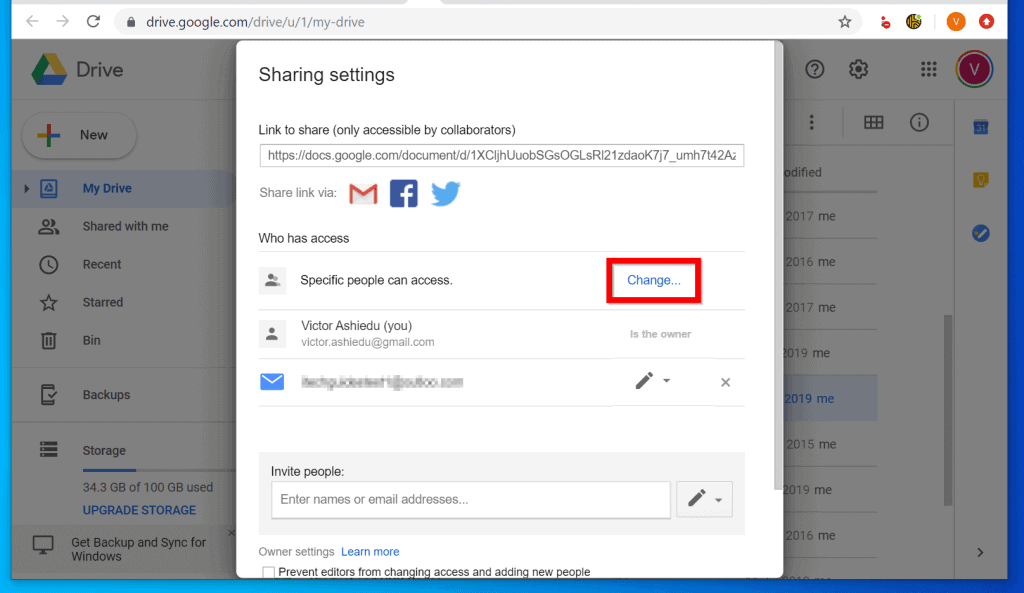
- On the Link Sharing screen, select Off – Specific people and click Save.

- When you return to the Sharing settings screen, click the x sign beside every user you previously granted access. This will delete the user from the list.
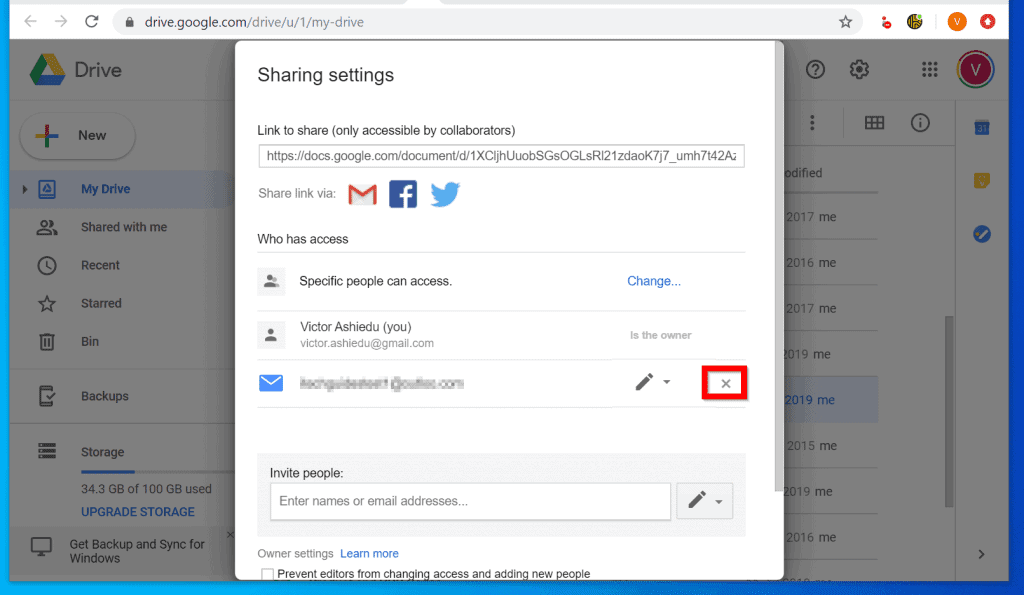
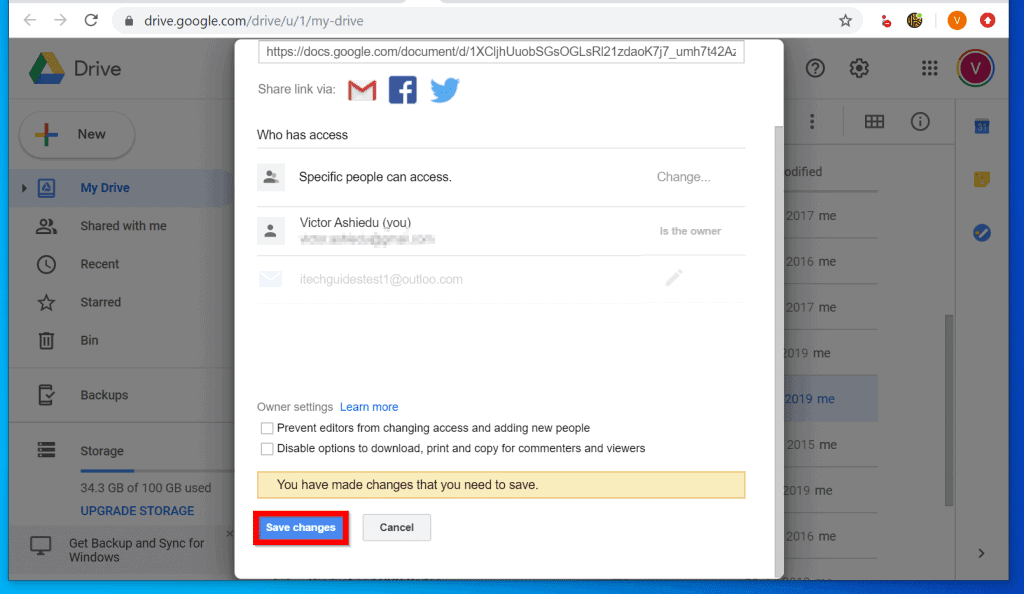
- Finally, after removing all emails from the list (except yours!), scroll down and click Save changes.
Option 2: Unshare a Google Doc from the Android App
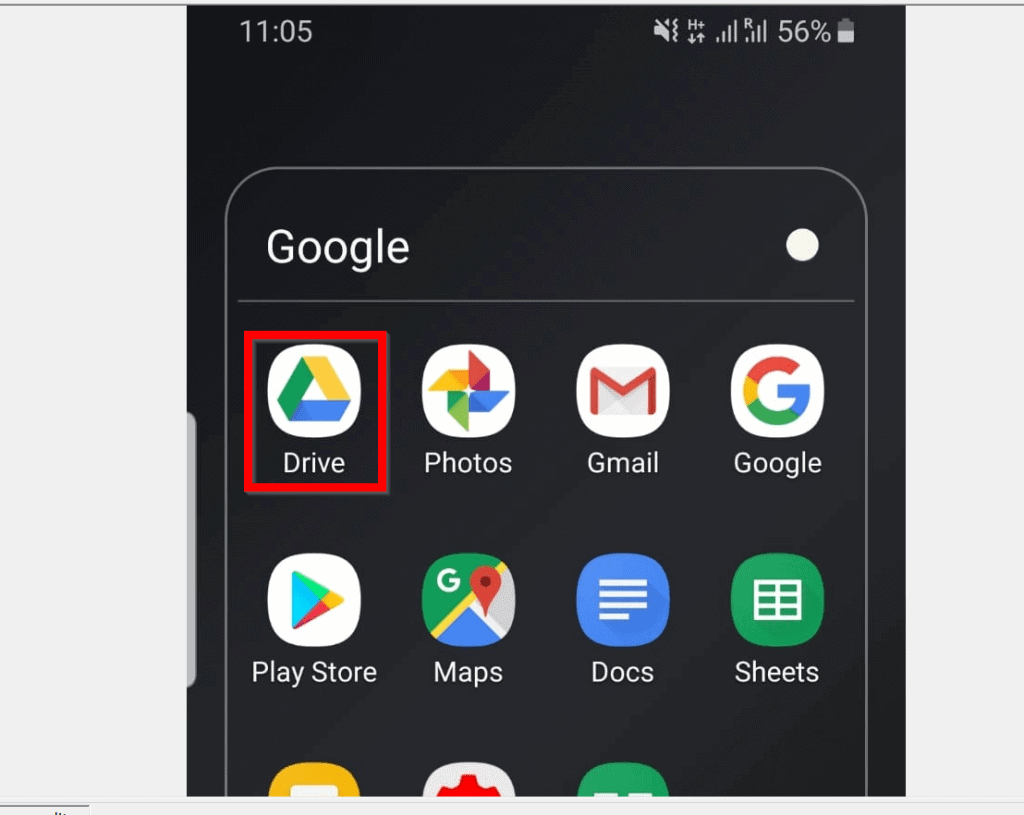
- Open Google Drive App on your Android device.
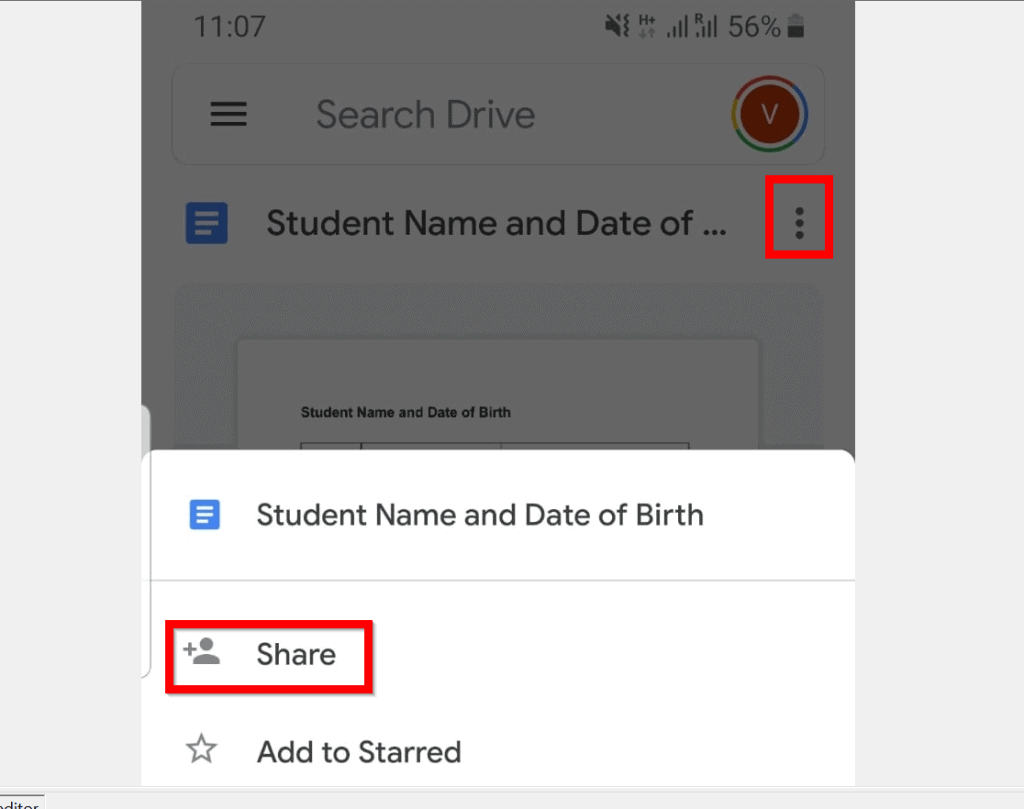
- Then, locate the Google Docs document you want to ushare and tap on the 3 dots top right of the document and select Share.
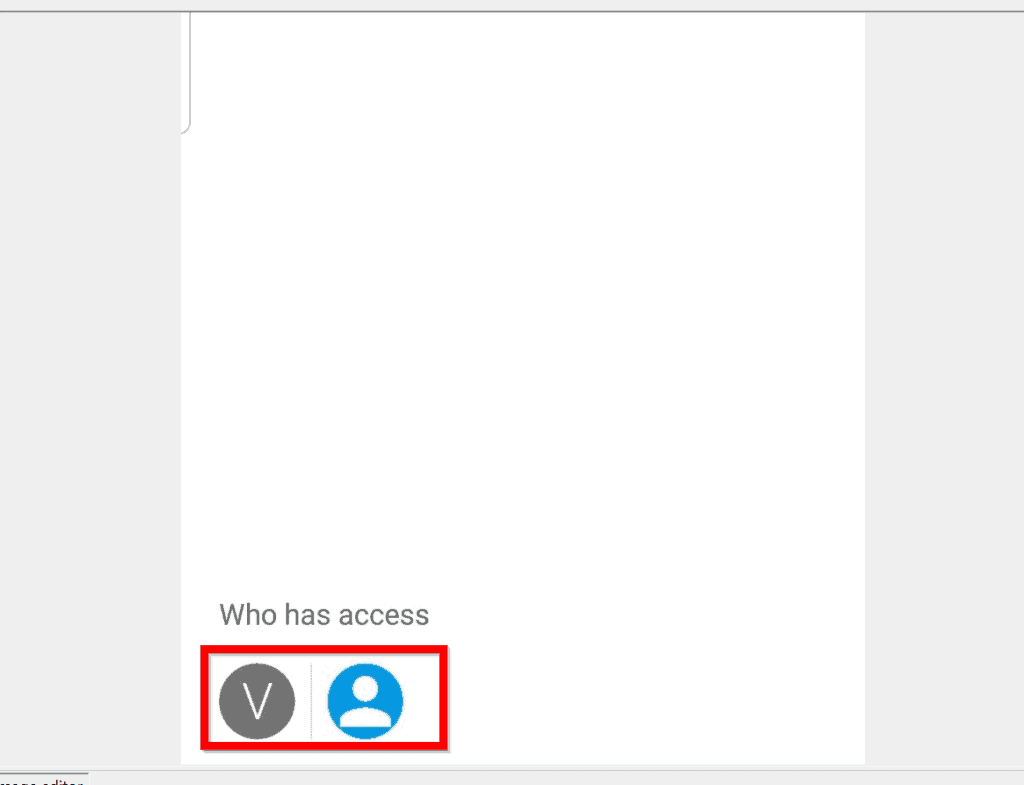
- At the bottom of the Share screen, beneath Who has access, tap on any of the icons.
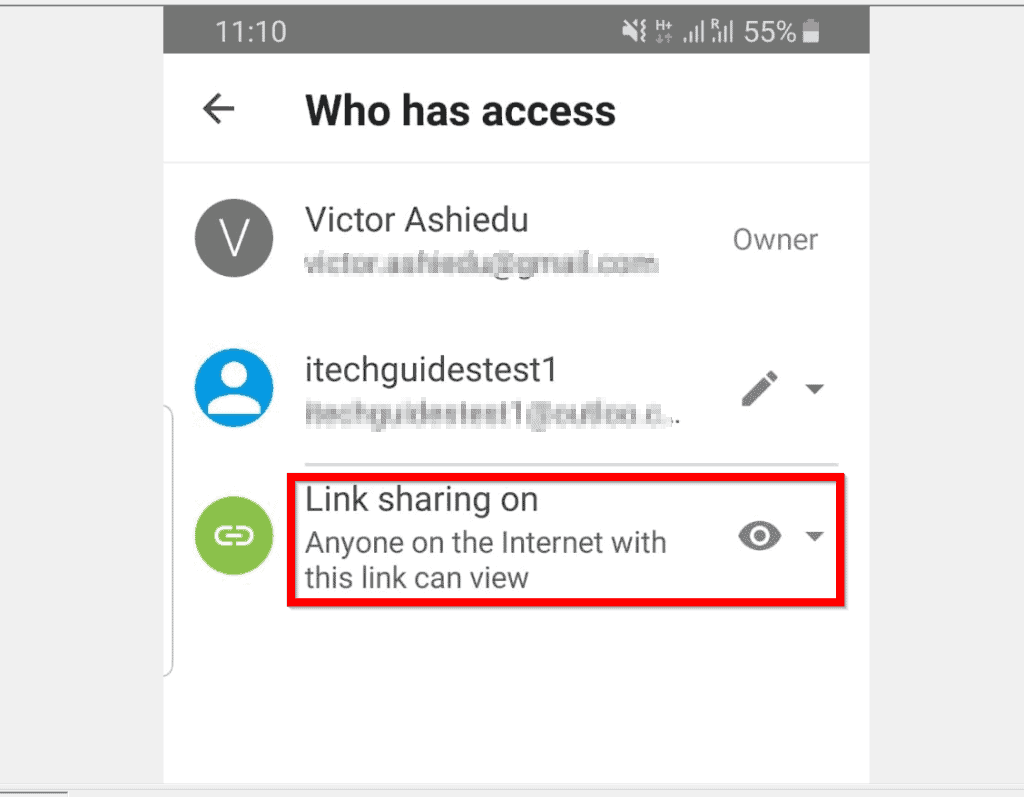
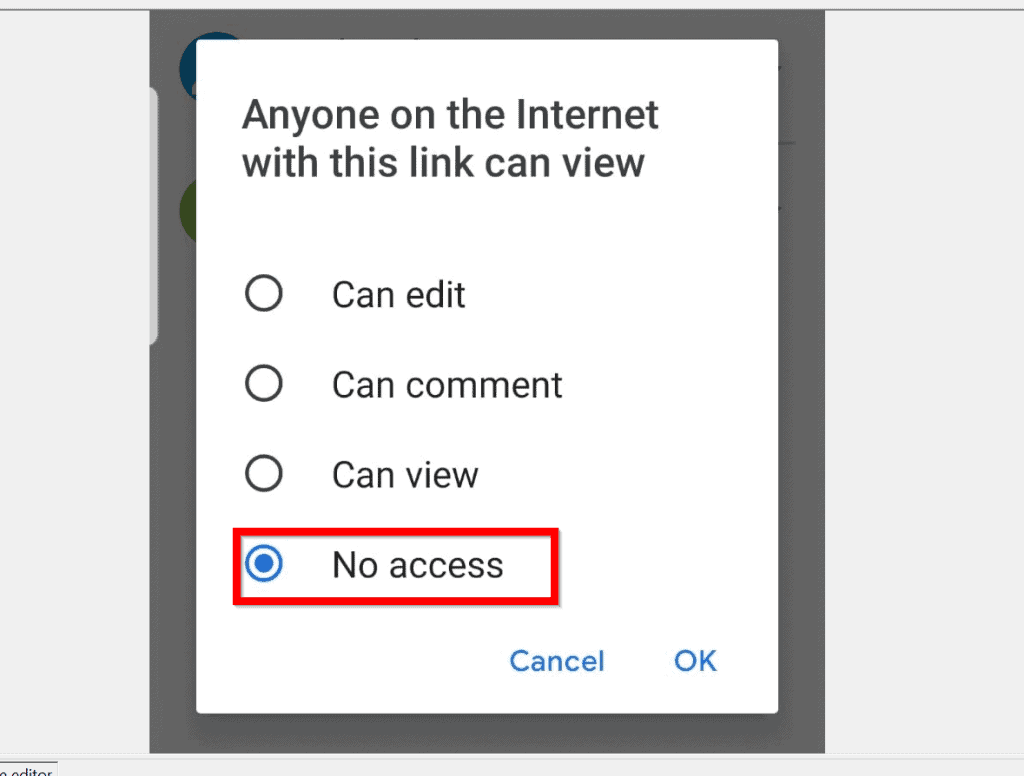
- If Link sharing is On, tap on it. Then select No Access and tap OK.
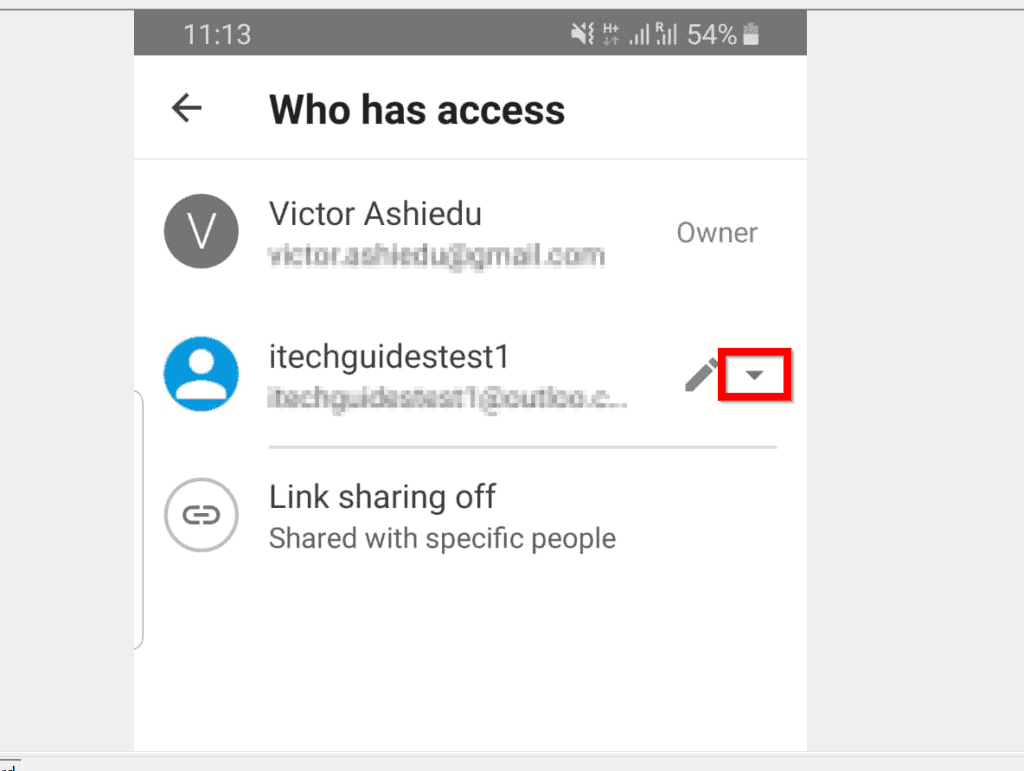
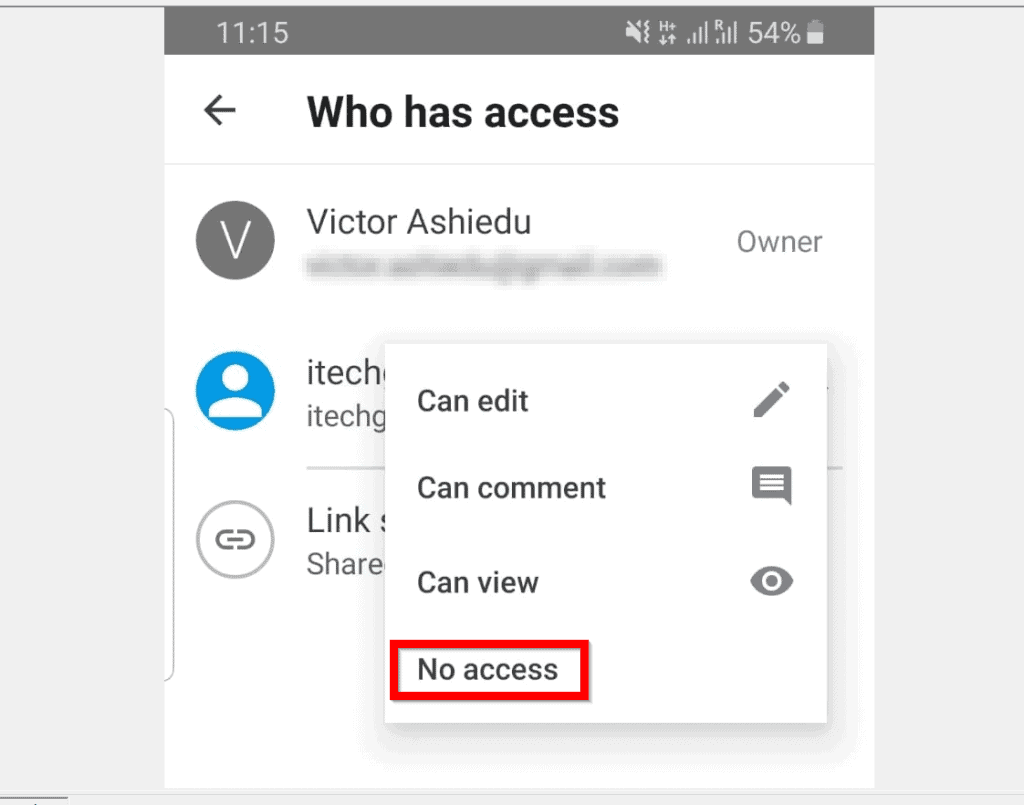
- When you return to Who has access screen, tap on the arrow beside each user you previously shared the document with. From the list of options displayed, tap No access.
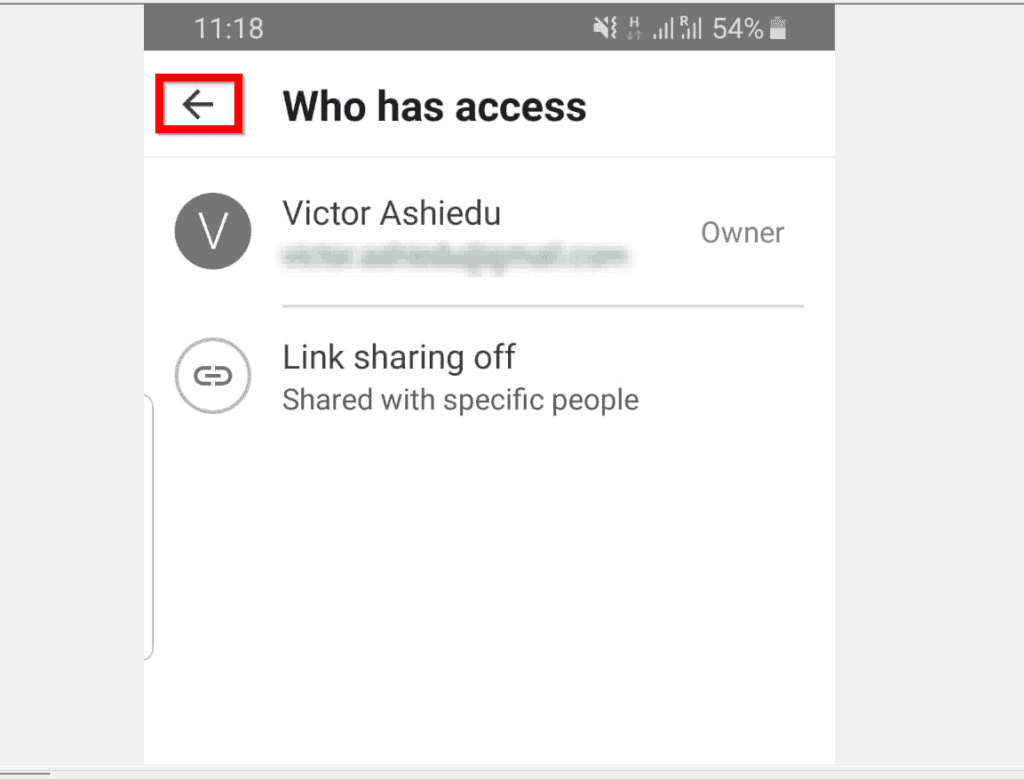
- After removing all users from the list, Who has access should should like this. Tap on the arrow beside Who has access.
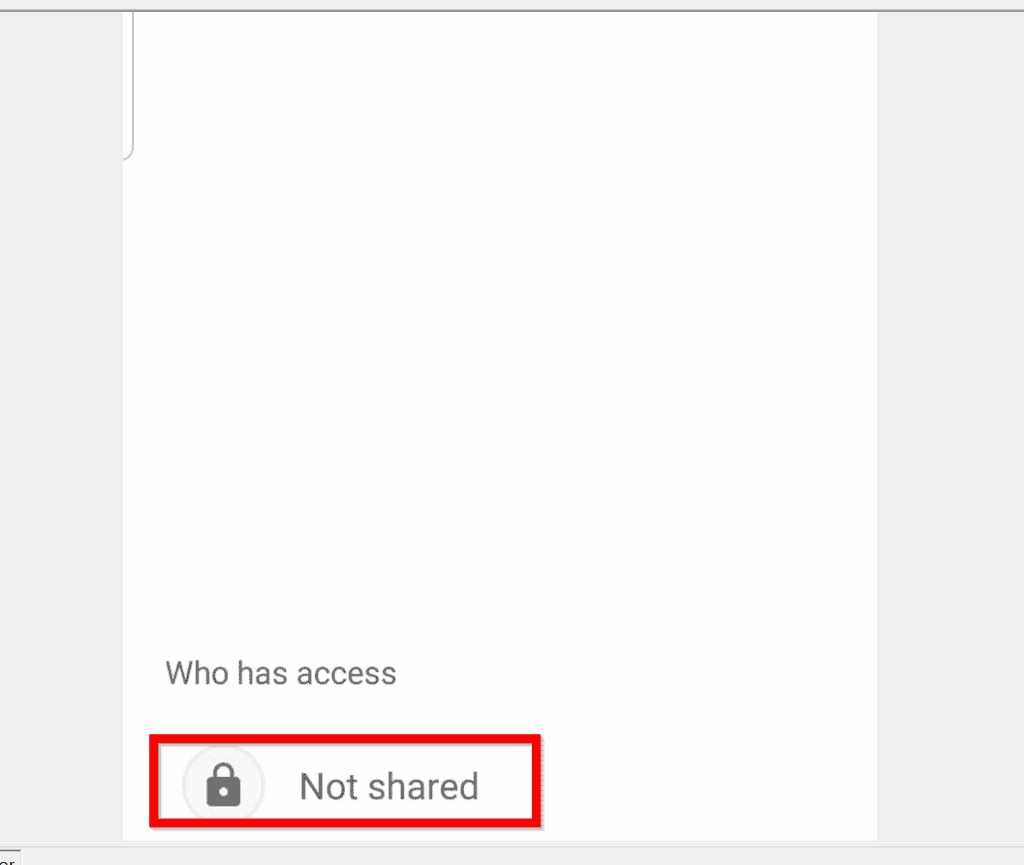
- Back on the Share screen, if you now look at the bottom, Who has access will display Not shared.
Option 3: Unshare a Google Doc from the iPhone App
- Open Google Drive App on your iPhone.

- Then on the top right of the Google Docs document you want to unshare, tap the 3 dots and select Share.
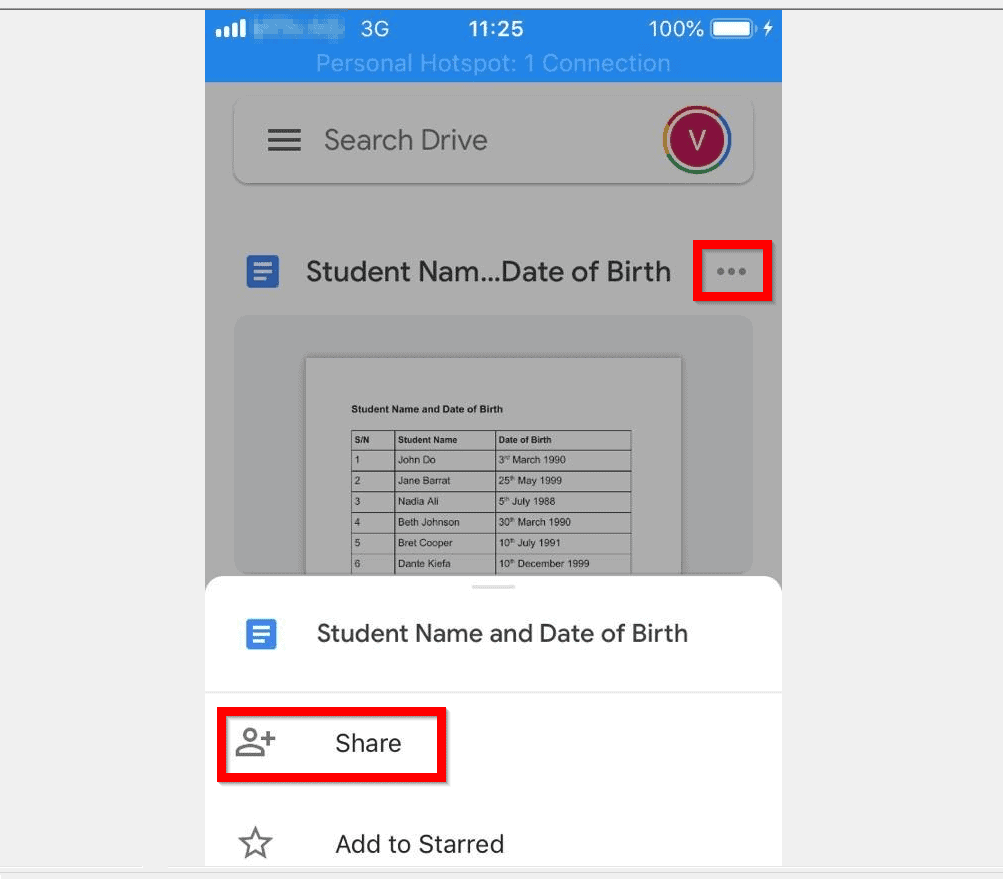
- At the bottom of the Share screen, beneath Who has access, tap on any of the icons.

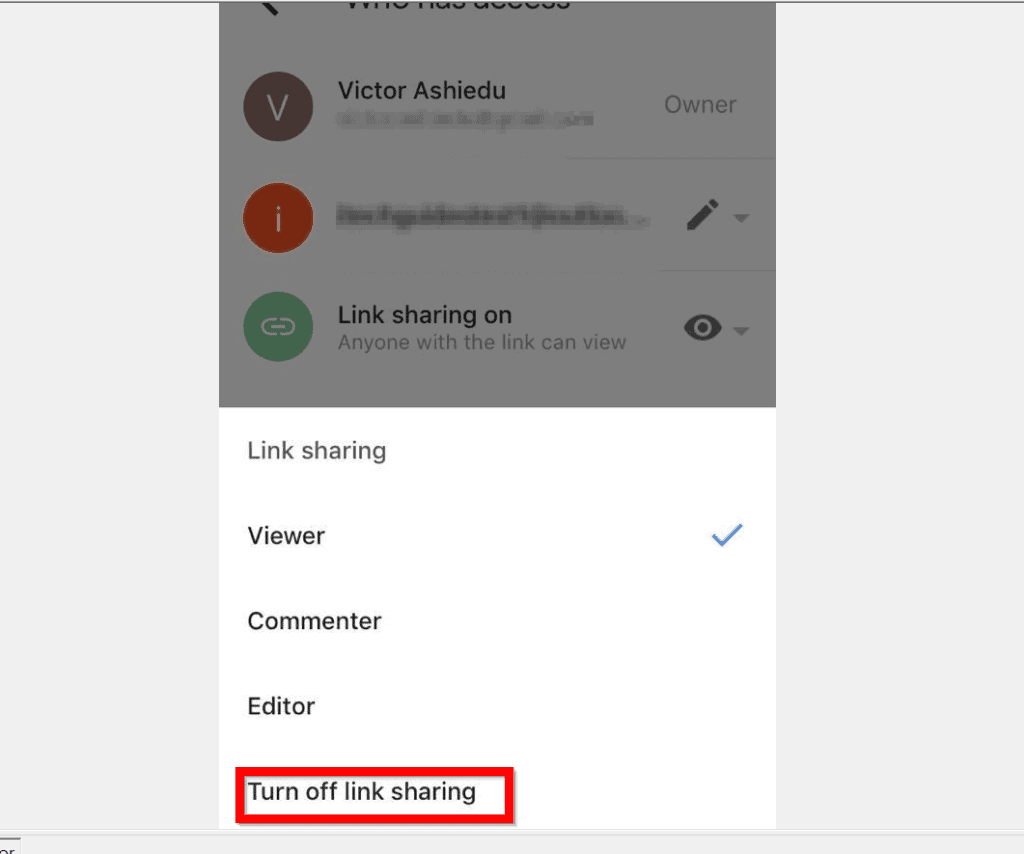
- Then, on the Who has access screen, if Link sharing is On, tap on it and select Turn off link sharing.

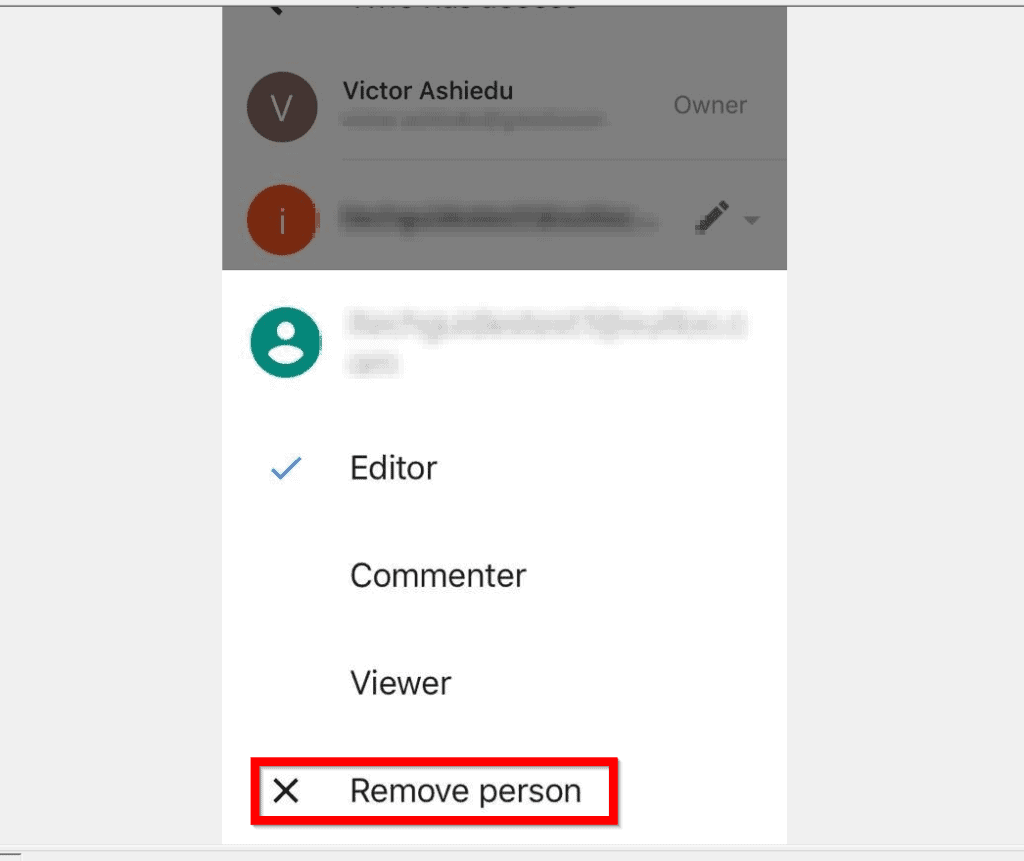
- Finally, to completely unshare a Google Doc document, for each user listed in Who has access, tap the arrow beside the user and select Remove person.

- After removing everybody previously allowed access to the document, tap the arrow beside Who has access.

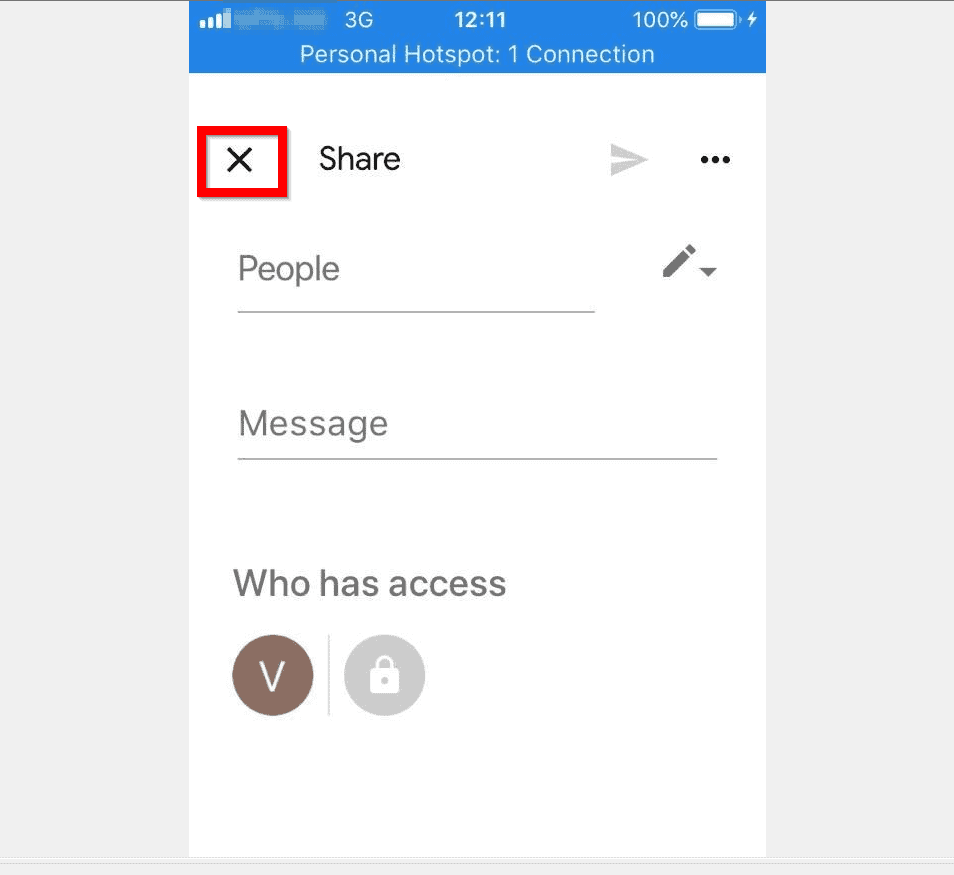
- When you return to the Share screen, tap the x beside Share.
Whether you want to unshare a Google Doc document from a PC or the mobile Apps, I hope this Itechguide was helpful. If it was, click on “Yes” beside the “Was this page helpful” question below.


You may also express your thoughts and opinions by using the “Leave a Comment” form at the bottom of this page.
The Tool Desk
Outbyte Driver Updater FREEScan for outdated or missing drivers - takes under a minuteDriver Scan →Outbyte PC Repair FREERepair Windows errors before they cause bigger problemsFix Now →Finally, for more Google Itechguides, visit our Google How To page.
Quick Recap
Also popular on Amazon
Also popular on Amazon
Also popular on Amazon
Product prices and availability are accurate as of the date/time indicated and are subject to change. Any price and availability information displayed on Amazon at the time of purchase will apply.
Independent reader supportYour contribution helps us test, update, and keep practical guides available for everyone.


