

Recommended Free Tools
iTechGuides is reader-supported. When you buy through links on our site, we may earn an affiliate commission. As an Amazon Associate I earn from qualifying purchases. Learn more
This Itechguide teaches you how to optimize Windows 10 for gaming. The guide covers 7 methods to optimize Windows 10 for gaming.
Option 1: Enable Game Mode
Enabling Game Mode accomplishes the following:
- Stops Windows Update from updating drivers while you are playing a game.
- Windows automatically optimizes frame rate depending on the game you are playing
Here are the steps to enable Game mode on Windows 10:
| # | Preview | Product | Price | |
|---|---|---|---|---|
| 1 |

|
Windows 11 User Guide: The Most Complete Step by Step Manual to Mastering Windows 11 Best Hidden... | $26.20 | Buy on Amazon |
- Right-click Windows 10 Start menu and click Settings.

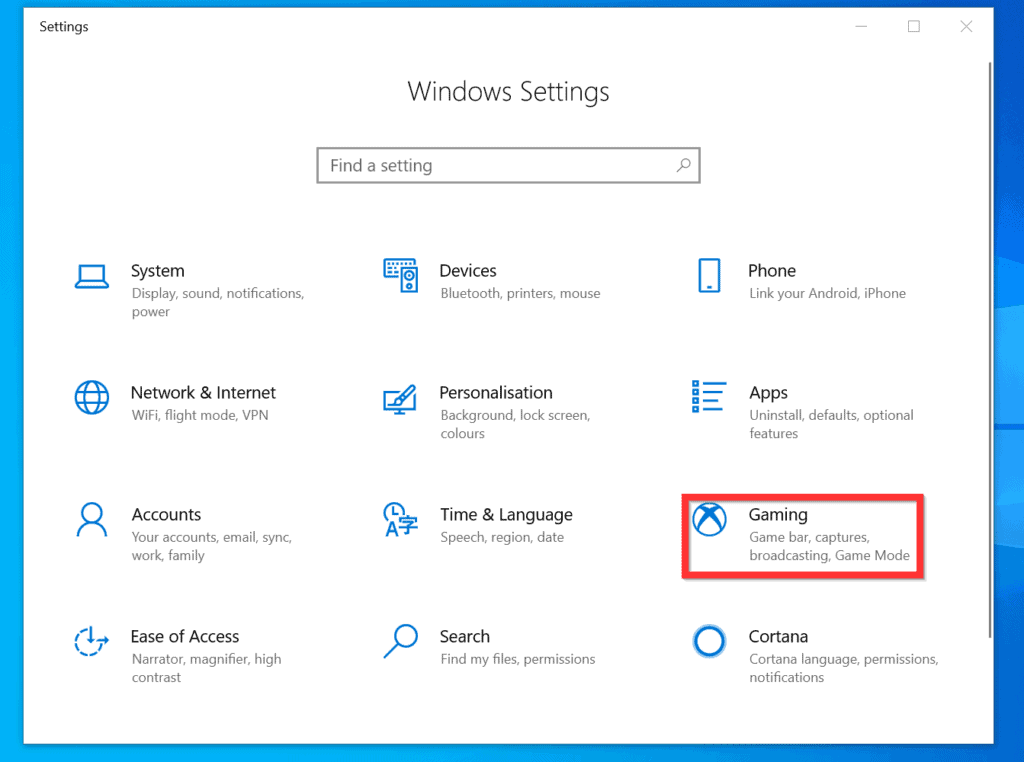
- On the Windows Settings screen, click Gaming.
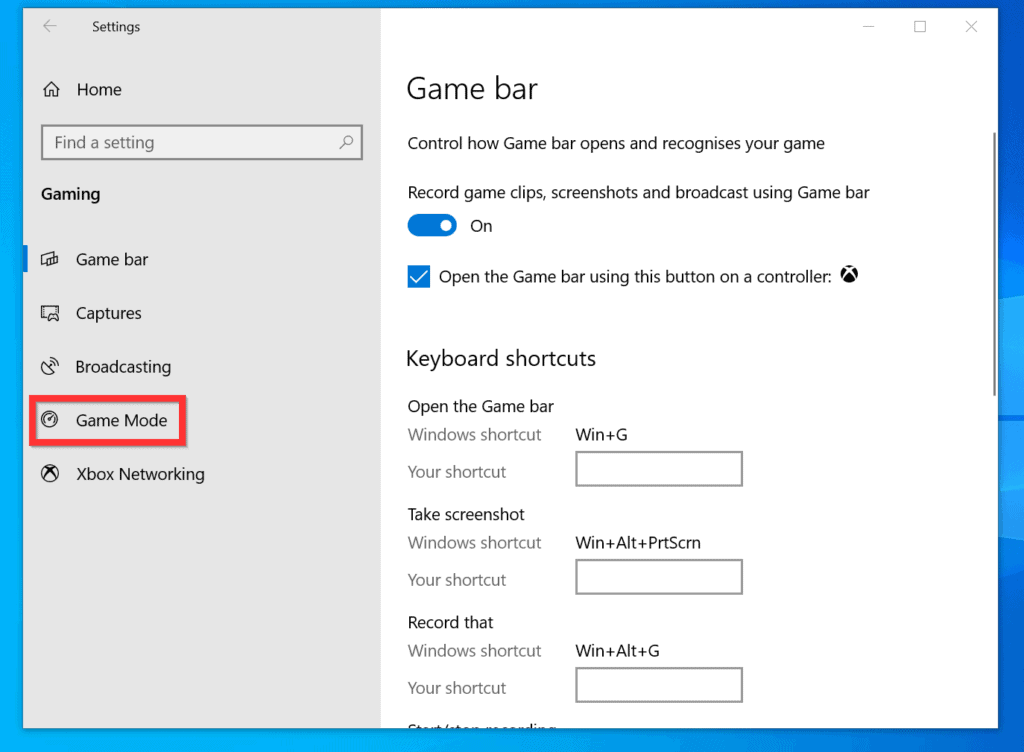
- Finally, on the left pane of the Game bar screen, click Game Mode.
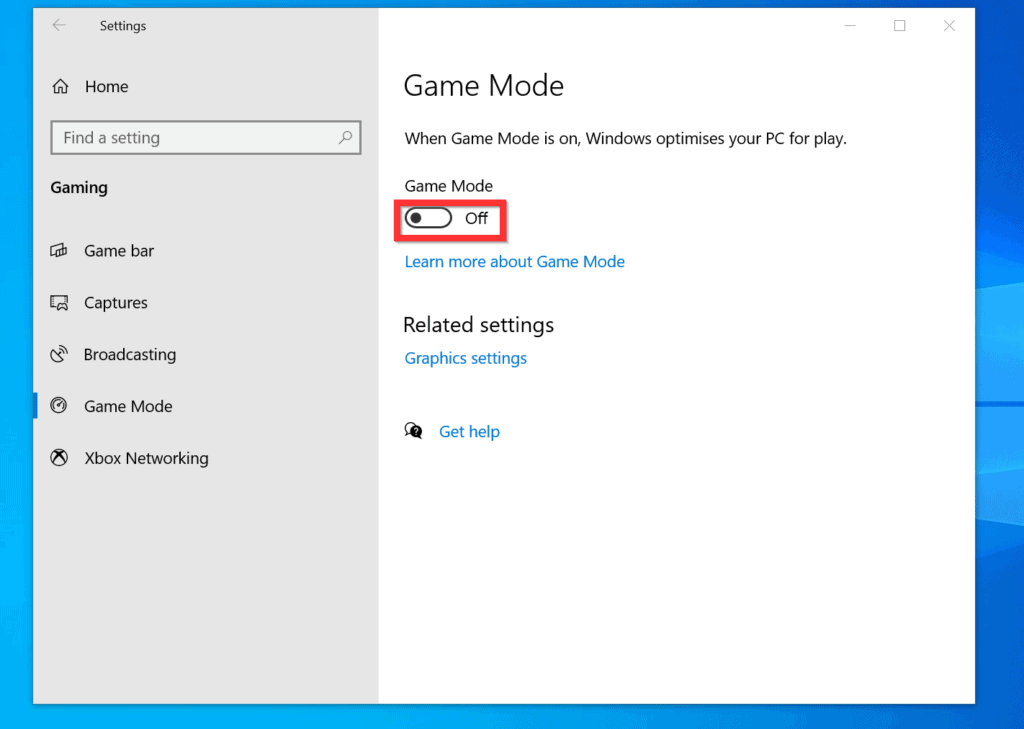
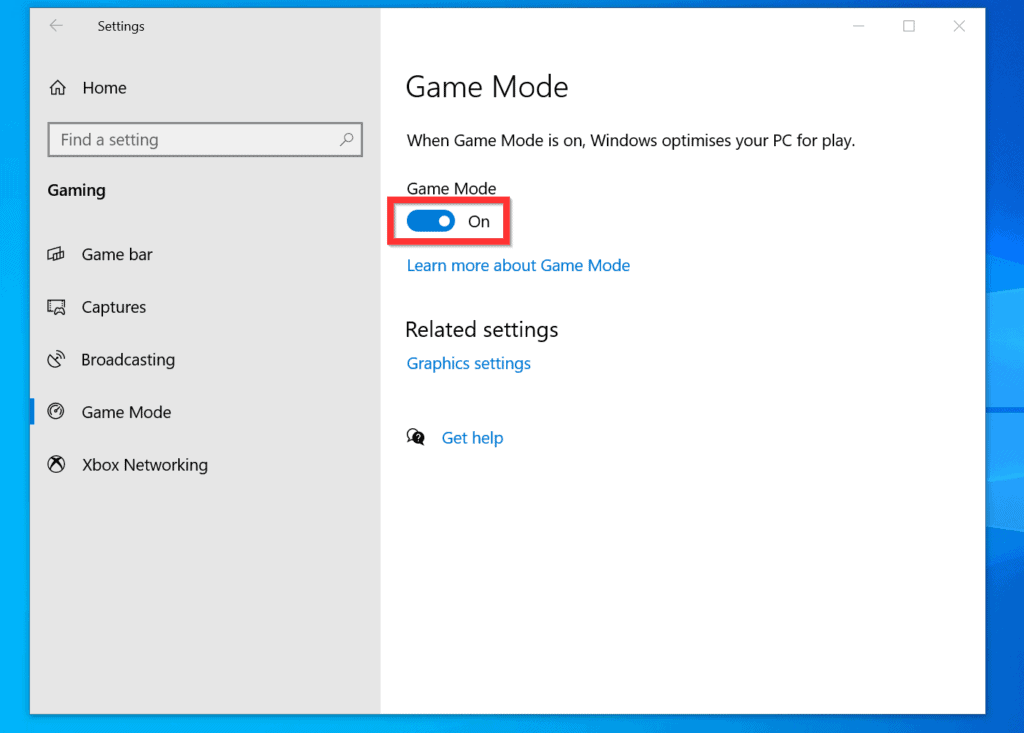
- If the button beneath Game mode is Off, toggle it to On. When Game Mode is on, the background of the button will turn from gray to blue.
Option 2: Update Video Drivers
The performance of your graphics card contributes to your gaming experience. One way to ensure that your display performs optimally is to update the driver.
Do these 3 things before closing this tab:
1Repair Windows errors before they cause bigger problems2Fix the driver behind crashes, sound loss and screen glitches3Clear out junk files and repair common Windows errorsHere are the steps to automatically update the graphics card driver on your PC.
- Right-click Windows 10 Start menu and select Device Manager.

- On the Device Manager MMC, expand the Display adaptors category. To expand the Display adaptors category, click the arrow beside it.

- Then, right-click the graphics card device and select Update driver.
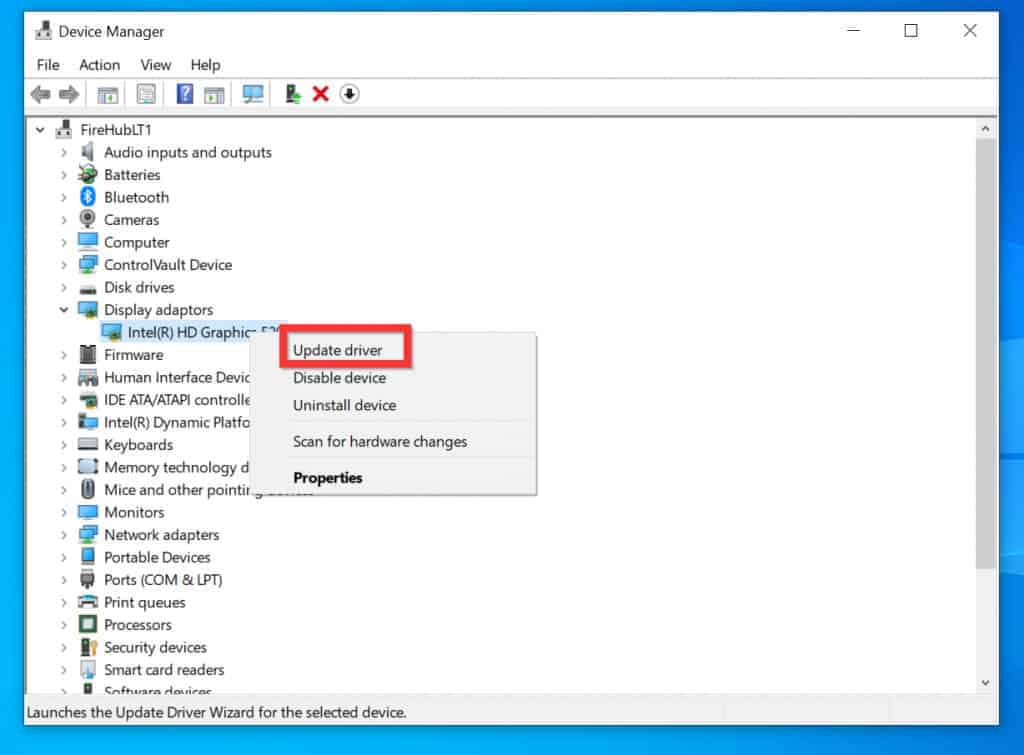
- On the screen to select a location to search for drivers, select Search automatically for updated driver software.
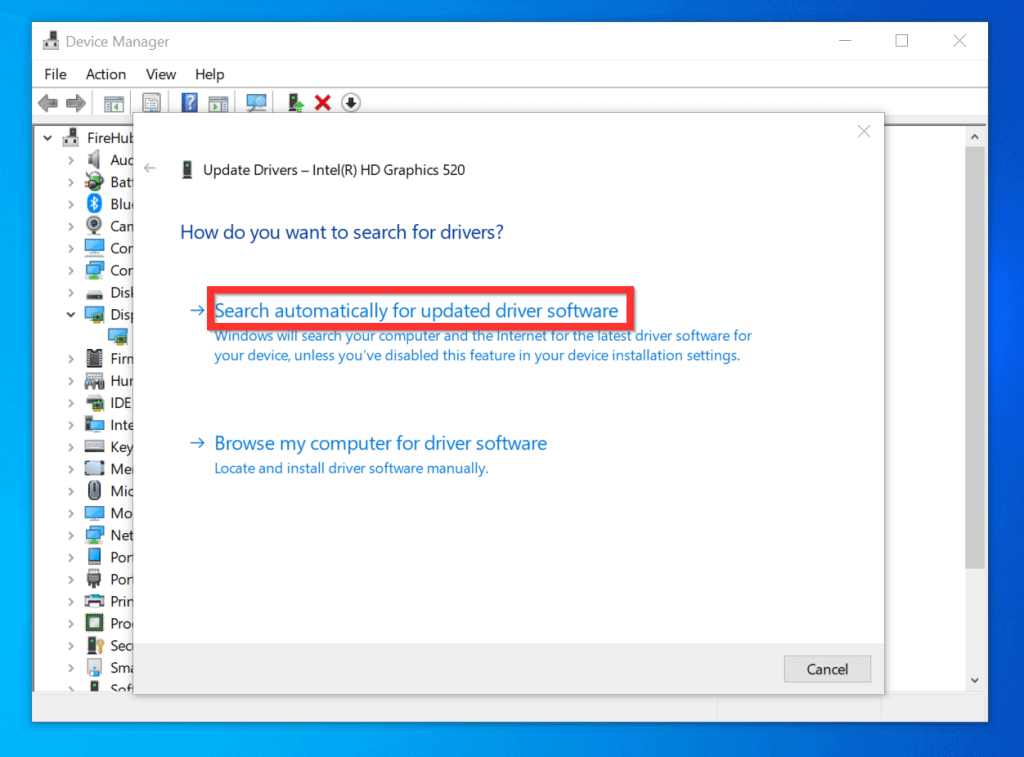
- Windows will search the internet for updated drivers for the device.
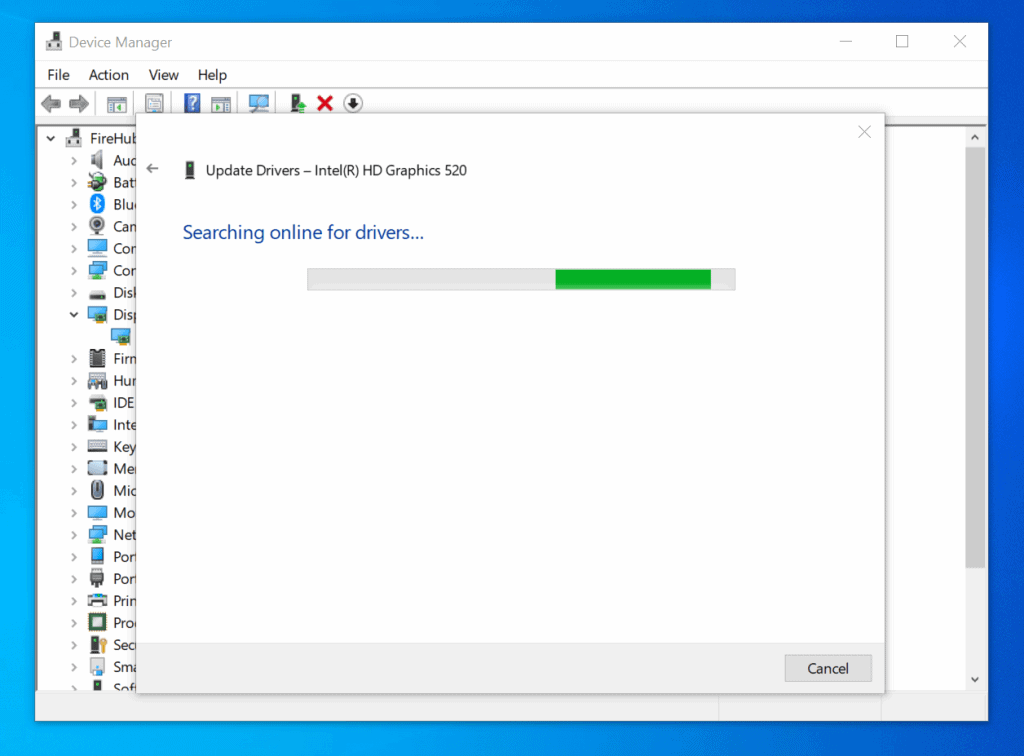
- If Windows finds an updated driver, it will download the driver and install it.

Option 3: Change Your Graphics Card and/or Monitor
As seen in the last section, one way to improve the performance of Windows 10 for gaming is to update the driver for your graphics card. But sometimes, the graphics card on your PC may not be designed for the optimal gaming experience.
If the graphics on your PC is not specifically designed for gaming, changing the card may drastically improve your gaming experience.
For a list of top graphics cards for video gaming, read our review – 5 Best Graphics Card for Video Editing (link opens in a new window). Do not be alarmed by the title of the post. Though it is called “Graphics Card for Video Editing“, the graphic cards reviewed in that post are all designed to give you the optimized gaming experience.
Outdated Drivers Are Slowing You Down
One free scan finds every outdated or missing driver and matches the right update for your exact hardware.Free scan · exact hardware matchWindows Errors? Fix Them Before They Spread
Repair common Windows errors and clear accumulated junk for a smoother, more stable PC - no reinstall needed.Free scan · no reinstallAnother way you can improve your gaming experience in Windows 10 is to purchase a 4k monitor. For the best available 4k monitors, read our review of The 5 Best 4K Monitor for Gaming.
Option 4: Optimize Power Plan for Gaming
Another way to improve the Windows 10 gaming performance is to optimize the Power Plan on your PC for gaming. Here are the steps to perform this task…
- Type control panel in the Windows 10 search. Then, from the search result, click Control Panel.
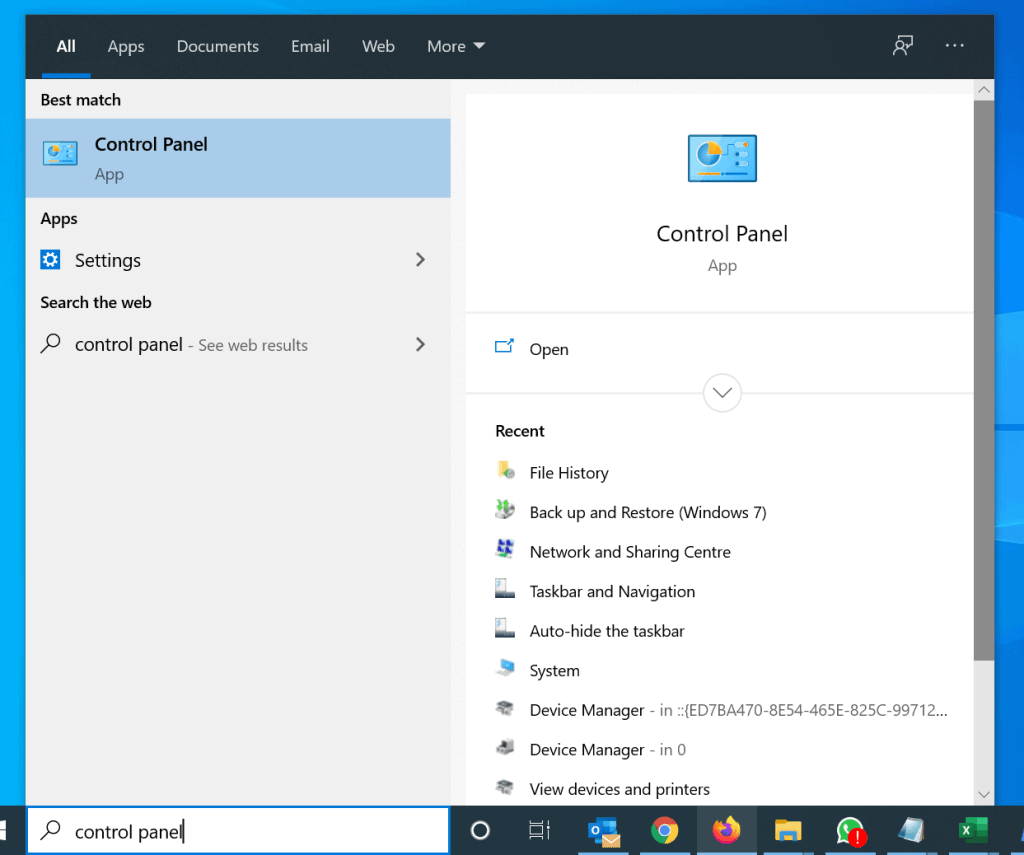
- When Control Panel opens, on the top right, if View by is set to Category, click the drop-down and select Large icons or Small icons.

- After selecting Large icons or Small icons Control Panel view, click Power Options.
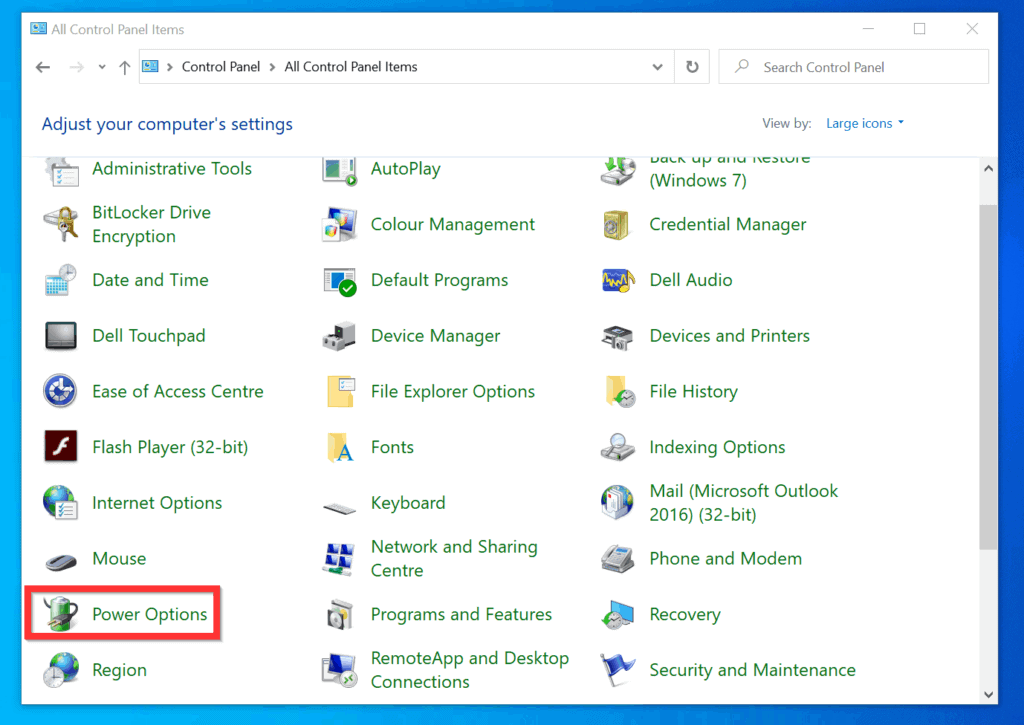
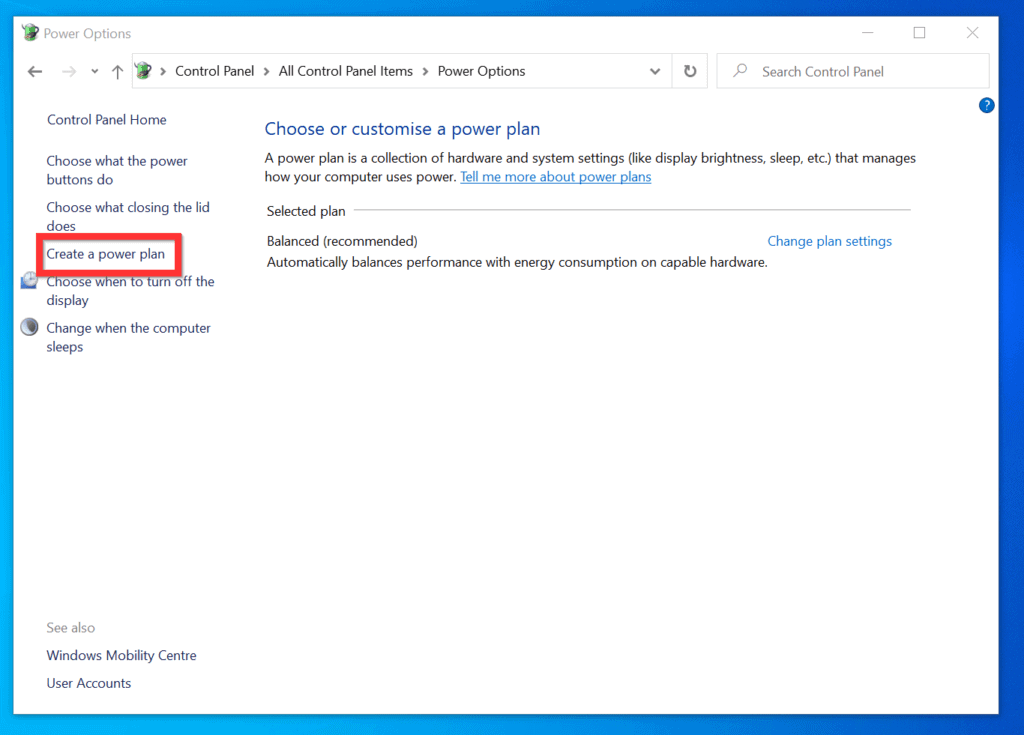
- Then, on the Choose or customize a power plan screen, if a High performance power plan is available, select it. Otherwise, on the left pane of the screen, click Create a power plan.
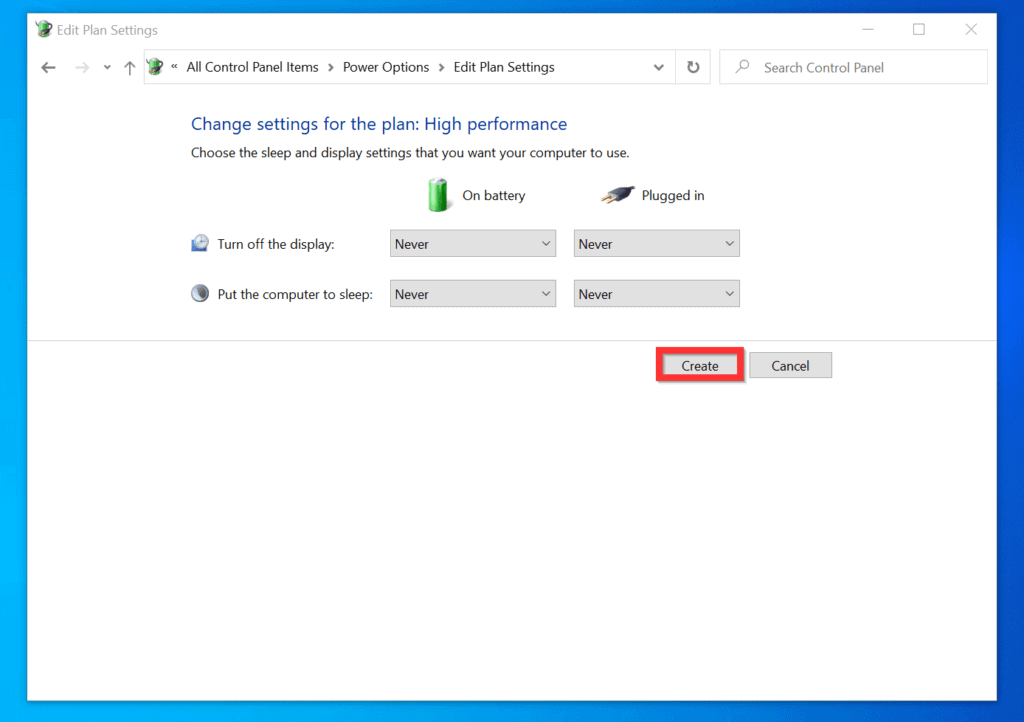
- On the first screen, select High performance. Then, on the Plan name field, enter High performance and click Next.

- Finally, on the final page, change everything to Never and click Create.
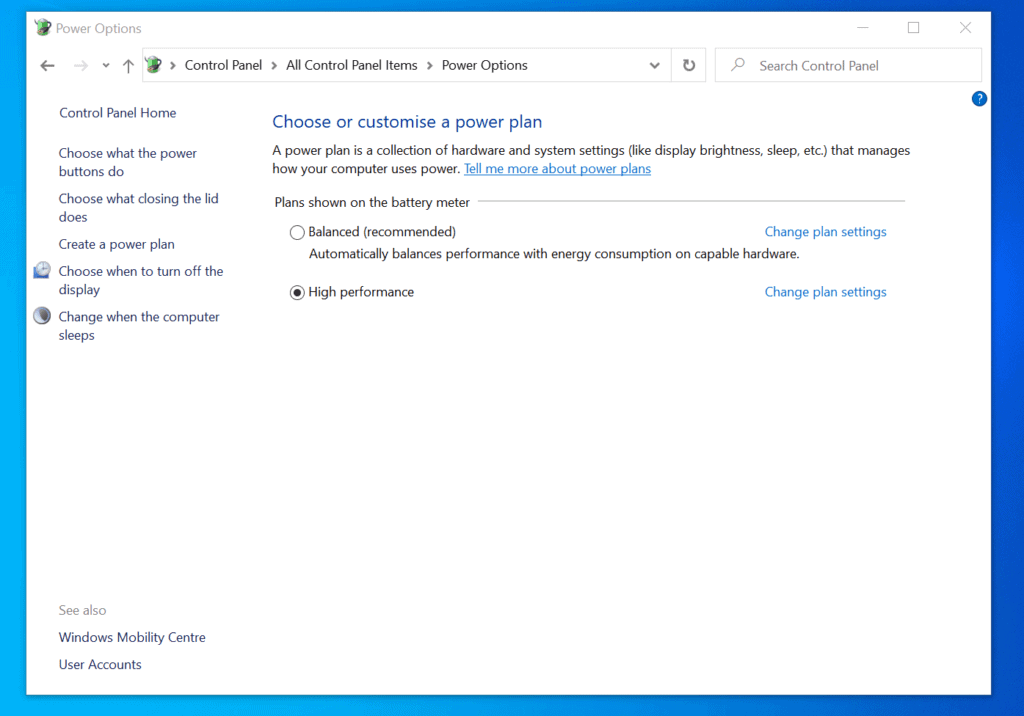
- The new Power plan will be created and selected automatically.
Option 5: Disable Steam Automatic Updates
To manage your gaming experience, it pays to stop Steam from updating automatically.
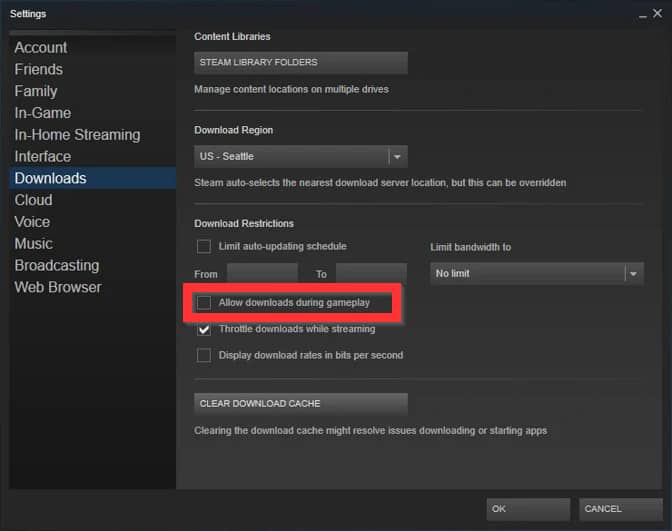
- Open Steam Settings and click Downloads.
- Then, on the Downloads screen, uncheck the All downloads during gameplay checkbox.
Option 6: Disable Mouse Acceleration
While gaming, you want your mouse to move quickly. If Mouse acceleration is enabled, it may slow down the movement of your mouse. Here are the steps to disable mouse acceleration in Windows 10.
The Tool Desk
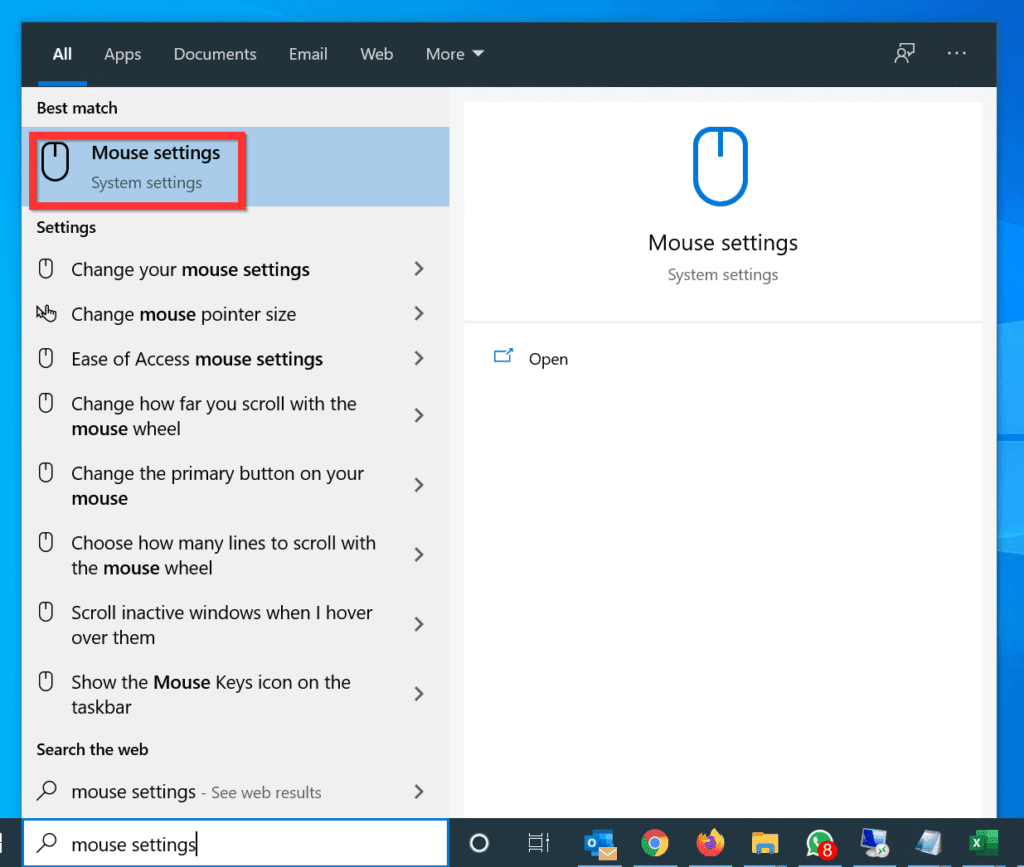
Outbyte Driver Updater FREEScan for outdated or missing drivers - takes under a minuteDriver Scan →Outbyte PC Repair FREERepair Windows errors before they cause bigger problemsFix Now →- Type mouse settings in the search box. Then, from the search results, select Mouse settings.
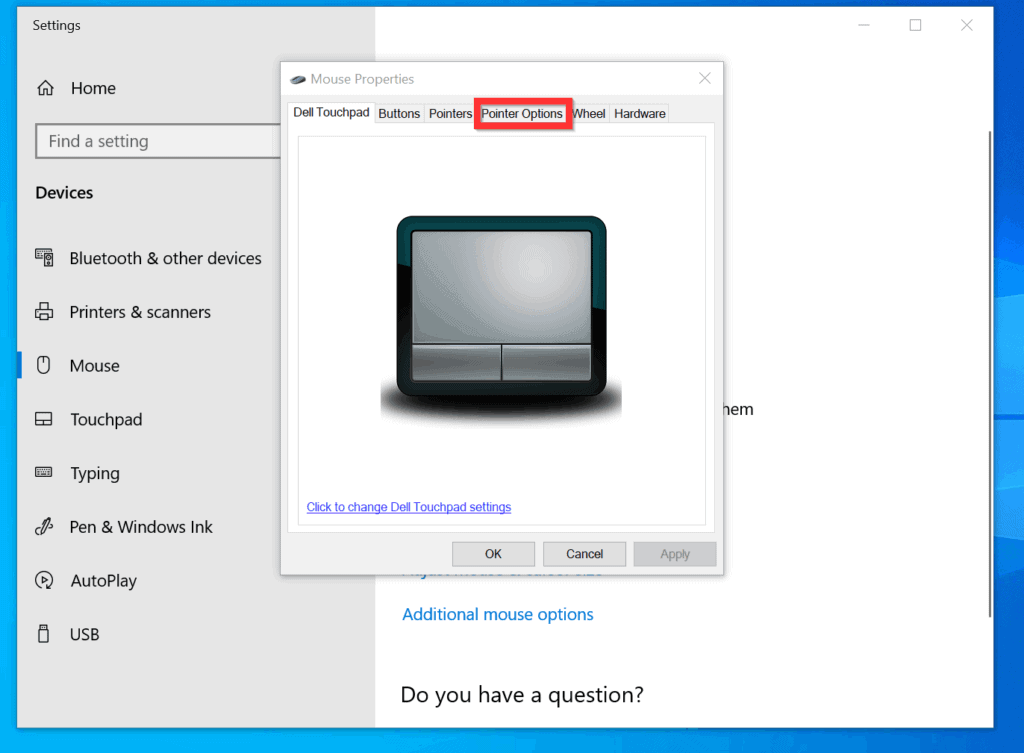
- On the Mouse Settings screen, scroll down to the Related settings section and click Additional mouse options. This will open the mouse settings for your PC model.

- On the Mouse Properties, click the Pointer Options tab.
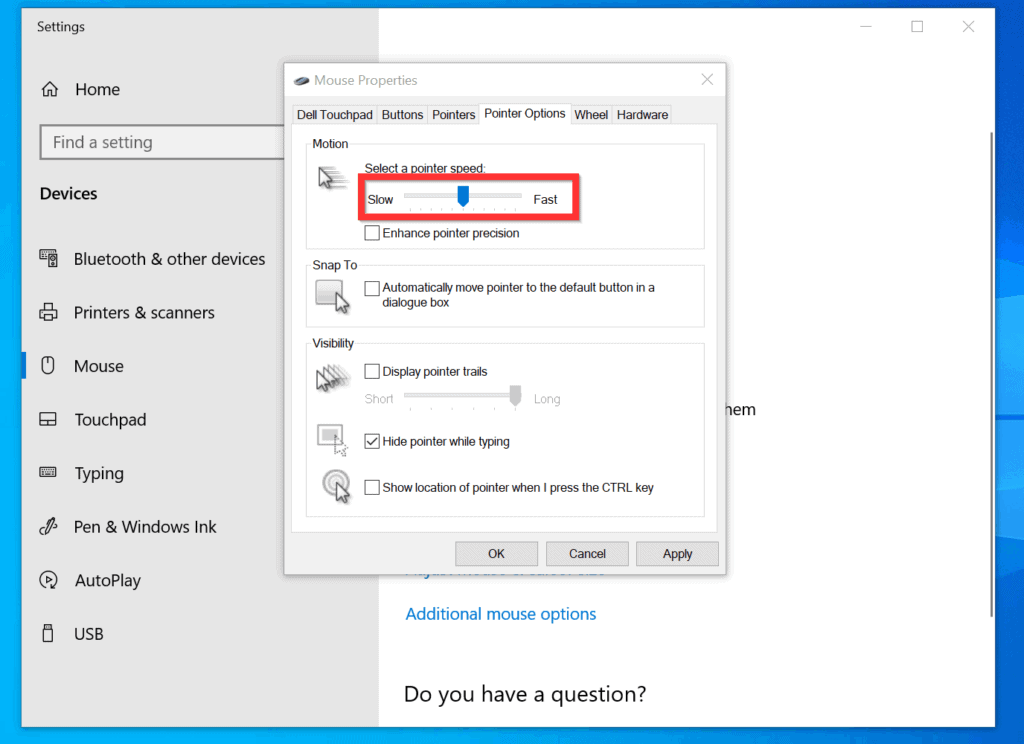
- Finally, uncheck the Enhance pointer precision checkbox. Then, use the Select a pointer speed slider to select the best mouse speed that works for you.
- When you finish making your changes, click OK.

Option 7: Update DirectX to Version 12
The final task you need to perform to improve your Windows 10 gaming experience is to update DirectX to version 12.
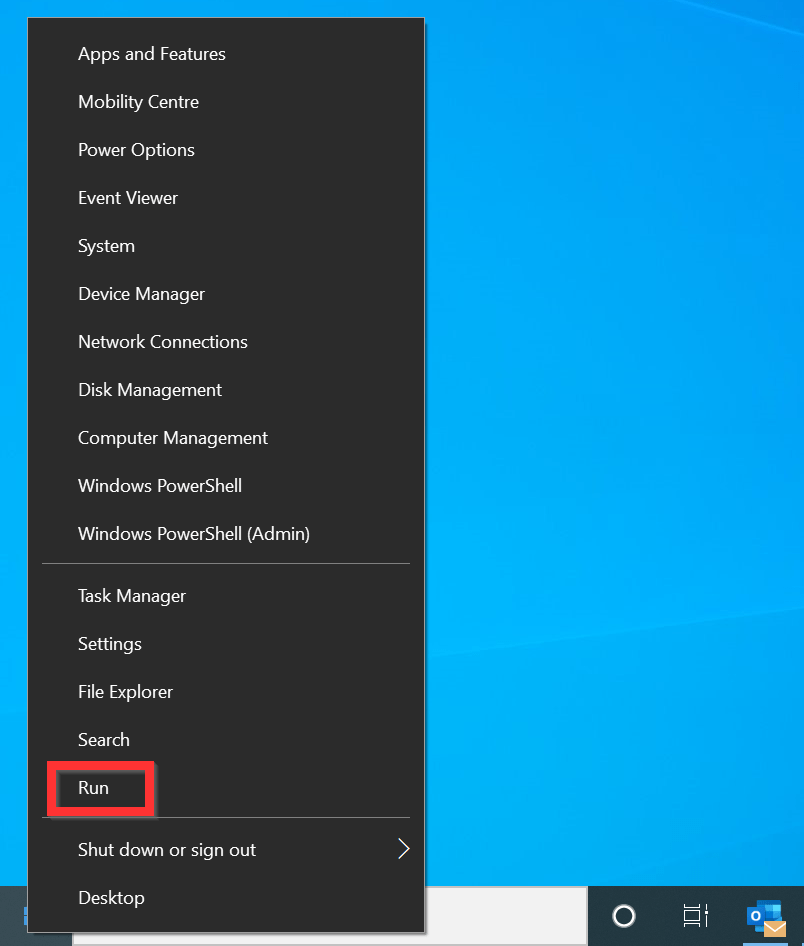
- Right-click Start menu and select Run.
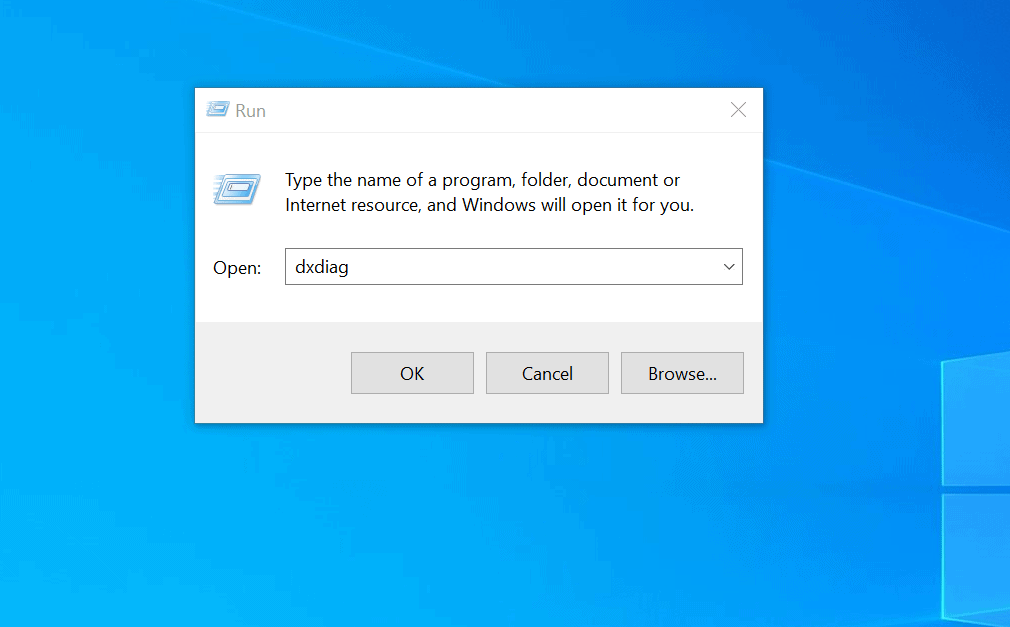
- Then, on the Run window, type dxdiag and click OK. The DirectX Diagnostics Tool will open.
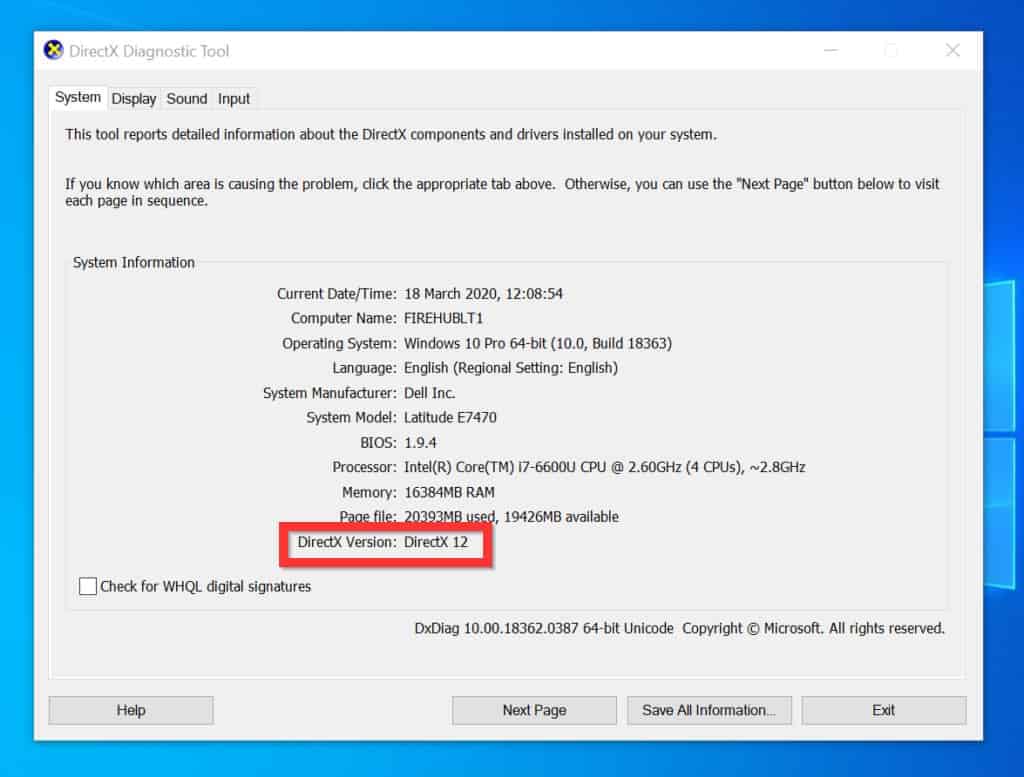
- On the System tab of the DirectX Diagnostics Tool, check your DirectX Version. If it is NOT version 12, check for and install the latest Windows Update.
It is very easy to optimize Windows 10 for gaming! I hope you found this Itechguide helpful. If you found it helpful, click on “Yes” beside the “Was this page helpful” question below.
You may also express your thoughts and opinions by using the “Leave a Comment” form at the bottom of this page.
Finally, for more Windows 10 Itechguides, visit our Windows 10 How-To page. You may also be interested in our Video Games Reviews or our Gadgets Buying Guides pages.
What’s actually slowing this PC down?
Pick the symptom - the matching free tool is one click away.



