iTechGuides is reader-supported. When you buy through links on our site, we may earn an affiliate commission. As an Amazon Associate I earn from qualifying purchases. Learn more
Do you want to make your WordPress site look unique? Creating a custom mouse cursor in WordPress can help with that.
Option 1: Create a Custom Cursor Using Custom Cursor For WP Plugin
The Custom Cursor For WP plugin is one of the many plugins that allow you to create a custom cursor in WordPress. This plugin is totally free and offers various cursor customization options.
Thus, the first sub-section below will illustrate how to install and activate the plugin in WordPress. Meanwhile, the second sub-section demonstrates how to use the plugin to create a custom mouse pointer in WordPress.
Step 1: Install and Activate Custom Cursor For WP Plugin
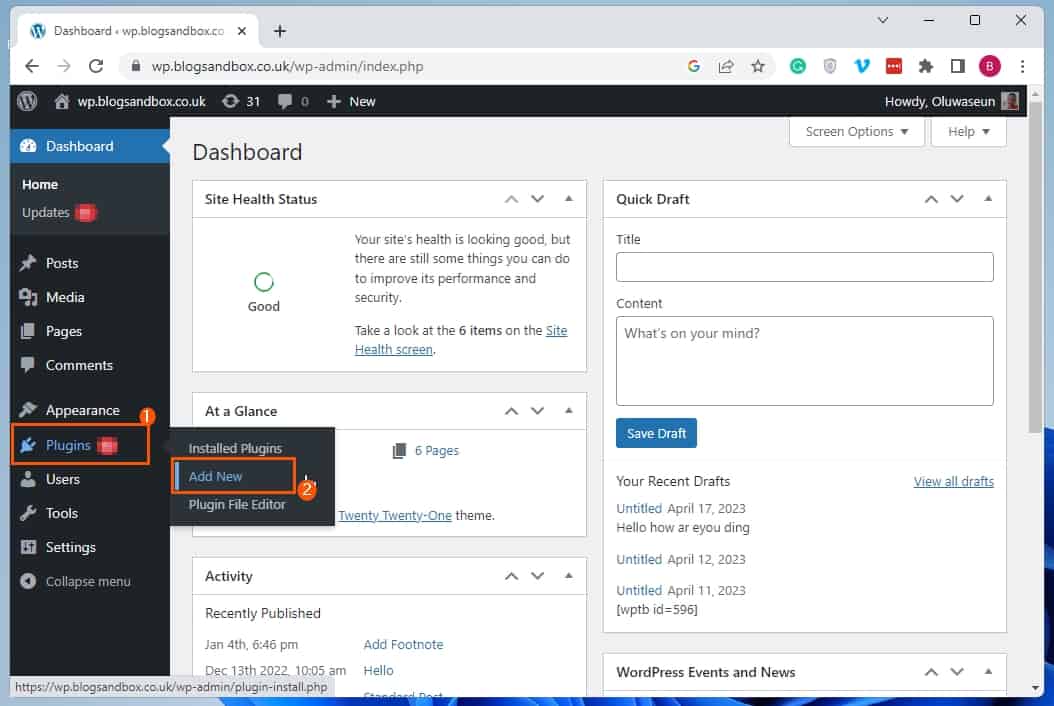
- As an administrator, log in to the backend dashboard of your WordPress site. On the backend dashboard, place your mouse cursor on Plugins, then select Add New from the displayed options.
- Now, input “Custom Cursor For WP” in the search field on the Add Plugins page.

- Following that, click the Install Now button on the Custom Cursor For WP plugin from the search result.

- After installing the plugin, left-click the blue Activate button to enable the plugin on your WordPress site.

Step 2: Create a Custom Cursor using Custom Cursor For WP Plugin
- After successfully activating the plugin, ensure you’re still logged on to your WordPress site’s backend as an admin. Then, click Custom Cursor For WP among the options on the backend dashboard’s left pane.

- On the Custom Cursor For WP page, you can customize a cursor to your satisfaction using the available customization options and cursor types. However, ensure the Custom Cursor toggle is turned on so your custom cursor will be enabled on your WordPress site.

- After customizing the cursor to your taste, click the Save Changes button at the bottom of the page.

- Consequently, whenever someone visits your live website, the cursor should display as your custom cursor.

Option 2: Make a Custom Mouse Pointer Using WP Custom Cursors Plugin
Another plugin that allows you to make a custom mouse pointer in WordPress is the WP Custom Cursors plugin. As with the Custom Cursor For WP plugin discussed above, this plugin is also free.
Popular on Amazon

- MOUSE JIGGLER, AUTO SCROLL AND CUSTOM MODE — Coffee Mode provides subtle randomized cursor movement to help keep your computer awake during presentations, downloads and other long-running tasks; Reading Mode adds automatic downward scrolling, occasional reverse scrolling and cursor motion; Custom Mode runs a saved workflow.
- PROGRAMMABLE WORKFLOWS BY DURATION — Use Chrome or Edge to arrange supported activities such as Email Session, Communication, Web Research, Focus Work, Break/Lock and Resume/Wake; set the order and duration of each step, then save the custom workflow directly to the device — no coding required. To create or edit workflows, press and hold the button for 6 seconds until the LED turns white to enter Setup Mode. After saving, switch to Custom Mode to run your personalized workflow anytime.
- BROWSER SETUP, ONBOARD MEMORY — Configure movement behavior, workflow steps, mode colors and firmware through the YIOUG Device Center; settings are stored on the USB device, so saved modes run without a desktop app or background service. Custom Mode runs your saved workflow; if no workflow has been configured, the device will guide you to the setup page for initial configuration. Internet access is required only for setup and firmware updates.
- USB-A HARDWARE MOUSE MOVER FOR WINDOWS — Recognized by Windows 10/11 as a standard USB HID input device; plug and play with no driver installation; compact 34 × 15 × 10 mm body fits desktop and laptop USB-A ports.
- ONE-BUTTON CONTROL WITH CUSTOM LED — Press the built-in button to switch between Coffee, Reading and Custom modes; the color-customizable LED identifies the active mode at a glance; includes one YIOUG USB mouse mover and one Quick Start Guide.
Therefore, the following sub-sections will illustrate how to install and activate this plugin in WordPress. Also, you will learn how to use the plugin to create a custom mouse pointer.
Step 1: Install and Activate WP Custom Cursors Plugin
- Enter the backend dashboard of your WordPress site as the administrator. Next, place the mouse pointer above Plugins on the backend dashboard’s left pane, then click Add New from the list of options that appears.
- After doing that, type “WP Custom Cursors” in the search field on the Add Plugins page.

- Now, click the Install Now button on the WP Custom Cursors plugin from the search result.

- After you’ve successfully installed the plugin, click the Activate button to enable it on your WordPress site.

Step 2: Make a Custom Pointer Using WP Custom Cursors
- After activating the WP Custom Cursors plugin, ensure you’re still signed in to your WordPress site’s backend as an admin. Then, put your mouse cursor on WP Custom Cursors on the left pane and select Add New from the displayed options.

- Now, on the WP Custom Cursors page, choose a cursor type and click Next.

- Then, customize the cursor – such as changing the cursor’s color and size – using the customization options on the next page. After you’ve done that, click the Next button again to move on.

- Following that, click the Next button on the Hover Options section.

- Finally, click the Save Cursor button on the Activation section. Therefore, your custom cursor should appear as the default cursor whenever someone visits your live website or site’s front-end – see the second screenshot below.


Frequently Asked Questions
A cursor is a movable indicator on a computer’s screen identifying the point that will be affected by input from the user. Moreover, the cursor is usually controlled by an input device called the mouse.
A plugin I recommend to create a custom cursor in WordPress is the Custom Cursor For WP plugin.
Also popular on Amazon

- 35g ULTRALIGHT MOUSE - This lightweight mouse ranks among the industry's lightest holeless gaming mice, engineered specifically for competitive FPS and MOBA gameplay. The ultralight 35g(1.23oz) design enhances control, enabling rapid flick shots with near-zero latency between intent and action, while ensuring lasting comfort during marathon sessions. Its compact size is designed specifically for small and medium-sized hands, and its optimized symmetrical shape supports all mainstream gripping styles. SIZE:4.7"(L)x2.5"(W)x1.5"(H)
- DUAL 8K POLLING RATE GAMING MOUSE - Featuring an 8000 Hz polling rate in both wireless and wired modes, the wireless gaming mouse delivers up to 8 times more data reports per second than the standard 1000 Hz rate, ensuring the fastest response time and minimal input latency, providing seamless updates between the mouse and monitor.
- CUSTOM PAW3950 OPTICAL SENSOR - The AIM-750U sensor was customized based on the PAW3950 optical sensor for DAREU by PixArt. The chip is designed to fulfill the needs of professional gamers for a best-in-class gaming experience while enabling casual gaming on glass with its auto-adaptive surface recognition feature. With true 30,000 DPI, 750 IPS speed, and 50g acceleration, it incorporates enhanced features such as lower power consumption, selectable lift detection height, and wide surface coverage.
- DURABLE 100M SWITCHES & Nordic 52840 MCU - Up to 100 million click lifecycle with zero double-clicking issues,ultra-crispy clicks, and ensure swift and pinpoint responses. Adopting the industry-leading Nordic 52840 main control chip, the response speed is fast and accurately detects the movement and position of the mouse, so there is no delay or lag when playing games.
- 70 HR BATTERY 90 MIN FULL CHARGE - Engineered with cutting-edge low-power technology, the A950WING gaming mouse achieves an industry-leading lightweight design while delivering an ultra-long 70-hour playtime. Its 90-minute full-charge capability ensures uninterrupted gaming, redefining performance benchmarks for esports.
No, they don’t. There are lots of free plugins in WordPress that allow you to create a custom cursor with no hassle.
Yes, the WP Custom Cursors plugin is free. However, you might need to pay a small amount for additional features.
To install and activate this plugin on your WordPress site, follow the steps below.
a) As an administrator, log in to the backend dashboard of your WordPress site.
b) Next, on the backend dashboard, place your mouse cursor on Plugins, then select Add New from the displayed options.
c) Now, input “Custom Cursor For WP” in the search field on the Add Plugins page.
d) Following that, click the Install Now button on the Custom Cursor For WP plugin from the search result.
e) After installing the plugin, left-click the blue Activate button to enable the plugin on your WordPress site.
Also popular on Amazon

- [12,800 DPI Superior Precision] This gaming mouse can be customized via software to 6 DPI settings, allowing gamers to quickly switch between them while gaming. The 12,800 DPI sensor delivers exceptional accuracy and responsiveness, capturing every subtle movement and making gaming effortless
- [8 Programmable Buttons] This wired gaming mouse has 8 programmable buttons can be programmed to your preferred style and habits for any game or task. A rapid-fire button and two side macro buttons provide an enhanced gaming and productivity experience
- [13 RGB Lighting Modes] Our TECKNET driver offers 13 lighting modes and customizable lighting effects across 16.8 million colors. This wired RGB gaming mouse also features musical dynamic modes (wave/flash/starlight) to add a touch of personality to your gaming setup and immerse you in your overall gaming experience
- [Pro-Grade Optical Sensor] Equipped with a professional gaming-grade sensor, this mouse achieves a max tracking speed of 60 IPS and max acceleration of 20G, ensuring flawless performance during fast-paced swipes. With 99.8% resolution accuracy, it delivers pixel-precise tracking and consistent responsiveness for competitive gaming
- [Ergonomic Design] This ergonomic mouse features a smooth curved shape,which is comfortable for users with medium to large hands and ensures you can play games efficiently for a long time
Conclusion
Creating a custom cursor on your WordPress website can be a great way to add a unique touch to your site. However, WordPress does not offer a built-in feature for creating custom mouse pointers.
What’s actually slowing this PC down?
Pick the symptom - the matching free tool is one click away.
Nonetheless, there are several plugins that allow you to do that. Fortunately, this guide discussed two of these plugins – Custom Cursor For WP and WP Custom Cursors.
Specifically, we learned how to install and activate these plugins in WordPress. This guide also taught us how to use the plugins to develop a custom pointer on a WordPress website.
Also popular on Amazon

- 【MAGNETIC MODULAR AESTHETIC DESIGN】 Adopting an innovative magnetic modular structure on the keys and rear cover, this custom mouse supports tool-free disassembly and structural recombination. Gamers can freely replace and reorganize the mouse modules to create a unique desktop aesthetic while simplifying daily cleaning and maintenance. It perfectly combines practical, competitive-gaming performance with personalized desktop aesthetics for setup enthusiasts.
- 【CUSTOMIZABLE ERGONOMIC BACK MODULE】 Designed with an adjustable rear cover module, the gaming mouse supports 10mm telescopic length adjustment and 15° angle fine-tuning. It allows effortless one-second customization to fit various hand sizes and common grip styles, including palm, claw and fingertip grip. The tailored fitting design effectively relieves wrist strain during extended gaming marathons and long-hour office use, bringing upgraded comfort for all-day usage.
- 【ZERO-LAG STABLE WIRELESS CONNECTION】 Powered by the flagship Nordic 54 series chip from a top-tier Norwegian semiconductor brand, this wireless gaming mouse delivers stable 2.4GHz wireless transmission with strong anti-interference capability against surrounding Wi-Fi routers and other wireless devices. It effectively lowers input lag and prevents frame drops during intense ranked battles and fast-paced FPS gaming, sustaining stable high-polling-rate operation and low-power performance to support long wireless gaming sessions without frequent charging.
- 【PRO-GRADE DUAL 8000HZ POLLING RATE】Featuring upgraded transmission technology, the mouse supports an ultra-fast 8000Hz polling rate in both wired and wireless modes. It greatly boosts data receiving and transmitting efficiency with one-to-one signal feedback, delivering near-instant response to every cursor movement and click. It works perfectly for competitive gaming scenarios such as fast flick shots and quick skill casts, helping gamers improve in-game operation accuracy and reaction speed.
- 【HIGH-PRECISION AIM-750U SENSOR TRACKING】 Equipped with the premium AIM-750U gaming sensor, this mouse offers 42000DPI resolution, 750IPS tracking speed and 50G acceleration. It provides ultra-smooth and precise cursor tracking with negligible offset, accurately capturing every subtle hand movement during high-speed gaming operations. It brings consistent and reliable aiming performance for professional esports competitions and daily casual gaming sessions.
I hope this article was an interesting read and you found it helpful. If you found the article helpful, click on “Yes” beside the “Was this page helpful” question below.
You may also express your thoughts and opinions by using the “Leave a Reply” form at the bottom of this page.
Aside from our forum staff, other community members might also offer answers to your questions or feedback.
Finally, you can check out our WordPress & Websites How-to Guides page to find other helpful guides.
Quick Recap
Product prices and availability are accurate as of the date/time indicated and are subject to change. Any price and availability information displayed on Amazon at the time of purchase will apply.