

iTechGuides is reader-supported. When you buy through links on our site, we may earn an affiliate commission. As an Amazon Associate I earn from qualifying purchases. Learn more
Do you want to highlight text on your WordPress site but have no idea how? You should read this guide, as it features multiple ways to perform this task.
Option 1: Highlight Text Using a Plugin
You can mark text on a page or post on your WordPress site using the Advanced Editor Tools plugin. This plugin was developed by WordPress and adds more text formatting options to the WordPress block editor.
Thus, I will first teach you how to install and activate this plugin in WordPress in this section. Then, you will learn how to highlight text(s) in WordPress with the plugin.
Step 1: Install the Advanced Editor Tools Plugin
- Login to the backend of your WordPress site with the aid of an administrator account. Then, on the left pane of the backend dashboard, hover your mouse on Plugins and left-click Add New from the displayed options.

- After doing that, input “Advanced Editor Tools” in the search field.

- Next, click the Install Now button on the Advanced Editor Tools (previously TinyMCE Advanced) plugin from the search result.

- After the plugin has been successfully downloaded, click the blue Activate button to activate it.

Step 2: Mark a Text With the Advanced Editor Tools Plugin
- Access the backend of your WordPress site with an admin account. Afterward, click Posts or Pages on the left pane, depending on where you want to highlight a text.

- Then, click the title of the post/page where you want to highlight a text. For this demonstration, I will select the “Hello world!” post on my WordPress site.

- When the post or page opens, select the text(s) you want to highlight. Then, click the More icon (downward arrow) in the toolbar at the top of the text block and select Mark.

- Consequently, the selected text(s) will be highlighted.

Option 2: Highlight Text Using HTML
With a simple HTML element, you can highlight a text(s) on your WordPress website. The subsequent procedures and images demonstrate how to accomplish that.
Popular on Amazon

- Reliable Plug and Play: The USB receiver provides a reliable wireless connection up to 33 ft (1), so you can forget about drop-outs and delays and you can take it wherever you use your computer
- Type in Comfort: The design of this keyboard creates a comfortable typing experience thanks to the low-profile, quiet keys and standard layout with full-size F-keys, number pad, and arrow keys
- Durable and Resilient: This full-size wireless keyboard features a spill-resistant design (2), durable keys and sturdy tilt legs with adjustable height
- Long Battery Life: MK270 combo features a 36-month keyboard and 12-month mouse battery life (3), along with on/off switches allowing you to go months without the hassle of changing batteries
- Easy to Use: This wireless keyboard and mouse combo features 8 multimedia hotkeys for instant access to the Internet, email, play/pause, and volume so you can easily check out your favorite sites
- Login to your WordPress site backend with an admin account. After that, click Posts or Pages on the left pane, depending on where you want to highlight a text.

- Following that, left-click the title of the post or page where you want to highlight a text. For this demonstration, I will select the “Hello world!” post on my WordPress site.

- In the post/page, select the text block that features the text you want to highlight. Then, click the Options icon (three vertical dots) in the toolbar at the top of the block and select Edit as HTML.

- Following that, wrap the text you wish to highlight inside the <mark> and </mark> tags. For instance, if I want to highlight only “WordPress” in the text block, below is what the text will look like after wrapping it with the tag.
<mark>WordPress</mark>

- Finally, click the Edit visually button. Hence, the text(s) will be highlighted – see the second screenshot.


Frequently Asked Questions
WordPress was first released on 27 May 2003.
Follow the steps below to install the Advanced Editor Tools plugin in WordPress.
a) Login to your WordPress site’s backend using an administrator account.
b) Then, on the left pane of the backend, hover your mouse on Plugins and left-click Add New from the displayed options.
c) After doing that, input “Advanced Editor Tools” in the search field.
d) Next, click the Install Now button on the Advanced Editor Tools (previously TinyMCE Advanced) plugin from the search result.
e) After the plugin has been downloaded, click the blue Activate button to activate it.
Yes, you can highlight a text on your WordPress website with HTML. Read Highlight Text In WordPress Using HTML to accomplish that.
Also popular on Amazon

- Dependable wireless connection: Enjoy the reliability and convenience of 2.4 GHz connectivity with your logitech wireless keyboard and mouse combo, wireless range up to 10 meters away at home, or work.
- Full-Size Wireless Keyboard: Comfortable, quiet typing on a familiar keyboard layout with palm rest, spill-resistant design, and media keys. This wireless keyboard and mouse logitech has easy-access to media keys
- Plug and Play: MK345 works seamlessly with Windows, macOS, and ChromeOS. Experience hassle-free setup with the logitech mk345 wireless combo and wireless keyboard mouse combo for various operating systems.
- Long-lasting Battery: The MK345 combo offers a full size keyboard battery life of up to 3 years and a mouse battery life of 18 months (1); batteries included
- Comfortable Right-handed Mouse: This wireless USB mouse with dongle works well for this wireless mouse and keyboard combo, featuring a contoured shape for all-day comfort and smooth, precise tracking and scrolling for easier navigation.
Two people founded WordPress. They include English developer Mike Little and American developer Matt Mullenweg.
The Tool Desk
Outbyte Driver Updater FREEFix the driver behind crashes, sound loss and screen glitchesFind Drivers →Outbyte PC Repair FREERepair Windows errors before they cause bigger problemsFix Now →Yes, the Advanced Editor Tools plugin by WordPress is totally free.
Also popular on Amazon

- 【Ergonomic Wireless Keyboard Mouse 】: Wireless ergonomic keyboard is equipped with adjustable height tilt legs to increase comfort and prevent your wrists injury when typing for a long time. The full size wireless keyboard with numeric keypad and 12 multimedia shortcut keys, such as play/ pause, volume increase and decrease, and email, to help you improve work efficiency
- 【Stable & Reliable Wireless Connection】: This wireless keyboard and mouse combo share the same USB receiver(stored in the mouse), and they can also be used separately. Plug & play, no need to download any software, 2.4 GHz wireless provides a powerful and reliable connection up to 33 feet(10m) without any delays.You can enjoy the convenience and freedom of wireless connection at home or at work
- 【Comfortable Optical Mouse】: This compact lightweight wireless mouse features a hand-friendly contoured shape for all-day comfort, and smooth, precise tracking.1600 DPI to meet your daily needs. Perfect for home & office work and entertainment
- 【Long Battery Life】: Up to 365 Days of battery life for keyboard and mouse wireless, say goodbye to the hassle of charging cables and replacing batteries. After 10 minutes of inactivity, the wireless keyboard mouse combo will automatically go into sleep mode to save energy. The wireless keyboard requires one AAA battery, and the wireless mouse requires one AA battery.
- 【Less Noise, More Quiet Keys】: Soft membrane keys provide a quiet and comfortable typing experience, So you can type with confidence on a wireless keyboard crafted for comfort, precision and fluidity. The wireless mouse adopts silent micro-motion technology, which is almost completely silent when clicked. No more concerns about disturbing others.
Conclusion
Highlighting text in your WordPress website can help you direct readers’ attention to a specific text area. Thankfully, this guide demonstrated two ways you can highlight text in WordPress.
Specifically, we discussed how to perform this task using a plugin. This guide also provided steps to highlight text in WordPress using HTML.
Also popular on Amazon

- Durable and Reliable: This USB keyboard features a curved space bar, spill-resistant design (2), durable keys that can withstand 10 million keystrokes, and sturdy, adjustable tilt legs
- Comfortable, Familiar Typing: You’ll enjoy a comfortable and familiar typing experience thanks to the deep-profile keys and standard layout with full-size F-keys and number pad
- Full-size Sculpted Mouse: The high-definition optical USB mouse puts comfort and control in your hands with smooth, accurate tracking and an ambidextrous shape that feels good hour after hour
- Simple Set-Up: Simply plug the keyboard and mouse into the USB ports on your desktop, laptop, or netbook and you're ready to work; compatible with Windows 7, 8, 10 or later
- Clear and Convenient: The bold, bright white and long-lasting characters make the keys on this PC or laptop keyboard easy to read and extra durable
Hopefully, you found this guide helpful. If you found the guide helpful, click on “Yes” beside the “Was this page helpful” question below.
You may also express your thoughts and opinions by using the “Leave a Comment” form at the bottom of this page.
Also popular on Amazon
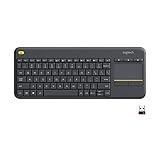
- Media-Friendly: The K400 Plus wireless touch TV keyboard gives you integrated, comfortable control of your PC-to-TV entertainment, eliminating the clutter of a separate keyboard and mouse
- Plug-and-Play: Simply plug the Unifying receiver into a USB port and the wireless touchpad keyboard is ready to go; adjust controls using the Logitech Options Software to save preferred settings
- Power-Packed: Built with laid-back control in mind, this wireless TV keyboard has a reliable and long battery life of up to 18 months (2), including an on/off button to help it go even longer
- Wireless Freedom: Designed for seamless comfort and control, this HTPC keyboard boasts a range of up to 33 ft (1) wireless connectivity, with quiet keys and a large touchpad for easy navigation
- Broad Compatibility: Designed for use with Windows 7, Windows 8, Windows 10 and later, Android 7 or later, and Chrome OS
Finally, you may read more articles like this by visiting our WordPress & Websites How-to Guides page.
Quick Recap
Product prices and availability are accurate as of the date/time indicated and are subject to change. Any price and availability information displayed on Amazon at the time of purchase will apply.



