

iTechGuides is reader-supported. When you buy through links on our site, we may earn an affiliate commission. As an Amazon Associate I earn from qualifying purchases. Learn more
Does your Windows 10 PC’s screen suddenly turn blue with an APC index mismatch error? Not to worry, this guide provides various solutions to this annoying problem.
Solution 1: Perform Clean Boot In Safe Mode
One way to fix this problem is to perform a clean boot in safe mode. To achieve that, follow the steps below.
- Press and hold the power button of your PC for a few seconds until it shuts down.
- After that, press the power button again to start the Windows 10 PC. However, when Windows 10 is loading, press and hold the power button again until the computer shuts down.
- When you turn on the Windows 10 computer for the third time, it should boot into Recovery mode.
- In the Recovery mode environment, select See advanced repair options.
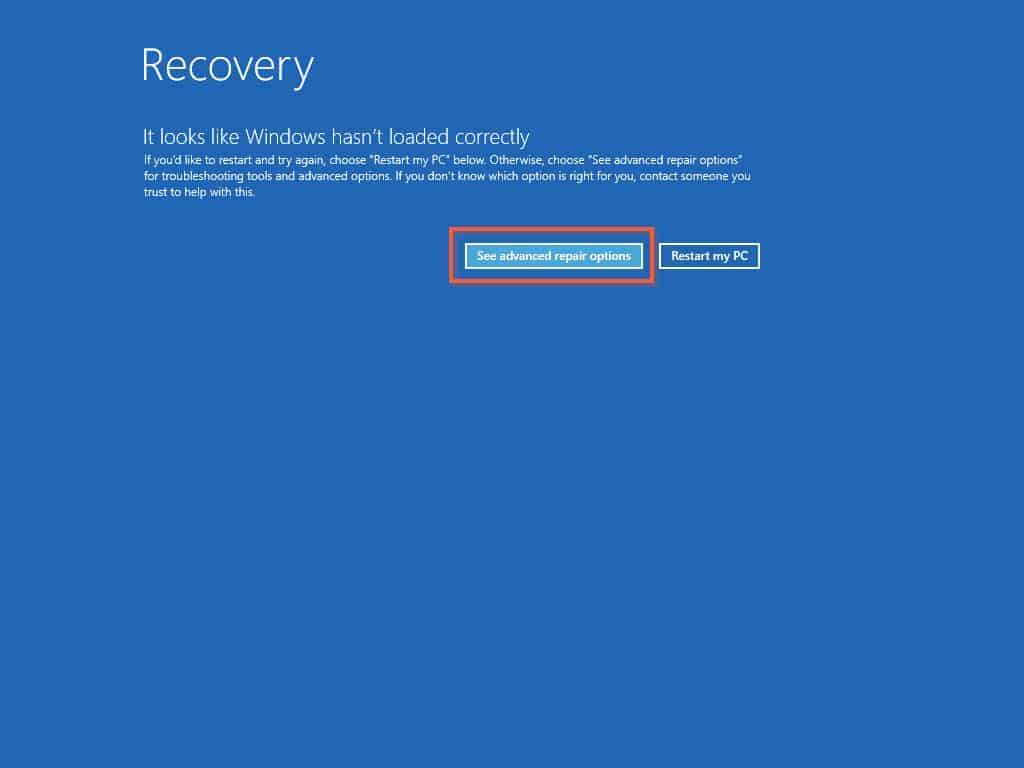
- After that, click the Troubleshoot option from the Choose an option page.

- Following that, select Advanced options.

- Then, click the Startup settings option.

- On the Startup Settings page, click the Restart button.

- After that, you can either press the “F4” or “4” key on your keyboard to boot into safe mode.

- When you’ve successfully booted into safe mode, click the search field on the Windows 10 taskbar and type “msconfig”. Then, select System Configuration from the search result.

- After that, switch to the Services tab, check the Hide all Microsoft services box, and click Disable all.

- After that, switch to the Startup tab and select Open Task Manager.

- On the Startup tab in Task Manager, disable every application that is enabled by right-clicking it and selecting Disable.

- After doing that, close the Task Manager window.

- Then, click OK on the System Configuration window to save the changes.

- Finally, restart your Windows 10 computer, and the problem should be fixed. However, check out the other solution below if the problem still occurs.
Solution 2: Update the Display Driver
Sometimes, the APC index mismatch error in Windows 10 might be caused by an outdated display driver. Hence, you will have to update the display driver of your computer to fix the problem.
To achieve that, follow the steps below.
- Right-click the Windows 10 Start menu and select Device Manager from the options that pop up.

- When Device Manager opens, double-click Display adapters to expand it.

- Then, right-click your computer’s display driver and select Update driver.

- Next, click on Search automatically for drivers.

- After doing that, Windows will search the internet for the latest display driver update for your computer and automatically installs it. Therefore, make sure your computer is connected to the internet during this process.

- Lastly, restart your Windows 10 PC after the update. Hopefully, the problem should be resolved.
However, you can check out the next solution below if the issue isn’t resolved.
Popular on Amazon

- HIGH-END THERMAL PASTE FOR CPU, GPU AND CONSOLES – Kryonaut is made for demanding systems where strong heat transfer and reliable cooling matter.
- DEVELOPED FOR OVERCLOCKING AND DEMANDING SYSTEMS – Designed for the requirements of the overclocking community and critical cooling applications.
- EXCELLENT THERMAL CONDUCTIVITY FOR STRONG COOLING – Supports efficient heat transfer in gaming PCs, workstations, consoles and high-performance coolers.
- NON-CURING FORMULA WITH HIGH LONG-TERM STABILITY – Built for dependable performance and consistent heat transfer over long use.
- ELECTRICALLY NON-CONDUCTIVE FOR SAFER APPLICATION – Suitable for sensitive hardware and careful handling in demanding systems.
Solution 3: Run Windows Update
Another way to fix the APC Index Mismatch blue screen error in Windows 10 is to update the operating system. To perform this task, follow the steps below.
- Right-click the Windows 10 Start menu on the taskbar and select Settings.

- When the Settings window opens, click Windows Update.

- Then, select Check for updates on the right pane of the window. Thus, if there is any available update, Windows will download and install it automatically on your PC.

- Finally, restart your Windows 10 PC after the update, and the issue should be fixed.
Frequently Asked Questions
An outdated driver is a common cause for APC Index Mismatch error in Windows 10. This error can also be caused by a corrupt system file or faulty hardware.
Also popular on Amazon

- SAFETY APPLICATION: BSFF is metal-free and non-conductive, which eliminates any risk of short circuit and adds more protection to the CPU and VGA card.
- BETTER THAN LIQUID METAL: It is made of carbon microparticles, guaranteeing extremely high thermal conductivity. This ensures that heat from the CPU/GPU is dissipated quickly & efficiently.
- HIGH DURABILITY: BSFF thermal paste Edition formula has excellent component heat dissipation performance and has the stability to push the system to the limit.
- EXCELLENT PERFORMANCE: In contrast to metal and silicon thermal conductive adhesives, BSFF thermal paste will not compromise over time. After applying, you do not need to apply again because it will last at least 5 years.
- EASY TO APPLY: BSFF thermal paste has ideal consistency and is very easy to use even for beginners
Usually, the blue screen on Windows 10 is caused by driver-related issues or issues with hardware. Applications that crash can also cause a blue screen on Windows 10.
To start Windows 10 in safe mode, follow the procedures below.
a) Press and hold the power button on your Windows 10 computer until it shuts down.
b) After that, press the power button again to start the computer. However, when Windows 10 is starting up, press and hold the power button once again until the computer shuts down.
c) When you start the Windows 10 computer for the third time, it should boot into recovery mode.
d) Then, select See advanced repair options on the Recovery mode environment.
e) Following that, click on Troubleshoot.
f) After that, select Advanced options.
g) Then, click Startup settings.
h) Once you have done that, click the Restart button.
i) Finally, press either “4” or “F4” on your keyboard to boot your Windows 10 computer into safe mode.
Also popular on Amazon

- Enthusiast CPU Thermal Compound: Premium Zinc Oxide based thermal compound for optimal thermal performance.
- Cools your CPU and GPU: Install new, or replace existing thermal compound on your CPU and GPU to improve heat transfer and lower temperatures.
- Improved CPU Cooling: Ultra-low thermal impedance lowers CPU temperatures vs common thermal paste.
- Installation Made Easy: An included application stencil and spreader take the guesswork out of applying XTM50 to your CPU cooler.
- Filling the Gap: XTM50’s low-viscosity allows it to easily fill microscopic abrasions and channels for peak thermal transfer.
Yes, RAM can cause a blue screen error on your Windows 10 computer.
No, blue screen or BSOD (Blue Screen Of Death) doesn’t damage your computer. It is just an error that appears when your computer’s hardware or software has an issue.
Also popular on Amazon
- Thermal Conductity 12.8 W/mK - 4 Gram Compound - USA Made With Premium Materials
- Non-Conductive Formula: Safe to use on all types of CPUs and GPUs without the risk of electrical shorts.
- Model Name USTP128-4 / Great for Laptop, Desktop, Graphics card, Game consoles etc.
- Easy to Apply :Comes with a user-friendly syringe for precise application, minimizing mess and waste. It has great viscosity to spread on the area(CPU, GPU or IC Chips)
- Excellent Performance for most electronics devices: Laptop, Desktop, Xbox series S, Xbox Series X, Xbox One X, One S, Graphics Cards(GPU), PS4 series (Not for PS5)
Conclusion
The APC Index Mismatch blue screen error appearing on your Windows 10 PC’s screen while working can be annoying. Nonetheless, with the fixes that I provided in this guide, you can kiss this problem goodbye.
Specifically, we discussed how to fix this error by performing a clean boot in safe mode. We also talked about a solution that involves updating the computer’s display driver.
Also popular on Amazon

- EXTREME HEAT CONDUCTIVITY - With an exceptional thermal conductivity, Kryonaut is perfect for even the most demanding congurations and can be used in industrial cooling systems
- EASY APPLICATION - Featuring a specially designed syringe and spatula for spreading, Kryonaut guarantees effortless, comfortable, and precise paste distribution on your processor or graphics card
- LONG-LASTING EFFECT - Thanks to its unique and specialized structure, Kryonaut ensures long-lasting performance and does not dry out even at 80°C
- MARKET LEADER - Proven through extensive testing, the top choice in the market meets the highest quality standards, satisfying not only standard computer users but also passionate overclocking enthusiasts
- CLEANING WIPES: Comes with 6 Wet and 6 Dry cleaning wipes to easily clean and degrease the surface. Ensures surfaces are free of grease for better thermal material application
That’s not all; I also provided steps to update your Windows 10 operating system to solve this APC Index Mismatch error.
I hope this guide was useful to you. If it was, click on “Yes” beside the “Was this page helpful” question below.
You may also express your thoughts and opinions by using the “Leave a Comment” form at the bottom of this page.
Lastly, for more Windows 10 fix-it guides, visit our Windows 10 Fix-it guides page.
Quick Recap
Product prices and availability are accurate as of the date/time indicated and are subject to change. Any price and availability information displayed on Amazon at the time of purchase will apply.


