
Crashes, No Sound, or Screen Glitches?
Random freezes, missing sound and display glitches usually trace back to one bad driver. Find and replace yours safely.Free scan · under a minuteWindows Errors? Fix Them Before They Spread
Repair common Windows errors and clear accumulated junk for a smoother, more stable PC - no reinstall needed.Free scan · no reinstalliTechGuides is reader-supported. When you buy through links on our site, we may earn an affiliate commission. As an Amazon Associate I earn from qualifying purchases. Learn more
Have you been searching the internet for a guide that comprehensively demonstrates how to delete a folder in the Ubuntu Linux-based OS? You should read this guide – it features various methods to delete a folder in Ubuntu Linux.
Option 1: Delete a Folder Through the GUI
Most distributions of the Linux operating system offer a GUI (Graphical User Interface), including the Ubuntu operating system. Hence, through the file manager in the GUI, users should be able to delete a folder.

To delete a folder on your Ubuntu Linux-based computer via the GUI, follow the procedures and screenshot images below.
The Tool Desk
Outbyte PC Repair FREERepair Windows errors before they cause bigger problemsFix Now →Outbyte Driver Updater FREEScan for outdated or missing drivers - takes under a minuteDriver Scan →- On the Ubuntu dock, click the Show Applications button. Then, input “files” in the search field and select the Files icon from the search result.


- When the file manager opens, click the search icon at the top and input the name of the folder you want to delete in the search field. For this demonstration, I want to delete a folder named “Sample.”

- Now, right-click the folder from the search result. Finally, left-click Move to Trash from the options that appear to delete the folder.
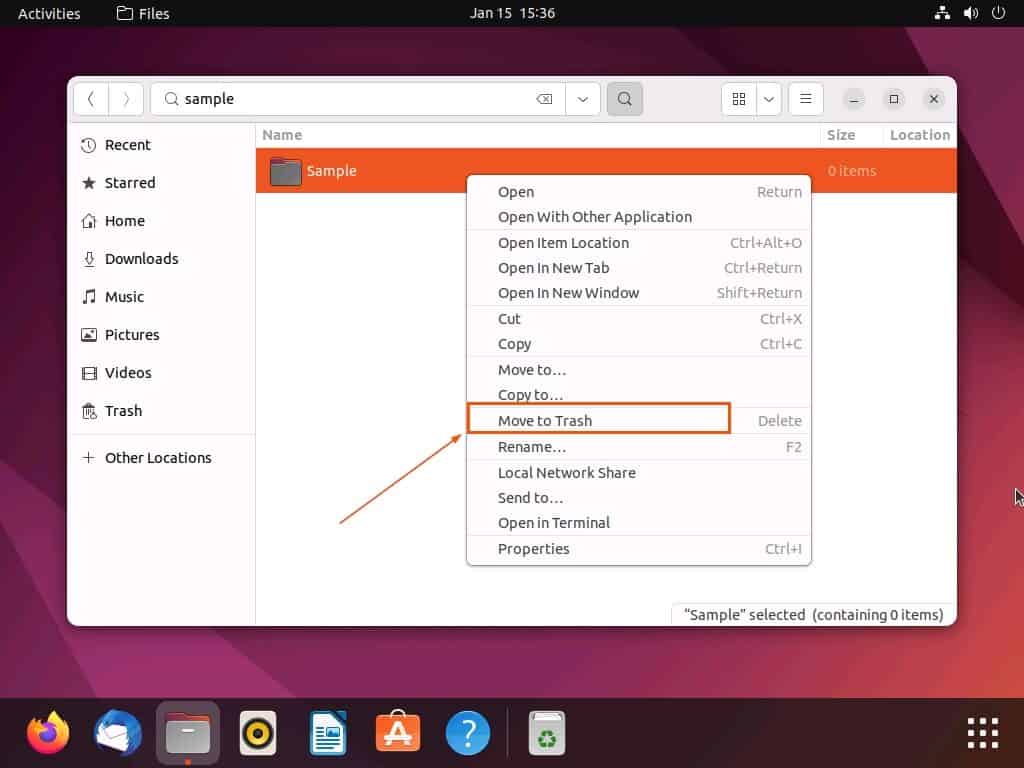
Hence, read our How to Empty Trash in Ubuntu article to learn how to permanently delete all the folders and files in your Ubuntu computer’s trash folder. Alternatively, go through the other section below to learn how to permanently delete a folder on your Ubuntu Linux-based PC via the terminal.
Option 2: Delete a Folder via the Terminal
Another method to delete a folder on your Ubuntu Linux-based computer is through the terminal using the rm command. In fact, unlike the method discussed above, this method will permanently delete the folder on your computer.
Popular on Amazon

- NOTE: All poster prints may vary slightly from what you see on your screen due to the resolution and colour profile of your device. These prints look AMAZING when displayed in a frame or straight on the wall.
- QUALITY: The poster is printed on canvas. It is waterproof,moisture proof and high tensile strength.The poster has rich printing color and fine texture.
- DECORATION: TOP MODERN! Really eye-catching! Ideal for all modern graphic & photographic designs. Your wall / room gets very special lightness & beauty.
- FEATURES: We are good at making canvas posters, making high-quality posters is our pursuit, Different from paper posters, canvas posters have better quality and longer shelf life.
- If you are not satisfied with our print paintings, please feel free to contact us.
So, to delete a folder on your Ubuntu Linux-based computer through the terminal, follow the procedures below.
- Open the terminal on your Ubuntu computer by right-clicking any free space on the desktop and selecting Open in Terminal from the displayed options. Alternatively, you can also use the Ctrl + Alt + T keyboard shortcut to open the terminal in Ubuntu.
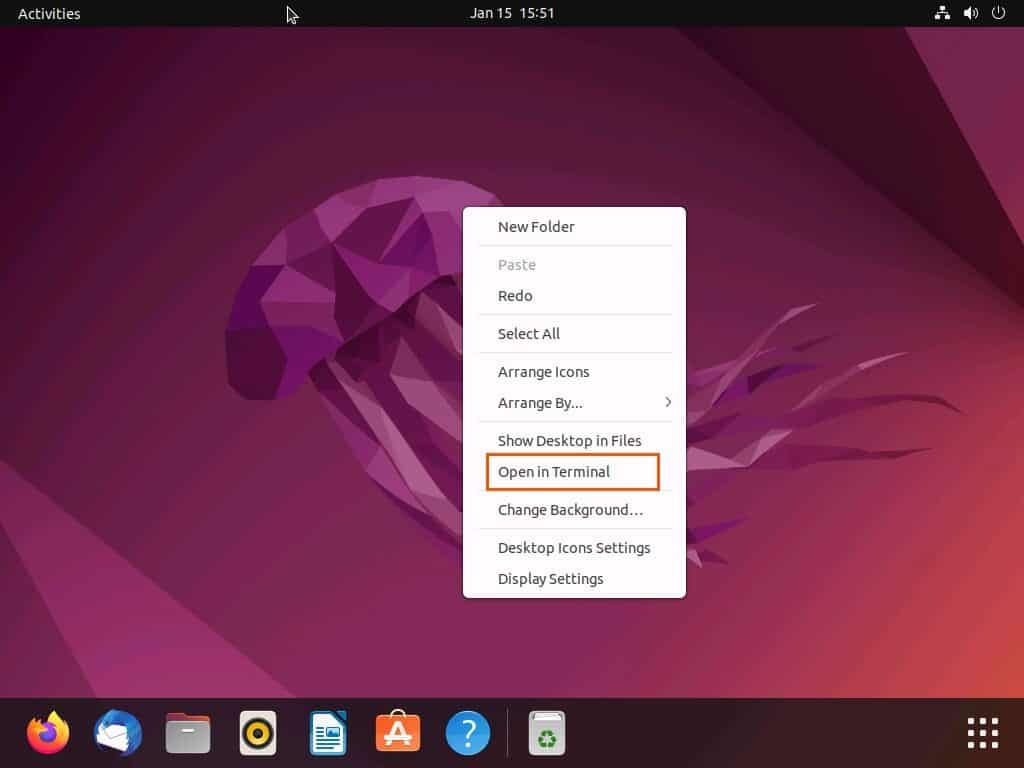
- When the terminal opens, execute the command below. However, replace “folder-name” with the exact name of the folder you want to delete.
find / -name "folder-name" -exec rm -r {} +
For example, if I want to delete a folder named “Sample” on my Ubuntu PC, below is what the command should look like.
find / -name "Sample" -exec rm -r {} +

- Consequently, the command will find and permanently delete the folder on your computer.

Frequently Asked Questions
To delete a folder via the Linux terminal, type “find / -name “folder-name” -exec rm -r {} +” in the terminal and press the enter key. However, replace “folder-name” in the command with the exact name of the folder you want to delete.
What’s actually slowing this PC down?
Pick the symptom - the matching free tool is one click away.
No, you cannot delete a folder that is currently in use on your Ubuntu computer. In order to delete a folder in the Ubuntu operating system, the folder must not be active.
Hence, you will need to stop every program or process using the folder before making an attempt to delete the folder.
Also popular on Amazon

- NOTE: All poster prints may vary slightly from what you see on your screen due to the resolution and colour profile of your device. These prints look AMAZING when displayed in a frame or straight on the wall.
- QUALITY: The poster is printed on canvas. It is waterproof,moisture proof and high tensile strength.The poster has rich printing color and fine texture.
- DECORATION: TOP MODERN! Really eye-catching! Ideal for all modern graphic & photographic designs. Your wall / room gets very special lightness & beauty.
- FEATURES: We are good at making canvas posters, making high-quality posters is our pursuit, Different from paper posters, canvas posters have better quality and longer shelf life.
- If you are not satisfied with our print paintings, please feel free to contact us.
Follow the procedures below to learn how to move a folder to trash on your Ubuntu computer.
a) On the Ubuntu dock, click the Show Applications button.
b) Then, input “files” in the search field and select the Files icon from the search result.
c) When the file manager opens, click the search icon at the top and type the name of the folder you want to move to the trash in the search field.
d) Now, right-click the folder from the search result and left-click Move to Trash from the options that appear.
That depends on the method you use to delete the file. To be more specific, if you delete the file by moving it to the trash, you can easily recover it from the trash folder.
Yes, you can empty the trash folder on your Ubuntu computer. Read How to Empty Trash in Ubuntu to learn how to do that.
Recommended Free Tools
Conclusion
Deleting unnecessary folders frees up storage space on your Ubuntu Linux-based computer. As a matter of fact, it makes your computer operate faster and smoother.
Also popular on Amazon
Gladly, this guide demonstrated multiple ways to delete a folder in the Ubuntu Linux operating system. To be precise, we learned how to perform this task through the Ubuntu GUI (Graphical User Interface).
Procedures to delete a folder via the Linux terminal were also provided in this guide.
I sincerely hope this guide and the methods included were helpful to you. If they were helpful to you, click on “Yes” beside the “Was this page helpful” question below.
You may also express your thoughts and opinions by using the “Leave a Reply” form at the bottom of this page.
Finally, visit our Linux how-to page to get more Linux guides.
Quick Recap
Product prices and availability are accurate as of the date/time indicated and are subject to change. Any price and availability information displayed on Amazon at the time of purchase will apply.