What’s actually slowing this PC down?
Pick the symptom - the matching free tool is one click away.
iTechGuides is reader-supported. When you buy through links on our site, we may earn an affiliate commission. As an Amazon Associate I earn from qualifying purchases. Learn more
Wondering how to check the kernel version of your Ubuntu Linux-based computer? Go through this guide as it demonstrates multiple ways to get the kernel version in Ubuntu Linux.
Option 1: Display Kernel Version Using Uname Command
One of the most popular commands to get the kernel version of your Ubuntu Linux-based computer is the uname command. This command is a Linux command for getting various system information, including the kernel version.



So, follow the steps below to learn how to use this command to check the kernel version of your Ubuntu PC.
- Open the Ubuntu terminal by right-clicking any free space on the desktop and selecting Open in Terminal from the context menu. Alternatively, you can open the Ubuntu terminal using the Ctrl + Alt + T keyboard shortcut.

- When the terminal opens, input the command below and press the enter key on your computer’s keyboard.
uname -r
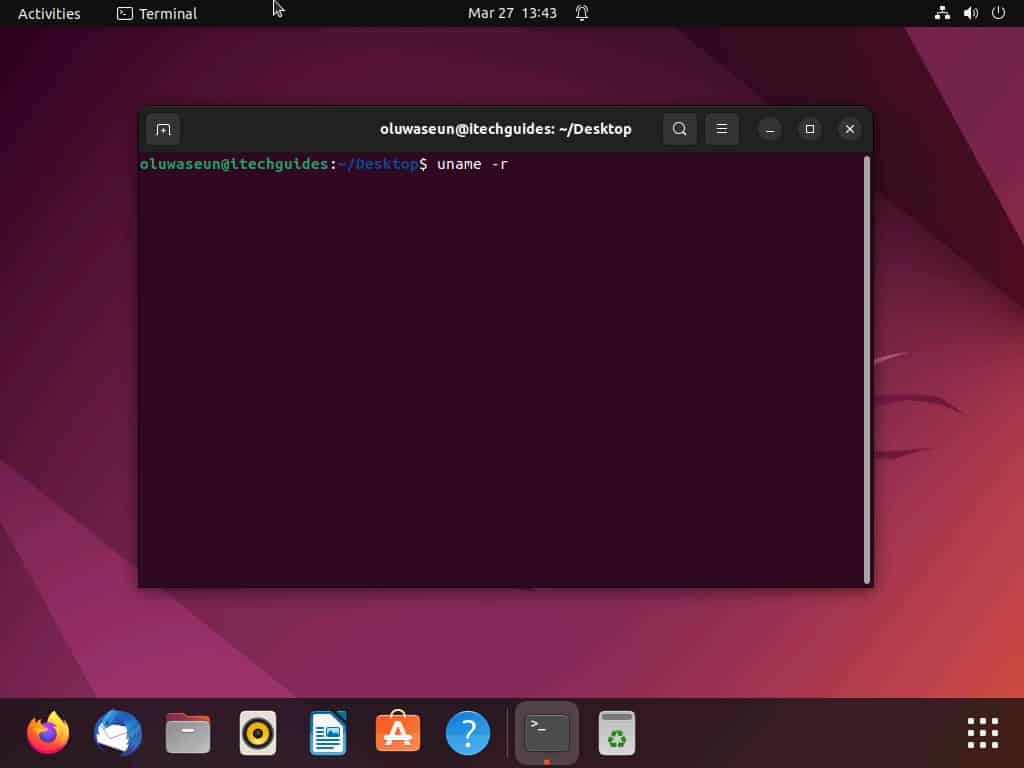
- Consequently, the kernel version of your Ubuntu Linux-based computer should display.

Option 2: Show Kernal Version with Hostnamectl Command
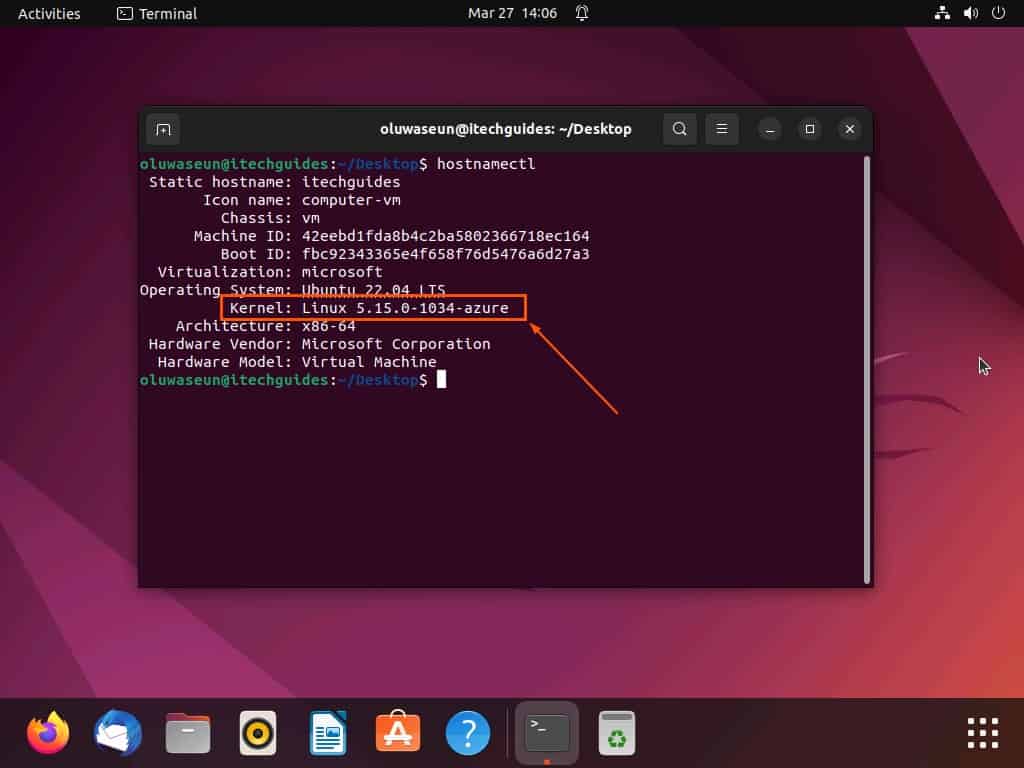
Another command you can use to know the kernel version of your Ubuntu Linux-based computer is the hostnamectl command. Although this command is mostly used to check and change the computer name, it also displays the kernel version.
#1 Best Overall
Hence, the following procedures will demonstrate how to use the command to display the kernal version of your Ubutu Linux PC.
- On the Ubuntu desktop, right-click any free area and left-click Open in Terminal from the context menu that appears. Alternatively, use the Ctrl + Alt + T keyboard shortcut to open the Ubuntu terminal.
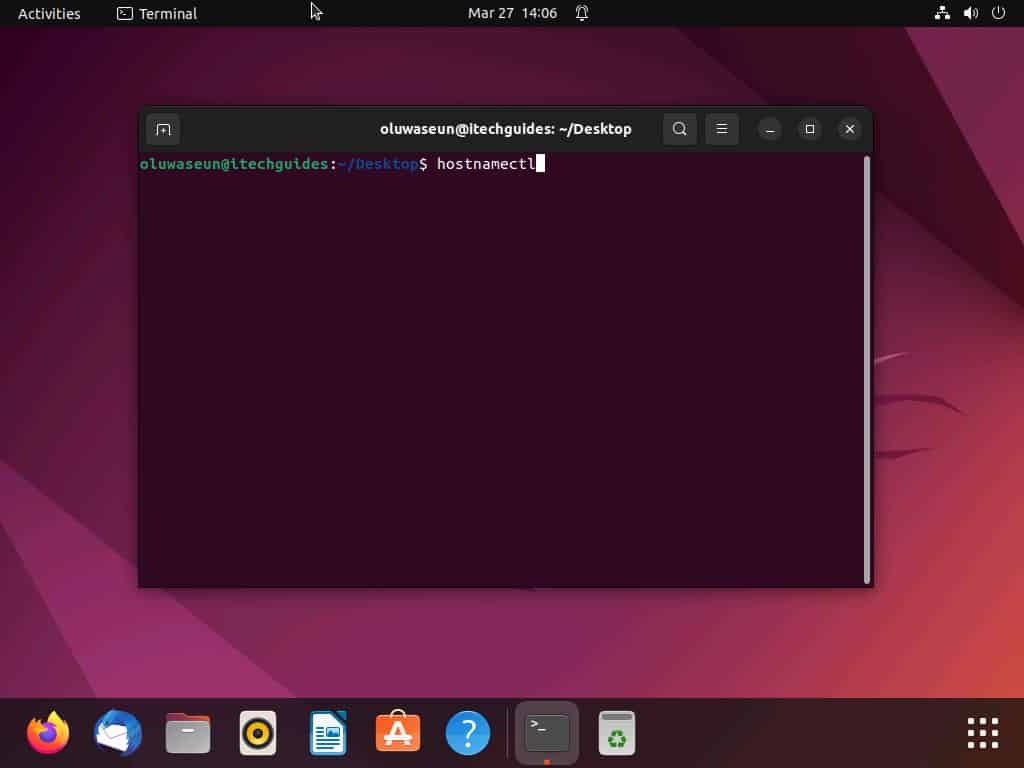
- In the Ubuntu terminal, execute the command below. Hence, you will see the kernel version of your computer among the command’s output – see the second screenshot.
hostnamectl
Frequently Asked Questions
A kernel is a computer program that sits at the heart of a computer’s operating system and has complete control over everything in the computer. It is a section of the operating system code that is always in the memory and facilitates interactions between hardware and software components.
Moreover, on most computers, the kernel is one of the first programs to be loaded on startup, right after the bootloader. Hence, it handles the rest of the startup.
Also, it manages memory, peripherals, and input/output (I/O) requests from software. Thereby translating them into data-processing instructions for the CPU.
Yes, every operating system available has a kernel.
Quick wins for a faster PC:
Clear out junk files and repair common Windows errorsFree Scan →Scan for outdated or missing drivers - takes under a minuteDriver Scan →Repair Windows errors before they cause bigger problemsFix Now →To display the kernel version of your Ubuntu PC, follow the steps below.
a) Press the Ctrl + Alt + T keys on your keyboard simultaneously to open the Ubuntu terminal.
b) When the terminal opens, input “uname -r” and press the enter key.
c) Hence, you should see the kernel version of your Ubuntu Linux-based computer.
Linux is an operating system based on the Unix architecture and not a kernel.
Yes, the Ubuntu operating system is one of the many distributions of the Linux operating system.
Rank #4
Conclusion
In the world of operating systems, the kernel is a crucial component that handles essential tasks like managing system resources and facilitating communication between software and hardware. Thus, knowing the kernel version of the operating system running on your computer can be important for troubleshooting, software compatibility, and security updates.
Free tools Windows power users keep installed
One-click scans. No signup required.
Gladly, this guide demonstrated multiple methods to check the kernel version of your Ubuntu Linux-based computer. To be specific, we learned how to perform this task using the uname command.
Best Value
That’s not all; this guide also provided steps to get the kernel version in Ubuntu Linux using the hostnamectl command.
I hope you were able to check the kernel version of your Ubuntu Linux-based computer with the methods provided in this guide. If you were, click on “Yes” beside the “Was this page helpful” question below.
You may also express your thoughts and opinions by using the “Leave a Reply” form at the bottom of this page.
Finally, visit our Linux how-to page to find other helpful Ubuntu Linux guides.
Quick Recap
Product prices and availability are accurate as of the date/time indicated and are subject to change. Any price and availability information displayed on Amazon at the time of purchase will apply.