
iTechGuides is reader-supported. When you buy through links on our site, we may earn an affiliate commission. As an Amazon Associate I earn from qualifying purchases. Learn more
Do you want to add a search bar to the home screen of your WordPress site? This guide offers various ways to accomplish that.
Option 1: Add Search Bar to Home Screen via the Widget Panel
Most WordPress themes offer widgets, including a search widget. Hence, using the search widget in the widget panel, you can easily add a search bar to the home screen of your WordPress site.
To accomplish that, observe the following procedures below.
Free tools Windows power users keep installed
One-click scans. No signup required.
- Sign in as an administrator to the backend dashboard of your WordPress website. Then, hover your mouse on Appearance on the left pane and select Widgets from the displayed options.

- Following that, click the Toggle block inserter button at the top left corner of the Widgets page.

- After that, input “search” in the search field.

- Then, drag and drop the Search widget from the search result to an area on your WordPress site where you want to add the search bar. I will add the search bar to the Header area of our website for this demonstration.

You can also customize the search bar using the toolbar on top of the search widget.

- Finally, click the blue Update button at the top right of the page to save the change. Thus, the search bar should appear on the home screen as well as every other page of your WordPress site.

Option 2: Add Search Bar to Home Screen Through WordPress Block Editor
Another way to add a search bar to your WordPress site’s home screen is by using the search block in the default WordPress block editor. Moreover, this method is quite similar to the method discussed in the previous section.
Popular on Amazon

- CRISP CLARITY: This 23.8″ Philips V line monitor delivers crisp Full HD 1920x1080 visuals. Enjoy movies, shows and videos with remarkable detail
- INCREDIBLE CONTRAST: The VA panel produces brighter whites and deeper blacks. You get true-to-life images and more gradients with 16.7 million colors
- THE PERFECT VIEW: The 178/178 degree extra wide viewing angle prevents the shifting of colors when viewed from an offset angle, so you always get consistent colors
- WORK SEAMLESSLY: This sleek monitor is virtually bezel-free on three sides, so the screen looks even bigger for the viewer. This minimalistic design also allows for seamless multi-monitor setups that enhance your workflow and boost productivity
- A BETTER READING EXPERIENCE: For busy office workers, EasyRead mode provides a more paper-like experience for when viewing lengthy documents
That said, follow the procedures below to add a search bar to your WordPress site’s home screen via the WordPress block editor.
- As an administrator, sign in to the backend of your WordPress website. Next, click Pages among the menus on the backend’s left pane.

- After doing that, select the title of your website’s home page to open it. In this case, the title of our website’s home page is “Create your website with blocks.”

- When your website’s home page opens, click the Toggle block inserter button at the top left corner of the page.

- Following that, input “search” in the search field that appears.

- Now, drag and drop the Search block from the search result to a suitable area on the home page where you wish to add the search bar.

You can also customize the search bar using the toolbar on top of the search block.

- Finally, click the blue Update button at the top right corner of the page to save the change.

Option 3: Add Search Bar to Home Screen Using a Plugin
Interestingly, you can also add a search bar to your WordPress site’s home screen by using a plugin. Although many plugins can do that, we will focus on the Custom Search by BestWebSoft plugin in this section.
This free plugin allows users to add a search bar to a specific page or post on WordPress with a shortcode. Hence, in the first sub-section below, I will provide steps to install and activate the Custom Search by BestWebSoft plugin in WordPress.
Also popular on Amazon

- CRISP CLARITY: This 22 inch class (21.5″ viewable) Philips V line monitor delivers crisp Full HD 1920x1080 visuals. Enjoy movies, shows and videos with remarkable detail
- 100HZ FAST REFRESH RATE: 100Hz brings your favorite movies and video games to life. Stream, binge, and play effortlessly
- SMOOTH ACTION WITH ADAPTIVE-SYNC: Adaptive-Sync technology ensures fluid action sequences and rapid response time. Every frame will be rendered smoothly with crystal clarity and without stutter
- INCREDIBLE CONTRAST: The VA panel produces brighter whites and deeper blacks. You get true-to-life images and more gradients with 16.7 million colors
- THE PERFECT VIEW: The 178/178 degree extra wide viewing angle prevents the shifting of colors when viewed from an offset angle, so you always get consistent colors
Meanwhile, the second sub-section will demonstrate how to use this plugin to add a search bar to the home screen in WordPress.
Step 1: Install and Activate Custom Search By BestWebSoft Plugin
- Sign in to your WordPress site’s backend as an administrator. Next, hover your mouse on Plugins on the left pane, then left-click Add New from the displayed options.

- After doing that, input “Custom Search by BestWebSoft” in the search field on the Add Plugins page.

- Following that, click the Install Now button of the Custom Search by BestWebSoft – Advanced WordPress Search Bar Plugin from the search result.

- After installing the plugin, click the Activate button to enable it on your WordPress site.

Step 2: Add Search Bar to Home Screen Using the Custom Search by BestWebSoft Plugin
- After activating the plugin, ensure you’re signed in to your WordPress site’s backend as an admin. Then, click Custom Search among the menus on the backend’s left pane.

- On the Custom Search Settings page, copy the shortcode in the Custom Search Shortcode box. You can also customize the search bar on the Custom Search Settings page.

- After copying the shortcode, click Pages on the left pane of the backend’s dashboard.

- Afterward, open the home page of your WordPress site by clicking the home page’s title. In this case, the title of our website’s home page is “Create your website with blocks.”

- When the home page opens, paste the shortcode you copied in step 2 into a preferred area on the home page.

- Finally, click the Update button at the top right corner of the page. Hence, if you preview or access the home page from your site’s front end (live website), the shortcode should appear as a search bar – see the second screenshot.


Frequently Asked Questions
To improve the functionality and user-friendliness of your website, it is important to add a search bar.
Yes, search bars are mostly accompanied by a search button. The search button is usually indicated by a magnifying glass icon and is used to submit the search.
However, the search button may sometimes be omitted. This is because users can press the enter key to submit a search rather than using the search button.
Also popular on Amazon
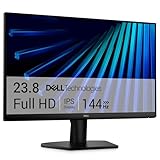
- Clear visuals. Fluid motion: A 144Hz refresh rate and 1ms MPRT deliver smooth, tear‑free motion across work, gaming, and streaming for clearer, more fluid viewing.
- Eye comfort: TÜV Rheinland 3‑star* certification reduces harmful blue light while preserving stunning color quality without compromise. *TÜV Rheinland 3-star eye comfort certification.
- Wide viewing angle: Get consistent views across a wide 178° /178° viewing angle.
- In-Plane Switching (IPS): See excellent color accuracy and consistency across wide viewing angles with In-plane Switching (IPS) technology.
- Ultra-thin bezels: Maximize your viewing experience with thin bezels.
Yes, a search box and a search bar are totally the same things.
Quick wins for a faster PC:
Clear out junk files and repair common Windows errorsFree Scan →Scan for outdated or missing drivers - takes under a minuteDriver Scan →The search bar is mostly on the right side of a website’s page. Nonetheless, putting the search bar on the left side wouldn’t cause any issues or affect user experience.
However, ensure the search bar is in an area on your WordPress site that visitors can easily spot it.
Yes, the WordPress block editor offers a search block.
Also popular on Amazon

- CURVED FOR ENHANCED ENGAGEMENT: An immersive viewing experience with a curved monitor that wraps more closely around your field of vision; It creates a wider view, enhancing depth perception and minimizing peripheral distraction
- SMOOTH PERFORMANCE FOR SEAMLESS CONTENT: Stay in the action when playing games, watching videos, or working on creative projects; The 100Hz refresh rate reduces lag and motion blur so you don't miss a thing in fast-paced moments¹
- MORE GAMING POWER: Gain the edge with optimizable game settings; Color and image contrast can be adjusted to see scenes more vividly and spot enemies hiding in the dark; Game Mode adjusts any game to fill the screen so you can view every detail²
- KEEP IT EASY ON THE EYES: Care for your eyes and stay comfortable, even during long sessions; Advanced eye comfort technology certified by TÜV reduces eye strain by minimizing blue light and reducing irritating screen flicker²
- INCREASED VERSATILITY: Connect to more; Plug devices straight into your monitor for increased flexibility, making your computing environment even more convenient
Conclusion
Adding a search bar to the home screen enhances the user-friendliness and functionality of your WordPress site. To give more details, it allows visitors to navigate your site easily, which can lead to improved engagement.
Gladly, this guide illustrated three ways to add a search bar to the home screen of your WordPress site. Specifically, we discussed executing this task via the widget panel.
Do these 3 things before closing this tab:
1Fix the driver behind crashes, sound loss and screen glitches2Clear out junk files and repair common Windows errors3Scan for outdated or missing drivers - takes under a minuteThis guide also provided steps to perform this task using the search block in the WordPress block editor. That’s not all; I also included procedures to add a search bar to the home screen in WordPress with the aid of a plugin.
Also popular on Amazon

- 【INTEGRATED SPEAKERS】Whether you're at work or in the midst of an intense gaming session, our built-in speakers provide rich and seamless audio, all while keeping your desk clutter-free.
- 【EASY ON THE EYES】 Protect your eyes and enhance your comfort with Blue-Light Shift technology. This feature reduces harmful blue light emissions from your screen, helping to alleviate eye strain during long hours of use and promoting healthier viewing habits.
- 【WIDEN YOUR PERSPECTIVE】Our sleek minimal bezel design ensures undivided attention. The nearly bezel-free display seamlessly connects in a dual monitor arrangement, delivering an unobstructed view that lets you focus on more at once, completely distraction-free.
That being said, I hope you found this guide helpful. If you did, click on “Yes” beside the “Was this page helpful” question below.
You may also express your thoughts and opinions by using the “Leave a Reply” form at the bottom of this page.
Finally, visit our WordPress & Websites How-To page for more helpful WordPress guides.
Recommended Free Tools
Quick Recap
Product prices and availability are accurate as of the date/time indicated and are subject to change. Any price and availability information displayed on Amazon at the time of purchase will apply.