

iTechGuides is reader-supported. When you buy through links on our site, we may earn an affiliate commission. As an Amazon Associate I earn from qualifying purchases. Learn more
Introduction
When you archive Gmail emails it helps to free up your inbox. In Gmail archived emails are moved to the “All Mail” label. You can archive individual or selected emails.
In this guide, I will share how to archive and unarchive emails from your browser, on Android and iOS Apps.



Gmail Archive: How to Archive Gmail Emails from a Browser
As I said in my introduction you can archive individual emails. You can also archive selected emails. In this section, I will demonstrate how to do both.
Quick wins for a faster PC:
Repair Windows errors before they cause bigger problemsFix Now →Fix the driver behind crashes, sound loss and screen glitchesFind Drivers →Gmail Archive: How to Archive a Single Email
- Login to your Gmail account. Then click the label you want to archive email from.

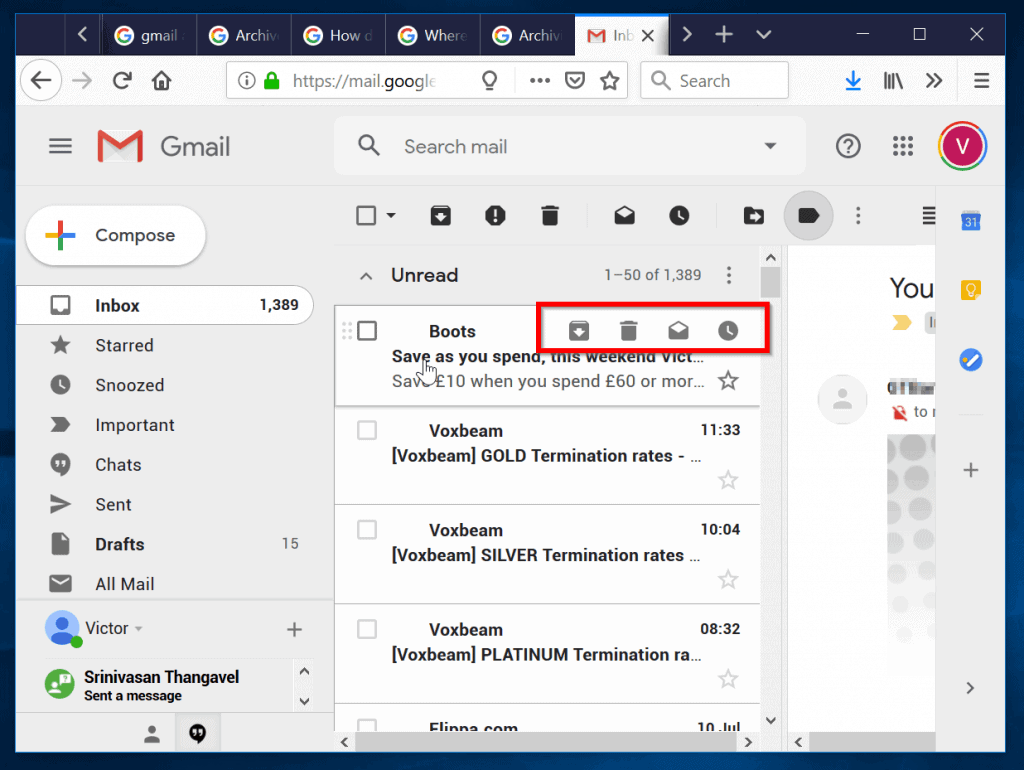
- Next, hover over the email you want to archive. The highlighted icons will be displayed. To archive one email, click on the first icon (from left).

Gmail Archive: How to Archive Multiple Emails
- Click on the label you want to archive from.
- Then check the box beside each email you wish to archive.

- Finally, click the archive icon on top. Highlighted in the image above.

Gmail Archive: How to Unarchive Gmail Email
Here are the steps to unarchive a Gmail email:
- Click on “All Mail“.

- Next, check all the emails you want to unarchive.

- Finally, click the 6th icon on top. This is the Move to Inbox icon.

Gmail Archive: How to Archive Emails on Android and iOS Apps
This is a 2-step process. One, confirm default action. Two, perform the archive.
Popular on Amazon
To confirm default action:
- Open Gmail App on your Android phone. The click on the 3 lines on the top left of the App.

- Next, click Settings.

- Then, click General Settings.

- Under Default notification action, confirm that Archive is active. If Delete is active, click on Default notification action. The select Archive. See the second image below.


To archive emails from Gmail App for Android or iOS, follow the steps below:
- Click on the side of each message you want to archive to check it.

- Next, click on the Archive icon on top – highlighted in the image above. The selected emails will be archived.
Conclusion
Archiving emails on Gmail does not delete the email. It simply moves the email to All Mail label. This is a great way to organize your emails and free up your inbox.
Also popular on Amazon
I hope you found this Itechguide helpful. If you found it helpful, kindly take a minute or two to share your experience with our tech community at [discourse_topic_url].
If you have any question or comment leave a reply on our community platform at [discourse_topic_url]. Our team and other community members will surely get back to you with a reply as soon as possible.
Also popular on Amazon
Alternatively, you can share ways you have organized your Gmail email.
Quick Recap
Also popular on Amazon
Also popular on Amazon
Other Helpful Guides
Additional Resources and References
- Archive or mute Gmail messages
- Search in Gmail
- [discourse_topic_url].
Product prices and availability are accurate as of the date/time indicated and are subject to change. Any price and availability information displayed on Amazon at the time of purchase will apply.



I think this is an interesting article it was really useful! here is more in this blog about How To Unarchive Emails from Gmail?, it is more familiar to me! keep doing awesome. instructions on Data Recovery Software Services and Support kindly follow our site.
NICE WEBSITE. NICE CONTENT KEEP IT UP.
But in my opinion this is the perfect way also..
How to use unarchive gmail?