

Outdated Drivers Are Slowing You Down
One free scan finds every outdated or missing driver and matches the right update for your exact hardware.Free scan · exact hardware matchPC Slower Than It Used to Be?
A free scan shows the junk files, broken settings and background clutter dragging Windows down - then fixes them in one click.Free scan · Windows 10 & 11iTechGuides is reader-supported. When you buy through links on our site, we may earn an affiliate commission. As an Amazon Associate I earn from qualifying purchases. Learn more
Learn 11 hands-on ways (with real-world examples) to change the directory in Windows PowerShell.
Option 1: Change to Root Directory
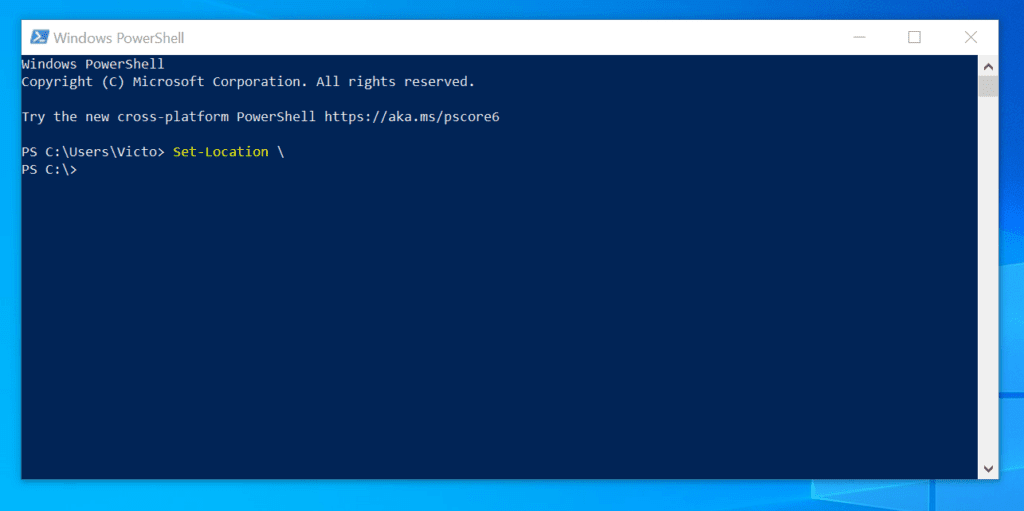
To change to the root directory, enter the command below and press enter.


Set-Location \
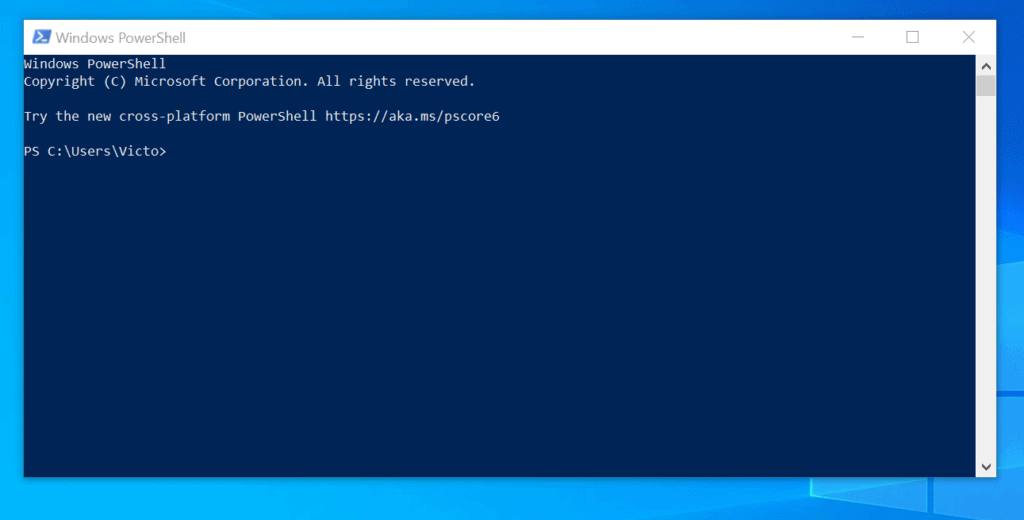
In my first example for this Itechguide, my PowerShell Prompt is in the path “C:\Users\Victo”. To change to the root of C, I will enter “Set-Location \” command and press enter on my keyboard. See the second image below – the directory is now in the root of C.
Option 2: Change One Step from Current Directory
You can also change one directory behind the current directory. To do this, enter this command and press enter.
Popular on Amazon
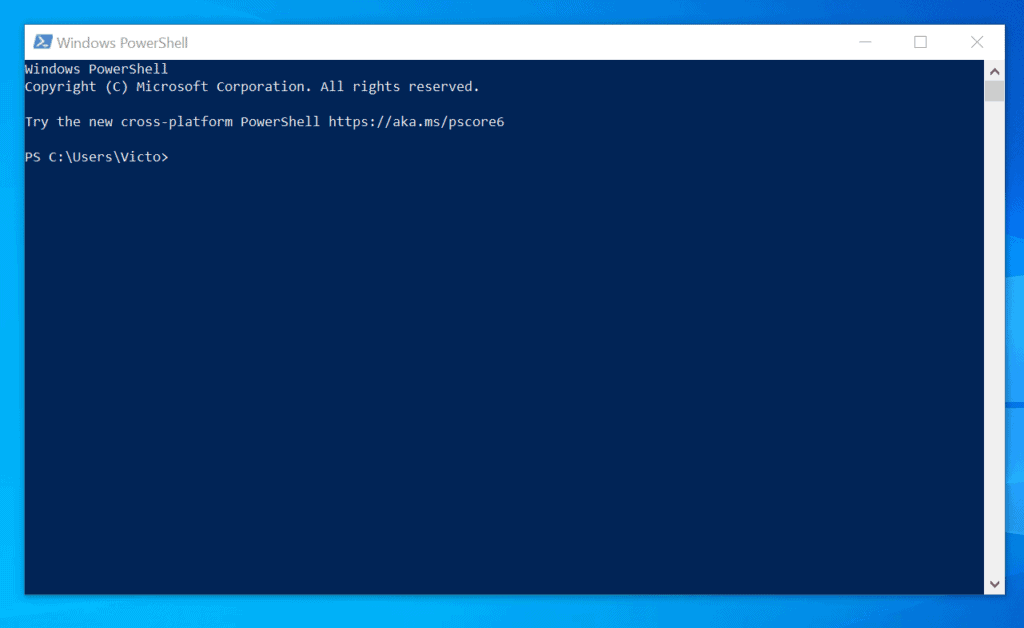
Set-Location ..
In this second example, my current PowerShell Prompt is on “C:\Users\Victo” directory. However, I want to change PowerShell directory to “C:\Users” directory – here are the screenshots…

Option 3: Change from Drive C to D
You can also change from one drive to another in PowerShell prompt. In the third example in this guide, I want to change from drive “C:” to drive D:.
The command below will do the job – enter the command and press enter.
The Tool Desk
Outbyte Driver Updater FREEScan for outdated or missing drivers - takes under a minuteDriver Scan →Outbyte PC Repair FREEClear out junk files and repair common Windows errorsFree Scan →Set-Location D:
The PowerShell prompt will change from the previous directory, “C:” to the new drive drive D:

Option 4: Change Directory to a Specified Path
You can also change directory in PowerShell to a specified path. To change directory, enter Set-Location followed by the Path parameter, then the full path you want to change directory to. If the new directory path has spaces, enclose the path in a double-quote (“”).
Set-Location -Path [full path]
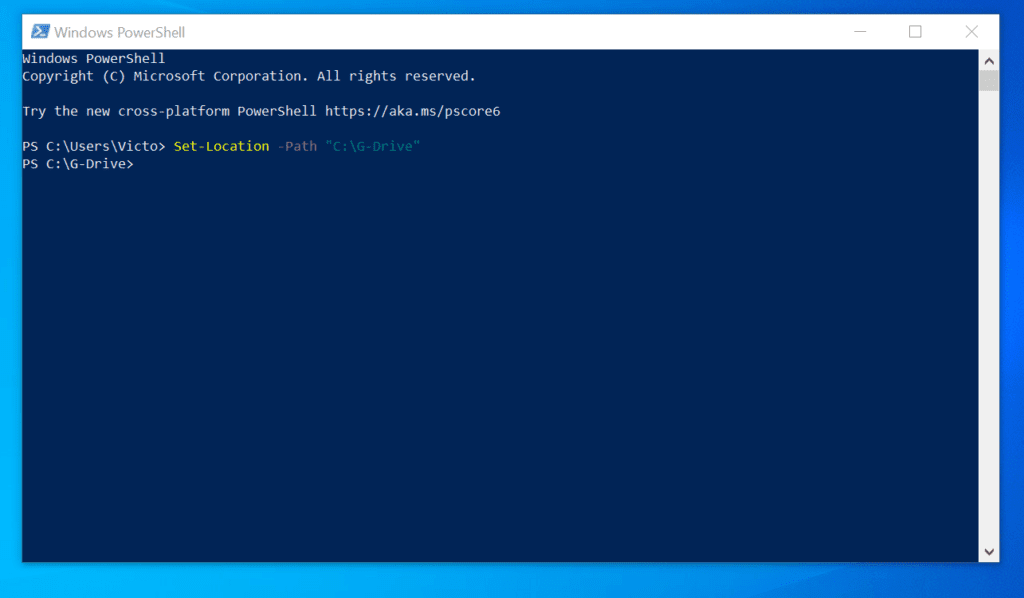
In this example, I want to change to “C:\G-Drive”, I will enter this command and press enter…
Set-Location -Path "C:\G-Drive"
The PowerShell prompt will change to the new directory immediately.
You can use the same command to change directory to a path in another drive.
Option 5: Change to a Path in the Current Directory
In this final example, I will teach you how to change from a directory to a directory in the current directory. The first step is to list all directories in the current directory. To do this, enter the Get-ChildItem command.
Also popular on Amazon
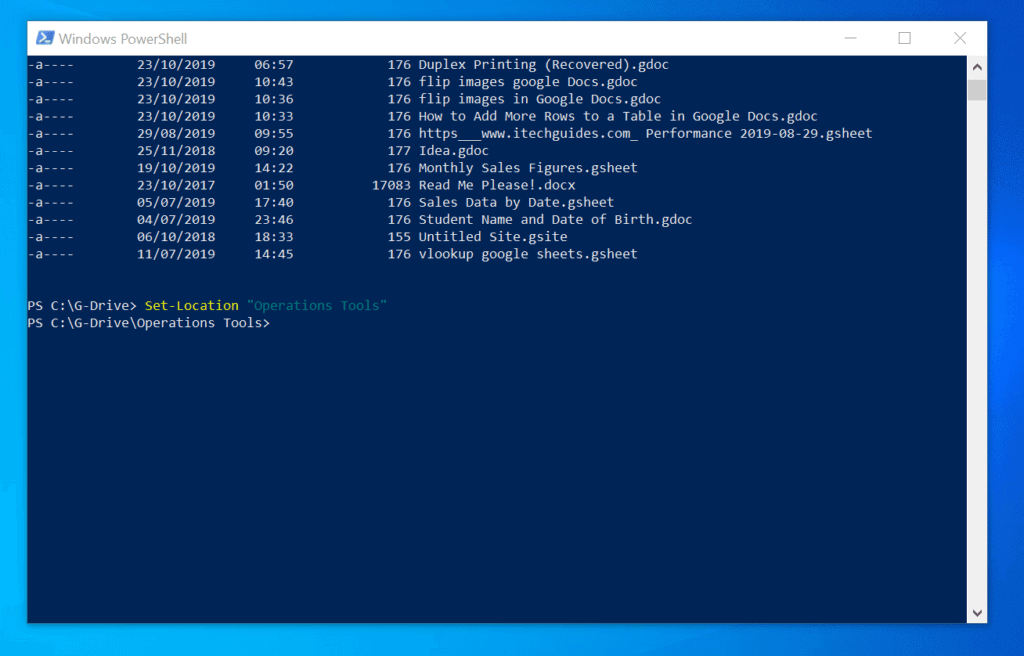
The screenshot below shows that I have 2 folders – “Operations Tools” and “Work Tools” – in the “C:\G-Drive” directory.

To change to “Operations Tools”, I will use the command below…
Recommended Free Tools
Set-Location "Operations Tools"
The PowerShell prompt will change to the new directory immediately.
Option 6: Change Directory in a PowerShell Script
When you run a PowerShell script, there may be instances when you want to access the location your script is running from. There is an automatic variable called “$Script:MyInvocation.MyCommand.Path”.
You can use this variable to locate the directory your script is running from. However, this variable is only available when a PowerShell script is executing.
To demonstrate this, copy the following script into PowerShell script and save it as AccessScriptDirectory.
Quick wins for a faster PC:
Clear out junk files and repair common Windows errorsFree Scan →Fix the driver behind crashes, sound loss and screen glitchesFind Drivers →Repair Windows errors before they cause bigger problemsFix Now →Focus on the last 3 lines. In the third to the last line, I saved the “$Script:MyInvocation.MyCommand.Path” automatic variable to a named variable called $ReportPath.
Then, on the second to the last line, I created another variable, $CSVReportFile. This variable is the path to the CSV file I want to save my event log report to.
What is most important though, is that the path to the CSV file is located in the current directory my PowerShell script is running from.
Also popular on Amazon

- Used Book in Good Condition
Finally, in the last line of the script, I export the event log report to the CSV file…
What’s actually slowing this PC down?
Pick the symptom - the matching free tool is one click away.
#Create a single-key hashtable (LogName) with values - "System", "Application", "Security"
 $LogNameKeys = @{
        LogName = @("System", "Application", "Security")
    }
 #Convert the hashtable to a string
 $LogNameKeysAsStrings = $LogNameKeys.Values | out-string -stream
 #Uses ForEach to loop through $LogNameKeysAsStrings and run the Get-EventLog command.
 #Then, save the output of the command in the EventLogReport variable,
 $EventLogReport = ForEach ($LogNameKey in $LogNameKeysAsStrings) {
    Get-EventLog -LogName $LogNameKey -Newest 5
  }
$ReportPath = Split-Path -Parent $Script:MyInvocation.MyCommand.Path
 $CSVReportFile = "$ReportPath + "EventLogsReport.csv"
 $EventLogReport | Export-Csv -Path $CSVReportFile -NoTypeInformation
After saving the script, open PowerShell as administrator, navigate to the location you saved the script, and execute the command below:
.\AccessScriptDirectory.ps1
After running the script, open the folder you saved the above script. The CSV report should be saved in the same folder.
Option 7: Change Directory to a Path with Spaces
Changing to a directory with spaces is very easy. However, if not done properly, it could throw errors.
One common mistake people make when changing to another directory with spaces is to forget to enclose the directory in double quotes.
Free tools Windows power users keep installed
One-click scans. No signup required.
To give you an example, if I want to change to the D:\OS ISO Files directory in PowerShell, I will use the command below…
Set-Location "D:\OS ISO Files"
The above command works…
However, if I run the same command without enclosing D:\G-Drive-P\Work Tools in double quotes, I will receive an error.
Set-Location D:\OS ISO Files

Finally, the secret to changing directory in PowerShell to a directory with with spaces is to enclose the directory in double quotes, “”.
Option 8: Change Directory to Program Files
Windows 10 has two Program File paths: \Program Files (x86) and \Program Files. The best way to change to these directories in PowerShell is to call their environment variables.
Also popular on Amazon
The environment variable for \Program Files (x86) is…
${env:ProgramFiles(x86)}
Additionally, the environment variable for \Program Files is…
${env:ProgramFiles}
To change to these Program File directories in PowerShell, run the commands below…
Set-Location ${env:ProgramFiles(x86)}
Set-Location ${env:ProgramFiles}
Here are the results in PowerShell…

Option 9: Change Path to the Desktop
In the last section, I used a PowerShell environment variable to access Program Files. As you would expect, PowerShell also has an environment variable for the path to the current user’s profile.
The environment variable for the path to the current logged on user’s profile is…
$env:USERPROFILE
To see the path to your user profile, run the above command. Mine is located in C:\Users\victo.

If you open the path to a user’s profile in Windows 10, it has a folder called “Desktop”.

So, if you want to change directory in PowerShell to the current user’s desktop, run the commands below…
$Desktop = $env:USERPROFILE + "\desktop"
Set-Location $Desktop
I saved the location of the desktop folder to a variable because trying to use $env:USERPROFILE + “\desktop” directly in the Set-Location command was throwing all sorts of errors.
Also popular on Amazon
Here is the result of the command in PowerShell…

Option 10: Change Directory to a Registry Path
Just like folders, you can access the Windows registry with PowerShell. Before you proceed with this section, I strongly recommend that you read the Abbreviated Registry Key Path section of our How to Use PowerShell to Read Registry Value guide.
Based on the information in the guide referenced above, the abbreviations for the registry root keys are listed below:
- HKEY_LOCAL_MACHINE – HKLM
- HKEY_CURRENT_CONFIG – HKCC
- HKEY_CLASSES_ROOT – HKCR
- HKEY_USERS – HKU
- HKEY_CURRENT_USER – HKCU
To change directory to any of these registry keys in PowerShell, enter the abbreviation of the root key, followed by “:\” – in the Set-Location command.
Do these 3 things before closing this tab:
1Clear out junk files and repair common Windows errors2Fix the driver behind crashes, sound loss and screen glitches3Repair Windows errors before they cause bigger problemsIn the command below, I want to change directory to HKEY_LOCAL_MACHINE…
Set-Location HKLM:\
Here is the result in PowerShell…

Option 11: Change Directory to a Network Share
In PowerShell, you can change directory to a network share by entering its path, for example, \\ITGLTUK01\Inputs.” Here is the command.
Set-Location "\\ITGLTUK01\reports"
Get-ChildItem
After changing to the network share, I ran Get-ChildItem to list the content of the directory.

Conclusion
You can use the options in this Itechguide to change directory in PowerShell! I hope you found this Itechguide helpful.
Free tools Windows power users keep installed
One-click scans. No signup required.
Let me know your thoughts about this guide by responding to the “Was this page helpful?” question below.
Finally, for more Windows Command Prompt Itechguides, visit our Windows PowerShell How-to page.
Quick Recap
Product prices and availability are accurate as of the date/time indicated and are subject to change. Any price and availability information displayed on Amazon at the time of purchase will apply.



Great post! I found the examples really helpful in understanding how to navigate directories in PowerShell. The tips on using relative vs absolute paths clarified a lot for me. Thanks for sharing!
This post is super helpful! I never knew there were so many ways to change directories in PowerShell. The examples are clear and easy to follow. Thanks for sharing!
Thank you for this comprehensive guide! The examples are really helpful, especially the tips on navigating using both absolute and relative paths. I struggled with changing directories in PowerShell before, but now I feel much more confident. Looking forward to your next post!