

The Tool Desk
Outbyte Driver Updater FREEFix the driver behind crashes, sound loss and screen glitchesFind Drivers →Outbyte PC Repair FREERepair Windows errors before they cause bigger problemsFix Now →iTechGuides is reader-supported. When you buy through links on our site, we may earn an affiliate commission. As an Amazon Associate I earn from qualifying purchases. Learn more
Do you receive the “Bad Pool Header” BSOD error on your Windows 10 PC? This guide contains everything you need to fix this error.
Overview
We know that you most likely won’t be able to boot into your Windows 10 PC after receiving this error. Due to that, this guide provides steps to boot into safe mode so as to carry out the fixes for the error.
These fixes include performing a clean boot and running the SFC scan in safe mode. Also, you will learn how to disable the Windows Search service in safe mode so as to fix the error.
By the way, you will also find an FAQ section in this guide. As one might expect, this section offers answers to some of the frequently asked questions about this BSOD error.
#1 Best Overall

- Boosts System Performance:16GB DDR4 laptop memory that operates at 3200MHz to improve multitasking and system responsiveness for smoother performance
- Easy Installation: Upgrade your laptop RAM with ease—no computer skills required Follow step-by-step how-to guides available at Crucial for a smooth, worry-free installation
- Compatibility Guaranteed: Ensure seamless compatibility with your laptop by using the Crucial System Scanner or Crucial Upgrade Selector—get accurate recommendations for your specific device
- Trusted Micron Quality: Backed by 42 years of memory expertise, this DDR4 RAM is rigorously tested at both component and module levels, ensuring top performance and reliability for your Mac system
- ECC Type = Non-ECC, Form Factor = SODIMM, Pin Count = 260-pin, PC Speed = PC4-25600, Voltage = 1.2V, Rank and Configuration = 1Rx8 or 2Rx8
Because this is a Windows BSOD (Blue Screen of Death) error, you may not be able to sign into your Windows 10 PC normally. Due to this, our best bet for fixing the “Bad Pool Header” error in Windows 10 is via safe mode.
Hence, before providing the solutions to this error, I will first teach you how to boot into safe mode in Windows 10. Then, you can carry out the solutions in safe mode.
Step 1: Boot Windows 10 to Safe Mode
Follow the steps below to boot into safe mode on your Windows 10 computer.
Recommended Free Tools
- Shut down your Windows 10 PC by pressing and holding the power button.
- Then, restart the computer by pressing the power button again. However, when the PC is on the loading screen, press and hold the power button until it shuts down.
- After that, turn on the Windows 10 PC for the third time. This time, it should boot into Recovery mode.
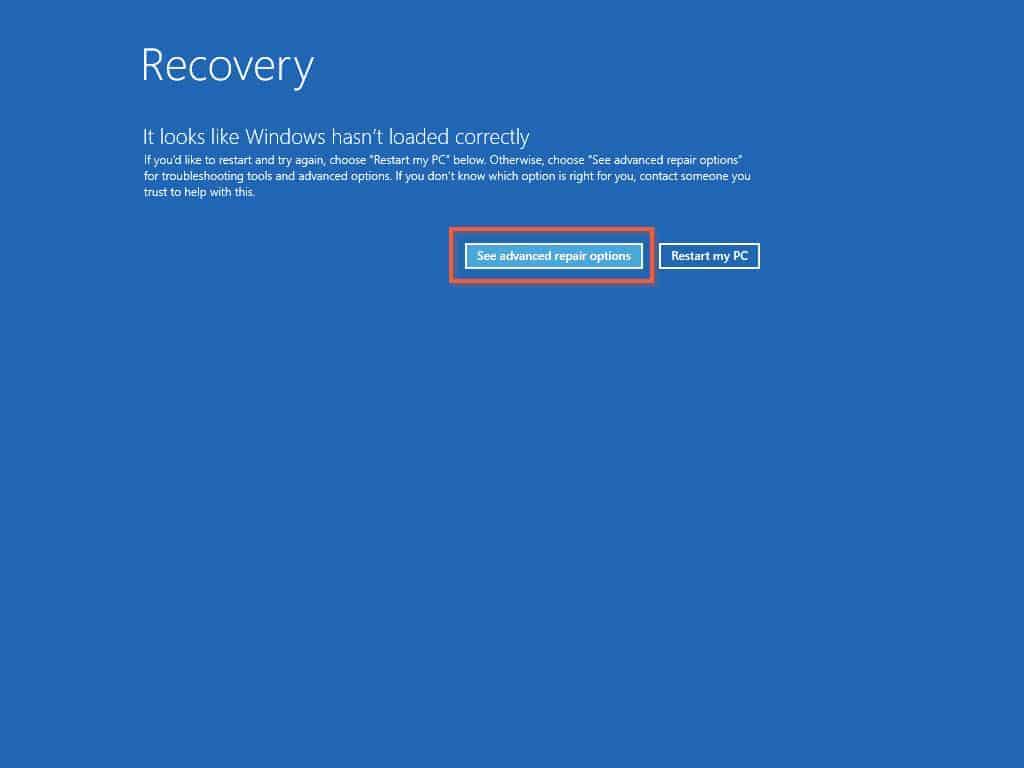
- Click See advanced repair options in the Recovery mode environment.
- Afterward, select Troubleshoot from the Choose an option page.

- Next, click Advanced options on the Troubleshoot page.

- After that, select Startup settings.

- Then, click the Restart button on the Startup Settings page.

- Afterward, press “F4” or “4” on your keyboard to boot into safe mode.

After successfully booting into safe mode, you can then carry out the solutions below to fix the error.
Step 2 (Option 1): Perform a Clean Boot
Sometimes, a third-party application or startup app can be the cause of this BSOD error in Windows 10. If that’s the case, performing a clean boot should be able to fix the error.
Rank #2

- Compatible with select DDR4 Laptop, Notebook computers + Easy to install at home, no expertise required
- Maximize your system's performance, boost loading speeds and multitask with ease
- Backed by A-Tech's Lifetime Warranty + Friendly tech support team available to help before and after your purchase
- Single 16GB RAM Module | DDR4 SO-DIMM 260-Pin | Speeds up to 2400MHz, PC4-19200 / PC4-2400T
- NON-ECC Unbuffered | 2Rx8 - Dual Rank | JEDEC DDR4 standard 1.2V
Follow the steps below to perform a clean boot on your Windows 10 PC in safe mode.
- After booting into safe mode, click the Windows 10 search field and type “msconfig”. Then, left-click System Configuration from the search result.

- Next, go to the Services tab and check the Hide all Microsoft services box at the bottom left of the page. Then, click Disable all.

- Following that, go to the Startup tab and click Open Task Manager.

- Disable all the enabled applications on the Startup tab in Task Manager by right-clicking them and selecting Disable.

- After doing all that, close Task Manager.

- Next, click OK at the bottom of the System Configuration window to save the changes.

- Finally, restart your Windows 10 PC normally, and the error should be resolved. However, check out the other solutions in the sub-sections below if the error isn’t resolved.
Step 2 (Option 2): Disable the Windows Search Service
Another way to fix the “Bad Pool Header” error in Windows 10 is to disable the Windows Search service. To do that, follow the steps below.
Windows Errors? Fix Them Before They Spread
Repair common Windows errors and clear accumulated junk for a smoother, more stable PC - no reinstall needed.Free scan · no reinstallOutdated Drivers Are Slowing You Down
One free scan finds every outdated or missing driver and matches the right update for your exact hardware.Free scan · exact hardware match- When you have successfully booted into safe mode, press the Windows + R keys on your keyboard to open the Run command – read How To Boot Into Safe Mode In Windows 10 to boot into safe mode. Then, type “services.msc” (without the quotes) in the input field and click the OK button.

- After that, locate and right-click the Windows Search service on the Services window. Then, select Properties from the options that appear.

- Afterward, click the Startup type drop-down in the General tab of the Windows Search Properties window. Then, select Disabled from the drop-down options and press OK at the bottom of the page.

- After doing all that, restart your Windows 10 PC normally, and you shouldn’t face the “Bad Pool Header” error anymore.
However, try the final solution below if you still encounter the error.
Step 2 (Option 3): Run the SFC Scan Command
In some cases, a corrupt system file can be the cause of this BSOD error. Hence, running the SFC (system file checker) scan can actually fix the error.
Follow the steps to run the SFC scan on your Windows 10 computer in safe mode.
- After successfully booting into safe mode – How To Boot Into Safe Mode In Windows 10 – click the Windows 10 search field and type “cmd”. Then, left-click the Command Prompt application from the search result.

- Then, when the Command Prompt application opens, input the command below to begin the SFC scan.
sfc /scannow

- Finally, restart your Windows 10 PC normally after the scan has been completely executed. Hence, the error should be fixed.
Frequently Asked Questions
The Bad Pool Header error is a Windows error that occurs when there is an issue with the memory of the computer.
Rank #3

- A-Tech 16GB RAM Module, DDR4 SO-DIMM 260-Pin, 3200MHz PC4-25600 (PC4-3200AA)
- Non-ECC Unbuffered, JEDEC DDR4 Standard 1.2V Operating Voltage
- Compatible with select Laptop, Notebook, Mini PC, and All-in-One (AIO) systems. Please verify your system's memory type, form factor, and maximum supported capacity before purchasing
- Not compatible with desktop DIMM, non DDR4 memory, or ECC memory types such as RDIMM, LRDIMM, and ECC UDIMM
- Increases available memory capacity to enhance system responsiveness, application performance, and multitasking capabilities.
Follow the steps below to boot your Windows 10 computer into safe mode.
a) Press and hold the power button to shut down the computer.
b) Restart the Windows 10 computer by pressing the power button again. Nevertheless, when the computer is on the loading screen, press and hold the power button until it turns off again.
c) Then, turn on the Windows 10 PC for the third time by pressing the power button. This time, it should boot into Recovery mode.
d) After that, click See advanced repair options.
e) Then, select Troubleshoot from the Choose an option page.
f) Following that, click Advanced options on the Troubleshoot page.
g) Next, select Startup settings.
h) Then, click the Restart button on the Startup Settings page.
i) Lastly, press “F4” or “4” on your keyboard to boot into safe mode.
What’s actually slowing this PC down?
Pick the symptom - the matching free tool is one click away.
There are various causes of the Bad Pool Header Error in Windows 10. For example, the error can be caused by a corrupt system file or conflicting third-party applications.
Yes, the Bad Pool Header error is a BSOD error that occurs on Windows computers.
The full meaning of BSOD in Windows is Blue Screen Of Death.
Conclusion
The “Bad Pool Header” error appearing on your Windows 10 PC can be bothersome. Hopefully, with the step-by-step fixes that I provided in this guide, this error shouldn’t bother you anymore.
Do these 3 things before closing this tab:
1Repair Windows errors before they cause bigger problems2Fix the driver behind crashes, sound loss and screen glitches3Clear out junk files and repair common Windows errorsRank #4

- Boosts System Performance: 16GB DDR4 Pro Series desktop memory RAM kit (2x8GB) that operates at 3200MHz, 3000MHz, or 2666MHz to improve multitasking and system responsiveness for smoother performance
- Easy Installation: Upgrade your desktop RAM with ease—no computer skills required Follow step-by-step how-to guides available at Crucial for a smooth, worry-free installation
- Compatibility Guaranteed: Ensure seamless compatibility with your desktop by using the Crucial System Scanner or Crucial Upgrade Selector—get accurate recommendations for your specific device
- Trusted Micron Quality: Backed by 42 years of memory expertise, this DDR4 RAM is rigorously tested at both component and module levels, ensuring top performance and reliability
- ECC Type = Non-ECC, Form Factor = UDIMM, Pin Count = 288-pin, PC Speed = PC4-25600, Voltage = 1.2V, Rank and Configuration = 1Rx16, 1Rx8 or 2Rx8
However, you may not be able to boot into your PC normally to perform the solutions after receiving this error. Nonetheless, this guide offered steps to boot into safe mode so as to carry out the provided solutions.
These solutions included performing a clean boot and disabling the Windows Search service in safe mode. That’s not all; this guide also provided a solution that involves running the SFC scan in safe mode.
I sincerely hope you found this guide helpful. Please take two minutes to share your experience with us by responding to the “Was this page helpful?” question below.
Finally, visit our Windows 10 Fix-it guides page for more Windows 10 fix-it guides.
Quick wins for a faster PC:
Clear out junk files and repair common Windows errorsFree Scan →Fix the driver behind crashes, sound loss and screen glitchesFind Drivers →Repair Windows errors before they cause bigger problemsFix Now →Quick Recap
Product prices and availability are accurate as of the date/time indicated and are subject to change. Any price and availability information displayed on Amazon at the time of purchase will apply.

![DistributedCOM DC Server Event ID 10016 DCDIAG Error [Fixed]](https://www.itechguides.com/wp-content/uploads/2025/04/DistributedCOM-DC-Server-Event-ID-10016-DCDIAG-Error-Fixed-768x494.jpg)
![Attribute Editor Tab Missing in ADUC [Fixed]](https://www.itechguides.com/wp-content/uploads/2024/03/Attribute-Editor-Tab-Missing-in-ADUC-Fixed-featured-image-768x512.jpg)

