
What’s actually slowing this PC down?
Pick the symptom - the matching free tool is one click away.
iTechGuides is reader-supported. When you buy through links on our site, we may earn an affiliate commission. As an Amazon Associate I earn from qualifying purchases. Learn more
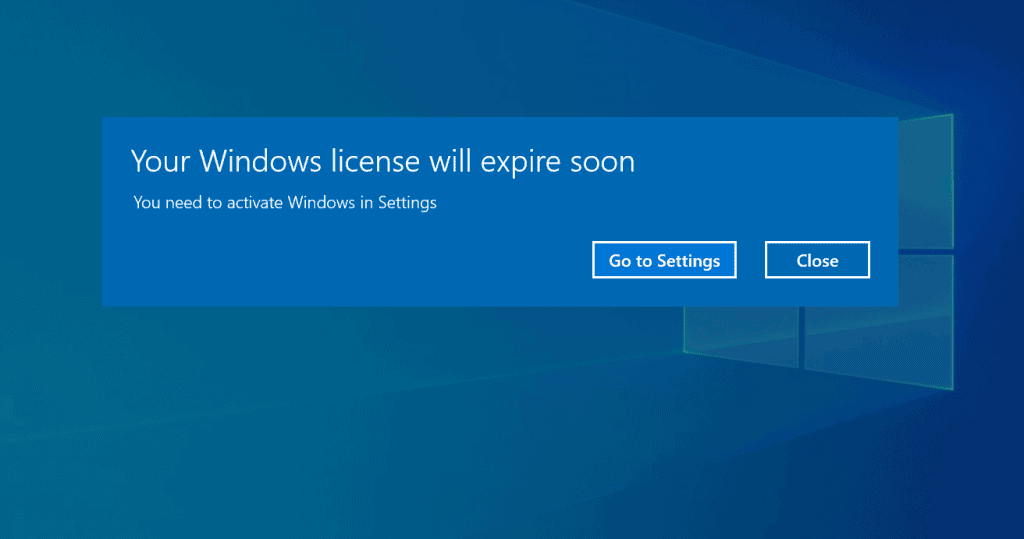
Recently one of my Windows 10 PC started throwing “Your Windows License Will Expire Soon” Error. Here are the steps I took to fix the error.
Option 1: Fix the Warning with the SLMGR Command
This is a 2-step process
Step 1: Retrieve the Windows 10 Product Key
The first step to resolve “Your Windows License Will Expire Soon” Error is to extract the product key. You do not need this for the second step but you may require the key if you need to call Microsoft to help re-activate Windows 10 for you.
Here are the steps:
- Type cmd in search bar. The click Run as administrator.

- At the command prompt, type the command below. Then press enter.
WMIC path SoftwareLicensingService get OA3xOriginalProductKey
The command will display your Windows 10 product key. See the highlighted portion of the image. Copy the product key and save it in a text file.
Recommended Free Tools

Step 2: Run the SLMGR Command
Here are the steps to resolve “Your Windows License Will Expire Soon” error message:
Popular on Amazon

- Less chaos, more calm. The refreshed design of Windows 11 enables you to do what you want effortlessly.
- Biometric logins. Encrypted authentication. And, of course, advanced antivirus defenses. Everything you need, plus more, to protect you against the latest cyberthreats.
- Make the most of your screen space with snap layouts, desktops, and seamless redocking.
- Widgets makes staying up-to-date with the content you love and the news you care about, simple.
- Stay in touch with friends and family with Microsoft Teams, which can be seamlessly integrated into your taskbar. (1)
- Type cmd in search bar. The click Run as administrator.
- When command prompt opens, type this command then press enter.
SLMGR /REARM
The command resets the license status of the PC.

When you press enter to execute the last command, it will appear that nothing is happening. But after a while, you will receive the message:
“Command completed successfully. Please restart the system for the changes to take effect”

- Click OK to close the message. Then restart your PC.
Option 2: Reinstall the System License Files
To do this, run the command prompt as administrator. Then type this command and press enter.
Also popular on Amazon
- Instantly productive. Simpler, more intuitive UI and effortless navigation. New features like snap layouts help you manage multiple tasks with ease.
- Smarter collaboration. Have effective online meetings. Share content and mute/unmute right from the taskbar (1) Stay focused with intelligent noise cancelling and background blur.(2)
- Reassuringly consistent. Have confidence that your applications will work. Familiar deployment and update tools. Accelerate adoption with expanded deployment policies.
- Powerful security. Safeguard data and access anywhere with hardware-based isolation, encryption, and malware protection built in.
SLMGR /RILC

After a while you will receive this message on your screen (Some of the messages are not shown in the image below)…

Restart your PC.
Option 3: Call Microsoft Activation Center
If none if the solutions fixes the Windows licensing warning message, click Microsoft Licensing Activation Centers worldwide telephone numbers. Then call the number for your country and activate Windows over the phone.
Independent reader supportYour contribution helps us test, update, and keep practical guides available for everyone.Conclusion
This Windows 10 license warning message is not common but it may occur. I hope that you resolved the message by following this guide.
Also popular on Amazon

- Video Link to instructions and Free support VIA Amazon
- 24/7 Tech Support!
- key code included
Please let us know by responding to the “Was this page helpful?” question below.
Free tools Windows power users keep installed
One-click scans. No signup required.
Furthermore, for more Windows guides, visit our Windows How To page.


