
Do these 3 things before closing this tab:
1Scan for outdated or missing drivers - takes under a minute2Clear out junk files and repair common Windows errors3Fix the driver behind crashes, sound loss and screen glitchesiTechGuides is reader-supported. When you buy through links on our site, we may earn an affiliate commission. As an Amazon Associate I earn from qualifying purchases. Learn more
Windows 10 battery icon missing? Use the steps in this Itechguide to find or restore it.
Solution 1: Turn on the Power Toggle in Personalization
The first step to try to restore a missing battery icon is to turn it on to show in the taskbar. Follow the steps below…
- Right-click Start menu and select Settings.
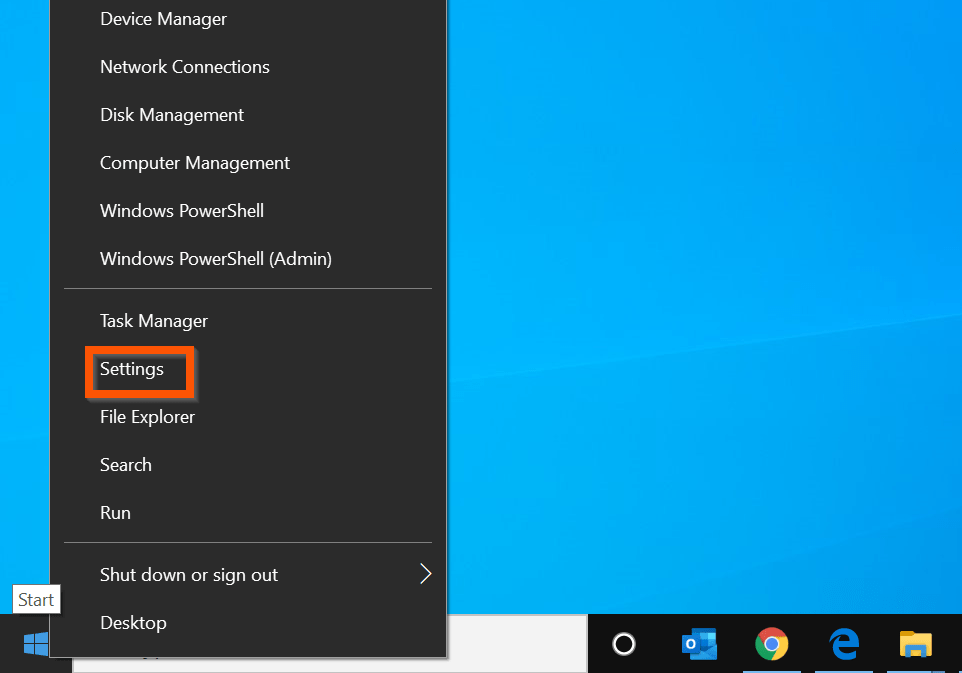
- Then, on Windows Settings, click Personalization.

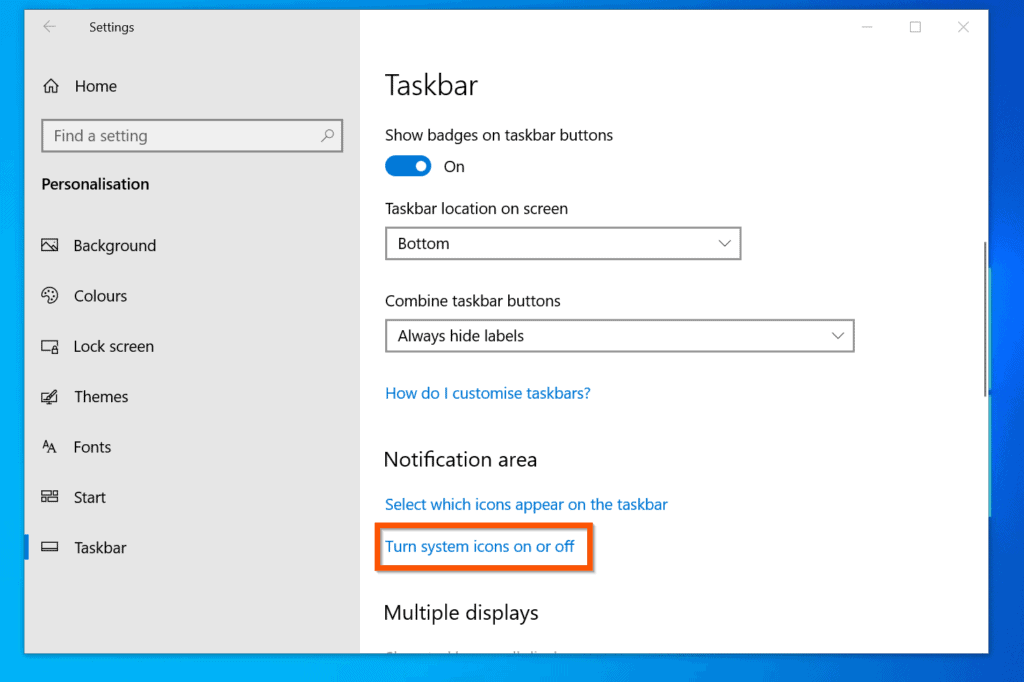
- On the left pane of Personalization settings screen, click Taskbar.

- Then, on Taskbar settings screen, scroll down to Notification area and click Turn system icons on or off.
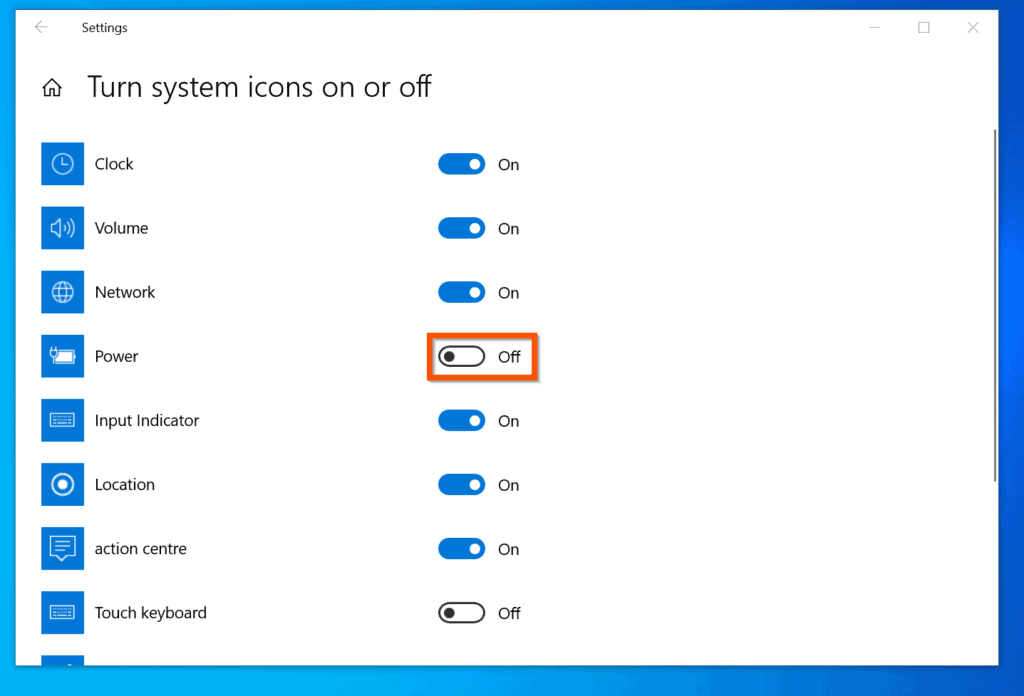
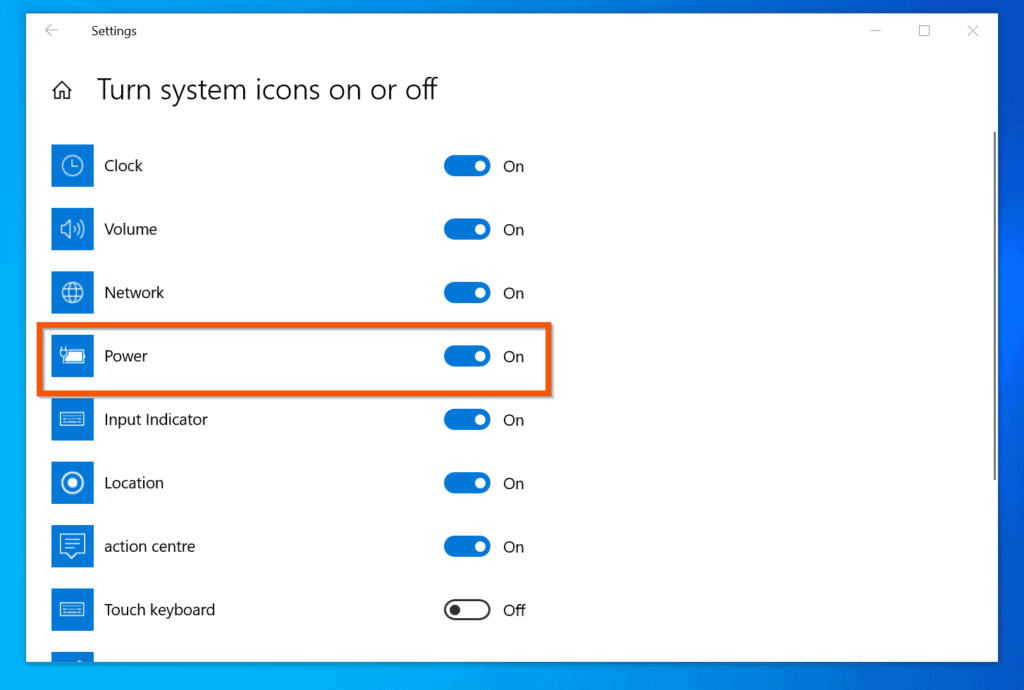
- Finally, on the Turn system icons on or off settings screen, make sure that Power is turned On.
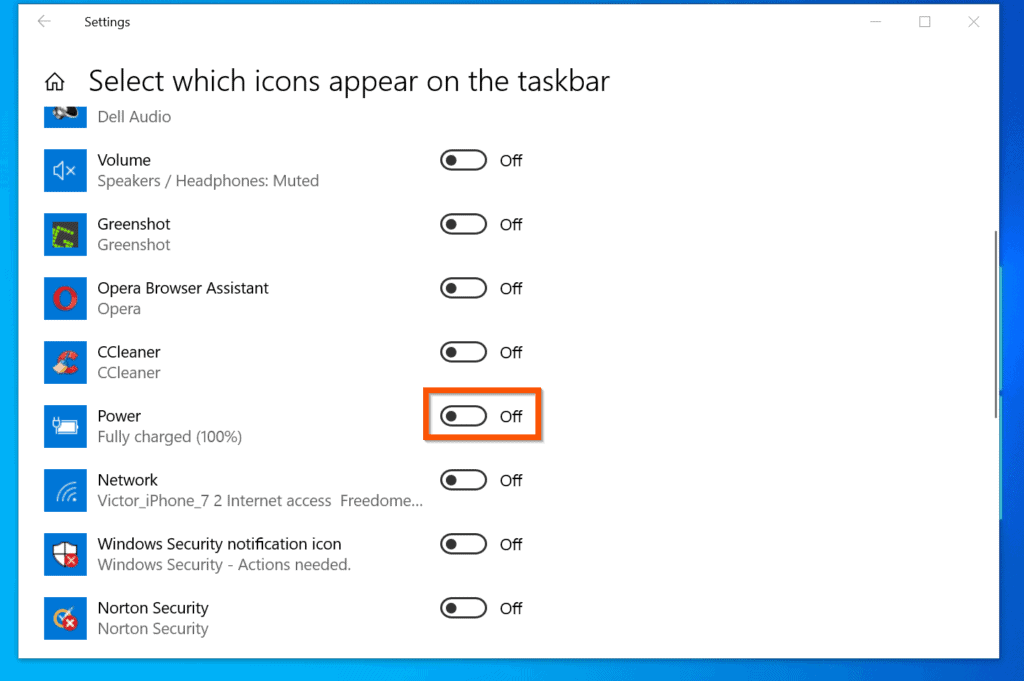
- Return to taskbar settings, scroll down to Notification area and click Select which icons appear on the taskbar.

- Then, on the Select which icons appear on the taskbar settings screen, ensure that Power is toggled Off (NOT On).
Windows 10 battery icon missing still? Use the steps in the next section to fix the problem.
Solution 2: Disable and Enable Battery in Device Manager
The steps in this section is required if Power toggle switch is grayed out in the Turn system icons on or off settings (see last section).
Popular on Amazon

- FULL HD IPS DISPLAY - Enjoy vibrant, crystal-clear images with 178-degree wide-viewing angles
- AMD RYZEN 3 30 PROCESSOR - Everyday performance you can count on; Multitask, stream, game casually, and edit photos smoothly with responsive power and vibrant HDR visuals
- ENJOY UP TO 14 HOURS AND 15 MINUTES OF BATTERY LIFE - HP Fast Charge restores battery from 0 to 50% in approximately 45 minutes
- AMD RADEON 610M GRAPHICS - Experience smooth entertainment; Built for streaming and multitasking, enjoy realistic visuals and efficient performance for work and play
- STORAGE AND MEMORY - 512 GB PCIe NVMe M.2 SSD offers fast speed and efficient storage; and 8 GB LPDDR5 RAM memory boosts performance with higher bandwidth
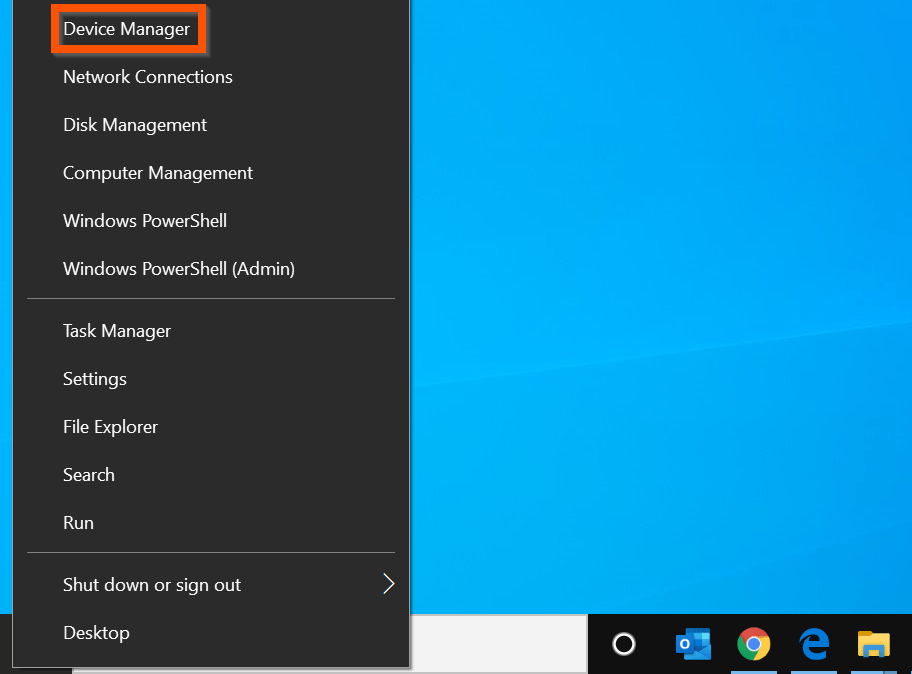
- Right-click Start menu and select Device Manager.
- Then, expand Batteries category.
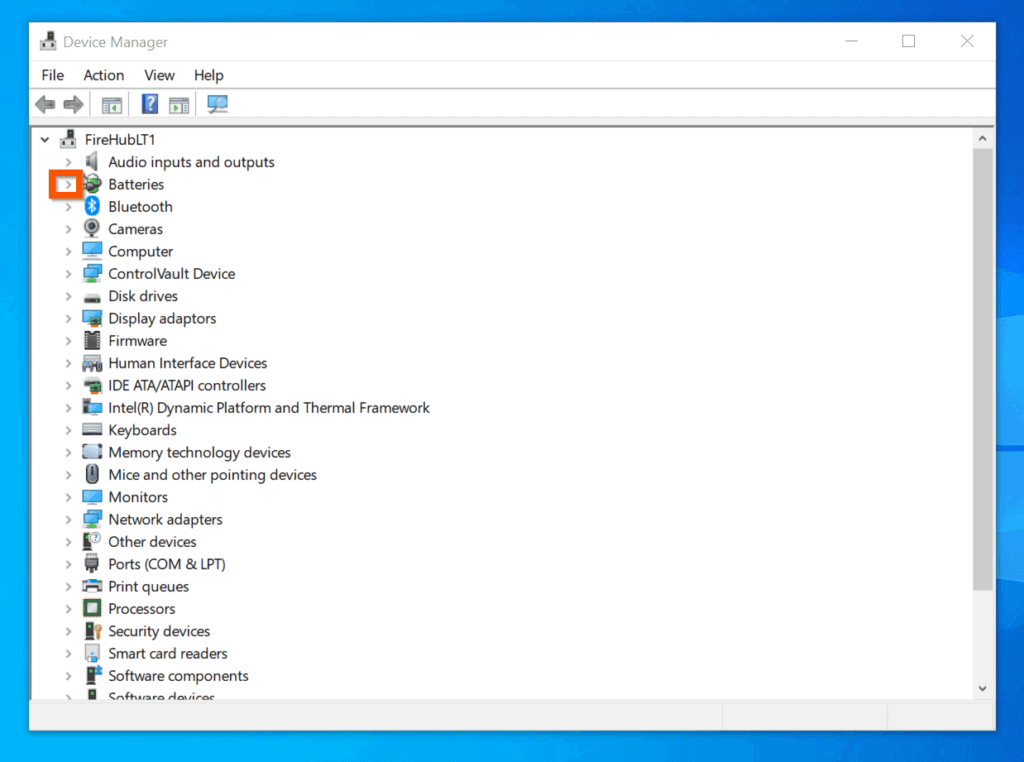
- Beneath the Batteries category, right-click Microsoft AC Adapter and select Disable device. You will receive a warning message.
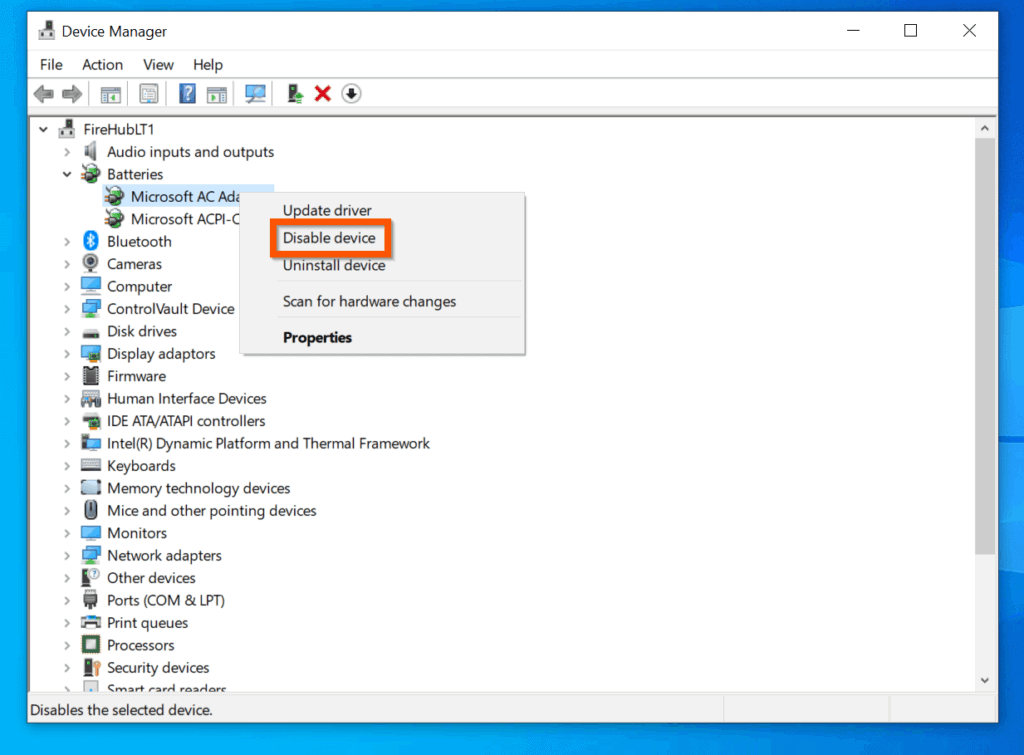
- On the bottom left the warning message, click Yes. Repeat the same step for the second device beneath Batteries.

- Then, right-click each of the devices and select Enable device.
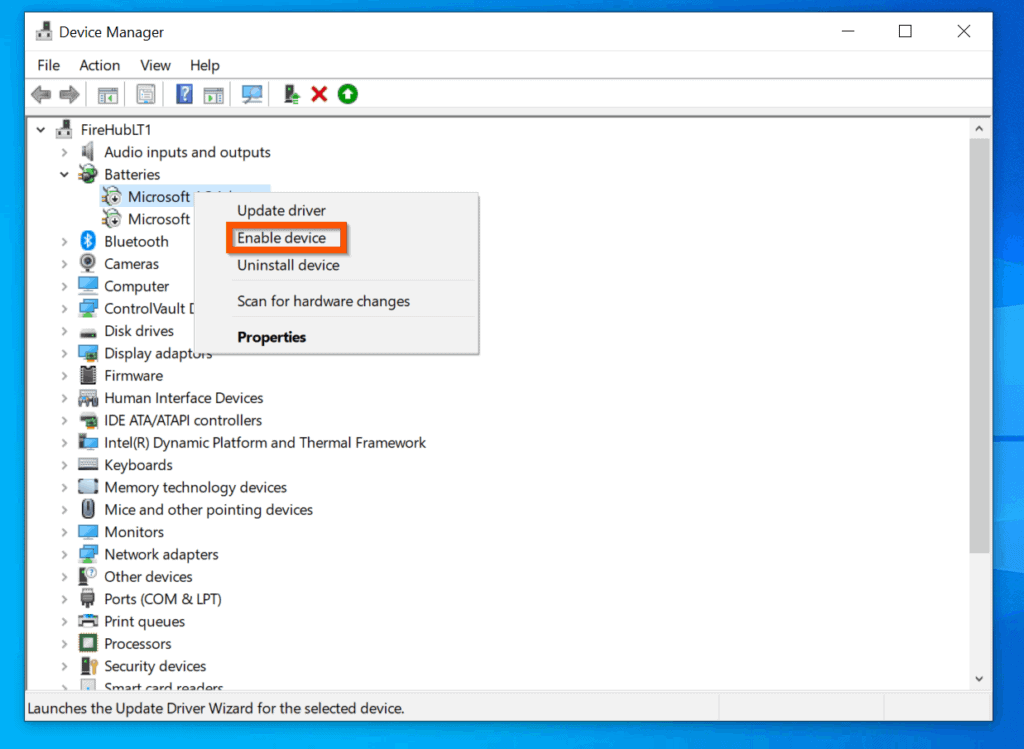
- When you complete the steps in this section, repeat the steps in Turn on the Power Toggle in Personalization (opens in a new browser tab).
Conclusion
You can use the methods covered in this Itechguide to restore the missing Windows 10 battery icon! If you found it helpful, click on “Yes” beside the “Was this page helpful” question below.
You may also express your thoughts and opinions by using the “Leave a Comment” form at the bottom of this page.
Also popular on Amazon

- Intel Celeron N4120: 4 Cores & Threads, 1.1GHz Base Clock, Up to 2.6GHz Boost Clock, 4MB Cache, Intel UHD Graphics 600. The perfect combination of performance, power consumption, and value helps your device handle multitasking smoothly and reliably with four processing cores to divide up the work.
Finally, for more Windows 10 fixes, visit our WINDOWS 10 FIXES page. You may also find our Work from Home page very helpful.
Quick Recap
Product prices and availability are accurate as of the date/time indicated and are subject to change. Any price and availability information displayed on Amazon at the time of purchase will apply.


I followed the instructions given but still my battery is still not showing at the taskbar.
WHEN I USED THE SECOND METHOD,MY ICON WAS BACK IN HIDDEN ICONS