Windows Errors? Fix Them Before They Spread
Repair common Windows errors and clear accumulated junk for a smoother, more stable PC - no reinstall needed.Free scan · no reinstallOutdated Drivers Are Slowing You Down
One free scan finds every outdated or missing driver and matches the right update for your exact hardware.Free scan · exact hardware matchiTechGuides is reader-supported. When you buy through links on our site, we may earn an affiliate commission. As an Amazon Associate I earn from qualifying purchases. Learn more
Has your CarPlay stopped working, leaving you baffled about the root cause? Be prepared to uncover the reasons behind this unexpected issue.
Reasons Apple’s CarPlay isn’t Working
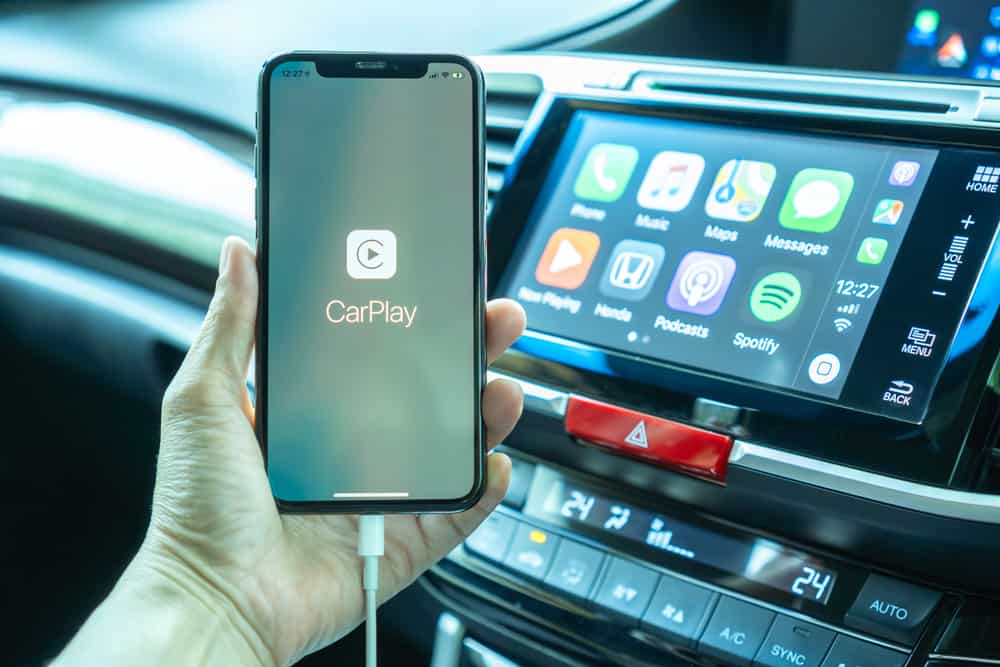
CarPlay is a feature developed by Apple that allows you to connect your iPhone to your car’s infotainment system. This lets you access and control certain iPhone apps through your car’s touchscreen, buttons, or voice commands.
If your CarPlay is not working, there could be several reasons behind the issue. Here’s a detailed explanation of the common causes of this problem.
1. Compatibility Issues
CarPlay requires a seamless integration between your car’s infotainment system and your iPhone. Compatibility issues can arise if either component is not up to the required standards.
Popular on Amazon

- The Ultimate Smarter Copilot: Stay on Top of Your Driving- The 3A magic link CarPlay box control everything with a word, Or a touch, Or a twist. Save your 40% of time by quick auto conn and seamless operation, such as navigation, music playing, Siri assistant, phone calls, radio etc(Our Carplay Only Compatible with wired Apple CarPlay Car systems)
- Uncompromisingly 7A Microchip Tech: Help You Focus on Driving- With 5.8 GHZ WiFi, 5.3 Bluetooth and 8-core processor for CarPlay genius makes transmission rate by up 40%, you can 10X faster than other car play take google maps, media, and messaging apps to car display. Unique black 7A chip keeps excellent performance in Anti-Oxidant, hardness, corrosion, and Temperature tests (-20°C to 70°C). No worry about disconnect during a long driving
- 5.0 Premium Ultra-light Al alloy Dongle: Compact and Durable- Our cables and metal boxes that have withstood 50,000+ tests, last 3× longer than plastic receiver. Also, special material car adapter enhanced the heat dissipation
- Serious Power, Serious Value: Designer Box with Stylish- All eye on classic & sleek exterior. Instant plug and play, fast auto-connect, online upgrades, sophisticated UI design ensure smoothly while driving, that for all factory OEM Wired Car. No need dash mount, even if your cell phone is in your pocket, it works
- No Risk to Try: Any problem, 365 days of No Worry. Do solve your troubles within HOUR
Specifically, CarPlay is generally compatible with cars with an infotainment system equipped with Apple CarPlay. As a result, older car models may not have this feature – you can check Apple’s website for the list of compatible cars.
On the iPhone side, compatibility depends on the iOS version – CarPlay is available on iPhone 5 upward. Hence, older iPhones may not support CarPlay, meaning it won’t work.
Besides that, CarPlay isn’t available in all regions. You can visit Apple’s website to confirm if CarPlay is available in your region.
The Tool Desk
Outbyte PC Repair FREERepair Windows errors before they cause bigger problemsFix Now →Outbyte Driver Updater FREEScan for outdated or missing drivers - takes under a minuteDriver Scan →2. Connection Problems
You can either connect your iPhone to your car’s infotainment system via CarPlay wirelessly or wired. However, that depends on your car – some cars support wireless connection while some don’t.
Nonetheless, problems with this connection can disrupt CarPlay. For instance, the USB cable connecting your iPhone to the car’s USB port should be an Apple-certified USB cable.
Non-certified or damaged cables can lead to intermittent connectivity or total failure. Additionally, the USB port in your car should be functional – dust, debris, or damage to the port can interfere with the connection.
Similarly, issues with your Bluetooth or Wi-Fi for wireless connection might cause CarPlay to malfunction. For instance, your car’s infotainment system may fail to pair with your iPhone’s Bluetooth, causing connection issues.
What’s actually slowing this PC down?
Pick the symptom - the matching free tool is one click away.
3. Outdated Software
Apple releases updates to both CarPlay and iOS to ensure compatibility with the latest hardware and technologies. When you have an outdated iPhone, it may not be fully compatible with the features of your car’s infotainment system, leading to CarPlay issues.
Besides, iOS updates often include bug fixes that address issues affecting various aspects of the iPhone’s functionality. Some of these issues might impact CarPlay’s performance, resulting in problems like connectivity issues, app crashes, or display glitches.
Thus, running an outdated iOS version may make you more likely to experience these CarPlay-related bugs. Moreover, CarPlay depends on a stable and efficient connection between your iPhone and your car’s infotainment system.
Outdated iOS software may not communicate effectively with your car. This can result in connectivity problems, such as CarPlay not recognizing your device or constant disconnections.
Recommended Free Tools
Also popular on Amazon

- Upgrade to Wireless CarPlay & Android Auto The 2 in 1 Wireless CarPlay and Android Auto Adapter converts your factory wired system into a wireless experience. It’s perfect for families using both iPhone and Android phones, allowing effortless switching without unplugging or swapping cables. This adapter is compatible with over 1,000 vehicle models—supporting 800+ with wired CarPlay and 500+ with wired Android Auto. Works with iPhone 6 or later and Android 11 or above devices.
- Fast Easy Setup & Auto Reconnection No app or complicated setup required. Just pair once via Bluetooth and enjoy automatic reconnection in under 3 seconds every time you drive. Powered by advanced 2.4GHz + 5GHz dual-band chips, this 2 in 1 CarPlay Adapter connects quickly—your maps, music, and calls are ready almost instantly.
- OEM-Level Wireless Performance & Vehicle Control Our car adapter maintains the full functionality and preserves the seamless experience of your original CarPlay or Android Auto system—including Apple Maps, Google Maps, Spotify, Siri, and Voice Assistant—while supporting factory controls such as touchscreen, steering wheel buttons, rotary knobs, and voice commands.
- Ultra-Compact & Flush-Fit – Clean Look, No Clutter Teeran Android Auto & CarPlay wireless adapter comes in a compact, space-saving design, about the size of a U.S. dollar coin, helping keep your car interior neat and clutter-free. The tapered design plugs in tightly and sits flush with the USB port. Once installed, the device is nearly invisible—no dangling wires, no bulky clutter, no loose connections. Includes both USB-A and USB-C extension cables to fit hidden or angled ports in different car layouts.
- Smarter & Safer – Built for Real-World Driving Designed to handle everyday use, this Android CarPlay adapter offers efficient heat dissipation vents and is certified to operate between -20°C to 70°C. Built-in protection helps prevent overheating, short circuits, and voltage surges—reducing concerns about performance or safety on long summer drives. Tested for vibration resistance to support stable performance on bumpy roads.
4. Incompatible Apps
CarPlay is compatible with a specific set of apps optimized for in-car use. These apps include navigation, music, messaging, and some other categories.
However, not all iPhone apps are compatible with CarPlay. Hence, integration problems can occur if you attempt to use an app not optimized for CarPlay.
This can lead to issues such as the app not appearing on the CarPlay interface or not functioning correctly. In fact, poor integration can cause CarPlay to freeze or crash when using specific apps.
This can be frustrating and potentially unsafe while driving.
5. CarPlay Settings
CarPlay settings can significantly impact its functionality. Furthermore, misconfigurations or restrictions in these settings may cause CarPlay not to work as expected.
For example, iOS provides a feature called “Screen Time” that allows you to control access to certain apps and features. Hence, if you have imposed restrictions on CarPlay or specific CarPlay-enabled apps, it can affect their accessibility.
Moreover, CarPlay relies heavily on Apple’s voice control (Siri) for navigation, messaging, and other tasks to enhance driving safety. Thus, if voice control settings are disabled or misconfigured, it can hinder your ability to interact with CarPlay effectively.
Known Fixes for CarPlays that aren’t Functioning
We all know how frustrating it can be when CarPlay is not working. However, there are several troubleshooting steps you can follow to try and resolve the issue.
Free tools Windows power users keep installed
One-click scans. No signup required.
Here’s a detailed guide on how to fix CarPlay when it’s not functioning.
1. Restart Your Devices
Restarting your devices can be a crucial troubleshooting step when CarPlay isn’t working as expected. Over time, software components on both your iPhone and your car’s infotainment system can encounter minor glitches or errors.
These issues may accumulate and affect the performance of CarPlay. Hence, restarting the devices essentially provides a fresh start, clearing any temporary problems causing CarPlay to malfunction.
Also popular on Amazon

- 【MIni CarPlay Wireless Adapter】Easily transform wired OEM CarPlay to wireless! Supports navigation, music playing, Siri assistant, phone calls, text messaging, etc. Enjoy full Carplay App and keep original car operation. No more tangled cables, leaving your car cleaner and embracing the convenience of wireless Car Play
- 【Mini Stylish Design】The carplay adapter is very small and can easily be hidden or mounted out of the way. Capable of converting wired to wireless Carplay for wireless control; more efficient without the need to connect and disconnect cords; reduces damage to your phone from frequent plugging and unplugging of charging cords. In addition, you don't have to worry about accidentally leaving your phone in the car at the end of your drive.
- 【Important Tips Before Buying】This adapter is exclusively for cars with factory-wired CarPlay—make sure your vehicle meets this requirement first!.Not compatible with BMW or modified cars.It supports iOS 10 or newer iOS versions.Please activate both Wi-Fi and Bluetooth during use, and ensure no other devices are connected to them.Compatible with 98% of car models with original factory CarPlay
- 【Plug & Play】You could quickly and easily establish a connection in just three simple steps. Install our wireless adapter compatible with apple carplay into the USB hole, then turn on your phone's Bluetooth, connect to match the corresponding Bluetooth name, wait a few seconds and you'll be logged into the CarPlay interface.After finish the first setup, the adapter will automatically activate the connection every time the car starts. Whether you need turn-by-turn directions, want to stream your favorite songs, or catch up on the latest podcasts,Take the wheel and experience the convenience and fun of CarPlay with our top-of-the-line CarPlay Wireless Adapter.
- 【Automatic reconnection】After the first successful connection, your phone will automatically connect to CarPlay every time you get in the car, without any repeated operation. Say goodbye to the trouble of manual connection and enjoy an efficient and worry-free smart travel experience as soon as you get in the car. (Note: The CarPlay adapter can only be connected to one phone at a time)
Besides, CarPlay relies on a stable and secure connection between your iPhone and your car’s infotainment system. Occasionally, this connection may become unstable or interrupted due to various factors, such as interference or software hiccups.
By restarting both devices, you effectively reset the connection process, allowing them to reestablish a solid connection.
2. Check CarPlay Settings
In your iPhone’s settings, under “General” > “CarPlay,” you can manage the list of CarPlay-enabled cars. Ensure that your car’s infotainment system is listed here.
If it’s not, try connecting your iPhone to the car again and allow it to detect the system.
Moreover, CarPlay can be restricted in your iPhone’s “Screen Time” settings. Hence, go to “Settings” > “Screen Time” > “Content & Privacy Restrictions” > “Allowed Apps” and check if CarPlay is allowed.
Adjust these settings if necessary. Also, ensure Siri (Apple’s voice assistant) is enabled on your iPhone.
3. Update Software
Both your car’s infotainment system and your iPhone should have the latest software updates installed to ensure optimal compatibility. Car and phone manufacturers release updates to address bugs, improve performance, and enhance CarPlay support.
These updates can also introduce new features. Hence, check your car manufacturer’s website or contact customer support for information on updating your car’s infotainment system.
Meanwhile, you can visit your iPhone’s settings to check for and install the latest iOS updates.
Quick wins for a faster PC:
Repair Windows errors before they cause bigger problemsFix Now →Scan for outdated or missing drivers - takes under a minuteDriver Scan →Clear out junk files and repair common Windows errorsFree Scan →4. Check Connection
The physical connection between your iPhone and your car’s infotainment system is crucial for CarPlay to work correctly. It relies on a wired connection via a USB cable.
Thus, ensure that your USB cable is functional and Apple-certified. Also, examine the USB port in your car where you connect your iPhone and ensure it is issue-free.
Also popular on Amazon

- Wireless CarPlay Adapter: The carplay adapter converts your wired CarPlay to a wireless connection, making it easy to use navigation, music streaming, hands-free calling and voice control functions (compatible with CarPlay only, not compatible with other systems.)
- Easy to use: Simply plug the adapter into your car's USB port and pair, no apps or updates required. After the initial pairing, your phone will automatically connect to the CarPlay adapter every time you start your vehicle(Does not work with Android phones)
- Multiple control methods: After connection, this Wireless Carplay Adapter uk also supports voice control, steering wheel, touch screen and knob operation. Make you safer while driving
- Compatible with a variety of wireless car players: CarPlay Wireless is also equipped with USB-C and USB-A ports. Whether your car interface is USB or USB-C, you can use our CarPlay Wireless Adapter. This wireless adapter is only suitable for vehicles equipped with original wired CarPlay. Only suitable for vehicles manufactured in 2016 and later
- Compact design: The wireless carplay adapter will not block any interface, and its small size ensures that it will not interfere with other devices and save space
On the other hand, if you’re using a wireless connection, ensure Bluetooth is on and Airplane mode is turned off. Airplane mode stops your device from making any wireless connections.
5. Contact Manufacturers
If you’ve exhausted all troubleshooting steps and CarPlay still doesn’t work, consider contacting your car manufacturer’s customer support or Apple Support. Car manufacturers often have specific support resources and knowledge about their infotainment systems
Do these 3 things before closing this tab:
1Clear out junk files and repair common Windows errors2Fix the driver behind crashes, sound loss and screen glitches3Repair Windows errors before they cause bigger problemsMeanwhile, Apple Support can assist and might offer solutions tailored to your specific iPhone model and iOS version.
Independent reader supportYour contribution helps us test, update, and keep practical guides available for everyone.Frequently Asked Questions
Some car manufacturers offer a wireless CarPlay feature that allows you to use CarPlay without plugging in your iPhone via USB. In this case, the initial setup is still done via Bluetooth, and then the connection switches to a Wi-Fi connection for data transfer.
CarPlay is a technology developed by Apple Inc. that allows you to integrate your iPhone with your car’s infotainment system. It provides a safer and more convenient way to access key iPhone features while driving.
Essentially, CarPlay transforms your car’s built-in display into a familiar and simplified iOS interface. With CarPlay, you can get directions, send/receive messages, make calls, play music, and more via your car’s infotainment system.
Apple introduced CarPlay in March 2014.
No, not all iPhones have CarPlay. CarPlay is available on iPhone 5 and later with at least iOS 7.1
Apple’s CarPlay is free!
Conclusion
When you face the frustrating situation of CarPlay not working, it’s essential to approach the issue patiently. CarPlay is a powerful and convenient technology that can enhance your driving experience.
However, like any technology, it can encounter problems from time to time. Gladly, this article discussed various causes of this issue.
I also provided troubleshooting steps to take to address the problem. While CarPlay not functioning can be an annoying experience – especially if you rely on it for navigating – it’s usually solvable by following a systematic approach.
With the tips in this article and patience, you can restore the functionality of CarPlay and enjoy a convenient driving experience.
Outdated Drivers Are Slowing You Down
One free scan finds every outdated or missing driver and matches the right update for your exact hardware.Free scan · exact hardware matchPC Slower Than It Used to Be?
A free scan shows the junk files, broken settings and background clutter dragging Windows down - then fixes them in one click.Free scan · Windows 10 & 11We hope you’ve found this article to be a valuable resource. The “Leave a Reply” form at the bottom of this page is available for you to leave your comments.
Alternatively, you can respond to the “Was this page helpful?” question below.
If you’re interested in reading more articles on similar subjects, we invite you to explore our Technology Explained page.