

iTechGuides is reader-supported. When you buy through links on our site, we may earn an affiliate commission. As an Amazon Associate I earn from qualifying purchases. Learn more
Spotify Web Player may stop working for you with the following error messages: “Spotify Web Player an Error Occurred” or “Oooops, something went wrong. Reload”. This quick guide provides a simple fix for you.
Overview
No matter what may cause Spotify web player to stop working for you, the workaround is to install Firefox User-Agent Switcher or Chrome User-Agent Switcher. Then set the switcher to Microsoft Edge.
If you use Firefox, install user-agent for Firefox. Alternatively, if you use Chrome, install the Chrome switcher. For the steps to install and configure for Chrome, scroll to the end of Firefox steps.
Do these 3 things before closing this tab:
1Clear out junk files and repair common Windows errors2Scan for outdated or missing drivers - takes under a minute3Repair Windows errors before they cause bigger problemsFix for Firefox (Step 1): Install Firefox User-Agent Switcher
As I said earlier the fix to spotify web player not working is to install user agent for Firefox or chrome.
Popular on Amazon

- [COMPATIBLE WITH USB DEVICES] - Our USB Speakers are compatible with Windows, macOS, ChromeOS, and Linux, making them ideal for PC, laptop, and desktop computer. Incompatible Devices: Monitors TVs and Projector.
- [COMPATIBLE WITH USB-C DEVICES] - Thanks to the built-in USB-C to USB Adapter, our USB-C speakers are now compatible with devices that only have USB-C interface, such as the latest MacBook, Mac mini, iMac, iPad, Android phones, and tablets.
- [INCREDIBLE LOUD SOUND WITH RICH BASS] - Our small computer speaker is equipped with dual ultra-magnetic drivers and dual passive radiators, providing high-quality stereo sound with powerful volume and deep bass for an incredible audio experience.
- [ADAPTIVE-CHANNEL-SWITCHING WITH G-SENSOR] - Ensures the left and right sound channels remain correctly positioned whether the speaker is clamped to the top or bottom of your monitor.
- [CONVENIENT TOUCH CONTROL] - Three intuitive touch buttons on the front allow for easy muting and volume adjustment.
Follow the steps below to install and configure Firefox User-Agent Switcher:
- Open Firefox browser (if you are not reading this guide from Firefox). Then copy and paste this URL https://addons.mozilla.org/en-US/firefox/addon/uaswitcher/ to your Firefox browser.
- If you are reading this guide in Firefox, click User-Agent Switcher (opens in a new tab/page) to open the add-on page. The page below opens.

- Click Add to Firefox. Then on the confirmation pop up, click Add. Finally, on the Add-on install confirmation pop up, click Okay, Got It.


Fix for Firefox (Step 2): Configure Firefox User-Agent Switcher
Now that you have installed Firefox User-Agent Switcher, you need to configure it. Here are the steps:
Also popular on Amazon
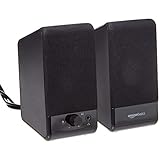
- USB-powered (5V) speakers plug directly into your computer for portable convenience
- Turn the speakers on and adjust the volume using one simple control (located on the front of the speakers); volume control includes On/Standby
- Simple plug-and-play setup (no drivers needed); can be used with headphones via the 3.5mm jack connector
- Frequency range of 103 Hz - 20 KHz; 2.2 watts of total RMS power (1.1 watts per speaker)
- Measures 2.76 by 3.55 by 5.3 inches (LxWxH); weighs approximately 1.4 pounds;
- From Firefox browser, open Spotify Web Player page (opens in a new tab/page) – https://open.spotify.com
- On Firefox, top right click User-Agent Switcher – Disabled (You MUST Perform this task with https://open.spotify.com open on Firefox browser.

- On the User-Agent switcher, click the check box beside Override for Domain. Then select “https://*.spotify.com”. Finally, beneath Desktop, select Windows / Edge 17.

Refresh Firefox and open http://open.spotify.com. It should no longer display “an Error Occurred” from Firefox.
Fix for Chrome (Step 1): Install Chrome User-Agent Switcher
If you use Spotify Web Player on Google Chrome, use the next steps to install and configure Chrome User-Agent Switcher Add-on.
Also popular on Amazon

- Surge Stereo Sound - 4 large amplifier IC horns! Computer speakers achieved Distortion Free and Noiseless in stunning sound. Immersive cinema effect for movies, videos, games and music.
- Touch Angular Game Lights - Unique Dynamic Angular Game Atmosphere design! Desktop speaker with latest One Touch to turn on/off lights, avoid the traditional cumbersome button design.
- All In One Compact - Fits any desktop computer! Perfectly under the monitor without taking up any extra desktop space. Cables are glued together to avoid desktop clutter.
- Plug And Play - No need for any driver! Must Plug in the USB powered cable and 3.5mm audio cable to enjoy now! Top volume knob for easier volume adjustment.
- Type C Adapter Included & Compatibility - USB speakers match computers, desktops, PCs, laptops. Suitable for windows(Vista/7/8/10), Mac OS, Chrome OS, etc.
- Open Google Chrome browser (if you are not reading this guide from Chrome). Then copy and paste this URL https://chrome.google.com/webstore/detail/user-agent-switcher/dbclpoekepcmadpkeaelmhiheolhjflj?hl=en-US to your Chrome browser.
- If you are reading this guide in Google Chrome, click User-Agent Switcher (opens in a new tab/page) to open the add-on page. The page below opens.

- Click Add to Chrome. Then on the confirmation pop up, click Add Extension.

Fix for Chrome (Step 2): Configure Chrome User-Agent Switcher
Before the Chrome User-Agent Switcher can fix “Spotify Web Player an Error Occurred”, you have to configure it. Here are the steps:
- From Chrome browser, open Spotify Web Player page (opens in a new tab/page) – https://open.spotify.com
- On Chrome, top right click User-Agent Switcher – Has Access to this site [1] (You MUST Perform this task with https://open.spotify.com open on Chrome browser.

- Next, on the Select a Desktop Browser section click Microsoft Edge [3] (To confirm it is Microsoft Edge, hover over the icon). Then beneath the User-Agent: Microsoft Edge on Microsoft Windows [1], enter spotify.com [2]. Reload Spotify Web Player on Chrome. It should now work well. If you receive the error message “Spotify no longer supports this version of Microsoft Edge”, see below for resolution.

Now open Spotify on Chrome, Spotify Web Player should now work as expected.
Also popular on Amazon
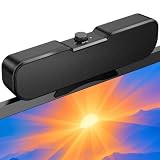
- Sturdy & Easy-to-Use Clamp: Upgraded non-slip clamp fits 0.1"–0.98" thick screen. Computer speaker easily and securely clip to the top, bottom, or sides of monitors, supports stand independently.
- Innovative Easy Volume Knob: One knob controls it all! Quickly power on/off and precisely adjust the volume without complicated buttons. C1 computer speaker is easy to access from any mounted position.
- USB & USB-C Plug and Play: Requires only one USB connection for both power and audio—no AUX or software needed. Desktop speaker includes high-quality USB-C adapter for wide compatibility with Windows, Mac, Android, Linux, and devices like PC, laptop, tablet, PS, and Switch.
- Compact & Space-Saving: Slim, lightweight design saves valuable desk space and makes it easy to carry. PC speakers comes with a 51-inch cable and cable tie to keep your desk neat and organized.
- Clear Loud Sound: Powerful Clear audio without distortion, even at max volume. USB speaker is perfect for daily office needs.
After installing and configuring Chrome Browser User-Agent, you may receive the error message “Spotify No Longer Supports This Version of Microsoft Edge”. For the fix click Spotify No Longer Supports This Version of Microsoft Edge (Fixed).
What’s actually slowing this PC down?
Pick the symptom - the matching free tool is one click away.
If after installing User-agent for Chrome, Spotify web player is still not working for you, I strongly recommend you switch to Firefox. For a detailed guide on how to configure Web player to work on Firefox click How to Install Spotify Web Player Hotkeys Extension for Firefox. You could also see Web Player Hotkeys for Firefox.
Conclusion
If Spotify web player stops working for you, the solutions suggested in this guide should fix it for you. Whether you receive “Spotify Web Player an Error Occurred” or “Oooops, something went wrong. Reload” these errors interrupt your ability to enjoy free music from Spotify. My hope is that you have been able to get rid of this annoying error message.
Also popular on Amazon

- External computer speaker in Black (set of 2) for amplifying PC or laptop audio
- USB-Powered from USB port of PC or Laptop
- In-line volume control for easy access
- Blue LED lights; metal finish and scratch-free padded base
- Bottom radiator for “springy” bass sound
I hope you found this Itechguide helpful. If you did, kindly share your experience with our community using the comments form (“Leave a Reply”) at the bottom of this page.
Alternatively, you can respond to the “Was this page helpful?” question below.
Lastly, for more guides on music and video streaming, visit our Music & Video Streaming page. This page has more Spotify guides and some YouTube guides as well.
Free tools Windows power users keep installed
One-click scans. No signup required.
Quick Recap
Product prices and availability are accurate as of the date/time indicated and are subject to change. Any price and availability information displayed on Amazon at the time of purchase will apply.



