

PC Slower Than It Used to Be?
A free scan shows the junk files, broken settings and background clutter dragging Windows down - then fixes them in one click.Free scan · Windows 10 & 11Outdated Drivers Are Slowing You Down
One free scan finds every outdated or missing driver and matches the right update for your exact hardware.Free scan · exact hardware matchiTechGuides is reader-supported. When you buy through links on our site, we may earn an affiliate commission. As an Amazon Associate I earn from qualifying purchases. Learn more
Want to do a deep dive into the Spotify Web Player? This article teaches you all you need to know about the tool to use this popular music streaming tool.
What is Spotify Web Player?
Spotify Web Player is a browser-based player that allows you to stream Spotify via supported web browsers. With the web player, you do not need to install Spotify apps. This makes it convenient to use Spotify without installing yet another app!
In this guide, you will learn how to:
- Create a Spotify Account (Sign Up for Spotify)
- Install Hotkeys Extensions in Supported Browsers
- Spotify Web Player Hotkey Extensions for Chrome and Firefox
- Login to Spotify Web Player
- Create Playlists on the Web Player
- Rename a Playlist (Not Available on Web Player)
- Make a Playlist Secret or Delete a Playlist
- Add Songs to Your Playlist
- Enable Shuffle and Repeat with Spotify Web Player
- Resolve Common Web Player Errors
- Use Spotify Web Player on a Mobile Device
- Things You Can Do on the App, Not Available on the Web Player
If you wish to read a particular topic, jump to it by clicking the topic in the Table of Contents below:
Free tools Windows power users keep installed
One-click scans. No signup required.
Create a Spotify Account (Sign Up for Spotify)
Obviously, to use the Web Player, you require a Spotify account! This section will be useful for readers that want to use the Web Player but do not have an account yet.
Popular on Amazon

- Versatile setup with speakers that connect easily to computers and other devices via Bluetooth wireless or 3.5mm cable
- Logitech Easy-Switch technology lets you seamlessly switch between audio devices Just by pausing the Audio on one device and pressing play on the other
- Each speaker has one active/powered driver that delivers full range Audio and ONE passive radiator that provides bass extension.
- On-speaker headphone jack Plus convenient controls for easy access to Bluetooth wireless pairing, power and Volume adjustments, Bluetooth version: 4.2
- Works with Bluetooth enabled devices and any device with a 3.5mm input including a computer, television, smartphone, tablet and music player
To create a Spotify account follow the steps outlined below:
- Click Sign Up for Spotify link
- The sign up page provides option to sign up with Facebook or email. To sign up with Facebook, click the link and sign into your FB account. For this guide, I will show you how to create an account using your email.

- To create an account using your email, scroll down the page and enter enter the details in all the fields. See instructions in the image below.

- Depending on the size of your monitor, you may need to scroll down a bit to click Sign Up.

If you click Sign Up and nothing happens, you may need to clear your browser cache. Alternatively, you could try a different browser.
- When you click Sign Up, you will be redirected to download Spotify software. You may download and install or cancel the download. For the purposes of this guide, I do not require the Spotify app, so I cancelled the download. All demonstrations on this guide will be via Spotify Web Player, not the app.

- Once you sign up you will receive an email from Spotify asking you to confirm your account. Open the email and click CONFIRM ACCOUNT.

Install Spotify Hotkeys Extensions in Supported Browsers
You can use Spotify Web Player on the following browsers:
Google Chrome
Mozilla Firefox
Microsoft Edge (Comes preinstalled on Windows 10)
Opera
These are the browsers officially supported by Spotify Web Player. If you use any other browser, the player may not work as expected.
If you use Spotify web player, you may miss out on Hotkeys (keyboard shot cuts that allows you to Play, Pause, Play Next and Previous Track). However, if you install Hotkey extensions for Chrome and Firefox you will be able to use the Hotkeys you normally have in the Spotify Apps.
How to Install Spotify Web Player Hotkey Extensions for Chrome
To use the hotkeys for Chrome browser, you have to install the extension. Follow the steps below.
- Open Google Chrome
- Then click this link Spotify Web Player Hotkeys (opens in a new window/tab)

- Click Add to Chrome. Then confirm the installation by clicking Add extension.

How to Install Spotify Web Player Hotkeys Extension for Firefox
To install the extension for Firefox, use the steps below:
Quick wins for a faster PC:
Clear out junk files and repair common Windows errorsFree Scan →Scan for outdated or missing drivers - takes under a minuteDriver Scan →- Open Firefox browser
- Then open Spotify Hotkeys (new window or tab)

- Click Add to Firefox. Then confirm by clicking Add. Finally click Ok to the notification.


Spotify Web Player Hotkeys for Chrome and Firefox
Before you use the Hotkeys discussed below, note that you have to install the Hotkey extensions as discussed in the previous section.
In this section, I will cover Hotkeys for Google Chrome and Mozilla Firefox browsers.
Also popular on Amazon

- [COMPATIBLE WITH USB DEVICES] - Our USB Speakers are compatible with Windows, macOS, ChromeOS, and Linux, making them ideal for PC, laptop, and desktop computer. Incompatible Devices: Monitors TVs and Projector.
- [COMPATIBLE WITH USB-C DEVICES] - Thanks to the built-in USB-C to USB Adapter, our USB-C speakers are now compatible with devices that only have USB-C interface, such as the latest MacBook, Mac mini, iMac, iPad, Android phones, and tablets.
- [INCREDIBLE LOUD SOUND WITH RICH BASS] - Our small computer speaker is equipped with dual ultra-magnetic drivers and dual passive radiators, providing high-quality stereo sound with powerful volume and deep bass for an incredible audio experience.
- [ADAPTIVE-CHANNEL-SWITCHING WITH G-SENSOR] - Ensures the left and right sound channels remain correctly positioned whether the speaker is clamped to the top or bottom of your monitor.
- [CONVENIENT TOUCH CONTROL] - Three intuitive touch buttons on the front allow for easy muting and volume adjustment.
Web Player Hotkeys for Chrome
The following are the default Hotkeys for Chrome and what you use them for.
Play/Pause : Alt+Shift+P
Next       : Alt+Shift+Period
Previous   : Alt+Shift+Comma
Save Track : Alt+Shift+F
You can configure these Hotkeys by opening chrome://extensions/shortcuts in your Chrome browser. Then scroll down to Spotify Web Player Hotkeys.

Here you can modify the default Hotkeys. You could also add a Hotkey for Repeat and Shuffle – highlighted in red.
Do these 3 things before closing this tab:
1Scan for outdated or missing drivers - takes under a minute2Repair Windows errors before they cause bigger problems3Fix the driver behind crashes, sound loss and screen glitchesIn the image below I have added my Hotkeys for Repeat and Shuffle. To add a Hotkey, place your mouse on the field. Then press the Alt button and Space bar together. You could also use Ctrl button and Space bar.

Web Player Hotkeys for Firefox
Below are the Spotify Web Player Hotkeys for Firefox browser.
Play/Pause : Alt+Shift+P
Next : Alt+Shift+Right Arrow
Previous : Alt+Shift+Left Arrow
Shuffle : Alt+Shift+F
Repeat : Alt+Shift+R
Play Album: Alt+Shift+B
To modify these Hotkeys, follow the steps below:
- From the top right corner of Firefox, click the 3 lines. Then click Add-ons.

- Firefox Add-ons page opens. Click Extensions tab.

- Then beside Spotify Hotkeys, click Options. Scroll down until you get to Shortcuts.

Here you can modify the Hotkeys as you wish.
You can play Spotify Web Player on Opera but as far as I am aware, there is no Hotkey extension for this browser. This means that you will not be able to use Hotkeys when you open Web Player in Opera browser.
How to Login to Spotify Web Player
Logging in to the Web Player is very simple. The steps below will guide you through the process.
- Open https://open.spotify.com and login with your Spotify username and password. This will open the Web Player home page.

How to Create Playlists on the Spotify Web Player
When you login to the web player, you can use pre-created play lists. Alternatively, if you need your own playlist, you can create it with the steps below:
Also popular on Amazon
- USB and Bluetooth connectivity; connect to desktop or laptop with USB cable; connect to smartphone with Bluetooth 5.0
- 5W Power Output; Space saving design attaches to the bottom of your monitor
- Controls include multi function button for switching between USB and Bluetooth; play and pause; volume up and down; mic mute with LED indicator
- Simultaneous connection to PC or Mac via USB; connect to smartphones via Bluetooth; for hands free calls or virtual meetings
- Easy setup; plug and play with no installation needed; includes USB A to USB C converter for newer laptops with limited or no USB A ports
- While logged on to Spotify Web Player, on the left pane of the player, click Your Library.

- Next, click NEW PLAYLIST. This will load the New Playlist window as shown below. Enter a name for your playlist then click CREATE. The new playlist will appear under Your Library – see the second image below.


How to Rename and Add Image to a Playlist (Not Available on Web Player)
Sometimes you may wish to change the name of a Playlist. Unfortunately, the playlist rename option is NOT available on Spotify Web Player.
To rename a playlist, login to your account from the Windows App and follow the steps below:

- Beneath PLAYLISTS, click the playlist you wish to change the name.
- Next, hover over the image of the playlist. A Pencil will display.

- Then click the pencil (see the image below). Enter a new name for the playlist (1), Choose an image (2). Finally, you could add a description for the playlist. To save your changes, click Save.

How to Make a Playlist Secret or Delete a Playlist
You can make a playlist secret or delete a playlist completely using the Spotify Web Player.
Recommended Free Tools
Here are the steps to make a playlist secret or delete it.
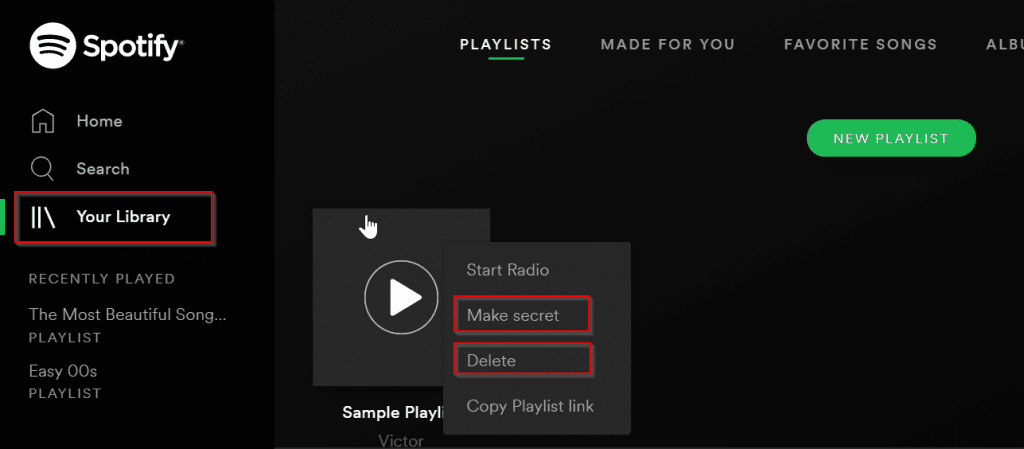
- Login to the Spotify Web Player using your preferred browser.
- Click Your Library. Then right-click the playlist you wish to make secret or delete.
- To make the playlist secret, click Make secret. On the other hand, if you wish to delete the playlist, click Delete.
How to Add Songs to Your Playlist
There are two ways you can add some music to your playlist via Spotify web player. Using the search option or adding via an existing playlist.
To add music to your playlist using search.
- Login to Spotify Web Player and click Search. In the search bar, enter the name of the music you want. The player will return suggested songs.
- To add a song to your playlist, hover over it. 3 dotted lines will show beside the song.

- Right-click the 3 dots beside the song you wish to add. Then select Add to Playlist.

- The page similar to the one below loads. Click the playlist you wish to add songs to.

- The playlist now has the song. You may wish to add other songs from the album. To do this, beneath Recommended Songs, click the Add button for each song you wish to add to the playlist.

As I said earlier, you may also add songs to a playlist from existing playlists. To add songs from an existing playlist, click the Home.

- Next, click the existing playlist you wish to add songs from. I will be using the first playlist shown above – “Easy 00s”. Then hover over the song you wish to add. On the 3 dots, right-click then select Add to Playlist.
- Finally, select the playlist (images not shown as it is similar to the previous procedure).

How to Enable Shuffle and Repeat Playlists
- Logon to Spotify Web Player.
- To enable Shuffle, click on the button labelled 1. Additionally, if you wish to enable Repeat, click the button labelled 2.

- When you enable Shuffle and Repeat, the colors will change to green as shown below.

How to Resolve Common Web Player Errors
Sometimes Spotify Web Player may not work as expected. Below are some common errors you may experience:
- When you try adding a song to a list, the Spotify web player page goes blank.
- You may receive the message “an error occurred”
- Spotify Web Player may simply stop working!
Most error messages you receive while using Spotify Web Player may be resolved by taking the following actions (perform the tasks in order listed):
Also popular on Amazon

- Outdoor-Proof Speaker: Portable design with IPX7 waterproof protection to safeguard against splashes, waves, and water vapor. Get incredible sounds at home, on camping trips, or for outdoor adventures.
- 24H Non-Stop Music: With Anker's world-renowned power management technology and a 5,200mAh Li-ion battery, the soundcore 2 speaker delivers a full day of great sound.
- Powerful Sound: The speaker features 12W power with enhanced bass from dual neodymium drivers. An advanced digital signal processor ensures pounding bass and zero distortion at any volume.
- Intense Bass: Our exclusive BassUp technology and a patented spiral bass port boost low-end frequencies to make the beats hit even harder. The soundcore 2 speaker delivers vibrant audio for home theater nights, beach parties, and sitting around a campfire.
- Grab, Go, Listen: A classic design refined with simple controls and effortless portability. Easy to use and take anywhere, and supports wireless stereo pairing.
- Clear your browser cache.
- Try opening the web player in a private/incognito window. This will depend on your browser.
- Check that your web browser has the latest update. If not, update the browser to the latest stable release.
Spotify Web Player an Error Occurred
“Spotify Web Player an Error Occurred” error message may show on Chrome or Firefox when you open play.spotify.com. The fix is to install and configure Firefox and Chrome User-Agent Switcher.
In the next section, I will demonstrate how to install and configure Chrome User-Agent Switcher.
Install Chrome User-Agent Switcher Add-on
- Open Chrome User-Agent Switcher (opens in a new browser/tab) link in Google Chrome browser.

- On the user-agent switcher add-on page, click Add to Chrome.

Configure Chrome User-Agent Switcher Add-on
Before the Chrome User-Agent Switcher Add-on can fix the Spotify Web Player an Error Occurred error, you have to configure it. Here is how:
- Still on Chrome browser, open Spotify Web Player page (opens in a new tab/browser).
- Open Spotify web player page – https://open.spotify.com on Chrome browser .
- Next, on the top right corner of the page, click User-Agent Switcher – Has Access to this site [1]. See the image below.

- Next, on the Select a Desktop Browser section click Microsoft Edge [3] (To confirm it is Microsoft Edge, hover over the icon). Then beneath the User-Agent: Microsoft Edge on Microsoft Windows [1], enter spotify.com [2]. Finally, reload Web Player on Chrome. The error should be resolved.

Install Firefox User-Agent Switcher
To install Firefox User-Agent Switcher, follow the steps below:
- Open Firefox browser. Then click User-Agent Switcher (opens in a new tab/browser). The add-on page will open.

- Next, click Add to Firefox. Then on the confirmation pop up, click Add. Finally, on the Add-on install confirmation pop up, click Okay, Got It.

Configure Firefox User-Agent Switcher
Before the Firefox User-Agent Switcher Add-on can fix the Spotify Web Player an Error Occurred error, you have to configure it. Here is how:
- Open Firefox browser. Then open Spotify Web Player page (opens in a new tab/browser page).
- On the top right corner of the page, click User-Agent Switcher – Disabled.

- On the User-Agent switcher, click the check box beside Override for Domain. Then select “https://*.spotify.com”. Finally, beneath Desktop, select Windows / Edge 17.

How to Use Spotify Web Player on a Mobile Device
While writing this guide I tried opening Spotify Web Player an Android phone. I also tried on an iPhone.
When I attempted to open Play.Spotify,com (Spotify Web Player page) on iPhone, I received the error message “Sorry, Couldn’t find that”.

I received this same error when I tried opening the Web Player on Safari, Chrome, or even Firefox using my iPhone.
Also popular on Amazon

- IMPORTANT UPDATE NOTICE -- Based on extensive customer advises, we’ve rolled out two major upgrades to this desktop speaker. First, volume control buttons have been added. Second, we increased the product thickness for a larger sound cavity, bringing moderate improvements in sound quality and volume.
- HIGH-QUALITY SOUND -- This laptop speaker is equipped with Dual 3W High-Excursion Drivers & Passive Radiator, delivering louder sound, wider dynamic range, enhanced bass and reduced distortion.
- ONE CABLE FOR BOTH AUDIO & POWER -- No 3.5mm AUX jack needed. Just one USB cable delivers both audio signal and power for the computer speaker to cut down cable clutter.
- WIDE SYSTEM COMPATIBILITY -- This upgraded PC speaker works with Windows, macOS, Linux and ChromeOS laptops & PCs, compatible with HP, Lenovo, ThinkPad, ASUS, Dell, Samsung, Acer, LG and more. Simply install the latest audio driver for smooth audio playback.
- PLUG-N-PLAY FOR SIMPLE SETUP -- For Windows PCs: Plug the speaker into your computer’s USB port, click the taskbar “Speaker” icon, then select “USB Speakers” as your playback device, and you’re ready.
Excitingly, I was able to open the web player on my Android phone. Therefore, I can conclude that as at the time of writing, the Web Player does not work on iPhone. I can also conclude that it works on Android phones.
Unfortunately, the player functionalities are limited when you open it on an Android mobile phone. The only task you can perform is to search for and play music. You can also manage your Spotify account.
All other tasks discussed in this guide cannot be performed when you open the player on an Android mobile phone.
What’s actually slowing this PC down?
Pick the symptom - the matching free tool is one click away.
Things You Can Do on the App, Not Available on the Web Player
In the last part of this guide, I will highlight some functionalities that are not available on the Spotify Web Player but available on the Apps.
The table below summaries the feature comparison.
| S/N | Features Compared | Spotify Web Player | Spotify App |
| 1 | Rename a Playlist | Not Available | Available |
| 2 | Find Friends | Feature Not Available | Available |
| 3 | Made for You | Not Available | Available |
| 4 | Radio | Radio is available On the left pane | You have to right-click an album or song to play Radio |
Note that this list is not exhaustive by any means. Also, this comparison was made using the Windows 10 App. Some other features may be available on the Mobile Apps.
Conclusion
This guide covered the main features of the Spotify Web Player.
Even though some features in the App are not available in the web player, there is a strong case for the player. One such case is that you do not need to install any app to stream your favorite songs. Besides, with Spotify Web Player, you can access Spotify from any supported device, from anywhere.
The Tool Desk
Outbyte Driver Updater FREEScan for outdated or missing drivers - takes under a minuteDriver Scan →Outbyte PC Repair FREERepair Windows errors before they cause bigger problemsFix Now →Finally, using the web player instead of the app saves your computer resources. For every app or software you install on your computer, you use additional resources. If you can avoid installing one more app, why not!
I hope you found this Itechguide helpful. If you did, kindly share your experience with our community using the “Leave a Reply” form at the bottom of this page.
Alternatively, you can respond to the “Was this page helpful?” question below.
Quick Recap
Product prices and availability are accurate as of the date/time indicated and are subject to change. Any price and availability information displayed on Amazon at the time of purchase will apply.
Do these 3 things before closing this tab:
1Scan for outdated or missing drivers - takes under a minute2Clear out junk files and repair common Windows errors3Fix the driver behind crashes, sound loss and screen glitches


