
Do these 3 things before closing this tab:
1Clear out junk files and repair common Windows errors2Scan for outdated or missing drivers - takes under a minute3Repair Windows errors before they cause bigger problemsiTechGuides is reader-supported. When you buy through links on our site, we may earn an affiliate commission. As an Amazon Associate I earn from qualifying purchases. Learn more
Is your Windows 11 computer stock in a “Scanning And Repairing Drive” error? Do not panic!
Reasons you may Receive the “Scanning and Repairing Drive” Error

In the following subsection, I explain 3 topmost reasons.
1. If you Forcefully Shutdown your Computer
If you shut down your computer by pressing and holding the power button, Windows will not do a “clean” shut down. This may lead to some file corruption.
The Tool Desk
Outbyte PC Repair FREERepair Windows errors before they cause bigger problemsFix Now →Outbyte Driver Updater FREEScan for outdated or missing drivers - takes under a minuteDriver Scan →If some Operating System files get corrupted, it may trigger the “scanning and repairing drive” error in Windows 11.
Popular on Amazon

- Easily store and access 2TB to content on the go with the Seagate Portable Drive, a USB external hard drive
- Designed to work with Windows or Mac computers, this external hard drive makes backup a snap just drag and drop
- To get set up, connect the portable hard drive to a computer for automatic recognition no software required
- This USB drive provides plug and play simplicity with the included 18 inch USB 3.0 cable
- The available storage capacity may vary.
2. If you Run CHKDSK with the /F Switch
CHKDSK is a Windows command you can use to scan a Windows disk for file system errors. If you run the CHKDSK command with the /F switch on the Windows installation drive while logged on, the command cannot be completed.
Rather, you’ll receive the message below:

If you enter Y and press the enter key, the next time your Windows 11 PC restarts, it will display “scanning and repairing drive.” Ideally, this process should run smoothly, and your computer should start normally.
However, your Windows 11 computer may be stuck on the “scanning and repairing drive” screen on rare occasions.
Recommended Free Tools
3. If your Hard Disk has Some Corrupt Sectors
This is yet another reason you may receive the “scanning and repairing drive” error. If the storage disk on your PC has bad sectors, it may also trigger Windows 11 to try to repair the bad sections.
Therefore, you may see the “scanning and repairing drive” message when you restart the computer. As I mentioned earlier, this process should go smoothly.
Also popular on Amazon
- Easily store and access 5TB of content on the go with the Seagate portable drive, a USB external hard Drive
- Designed to work with Windows or Mac computers, this external hard drive makes backup a snap just drag and drop
- To get set up, connect the portable hard drive to a computer for automatic recognition software required
- This USB drive provides plug and play simplicity with the included 18 inch USB 3.0 cable
- The available storage capacity may vary.
Unfortunately, Windows 11 may sometimes be stuck in the “scanning and repairing drive” window.
Having explained three primary reasons you may receive this error message, I will now walk you through the steps to fix the error.
Step 1: Boot to Safe Mode

- While your computer displays the message, press and hold the power button until the PC shuts down.
- Then, press the button to start your computer. When the computer starts, wait for about 2 seconds. Then, press and hold the power button until the computer shuts down.
- At the third hard reboot (pressing the power button to shut your PC down), the PC will display the Recovery screen below. Click See advanced repair options.

- Then, the PC will display the Choose an option screen – click Troubleshoot.

- When your PC displays the Troubleshoot screen, select Advanced options.

- Your PC will display the Advanced options screen; click Start-up Settings.

- Then, on the Start-up Settings screen, click Restart. Your computer will display the Startup Settings screen.

- Finally, press the F4 key on your keyboard on the Startup Settings screen. Your computer will start in Safe mode.
Login with your normal password or PIN. Then, proceed to the next step, below.


Step 2: Use One of the Methods Below

Once your computer has started in Safe mode, use one of the methods I described in this section to fix the cause of the problem.
Method 1: Check your Installation Drive for File System Errors
Earlier in this guide, I mentioned that you might receive the “Scanning And Repairing Drive” Windows 11 error because your computer’s disk has bad sectors.
If this is what is causing the error, you can fix it using the steps below:
Also popular on Amazon
- Easily store and access 1TB to content on the go with the Seagate Portable Drive, a USB external hard drive.Specific uses: Personal
- Designed to work with Windows or Mac computers, this external hard drive makes backup a snap just drag and drop. Reformatting may be required for Mac
- To get set up, connect the portable hard drive to a computer for automatic recognition no software required
- This USB drive provides plug and play simplicity with the included 18 inch USB 3.0 cable
- The available storage capacity may vary.
- While logged in to your Windows 11 PC in Safe mode, right-click the Windows Start menu. Then, select File Explorer.

- Then, on the left pane of File Explorer, expand This PC.

- With This PC expanded, locate the computer’s drive C and right-click it. Then, from the displayed options, select Properties.

- Then, click the Tools tab on the Local Disk (C:) Properties window. On the Tools tab, click the Check button on the Error checking section.

- Windows may display a message that it did not find any errors on the drive. Ignore it and click Scab drive. Then, wait for the scan to complete.
If the scan finds any errors, Windows will allow you to select to repair the errors. Select the option to repair the error.

- When the process is completed, restart your Windows 11 computer normally.
Try my next recommendation if the steps in method 1 above do not fix the “Scanning And Repairing Drive” Windows 11 error.
Method 2: Run CHKDSK and Restart your Computer
- While logged in to your computer in Safe mode, right-click the Start menu and select Run.

- Then, when the Run window opens, enter the following and click OK.
%WINDIR%\System32
Running this command in Run will open the System32 folder.

- Then, on the System32 folder, locate cmd (you can type cmd on your keyboard with the folder open). Right-click cmd and select Run as administrator.
This action will open the command prompt.

- On the command prompt, enter the command below. Then, press the enter key on your keyboard.
CHKDSK /F

- Finally, restart your computer.
You will still see “Scanning and Repairing Drive” when you restart your computer. Do not panic.
This time, the CHKDSK command initiated the scan. It should scan successfully and boot your computer normally.
Independent reader supportYour contribution helps us test, update, and keep practical guides available for everyone.Frequently Asked Questions

The quickest way to fix disk errors in Windows 11 is to run CHKDSK with the /F swicth. Alternatively, you can right-click the drive with the disk errors, and select Properties.
Then, click the Tools tab and finally, click the Check button on the Error checking section. 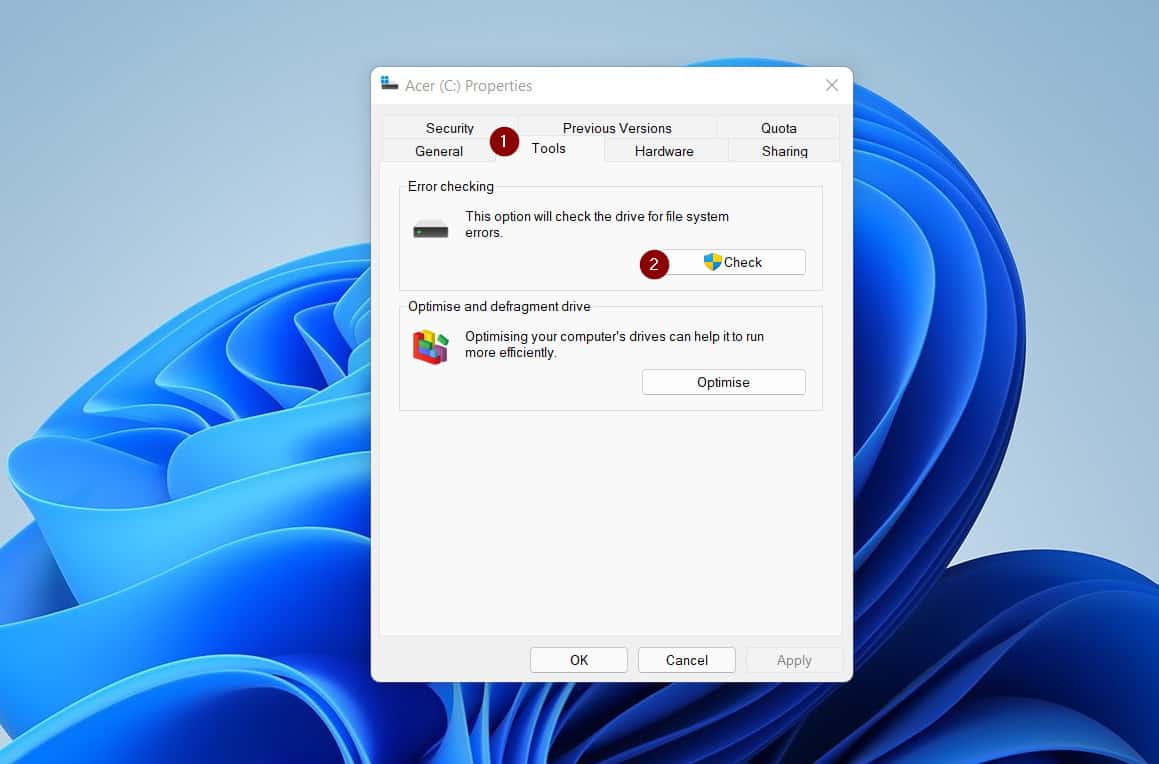
Also popular on Amazon
- Easily store and access 4TB of content on the go with the Seagate Portable Drive, a USB external hard drive.Specific uses: Personal
- Designed to work with Windows or Mac computers, this external hard drive makes backup a snap just drag and drop
- To get set up, connect the portable hard drive to a computer for automatic recognition no software required
- This USB drive provides plug and play simplicity with the included 18 inch USB 3.0 cable
- The available storage capacity may vary.
There are 3 reasons your PC may keep saying to restart and repair disk.
1. If you run the CHKDSK with the /F switch on the system drive
2. You PC will also display disk errors of some sectors of the disk are bad
3. Finally, your PC may keep saying to restart and repair disk if you shut down your computer by pressing the power button.
A PC may take between 10 to 15 minutes to repair driver errors. However, this is affected by the state of the disk or the size.
The difference between CHKDSK and SFC is in what they do. You use CHKDSK to fix disk issues in Windows.
On the other hand, you use SFC to scan the integrity of all protected Windows system files and replaces wrong versions with the valid Microsoft versions.
None is better as they do slightly different jobs. DISM is used to manage Windows images.
On the other hand, when you run SFC, it scans the integrity of Windows files and if it finds any files replaced by malware, it replaces the files with the correct version.
Most times, I used both DISM and SFC to fix Windows problems.
Quick wins for a faster PC:
Scan for outdated or missing drivers - takes under a minuteDriver Scan →Repair Windows errors before they cause bigger problemsFix Now →Conclusion
In this guide I have explained 3 reasons your Windows 11 PC may display the “Scanning and Repairing Drive” error. Then, I offered a step-by-step guide to fix the problem.
Also popular on Amazon

- [Upgraded Version] - This external hard drive features a mirrored logo stripe combined with a striped anti-slip design, and the rounded corners of the casing make it easier to grip. The stripes also have a heat dissipation function, ensuring stable and fast data transfer.
- 【Ultra-thin and quiet】 - The motherboard adopts JMicron 578 noise-free solution, giving you a quiet working environment. Lightweight and portable size designed to fit in your pocket for easy portability.
- 【Ultra-Fast Data Transfers】 - Pairing this external hard drive with JMicron 578 solution USB 3.0 and USB 2.0 interfaces enables blazing-fast data transfer. It boasts theoretical read speeds of up to 125MB/s and write speeds of up to 103MB/s.
- 【Plug and Play】 - With no software to install, just plug it in and the drive is ready to use.The hard disk chip is wrapped with an aluminum anti-interference layer to increase heat dissipation and protect data.
- 【What You Get】 - 1 x Portable Hard Drive, 1 x USB 3.0 Cable, 1 x User Manual, Gift-type shell packaging ,Three-year manufacturer's warranty and free technical support services.
For a quick summary, to fix this error, first boot your Windows 11 to Safe mode. Then, run disk check on the drive in question.
Alternatively, while signed in to your PC in Safe mode, run CHKDSK with the /F switch, then restart your computer.
I hope you were about to use the steps in this guide to get your PC to work again? If you found the gude helpful, click Yes to Was this helpful? below.
What’s actually slowing this PC down?
Pick the symptom - the matching free tool is one click away.
You may also provide us with detailed feedback or share your experience with the “Scanning and Repairing Drive” error with other readers. Use the “Leave a Reply” form at the end of this page to share your thoughts.
Finally, for more Windows 10 Itechguides, visit our Windows 11 How-to page. You may also find our Windows 10 How-to page very informative.
Quick Recap
Product prices and availability are accurate as of the date/time indicated and are subject to change. Any price and availability information displayed on Amazon at the time of purchase will apply.

![DistributedCOM DC Server Event ID 10016 DCDIAG Error [Fixed]](https://www.itechguides.com/wp-content/uploads/2025/04/DistributedCOM-DC-Server-Event-ID-10016-DCDIAG-Error-Fixed-768x494.jpg)
![Attribute Editor Tab Missing in ADUC [Fixed]](https://www.itechguides.com/wp-content/uploads/2024/03/Attribute-Editor-Tab-Missing-in-ADUC-Fixed-featured-image-768x512.jpg)

