

Do these 3 things before closing this tab:
1Repair Windows errors before they cause bigger problems2Scan for outdated or missing drivers - takes under a minute3Clear out junk files and repair common Windows errorsiTechGuides is reader-supported. When you buy through links on our site, we may earn an affiliate commission. As an Amazon Associate I earn from qualifying purchases. Learn more
A number of Windows 10 users have reported that when they boot their computer, it is stuck on “Scanning and Repairing Drive”. Most users also report that they are returned to the same screen even when they restart.
You are probably reading this because your computer is showing this screen now. Do not panic. I have the solution for you. But first, let me share 3 reasons why this may happen.
3 Potential Causes of this Error
There could be a number of reasons why your Windows 10 may be stuck at “Scanning and Repairing Drive D or C”.
One, if you forcefully shutdown your computer. That is, you did not use the normal shutdown but rather pressed the power button on your computer. This may lead to data corruption. If your Operating System files get corrupt due to forceful shutdown, it may lead to this message.
#1 Best Overall

- 2.5" SATA Drives Only — SSD & HDD: Compatible with 2.5" SATA I/II/III SSDs and laptop HDDs. NOT compatible with: M.2 NVMe drives, M.2 SATA drives, 3.5" desktop HDDs, or slim SATA optical drives. Verify your drive has a standard 2.5" SATA connector before purchasing.
- USB Bus-Powered — No Adapter Needed for Most Drives: Powers most 2.5" SATA SSDs and laptop HDDs directly from USB. Note: Some older or high-capacity 2.5" mechanical HDDs may draw more current than a single USB port provides — if a drive fails to spin up, try a powered USB hub or a different USB 3.0 port.
- USB 3.0 (USB-A) — 5Gbps with UASP: Host connection is USB Type-A (USB-A). Computers with only USB-C ports require a separate USB-C to USB-A adapter (not included). UASP support for faster transfers on compatible systems.
- Plug & Play: No drivers required; hot-swappable design for quick access to drives on Windows, macOS, and Linux
- Usage Note: Not intended for all configurations such as system boot drives or certain embedded systems; compatibility may vary by device
Two, if your hard disk has some corrupt sectors. That is, some portion of your hard disk may be bad. This may just happen due to a number of reasons. It may not be related to your forcefully powering off your computer.
Third, if you run CHKDSK /F command while logged on to Windows. When you run this command on drive C from within Windows, you will receive the error message “Chkdsk cannot run because the volume is in use by another process”. You are then given the option to run Chkdsk on next reboot. When you restart your computer it will show “Scanning and Repairing Drive”.
Rank #2

- 【Important Note】: Can not available for 3.5” hard drive. Not compatible with ATA(IDE), MSATA, and M.2 interfaces. No power adapter included. Please confirm your hard drive type before purchase
- 【Quickly Access a SATA SSD or HDD】: Add drive space to your laptop by connecting to a SATA 2.5" SATA SSD or HDD using this SATA to USB cable. You can connect to an external drive to add storage, perform backups, create disk images, implement data recoveries, and transfer content to your laptop
- 【5Gbps High Speed Output】: The SATA to USB adapter supports USB 3.0 super speed data transfer up to 5Gbps, but you can experience transfer speeds up to 70% faster than conventional USB 3.0 when connected to a computer that also supports UASP
- 【Slim and Portable】: The usb to sata adapter designed as portable as possible and tucks easily into the pocket of your laptop bag, you can use it anywhere with no external power required ( 2.5" SSD/HDD Only)
- 【Save Time】: The hard drive transfer cable lets you easily swap between drives with no need to install the drive inside an enclosure. It’s plug-and-play and doesn’t require drivers
Follow these steps to fix this error and boot your PC
What’s actually slowing this PC down?
Pick the symptom - the matching free tool is one click away.
Step 1: Boot Windows 10 to Safe Mode
The fastest way to force Windows 10 to boot to safe mode is to interrupt its boot 3 consecutive times. Follow the steps below to force safe mode boot:
Rank #3

- Easy Hard Drive Access: The SATA to USB 3.0 adapter allows you to connect a 3.5"/2.5" SSD HDD with your computer to expand storage, upgrade the system, back up files, retrieve and recover data
- 5Gbps with UASP Accelerated: This external SATA hard drive reader supports data transfer speed up to 5 Gbps. Equipped with UASP technology, which is 70% faster than traditional USB 3.0 and reduces 80% required processor resources
- Plug & Play Simple Operation: No need to install a driver , just plug and play. Hot-swap supported. Always eject the hard drive safely before unplugging the IDE to USB adapter from your computer in case of data loss
- 12V 2A Power Adapter Included: This SATA to USB cable is equipped with a DC-Jack port and comes with a 12V/2A Power Adapter, which ensures enough power supply for a 3.5" hard drive
- Wide Compatibility: This SATA III to USB 3.0 adapter is compatible with PS4, Xbox, Windows 10/8.1/8/7/Vista/XP, Mac OS. Supports 2.5"/3.5 '' SATA HDD SSD up to 20TB max. Compatible with WD Blue 3.5 HDD, Crucial MX500 SSD, Samsung 860 EVO SSD 2.5 etc
- At the “Scanning and Repairing Drive” screen, press the power button on your computer for about 10 seconds. It will shutdown.
- Press the power button again to boot the computer. When you see a sign that Windows is about to boot, press the power button again to power it off.
- Repeat the last step for the 3rd time. When you boot again, you will see the screen below.

In the last image, mine is displaying Hyper-V. This is because I am using a Microsoft Virtual Machine for this demo. Yours will likely display your computer’s manufacturer like HP, Dell, Lenovo, etc.
- Then wait until you see the screen below.
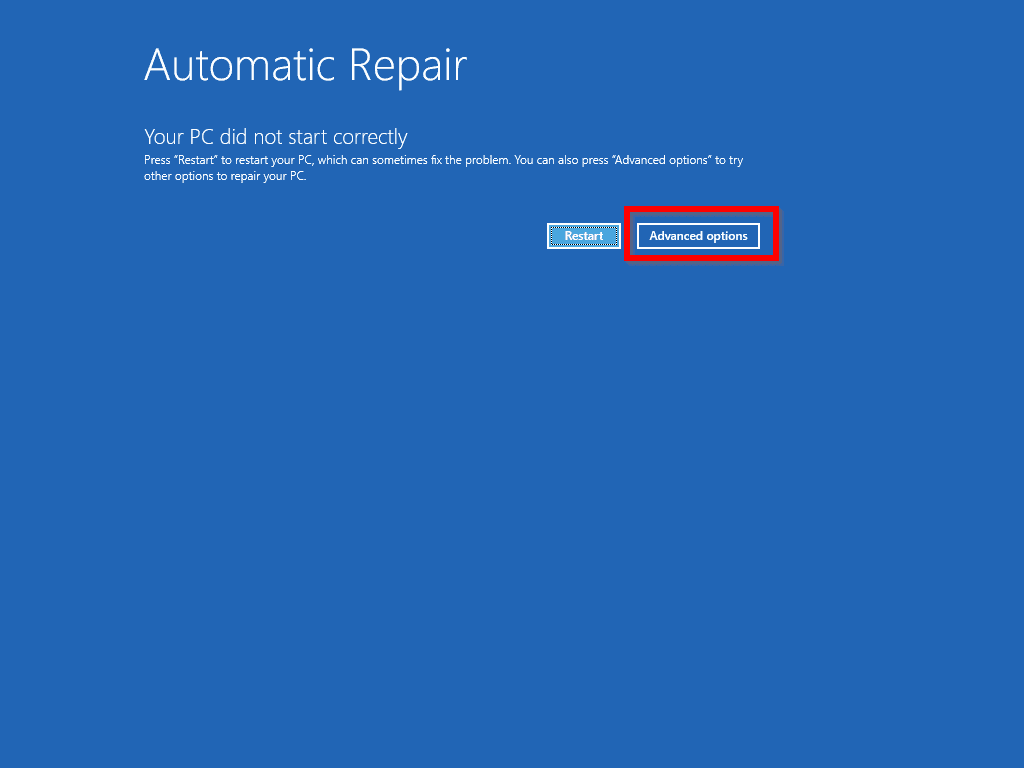
- Click Advanced options. Then click Troubleshoot.
Advertisements

- Select Advanced options again.
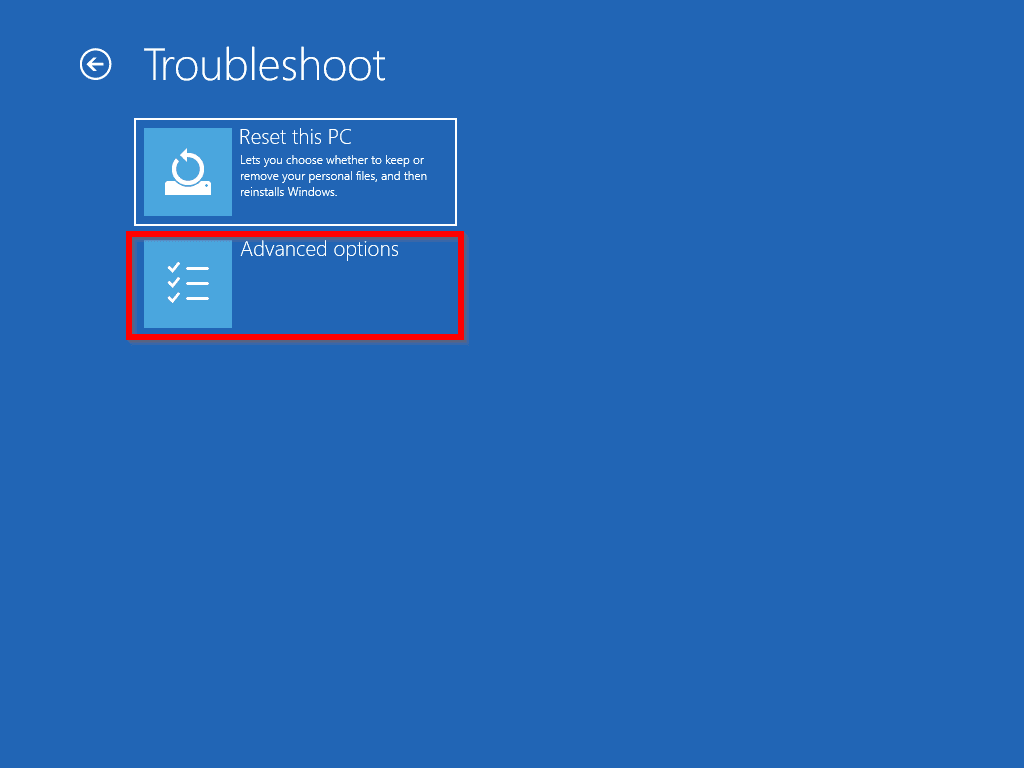
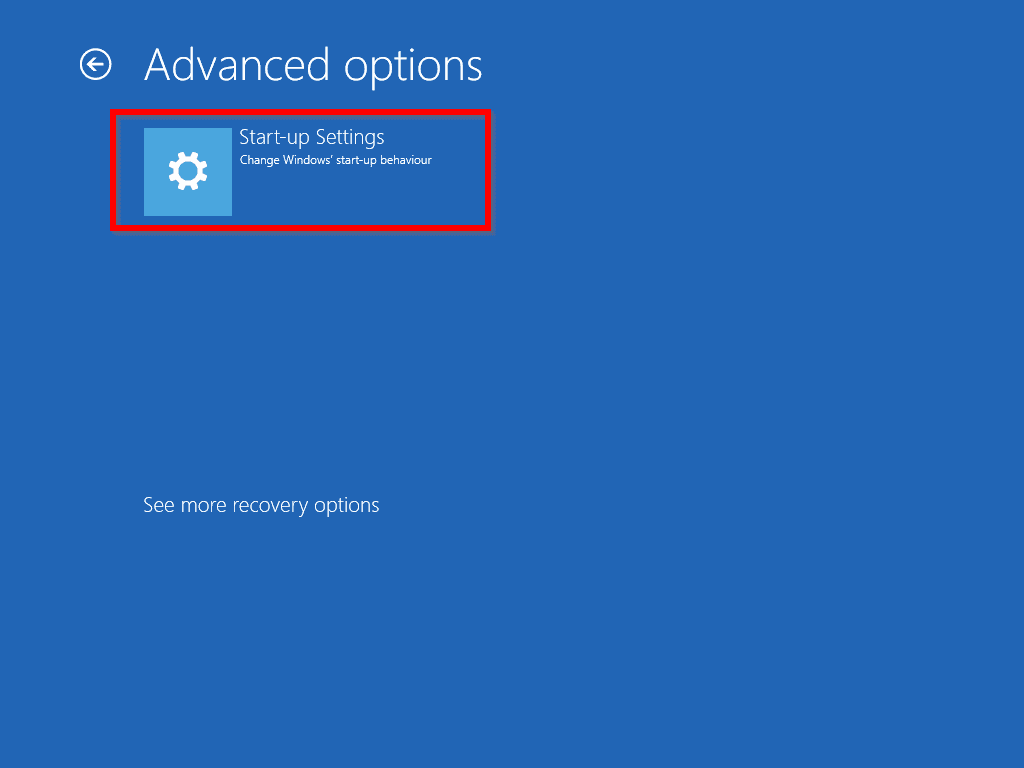
- On the next screen, if you do not see Start-up Settings, click See more recovery options.

- You should now see Start-up Settings. Click it.
- Finally, click Restart.
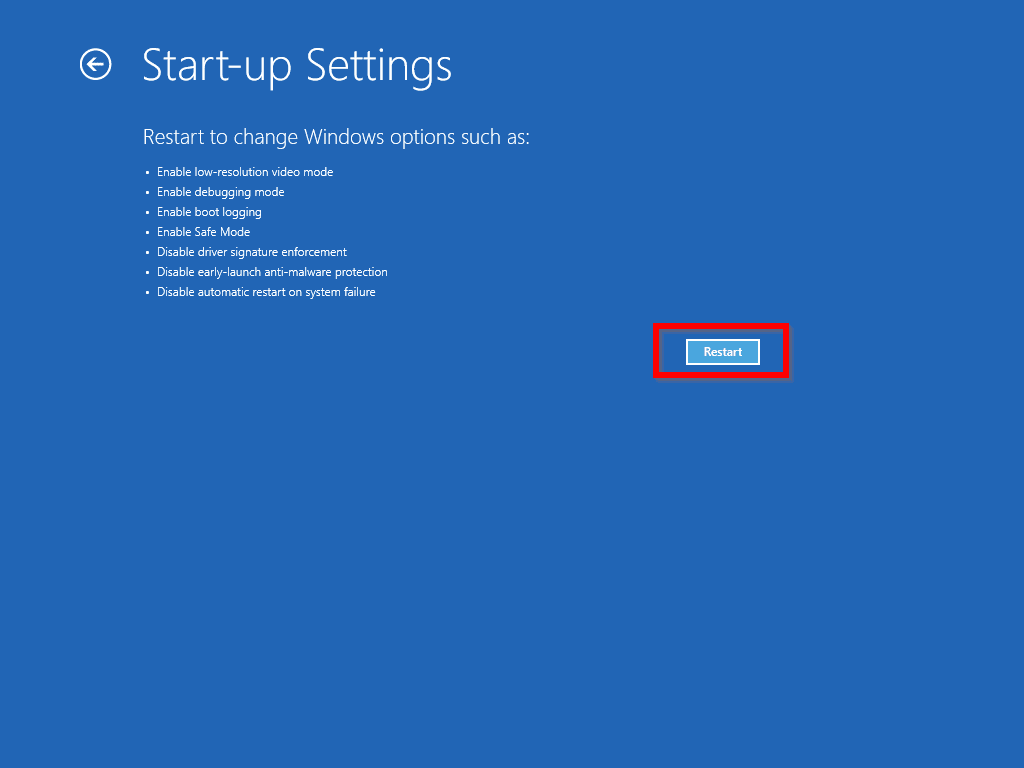
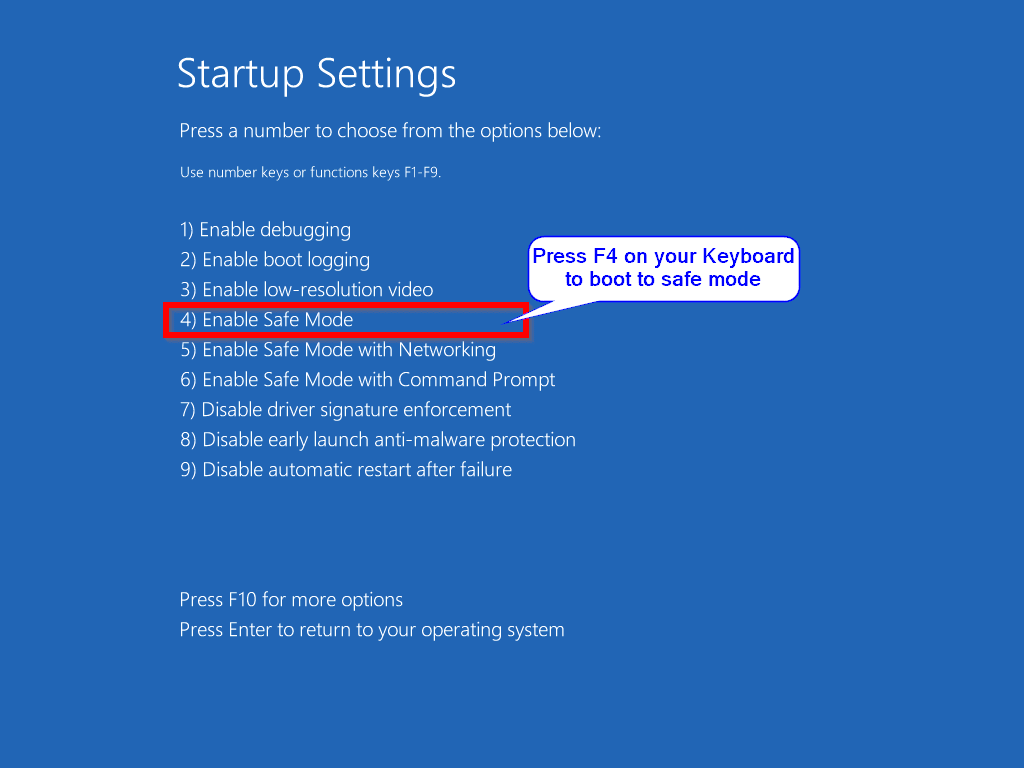
- On the screen similar to the one below, press F4 on your keyboard to boot to safe mode.
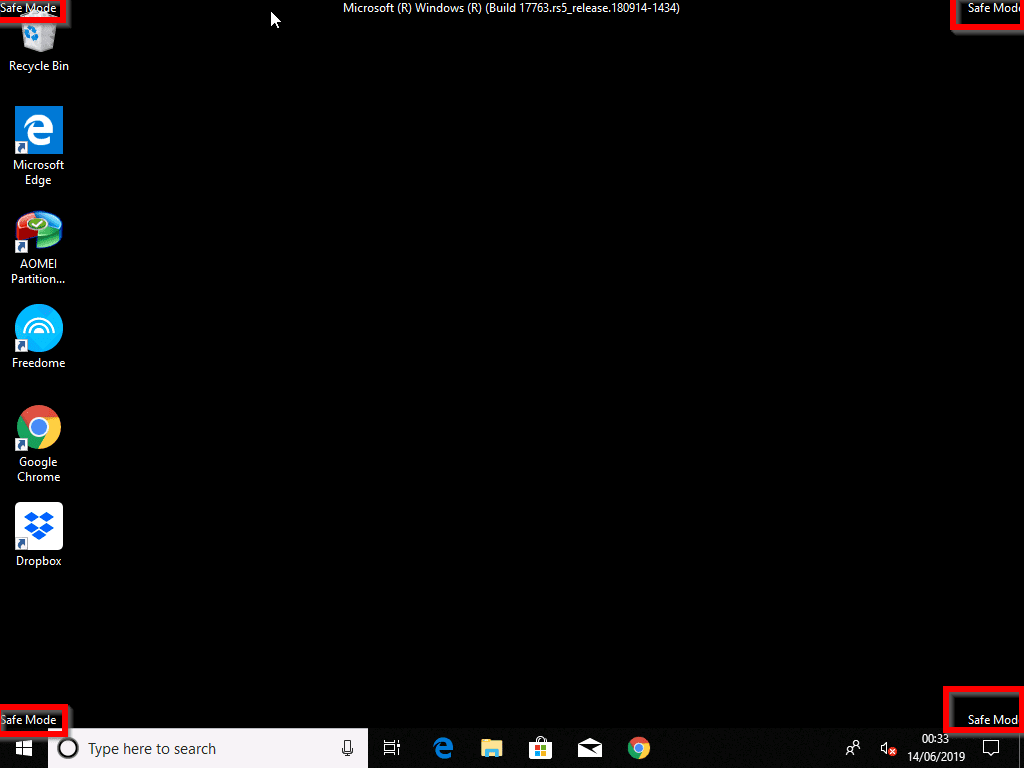
- Your computer will reboot to Windows 10 logon screen. Logon with your normal account. You are now in Safe mode. To confirm, the four corners of your screen will have “safe mode”. See the second image below.

Step 2 (Option 1 Fix): Check for File System Errors
- On the left of task bar, right-click Windows logo. Then click Disk Management.

- When Disk Management opens, right-click the drive that showed up in “Scanning and Repairing Drive” message. Then select Properties.

- When the Disk Properties opens, click the Tools tab. Then beneath Error checking, click Check. Wait for the task to complete. Then boot your computer and check whether Windows boots normally.

If the above method does not resolve the problem, try method 2 below.
Independent reader supportYour contribution helps us test, update, and keep practical guides available for everyone.Step 2 (Option 2 Fix): Run the CHKDSK Command
The next option to fix this scary issue is to run a command called CHKDSK. Recently I wrote a guide, 20 Command Prompt Commands for Sys Admins with details of how to use CHKDSK.
Rank #4

- SATA DRIVES ONLY — 2.5in & 3.5in: Works with SATA I/II/III hard drives and SSDs. Does NOT support IDE/PATA, M.2 NVMe, M.2 SATA, SAS, or drives already in a USB enclosure. Check your drive's connector before ordering — a bare SATA drive has a wide flat L-shaped edge connector, not a ribbon cable or a small M.2 gold-finger card.
- USB TYPE-A HOST CABLE — NOT A USB-C PORT: The included host cable ends in USB Type-A and plugs into a USB 3.0 Type-A port. If your computer has only USB-C ports, you will need a USB-C to USB-A adapter, which is not included. For stable operation plug directly into the computer — USB hubs and USB 2.0 ports may cause intermittent disconnections.
- REAL-WORLD SPEED, NOT INTERFACE MATH: USB 3.0 with UASP support (UASP-capable host required). Typical mechanical HDD transfer speeds are 100-160 MB/s, which is the drive's own limit, not the port's; SSD speeds vary up to the USB interface maximum. Backward compatible with USB 2.0 and USB 1.1.
- 12V POWER ADAPTER INCLUDED — REQUIRED FOR 3.5in DRIVES: A 12V/2A AC power adapter is in the box and a wall outlet is needed. 3.5in HDDs cannot run on USB power alone — without the adapter the drive will fail to spin up or drop out during use. 2.5in drives are generally bus-powered, but the adapter is recommended for stability.
- PLUG AND PLAY, TOOL-FREE, HOT-SWAP: No drivers on Windows 10/11, macOS, or Linux. Lay-flat bay accepts a bare drive without tools, swaps without rebooting, and an LED shows power and activity. Note: S.M.A.R.T. diagnostics are not passed through the USB bridge, and on macOS a drive may need remounting after sleep. Drive not included.
To fix this error with CHKDSK, follow the steps below:
Quick wins for a faster PC:
Clear out junk files and repair common Windows errorsFree Scan →Scan for outdated or missing drivers - takes under a minuteDriver Scan →Repair Windows errors before they cause bigger problemsFix Now →- Still logged on to safe mode, search cmd, then right-click Command prompt and select Run as Administrator.

- When command prompt loads, enter the command below. Then press Enter key on your keyboard.
CHKDSK /F
- If you receive the message “Chkdsk cannot run because the volume is in use by another process”, enter Y and press the Enter key. Then reboot your computer.

When your computer reboots, you will still see “Scanning and Repairing Drive”. Do not panic. This time, it is the CHKDSK command that initiated the scan. It should scan successfully and boot your computer normally.
Best Value

- QUICKLY ACCESS A SATA SSD OR HDD: Add drive space to your laptop by connecting to a SATA 2.5" SATA SSD or HDD using this SATA to USB cable. You can connect to an external drive to: add storage, perform backups, create disk images, implement data recoveries, and transfer content to your laptop. Cable will work ONLY with 2.5" SATA drives.❌3.5"/5.25" and M.2 drives are NOT SUPPORTED.
- SuperSpeed USB 3.0: Data transfer rates of up to 6Gbps only for SSD. USB 3.0 version, supports data transfer speeds up to 5 Gbps, Backward compatible with USB 2.0 / 1.1. (Note: actual rate will depend on the capability of your device.)
- UASP Function: Provides faster transfers up to 70% faster read speeds and 40% faster write speeds over traditional USB 3.0
- SAVE TIME: The hard drive transfer cable lets you easily swap between drives with no need to install the drive inside an enclosure. It’s plug-and-play and doesn’t require drivers.
- 18 MONTH WARRANTY - Exclusive BENFEI Unconditional 18-month Warranty ensures long-time satisfaction of your purchase; Friendly and easy-to-reach customer service to solve your problems timely.
Conclusion
If your computer is stuck on “scanning and repairing drive” it can be scary. Hopefully, you have been able to get your computer to boot using one of the methods suggested in this guide.
I hope you found this Itechguide helpful. If you were able to fix your PC’s problem with the steps in this guide would you spare 2 minutes to share with our community members using the “Leave a Reply” form at the bottom of this page?
Alternatively, you can respond to the “Was this page helpful?” question below.
Quick Recap
Product prices and availability are accurate as of the date/time indicated and are subject to change. Any price and availability information displayed on Amazon at the time of purchase will apply.

![DistributedCOM DC Server Event ID 10016 DCDIAG Error [Fixed]](https://www.itechguides.com/wp-content/uploads/2025/04/DistributedCOM-DC-Server-Event-ID-10016-DCDIAG-Error-Fixed-768x494.jpg)
![Attribute Editor Tab Missing in ADUC [Fixed]](https://www.itechguides.com/wp-content/uploads/2024/03/Attribute-Editor-Tab-Missing-in-ADUC-Fixed-featured-image-768x512.jpg)


After I did reboots my Dell automatically went to repairing disk errors. This might take over an hour to complete? Idk
I did the steps but my Dell automatically went to repairing disk errors with message might take over an hour to complete.
Excellent!!
Victor, as a retired Computer Program Instructor and IT Administrator I just want to congratulate you on and impeccable straightforward and highly informative presentation. I am referring all those who ask me about essential commands to your pages at iTG. Again, thank you for this highly informative work!
Keith,
Thank you so much for your kind comments. And yes, our aim is to write simple, easy-to-understand tech articles that everybody can relate to.
Finally, I appreciate you referring people to http://www.itechguides.com.
Thanks again,
Victor
Thank you so much for these instructions! It worked for me and I am grateful.
Hello Debra,
Glad you found the article helpful and thanks for taking the time to give us the feedback!