
iTechGuides is reader-supported. When you buy through links on our site, we may earn an affiliate commission. As an Amazon Associate I earn from qualifying purchases. Learn more
Do you wish to enable Hyper-V on your Windows 11 PC but don’t know how? This guide illustrates various methods to accomplish that.
Requirements To Enable Hyper-V In Windows 11
Before enabling Hyper-V, there are some requirements that your Windows 11 computer must meet. Firstly, not all editions of the Windows 11 operating system support Hyper-V.
| # | Preview | Product | Price | |
|---|---|---|---|---|
| 1 |

|
Microsoft Windows 11 (USB) | $128.99 | Buy on Amazon |
| 2 |

|
Windows 11 Pro Upgrade, from Windows 11 Home (Digital Download) | $99.00 | Buy on Amazon |
| 3 |

|
PC Tech USB Key Compatible with install Key Included USB For Windows 11 pro OEM Version 64 bit.... | $49.89 | Buy on Amazon |
Basically, you need to have the Pro edition or above of the Windows 11 OS to enable Hyper-V. Having said that, below are other requirements for enabling Hyper-V in Windows 11.
Crashes, No Sound, or Screen Glitches?
Random freezes, missing sound and display glitches usually trace back to one bad driver. Find and replace yours safely.Free scan · under a minuteWindows Errors? Fix Them Before They Spread
Repair common Windows errors and clear accumulated junk for a smoother, more stable PC - no reinstall needed.Free scan · no reinstall- The processor in your computer must be 64-bits and support SLAT (Second Level Address Translation).
- Your computer must feature a reasonable amount of RAM – I recommend 8 GB of RAM.
- Your Windows 11 computer must support virtualization. Virtualization must also be enabled in your PC’s BIOS or UEFI.
In the following sub-sections, I will provide steps to confirm if your Windows 11 PC meets the requirements to enable Hyper-V.
Popular on Amazon
- Less chaos, more calm. The refreshed design of Windows 11 enables you to do what you want effortlessly.
- Biometric logins. Encrypted authentication. And, of course, advanced antivirus defenses. Everything you need, plus more, to protect you against the latest cyberthreats.
- Make the most of your screen space with snap layouts, desktops, and seamless redocking.
- Widgets makes staying up-to-date with the content you love and the news you care about, simple.
- Stay in touch with friends and family with Microsoft Teams, which can be seamlessly integrated into your taskbar. (1)
Step 1: Check the Edition of your Computer’s Windows 11 OS
As stated earlier, your PC must be running Windows 11 Pro edition or above to enable Hyper-V. Hence, this section will teach you how to confirm the edition of your Windows 11 OS.
Follow the procedures below to check the edition of your Windows 11 OS.
- On the Windows 11 taskbar, right-click the Start menu and select Settings.

- Assure you are on the System tab in the Settings window. Then, scroll down and select About on the window’s right pane.

- Finally, check the edition of your Windows 11 OS from the Windows specification section on the right pane.

Step 2; Check if your PC’s Processor Supports SLAT (Second Level Address Translation)
Another requirement to enable Hyper-V in Windows 11 is SLAT (Second Level Address Translation). The procedures below demonstrate how to check if your computer’s processor supports SLAT.
- Left-click the Search icon on the Windows 11 taskbar. Then, type “cmd” in the search box and select the Command Prompt app from the search result.

- Following that, input the command below when the Command Prompt application opens. Hence, Command Prompt will begin to fetch your computer’s processor information.
systeminfo

- After that, scroll down to the Hyper-V Requirements section when your processor information has loaded. Hence, if your computer’s processor supports SLAT, the Second Level Address Translation should display “Yes.”

Step 3: Check the RAM (Memory) of your Computer
In this sub-section, you will learn how to check the memory of your Windows computer. Follow the procedures below to achieve that.
- On the taskbar, right-click the Windows 11 Start menu and left-click Settings from the list of options that appear.
- When Settings opens, make sure you are on the System tab. Next, click About on the window’s right pane.
- Afterward, you will see the Installed RAM on your PC under the Device specifications section.

Step 4: Enable Virtualization in your PC’s BIOS or UEFI
Expectedly, before enabling virtualization in BIOS or UEFI, you need to first boot your PC into BIOS or UEFI. Read How To Access BIOS In Windows 11 to learn various ways to boot into BIOS or UEFI in Windows 11.
However, after successfully booting into BIOS or UEFI on your Windows 11 PC, how you proceed depends on your PC’s manufacturer. Basically, the interface of the BIOS or UEFI varies depending on the computer’s manufacturer.
Nevertheless, I had to press F10 on my keyboard because I use an HP laptop before entering the BIOS.
Quick wins for a faster PC:
Repair Windows errors before they cause bigger problemsFix Now →Scan for outdated or missing drivers - takes under a minuteDriver Scan →
Then, I did the following when the BIOS screen loaded on my laptop.
Also popular on Amazon
- Instantly productive. Simpler, more intuitive UI and effortless navigation. New features like snap layouts help you manage multiple tasks with ease.
- Smarter collaboration. Have effective online meetings. Share content and mute/unmute right from the taskbar (1) Stay focused with intelligent noise cancelling and background blur.(2)
- Reassuringly consistent. Have confidence that your applications will work. Familiar deployment and update tools. Accelerate adoption with expanded deployment policies.
- Powerful security. Safeguard data and access anywhere with hardware-based isolation, encryption, and malware protection built in.
- Firstly, I switched to the System Configuration tab.

- Afterward, I checked the Virtualization Technology (VTX) and Virtualization Technology for Directed I/O (VTd) boxes to enable them.

- Then, I clicked Exit at the bottom right corner of the screen.

- Consequently, I was asked if I wanted to save the changes before exiting – click Yes to save the changes. Finally, my computer restarted.

Check out the table below for details regarding enabling virtualization in the BIOS of various other PC manufacturers.
| S/N | PC Manufacturer | Relevant |
|---|---|---|
| 1 | Microsoft Surface | Virtualization is enabled by default on all Surface devices. |
| 2 | HP | HP PCs – Enable Virtualization Technology in the BIOS |
| 3 | Lenovo | How to enable Virtualization Technology on Lenovo PC computers |
| 4 | Dell | How To Enable or Disable Hardware Virtualization on Dell Systems |
| 5 | Acer | How to Enable Virtualization Technology on Acer Products |
| 6 | ASUS | For ASUS PCs with AMD processors: How to enable or disable AMD Virtualization (AMD-V™) technology For ASUS PCs with Intel processors: How to enable Intel(VMX) Virtualization Technology in the BIOS and How to enable or disable Intel® Virtualization Technology (VT-x) |
Various Ways to Enable Hyper-V in Windows 11
After confirming that your Windows 11 PC meets the requirements to enable Hyper-V, learn how to enable this feature in the following sub-sections.
Option 1: Enable Hyper-V via the Control Panel
One way to enable Hyper-V on your Windows 11 computer is through the control panel. The following procedures demonstrate how to accomplish that.
- On the Windows 11 taskbar, right-click the Start menu and select Run from the displayed options. You can also use the Windows key + R shortcut to launch the Run dialogue box.

- Then, input “OptionalFeatures.exe” (without the quotes) in the Run input field and press Enter.

- On the Windows Features window, expand Hyper-V by double-clicking it.

- Under Hyper-V, check the Hyper-V Management Tools and Hyper-V Platform boxes. Then, click the OK button to save the change.

- After that, Windows will begin to execute the change by searching for required files – this process might take a while.

- After the entire process, reboot your computer.
Option 2: Enable Hyper-V Through Command Prompt
You can also enable Hyper-V on your Windows 11 PC through the command prompt. Follow the steps below to achieve that.
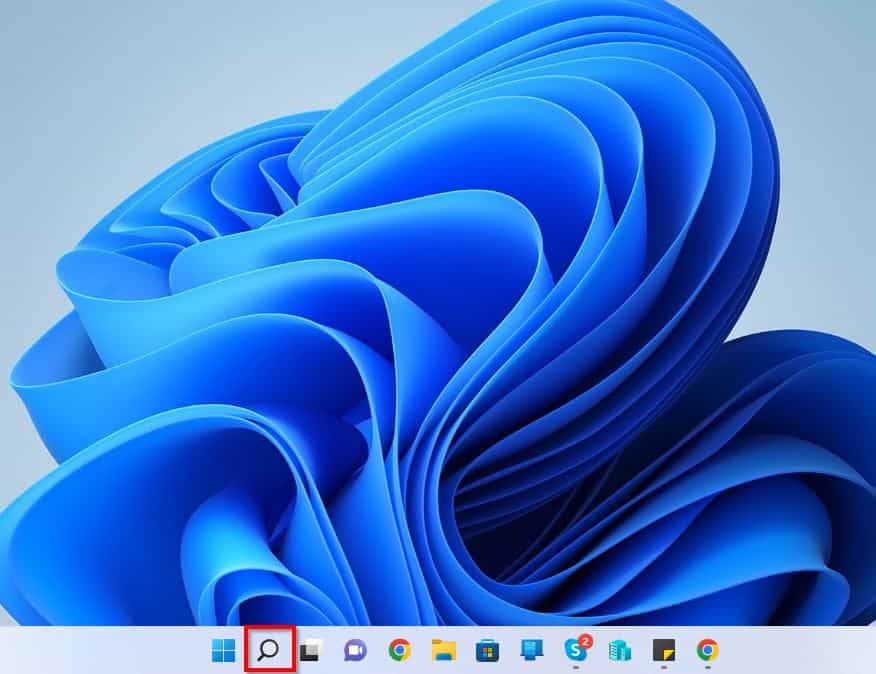
- On the Windows 11 taskbar, click the Search icon.
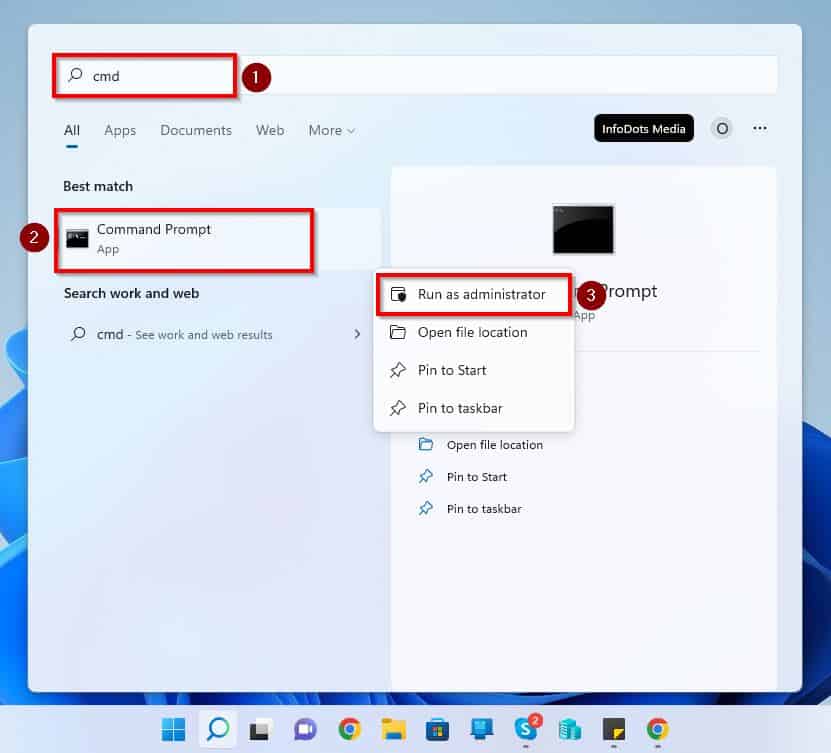
- Following that, type “command prompt” or “cmd” (without the quotes) in the search field. Then, right-click Command Prompt under the Best match section and left-click Run as administrator.
- After doing that, you will receive a User Account Control prompt. This prompt will request if you want to permit the app to make changes to your device – click Yes to continue.
- When Command Prompt opens, type the following command.
DISM /Online /Enable-Feature /All /FeatureName:Microsoft-Hyper-V

- Once the command has been successfully executed, restart your Windows 11 computer.
Option 3: Enable Hyper-V Using PowerShell
Interestingly, you can also enable Hyper-V on your Windows 11 computer via Windows PowerShell. To accomplish that, observe the following steps and screenshots.
- Left-click the Search icon on the Windows 11 taskbar.
- Next, type “poweshell” (without the quotes) in the search box. Then, right-click the Windows PowerShell app under the Best match section and select Run as administrator.

- Following that, input the command below in the Windows PowerShell app and press Enter. Hence, Windows will begin the process of enabling Hyper-V.
Enable-WindowsOptionalFeature -Online -FeatureName Microsoft-Hyper-V -All
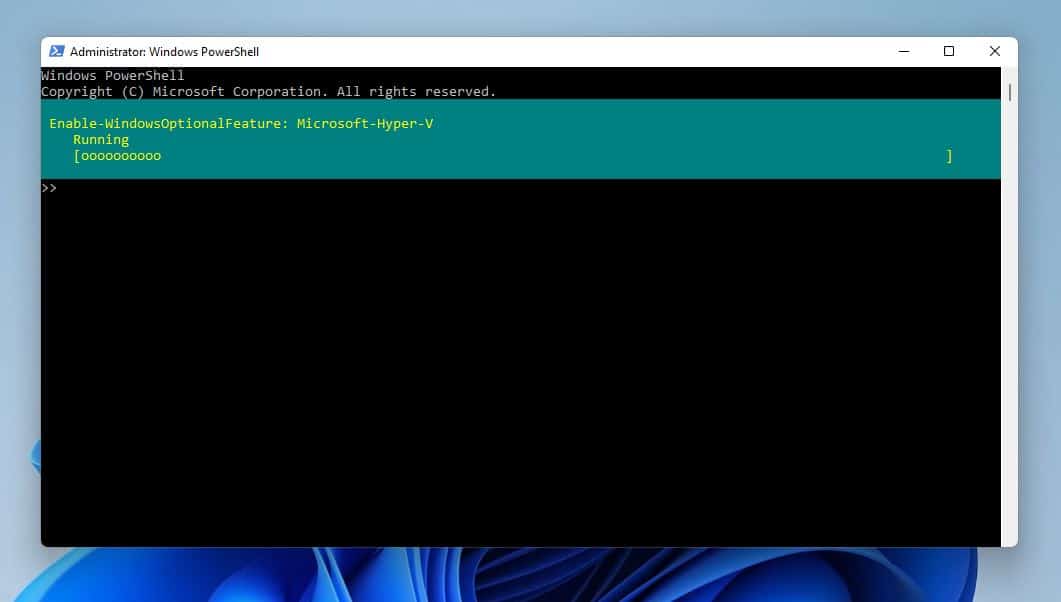
- After going through steps 1 to 3, reboot your computer.
Frequently Asked Questions
Yes, you can install Windows 11 on a Hyper-V virtual machine.
Sadly, the Home edition of Windows 11 doesn’t have Hyper-V.
The Tool Desk
Outbyte PC Repair FREEClear out junk files and repair common Windows errorsFree Scan →Outbyte Driver Updater FREEFix the driver behind crashes, sound loss and screen glitchesFind Drivers →Hyper-V is a hardware virtualization technology from Microsoft. This technology allows users to create and run a software version of a computer, known as a virtual machine.
Each virtual machine will act exactly like a complete computer, running an operating system and applications.
Also popular on Amazon
- Video Link to instructions and Free support VIA Amazon
- 24/7 Tech Support!
- key code included
Hyper-V was first introduced in 2008, alongside Windows Server 2008.
Absolutely, Hyper-V is free.
Conclusion
Hyper-V is an awesome feature from Microsoft that allows users to run a virtual machine on their Windows computer. Therefore, it’s no surprise why most people wish to enable this feature on their Windows 11 computers.
Well, that’s exactly why this guide was written – to assist Windows 11 users in enabling Hyper-V on their computers. Hence, this guide taught us the various requirements to enable Hyper-V in Windows 11.
Recommended Free Tools
We also learned different methods to enable this feature in Windows 11. To be more specific, this guide taught how to enable this feature in Windows 11 via the control panel.
We also learned how to carry out this task using Command Prompt and Windows PowerShell.
I hope you were able to enable Hyper-V with the steps in this guide. If you were, click on “Yes” beside the “Was this page helpful” question below.
You may also express your thoughts and opinions by using the “Leave a Comment” form at the bottom of this page.
Lastly, for more Windows 11 how-to guides, visit our Windows 11 How-To page.
Quick Recap
Product prices and availability are accurate as of the date/time indicated and are subject to change. Any price and availability information displayed on Amazon at the time of purchase will apply.