

What’s actually slowing this PC down?
Pick the symptom - the matching free tool is one click away.
iTechGuides is reader-supported. When you buy through links on our site, we may earn an affiliate commission. As an Amazon Associate I earn from qualifying purchases. Learn more
In this Itechguide, Victor teaches you how to setup a VPN on Windows 10. The guide covers steps for 2 methods to set up a VPN on Windows 10.
Option 1: Setup a VPN from Windows Settings
- Right-click Windows 10 start menu and click Settings.

- On Windows Settings, click Network & Internet.

- Then, on the left pane of the Network status screen, click VPN.
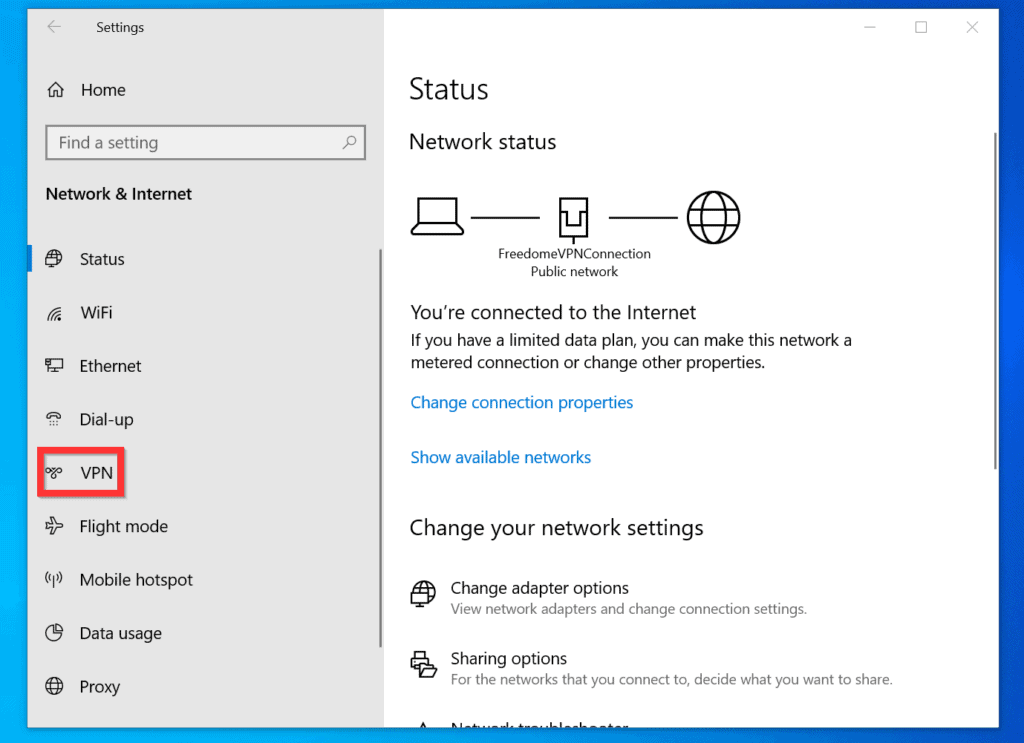
- On the VPN screen, click Add a VPN connection.

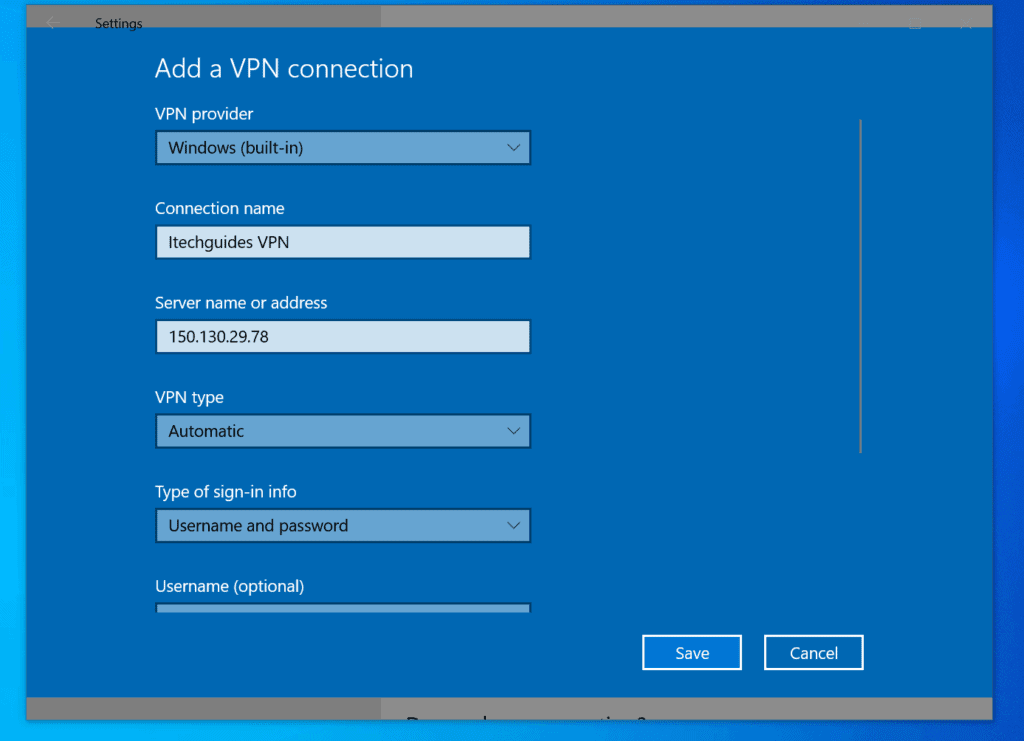
- When the Add a VPN connection window opens, click the VPN provider drop-down and select Windows (built-in).

- On the Connection name field, type a descriptive name for the VPN. Then, on the Server name or address, type the public name or IP address of your VPN server.
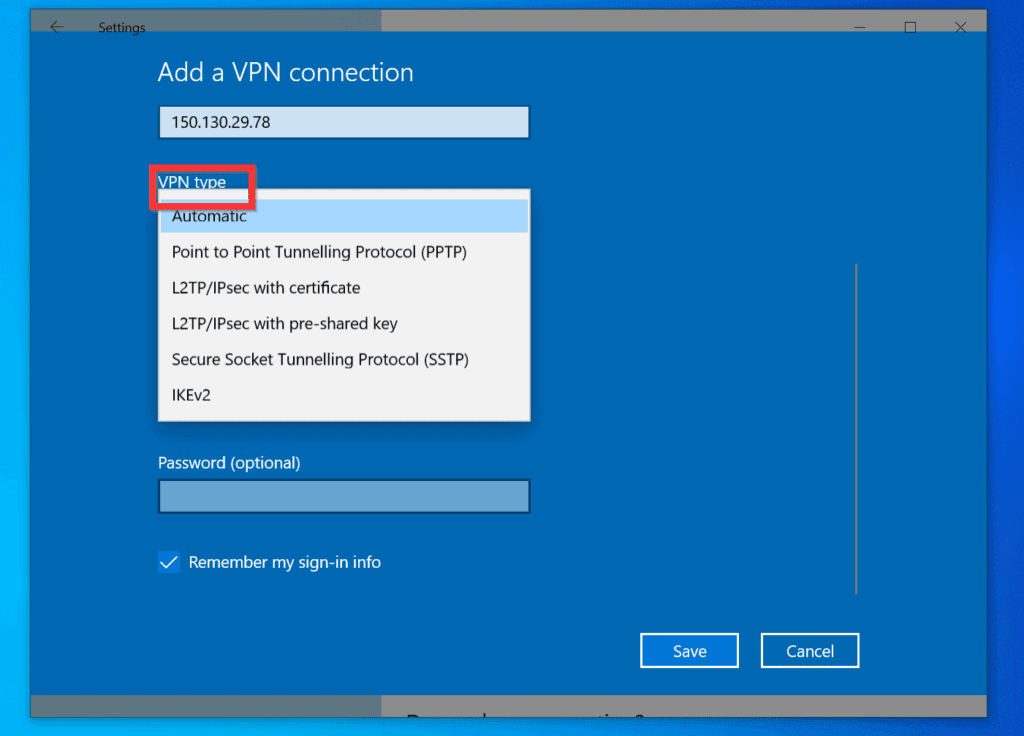
- Click the VPN type drop-down and select the VPN type required to connect to your VPN. Leaving this as Automatic may work for most VPN setup.
- If your VPN authentication type is Username and password, leave the Type of sign-in info as Username and password. Then, enter the UserName and password you received from your Systems Administrator.
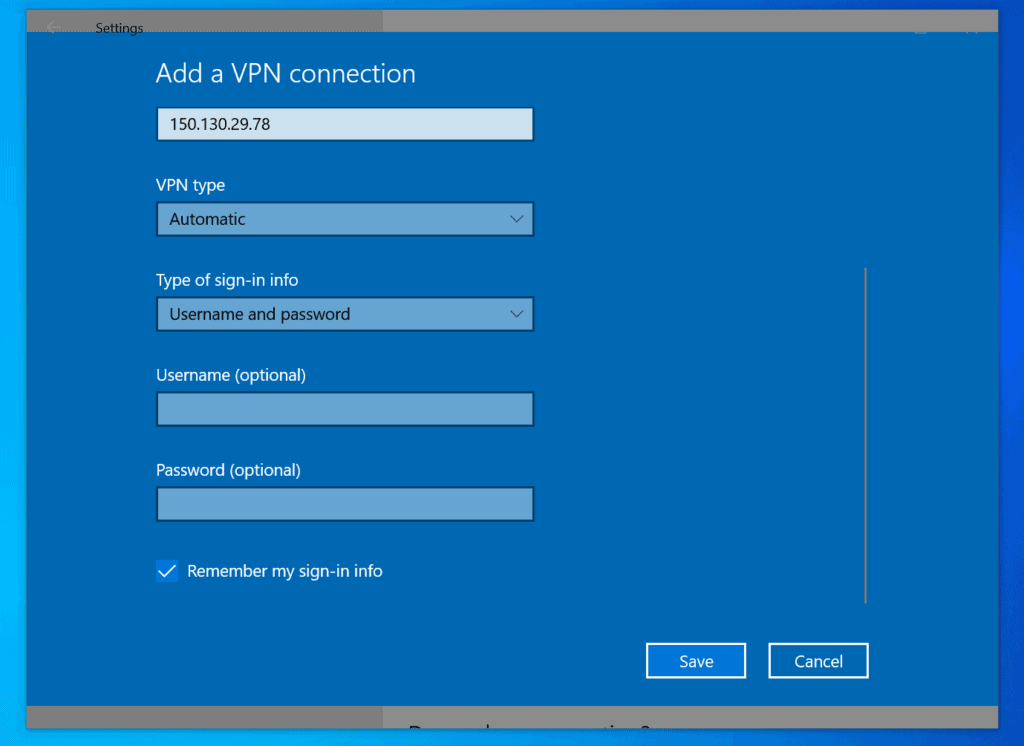
- However, if your VPN authenticates with a different method, click the Type of sign-in info drop-down and select the sign-in type for your VPN.
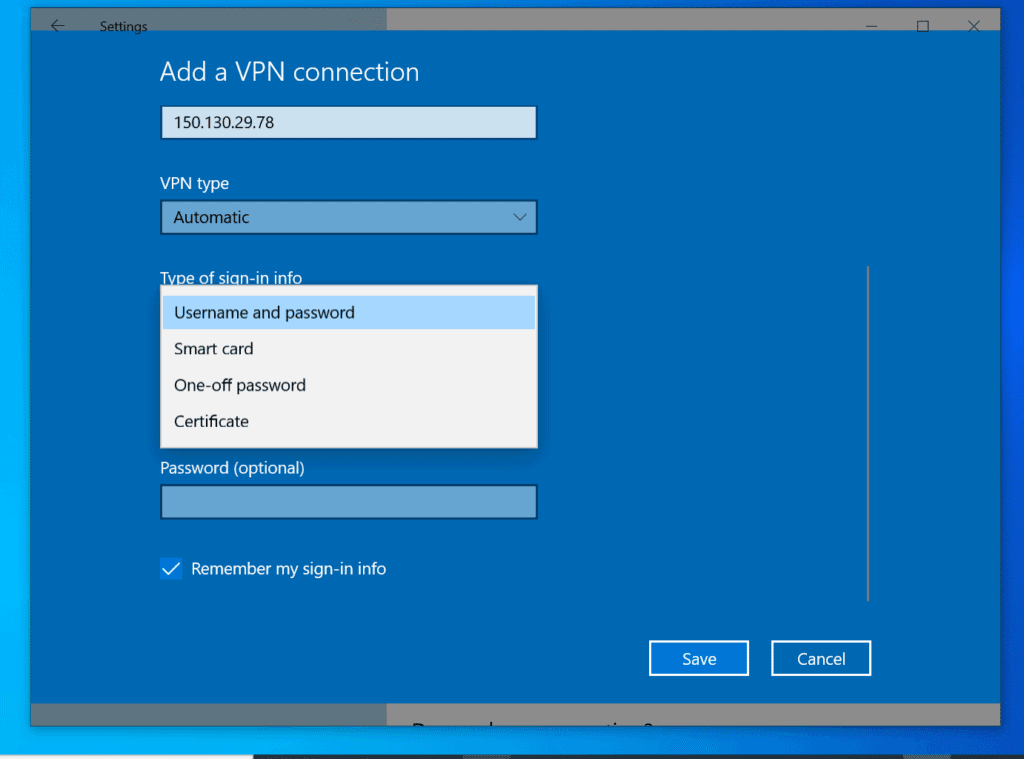
- Finally, to setup a VPN on Windows 10 from Network & Internet settings, on the bottom right of the Add a VPN connection window, click Save.

- The VPN will be listed on the VPN settings screen. To connect the VPN, click on it. It will expand.
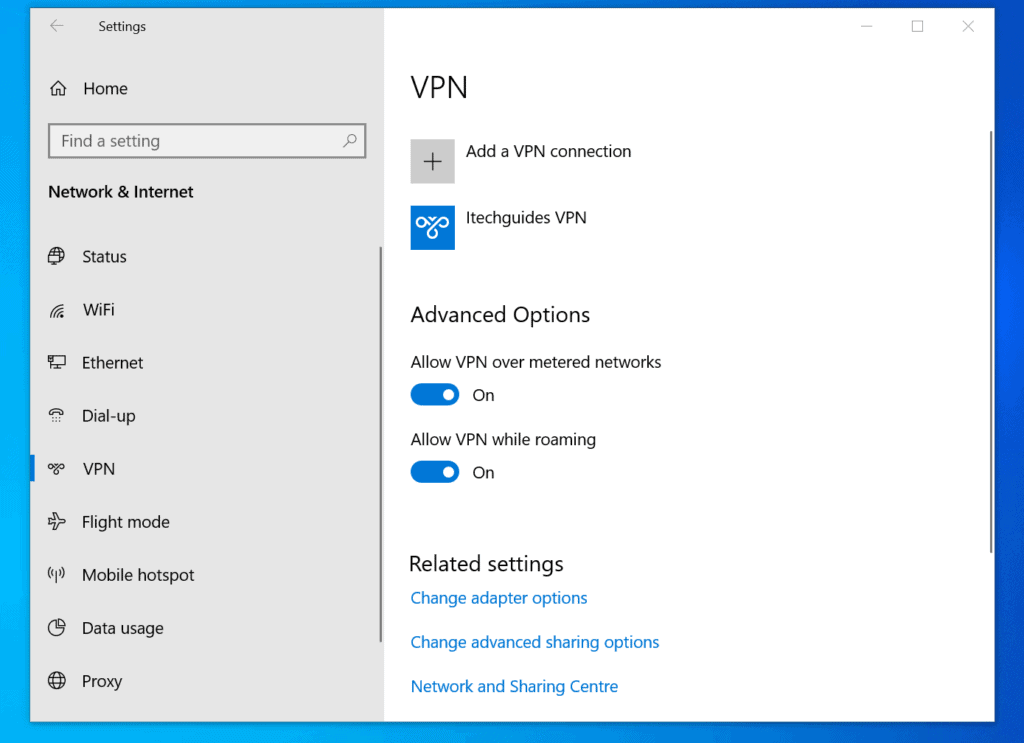
- Beneath the VPN, click Connect. If you used the right settings for the VPN connection, it should connect successfully.

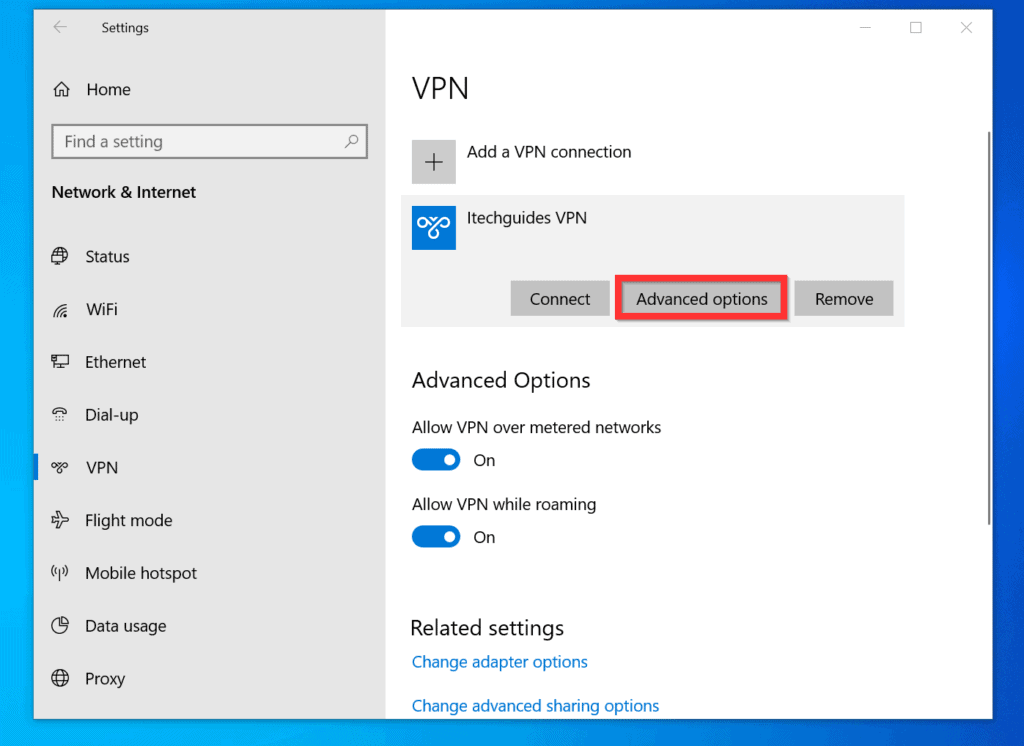
- If you need to modify the settings of the VPN, click Advanced options.
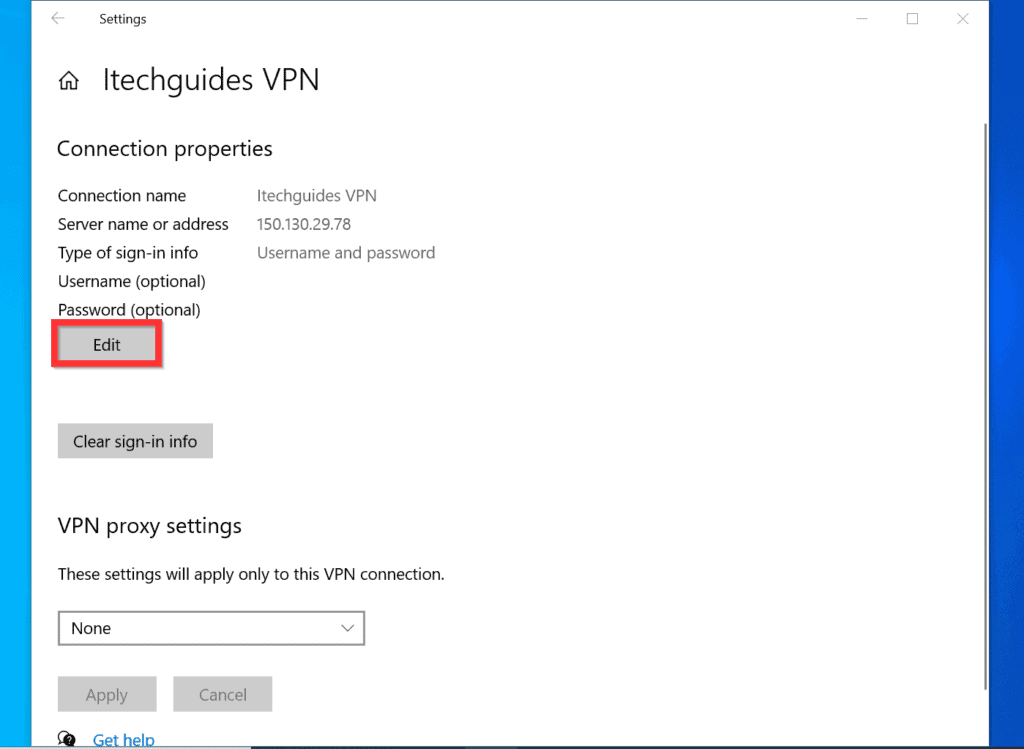
- To change the VPN connection settings you used during setup, click Edit.
Option 2: Setup a VPN from the Control Panel
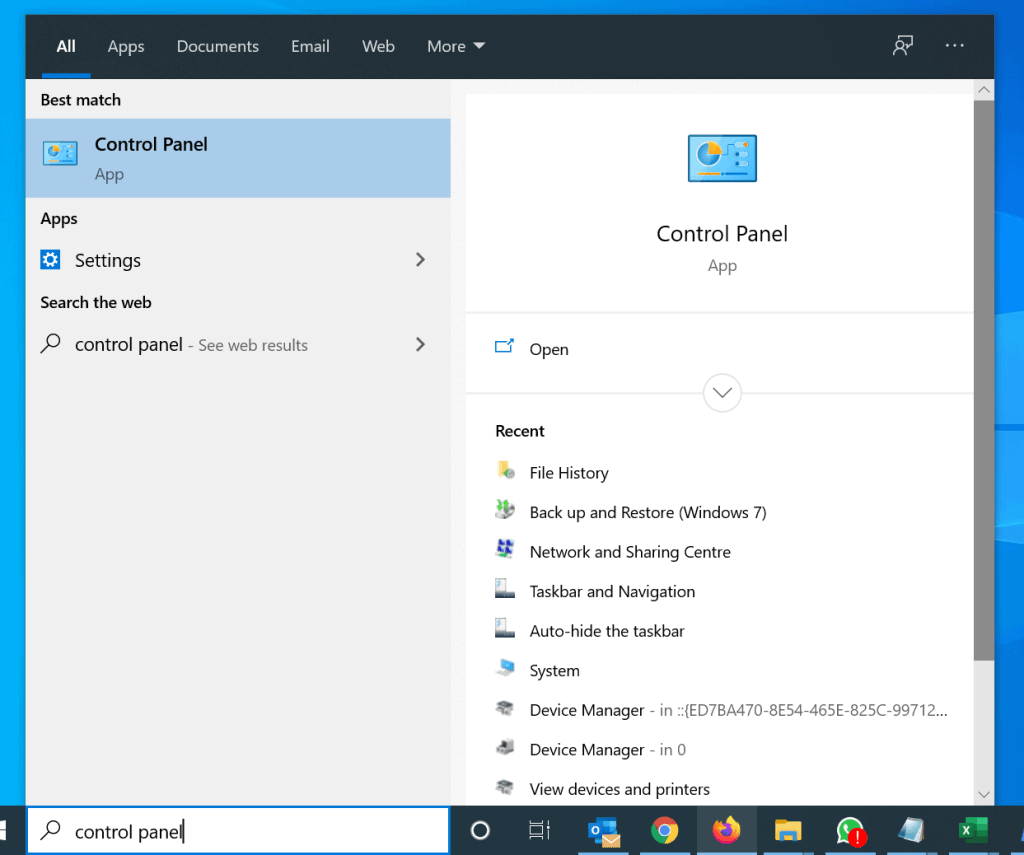
- Type control panel in the search box. Then, from the search results, click Control Panel.
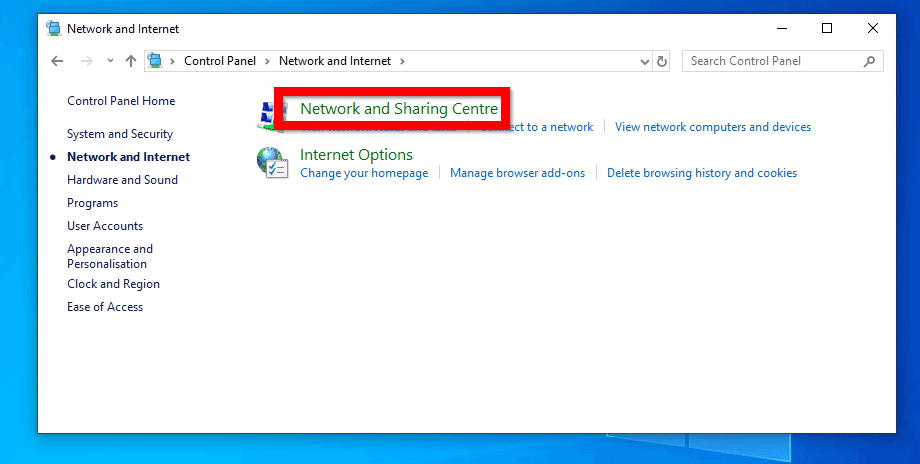
- When Control Panel opens, click Network and Internet.

- Then click Network and Sharing Center.
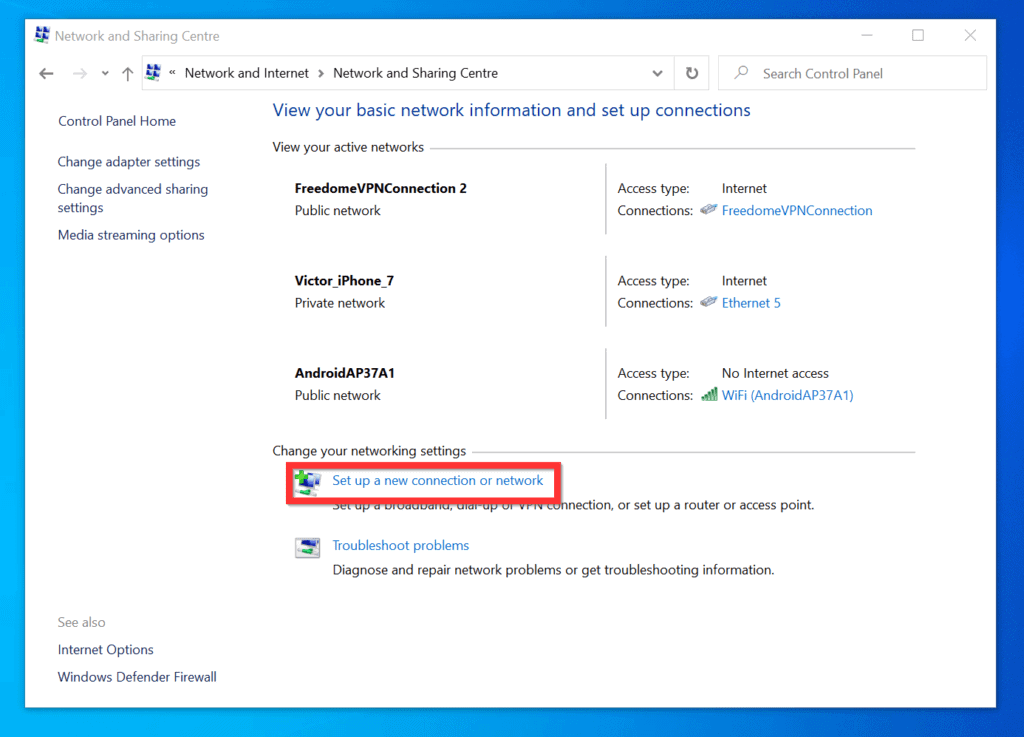
- When Network and Sharing Center opens, on the Change your network settings section, click Set up a new connection or network.
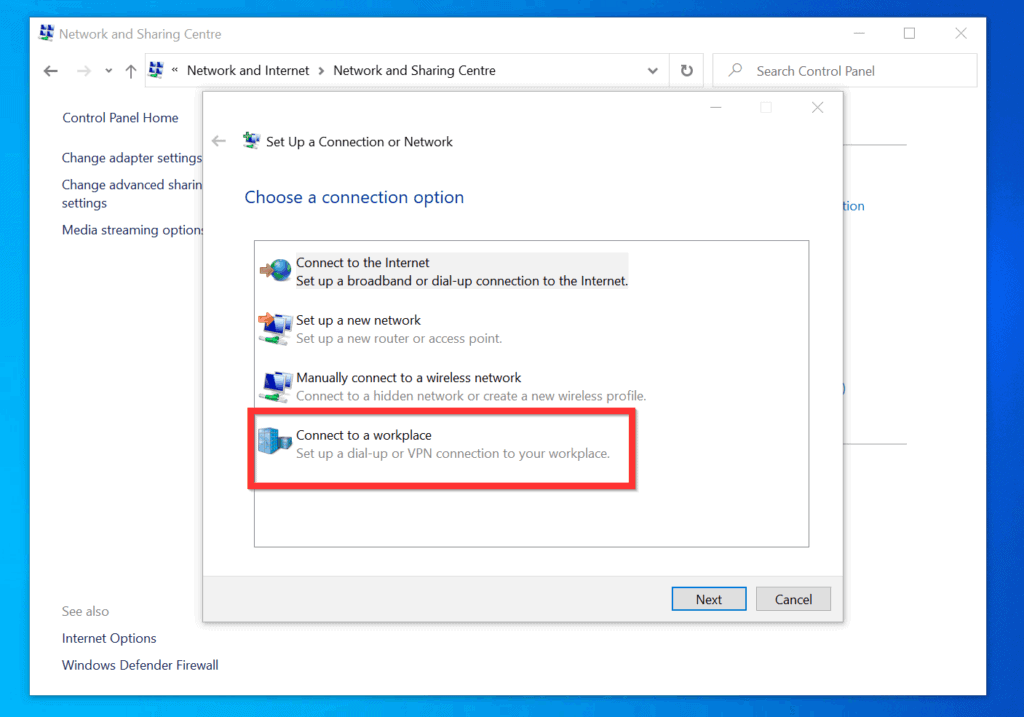
- Then, on the Choose a connection option window, select Connect to a workplace and click Next.
- On the How do you want to connect screen, click Use my Internet connection (VPN).
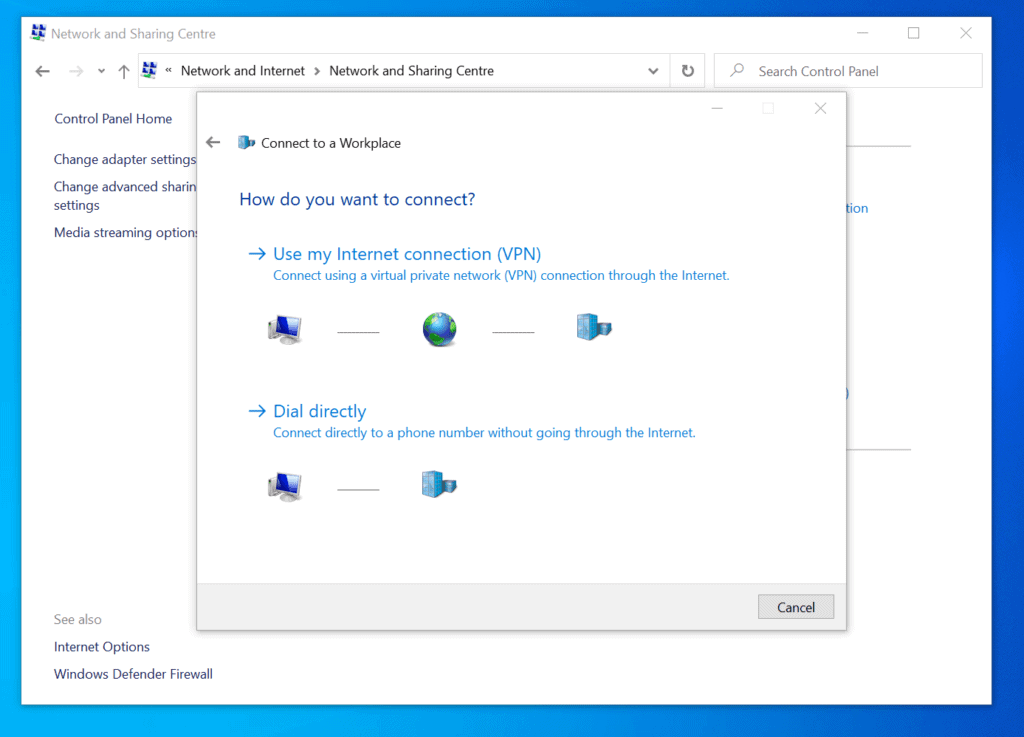
- Finally, to setup a VPN on Windows 10 from Control Panel, on the Type the Internet address to connect to window, enter the public IP address of the VPN server on the Internet address field.
- Then, on the Destination name field, enter a name to describe the VPN and click Create.

As you can see, it is very easy to setup a VPN on Windows 10! I hope you found this Itechguide helpful. If you found it helpful, click on “Yes” beside the “Was this page helpful” question below.
You may also express your thoughts and opinions by using the “Leave a Comment” form at the bottom of this page.
The Tool Desk
Outbyte PC Repair FREERepair Windows errors before they cause bigger problemsFix Now →Outbyte Driver Updater FREEScan for outdated or missing drivers - takes under a minuteDriver Scan →Finally, for more Windows 10 Itechguides, visit our Windows 10 How-To page.
Quick Recap
Also popular on Amazon

- Dual band router upgrades to 1200 Mbps high speed internet (300mbps for 2.4GHz plus 900Mbps for 5GHz), reducing buffering and ideal for 4K stream
- Full Gigabit Ports - Gigabit Router with 4 Gigabit LAN ports, ideal for any internet plan and allow you to directly connect your wired devices
- Boosted Coverage - Four external antennas equipped with Beamforming technology extend and concentrate the Wi-Fi signals
- MU-MIMO technology - (5GHz band) allows high speeds for multiple devices simultaneously
- Access Point Mode - Supports AP Mode to transform your wired connection into wireless network, an ideal wireless router for home
Also popular on Amazon

- 𝐅𝐮𝐭𝐮𝐫𝐞-𝐏𝐫𝐨𝐨𝐟 𝐘𝐨𝐮𝐫 𝐇𝐨𝐦𝐞 𝐖𝐢𝐭𝐡 𝐖𝐢-𝐅𝐢 𝟕: Powered by Wi-Fi 7 technology, enjoy faster speeds with Multi-Link Operation, increased reliability with Multi-RUs, and more data capacity with 4K-QAM, delivering enhanced performance for all your devices.
- 𝐁𝐄𝟑𝟔𝟎𝟎 𝐃𝐮𝐚𝐥-𝐁𝐚𝐧𝐝 𝐖𝐢-𝐅𝐢 𝟕 𝐑𝐨𝐮𝐭𝐞𝐫: Delivers up to 2882 Mbps (5 GHz), and 688 Mbps (2.4 GHz) speeds for 4K/8K streaming, AR/VR gaming & more. Dual-band routers do not support 6 GHz. Performance varies by conditions, distance, and obstacles like walls.
- 𝐔𝐧𝐥𝐞𝐚𝐬𝐡 𝐌𝐮𝐥𝐭𝐢-𝐆𝐢𝐠 𝐒𝐩𝐞𝐞𝐝𝐬 𝐰𝐢𝐭𝐡 𝐃𝐮𝐚𝐥 𝟐.𝟓 𝐆𝐛𝐩𝐬 𝐏𝐨𝐫𝐭𝐬 𝐚𝐧𝐝 𝟑×𝟏𝐆𝐛𝐩𝐬 𝐋𝐀𝐍 𝐏𝐨𝐫𝐭𝐬: Maximize Gigabitplus internet with one 2.5G WAN/LAN port, one 2.5 Gbps LAN port, plus three additional 1 Gbps LAN ports. Break the 1G barrier for seamless, high-speed connectivity from the internet to multiple LAN devices for enhanced performance.
- 𝐍𝐞𝐱𝐭-𝐆𝐞𝐧 𝟐.𝟎 𝐆𝐇𝐳 𝐐𝐮𝐚𝐝-𝐂𝐨𝐫𝐞 𝐏𝐫𝐨𝐜𝐞𝐬𝐬𝐨𝐫: Experience power and precision with a state-of-the-art processor that effortlessly manages high throughput. Eliminate lag and enjoy fast connections with minimal latency, even during heavy data transmissions.
- 𝐂𝐨𝐯𝐞𝐫𝐚𝐠𝐞 𝐟𝐨𝐫 𝐄𝐯𝐞𝐫𝐲 𝐂𝐨𝐫𝐧𝐞𝐫 - Covers up to 2,000 sq. ft. for up to 60 devices at a time. 4 internal antennas and beamforming technology focus Wi-Fi signals toward hard-to-reach areas. Seamlessly connect phones, TVs, and gaming consoles.
Also popular on Amazon

- FAST, RELIABLE WIFI: Delivers fast, reliable WiFi across your apartment or small home for streaming, video calls, browsing, and smart home devices.
- WORKS WITH YOUR EXISTING INTERNET SERVICE: Pairs with your existing modem or gateway via ethernet. Compatible with most cable, fiber, DSL, and satellite providers. Some gateways and modem router combos may require bridge mode. No coax needed.
- SET UP AND MANAGE YOUR NETWORK WITH THE NIGHTHAWK APP: Download the free Nighthawk app on iOS or Android for guided setup. Manage WiFi, run speed tests, pause devices, and set up guest networks from anywhere. Active internet required.
- READY FOR THE DEVICES YOU ALREADY OWN: Your phones, laptops, and TVs work right out of the box. WiFi 6 delivers speeds up to 1.8 Gbps across 2.4 GHz and 5 GHz bands. Backward compatible with WiFi 5 and earlier.
- COVERAGE IN EVERY ROOM: Covers up to 1,500 sq. ft. for up to 20 connected devices. Walls, floors, and interference can reduce range. Larger or multi-story homes may benefit from a NETGEAR Orbi mesh WiFi system.
Also popular on Amazon

- Dual-band Wi-Fi with 5 GHz speeds up to 867 Mbps and 2.4 GHz speeds up to 300 Mbps, delivering 1200 Mbps of total bandwidth¹. Dual-band routers do not support 6 GHz. Performance varies by conditions, distance to devices, and obstacles such as walls.
- Covers up to 1,000 sq. ft. with four external antennas for stable wireless connections and optimal coverage.
- Supports IGMP Proxy/Snooping, Bridge and Tag VLAN to optimize IPTV streaming
- Access Point Mode - Supports AP Mode to transform your wired connection into wireless network, an ideal wireless router for home
- Advanced Security with WPA3 - The latest Wi-Fi security protocol, WPA3, brings new capabilities to improve cybersecurity in personal networks
Popular on Amazon

- DUAL-BAND WIFI 6 ROUTER: Wi-Fi 6(802.11ax) technology achieves faster speeds, greater capacity and reduced network congestion compared to the previous gen. All WiFi routers require a separate modem. Dual-Band WiFi routers do not support the 6 GHz band.
- AX1800: Enjoy smoother and more stable streaming, gaming, downloading with 1.8 Gbps total bandwidth (up to 1200 Mbps on 5 GHz and up to 574 Mbps on 2.4 GHz). Performance varies by conditions, distance to devices, and obstacles such as walls.
- CONNECT MORE DEVICES: Wi-Fi 6 technology communicates more data to more devices simultaneously using revolutionary OFDMA technology
- EXTENSIVE COVERAGE: Achieve the strong, reliable WiFi coverage with Archer AX1800 as it focuses signal strength to your devices far away using Beamforming technology, 4 high-gain antennas and an advanced front-end module (FEM) chipset
- OUR CYBERSECURITY COMMITMENT: TP-Link is a signatory of the U.S. Cybersecurity and Infrastructure Security Agency’s (CISA) Secure-by-Design pledge. This device is designed, built, and maintained, with advanced security as a core requirement.
Product prices and availability are accurate as of the date/time indicated and are subject to change. Any price and availability information displayed on Amazon at the time of purchase will apply.
Independent reader supportYour contribution helps us test, update, and keep practical guides available for everyone.


