

PC Slower Than It Used to Be?
A free scan shows the junk files, broken settings and background clutter dragging Windows down - then fixes them in one click.Free scan · Windows 10 & 11Outdated Drivers Are Slowing You Down
One free scan finds every outdated or missing driver and matches the right update for your exact hardware.Free scan · exact hardware matchiTechGuides is reader-supported. When you buy through links on our site, we may earn an affiliate commission. As an Amazon Associate I earn from qualifying purchases. Learn more
In this Itechguide, Victor teaches you how to block a program in firewall on Windows 10. The guide covers steps for 3 methods to block a program in firewall on Windows 10.
Option 1: Block a Program from Windows Defender Firewall
- Type windows defender firewall in the search box. Then, from the search results, click Windows Defender Firewall with Advanced Security.

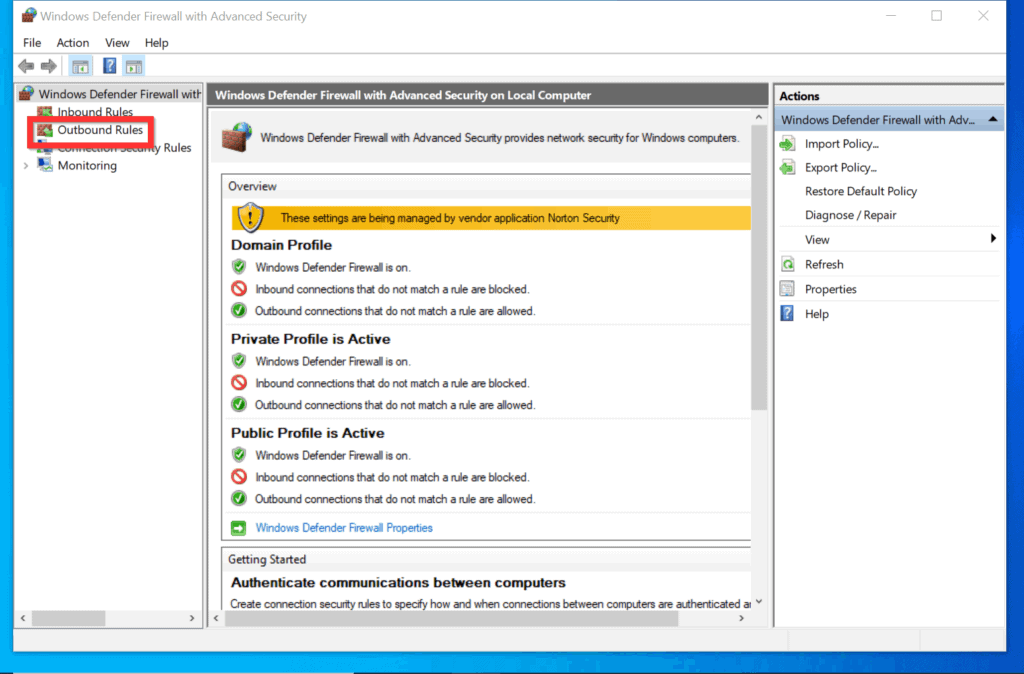
- On the top left of Windows Defender Firewall with Advanced Security, click Outbound Rules.
- Then, on the top right of the Outbound Rules window, click New Rule…

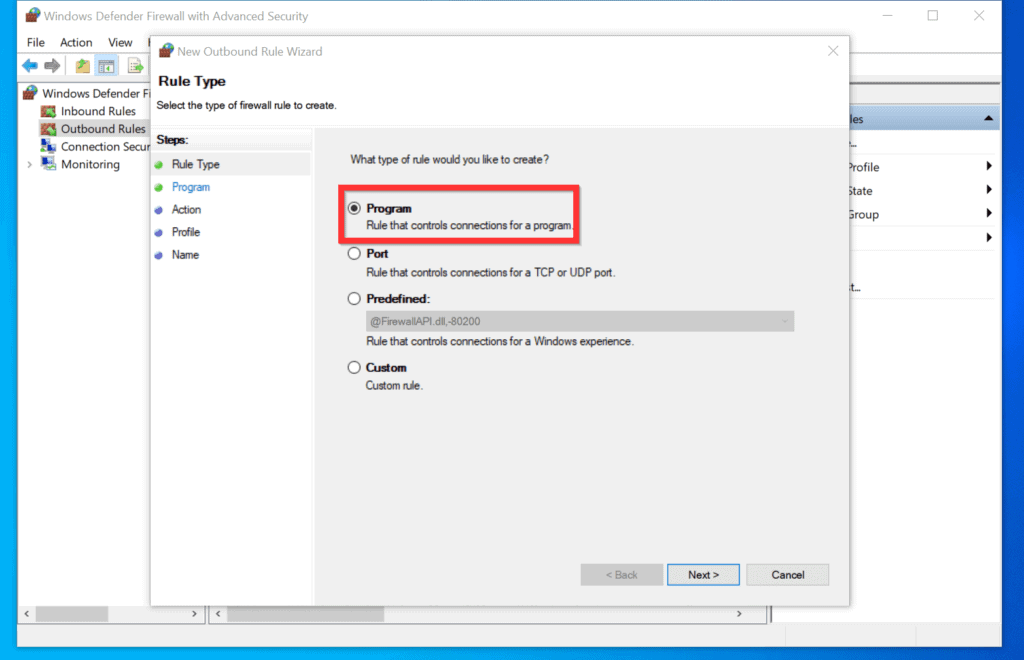
- On the first screen of the New Rule wizard, select Program and click Next.
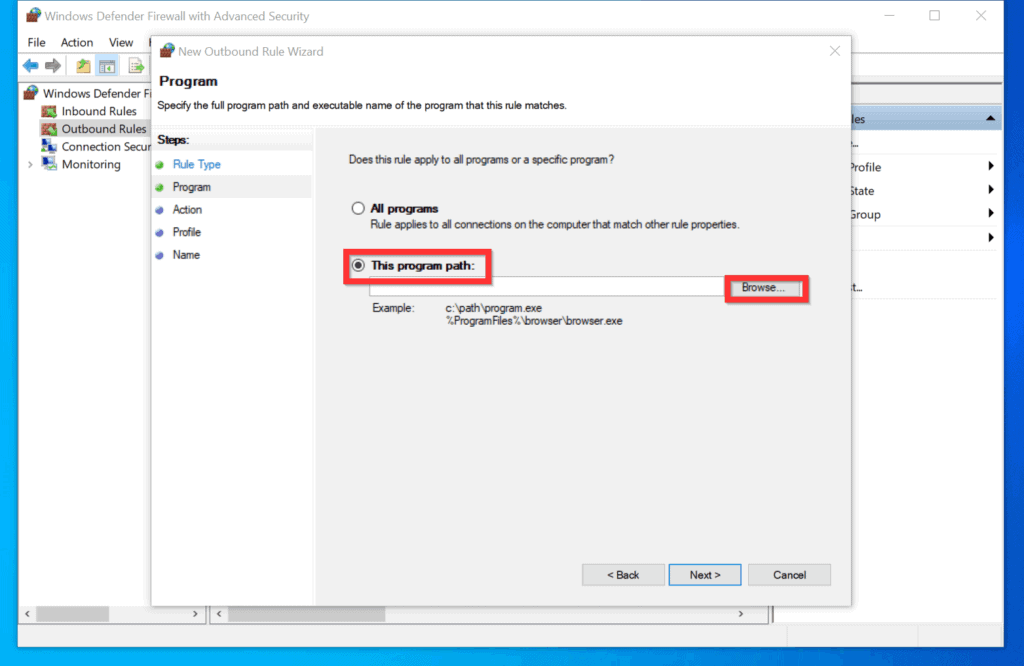
- Then, select This program path and click Browse.
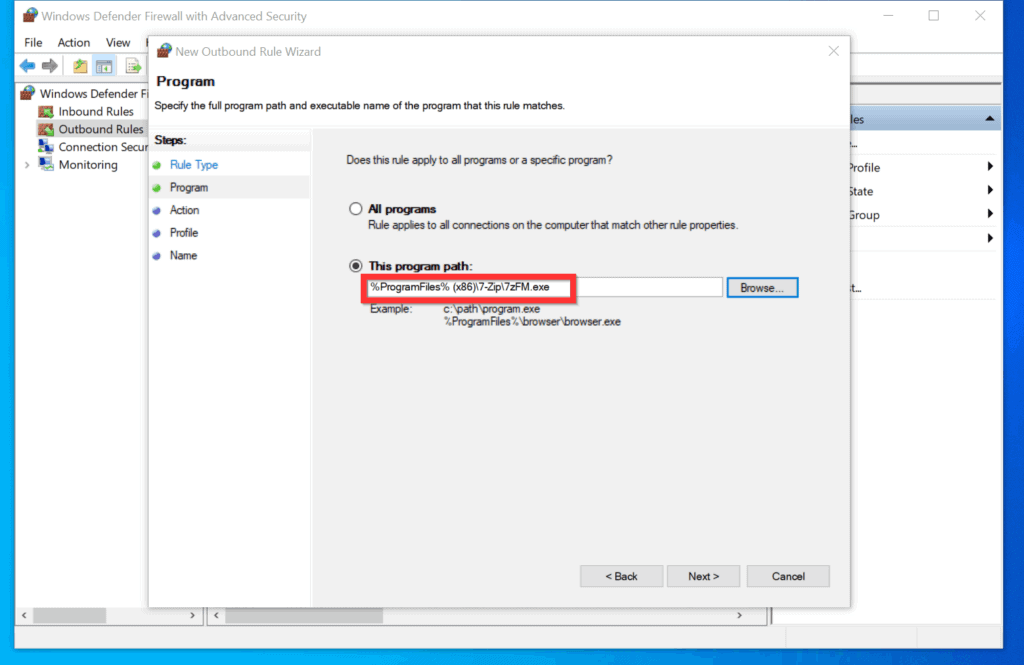
- Navigate to the location of the executable for the program and double-click the exe.
- Because the program I want to block is a 32-bits program, I will enter %programfiles(x86)% in the File Name field and click Open.

- When the %programfiles(x86)% folder opens, open the folder for the program you want to block.

- Finally, double-click the exe file for the program you want to block on Windows 10 firewall.

- You will be returned to the Specify the full path and executable name of the program that this rule matches window. Click Next.
- Then, on the Specify the action to be taken when a connection matches the conditions specified in the rule window, select Block and click Next.

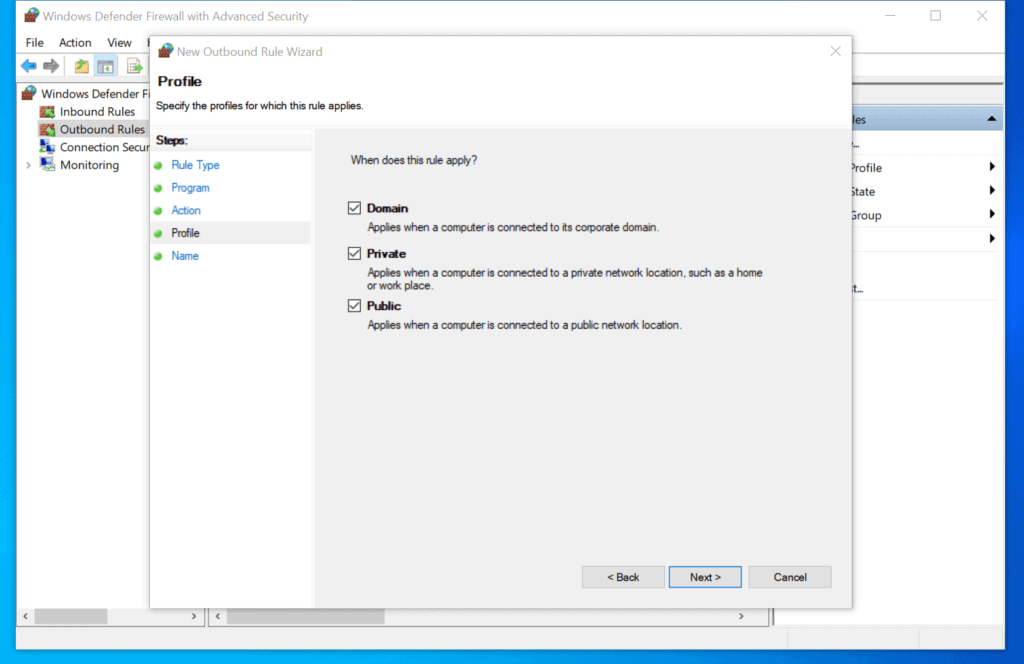
- On the Specify the profiles for which this rule applies window, check the network profiles you want the rule to apply and click Next.
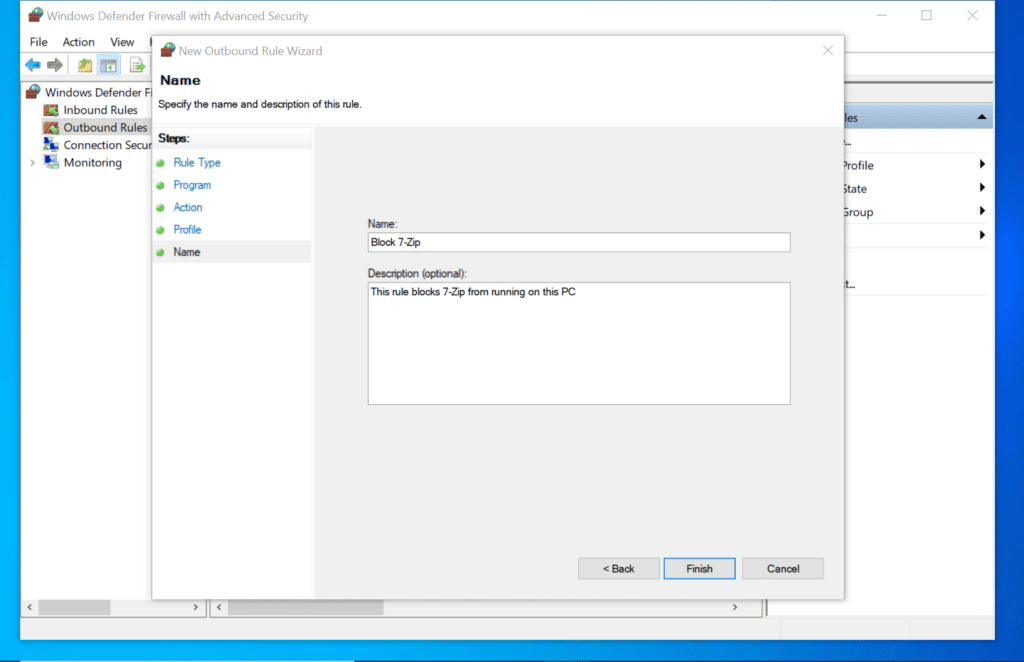
- Finally, to block a program in firewall on Windows 10, give the new firewall rule a name and description and click Finish.
- The new rule will become available on the Outbound Rules.

- To disable the rule without deleting it, right-click the rule and select Disable Rule.

Option 2: Block a Program with Command Prompt
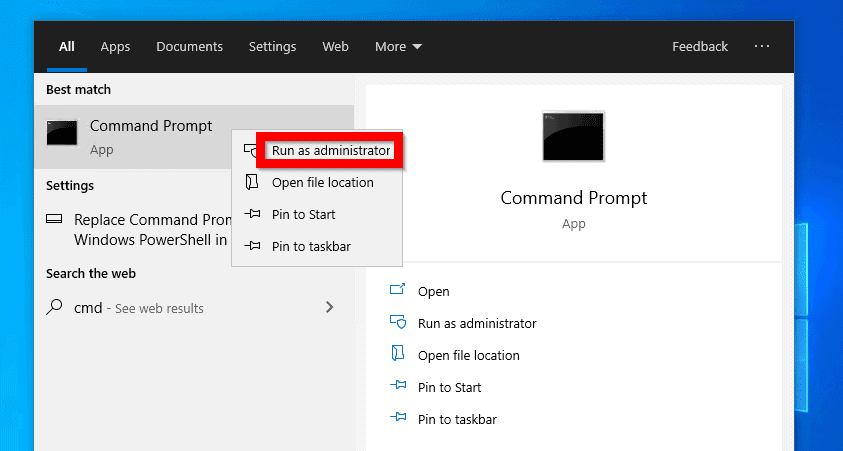
- Type command prompt in the search box, right-click Command Prompt and select Run as Administrator.
- If you receive a User Account Control confirmation, click Yes.
- Finally, to block a program in firewall on Windows 10, on Command Prompt, type the command below and press enter.
netsh advfirewall firewall add rule name="Block 7-Zip 32-bit" dir=out action=block program="%ProgramFiles% (x86)\7-Zip\7zG.exe" enable=yes
- The command will run and the firewall rule will be created on the Outbound Rules.


Option 3: Block a Program with PowerShell
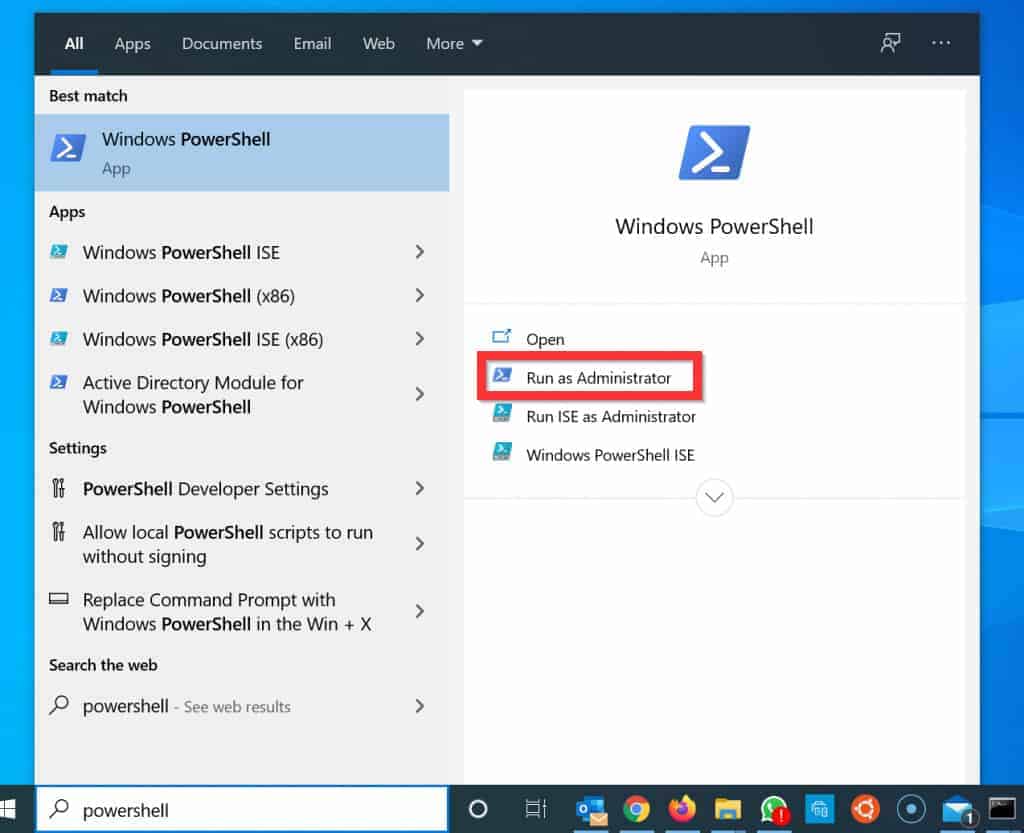
- Type powershell in the search box. Windows 10 search will find and select Windows PowerShell. Below Windows PowerShell, click Run as Administrator.
- If you receive a User Account Control confirmation, click Yes.
- On the PowerShell prompt, type the command below and press enter.
New-NetFirewallRule -DisplayName "Block CCleaner 64-bit" -Direction Outbound -Program "C:\Program Files\CCleaner\CCleaner64.exe" -RemoteAddress LocalSubnet -Action Block
- The PowerShell command will run and the firewall rule will be created on the Outbound Rules.


As you can see, it is very easy to block a program in firewall Windows 10! I hope you found this Itechguide helpful. If you found it helpful, kindly spare 2 minutes to share your views on our community platform at [discourse_topic_url].
| # | Preview | Product | Price | |
|---|---|---|---|---|
| 1 |
|
Windows 10 For Dummies (For Dummies (Computer/Tech)) | $13.31 | Buy on Amazon |
| 2 |
|
Windows 10 For Seniors For Dummies (For Dummies (Computer/Tech)) | $13.90 | Buy on Amazon |
| 3 |

|
Windows 10 for Dummies | $10.50 | Buy on Amazon |
| 4 |

|
Windows 10 All-in-One For Dummies,, 4th Edition | $30.32 | Buy on Amazon |
| 5 |

|
Windows 10 for Seniors for Dummies | $13.00 | Buy on Amazon |
Alternatively, you could ask a question, leave a comment or provide feedback at [discourse_topic_url]. The community staff and member will respond to them as soon as possible.
Quick wins for a faster PC:
Clear out junk files and repair common Windows errorsFree Scan →Fix the driver behind crashes, sound loss and screen glitchesFind Drivers →Repair Windows errors before they cause bigger problemsFix Now →Finally, for more Windows 10 Itechguides, visit our Windows 10 How-To page.
Quick Recap
Also popular on Amazon
Also popular on Amazon
Also popular on Amazon
Also popular on Amazon
Popular on Amazon
Product prices and availability are accurate as of the date/time indicated and are subject to change. Any price and availability information displayed on Amazon at the time of purchase will apply.
Independent reader supportYour contribution helps us test, update, and keep practical guides available for everyone.


