

Recommended: Fix Windows Errors and Clear Junk Files in Minutes - Free Scan →Recommended: Crashes or Glitches? A Free Driver Scan Usually Finds the Culprit →
Special offer. See more information about Outbyte and uninstall instructions. Please review EULA and Privacy policy.
iTechGuides is reader-supported. When you buy through links on our site, we may earn an affiliate commission. As an Amazon Associate I earn from qualifying purchases. Learn more
This Itechguide teaches you how to merge cells in Google Sheets. The guide offers steps to merge cells in Google Sheets from the Android App, iPhone App or a PC…
Option 1: Merge Cells via the Android App
- Open the Google Sheets App on your Android phone. If you have not installed Google Sheets app, click Google Sheets on Google Play link to install it.
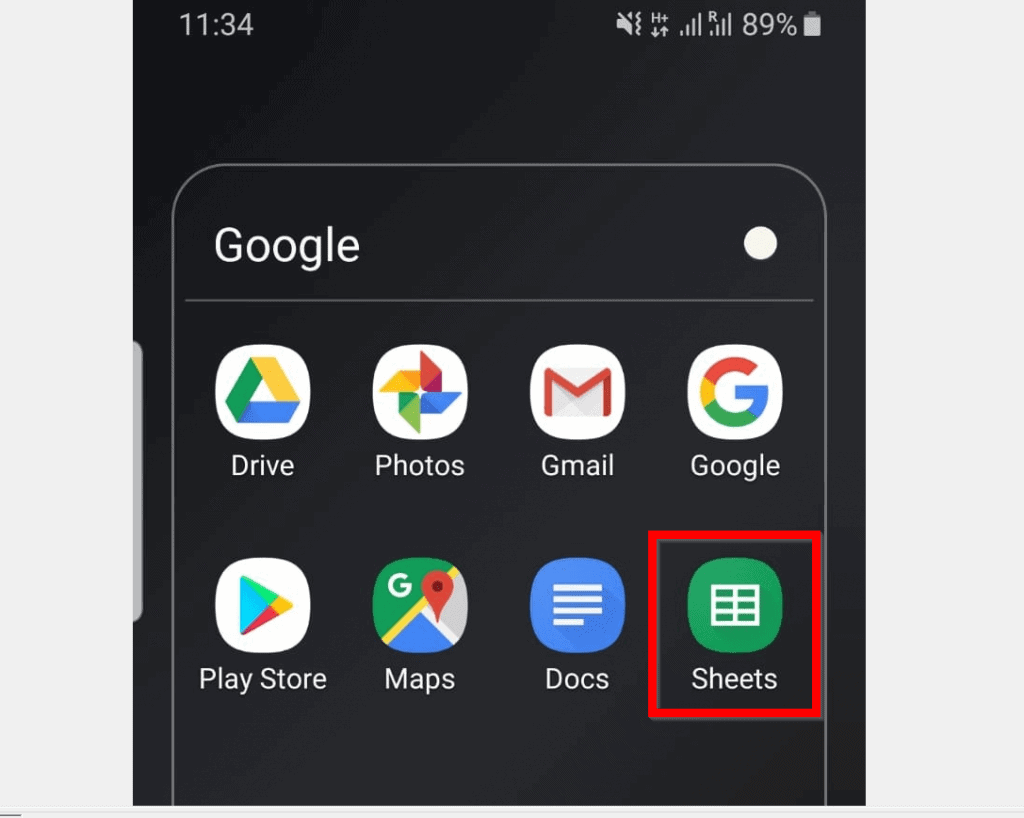
- Then open the Google Sheets document you want to edit. If you opened the document recently, you will find it beneath Last opened by me.

- You could also open your saved Google Sheets document from Google Drive. To access Google Drive from Google Sheets App, click the folder icon top right of the App. Then select Google Drive.

- Once the document is open, click the first cell you want to merge. The corners of the cell will become blue with two dots top left and bottom right of the cell. To add more cells to merge with this cell, drag one of the dots – left, up, right or down.

- With all the cells you want to merge selected, click the A icon (on top of the App).

- Then scroll down (if necessary) and click the Cell tab.

- From the Cell tab, to merge cells in Google Sheets scroll down to Merge cells and flip the switch from Off to On.

- Once the Merge cells switch is turned on, the cells will be merged!


- To save your changes, click the blue tick top left of the App.

Option 2: Merge Cells Through the iPhone/iPad App
- Open Google Sheets App on your iPhone. If you have not installed Google Sheets, you can get it from the App Store.

- Then open the document you want to edit. If you opened the document recently you can find it the beneath Last opened by me group. Alternatively, you could open the document from Google Drive. To access Google Drive from Google Sheets App, click the folder icon top right of the App.


- When the document opens, click the first cell you want to merge. The corners of the cell will become blue with two dots top left and bottom right of the cell. To add more cells to merge with this cell, drag one of the dots – left, up, right or down.

- Once you have added all the cells you want to merge, click the A icon on top of the App. Clicking A icon opens Text tab by default.

- To merge cells in Google Sheets, click the Cell tab. Then scroll down to Merge cells and flip the switch beside it from Off to On.

- Once the Merge cells switch is turned on, the selected cells will be merged!

Option 3: Merge Cells Using a PC
- Open Sheets.Google.com from your PC and open the document you want to merge cells in.
- Then select all the cells you want to merge – click and hold on the first cell, then drag to the other cells you want to merge.
The advantage of merging cells from a PC over the Apps is that you can merge whole columns or rows.

- One you have selected all the cells you want to merge, click Format. Then point to Merge cells and select Merge all, Merge horizontally or Merge vertically. For this example, I will use Merge all.
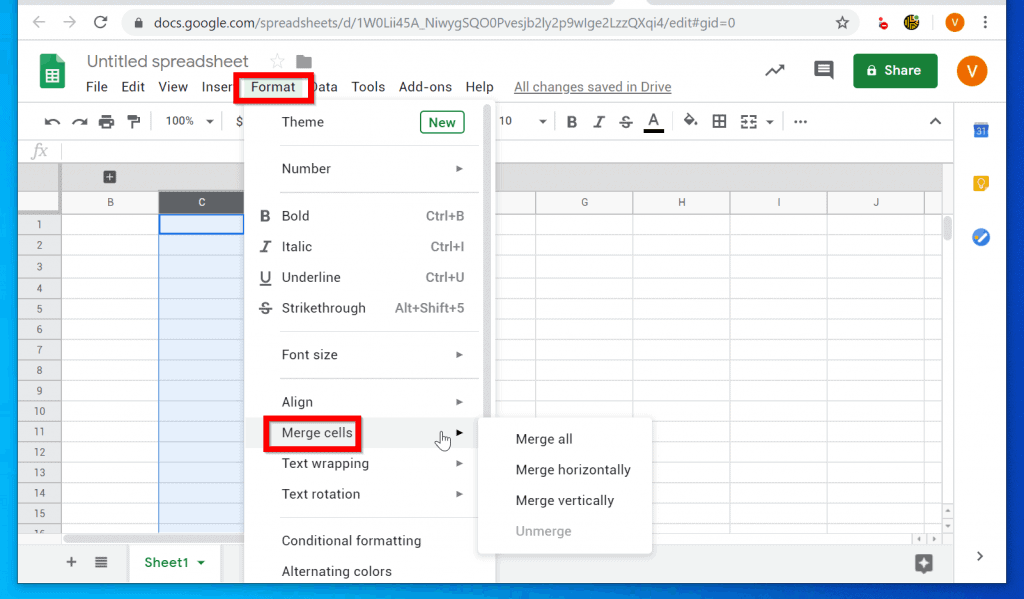

- To unmerge the cells, click Format, point to Merge cells and select Unmerge.

It is this simple to merge cells in Google Sheets! I hope you found the guide easy to follow! If it did, click on “Yes” beside the “Was this page helpful” question below.



You may also express your thoughts and opinions by using the “Leave a Comment” form at the bottom of this page.
Special offer. See more information about Outbyte and uninstall instructions. Please review EULA and Privacy policy.
Want more Google guides? Visit our Google How To page.
Quick Recap
Bestseller No. 1
Bestseller No. 3
Bestseller No. 5
Also popular on Amazon
Also popular on Amazon
Also popular on Amazon
Google Sheets Reference and Cheat Sheet: The unofficial cheat sheet reference for Google's free online spreadsheet application
- hole punched
- high quality card stock
- 4 pages
- made in USA
- keyboard shortcuts
Also popular on Amazon
Popular on Amazon
Product prices and availability are accurate as of the date/time indicated and are subject to change. Any price and availability information displayed on Amazon at the time of purchase will apply. Prices as of November 5, 2026 3:42 pm GMT.
Independent reader supportYour contribution helps us test, update, and keep practical guides available for everyone. 


