

Free tools Windows power users keep installed
One-click scans. No signup required.
iTechGuides is reader-supported. When you buy through links on our site, we may earn an affiliate commission. As an Amazon Associate I earn from qualifying purchases. Learn more
This Itechguide teaches you how to lock a row in Google Sheets.
As at the time of writing this Itechguide, Google Sheets Apps does not have the option to lock a cell (rows or columns). For this reason, this Itechguide has just the steps to lock a row in Google Sheets from a PC.



Locking a spreadsheet simply means modifying the edit permission of a specific cell, range or the entire sheet. Google spreadsheets offers an option that allows you to lock a row such you are the only person with permission to change the locked row.
Step 1: Open the Google Sheets Spreadsheet
If you know how to open a Google Sheets spreadsheet you can jump to the next section.
Popular on Amazon
- Open Sheets.Google.com from your PC. Then sign in with your Google Account.
- When page opens, you can either open the spreadsheet from the list of your recently opened spreadsheets or from Google Drive.

- To open a saved spreadsheet from Google Drive, click the 3 lines on the top left of the page. Then click Drive.


Once you have opened the spreadsheet you want to freeze a row on, proceed to step 2 below…
Step 2: Lock a Row in Google Sheets
- Click on the row number for the row you want to lock. In this example, I want to lock row 4. I clicked on the row number (4). When you click on it, the entire row will be highlighted.

- The next step is to open the Protected sheets and ranges menu. There are 2 ways you can do this: 1, right-click the row you selected earlier and select Protect range.
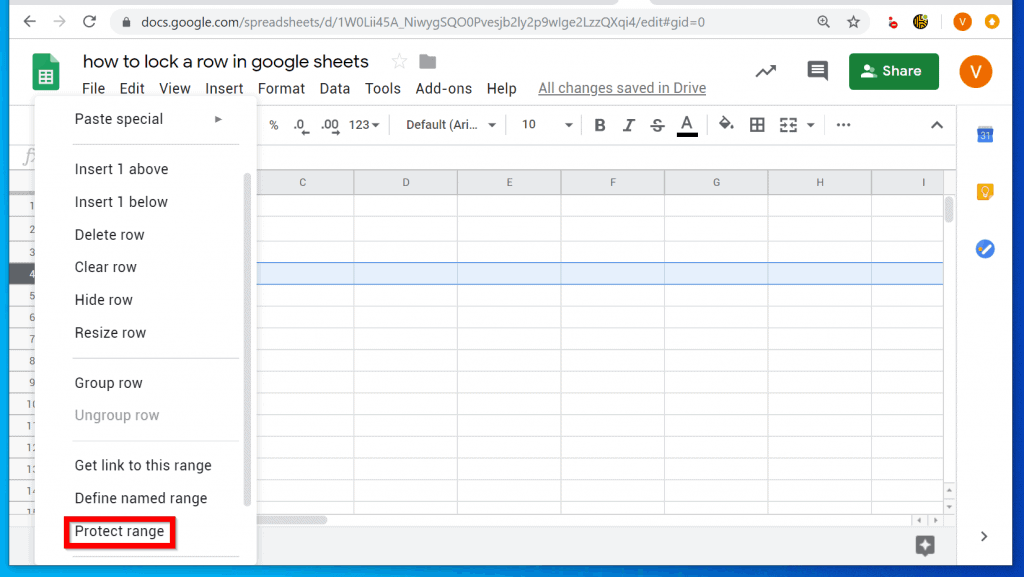
2, with the row selected, click Data, then select Protected sheets and ranges.
Also popular on Amazon

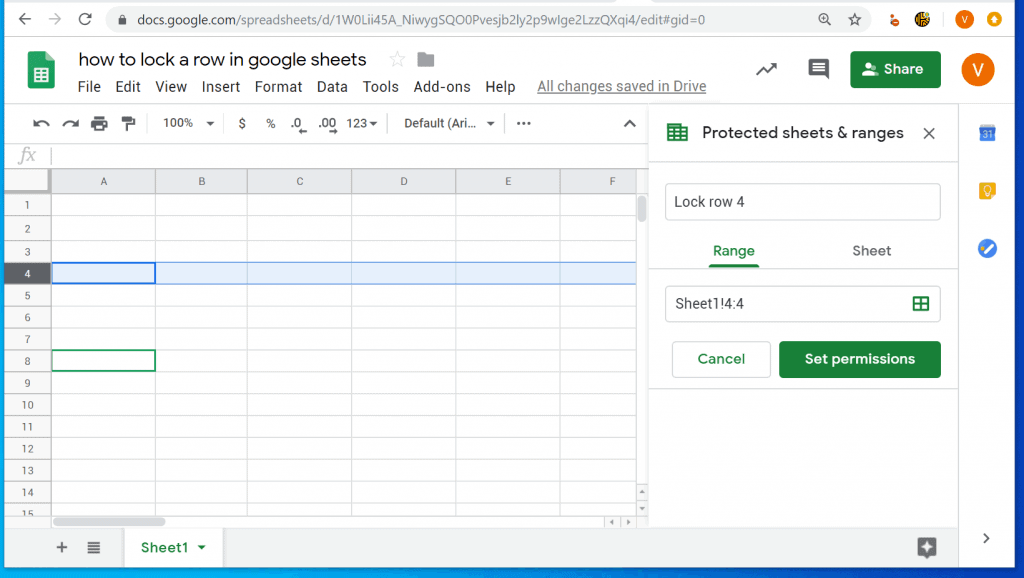
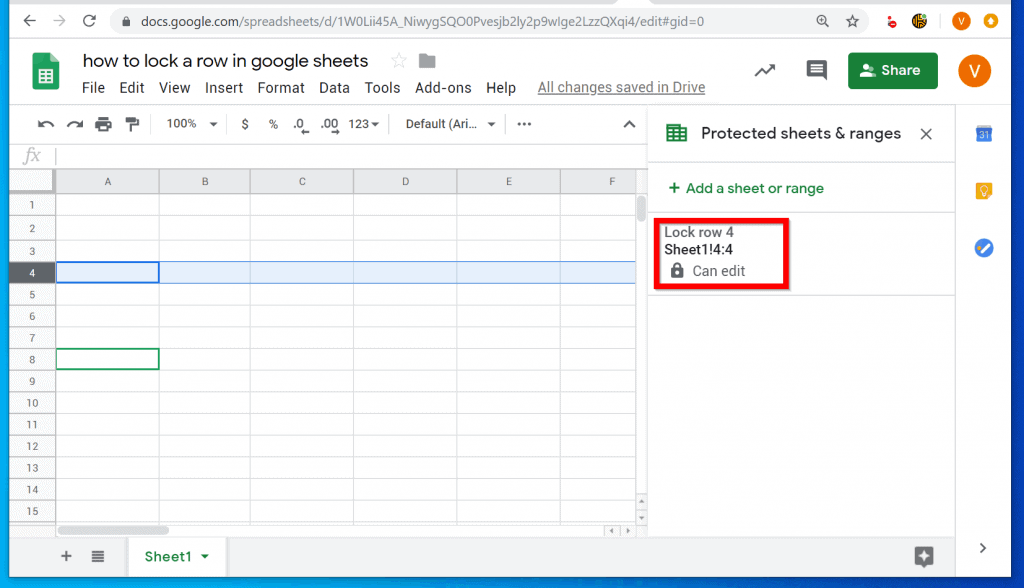
- When Protected sheets and ranges menu opens, add a description. In my example below, I called mine “Lock row 4”. Then click Set permissions.
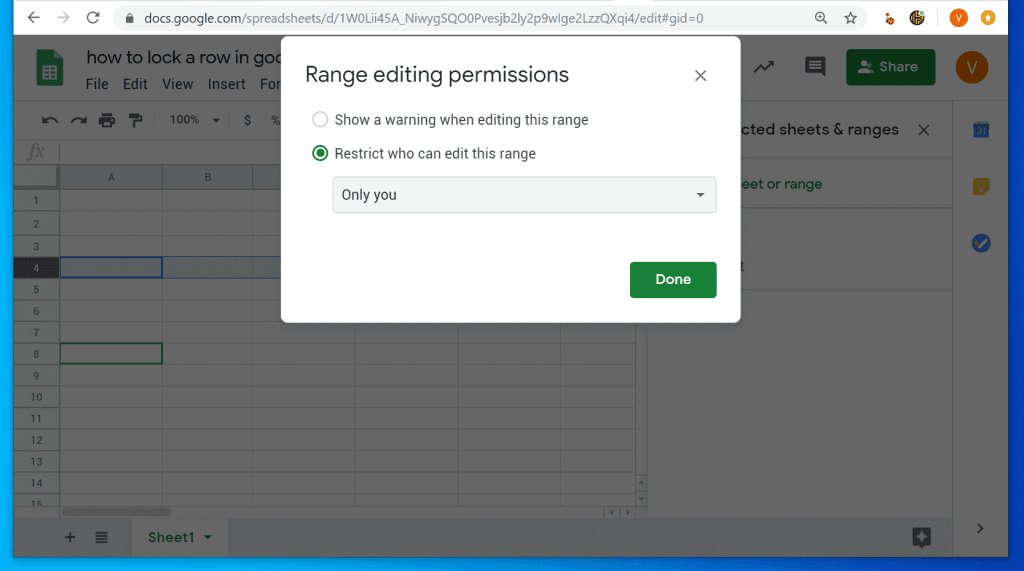
- By default, the Range edition permissions pop up will select Restrict who can edit this range with Only you selected from the drop-down. If you want to lock a row in Google Sheets such that no other person can edit it, click Done. Alternatively, to grant other people access to edit the locked range, see the steps below…
- Click the Only you drop-down and select Custom.
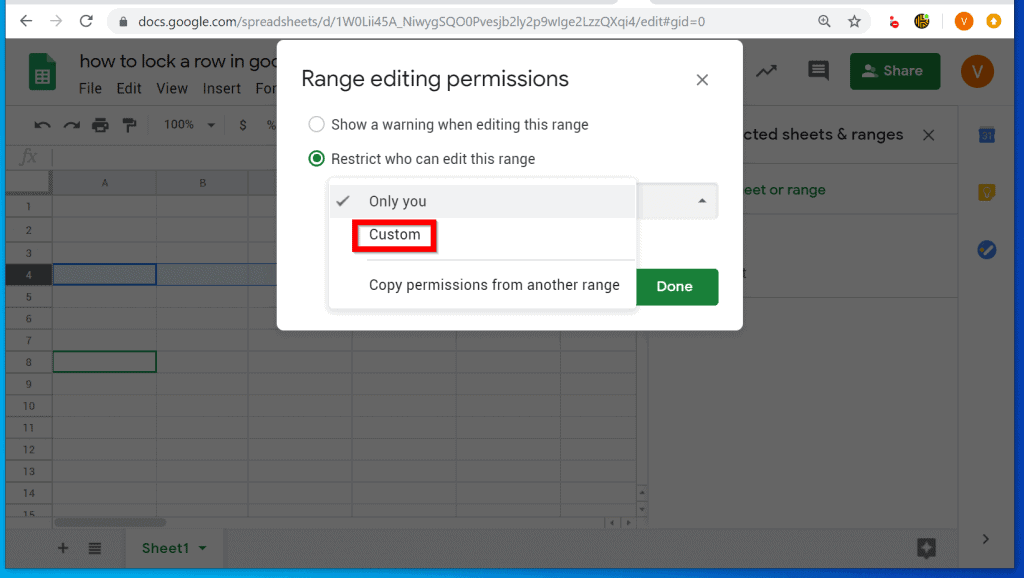
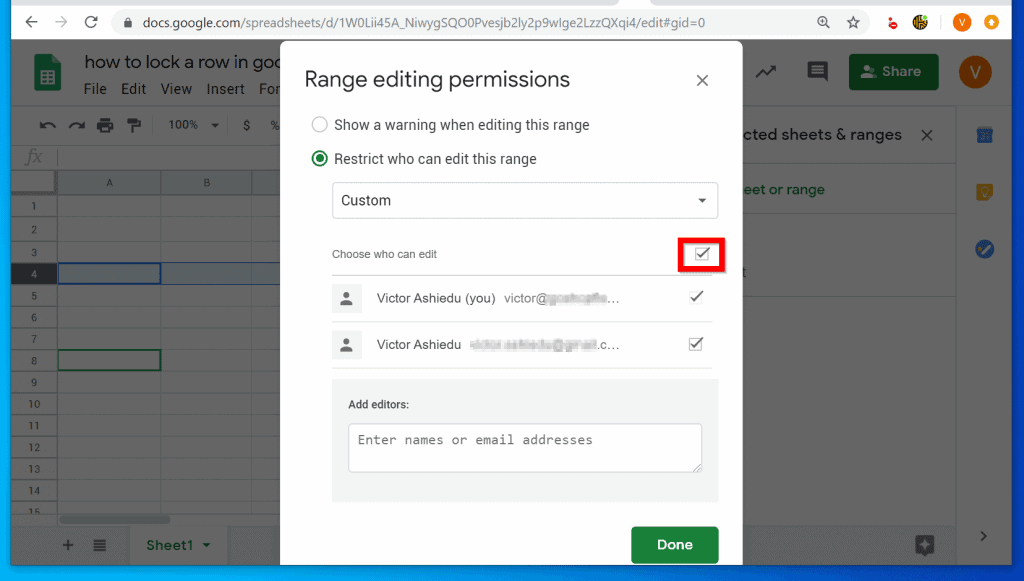
- When you select Custom, everybody that already has access to the spreadsheet will automatically be listed and granted edit permission. To remove this setting, uncheck the box beside Choose who can edit.
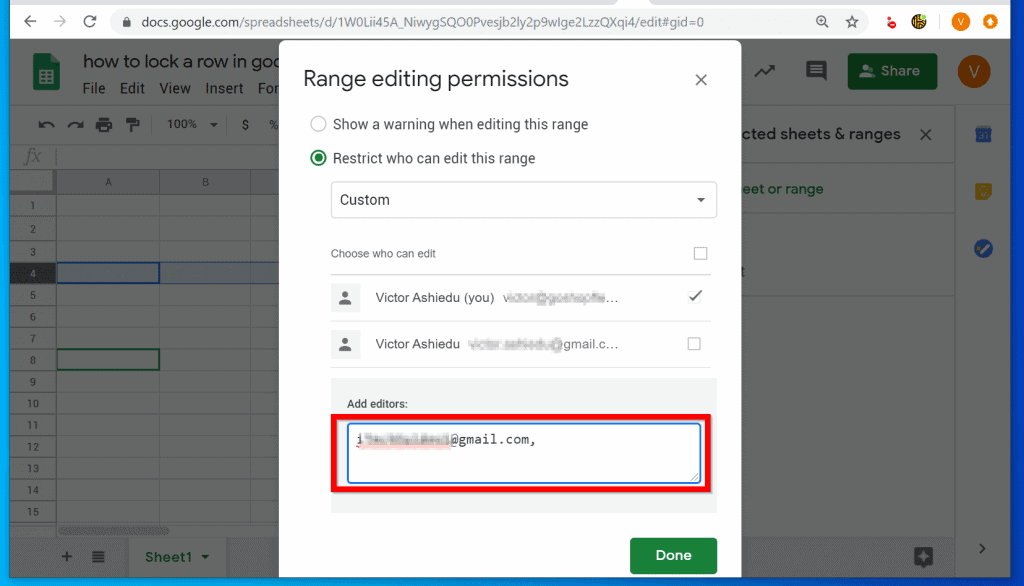
- Then, on the Add editors box type the email addresses of each person you want to grant access to edit the locked range. When you finish, click Done.
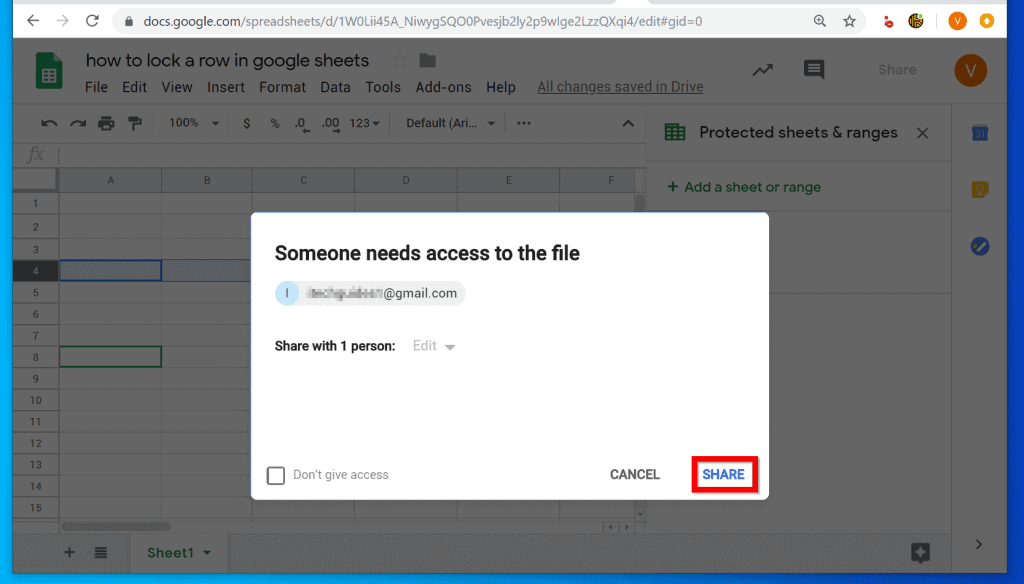
- If you granted access to people that do not already have permission to the spreadsheet, you will be offered the option to grant them access to the file. Click SHARE.
- When you return to the spreadsheet, the new locked cell will be displayed. To edit it click on it.
- Then click Change permissions.

- To add or remove edit permission from a listed user, check or uncheck the box beside that user. When you finish, click Done.
It is this easy to lock a row in Google Sheets! If you found it helpful, click on “Yes” beside the “Was this page helpful” question below.
Quick wins for a faster PC:
Fix the driver behind crashes, sound loss and screen glitchesFind Drivers →Clear out junk files and repair common Windows errorsFree Scan →Scan for outdated or missing drivers - takes under a minuteDriver Scan →You may also express your thoughts and opinions by using the “Leave a Comment” form at the bottom of this page.
Also popular on Amazon
- hole punched
- high quality card stock
- 4 pages
- made in USA
- keyboard shortcuts
Finally, for more Google Itechguides, visit our Google How To page.
Quick Recap
Also popular on Amazon
Also popular on Amazon
Product prices and availability are accurate as of the date/time indicated and are subject to change. Any price and availability information displayed on Amazon at the time of purchase will apply.
Independent reader supportYour contribution helps us test, update, and keep practical guides available for everyone.


