

Do these 3 things before closing this tab:
1Repair Windows errors before they cause bigger problems2Fix the driver behind crashes, sound loss and screen glitches3Clear out junk files and repair common Windows errorsiTechGuides is reader-supported. When you buy through links on our site, we may earn an affiliate commission. As an Amazon Associate I earn from qualifying purchases. Learn more
This Itechguide teaches you how to import contacts from Google. The guide covers steps to import contacts from Google from a PC or Android.
Option 1: Import Contacts from Google on Android
On an Android phone, you can import contacts from a .vcf file or from SIM cards on your phone. Here are the steps…
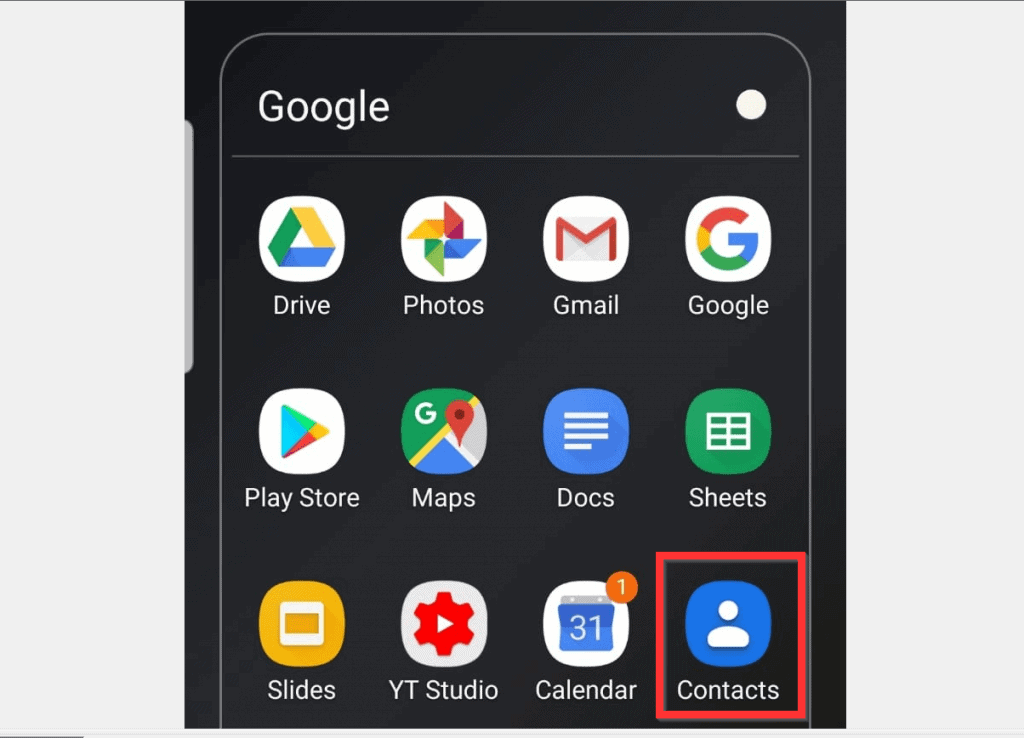
- Open Google Contacts App on your phone. If you have not installed the App before, install it before you proceed to the next step.
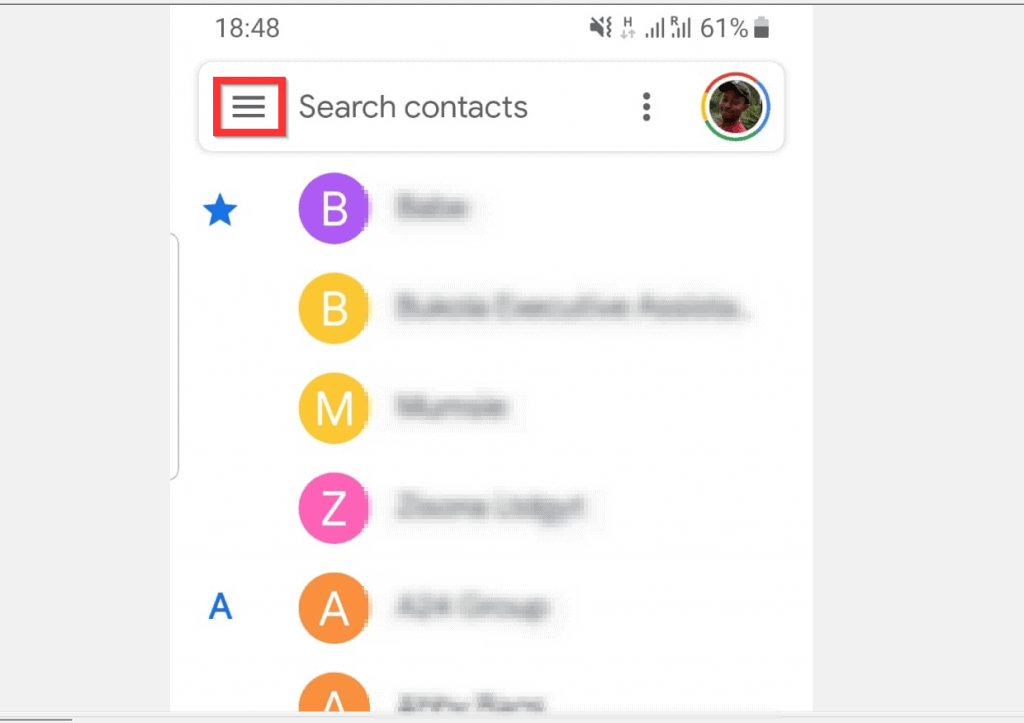
- Then, at the top left of the Contacts App, tap the menu icon (3 lines). The menu options will be displayed.
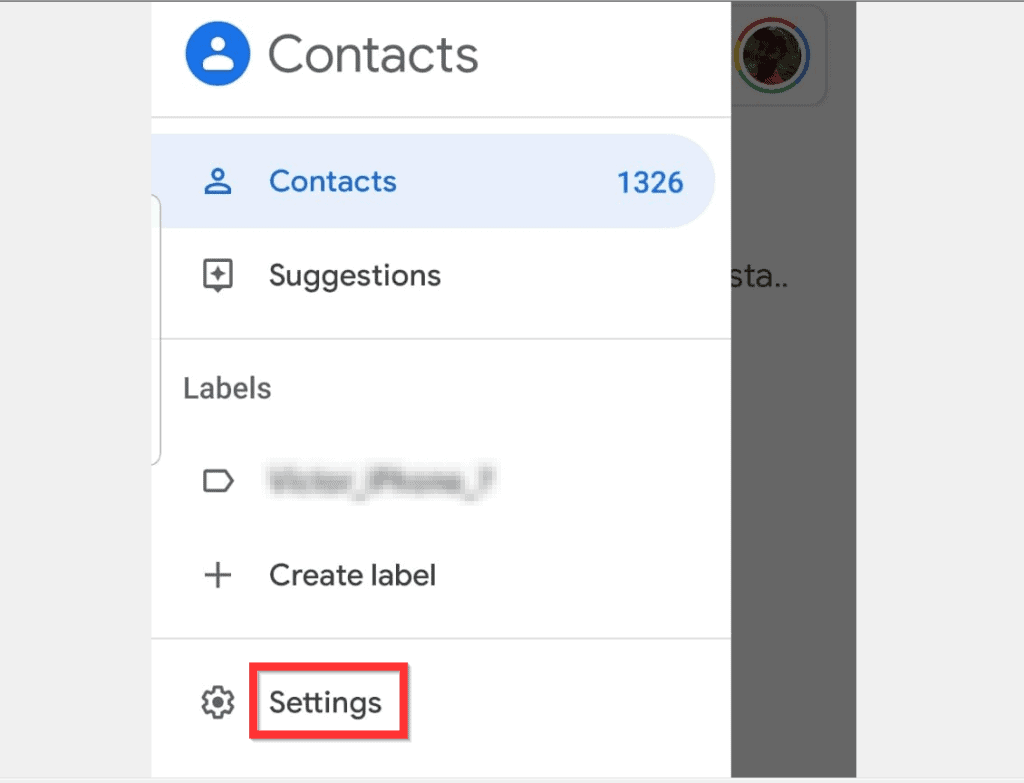
- Scroll down towards the bottom of the menu options and tap Settings. Contact Settings will be displayed.
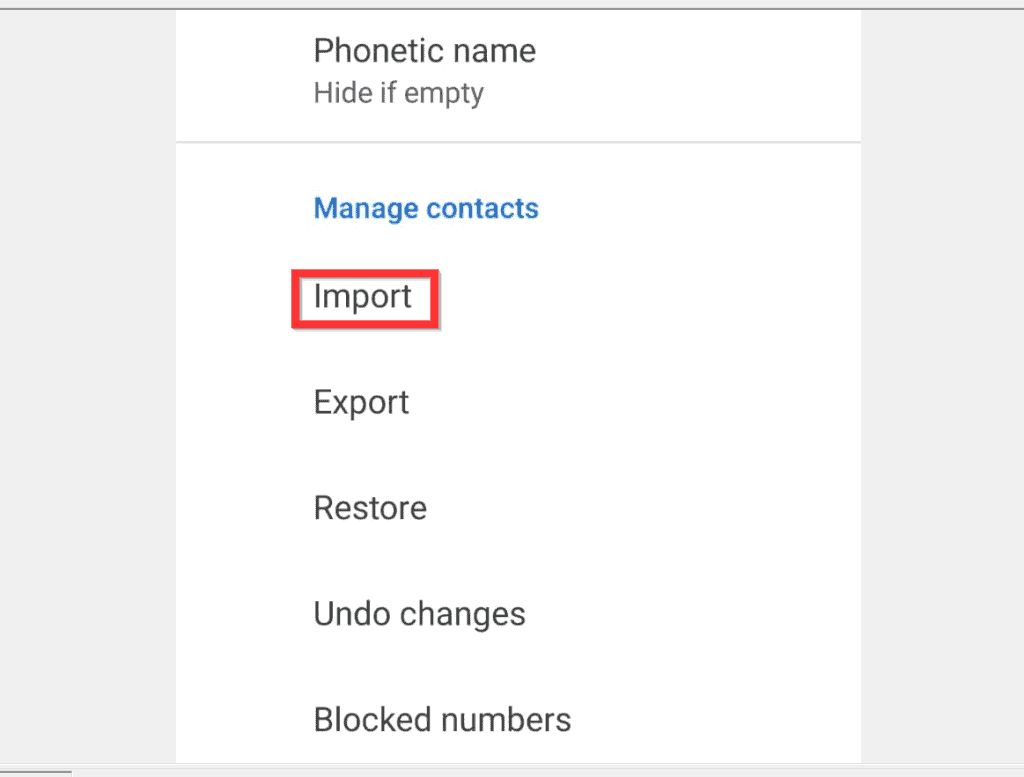
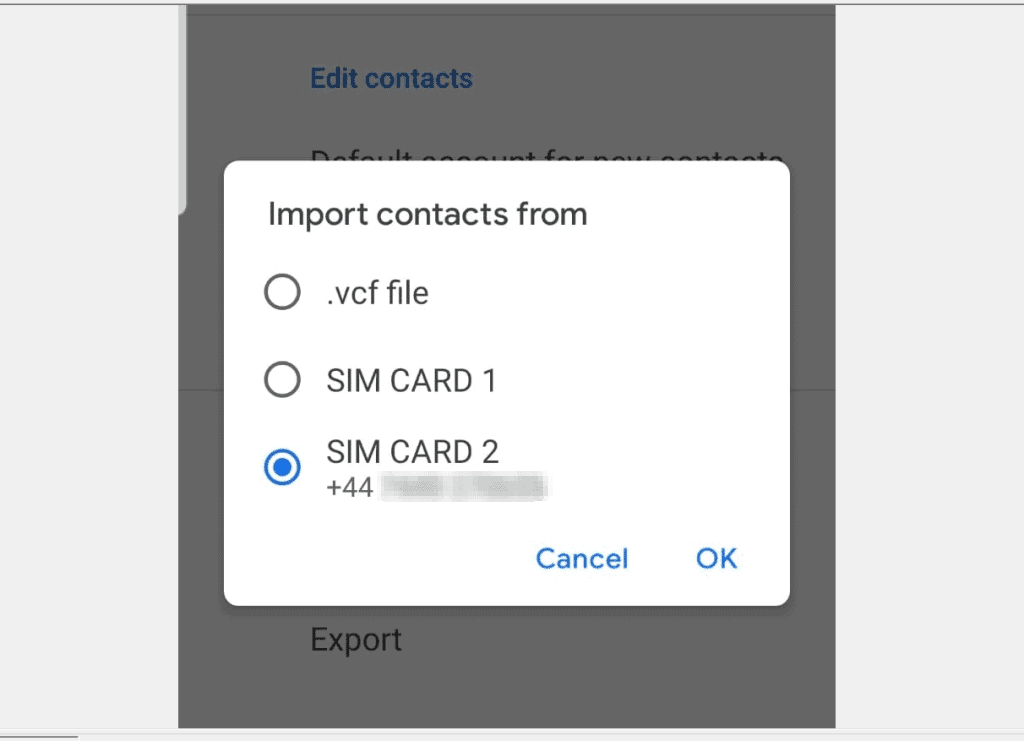
- Scroll down to the Manage contacts section of the Settings page and tap Import. A tiny options pop up will be displayed.
- Select where you want to import contacts from. Then, at the bottom right of the pop up window, tap OK.
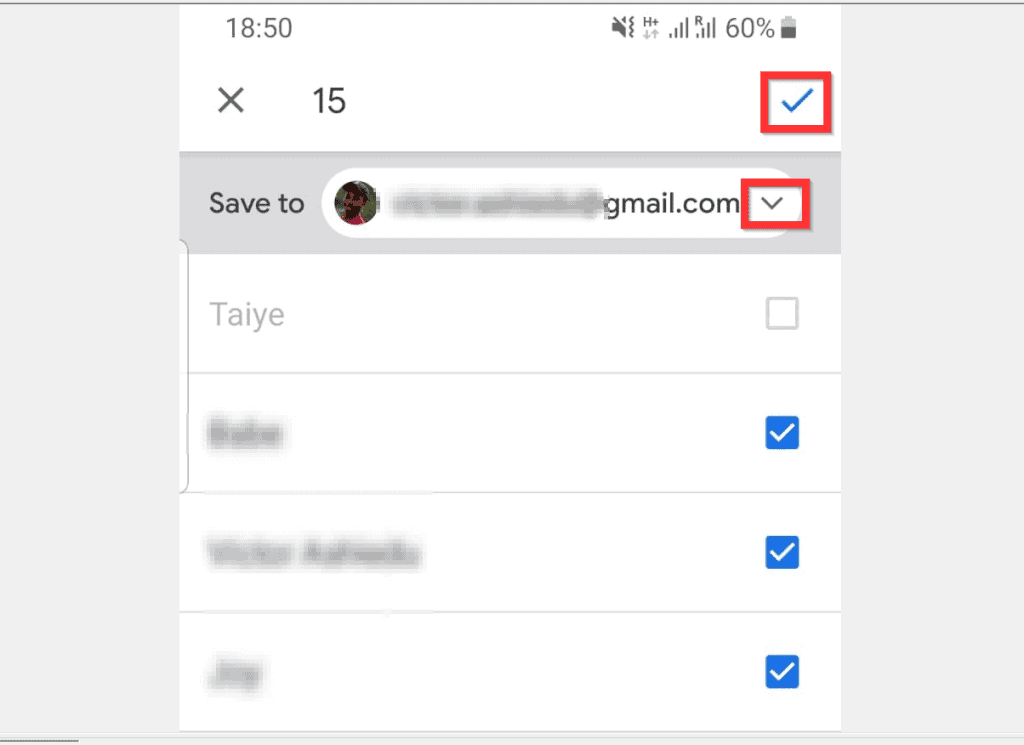
- By default, the Contacts app will select all available contacts in the location for import. It will also select a default Save to email to import the contacts to.
- If you do not want to include a particular contact, uncheck the check box beside it
- You could also change the Google email to import the contacts to. To change this, tap the drop-down beside the current Save to email.
- Finally, to import contacts from Google on Android, at the top right corner of the Imports page, tap save (a blue tick).
Option 2: Import Contacts from Google on a PC
You can import contacts from Google account to another account on a PC. This is a 2-step process. Export the contacts from the Gmail account with the contacts you want to import. Then, import them to the new Gmail
Free tools Windows power users keep installed
One-click scans. No signup required.
Step 1: Export Contacts from Gmail
- Open Contacts.Google.com (Google Contacts – opes in a new browser tab). Then login with the Gmail account you want to import contacts from.
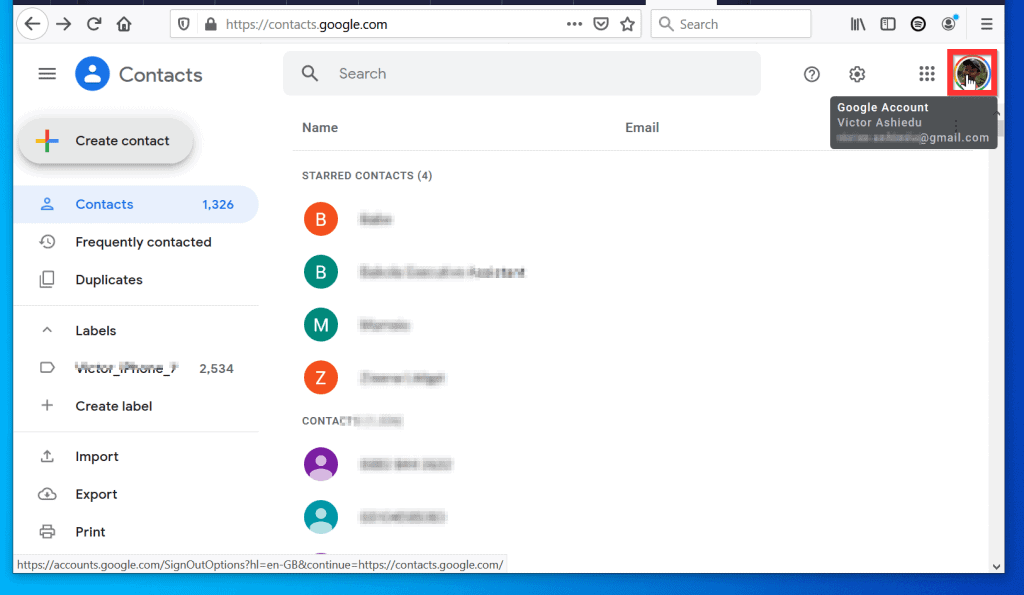
- Before you proceed to the next step, confirm that you are signed in to the right account. On the top right corner of the page, hover over your profile picture. The email address will be displayed.
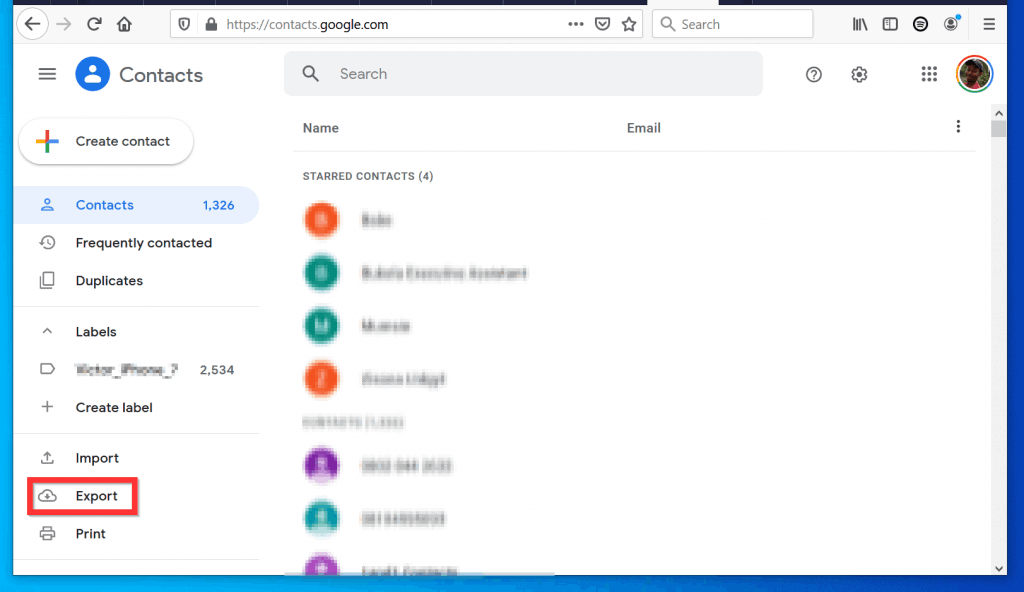
- Then, on the left pane of the page, tap the Export. Export contacts pop window will be displayed.
- To select a different contact to export, click the drop-down beside the selected contact. Then select the contact you want to export.
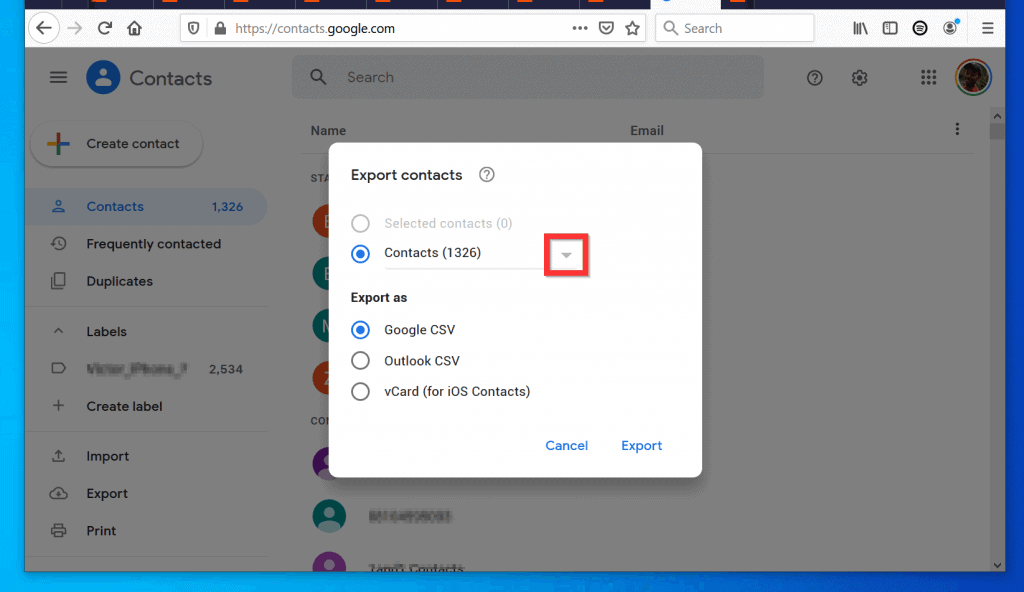
- When you finish selecting the contact you want to export, on the Export as options, ensure that Google CSV is selected.
- Then, at the bottom right of the pop up window, click Export.
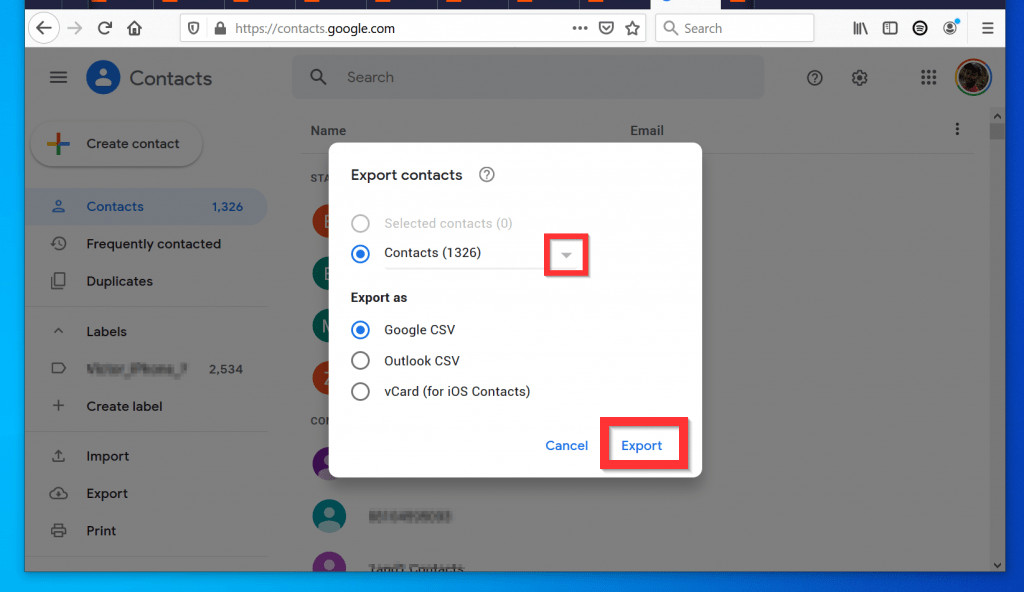
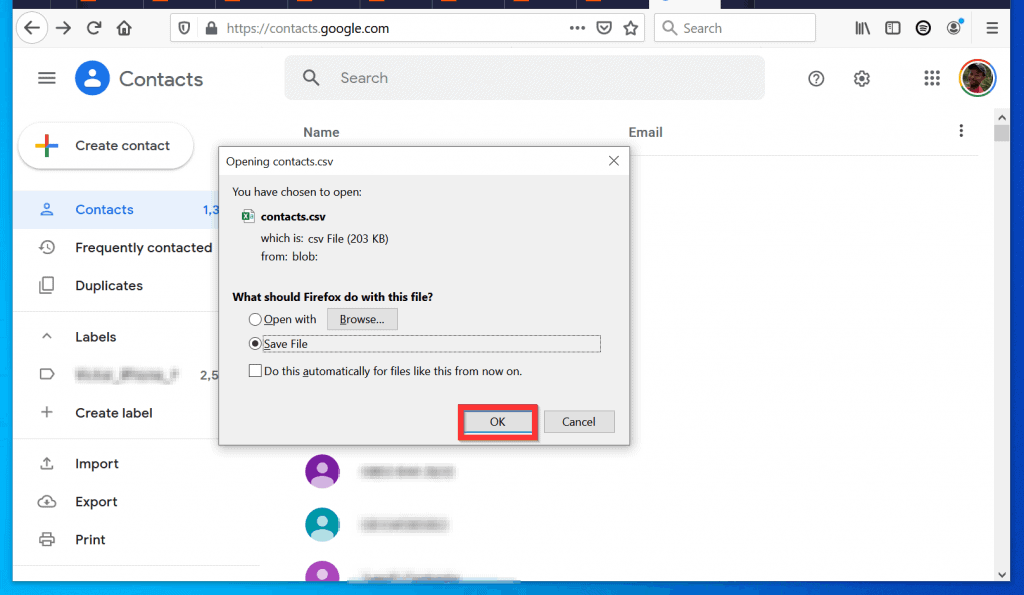
- The contacts will start exporting. When it is ready, it will display the option to save the CSV file.

- Save file will be selected by default. Depending on your browser you may be able to select a location to save the file. To export the contacts, click OK.
- I am using Firefox to perform the steps in this guide. For me the CSV file is saved in the Downloads folder. Note where you saved the file – you will need it for the next step
Step 2: Import Contacts from Google (Using Exported CSV File)
- Still at Google Contacts page, on the top right of the page, click your profile icon. Then, click Add another account. Google account sign in page will open in a new browser tab.
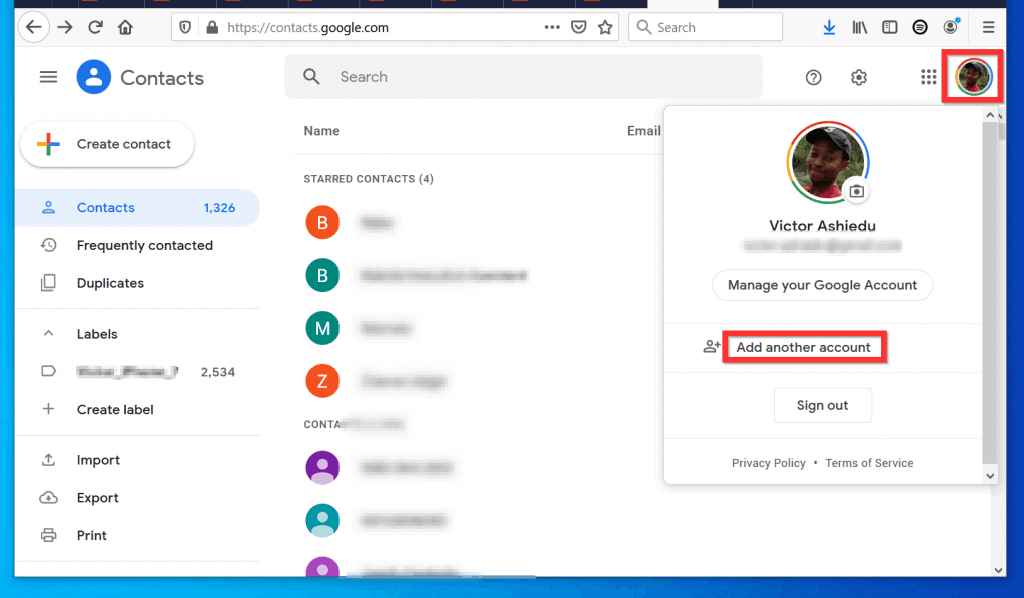
- On the Google Account login page, enter the Google email address you want to import contacts to. Then, click Next.
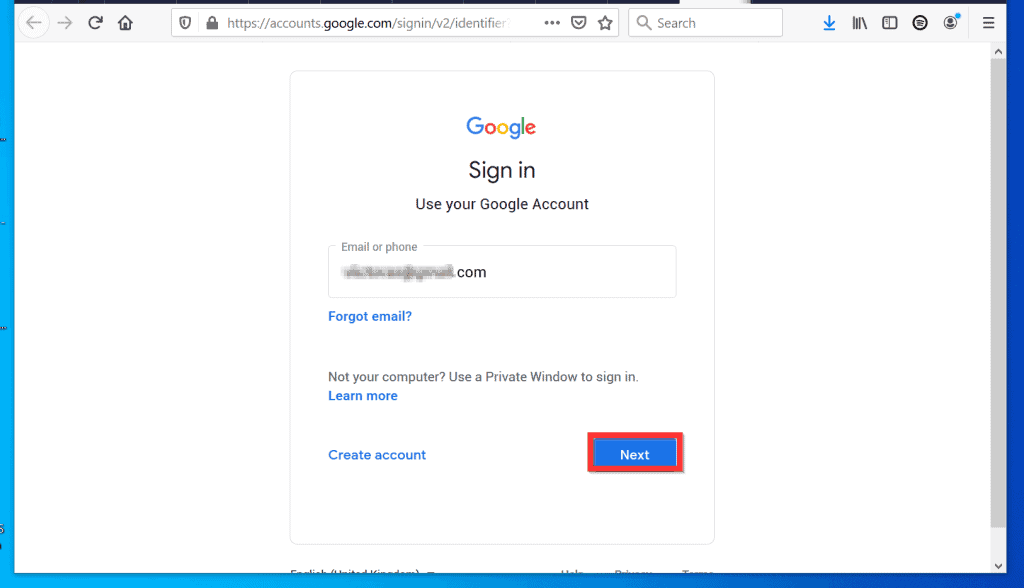
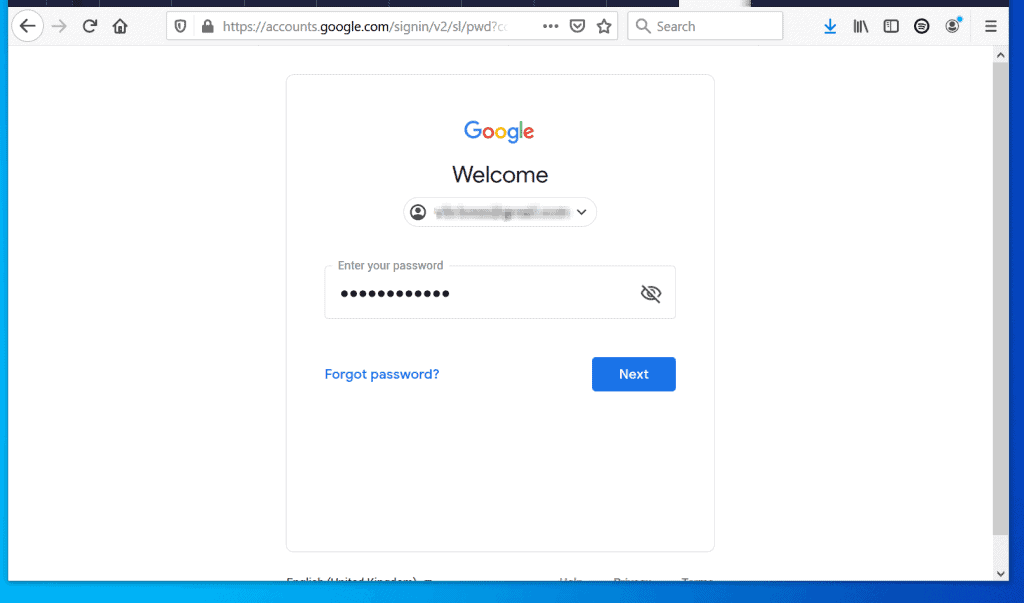
- On the next page, enter the password for the Google account and click Next.
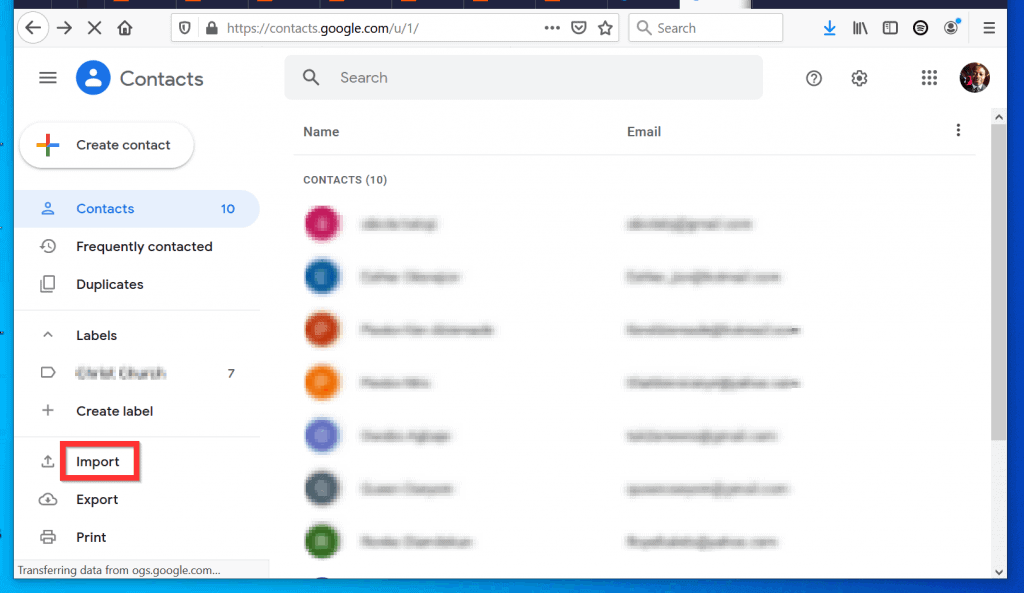
- Google Contacts will open with the new Google account. At the left pane of Google Contacts, click Import.
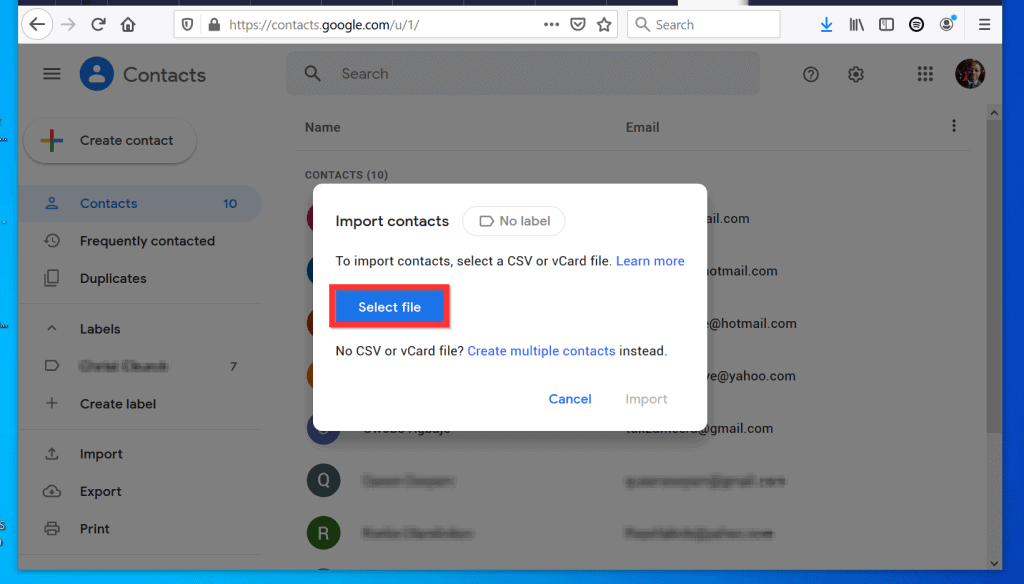
- When the Import contacts pop up opens, click Select file.
- Then, navigate to the folder you saved the contacts you exported earlier and select it. Finally, at the bottom right of the File Upload window, click Open.
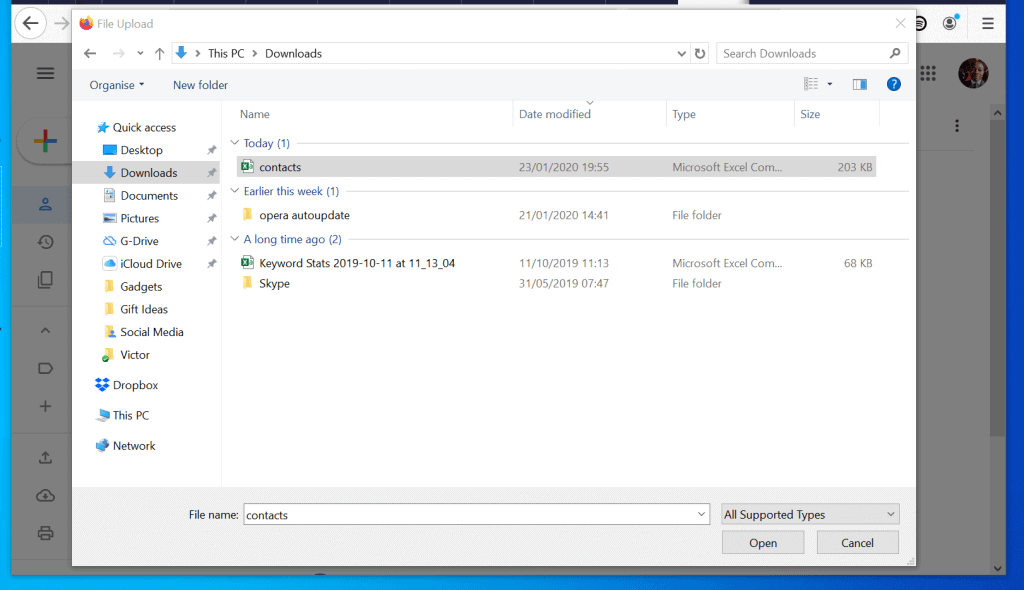
- Back in the Import contacts pop up, to import contacts from Google, click Import.

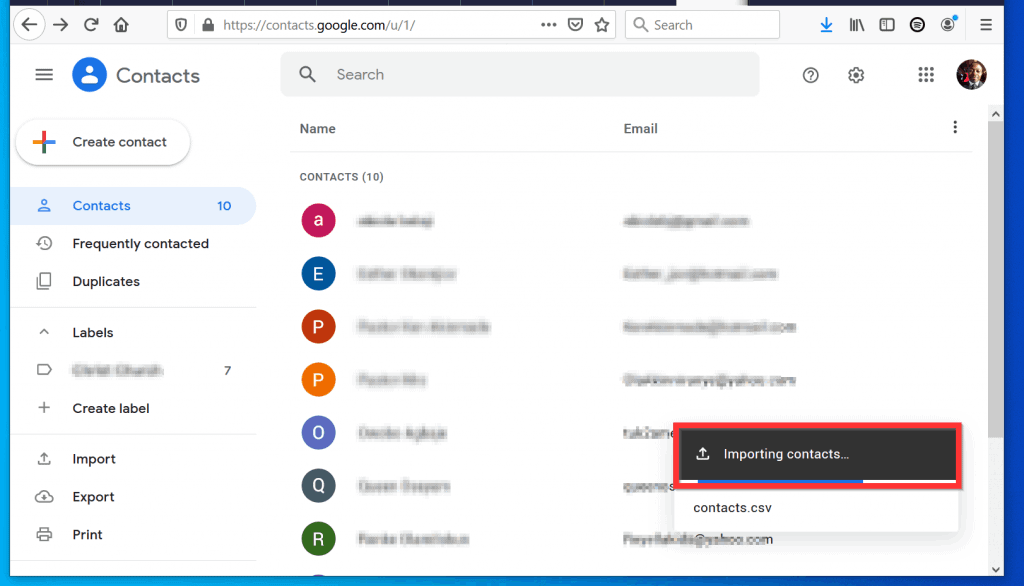
- The contacts will start importing. When the import is completed, at the bottom right of the page, Google Contacts will display Done.
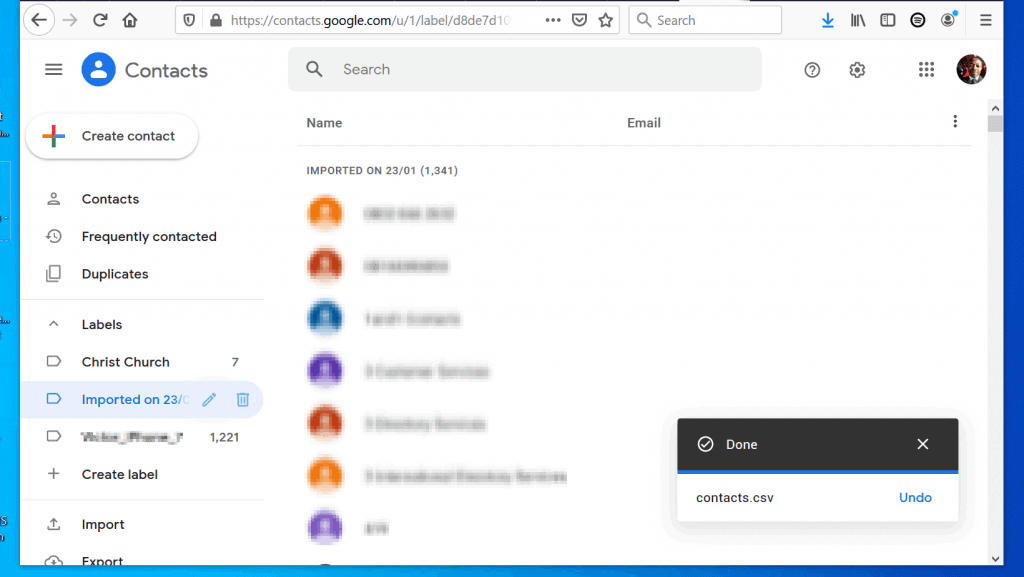
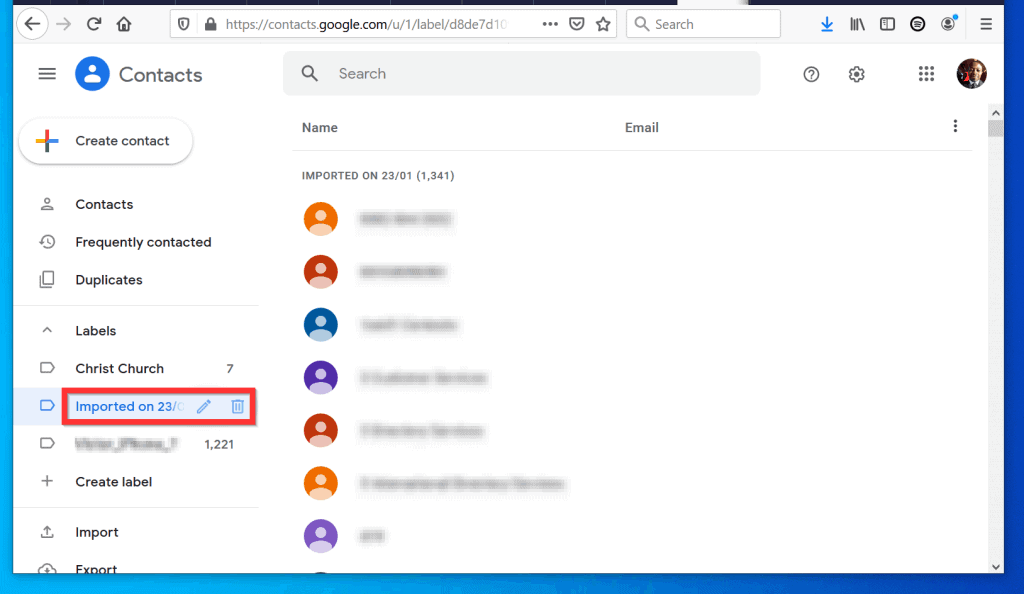
- The important contacts will be imported into a new label named after the date you made the import.
It is this easy to import contacts from Google! I hope you found this Itechguide helpful. If it was helpful, click on “Yes” beside the “Was this page helpful” question below.
Popular on Amazon
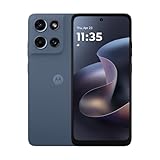
- Universal unlocked. Compatible with all major U.S. carriers, including Verizon, AT&T, T-Mobile and other prepaid carriers.
- Super-bright, super-smooth 6.7" display. See your screen clearly even outdoors in sunlight, and enjoy seamless views with a fast-refreshing 120Hz display.*
- AI-powered camera system. Take stunning photos in any light with the 50MP camera**, look your best with a 32MP selfie cam*****, and capture extreme close-ups.
- Superfast 5G performance. Unleash your entertainment at 5G speed*** with the MediaTek Dimensity 6300 chipset and up to 12GB of RAM with RAM Boost****.
- Long-lasting battery + TurboPower charging. Power through day after day with a 5200mAh battery, then get hours of power in just minutes.****
You may also express your thoughts and opinions by using the “Leave a Comment” form at the bottom of this page.
Finally, for more Google Itechguides, visit our Google How To page.
Quick Recap
Also popular on Amazon

- YOUR CONTENT, SUPER SMOOTH: The ultra-clear 6.7" FHD+ Super AMOLED display of Galaxy A17 5G helps bring your content to life, whether you're scrolling through recipes or video chatting with loved ones.¹
- LIVE FAST. CHARGE FASTER: Focus more on the moment and less on your battery percentage with Galaxy A17 5G. Super Fast Charging powers up your battery so you can get back to life sooner.²
- MEMORIES MADE PICTURE PERFECT: Capture every angle in stunning clarity, from wide family photos to close-ups of friends, with the triple-lens camera on Galaxy A17 5G.
- NEED MORE STORAGE? WE HAVE YOU COVERED: With an improved 2TB of expandable storage, Galaxy A17 5G makes it easy to keep cherished photos, videos and important files readily accessible whenever you need them.³
- BUILT TO LAST: With an improved IP54 rating, Galaxy A17 5G is even more durable than before.⁴ It’s built to resist splashes and dust and comes with a stronger yet slimmer Gorilla Glass Victus front and Glass Fiber Reinforced Polymer back.
Also popular on Amazon

- Charger NOT Included, 6.7" Super AMOLED FHD+, 90Hz Refresh Rate, 385 ppi, 800 nits (HBM), 1080x2340px, 5000mAh Battery
- 128GB, 4GB RAM, microSDXC, Exynos 1330 (5nm), Octa-Core, Mali-G68 MP2 or Mali-G57 MC2 GPU
- Rear Camera: 50MP, f/1.8 (wide) + 5MP, f/2.2 (ultrawide) + 2MP, f/2.4 (macro), LED flash, panorama, HDR; Front Camera: 13MP, f/2.0, Android 14, up to 6 major Android upgrades, One UI 6.1
- 3G: HSDPA 850/900/1700(AWS)/1900/2100; 4G LTE: 1/2/3/4/5/7/12/13/14/20/25/26/28/29/30/38/39/40/41/48/66/71, 5G: 2/5/25/41/66/71/77/78 SA/NSA/Sub6/mmWave - Nano-SIM + eSIM
- US Model – Global Connectivity – Compatible with Most GSM Carriers like T-Mobile, AT&T, MetroPCS, etc. Will Also work with CDMA Carriers Such as Verizon, Straight Talk.
Also popular on Amazon

- YOUR CONTENT, SUPER SMOOTH: The ultra-clear 6.7" FHD+ Super AMOLED display of Galaxy A17 5G helps bring your content to life, whether you're scrolling through recipes or video chatting with loved ones.¹
- LIVE FAST. CHARGE FASTER: Focus more on the moment and less on your battery percentage with Galaxy A17 5G. Super Fast Charging powers up your battery so you can get back to life sooner.²
- MEMORIES MADE PICTURE PERFECT: Capture every angle in stunning clarity, from wide family photos to close-ups of friends, with the triple-lens camera on Galaxy A17 5G.
- NEED MORE STORAGE? WE HAVE YOU COVERED: With an improved 2TB of expandable storage, Galaxy A17 5G makes it easy to keep cherished photos, videos and important files readily accessible whenever you need them.³
- BUILT TO LAST: With an improved IP54 rating, Galaxy A17 5G is even more durable than before.⁴ It’s built to resist splashes and dust and comes with a stronger yet slimmer Gorilla Glass Victus front and Glass Fiber Reinforced Polymer back.
Product prices and availability are accurate as of the date/time indicated and are subject to change. Any price and availability information displayed on Amazon at the time of purchase will apply.



