

What’s actually slowing this PC down?
Pick the symptom - the matching free tool is one click away.
iTechGuides is reader-supported. When you buy through links on our site, we may earn an affiliate commission. As an Amazon Associate I earn from qualifying purchases. Learn more
Is your computer stuck on the loading screen while trying to boot into Windows 10? Not to worry, this guide contains various solutions to fix this troublesome problem.
Solution 1: Boot Into Safe Mode
One way to fix a Windows 10 PC that is stuck on the loading screen is to boot into safe mode. To do that, follow the steps below.
- Press and hold the power button on your PC until it shuts down.
- Then, press the power button again to start the computer. However, when Windows 10 is starting to load, press and hold the power button on your computer again until it shuts down.
- When you turn on your Windows 10 PC for the third time, it should boot into Recovery mode.
- Then, when your Windows 10 computer is in the Recovery mode environment, select See advanced repair options.
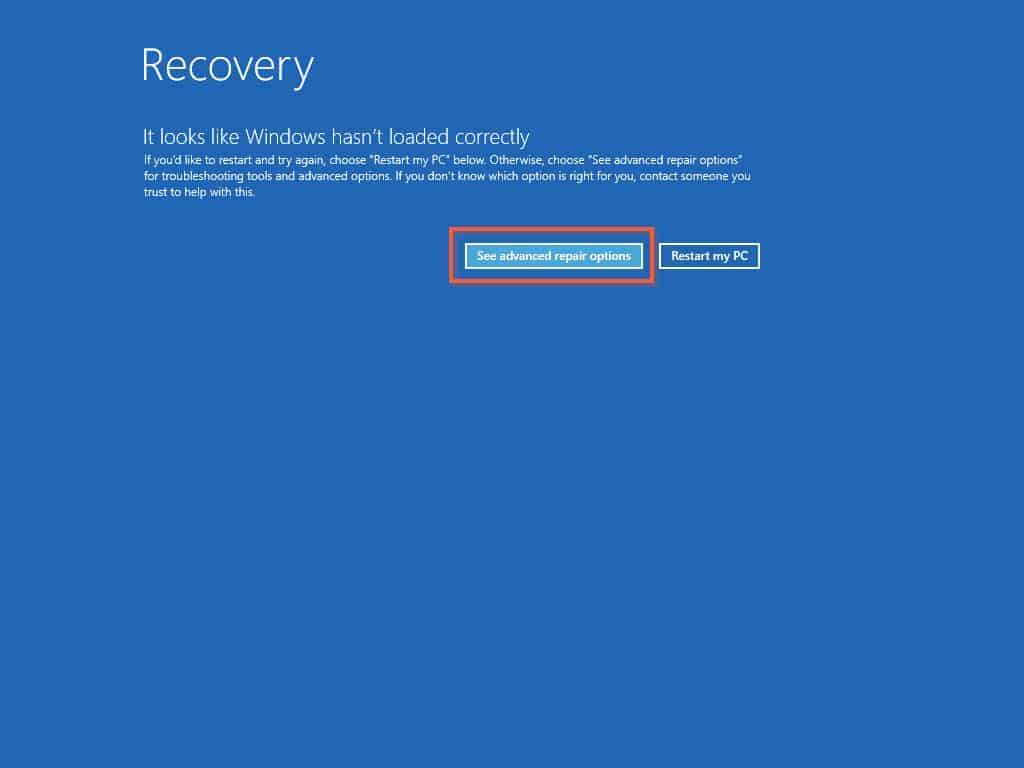
- After that, select Troubleshoot from the Choose an option page.

- Then, click Advanced options.

- Following that, select Startup settings.

- On the Startup Settings page, click the Restart button.

- After that, press “F4” or “4” on your keyboard to boot into safe mode.

- Finally, when you’ve successfully booted into safe mode, shut down the computer and start it normally. Then, you should be able to boot into your Windows 10 PC normally without it getting stuck on the loading screen.
However, if for any reason your computer is still stuck on the loading screen, try out the other solutions below.
Solution 2: Reset the Computer
Another method to fix a Windows 10 computer stuck on the loading screen is resetting it. However, since we cannot sign into the computer, you have to reset it from recovery mode.
Popular on Amazon

- Comprehensive Solution: This Windows 10 reinstall DVD provides a complete solution for resolving various system issues, including crashes, malware infections, boot failures, and performance slowdowns. Repair, Recover, Restore, and Reinstall any version of Windows.
- USB will work on any type of computer (make or model). Creates a new copy of Windows! DOES NOT INCLUDE product key.
- Windows not starting up? NT Loader missing? Repair Windows Boot Manager (BOOTMGR), NTLDR, and so much more with this DVD. Clean Installation: Allows you to perform a fresh installation of Windows 11 64-bit, effectively wiping the system and starting from a clean slate.
- Step by Step instructions on how to fix Windows 10 issues. Whether it be broken, viruses, running slow, or corrupted our disc will serve you well
- Please remember that this DVD does not come with a KEY CODE. You will need to obtain a Windows Key Code in order to use the reinstall option
Follow the steps below to achieve that.
- Press and hold the power button on your Windows 10 computer until it shuts down.
- After doing that, press the power button again to start the computer. When Windows 10 is starting up, press and hold the power button again until the computer shuts down.
- When you start your Windows 10 PC for the third time, it will boot into recovery mode.
- Then, on the Recovery mode environment, select See advanced repair options.

- After doing that, select Troubleshoot from the options that appear.

- Then, select Reset this PC.

- After doing that, you will have two options: Keep my files and Remove everything.
Apparently, the Remove everything option will delete everything on your computer while resetting it. So, I suggest you select the Keep my files option since it will retain your personal files and only delete apps and settings.

- After that, you will be asked to choose an account to continue. For this demonstration, I will choose the FIRE HUB V 019 account.

- Then, you will be asked to input the password to the account. If there is a password on the account, input the password and click the Continue button.
However, if there isn’t a password on the account, skip inputting any password and just click the Continue button.

- After that, select Cloud download. You must be wondering why I choose Cloud download instead of Local reinstall.
Well, this is because Local reinstall uses the system files already on your PC to reset and reinstall Windows 10. However, the problem we are trying to fix might be caused by a corrupt system file.
Hence, there is a possibility that when you choose the Local reinstall option, your computer may not reset properly.
By the way, Cloud download can use more than 4 GB of data!

I am hoping this solution fixes the problem. Nevertheless, if the problem persists, try the last solution in this guide.
Independent reader supportYour contribution helps us test, update, and keep practical guides available for everyone.Solution 3: Perform Startup Repair
The final solution I will be demonstrating in this guide to fix this issue is to perform startup repair. To do that, follow the steps below.
- Press and hold the power button on your Windows 10 PC until it shuts down.
- Then, press the power button again to boot the PC. When Windows 10 is starting up, press and hold the power button again until the computer shuts down.
- When you start the Windows 10 computer for the third time, it should boot into recovery mode.
- Then, on the Recovery page, select See advanced repair options.

- After doing that, select Troubleshoot.

- Following that, choose Advanced options.

- Then, click Startup Repair from the options that appear.

After doing all that, Windows will begin to diagnose your PC and attempt to fix the problem.
Crashes, No Sound, or Screen Glitches?
Random freezes, missing sound and display glitches usually trace back to one bad driver. Find and replace yours safely.Free scan · under a minuteWindows Errors? Fix Them Before They Spread
Repair common Windows errors and clear accumulated junk for a smoother, more stable PC - no reinstall needed.Free scan · no reinstallFrequently Asked Questions
Follow the procedures below to boot into safe mode on your Windows 10 computer.
a) Press and hold the power button on your PC until it shuts down.
b) Then, press the power button again to start the computer. When Windows 10 is starting up, press and hold the power button on your computer again until it shuts down.
c) When you start your Windows 10 computer for the third time, it will boot into recovery mode.
d) Then, select See advanced repair options on the Recovery page.
e) Following that, select Troubleshoot.
f) After that, click Advanced options.
g) Then, select Startup settings.
h) After doing that, click the Restart button.
i) Then, press “4” or “F4” on your keyboard to boot your Windows 10 computer into safe mode.
There are several reasons why your Windows 10 computer gets stuck on the loading screen. For example, it may be due to software glitches or a corrupt system file.
No, it doesn’t. A clean boot is just a method of starting up your PC with a minimum of programs and drivers.
Basically, it starts your computer only with the essential files and services the operating system needs.
To force your computer to shut down, press and hold your computer’s power button for a few seconds until it shuts down.
Recommended Free Tools
Also popular on Amazon

- Fresh USB Install With Key code Included
- 24/7 Tech Support from expert Technician
- Top product with Great Reviews
Windows safe mode loads minimal drivers, services, and software. So, if you start your Windows PC in Safe mode, you can log in to your PC so you can figure out what’s preventing the operating system from functioning correctly. In essence, safe mode only offers limited access to features and is only meant to be used for maintenance.
Conclusion
A majority of reasons can cause your Windows 10 PC to get stuck on the loading screen. Hopefully, with the solutions provided in this guide, you will be able to get rid of the problem once and for all.
To be more specific, we discussed how to fix the problem by booting into safe mode. We also discussed solving the issue by resetting the Windows 10 computer.
Not just that, I also provided details on how to fix the issue by performing startup repair.
Free tools Windows power users keep installed
One-click scans. No signup required.
Was this guide helpful? If it was, click on “Yes” beside the “Was this page helpful” question below.
You may also express your thoughts and opinions by using the “Leave a Comment” form at the bottom of this page.
Finally, you may find our other Windows 10 Fix-it guides helpful.
Quick Recap
Product prices and availability are accurate as of the date/time indicated and are subject to change. Any price and availability information displayed on Amazon at the time of purchase will apply.
Do these 3 things before closing this tab:
1Repair Windows errors before they cause bigger problems2Fix the driver behind crashes, sound loss and screen glitches3Clear out junk files and repair common Windows errors


