

The Tool Desk
Outbyte Driver Updater FREEFix the driver behind crashes, sound loss and screen glitchesFind Drivers →Outbyte PC Repair FREEClear out junk files and repair common Windows errorsFree Scan →iTechGuides is reader-supported. When you buy through links on our site, we may earn an affiliate commission. As an Amazon Associate I earn from qualifying purchases. Learn more
Snipping Tool not working on your Windows 11 computer? There is no cause for alarm; this guide features various fixes for this issue.
Solution 1: Repair or Reset Snipping Tool
The Snipping Tool app on your Windows 11 computer might be corrupted, which may cause it not to work. Hence, repairing or resetting it should be able to fix the problem.
Thus, follow the steps below to repair or reset the Snipping Tool app on your Windows 11 computer.
Windows Errors? Fix Them Before They Spread
Repair common Windows errors and clear accumulated junk for a smoother, more stable PC - no reinstall needed.Free scan · no reinstallCrashes, No Sound, or Screen Glitches?
Random freezes, missing sound and display glitches usually trace back to one bad driver. Find and replace yours safely.Free scan · under a minute- On the taskbar, click the Windows 11 Search icon.

- Afterward, type “snipping tool” (without the quotes) in the search field. Then, right-click the Snipping Tool app from the search result and select App settings.

- Next, select Repair under the Reset category on the Settings window’s right pane. Hence, Windows will attempt to repair any issue causing the Snipping Tool not to work.

- Afterward, check if the Snipping Tool app on your Windows 11 computer is working again. If it isn’t working, you can then reset the app by clicking the Reset button under the Reset category in the Settings window.

- When you do that, click the Reset button once again.

- After doing all that, the Snipping Tool on your Windows 11 PC should begin to work again. However, if it doesn’t, check out the other solutions below.
Solution 2: Disable Focus Assist
Focus Assist is an awesome Windows feature that filters unwanted notifications to improve your productivity. However, this feature can cause issues with some helpful apps, like the Snipping Tool, by prohibiting them from working as expected.
Popular on Amazon

- 『Better Than Finger』- A stylus has a better touch point than the tip of your finger giving better accuracy to little touch focuses like keys on the console. No more big finger troubles.
- 『Anti-Scratch Tip』- The stylus pen tip was made of soft, and scratch resistant rubber,which can protect your screen from scratching and keep no fingerprints.
- 『Easy To Carry』- Slim body and lightweight. Clip design is great for clipping in your pocket, diary, etc. Great stylus for kids.
- 『Perfect For Sharing』- Get 10 of tablet stylus with an unbeatable price. You can share this tablet pen to your friends or family.
- 『Universal Capacitive Stylus』- 100% compatible with all capacitive touch screen devices,such as iPad,iPhone,tablets,samsung galaxy and so on.
Therefore, disabling this feature could fix this problem. Hence, follow the steps below to disable Focus Assist on your Windows 11 computer.
- Right-click the Windows 11 Start menu and left-click Settings from the displayed options.

- Ensure System is selected on the left pane of the Settings window. Then, click Focus assist on the right pane of the window.

- Under Focus assist, click the circle beside Priority only and select Customize priority list.

- After that, click Add an app under the Apps category on the window’s right pane. Then, select Snipping Tool from the list that appears.

- After doing all that, try opening the Snipping Tool on your Windows 11 PC and check if it works. If it works, cheers!
However, if it doesn’t, try the next solution below.
Solution 3: Run SFC and DISM Scans
Sometimes, a corrupt system file can be the cause of this problem. Hence, running the SFC and DISM scans should be able to fix the issue.
So, follow the steps below to run the SFC, and DISM scans on your Windows 11 computer.
Recommended Free Tools
Also popular on Amazon

- Battery-Free Pen: StarG640 drawing tablet is the perfect replacement for a traditional mouse! The XPPen advanced Battery-free PN01 stylus does not require charging, allowing for constant uninterrupted Draw and Play, making lines flow quicker and smoother, enhancing overall performance
- Ideal for Online Education: XPPen G640 graphics tablet is designed for digital drawing, painting, sketching, E-signatures, online teaching, remote work, photo editing, it's compatible with Microsoft Office apps like Word, PowerPoint, OneNote, Zoom, Xsplit etc. Works perfect than a mouse, visually present your handwritten notes, signatures precisely
- Compact and Portable: The G640 art tablet is only 2 mm thick, it's as slim as all primary level graphic tablets, allowing you to carry it with you on the go
- Chromebook Supported: XPPen G640 digital drawing tablet is ready to work seamlessly with Chromebook devices now, so you can create information-rich content and collaborate with teachers and classmates on Google Jamboard’s whiteboard; Take notes quickly and conveniently with Google Keep, and effortlessly sketch diagrams with the Google Canvas
- Multipurpose Use: Designed for playing OSU! Game, digital drawing, painting, sketch, sign documents digitally, this writing tablet also compatible with Microsoft Office programs like Word, PowerPoint, OneNote and more. Create mind-maps, draw diagrams or take notes as replacement for mouse
- Click the Search icon on your Windows 11 taskbar.
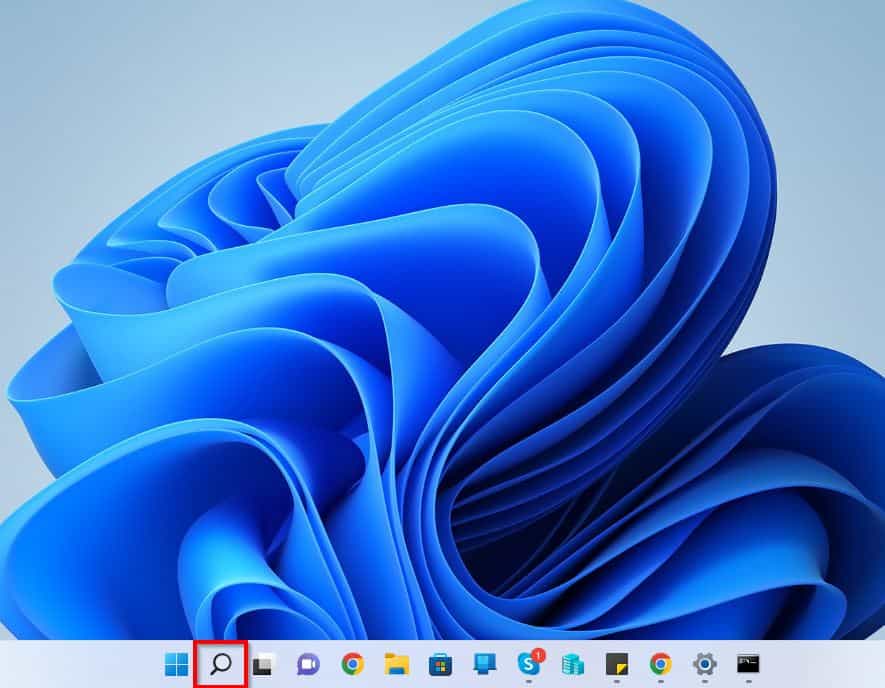
- Afterward, type “cmd” or “command prompt” in the search field. Then, right-click the Command Prompt app from the search result and select Run as administrator.

- When you do that, you will receive a User Account Control prompt requesting if you want to allow the app to make changes to your PC. Left-click Yes to continue.
- When the Command Prompt app finally opens, input the commands below sequentially and press Enter on your keyboard.
sfc /scannow
DISM.exe /Online /Cleanup-image /Restorehealth
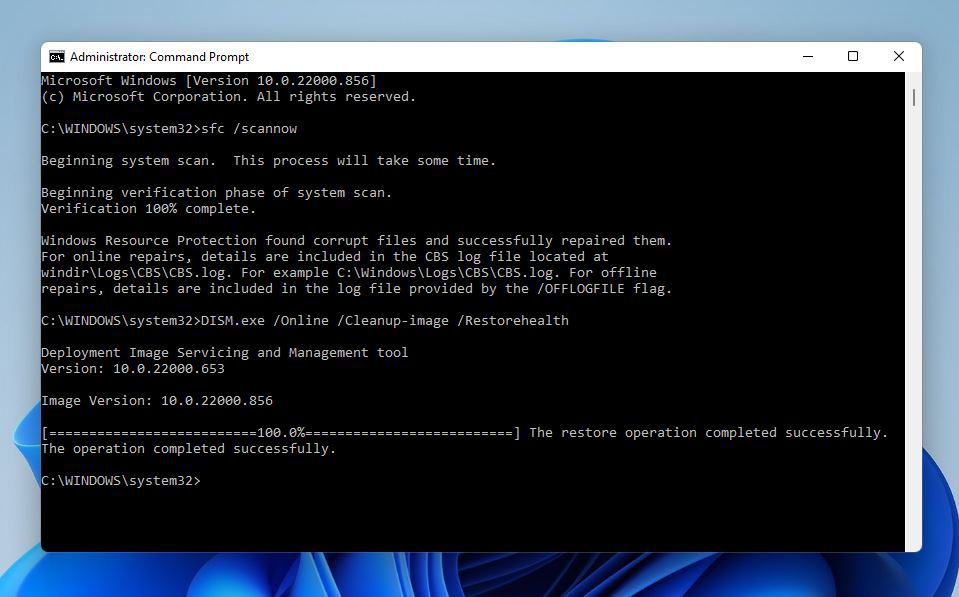
- Finally, restart your Windows 11 PC after the commands have been successfully executed. Hopefully, this Snipping Tool issue will be resolved.
Nonetheless, if the issue isn’t resolved for whatever reason, you can try the last solution in the guide.
Solution 4: Uninstall and Re-install Snipping Tool
The final solution to fix this problem is to uninstall and re-install the Snipping Tool app on your computer. Follow the steps below to achieve that.
- Click the Windows 11 Search icon on the taskbar.
- Then, type “snipping tool” in the search field above. Next, right-click the Snipping Tool app from the search result and select Uninstall from the displayed options.

- Afterward, click Uninstall once again.

- After that, type “microsoft store” in the search field and select the Microsoft Store app from the search result.

- When the Microsoft Store opens, input “snipping tool” in the search field and select the Snipping Tool app from the search result.

- Afterward, click the Get button. Hence, the Snipping Tool app will begin to download and automatically install on your Windows 11 computer.

- Finally, click the Open button after the Snipping Tool app has been successfully installed on your PC. Hopefully, the app will work this time around.

Frequently Asked Questions
You can launch the Snipping Tool on your Windows 11 PC by pressing your keyboard’s Windows + Shift + S keys.
Snipping Tool is a free app for Windows computers for making screenshots.
Also popular on Amazon

- Wide Compatibility for Multiple Devices: Works seamlessly with Samsung, iOS, Android, Chromebook, Smartphone, and other touchscreen devices. No drivers are needed- simply open and play, ensuring compatibility with a variety of tablets and smartphones. No Charging Required, Ready Anytime.
- High-Precision Touch for Smooth Writing & Drawing: Featuring advanced capacitive technology, this stylus pen offers high sensitivity and precision, delivering a smooth, real-pen experience perfect for writing, sketching, note-taking, and more.
- Ergonomic Design for Comfortable Grip: Crafted with a lightweight and durable body, the stylus is designed for long periods of comfortable use. Whether you’re creating, studying, or performing everyday tasks, it ensures a pleasant grip.
- Scratch-Resistant & Durable, Protects Your Screen: Equipped with a soft, high-quality Disc tip that ensures smooth touch without scratching the screen, keeping your device’s display in pristine condition while providing a seamless user experience.
- A great gift: Get 3 different colors of styluses at an unbeatable price instead of a high-priced pencil. You can share these stylus pens with your friends or family.
Follow the steps below to reset the Snipping Tool app on your Windows 11 computer.
a) Click the Windows 11 Search icon on the taskbar.
b) Then, type “snipping tool” in the search field.
c) Afterward, right-click the Snipping Tool app from the search result and select App settings.
d) Next, left-click the Reset button under the Reset category on the right pane of the Settings window.
e) Finally, click the Reset button once again.
Yes, you can download the Snipping Tool app on your Windows 11 computer from the Microsoft store.
The Snipping Tool was introduced on November 7, 2002.
Also popular on Amazon

- Stylus Pen for Touchscreen: No Bluetooth or charging needed—use instantly on any capacitive touch screen (iPad, iPhone, Android, Samsung). Dual rubber tips (5mm/6.6mm) ensure precise control for writing, drawing, or gaming. Lightweight aluminum body with vibrant colors.
- Precision & Comfort Redefined: High sensitivity rubber tip glides smoothly without lag or scratches. Ergonomic design reduces wrist strain for extended use. Compatible with tablets, phones, and Laptops.
- Dual-Tip Flexibility: Switch between 0.20” and 0.26” rubber nibs for detailed art or bold notes. Anti-scratch, fingerprint-resistant tip. Pretty bright metal colors inspire creativity.
- Effortless Multi-Device Compatibility: Works seamlessly on Apple, Samsung, Android, and more. No apps or setup—just pick up and write. Perfect for notes, games, or gifts—ready to spark ideas instantly. Replaceable tips included for long-term use.
- Creative Freedom, Anywhere: Lightweight aluminum stylus with natural grip. Includes 6 replaceable tips and 3 color stylus pens. Perfect for sharing with friends, family, or colleagues, this bundle ensures you’re always equipped to capture inspiration.
Conclusion
The Snipping Tool is a useful Windows app for making screenshots. Hence, it can be quite annoying when the application isn’t working on your Windows 11 computer.
Gladly, this guide provided various fixes for this problem. Specifically, this guide taught us how to repair or reset the Snipping Tool app in Windows 11 so as to fix the issue.
Do these 3 things before closing this tab:
1Repair Windows errors before they cause bigger problems2Scan for outdated or missing drivers - takes under a minute3Clear out junk files and repair common Windows errorsWe also learned how to disable Focus Assist. That’s not all; this article also discussed steps to run the SFC and DISM scans to solve this Snipping Tool problem.
Also popular on Amazon

- PLEASE NOTE:XPPen Artist13.3 Pro drawing tablet Need to connect with computer,you need to use it with your computer or laptop, the 3 in 1 cable is included
- Drawing Tablet with Screen: Tilt Function- XPPen Artist 13.3 Pro supports up to 60 degrees of tilt function, so now you don't need to adjust the brush direction in the software again and again. Simply tilt to add shading to your creation and enjoy smoother and more natural transitions between lines and strokes
- Graphics Tablets: High Color Gamut- The 13.3 inch fully-laminated FHD Display pairs a superb color accuracy of 88% NTSC (Adobe RGB≧91%,sRGB≧123%) with a 178-degree viewing angle and delivers rich colors, vivid images, and dazzling details in a wider view. Your creative world is now as powerful as it is colorful
- Drawing Pad: One is enough- The sleek Red Dial on the display is expertly designed with creators in mind, its strategic placement allows for natural drawing postures. With just one wheel, you can effortlessly zoom in and out, adjust brush sizes, and flip the canvas—all tailored to suit the habits of everyday artists. The 8 customizable shortcut keys allow you to personalize your setup, streamlining your workflow and enhancing creative efficiency
- Universal Compatibility & Software Support:supports Windows 7 (or later), Mac OS X 10.10 (or later), Chrome OS 88 (or later), and Linux systems. Fully compatible with major creative software including Photoshop, Illustrator, SAI, and Blender 3D. Register your device to access additional programs like ArtRage 5 and openCanvas for expanded creative possibilities.
In this guide, I also provided procedures to uninstall and re-install the Snipping Tool app on your Windows 11 computer.
I hope you were able to fix this annoying problem with the solutions included in this guide. If you were, click on “Yes” beside the “Was this page helpful” question below.
You may also express your thoughts and opinions by using the “Leave a Comment” form at the bottom of this page.
What’s actually slowing this PC down?
Pick the symptom - the matching free tool is one click away.
Lastly, visit our Fix-It Guides page for more Windows 11 fixes.
Quick Recap
Product prices and availability are accurate as of the date/time indicated and are subject to change. Any price and availability information displayed on Amazon at the time of purchase will apply.

![DistributedCOM DC Server Event ID 10016 DCDIAG Error [Fixed]](https://www.itechguides.com/wp-content/uploads/2025/04/DistributedCOM-DC-Server-Event-ID-10016-DCDIAG-Error-Fixed-768x494.jpg)
![Attribute Editor Tab Missing in ADUC [Fixed]](https://www.itechguides.com/wp-content/uploads/2024/03/Attribute-Editor-Tab-Missing-in-ADUC-Fixed-featured-image-768x512.jpg)


Solution 3 worked for me. Thank you. This article is very well written!