

iTechGuides is reader-supported. When you buy through links on our site, we may earn an affiliate commission. As an Amazon Associate I earn from qualifying purchases. Learn more
This Itechguide teaches you how to delete a page on Facebook. The guide covers steps to delete a page on Facebook from a PC, iPhone or Android.
Option 1: Delete a Page from a PC
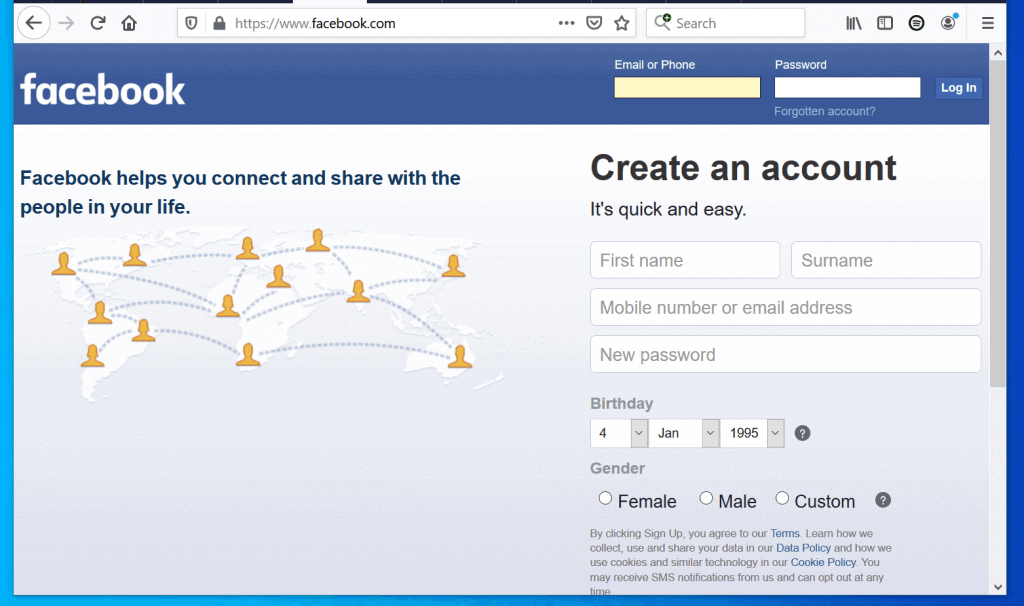
- Open Facebook.com from a browser in your PC. Then, login with your Email or Phone and Password.
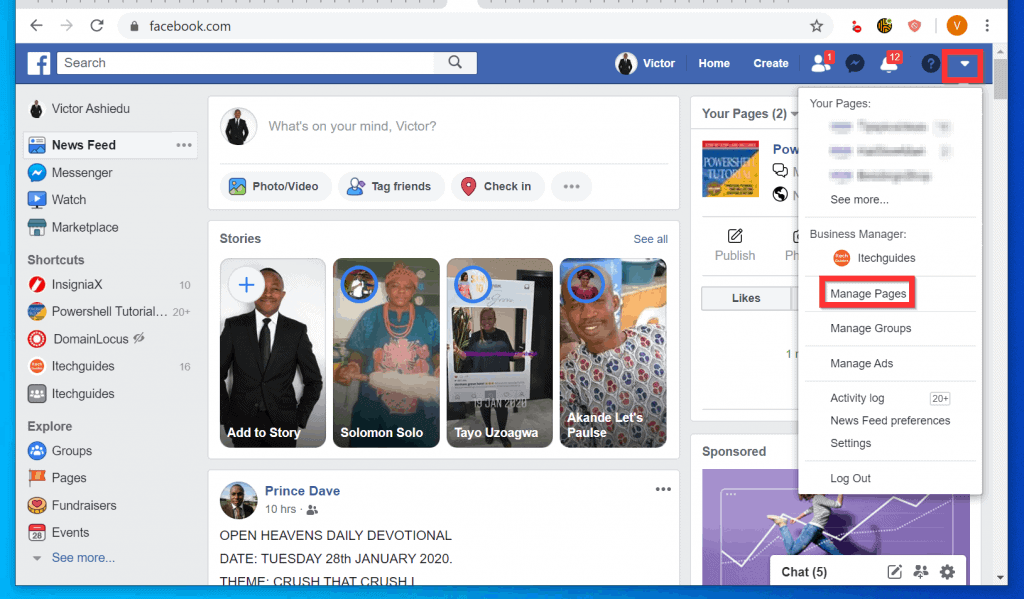
- The fastest method to view a list of pages you manage is via Manage Pages. To open Manage Pages, at the top right of the page, click the arrow pointing downwards.
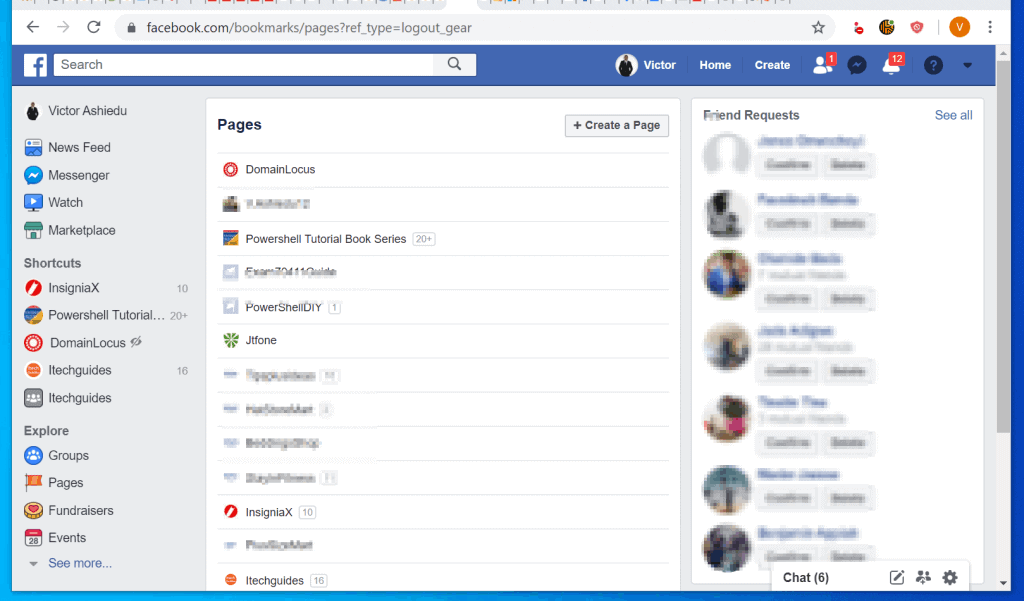
- Then, from the list of Facebook pages you manage, click on the one you want to delete.
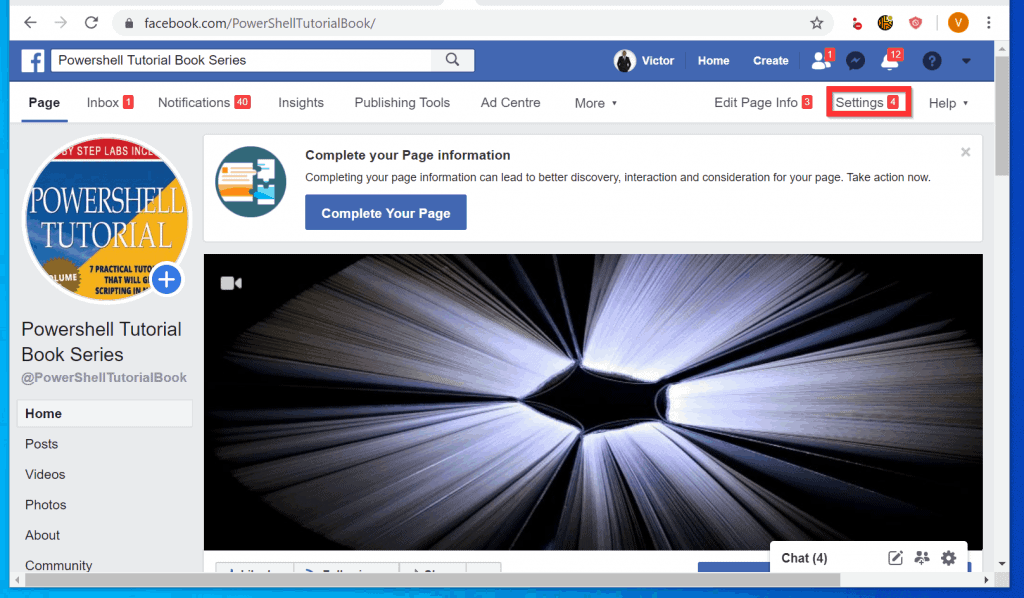
- When the page opens, at the top right of the screen, click Settings.
- Then, on the right pane of the General tab (opens by default), scroll down to the bottom of the pane, beside Remove Page, click Delete your Page.
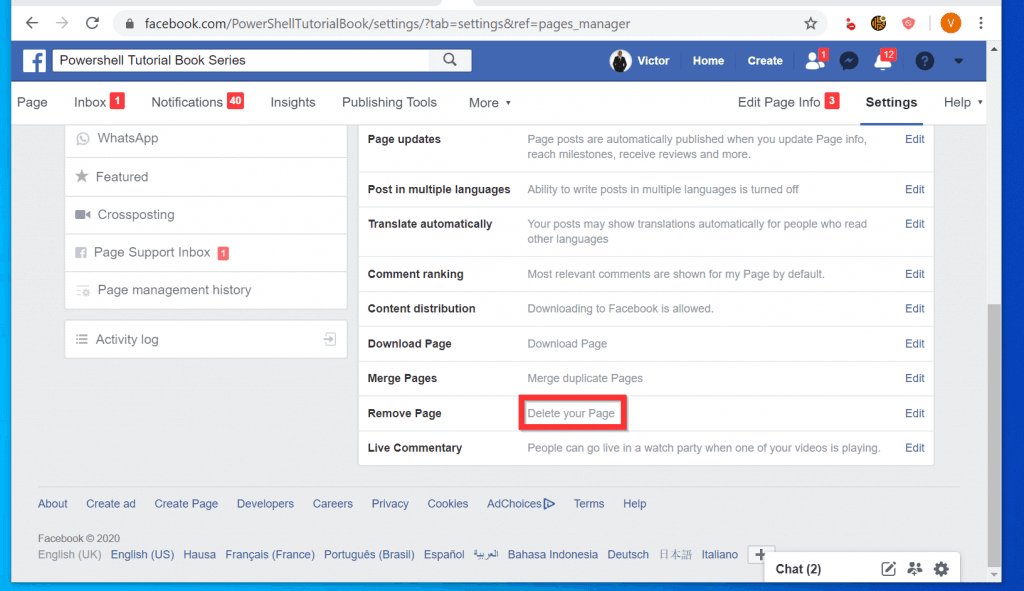
- Finally, read the pre-delete information and if you still want to proceed, click Delete. A page delete confirmation pop up will be displayed.
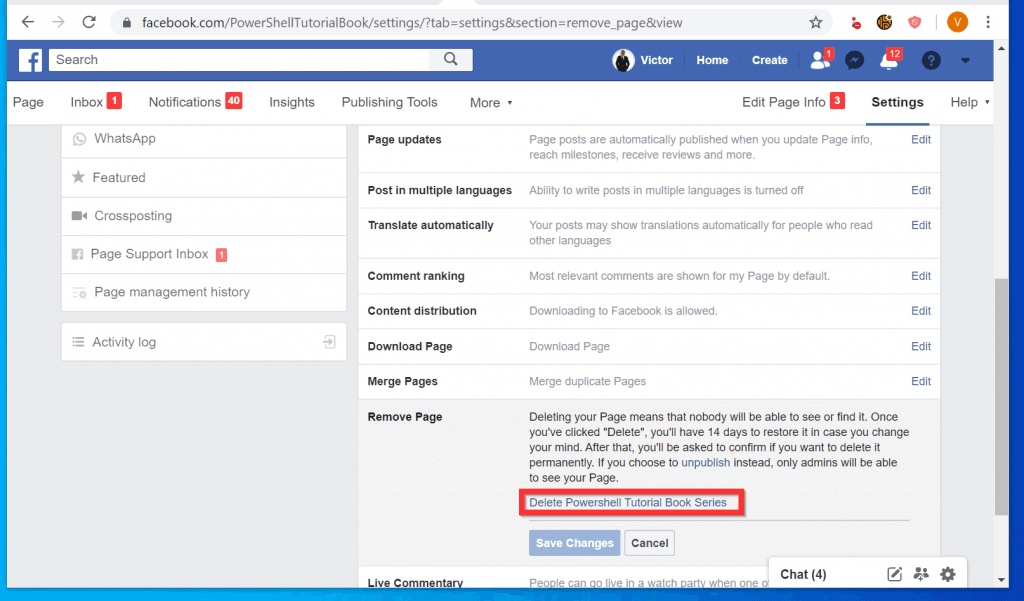
- If you want the page to become unavailable immediately, at the bottom left of the pop up window, check the Unpublish this page box. Then, to delete the page, at the bottom right of the pop up, click Delete Page?.
- When the pop up disappears, remember to click Save Changes.

Option 2: Delete a Page from Android or iPhone
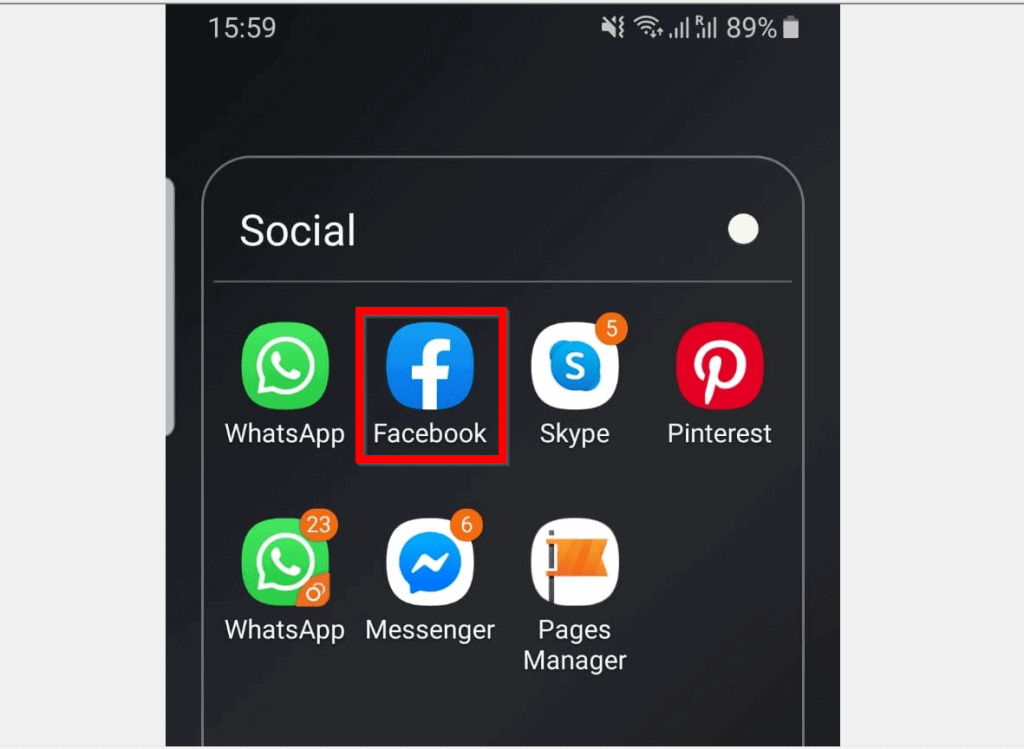
- Open Facebook App on your phone.
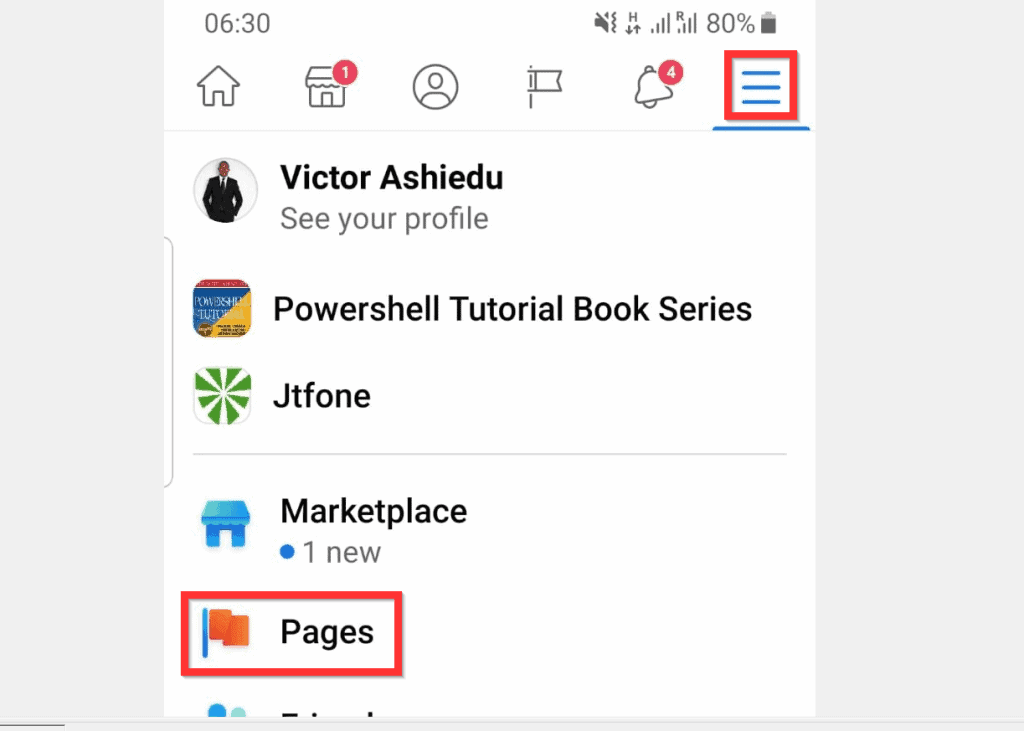
- Then, tap the App menu icon. From the displayed menu options tap Pages.
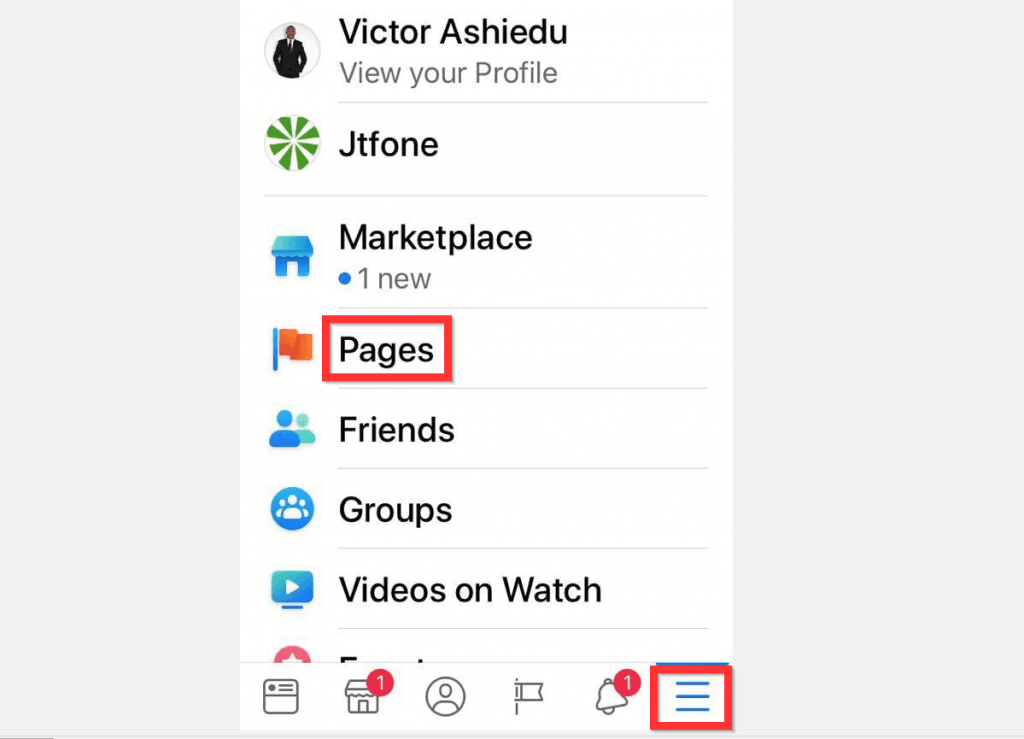
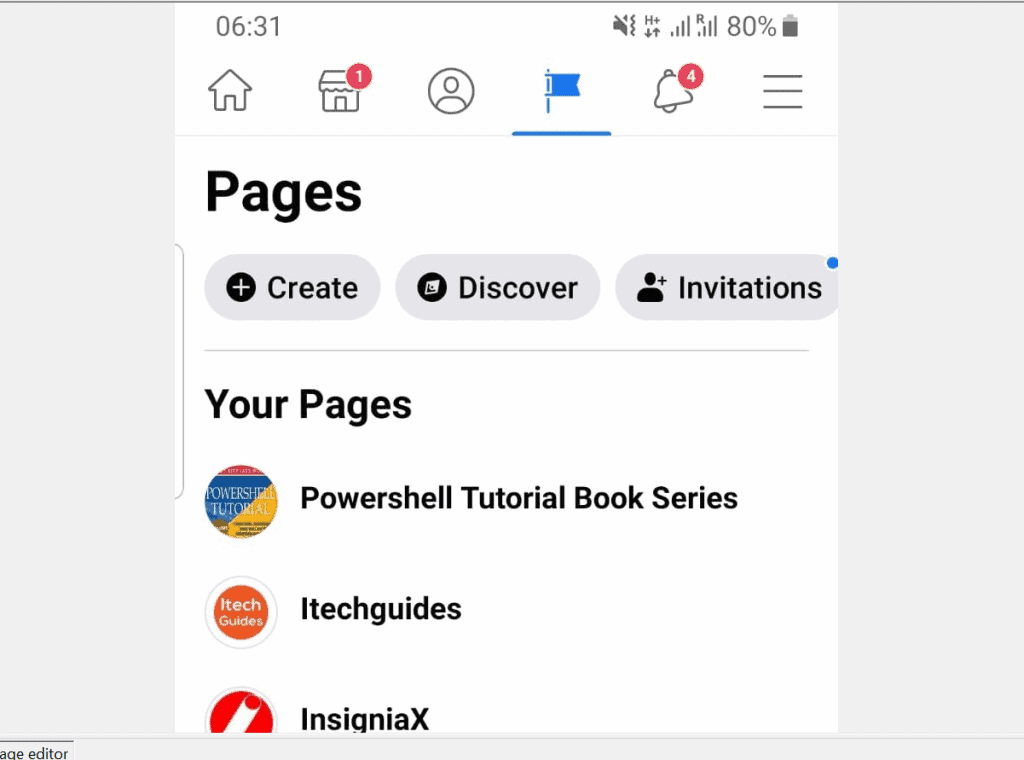
- From your Facebook Pages, tap on the one you want to delete.
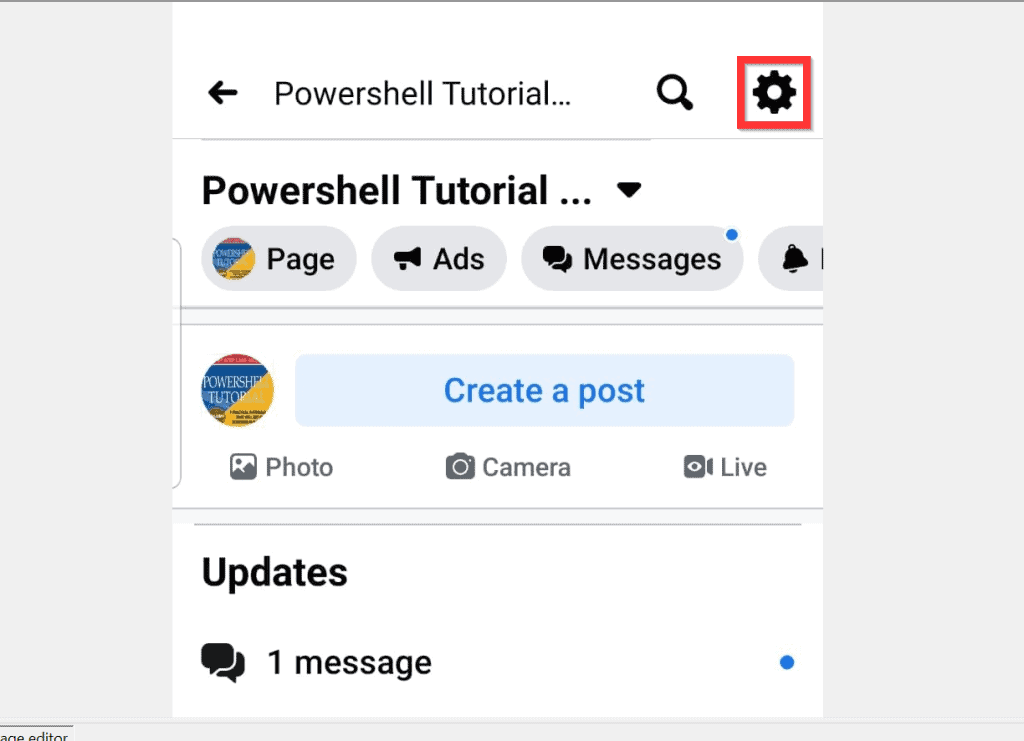
- Then, at the top right of the Page, tap Settings icon (looks like a gear).
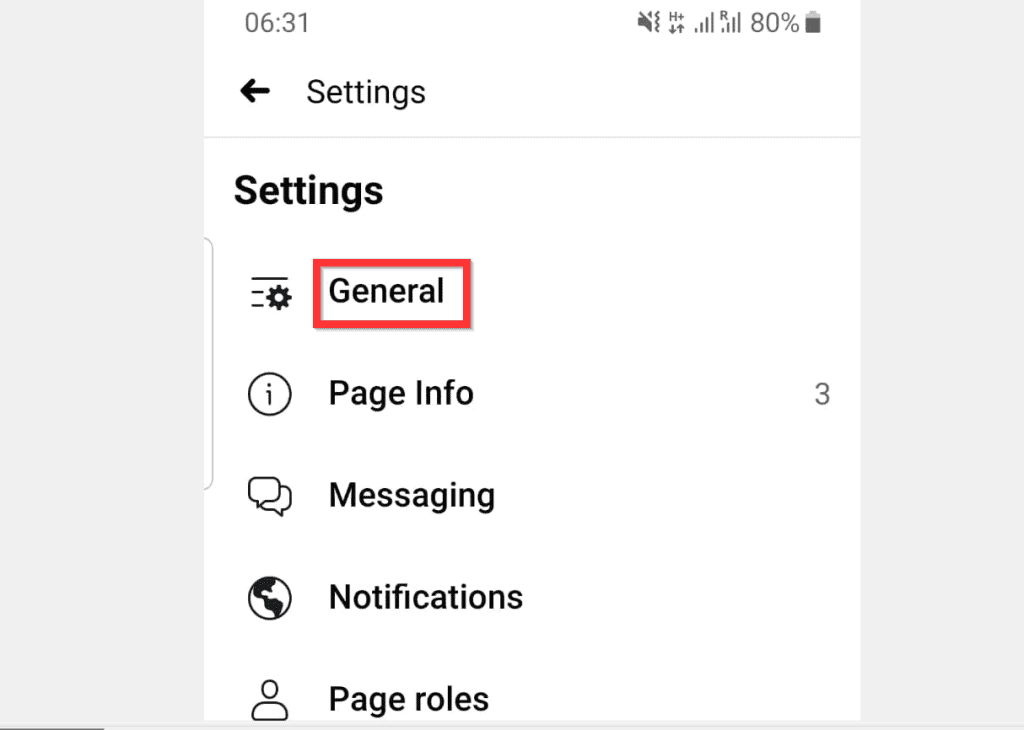
- When the Settings screen opens, tap General.
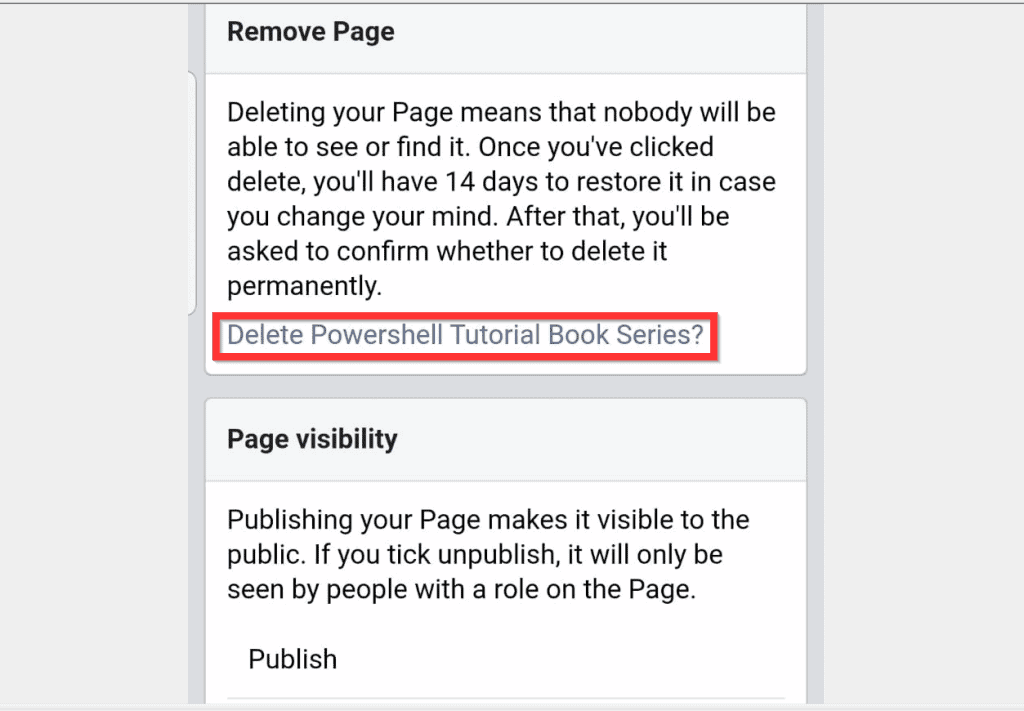
- From the General settings page, scroll down to Remove Page section and tap Delete. The App will request a delete confirmation.
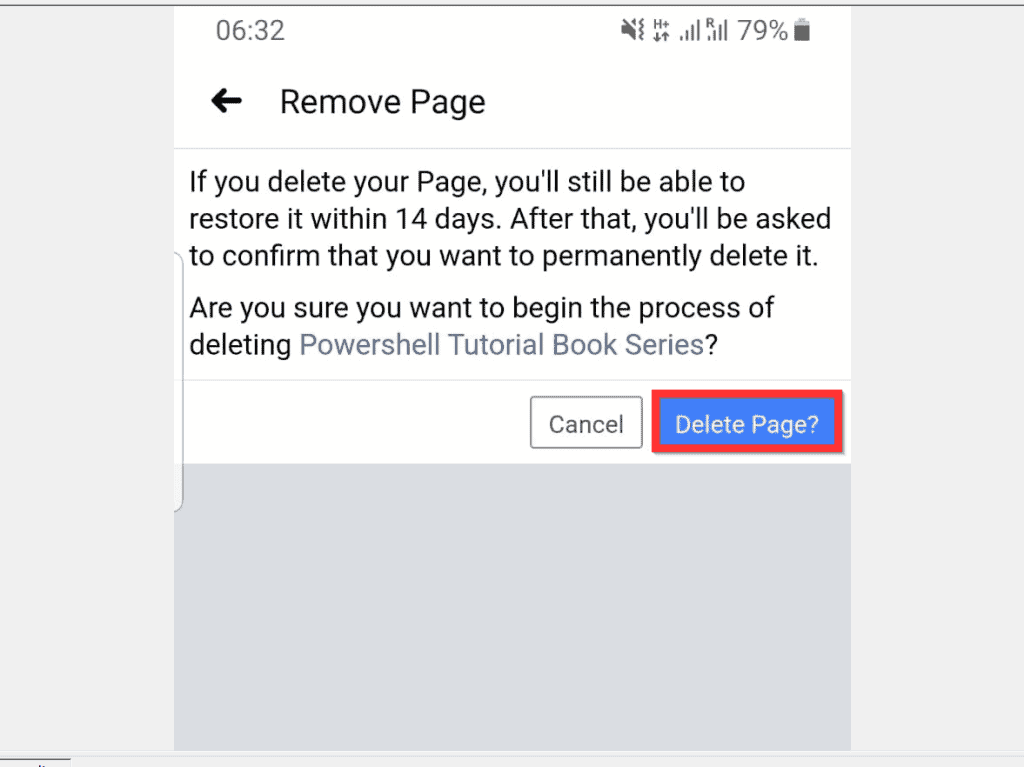
- Finally, to delete a page on Facebook from Android or iPhone App, at the bottom right of Remove Page, tap Delete Page?.
It is this easy to delete a page on Facebook! I hope you found this Itechguide helpful.


If you did, click on “Yes” beside the “Was this page helpful” question below. You may also express your thoughts and opinions by using the “Leave a Comment” form at the bottom of this page.
Recommended Free Tools
Finally, for more Social media Itechguides, visit our Social Media how to page.
Quick Recap
Also popular on Amazon
Also popular on Amazon
Also popular on Amazon
Also popular on Amazon
Popular on Amazon
Product prices and availability are accurate as of the date/time indicated and are subject to change. Any price and availability information displayed on Amazon at the time of purchase will apply.
Independent reader supportYour contribution helps us test, update, and keep practical guides available for everyone.


