

Free tools Windows power users keep installed
One-click scans. No signup required.
iTechGuides is reader-supported. When you buy through links on our site, we may earn an affiliate commission. As an Amazon Associate I earn from qualifying purchases. Learn more
This Itechguide teaches you how to create drop down list in Google Sheets. The guide covers steps to create drop down list in Google Sheets from a PC or Android.
Option 1: Create Drop Down List from a PC
Method 1: Create “List from a Range” Drop-down
To create List from Range drop-down, you use a set of data in a cell range to create your drop-down. Here are the steps…



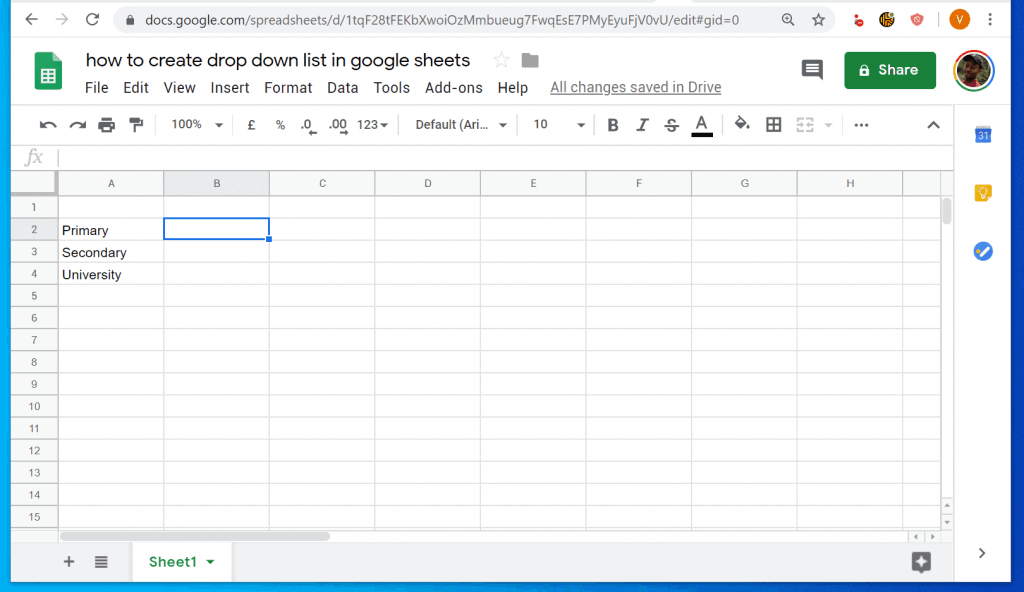
- Open the spreadsheet you want to create the drop-down. Then, click on the cell you want to create your drop-down. In this example, the data for my drop-down is in cells A2-A4 – I want to create the drop-down in cell B2. I will click on cell click B2.
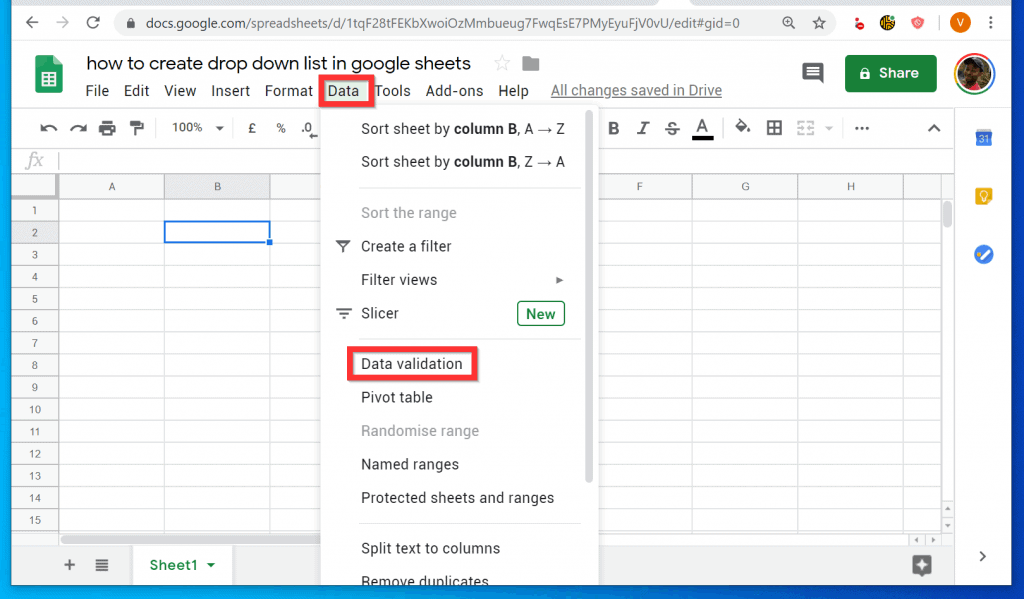
- Once the cell is selected, at the menu, click Data. Then, scroll down the displayed options and click Data validation.

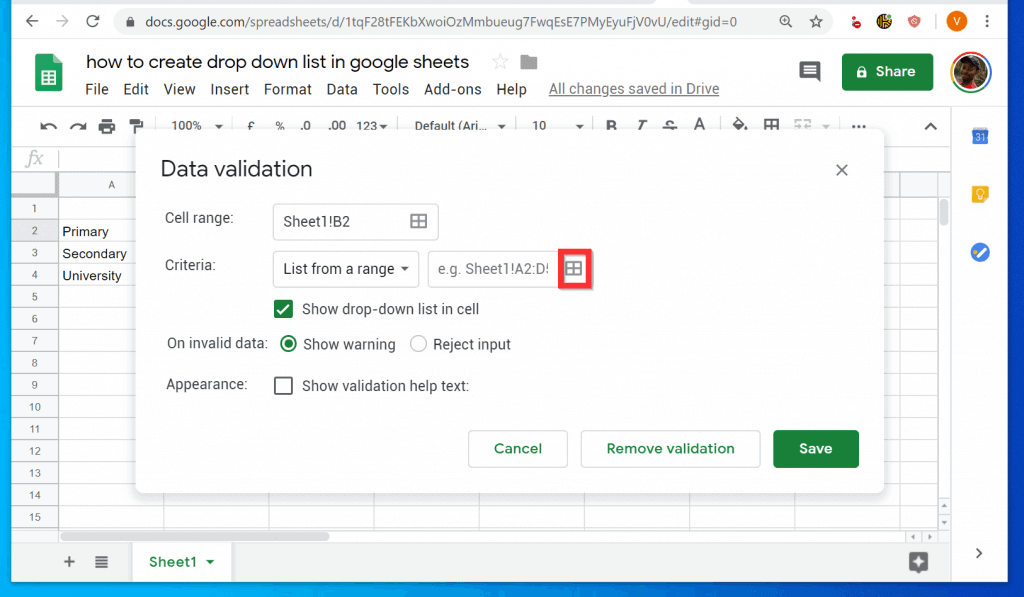
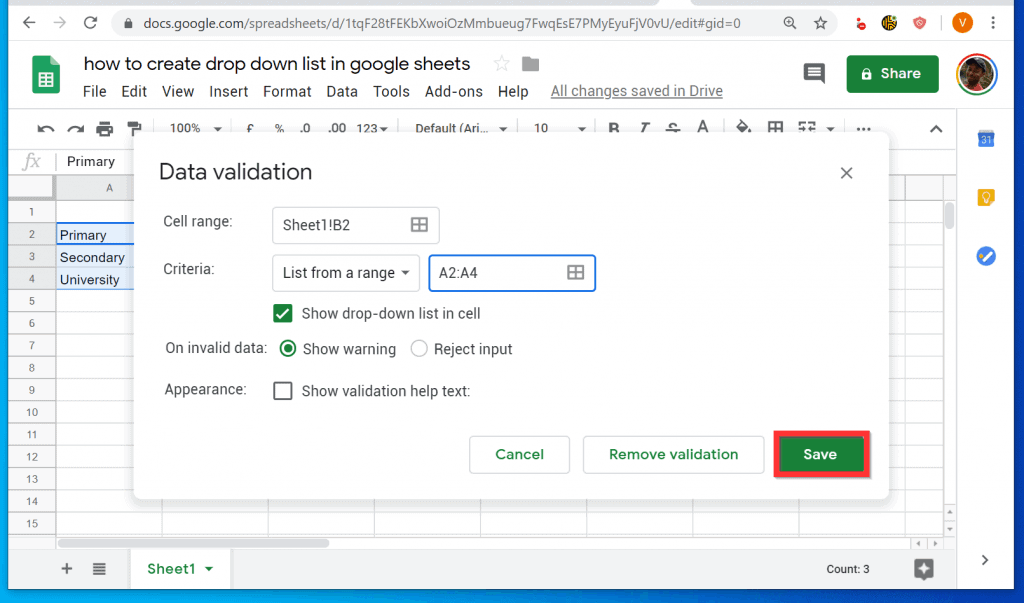
- When Data validation opens, in the Criteria drop-down, ensure that List from a range is selected (default). Then, click the cell icon next to the drop-down (highlighted in red below).
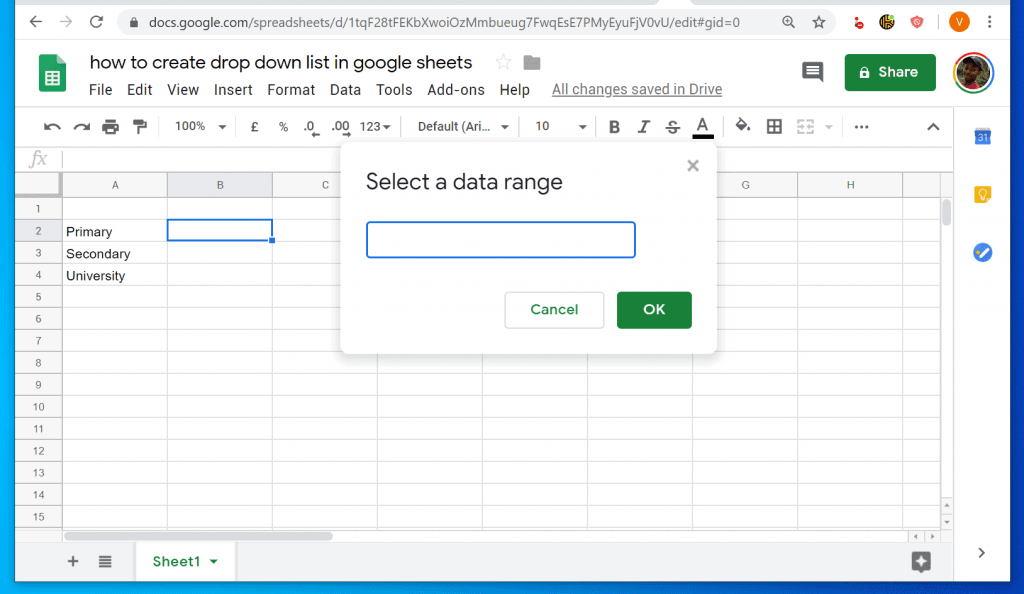
- Another small pop up (Select a data range) will be displayed. Click the cell range with the data you want to use for your drop-down. In this example, I will click cells A2-A4.
- After selecting the cells with your data, click OK. You will be returned to the Data validation pop up.

- Back at the Data validation window, to create drop down list in Google Sheets, click Save. Alternatively, you can perform additional settings before saving your changes.
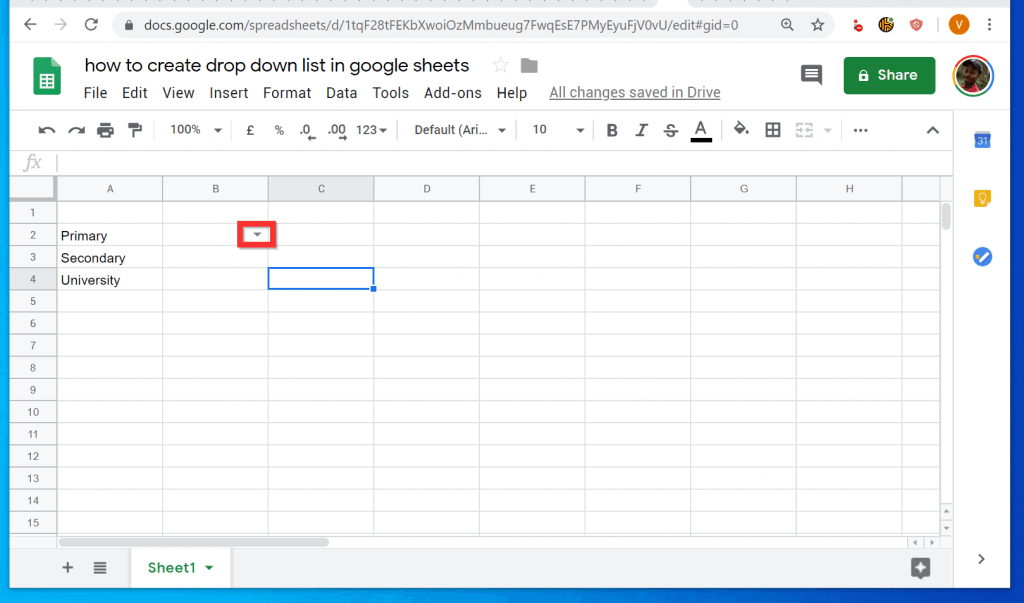
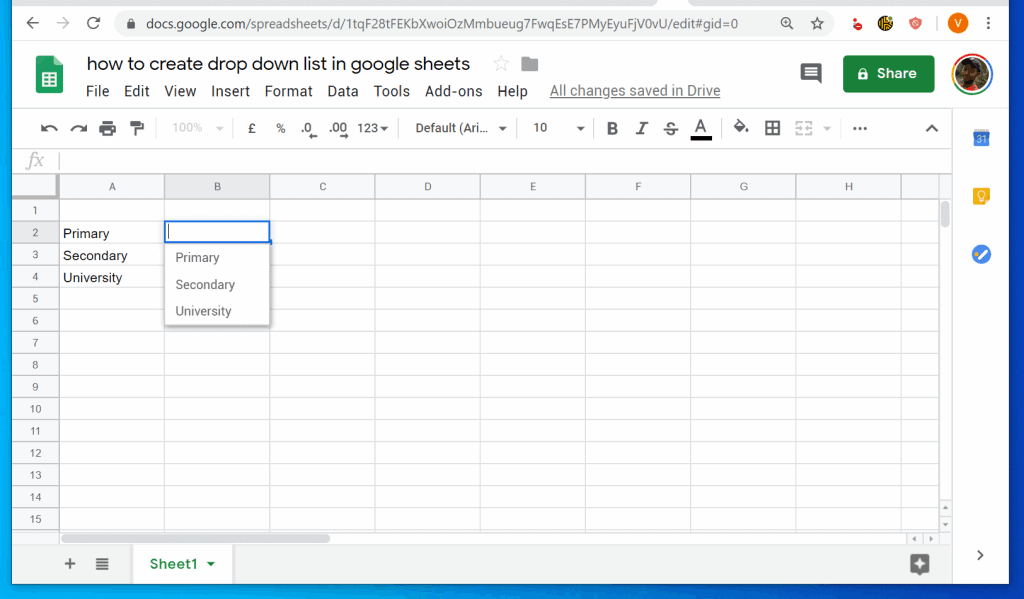
- The drop-down will be created in the cell. To see the drop-down options, click on the drop-down arrow.
Method 2: Create “List of Items” Drop-down
Creating a List of Items drop-down does not require existing data in any cell. You list the items you want to use in your drop-down. Here are the steps…
- Click on the cell you want to create the drop-down. Then, from the menu click Data and select Data validation. In this example, I want to create my drop-down list in cell B2.
- When the Data validation pop up window opens, click the Criteria drop-down and select List of items.
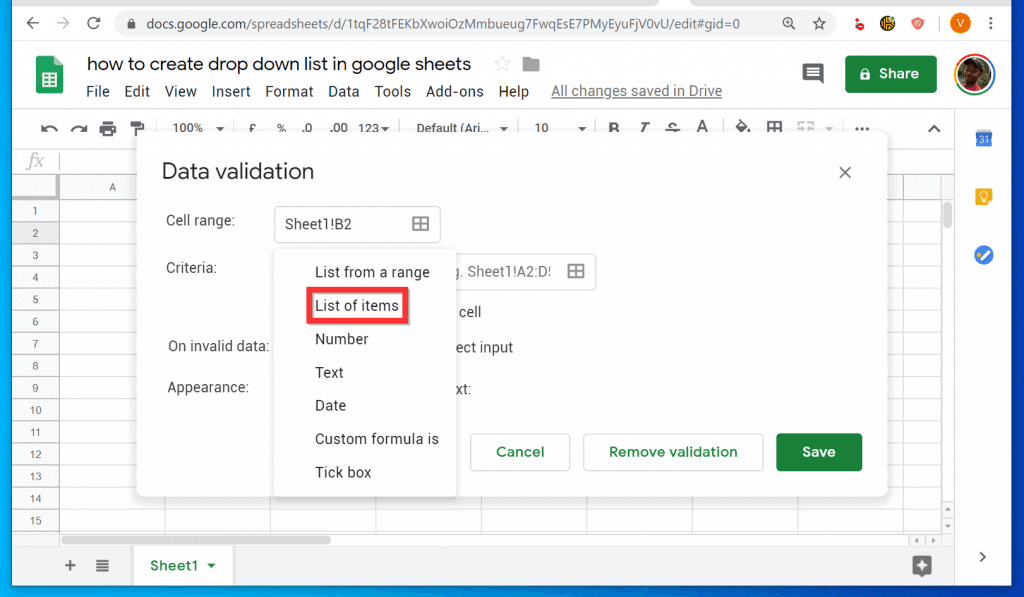
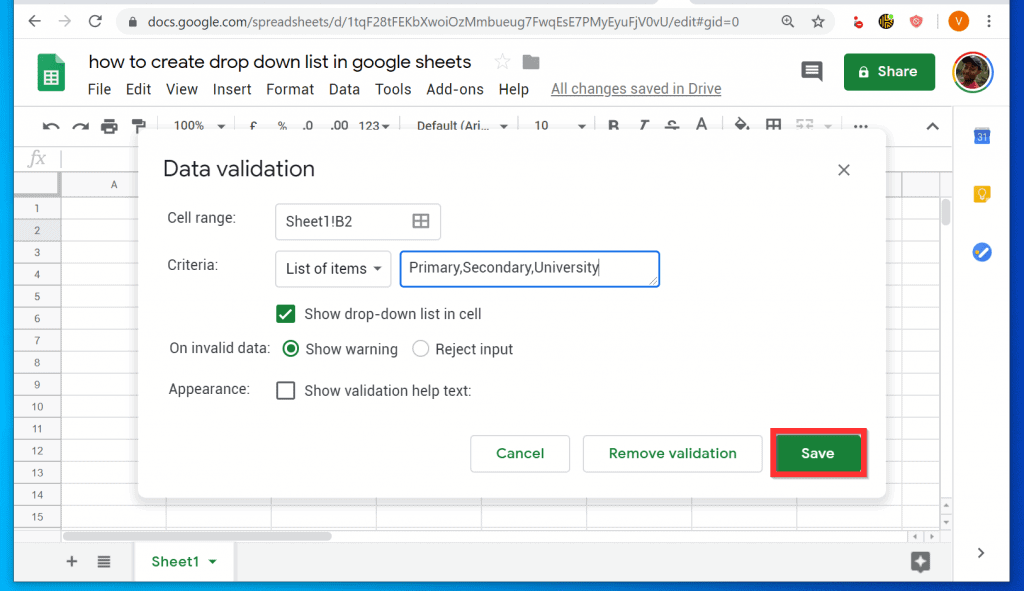
- When you select List of items, the field next to it will change and display Enter items separated by a comma. Enter your drop-down options followed by comma. See the next image…

- When you finish entering your drop-down list options, to create drop down list in Google Sheets, click Save.
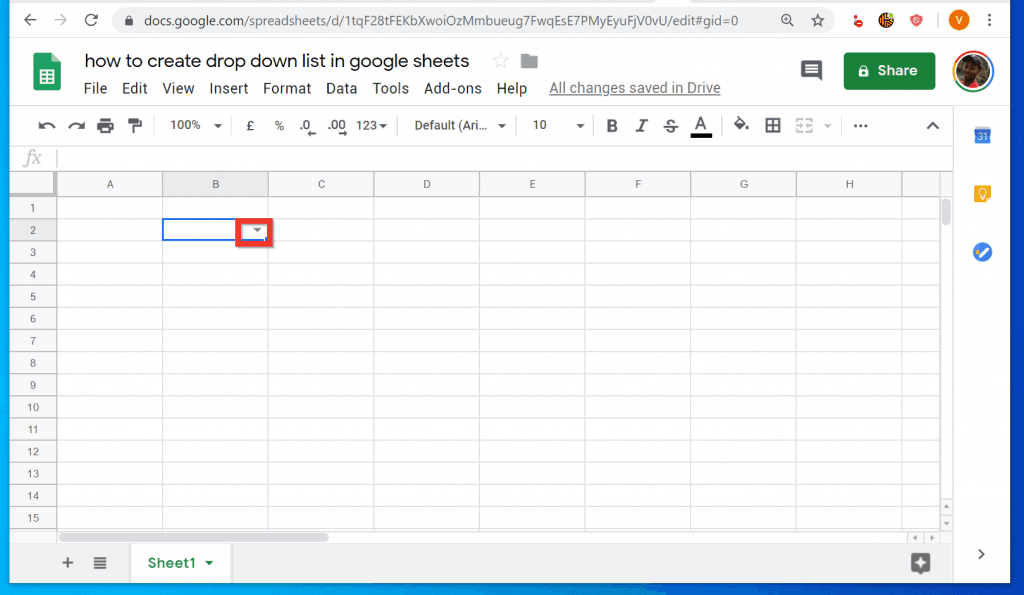
- The drop-down list will be created. To view the options, click the drop-down.

Option 2: Create Drop Down List from Android App
This section covers the steps to create a drop-down list from “List from Range” and “List of Items” using the Android App.
Popular on Amazon
Method 1: Create “List from a Range” Drop-down
- Open Google Sheets Android App on your phone. Then open the document you want to create a drop-down on.

- When the document opens, tap the cell you want your drop-down to be displayed. Then, at the top right of the page, tap the 3 dots. A set of options will be displayed.
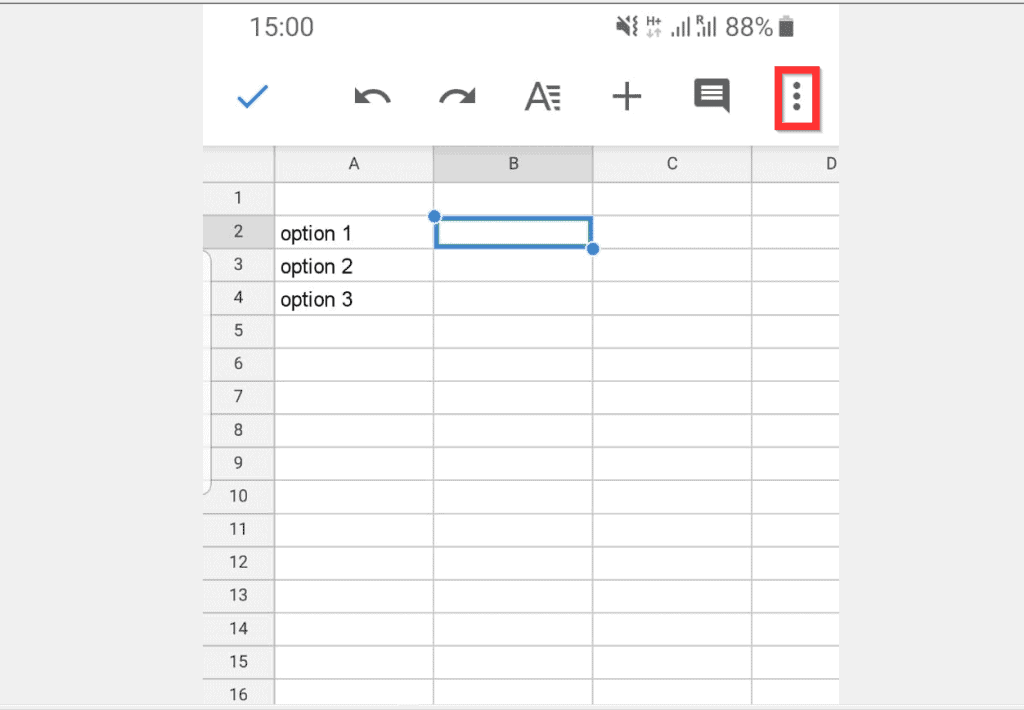
- From the displayed options, tap Data validation.
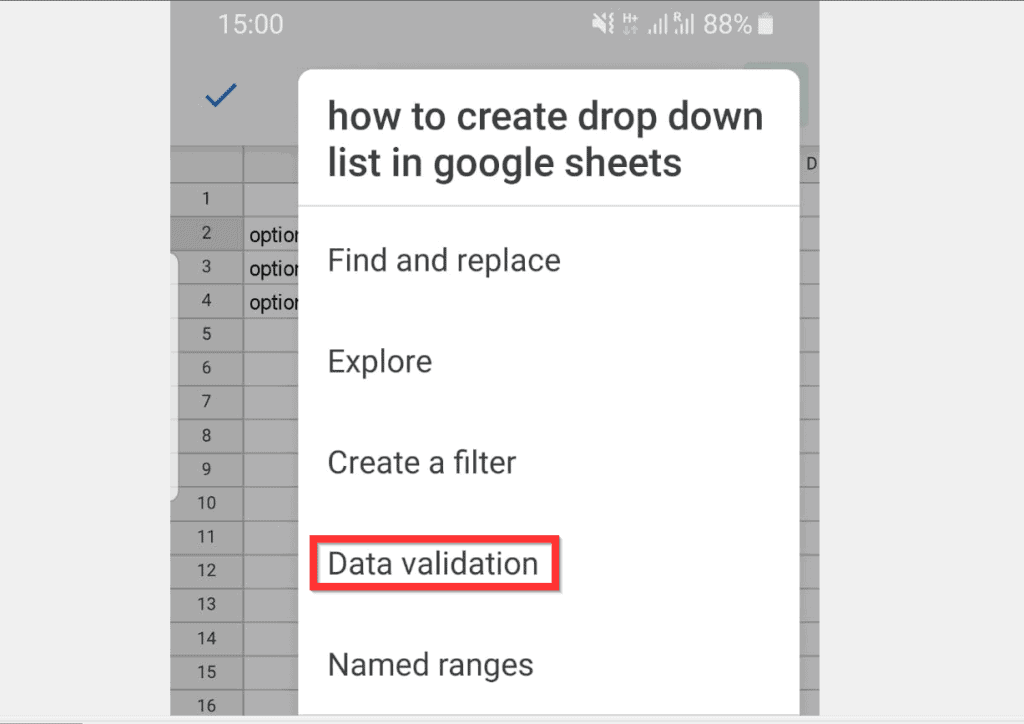
- When Data validation opens, ensure that List from a range is selected in the Criteria drop-down (default is List of items).
- Then, enter the range containing your data in the Range field. You may simply enter your cell range in the format a1:a4.

- Finally, to create drop down list in Google Sheets, on the top right of the page, tap Save.

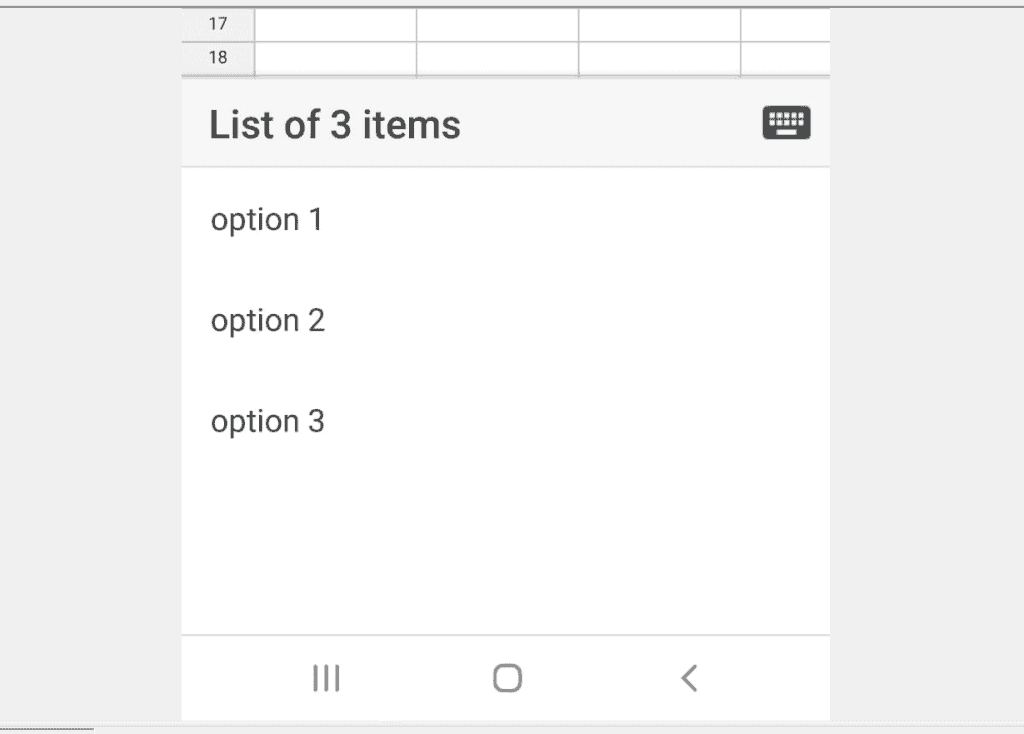
- Your drop down will be created! To view the drop-down options, tap on the cell with the drop-down. The options will be displayed at the bottom of the screen.

Method 2: Create “List of Items” Drop-down
- Open Google Sheets Android App on your phone. Then open the document you want to create a drop-down on.
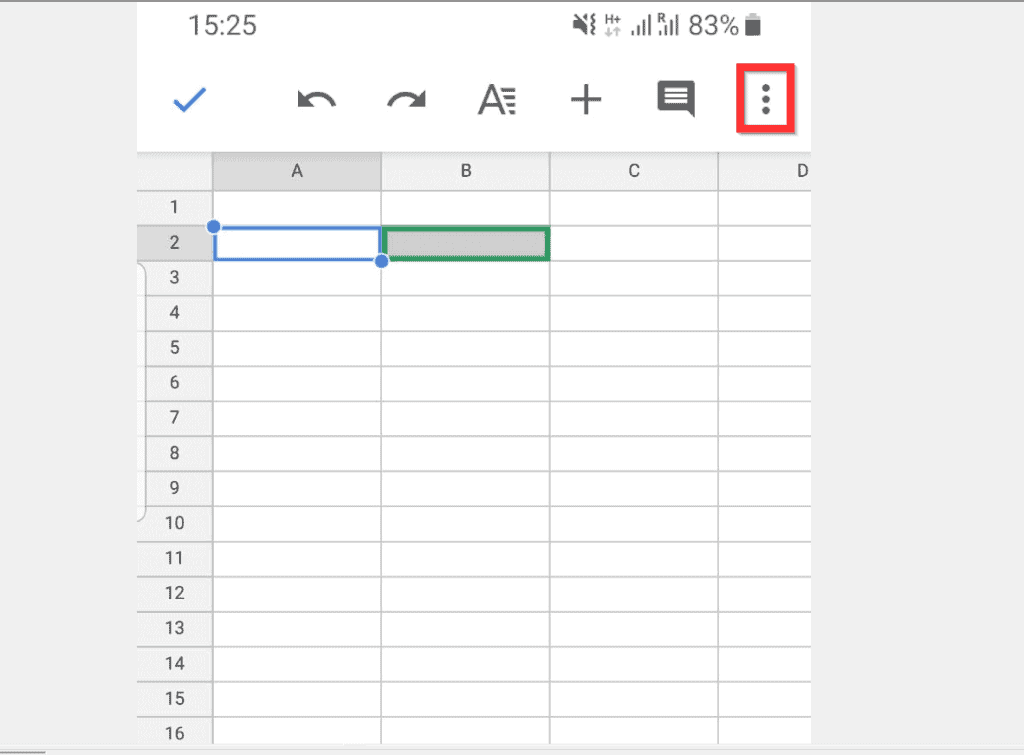
- When the document opens, tap the cell you want your drop-down to be displayed. Then, at the top right of the page, tap the 3 dots. A set of options will be displayed.
- From the displayed options, tap Data validation.
- When Data validation opens, ensure that List of items is selected in the Criteria drop-down (default).
- Then, below List of items, tap Add. A field will open.

- Type the first item you want to appear in your drop down, then tap comma (,) on your keyboard. In this example, my first item is Primary. I typed Primary, followed by a comma (,). The word will appear in be enclosed in a kind of circle.
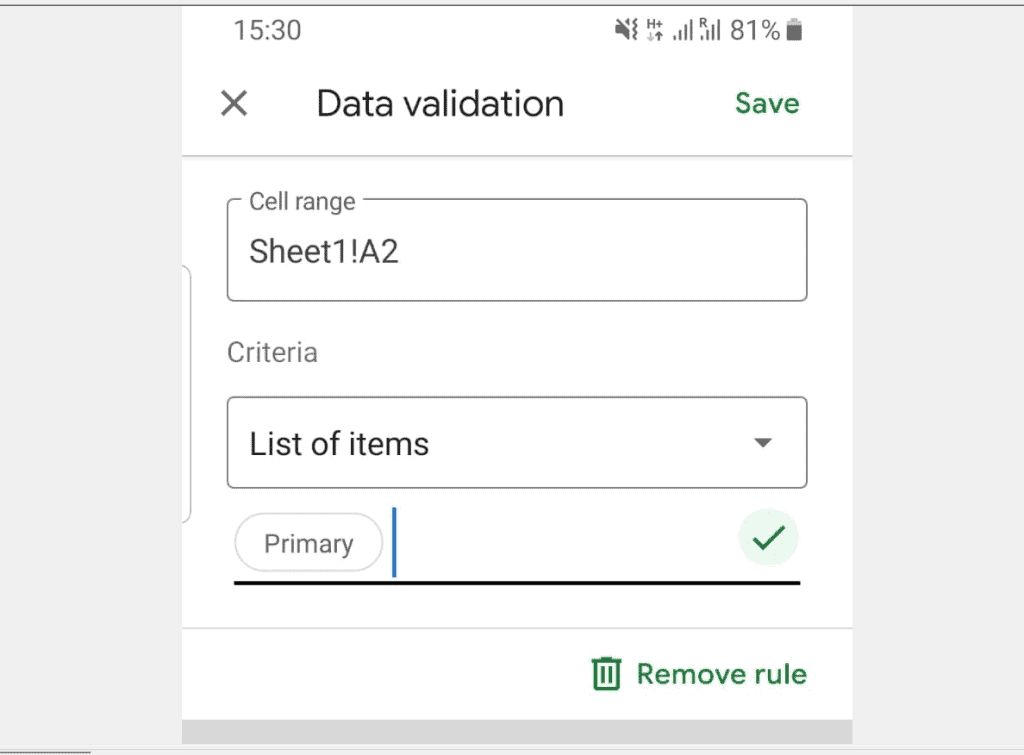
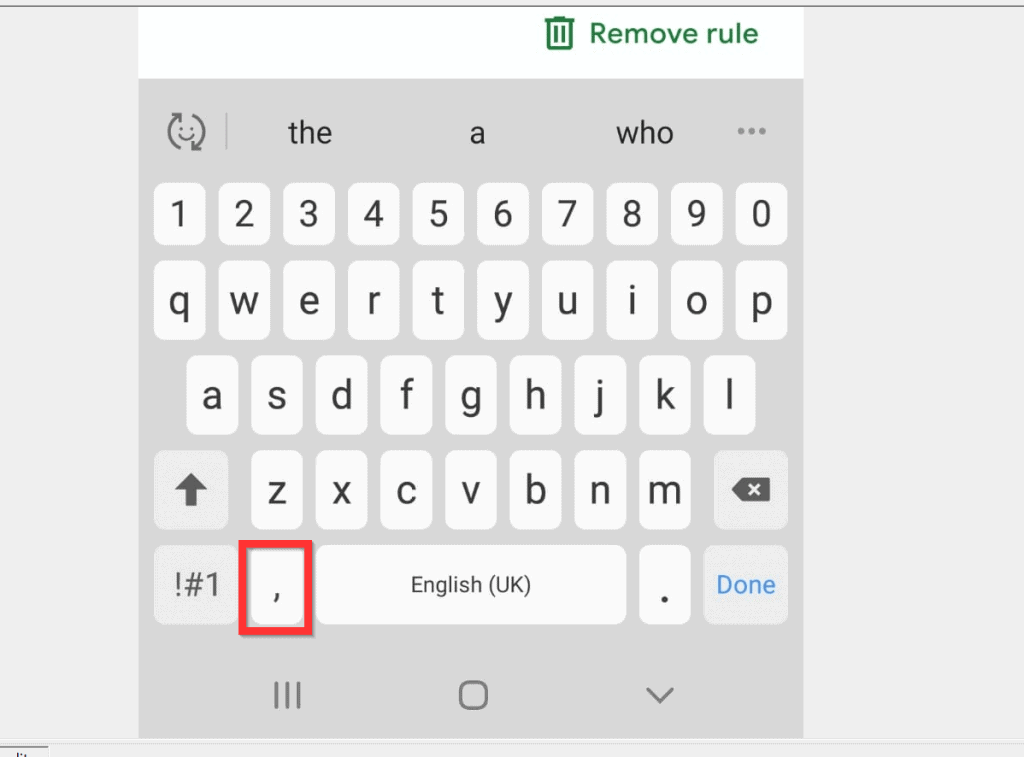
- To add the second, third, words, type each word followed by a comma. When you finish adding the words, tap the button beside the list.
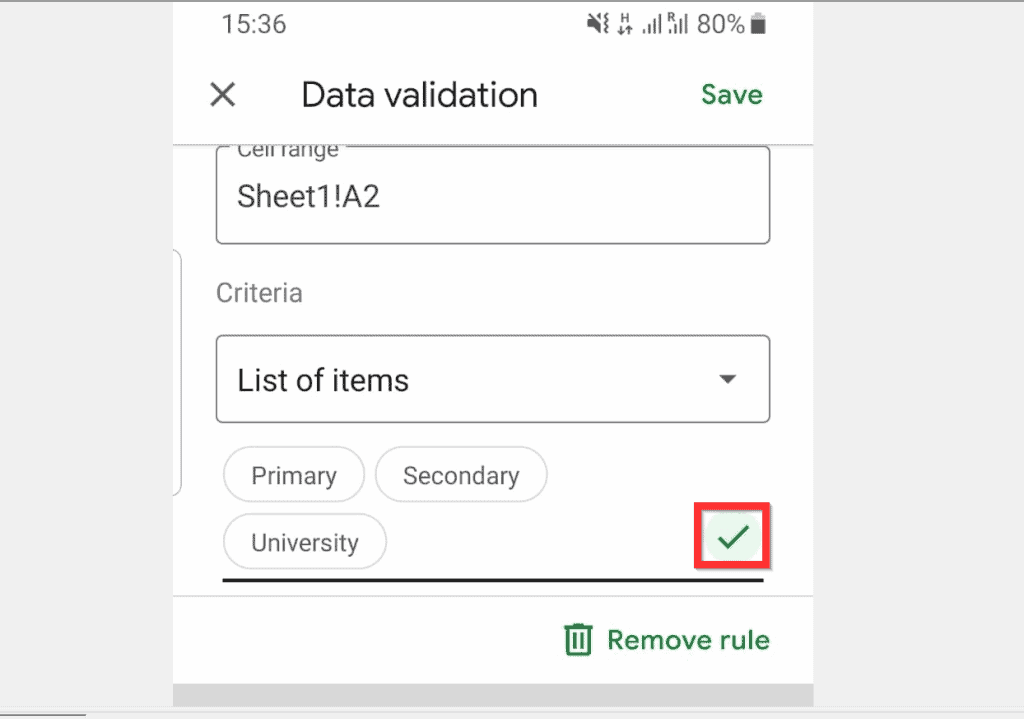
- Finally, to create drop down list in Google Sheets, on the top right tap Save.

- The drop down list will be created! To list the drop-down options, tap the cell with the drop-down.


It is this easy to create drop down list in Google Sheets! I hope you found this guide helpful. If you did, click on “Yes” beside the “Was this page helpful” question below.
You may also express your thoughts and opinions by using the “Leave a Comment” form at the bottom of this page.
Also popular on Amazon
Finally, for more Google Itechguides, visit our Google How To page.
Quick Recap
Also popular on Amazon
Also popular on Amazon
Also popular on Amazon
- hole punched
- high quality card stock
- 4 pages
- made in USA
- keyboard shortcuts
Product prices and availability are accurate as of the date/time indicated and are subject to change. Any price and availability information displayed on Amazon at the time of purchase will apply.
Independent reader supportYour contribution helps us test, update, and keep practical guides available for everyone.


