The Tool Desk
Outbyte Driver Updater FREEFix the driver behind crashes, sound loss and screen glitchesFind Drivers →Outbyte PC Repair FREEClear out junk files and repair common Windows errorsFree Scan →iTechGuides is reader-supported. When you buy through links on our site, we may earn an affiliate commission. As an Amazon Associate I earn from qualifying purchases. Learn more
This Itechguide teaches you how to change resolution on Windows 10. The guide covers steps for 2 methods to change resolution on Windows 10.
Option 1: Change Resolution from Windows Settings

You can set the basic resolution but you can also set advanced display resolution. Here are the steps to do both.
Method 1: Set Basic Display Resolution
- Right-click the Windows 10 Start menu and click Settings.

- Then, on Windows Settings, click System.

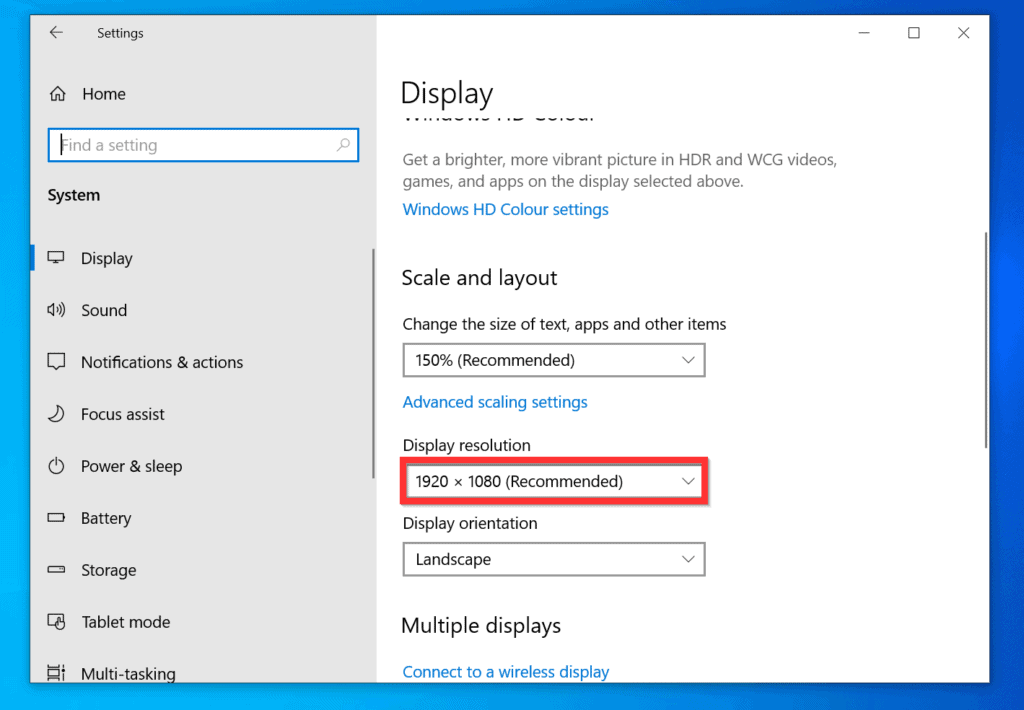
- Finally, on the display settings screen, scroll down, click the Display resolution drop-down and select the resolution you want to set.
Method 2: Set Advanced Display Resolution
For a more granular display resolution setting, follow the steps below.
Quick wins for a faster PC:
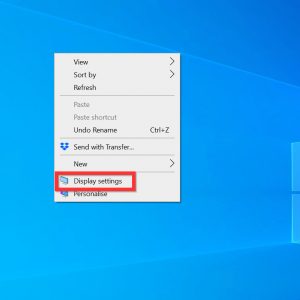
Repair Windows errors before they cause bigger problemsFix Now →Fix the driver behind crashes, sound loss and screen glitchesFind Drivers →- Right-click anywhere on your desktop and select Display settings.
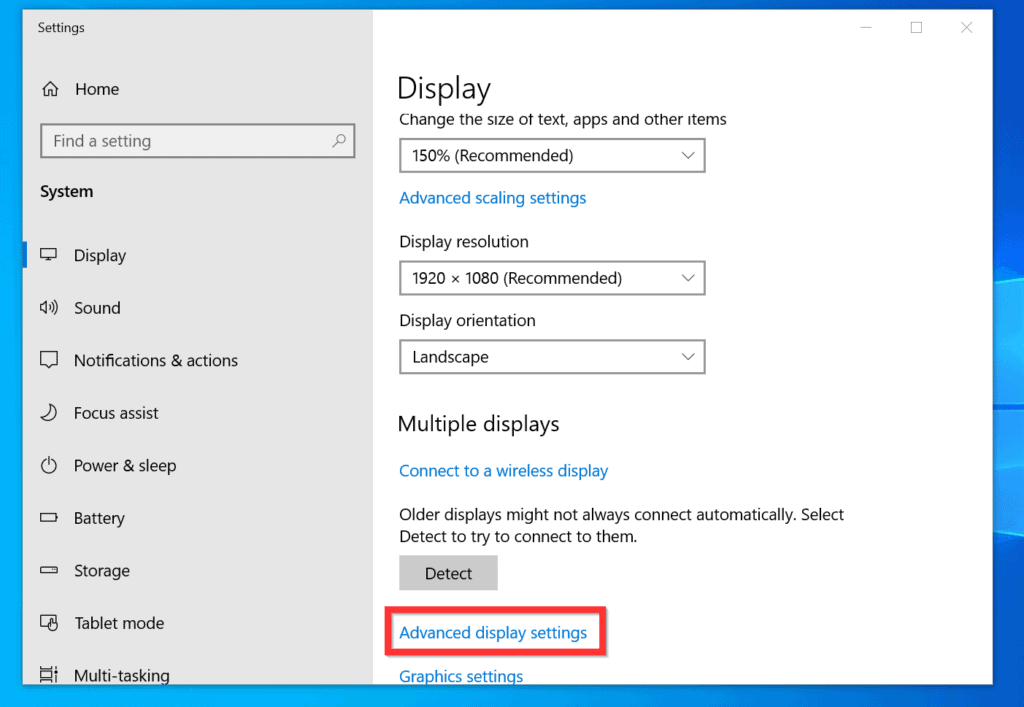
- Then, on the Display settings screen, scroll down and click Advanced display settings.
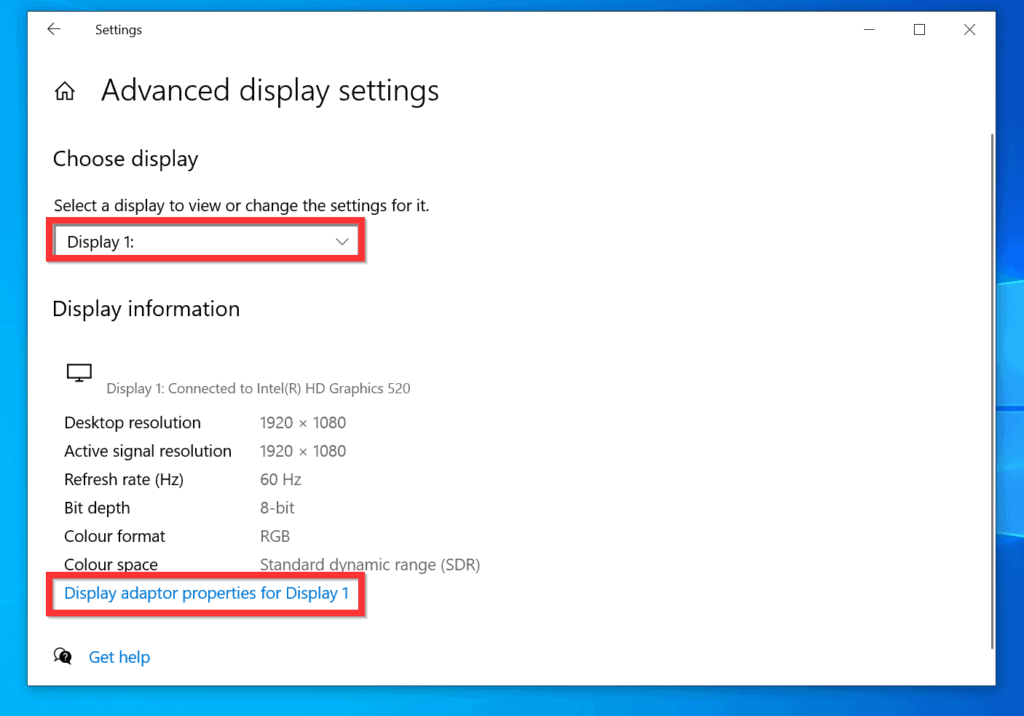
- When Advanced display settings opens, if you have 2 monitors, select the one you want to change resolution for – select it from the Select a display to view of change the settings for it drop-down.
- Then, below the settings, click Display adapter properties for Display #.
- On the Adapter tab of the properties of the display adapter, click List All Modes.
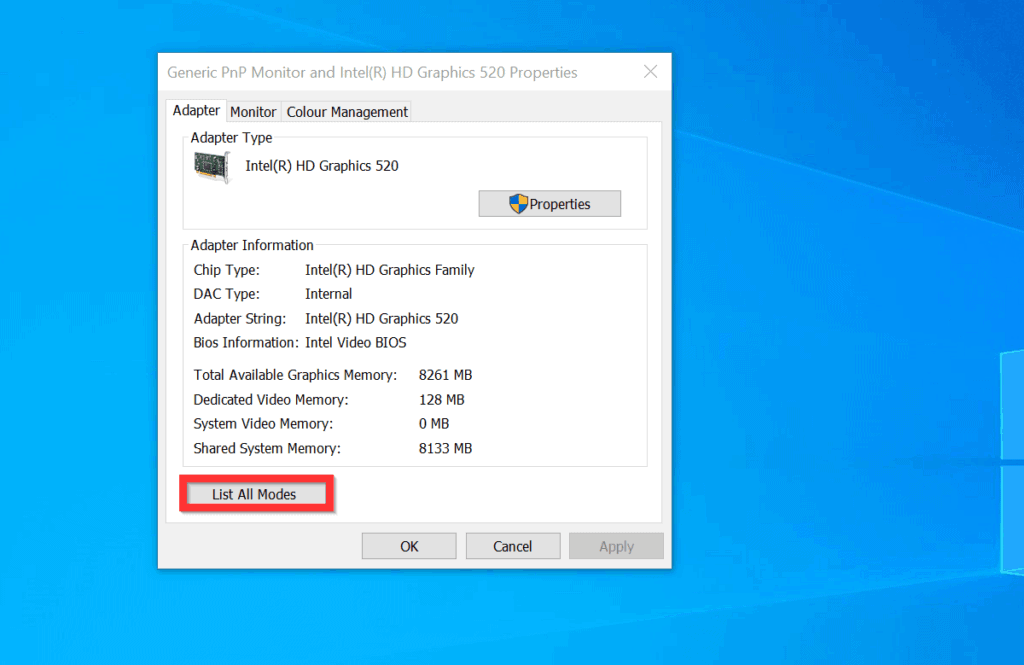
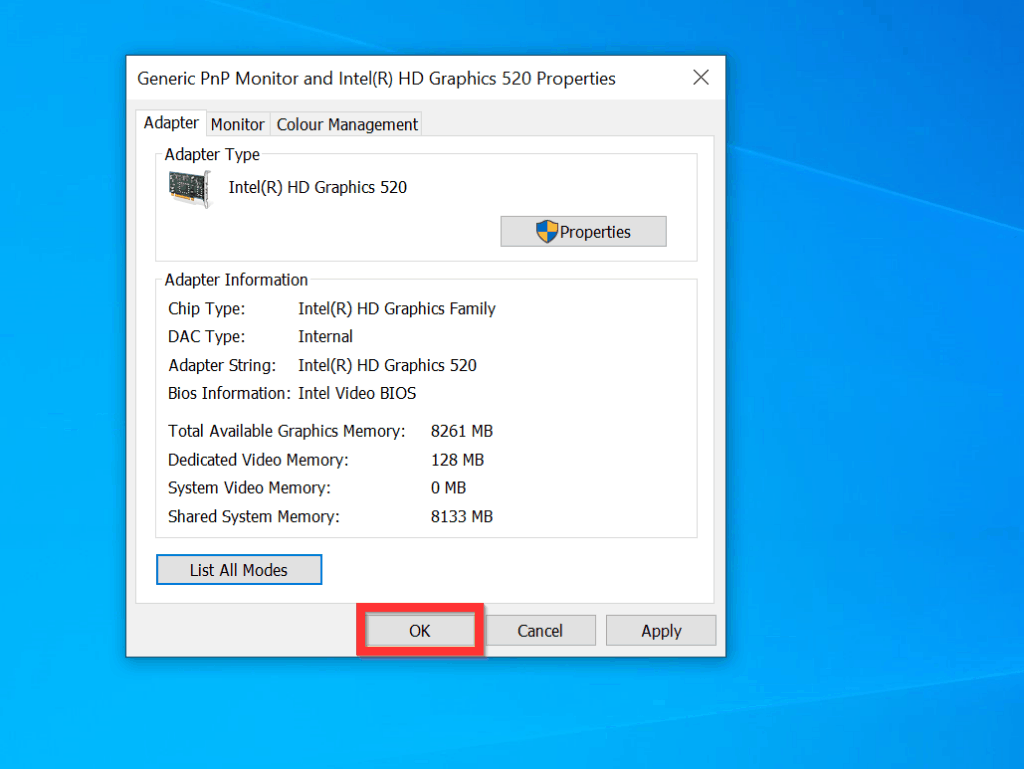
- Finally, to change resolution on Windows 10, select a display resolution and frequency. Then, click OK.
- When you return to the monitor properties, click OK.
Option 2: Change Resolution with CMD
Windows 10 does not have an in-built command-line tool to change display resolution. To set display resolution with command prompt, you need to download a 3rd party tool called QRes.
Popular on Amazon
- Improved ComfortView Plus: Reduces harmful blue light emissions to ≤35%, for all-day comfort without sacrificing color accuracy.
- Refresh rate: A smooth, tear-free experience with AMD FreeSync Premium (refresh rate up to 120Hz) and an ultra-low 0.03ms response time create a captivating experience for work and play.
- Vivid colors: Immerse yourself in breathtaking 4K visuals with in-plane switching technology. Enjoy vibrant colors with 99% sRGB. The 1500:1 contrast ratio and HDR readiness deliver excellent depth and detail.
- Re-engineered sound quality: Enjoy more detailed sound with spacious audio featuring greater output power, deeper frequency response and more decibel range than the previous generation.
- Ultra-thin bezel: Designed with a sleek, modern aesthetic and an ash white finish, this display features ultra-thin bezels for a refined, minimalist design.
The first sub-section below teaches you how to download QRes and unzip the downloaded zip file. The second sub-section teaches you how to use QRes to change the display resolution.
Step 1: Download and Unzip Qres
- Open the Sourceforge.net page for QRes (link opens in a new browser tab).
- Then, on the bottom left of the “QRes – Windows screen mode changer”, click the Download button.

- On the Save As window, navigate to the folder you want to save the zip file and click Save.
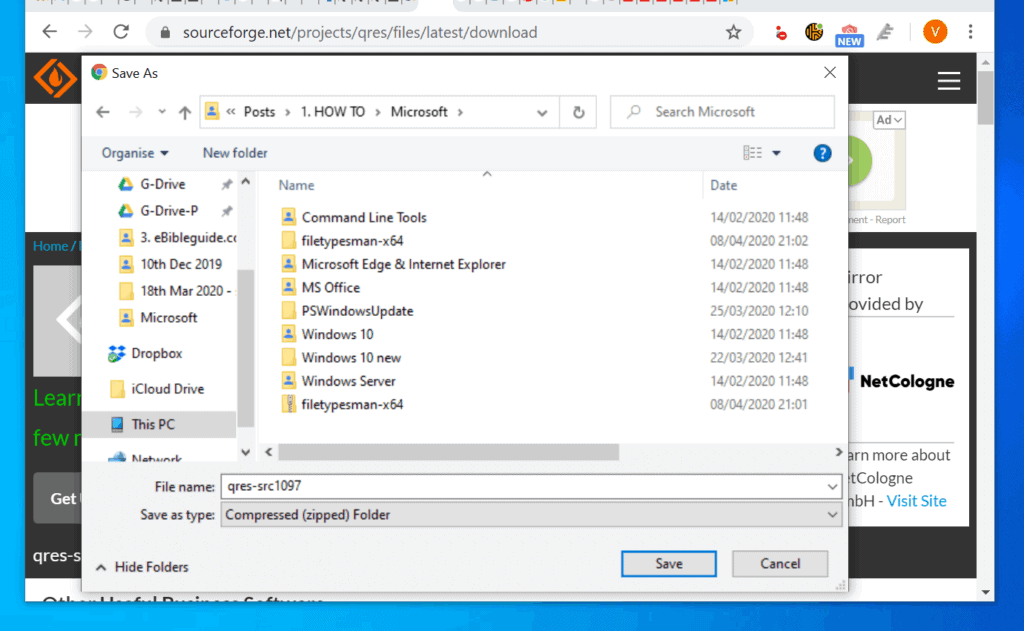
- Finally, unzip the downloaded zip file.
Step 2: Use QRes to Change Resolution
- Type command prompt or cmd in the search box. Then, from the search results, right-click Command Prompt and select Run as administrator.
- You will receive a User Account Control confirmation screen requesting you to allow the program to make changes to your computer, click Yes.
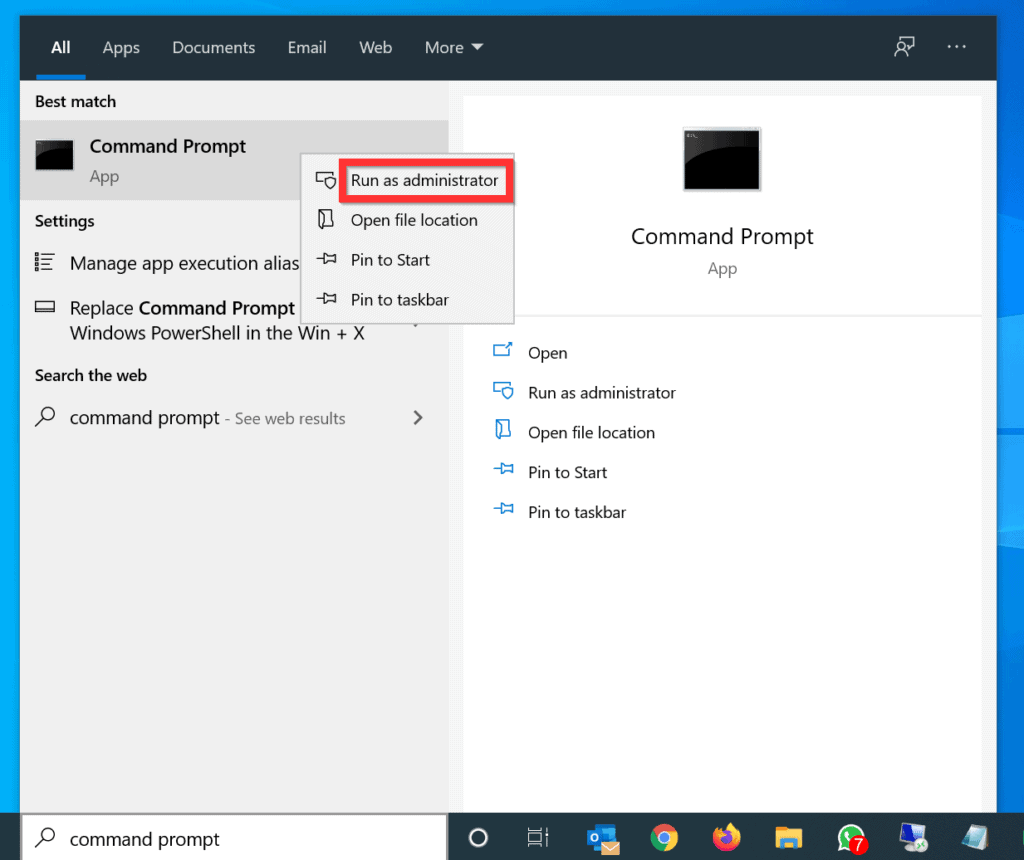
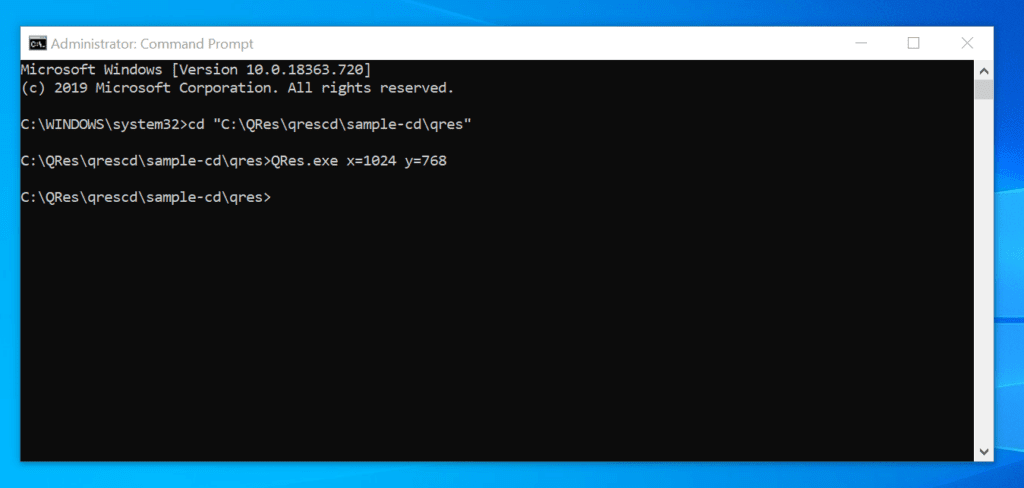
- When command prompt opens, type this command to change directory to the unzipped Qres folder.
cd "C:\QRes\qrescd\sample-cd\qres"
- Finally, to change resolution on Windows 10 with CMD, on the command prompt, type a command like the one below and press enter.
QRes.exe x=XXXX y=YYY
XXXX sets the width while YYY sets the height of the display resolution. See the highlighted portion of the image below. For an actual command example, see the next step below the image.
Also popular on Amazon

- 4K UHD with 1000:1 Contrast Ratio - This UltraFine display with a 1000:1 contrast ratio displays deeper blacks and vivid colors in UHD clarity. With wide viewing angles, it gives creative professionals the ability to view and work with highly-detailed, digital imagery.
- 4K HDR10 DCI-P3 - Explore HDR10 content the way it was meant to be seen with up to 90% DCI-P3 color gamut expression—an elevated color spectrum that brings brilliant color to life.
- Onscreen Control - You can customize the workspace by splitting the display or adjusting basic monitor options with just a few mouse clicks.
- Ergonomic Stand - The ergonomic stand makes it easy to flexibly adjust the tilt of the screen in the optimal position for you.
- What's In The Box - Stand Body, Stand Base, Screws, Power Adapter, HDMI Cable, Quick Start Guide, Registration Card, Warranty.
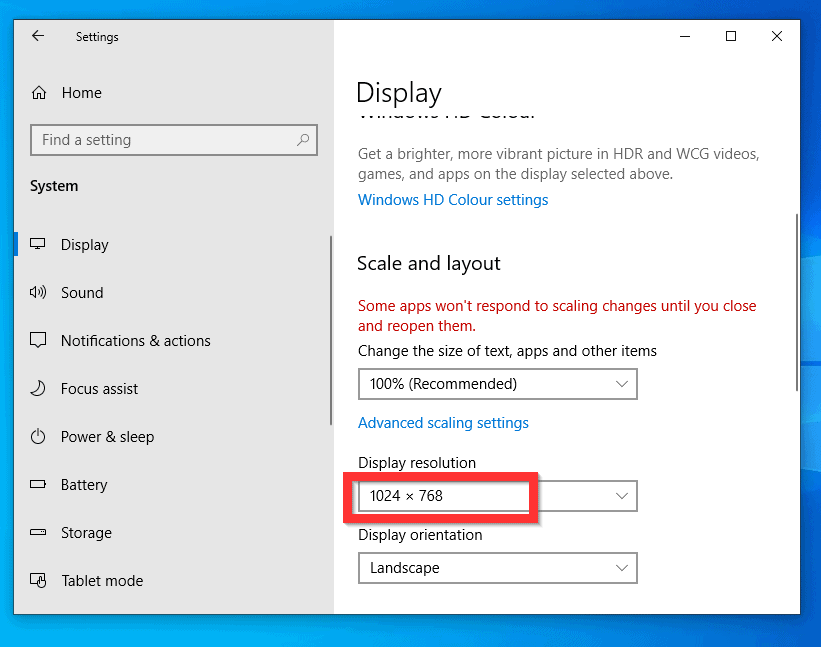
- Here is an actual command that sets a display resolution with a width of 1024 pixels and a height of 768 pixels.
QRes.exe x=1024 y=768
- The screen resolution will change immediately.
You can use the 2 methods covered in this Itechguide to change resolution on Windows 10!
I hope you found this guide helpful. If you did, click on “Yes” beside the “Was this page helpful” question below.
Also popular on Amazon
- Master Every Pixel - Bring every detail to life with LG’s UltraFine 32” 4K UHD HDR display. Whether you’re editing, streaming, or multitasking, the expansive screen and rich color deliver clarity you can count on.
- Color Your World in 4K and HDR Content - Stream in stunning detail with the LG UltraFine 4K display. HDR technology delivers vibrant brightness and rich contrast, supporting up to 90% of the DCI-P3 color space for vivid, lifelike visuals that elevate every scene.
- Immersive Visuals for Tactical Edge - Game in crisp 4K UHD with rich visuals and immersive audio powered by Waves MaxxAudio. With gaming features such as Dynamic Action Sync and Black Stabilizer, you’ll react faster and spot enemies in the shadows—so you’re always one step ahead.
- Dynamic Action Sync - Don’t miss a beat. Dynamic Action Sync helps you spot the action and strike fast by reducing input lag and boosting responsiveness.
- Never in the Dark with Black Stabilzer - Never get caught off guard. Black Stabilizer enhances visibility in low-light scenes so you can spot threats before they see you.
You may also express your thoughts and opinions by using the “Leave a Comment” form at the bottom of this page.
Finally, for more Windows 10 Itechguides, visit our Windows 10 How–To page. You may also be interested in our Work from Home page.
Quick Recap
Also popular on Amazon

- Low blue light: The improved ComfortView Plus reduces harmful blue light emissions to ≤35%, for all-day comfort without sacrificing color accuracy.
- Refresh rate: A smooth, tear-free experience with AMD FreeSync Premium (refresh rate up to 120Hz) and an ultra-low 0.03ms response time create a captivating experience for work and play.
- Vivid colors: Immerse yourself in breathtaking 4K visuals with in-plane switching technology. Enjoy vibrant colors with 99% sRGB. The 1500:1 contrast ratio and HDR readiness deliver excellent depth and detail.
- Re-engineered sound quality: Enjoy more detailed sound with spacious audio featuring greater output power, deeper frequency response and more decibel range than the previous generation.
- Easy connectivity: Keep your desk organized and clutter-free with a single USB-C cable (up to 65W power delivery).
Also popular on Amazon

- Improved ComfortView Plus: Reduces harmful blue light emissions to ≤35%, for all-day comfort without sacrificing color accuracy.
- Refresh rate: A smooth, tear-free experience with AMD FreeSync Premium (refresh rate up to 120Hz) and an ultra-low 0.03ms response time create a captivating experience for work and play.
- Vivid colors: Immerse yourself in 4K visuals with a VA panel. Enjoy true-to-life colors with 99% sRGB and 95% DCI-P3 coverage. The 1500:1 contrast ratio and HDR readiness deliver excellent depth and detail.
- Re-engineered sound quality: Enjoy more detailed sound with spacious audio featuring greater output power, deeper frequency response and more decibel range than the previous generation.
- Ultra-thin bezel: Designed with a sleek, modern aesthetic and an ash white finish, this display features ultra-thin bezels for a refined, minimalist design.
Product prices and availability are accurate as of the date/time indicated and are subject to change. Any price and availability information displayed on Amazon at the time of purchase will apply.