

Recommended Free Tools
iTechGuides is reader-supported. When you buy through links on our site, we may earn an affiliate commission. As an Amazon Associate I earn from qualifying purchases. Learn more
If you have been looking for a comprehensive Windows Notepad guide, you have just found it!
How to Open Notepad (5 Methods)
Instead of taking notes on a paper, you can quickly open notepad and make your notes. Here are 5 easy ways to open notepad in Windows 10.
Option 1: Open Notepad Via Search
You can open notepad by entering notepad in the Windows 10 search. Then, from the search results, click Notepad App.
Crashes, No Sound, or Screen Glitches?
Random freezes, missing sound and display glitches usually trace back to one bad driver. Find and replace yours safely.Free scan · under a minutePC Slower Than It Used to Be?
A free scan shows the junk files, broken settings and background clutter dragging Windows down - then fixes them in one click.Free scan · Windows 10 & 11
Option 2: By Right-Clicking Desktop or Within a Folder
You can also open notepad by clicking an empty space on your desktop or empty space within a folder. Then, point to New and select Text Document.
#1 Best Overall

- KEYBOARD: The keyboard works for Windows with hot keys that enable easy access to Media, My Computer, Mute, Volume up/down, and Calculator
- EASY SETUP: Experience simple installation with the USB wired connection
- VERSATILE COMPATIBILITY: This keyboard is designed to work with multiple Windows versions, including Vista, 7, 8, 10 offering broad compatibility across devices.
- SLEEK DESIGN: The elegant black color of the wired keyboard complements your tech and decor, adding a stylish and cohesive look to any setup without sacrificing function.
- FULL-SIZED CONVENIENCE: The standard QWERTY layout of this keyboard set offers a familiar typing experience, ideal for both professional tasks and personal use.

Need more help opening notepad in Windows 10? Here are other ways you can open notepad:
Option 3: Open Notepad From the Start Menu
Click the Start Menu. Then, locate and expand Windows Accessories.

Finally, from the Windows Accessories list, click Notepad.
Do these 3 things before closing this tab:
1Repair Windows errors before they cause bigger problems2Scan for outdated or missing drivers - takes under a minute3Clear out junk files and repair common Windows errors
Option 4: Open Notepad Via Run
Another way to open notepad is to type it into the Run command. To use this method to open notepad, right-click Start Menu. Then click Run.

Finally, on the Run command, type notepad and click OK.

Option 5: Open Notepad with CMD or PowerShell
You can also open notepad with command prompt or Powershell. To use this method, open command prompt or powershell. Then, type notepad into either of them and press enter.

Save, Save As, and Open Notepad Within Notepad
This section of the guide teaches you how to save or “Save As” in Notepad. Additionally, this section shows you how to open a new notepad within notepad.
What’s actually slowing this PC down?
Pick the symptom - the matching free tool is one click away.
How to Save, and “Save As” in Notepad
The fastest method to save a notepad is to press the Ctrl and S keys simultaneously. If it is the first time you are saving the text file, it will open the Save As dialogue.
Enter a name for the file in the File name field, select a location to save the file. Then, at the bottom right of the dialogue, click Save.
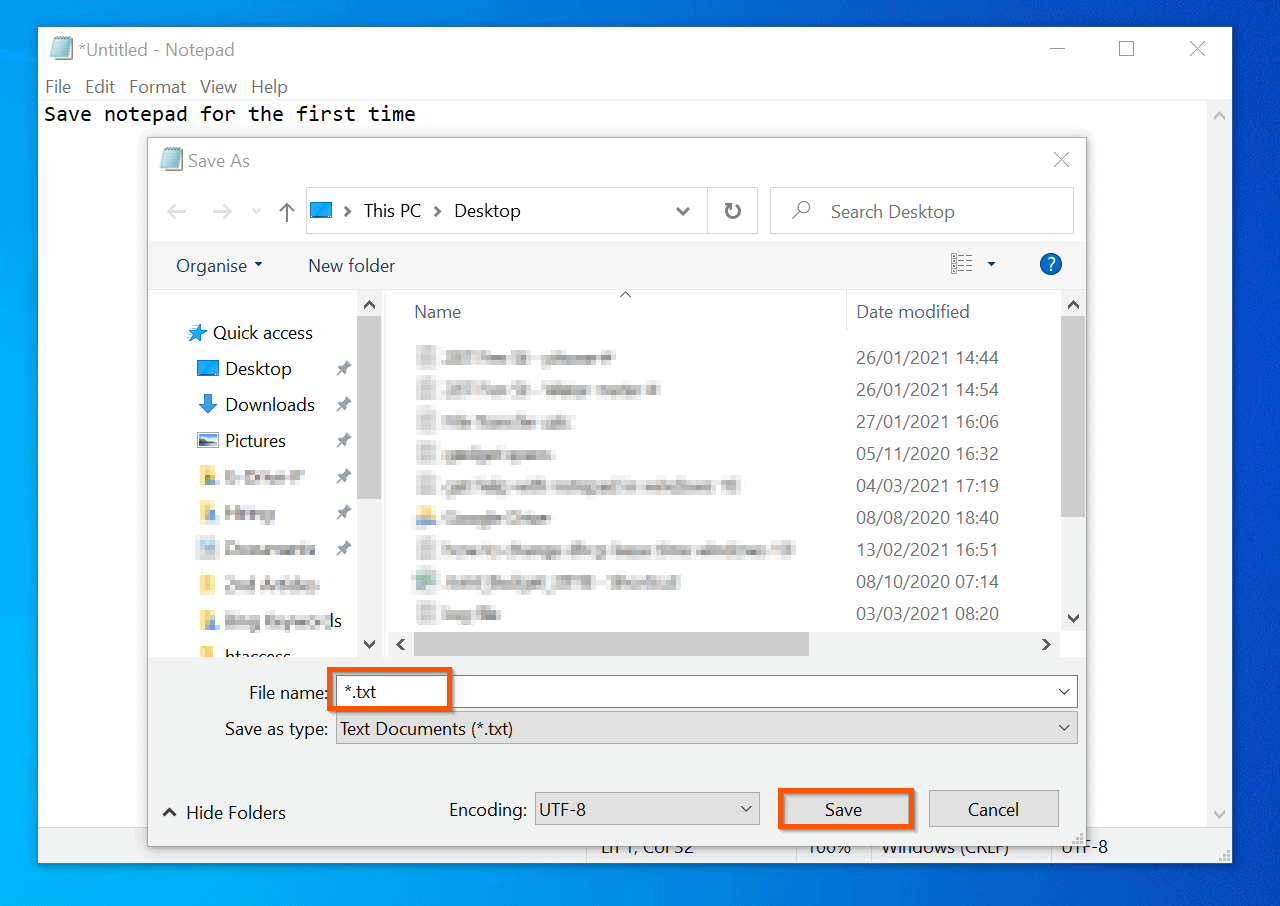
After saving the file for the first time, subsequent Ctrl and S keys will save the changes made to the notepad.
If you need more help with saving notepad in Windows 10, you can also save by clicking File. Then, selecting Save.

So far, in this section I have shown you how to Save notepad with the keyboard shortcut Ctrl +S). You have also seen how to save from the File menu.
However, there is additional Windows 10 notepad help for saving a file. For example, if you want to save an already saved text file as another file, click File. Then, select Save As.
This command opens the Save As dialogue. On the Save As dialogue, enter a new name for the file. Finally, click Save.


How to Open Another Notepad File from Notepad
Another Windows 10 notepad help is to learn how to open an existing notepad file from within notepad. If you are already working with notepad, this is a very quick method to open another saved notepad text file.
Rank #2

- Reliable Plug and Play: The USB receiver provides a reliable wireless connection up to 33 ft (1), so you can forget about drop-outs and delays and you can take it wherever you use your computer
- Type in Comfort: The design of this keyboard creates a comfortable typing experience thanks to the low-profile, quiet keys and standard layout with full-size F-keys, number pad, and arrow keys
- Durable and Resilient: This full-size wireless keyboard features a spill-resistant design (2), durable keys and sturdy tilt legs with adjustable height
- Long Battery Life: MK270 combo features a 36-month keyboard and 12-month mouse battery life (3), along with on/off switches allowing you to go months without the hassle of changing batteries
- Easy to Use: This wireless keyboard and mouse combo features 8 multimedia hotkeys for instant access to the Internet, email, play/pause, and volume so you can easily check out your favorite sites
On the top left of the notepad, click File, and select Open. You can also use the keyboard shortcut for this command – by pressing Ctrl and O keys simultaneously.

Finally, on the Open dialogue, navigate to the location you saved the notepad text file, select it and click Open.

How to Open a New Notepad File from Notepad
Another way to get help in Windows 10 notepad is to learn how to open a new notepad from within notepad. As you may have noted from the last section, the command to open a new notepad is also in the File menu options.
When you click the File menu, to open a new notepad file on the same window, click New. However, to retain the current notepad text file and open a new one on a different window, click New Window.

Copy, Paste, Find/Find and Replace, Select All
This is another Windows 10 notepad get help topic – learning how to copy, paste, select all, and find. Knowledge of these common actions can make using a notepad in Windows 10 fun.
How to Copy, Paste, and “Select All”
These 3 commands can be achieved with the standard Windows shortcuts. To copy a selected text within notepad, click Ctrl and C keys simultaneously.
Additionally, you can paste by pressing Ctrl and P keys simultaneously. Also, pressing Ctrl and A keys simultaneously selects all texts in the open notepad text file.
Moreover, you can also see these commands from the Edit menu in the notepad.

How to Find/Find and Replace
As seen in the last screenshot, the Find/Find and Replace commands are also in the Edit menu.
Additionally, the Find/Find and Replace commands can be accessed with keyboard shortcuts.
To open the “Find” window, press Ctrl and F keys simultaneously.

Furthermore, to open the “Find and Replace” dialogue, press Ctrl and H keys simultaneously. The “Find and Replace” command is extremely useful if you want to replace a word in a notepad text file with thousands of words.
Quick wins for a faster PC:
Scan for outdated or missing drivers - takes under a minuteDriver Scan →Clear out junk files and repair common Windows errorsFree Scan →
Word Wrap, Change Fonts, and Font Style/Size
These are yet another set of hot Windows 10 notepad help topics – Word Wrap, and changing Fonts, Font Style, and Font Size. To get the best from Notepad, you need to know how to perform these tasks.
How to Enable “Word Wrap”
To help you understand the absolute benefit of this feature, look at the notepad texts in this screenshot. Notice that some of the texts are hidden?
To view these texts, you have to use the scroll tool at the bottom of the Notepad app.
Rank #3

- All-day Comfort: The design of this standard keyboard creates a comfortable typing experience thanks to the deep-profile keys and full-size standard layout with F-keys and number pad
- Easy to Set-up and Use: Set-up couldn't be easier, you simply plug in this corded keyboard via USB on your desktop or laptop and start using right away without any software installation
- Compatibility: This full-size keyboard is compatible with Windows 7, 8, 10 or later, plus it's a reliable and durable partner for your desk at home, or at work
- Spill-proof: This durable keyboard features a spill-resistant design (1), anti-fade keys and sturdy tilt legs with adjustable height, meaning this keyboard is built to last
- Plastic parts in K120 include 51% certified post-consumer recycled plastic*

What about moving the hidden texts to the next line so they are all visible? Why not! To achieve this, you enable “Word Wrap” in notepad.
The Tool Desk
Outbyte PC Repair FREEClear out junk files and repair common Windows errorsFree Scan →Outbyte Driver Updater FREEScan for outdated or missing drivers - takes under a minuteDriver Scan →To enable “Word Wrap”, click Format in the menu. Then, click Word Wrap.

Now, see what happens to the texts – they are all visible without having to scroll!. You would agree that this is an essential Windows 10 notepad help topic!

How to Change Fonts, Font Style, and Font Size
Although notepad is a very basic note-taking tool, some users may also want to get help with changing fonts, font style, and Font size. This section explains how to perform these useful notepad tasks.
Like the “Word Wrap”, the Font setup is also in the Format menu – click Format, then select Font…

Within the Font setup screen, you can change the font used to display texts in notepad. Moreover, you can change the Font style and/or the Font Size.

Add/Remove Status Bar, Zoom In, or Zoom Out
Another Windows 10 notepad topic you may need help with is adding a status bar.
You may also want to learn how to Zoom in and Zoom out – effectively adjusting the size of the texts in notepad.
This section covers these topics.
How to Add/Remove Status Bar
The notepad status bar is the tiny bar at the bottom. It displays basic information about the open notepad text file.
Free tools Windows power users keep installed
One-click scans. No signup required.

To add or remove this status bar, click the View tab on the menu. Then, click Status Bar.
As shown in the screenshot below, Status Bar has a tick before it – meaning that it is currently enabled. If you click it, the tick will be removed and the status bar will be disabled.
See the second screenshot below – the status bar is gone!


How to Zoom In, Zoom Out, or Reset Zoom
These 3 commands are also in the View tab. To Zoom In (increase the size of the texts in notepad), click View, hover over Zoom, finally, click Zoom In.
PC Slower Than It Used to Be?
A free scan shows the junk files, broken settings and background clutter dragging Windows down - then fixes them in one click.Free scan · Windows 10 & 11Crashes, No Sound, or Screen Glitches?
Random freezes, missing sound and display glitches usually trace back to one bad driver. Find and replace yours safely.Free scan · under a minute
On the other hand, to Zoom Out (reduce the size of the texts in notepad), click View, hover over Zoom, finally, click Zoom Out.

Finally, for this section, if you have played around with Zoom, you may want to reset notepad to the default Zoom. To reset notepad Zoom to default, click View, hover over Zoom, finally, click Restore Default Zoom.
Rank #4

- Fluid Typing Experience: Laptop-like profile with spherically-dished keys shaped for your fingertips delivers a fast, fluid, precise and quieter typing experience
- Automate Repetitive Tasks: Easily create and share time-saving Smart Actions shortcuts to perform multiple actions with a single keystroke with the Logi Options+ app (1)
- Smarter Illumination: Backlit keyboard keys light up as your hands approach and adapt to the environment; Now with more lighting customizations on Logi Options+ (1)
- More Comfort, Deeper Focus: Work for longer with a solid build, low-profile design and an optimum keyboard angle that is better for your wrist posture
- Multi-Device, Multi OS Bluetooth Keyboard: Pair with up to 3 devices on nearly any operating system (Windows, macOS, Linux, Googlebook OS) via Bluetooth Low Energy or included Logi Bolt USB receiver (2)

Change Page Setup and Print in Notepad
Another exciting Windows 10 notepad help is learning how to change the notepad page setup. Yet, another exciting topic covered in this section is how to print in notepad.
How to Change Page Setup
The notepad page setup option is where you modify how the notepad text file prints. To open Page setup, click File, then select Page Setup.

On the notepad Page Setup, you can perform the standard print page setup. For example you can change the paper size and the paper source on the printer.
You can also set the page to print either as Portrait or Landscape. Finally, you can add a Headers and/or a Footer to the printed page.
To learn more about headers and footers in notepad, visit Changing Header and Footer Commands in Notepad (link opens in a new browser tab).

How to Print in Notepad
In notepad, you can open the Print dialogue with the standard Windows Print shortcut. To open the Print dialogue, press Ctrl and P keys simultaneously.
Do these 3 things before closing this tab:
1Fix the driver behind crashes, sound loss and screen glitches2Clear out junk files and repair common Windows errors3Scan for outdated or missing drivers - takes under a minuteAlternatively, you can open the Print dialogue from File -> Print.

Create a Log File and Add a Time/Date Stamp
This Windows 10 notepad help section is targeted at tech readers that create log files with date/time stamps.
To create a log file that automatically insert date/time each time you open the text file:
- Open an empty notepad text file.
- Then, on top of the text file, add the following text:
.LOG
- Save the file and close it.

- When you open the log file again, it will automatically insert the current time/date in the next line.

If you wish to add date/time stamp manually, remove the .LOG entry. Then, click File on the menu and select Time/Date. The current time/date will be inserted – see the second screenshot below.
Quick wins for a faster PC:
Fix the driver behind crashes, sound loss and screen glitchesFind Drivers →Clear out junk files and repair common Windows errorsFree Scan →

Change Encoding in Notepad
Like the last section, this section is also for tech girl and boys. If you work with an encoding system different from the notepad default – UTF-8, you can change it.
To change Windows 10 notepad encoding, click File, then select Save As. You can also use the keyboard shortcut – pressing Ctrl + Shift + S keys simultaneously.

Finally, when the Save As dialogue opens, click the encoding drop-down and select a new encoding. Then, give the file a new name (optional) and click Save.

Spell Check in Notepad
Interestingly, this is another Windows 10 notepad help topic users are interested in. However, notepad does not have a built-in spell-check tool.
The good news is that there is a way around this limitation. To add spell check and word suggestion to Windows 10 notepad, follow the steps below:
Best Value

- All-day Comfort: This USB keyboard creates a comfortable and familiar typing experience thanks to the deep-profile keys and standard full-size layout with all F-keys, number pad and arrow keys
- Built to Last: The spill-proof (2) design and durable print characters keep you on track for years to come despite any on-the-job mishaps; it’s a reliable partner for your desk at home, or at work
- Long-lasting Battery Life: A 24-month battery life (4) means you can go for 2 years without the hassle of changing batteries of your wireless full-size keyboard
- Simply plug the USB receiver into a USB port on your desktop, laptop or netbook computer and start using the keyboard right away without any software installation
- Simply Wireless: Forget about drop-outs and delays thanks to a strong, reliable wireless connection with up to 33 ft range (5); K270 is compatible with Windows 7, 8, 10 or later
- Right-click Start Menu and select Settings.

- Then, on the Windows Settings screen, click Devices -> Typing.


- Finally, on the details pane of Typing, toggle the Autocorrect misspelt words I type, ON. Also, toggle Show text suggestions as I type, ON.

- After enabling these 2 settings, if you type on notepad, Windows 10 will suggest auto corrections.

Create XML File with Notepad
Some tech users want to get help with creating XML files with notepad in Windows 10. If you fall into this category this section is for you.
To create an XML file in notepad, open an empty notepad text file. Then, enter your XML codes. Finally, click File and select Save As.

On the Save As dialogue, enter the name of the file in double-quotes, including .XML and click Save.
The Tool Desk
Outbyte PC Repair FREERepair Windows errors before they cause bigger problemsFix Now →Outbyte Driver Updater FREEScan for outdated or missing drivers - takes under a minuteDriver Scan →
After saving the file, if you open the folder you saved it, the document will show as an XML Document.

Save Notepad as a HTML File
Saving Notepad as HTML is another important Notepad help topic.
Follow the steps to save notepad as HTML:
- Open notepad and enter your HTML code. In this example, I will use the HTML code below.
<h1> This Is Sample Notepad In HTML </h1>
<p>
To save this notepad as HTML, enter these codes in notepad. Then, on the top left of notepad, click File -> Save As.
</p>
<p>
When the Save As dialogue opens, enter the name of the file you want to save it as - followed by a period (.) - after the period enter HTML. Finally, enclose everything in double quotes. For example "page.HTML".
When you are done, click Save.
</p>
</body>
- Then, on the top left of the notepad, click File. Then, select Save As.

- To save the notepad as HTML, on the Save As window, select the folder you want to save the HTML file (1) – then, on the File name, enter the name of the HTML file followed by a period (.) – after the period, add the word HTML (2) – finally, enclose the name of the file, the period and the HTML extension in a double quote.
- When you are done, click Save (3).

- Now if you open the folder you saved the file, it will be displayed as an HTML file. Depending on your default browser, the icon may be different.
- To open the file in your default browser, double-click it – see my sample notepad-HTML file in the second screenshot below.


Common Notepad Shortcuts Keys
This section of the Windows 10 notepad help guide covers all shortcuts you need to perform most of the tasks in notepad.
The table below is a full list of all Notepad keyboard shortcuts:
What’s actually slowing this PC down?
Pick the symptom - the matching free tool is one click away.
| S/N | Notepad Keyboard Shortcut | Actions Performed |
|---|---|---|
| 1 | Ctrl and N keys | Opens a new notepad on the current window. This action closes the current notepad text file without asking you to confirm |
| 2 | Ctrl and Shift + N keys | Opens a new notepad on a new window without closing the open text file |
| 3 | Ctrl and O keys | Opens the dialogue to open a saved notepad text file. |
| 4 | Ctrl and S keys | Saves the changes made to notepad. If you haven’t previously saved the file, the command opens the Save As dialogue. |
| 5 | Ctrl and Shift and S keys | Opens the Save As dialogue. This gives you the option to save the file (If you haven’t previously saved it), or save it as a new file (If you previously saved it with another name) |
| 6 | Ctrl and P keys | Opens the Print setup screen. |
| 7 | Ctrl and Z keys | Undo the most recent changes |
| 8 | Ctrl and X keys | Cut the selected text (s) |
| 9 | Ctrl and C keys | Copy the selected text (s) |
| 10 | Ctrl and P keys | Paste copied or cut items from the clipboard. |
| 11 | Ctrl and E keys | Search the selected text/phrase with Bing.com. This command opens the selected text/phrase on Bing.com and displayed relevant search results |
| 12 | Ctrl and F keys | Opens the Find dialogue – allows you to search for texts within notepad |
| 13 | F3 key | Works when the Find dialogue is open. Pressing the F3 function key finds the next place the text you are looking for is located in the notepad text file. |
| 14 | Shift and F3 keys | Also works when the Find dialogue is open. Pressing Shift and F3 keys searches for the previous location of the text you are searching for. Unlike just F3 that moves the search forward, Shift and F3 move the search backward. |
| 15 | Ctrl and H keys | Opens the Find and Replace dialogue. Use this to replace a text that appears multiple times in the notepad text file – in one go. |
| 16 | Ctrl and A keys | Select all the texts in the notepad text file. |
| 17 | F5 | Insert Time/Date |
| 18 | Ctrl and + (or Plus) keys | Zoom In |
| 19 | Ctrl and – (or Minus) keys | Zoom Out |
| 20 | Ctrl and 0 keys | Restore Default Zoom |
Frequently Asked Questions
This final Windows 10 notepad help section answers common notepad questions.
Yes, you can print notepad text file on Windows 10. The quickest way to open the Print dialogue is to press Ctrl and P keys simultaneously – with the notepad file open.
If you mistakenly removed notepad, follow the steps below to reinstall it:
1. Right-click Start Menu and select Settings.
2. Then, on the Settings screen, click Apps.
3. On Apps & Features screen, click Optional features.
4. Click Add feature, then locate Notepad, and check the box beside it – finally, click Install.
Search notepad and open it from the search results.
Free tools Windows power users keep installed
One-click scans. No signup required.
If a notepad text file is not opening, right-click the file and point to Open with. Then, select Choose another app. Finally, select Notepad, check “Always use this app to open…” and click OK.
Right-click an empty space on your desktop, point to New and select Shortcut. On the Create shortcut screen, type notepad and click Next. Finally, click Finish. The notepad shortcut will be displayed on your desktop. From now on, to open notepad, double-click the shortcut.
Conclusion
Notepad is a free Microsoft Windows text editor that comes in handy in a number of use cases. In this guide, I have shown different ways to use this versatile Windows app, and I hope you found the guide helpful.
If I made your day, let me know by responding to the “Was this page helpful?” question below.
Finally, for more Windows 10 Itechguides, visit our Windows 10 How-To page.
Quick Recap
Product prices and availability are accurate as of the date/time indicated and are subject to change. Any price and availability information displayed on Amazon at the time of purchase will apply.



Can I send a notepad via email to someone?
Yes, you can. Open the new email, then go to the location you saved the notepad and copy the file. Return to the email, right-click a blank space and select paste, the notepad will be attached to the email. Finally, enter the person’s email address in the To bar, then an optional subject and click send!
can I fill a page with what I written or do I have to type it over and overagain
Replace Ctrl + P with Ctrl + V
Love