

Recommended Free Tools
iTechGuides is reader-supported. When you buy through links on our site, we may earn an affiliate commission. As an Amazon Associate I earn from qualifying purchases. Learn more
There are 4 ways you can convert text to numbers in Excel. This guide demonstrates the 4 ways you can convert texts to number formats.
If you format cells with numbers as Text, it can cause unexpected results. One of the problems you will experience with numbers formatted as text is that you will not be able to sum the numbers. The cell will also display an error message.



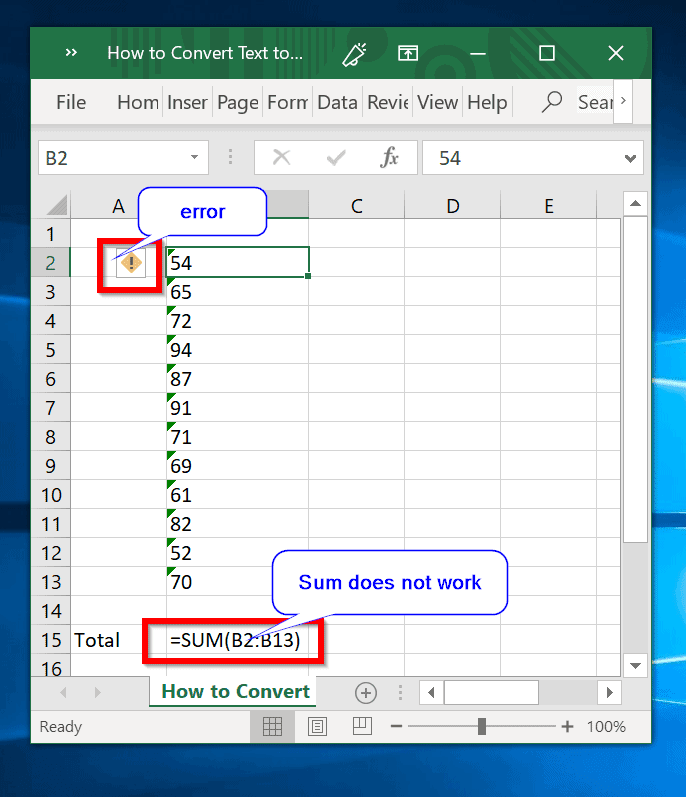
To resolve the error, you have to convert the text to a number. Below are the 4 methods to fix this error.
PC Slower Than It Used to Be?
A free scan shows the junk files, broken settings and background clutter dragging Windows down - then fixes them in one click.Free scan · Windows 10 & 11Outdated Drivers Are Slowing You Down
One free scan finds every outdated or missing driver and matches the right update for your exact hardware.Free scan · exact hardware matchOption 1: Convert Text to Number From the error Message
- Select all the cells with the error message.

- Then click on the error message and select Convert to Number.


To convert the SUM cell:
- Right-click the cell and click Format Cell.

- When the Format Cells option opens, select Number. Then click Ok.

- Next, double-click the SUM cell and press Enter key on your keyboard.


Option 2: Convert Text to Number Using Text to Columns
To use this method:
- Click on top of the column to select the entire column.

- Next, click the Data tab. Then click Data Tools. Finally, click Text to Columns. The Convert Text to column wizard will open.

- Click Finish. The format have been converted. See the second image below.


You may have to SUM the numbers again and convert the SUM cell as I demonstrated earlier in this guide.
Option 3: Convert Text to Number Using Formula
You can also use the VALUE() function to convert text to numbers in Excel.
Popular on Amazon
Here is how:
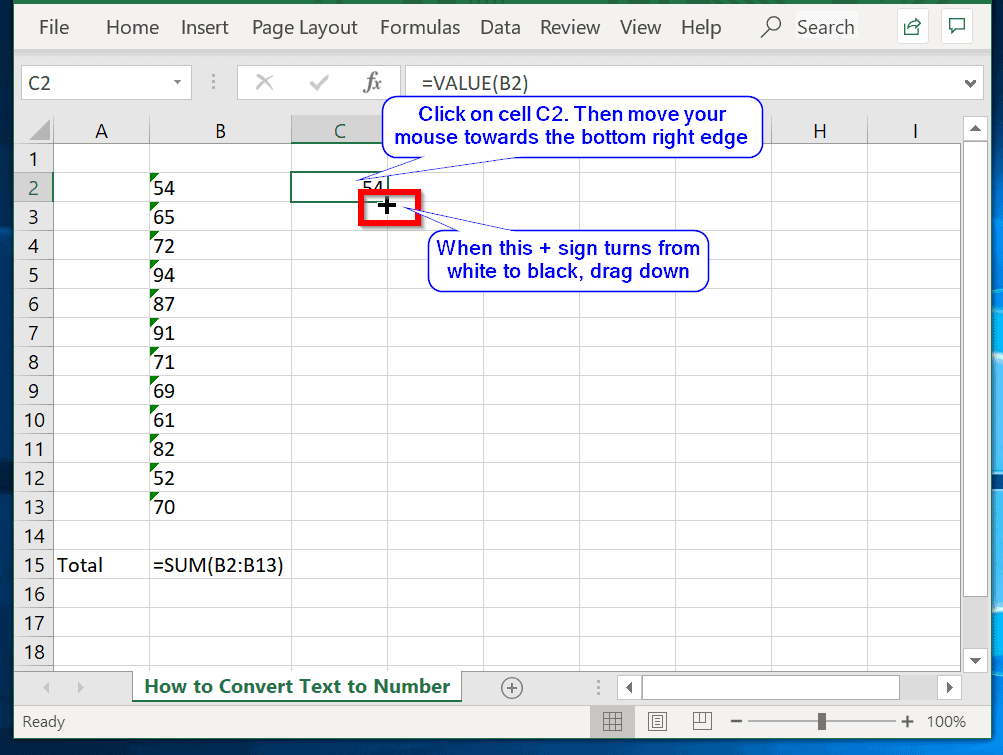
- On a new cell, enter the following formula =VALUE(). Within the (), enter the cell you wish to convert. Then press Enter key.


- To replicate the =VALUE() formula to the other cells, click on C2, then move your mouse towards the bottom right edge of the clicked cell. When the + sign turns black, drag the formula to all the cells you wish to convert.

Option 4: Convert Text to Number Using Paste Special and Multiply
- Enter the number, 1 into a blank cell that does not have the number problem. Select the blank cell with the number, 1. Then Press Ctrl + C on your keyboard to copy the cell. Next, select the cells that have the numbers stored as text.

- Then right-click the selected cells and click Paste Special.

- On the Paste Special options page, select Multiply and click Ok.

Conclusion
I hope you were able to resolve your Excel error using one of the methods described above.
I also hope you found the Itechguide helpful. If it was helpful, kindly take a moment to leave your comments using the “Leave a Reply” form at the bottom of this page.
Also popular on Amazon
Alternatively, you can respond to the “Was this page helpful?” question below.
The Tool Desk
Outbyte Driver Updater FREEFix the driver behind crashes, sound loss and screen glitchesFind Drivers →Outbyte PC Repair FREEClear out junk files and repair common Windows errorsFree Scan →Quick Recap
Also popular on Amazon
Also popular on Amazon
Also popular on Amazon

- The Microsoft Office 365 Bible: The Most Updated and Complete Guide to Excel, Word, PowerPoint, Outlook, OneNote, OneDrive, Teams, Access, and Publisher from Beginners to Advanced
- ABIS BOOK
Product prices and availability are accurate as of the date/time indicated and are subject to change. Any price and availability information displayed on Amazon at the time of purchase will apply.



