

Windows Errors? Fix Them Before They Spread
Repair common Windows errors and clear accumulated junk for a smoother, more stable PC - no reinstall needed.Free scan · no reinstallCrashes, No Sound, or Screen Glitches?
Random freezes, missing sound and display glitches usually trace back to one bad driver. Find and replace yours safely.Free scan · under a minuteiTechGuides is reader-supported. When you buy through links on our site, we may earn an affiliate commission. As an Amazon Associate I earn from qualifying purchases. Learn more
A YouTube music playlist allows you to add a collection of songs or videos into a single location. A playlist is great for having a collection of your favorite songs or videos in one place.
How to Make a Music Playlist on YouTube
You can create a YouTube music playlist on YouTube.com (via a browser). You can also create playlists on the iPhone and Android Apps.
Make a YouTube Playlist on YouTube.com (via a browser)
To create a YouTube music playlist on YouTube.com:
- Open YouTube.com on your favorite browser. Then sign in with your Google account (Gmail account). The sign in button is on the top right corner of the page. See the image below.

- Next, search for, and open the first video you wish to add to your playlist. Then, below the video, click on the three lines with a plus (+) sign (highlighted in the image below).

- When the pop up opens, click Create a new playlist.

- Beneath the pop up, enter a name for your new playlist. Then select your privacy preference. Finally, click Create (the Create button is beneath the privacy drop-down). Your playlist is created. To see the playlist, see the next on my point.

- To view your playlists, click the 3 lines on the top left corner of the page. Then click Library.

- To see your YouTube music playlists, scroll towards the middle of the page (highlighted in the image below). I also highlighted the new playlist I just created.

Make a Playlist on YouTube iPhone App
As I mentioned earlier, you can also make a YouTube playlist using the YouTube App for iPhone. To do this, follow the steps below.
Quick wins for a faster PC:
Fix the driver behind crashes, sound loss and screen glitchesFind Drivers →Repair Windows errors before they cause bigger problemsFix Now →- Open the YouTube App on your iPhone. Then open the first song (video) you wish to add to your new playlist. To show the option to create a playlist, click on the video once.

- Next, click on the 3 lines with a plus (+) sign (highlighted in the image below).

- Then, beneath your phone, click + NEW PLAYLIST. The New playlist window pops opens. Enter a name for your new playlist. Then select your privacy preference. Finally, click Create (the Create button is beneath the privacy drop-down). Your new YouTube music playlist is created!.

- To view your new YouTube music playlist, close the video you are playing. Then, on the bottom of your YouTube App, click Library. To see your playlists, scroll down.

Make a Playlist on YouTube Android App
Creating a YouTube music playlist on YouTube App for Android is fairly similar to that iPhone App. Below are the steps:
Popular on Amazon

- The Google TV Streamer (4K) delivers your favorite entertainment quickly, easily, and personalized to you[1,2]
- HDMI 2.1 cable required (sold separately)
- See movies and TV shows from all your services right from your home screen[2]; and find new things to watch with tailored recommendations for everyone in your home based on their interests and viewing habits
- Watch live TV and access over 800 free channels from Pluto TV, Tubi, and more[3]; if you find an interesting show or movie on your TV, mobile app, or Google search, you can easily add it to your watchlist, so it’s ready when you are[2]
- Up to 4K HDR with Dolby Vision delivers captivating, true-to-life detail[4]; and you can connect speakers that support Dolby Atmos for more immersive 3D sound
- Open the YouTube App on your Android Phone. Then open the first song you wish to add to your new playlist. To show the option to create a playlist, click on the video once.
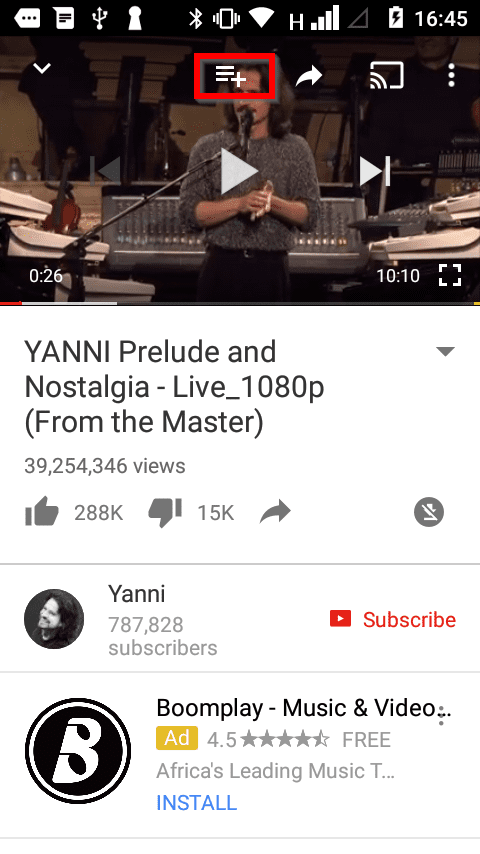
- Next, click on the 3 lines with a plus (+) sign (highlighted in the image below).

- Then, somewhere in the middle of your phone, select Create new playlist. If prompted to create a channel, click CREATE CHANNEL. The option to create your new playlist then opens.

- Enter the name of your new YouTube music playlist. If you want it private, check the Private box. Finally, to create your playlist, click Ok.

- To view your new YouTube music playlist, on the bottom of the App, click Library. Then scroll down towards the middle of the App to see your playlists.

How to Add Songs to a YouTube Music Playlist
This demo is done on YouTube.com (browser). To add a new song to an existing YouTube music playlist:
- Open YouTube.com on your favorite browser.
- Then open a song you wish to add to your playlist. Below the video, click the 3 lines with plus (+) sign.

- Finally, check the box beside the playlist you wish to add the new song (video). Then click on the x sign (top of the pop up).
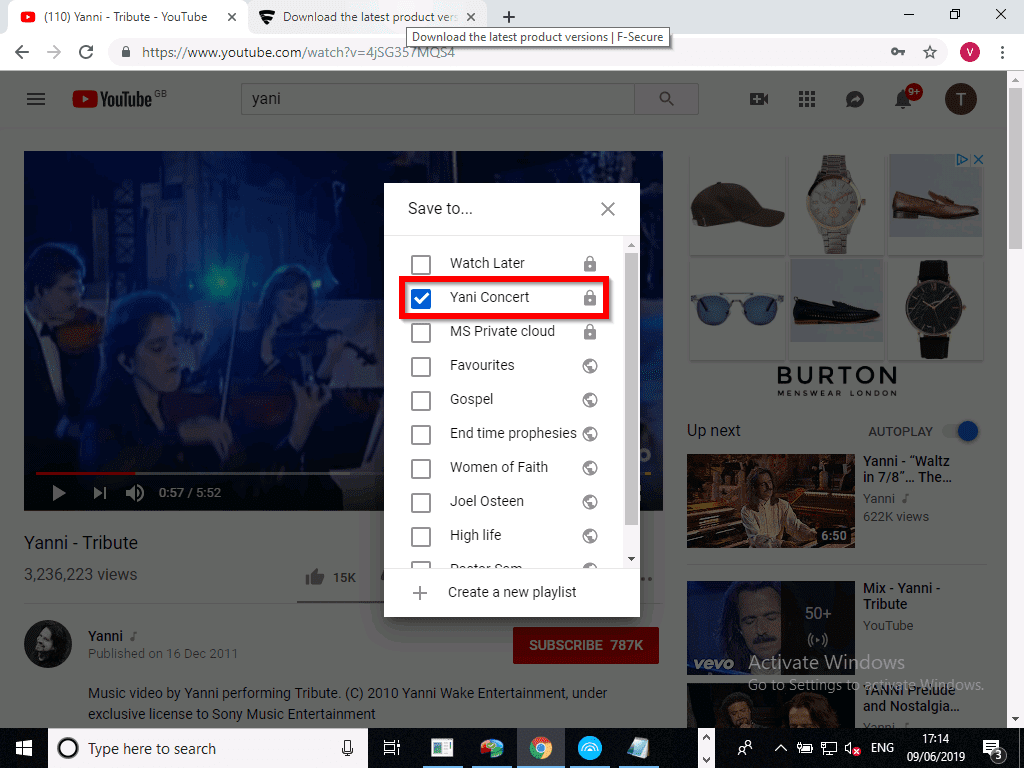
- Now your playlist is updated with the new song. Notice that my playlist now has 2 songs.

How to Share a YouTube Music Playlist
To share your YouTube music playlist:
- Open YouTube.com on your browser. Then click the 3 lines on the top left. Then click Library. To view your playlists, scroll down towards the middle of the page.
- Beneath the playlist you wish to share, click VIEW FULL PLAYLIST.

- Then, beside the channel, click the EDIT button.

- Notice that there is no Share option. This is because the playlist is private. To change playlist privacy settings, click Playlist settings.

- On the PLAYLIST PRIVACY drop-down, select Public or Unlisted. Then click Save. The Share option is now available. See the second image below.


- To share your YouTube music playlist, click Share. Then copy the link and send to whoever you wish to share the playlist with.

Conclusion
That is it from for this guide. I have covered how to create a YouTube music playlist on YouTube.com, and on YouTube for iPhone and Android Apps.
Also popular on Amazon

- The Google TV Streamer (4K) delivers your favorite entertainment quickly, easily, and personalized to you[1,2]
- HDMI 2.1 cable required (sold separately)
- See movies and TV shows from all your services right from your home screen[2]; and find new things to watch with tailored recommendations for everyone in your home based on their interests and viewing habits
- Watch live TV and access over 800 free channels from Pluto TV, Tubi, and more[3]; if you find an interesting show or movie on your TV, mobile app, or Google search, you can easily add it to your watchlist, so it’s ready when you are[2]
- Up to 4K HDR with Dolby Vision delivers captivating, true-to-life detail[4]; and you can connect speakers that support Dolby Atmos for more immersive 3D sound
The guide also covered how you can change the privacy settings of your playlist and add videos to your playlist.
I hope you found this Itechguide helpful. If you did, kindly share your experience with our community using the comments form (“Leave a Reply”) at the bottom of this page.
Also popular on Amazon
- No More App-Switching. Forget learning to navigate a new screen with every app. TiVo Stream 4K enables one centralized place for searching, browsing, and creating watch lists across all your apps..DC Input Range 5V/1.0A. Power Consumption : Maximum 5 W
- Recommendations Across All of Your Apps: Get rid of the walls between what you watch. TiVo recommends your next favorite shows and movies based on what you love, not where they live.
- Say it and watch it. The power of voice control makes it easy to find shows. Integrated Google Assistant allows you to launch apps, dim the lights and more.
- One place for all your favorite streaming apps. TiVo Stream 4K includes Netflix, Prime Video, Disney+, Peacock plus many more, so you can get to your shows fast.
- TiVo Stream 4K is one of Time Magazine’s “2020 Best Inventions, Special Mention” and PCMag hails it as “an excellent media streamer for TV lovers.” Operating Temperature 0˚C - 40˚C
Alternatively, you can respond to the “Was this page helpful?” question below.
Quick Recap
Also popular on Amazon

- 4K Ultra HD with Cinematic Visuals & Sound: Supports 4K resolution (3840 x 2160) at 60FPS, Dolby Vision, and HDR10+ for enhanced contrast, brightness, and color accuracy. Delivers immersive audio via Dolby Audio and DTS:X surround sound
- High-Performance Hardware: Equipped with a Quad-Core CPU (up to 2.5GHz) and ARM G310 V2 GPU for seamless navigation and multitasking. Includes 2GB RAM and 32GB internal storage (ROM) for ample app and content space
- Google TV Smart Platform: Runs the latest Google TV OS, offering personalized content recommendations, access to thousands of streaming apps (Netflix, YouTube, Disney+, etc.), and voice control via Google Assistant
- Advanced Connectivity & Decoding: Features dual-band Wi-Fi (2.4GHz/5GHz), Bluetooth 5.2, HDMI 2.1, and USB 2.0 ports. Supports decoding of 4K 60FPS video formats and Google Cast for screen mirroring
- Complete Setup Included: Comes with Xiaomi TV Box S (3rd Gen), voice remote control, power adapter, HDMI cable, and user manual. Compact design (95.25 x 95.25 x 16.7 mm) for discreet placement
Product prices and availability are accurate as of the date/time indicated and are subject to change. Any price and availability information displayed on Amazon at the time of purchase will apply.



