

iTechGuides is reader-supported. When you buy through links on our site, we may earn an affiliate commission. As an Amazon Associate I earn from qualifying purchases. Learn more
Do you wish to enable dark mode on your Windows 11 PC but don’t know how to? This guide has all you need to achieve that.
Option 1: Turn on Dark Mode via Settings
The easiest and fastest way to enable dark mode in Windows 11 is via Settings. Hence, follow the steps below to achieve that.
- Press the Windows + I keys on your keyboard to launch Settings in Windows 11.

- Then, select Personalization on the left pane of the Settings window.

- Next, click Colors on the right pane of the window.

- Finally, click the Choose your mode drop-down and select Dark.

Option 2: Activate Dark Mode From the Registry Editor
Are you aware that you can also enable dark mode on your Windows 11 from the registry editor? To perform this task, follow the procedures below.
- Click the Windows 11 Search icon and type “registry editor” in the search field. Then, right-click the Registry Editor app from the search result and select Run as administrator.

- When you do that, a User Account Control prompt will appear on your screen, asking if you want to allow the app to make changes to your PC. Click Yes to proceed.
- On the Register Editor window, use the folders on the left pane to navigate to the location below.
HKEY_CURRENT_USER\SOFTWARE\Microsoft\Windows\CurrentVersion\Themes\Personalize

- Then, double-click AppsUsesLightTheme on the right pane of the Registry Editor window.

- Next, on the Edit DWORD (32-bit) Value dialogue box, change the value data to “0” and click OK to save the change.

- After doing that, repeat steps 4 and 5 for SystemUsesLightTheme on the right pane of the Registry Editor window.

Option 3: Enable Dark Mode via PowerShell
Another method to enable dark mode in Windows 11 is through Windows PowerShell. To do that, follow the procedures below.
Popular on Amazon

- Thanks to VizoBlueX thousands of Americans protect their Eyes and enjoy their computers with Better Sleep and reduced Headaches
- 100% Multi-Layer protection - Eliminates Hazardous UV spectrum and Blocks Harmful HEV light. This is NOT Anti Glare or Privacy screen that distorts picture
- For 23 to 24 inch monitor - measure only your screen Diagonal without the plastic frame. Product dimensions: W21.5"/ H13"
- Fits Apple iMac 24 Retina & iMac All-in-one 24 and All 16:9 Monitors: Samsung LG Dell HP Lenovo Asus Acer BenQ ViewSonic Philips NEC etc...Prevents eye strain, CVS, headaches, chronic injuries to the eyes, eye fatigue, soreness and more serious eye related conditions. Improves sleeping patterns
- Quick Install: Maintains the full visible Colors of your LCD or LED Monitor. Just peel the protective film from BOTH SIDES and hang the protector on your monitor
- Left-click the Windows 11 Search icon on the taskbar and type “powershell” in the search field. Then, right-click the Windows PowerShell app from the search result and select Run as administrator.

- By doing that, you will receive a User Account Control prompt on your screen asking if you want to allow the app to make changes to your PC – select Yes to continue.
- Then, type the commands below sequentially and press Enter on your keyboard.
Set-ItemProperty -Path HKCU:\SOFTWARE\Microsoft\Windows\CurrentVersion\Themes\Personalize -Name AppsUseLightTheme -Value 0 -Type Dword -Force
Set-ItemProperty -Path HKCU:\SOFTWARE\Microsoft\Windows\CurrentVersion\Themes\Personalize -Name SystemUsesLightTheme -Value 0 -Type Dword -Force

Frequently Asked Questions
No, it doesn’t. In fact, for some who spend a lot of time staring at displays, dark mode may help reduce eye strain.
However, there isn’t any concrete evidence that dark mode does anything other than increase battery life for your device.
Absolutely! Windows 11 has a dark mode.
Follow the procedures below to enable dark mode on your Windows 11 computer.
a) Right-click the Windows 11 Start menu and select Settings from the displayed options.
b) Then, select Personalization on the left pane of the Settings window.
c) After that, click Colors on the window’s right pane.
d) Lastly, click the Choose your mode drop-down and select Dark.
Also popular on Amazon
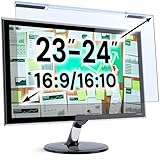
- Ideal Fit: Blue light screen for monitor fits screens sizes of 23"-24" (23", 23.6", 23.8", 24"). Actual filter size: Width: 21.2 inches (540mm), Height: 13.4 inches (340mm). Ideally compatible with HP, Samsung, Dell, ASUS, LG, Huawei, MSI, and other monitor and laptop brands
- Eye Comfort: Blue light screen protector reduces eye strain by filtering up to 61% of blue light and 99% of UV light. This blue light screen protector doesn’t have an Anti-Glare function
- Patent Pending: US and international patent rights reserved, Enjoy Improved Eye Protection function. Blue light blocking screen protector educing blue light from 420-460 nm and ensuring image clarity
- Lifetime Replacement Policy: Blue light filter extends screen longevity by shielding against scratches, dirt, and dust. Damaged screen - Free replacement
- Quick Setup: Computer screen protector mounts easily! Just peel the matte protective film from both sides and position it over the monitor top.
No, the dark mode doesn’t increase lag.
No, the dark mode doesn’t affect the performance of your PC.
Free tools Windows power users keep installed
One-click scans. No signup required.
Conclusion
For one reason or the other, anyone can decide to enable dark mode on their computer. Fortunately, this guide provided various methods to do that on your Windows 11 PC.
Also popular on Amazon

- 【Size】1. Measure monitor diagonal size without edges. 2. Please check the size chart to confirm the correct variation you need.3. The width and height of ZYY computer blue light blocking screen protector 27 inch is width 612.6 mm * height 356 mm. (NOT FOR IMAC screen) Compatible for curved monitors
- 【ANTI BLUE LIGHT/UV/RADIATION】ZYY computer blue light blocking screen protector adopted Japanese Fujimori nano-optical stacking technology, effectively blocking blue light ≥90%, UV blocking ≥98%,blocks other harmful lights ≥99%
- 【PREMIUM QUALITY】ZYY Desktop computer screen protector for eyes protection with 8H reinforced acrylic materials, 5 layers of optical engineering protection with a high resolution view, real colors, scratch resistance, anti-fingerprint, Ultra-thin 2mm, explosion-proof
- 【APPLICATION】Easy to use with Hanging type, ZYY anti blue light screen protector fitting on working, learning, playing games, watching TV and so on. Reducing eye strain, preventing myopia & dryness, hyperemia and so on, focusing on what you do, effectively improving your work and kid's learning
- 【PROFESSIONAL SERVICE】Removing the screen adhesive films on both sides before installing the blue light filter for the computer monitor. Welcome to contact us if any problem troubles you, Answer and solution you got in first time
Essentially, this guide showed you how to carry out this task via Windows 11 Settings. I also provided steps and screenshots on how to perform the task from Registry Editor.
That’s not all, we also learned how to carry out the task using Windows PowerShell.
Also popular on Amazon
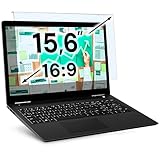
- Ideal Fit: Blue light screen for monitor fits screens sizes of 15.6". Actual filter size: Width: 14.2 inches (361mm), Height: 8.7 inches (221mm). Ideally compatible with HP, Samsung, Dell, ASUS, LG, Huawei, MSI, and other monitor and laptop brands
- Eye Comfort: Blue light screen protector reduces eye strain by filtering up to 61% of blue light and 99% of UV light. This blue light screen protector doesn’t have an Anti-Glare function
- Patent Pending: US and international patent rights reserved, Enjoy Improved Eye Protection function. Blue light blocking screen protector educing blue light from 420-460 nm and ensuring image clarity
- Lifetime Replacement Policy: Blue light filter extends screen longevity by shielding against scratches, dirt, and dust. Damaged screen - Free replacement
- Quick Setup: Computer screen protector mounts easily! Just peel the matte protective film from both sides and position it over the monitor top
I hope this guide was helpful to you. If it was helpful, click on “Yes” beside the “Was this page helpful” question below.
Do these 3 things before closing this tab:
1Repair Windows errors before they cause bigger problems2Scan for outdated or missing drivers - takes under a minute3Clear out junk files and repair common Windows errorsYou may also express your thoughts and opinions by using the “Leave a Comment” form at the bottom of this page.
Finally, visit our Windows 11 How-To page for more Windows 11 guides and fixes.
Quick Recap
Product prices and availability are accurate as of the date/time indicated and are subject to change. Any price and availability information displayed on Amazon at the time of purchase will apply.



