
Do these 3 things before closing this tab:
1Fix the driver behind crashes, sound loss and screen glitches2Clear out junk files and repair common Windows errors3Scan for outdated or missing drivers - takes under a minuteiTechGuides is reader-supported. When you buy through links on our site, we may earn an affiliate commission. As an Amazon Associate I earn from qualifying purchases. Learn more
The right phone gaming controller is determined first by compatibility, not by the number of buttons or the brand name. Match the controller to your exact phone model, operating system, port, case, camera clearance and the games or streaming services you use. Then choose between a USB-C telescopic controller, a Bluetooth gamepad or a conventional controller with a phone clip. A controller can pair successfully and still fail to work in a particular game.
Start with your exact phone and games
“Works with iPhone” and “compatible with Android” are category-level statements, not a guarantee that a specific handset will fit or that every game will accept controller input. Before comparing models, write down the details that determine whether the purchase will work.
- Phone model: Record the complete model name, not just the operating system or connector type. Two phones with USB-C can have different widths, camera-bump positions and case-clearance requirements.
- Operating system and version: Check whether the controller maker lists your current iOS or Android version. Feature support can change after an operating-system update.
- Physical connector: Identify whether the handset uses USB-C, Lightning or another connection. A controller designed around one connector may not accept an adapter or may lose features when an adapter is used.
- Case and camera clearance: Measure or check the maker’s maximum phone thickness and width with the case installed. A camera island can prevent a phone from seating fully even when the phone dimensions appear to fit.
- Games and services: List the specific games, cloud-gaming services and remote-play apps you intend to use. Controller support is implemented by each game or service.
Apple’s iPhone User Guide states: “You can connect a compatible game controller to your iPhone through Bluetooth® or a wired connection.” That describes the available connection methods, not universal support for every controller, game or accessory. Apple also notes that some wired iPhone combinations may need an adapter.
Recommended Free Tools
A practical compatibility checklist
| Check | What to confirm before ordering | Why it matters |
|---|---|---|
| Phone model | The exact handset appears on the controller’s current compatibility list. | Connector type alone does not establish physical fit or feature support. |
| Port and adapter | The controller’s plug matches the phone, or the manufacturer explicitly supports the required adapter. | Adapters can change fit, charging and data behavior. |
| Case | Maximum supported thickness includes your case, camera protector and any grip. | Telescopic clamps may not close or may press against the camera module. |
| Game input | The game or service documentation lists controller input for your platform. | Pairing cannot add support to an incompatible game. |
| Operating system | Your OS version meets the controller and app requirements. | Updates can alter pairing and remapping behavior. |
Choose the physical format that matches how you play
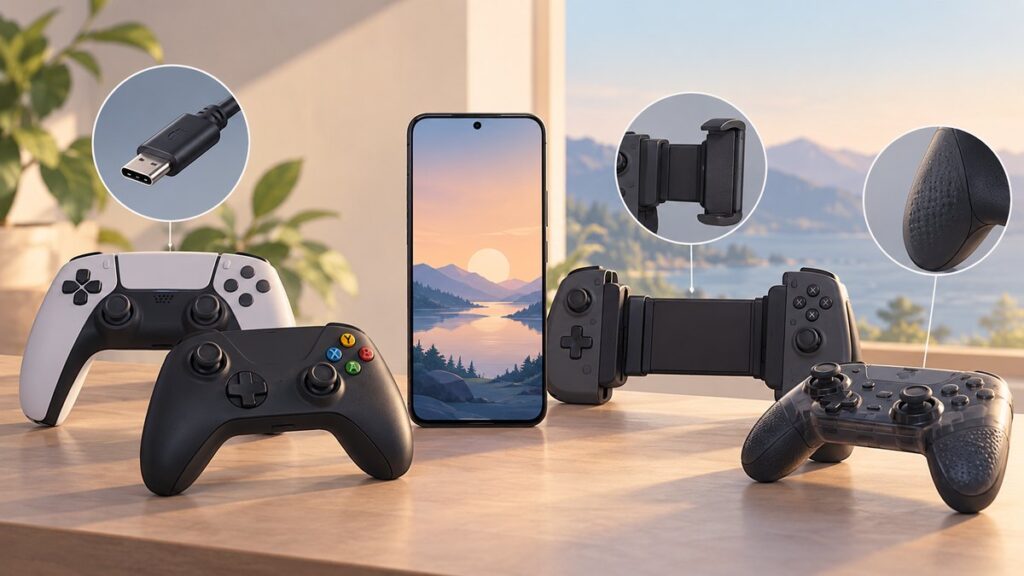
There are three practical arrangements: a telescopic controller that holds the phone, a separate Bluetooth gamepad and a traditional gamepad combined with a phone clip. None is universally best; each solves a different problem.
Popular on Amazon

- Bluetooth Controller for iPhone & Android: Mocagen mobile gaming controller Compatible with all iPhone models (including 18/17 series) and Android devices. Pairing steps: 1. Turn on Bluetooth on your phone and go to the pairing screen. 2. Press and hold the Home button for 3 sec until LED4 flashes. 3. Find "XBOX Wireless Controller" on your phone and tap to pair. Quick reconnect: After first pairing, simply press the Home button once (with Bluetooth on) to reconnect
- Play Most Controller-Compatible Games: This iPhone game controller supports cloud gaming (e.g., Xb*x Game Pass, GeForce NOW), Xbox Remote Play, emulator games, and native mobile games (e.g., Apple Arcade). Enjoy effortless control and play Fortnite, Call of Duty, Roblox, Genshin Impact, and many more anytime, anywhere. Note: Controller only works with games that support controller input, and does not support PS Remote Play
- 5M-Cycle Lifespan & Zero Drift: MC1 mobile gaming controller features a Hall-effect joystick with a 5M cycle lifespan, 2.5x longer than standard carbon-film sticks. Its innovative electromagnetic induction technology ensures drift-free operation, enabling precise character control in intense games and significantly extending this phone game controller durability
- Ergonomic Grip Design: The handle is ergonomically shaped with a l*ser-engraved texture for anti-slip and enhanced grip, effectively reducing fatigue during long gaming sessions. The scientifically designed joystick and button layout ensures smooth operation. Whether for personal use or as a gift, it delivers a more comfortable and healthier gaming experience
- 7-Color RGB Light Ring & 600mAh Battery: The mobile game controller features a 7-color adjustable light ring on the joystick(ABXY button lights can be turned off, but their colors are not adjustable). The lighting is vibrant yet eye-friendly. The built-in 600mAh battery provides up to 6 hours of battery life in brightness mode — enough for a full day of gaming
| Format | Strengths | Trade-offs and checks |
|---|---|---|
| USB-C or other wired telescopic controller | The phone is held between the grips and communicates directly through the connector. There is no Bluetooth pairing step. | Verify the exact port, phone dimensions, case and camera clearance. Check for pass-through charging and whether an adapter is supported on your iPhone. |
| Bluetooth controller | Works without a physical connection and can often be reused with several supported devices. | Requires pairing, battery power and a way to hold the phone. A clip or stand adds bulk and must fit both the exact controller and phone. |
| Traditional controller plus mobile clip | Provides a familiar full-size gamepad while the clip turns it into a handheld setup. | Confirm that the clip is made for that controller revision and supports your phone’s width, thickness and camera position. |
When a telescopic controller makes sense
Choose a telescopic design if you want the phone and controls in one portable unit, play for long periods without a table, or want to avoid Bluetooth pairing. The attached layout is usually easier to pack than a separate gamepad and stand. Its main risk is fit: a phone can have the correct connector yet still be too thick, too wide or blocked by its camera bump or case.
When a separate Bluetooth pad is better
A conventional Bluetooth controller is the flexible choice when you also play on a tablet, computer or television, or when you prefer a full-size grip. You will need a clip or a nearby stand for handheld play. The extra piece increases bulk, but it also lets you replace the phone without replacing the controller.
Understand what each connection does—and does not do
USB-C and other wired connections
A direct connection can remove the Bluetooth discovery and pairing step. WIRED describes the GameSir G8 Galileo’s USB-C connection as responsive in its testing and notes that the attached design avoids Bluetooth pairing. That is an observation about that product and setup, not a guarantee that every wired controller will feel identical.
The Tool Desk
Outbyte Driver Updater FREEScan for outdated or missing drivers - takes under a minuteDriver Scan →Outbyte PC Repair FREEClear out junk files and repair common Windows errorsFree Scan →Before buying, verify whether the port carries controller data, whether the phone can be charged through the controller, and whether the plug reaches a recessed port with your case installed. On iPhone, Apple warns that some wired controller and phone combinations require an adapter. An adapter may also affect physical support and charging, so look for an explicit compatibility statement rather than assuming any USB adapter will work.
Bluetooth
Bluetooth lets one controller serve several supported devices and avoids a connector pressing against the phone. The trade-offs are pairing, battery management and possible radio interference. Apple documents Bluetooth pairing for compatible controllers and recommends reducing the number of connected Bluetooth devices when interference is suspected.
Bluetooth is not automatically unsuitable for competitive play, and a wired connection is not a promise of zero delay. If the game is streamed from a cloud service or another computer, network and server delay remain part of the total response time regardless of how the controller reaches the phone.
Also popular on Amazon

- WIDE SCREEN COMPATIBILITY — PHONE TO TABLET: X5 Lite is a versatile phone controller that stretches up to 213mm to fit iPhone 15/16, most Android phones, iPad mini 6/7, and compatible Android tablets. Secure Type-C connection keeps gameplay stable and responsive.
- MOBILE, CLOUD & REMOTE GAMING: Play supported mobile games like Zenless Zone Zero, or stream console and PC games through Xbox Game Pass, Steam Link, Moonlight, and remote play. Enjoy physical controls wherever you play.
- HALL EFFECT STICKS — PRECISE CONTROL: GameSir Hall Effect sensing sticks deliver smooth 360° control for accurate aiming, movement, and camera adjustments. Built for fast-paced mobile games and streamed console or PC titles.
- LIGHTWEIGHT & ERGONOMIC — 135.4G: At just 135.4g, X5 Lite stays lightweight during extended gaming. Ergonomic, laser-engraved textured grips provide a secure, comfortable hold at home or on the go.
- CUSHIONED MEMBRANE CONTROLS — COMFORTABLE & QUIETER: Cushioned membrane buttons and triggers provide comfortable feedback for repeated inputs while keeping operation quieter. Ideal for extended sessions or gaming in shared spaces.
Phone clips and stands
A clip is a mechanical accessory, not a compatibility shortcut. Check its supported controller model, hinge range, phone thickness and camera clearance. Consider the combined weight: a heavy phone mounted high above the gamepad can make the setup tiring even if every part technically fits.
Check game and service support before you pay
Controller input is an app-level feature. Some mobile games support a controller throughout the game; others support only menus, selected actions or no controller input at all. Cloud-gaming and remote-play services can have their own supported-controller lists even when the underlying game supports a gamepad on another platform.
- Open the game’s current app-store listing and help pages.
- Search the game or service documentation for “controller,” “gamepad,” or the specific controller model.
- Confirm support for your platform, not just for a console or computer version.
- Check whether the service requires a particular button layout, wired mode or operating-system version.
- If the information is unclear, ask the developer or service before purchase; do not treat successful Bluetooth pairing as proof of in-game support.
For streaming, separate two questions: will the app recognize the buttons? and will the complete stream feel responsive? A controller can pass the first test while network congestion, Wi-Fi conditions or the remote server determines the second.
Compare the controls and comfort, not just the feature list
Stick and trigger design
Look at stick placement, travel and resistance in relation to the games you play. Twin-stick action games favor a layout that lets you move and aim without releasing the face buttons. Racing and flight games may benefit from analog triggers. Hall-effect sticks and triggers are product-specific features; they do not by themselves prove better ergonomics or game support.
D-pad and face buttons
Platformers and fighting games place different demands on a D-pad than menus or turn-based games. Check whether the D-pad is a single cross, a floating pad or separate buttons, and whether the face-button labels match the conventions used by your games and streaming service.
Grip and session length
A controller that feels fine for ten minutes can become uncomfortable during a long session. Check grip width, edge shape, weight distribution and whether the phone makes the top-heavy portion of the setup. If possible, compare the controller’s dimensions with a gamepad you already find comfortable.
Also popular on Amazon

- Officially licensed by Xbox. Bluetooth connection. Supports Xbox Cloud Gaming.
- Officially supported by Apple. Compatible with Apple and Android devices. Stretchable design fits most phones (100–170mm in length).
- Hall Effect Joysticks and Triggers - Upgraded. Robust and long-lasting. Offering higher precision and sensitivity.
- Tactile bumpers and D-pad, 2 Pro back paddle buttons, Xbox button, and wear-resistant metal joystick rings for more ways to play.
- Support 8BitDo Ultimate Software V2 on mobile.
Portability and storage
Telescopic controllers usually travel as one unit but can be bulky. A separate Bluetooth pad may fit more easily in a bag when its clip is removed. Include the cable, clip, stand and case in your portability calculation rather than comparing the controller body alone.
Pay for features that solve a specific problem
Extra controls and ports are useful only when they match your routine. Treat each as a decision point:
- Pass-through charging: Lets the phone charge while attached. Confirm the supported charging behavior and whether your case must be removed.
- Remapping: Useful when a game’s default layout is awkward or when you need a different accessibility arrangement. Verify whether remapping is stored in the controller, an app or the individual game.
- Back buttons or paddles: Can move a frequently used action away from the face buttons, but add cost and may be difficult to reach with smaller hands.
- Headphone connection: A 3.5 mm jack can be convenient when the phone’s port is occupied by the controller. Check whether audio support works on your phone and in your chosen apps.
- Battery: Bluetooth models need charging and may stop working at an inconvenient time. Wired models draw power from the phone unless they provide a supported charging path.
- Adjustable or removable grips: These can improve fit across phone sizes, but every adjustment is another clearance point to check with a case and camera bump.
Apple says controller feature support varies by controller and app. A light, audio jack or back button may work in one game and be ignored in another, so buy a feature for a confirmed use rather than for its presence on a specification sheet.
Windows Errors? Fix Them Before They Spread
Repair common Windows errors and clear accumulated junk for a smoother, more stable PC - no reinstall needed.Free scan · no reinstallOutdated Drivers Are Slowing You Down
One free scan finds every outdated or missing driver and matches the right update for your exact hardware.Free scan · exact hardware matchCurrent examples—and how to interpret them
GameSir G8 Galileo
WIRED’s May 8, 2026 mobile-controller guide discusses the GameSir G8 Galileo as a USB-C telescopic controller. The guide reports Hall-effect sticks and triggers, pass-through charging, a 3.5 mm audio jack and back paddles. It describes the unit as bulky and reports a smooth experience in the games it tested. Those are WIRED’s product observations, not an independent guarantee for every phone or game.
The guide lists Android and USB-C iPhone categories as supported, but category support does not replace checking the current manufacturer list for your exact handset. Confirm dimensions, case clearance and the current connector specification before ordering.
8Bitdo Pro 2 with a Mobile Clip
WIRED also discusses the 8Bitdo Pro 2 as a traditional Bluetooth controller that can connect to Android and iPhone, among other platforms. A separate 8Bitdo Mobile Clip can mount a phone to the gamepad. Check the current controller revision and verify that the clip supports both that revision and your phone; the clip is an additional fit decision, not part of every Pro 2 purchase.
Also popular on Amazon

- 【CONNECTION GUIDE】 ①Make sure the phone controller is NOT in charging before connected. ②Observe if the 4th LED on controller is flashing quickly (if flashing 1.2.3, it is incorrect), If not, press and hold the 'HOME' button to turn off the controller and then connect again: Open your bluetooth on mobile phone, then long press 'HOME' and the 4th light will flash quickly, then find corresponding Bluetooth name and connect.
- 【TIPS FOR IPHONE GAME CONTROLLER】 When the wireless phone controller encounters abnormal situations such as inability to connect/charge, joystick offset, you can try resetting it: poke the 'RESET' hole on the back of controller with a needle, and then restart the controller for iphone to solve most non quality problems
- 【TIPS FOR CLOUD GAMING CONTROLLER】 Please use this mobile game controller to play games on a high-speed and stable network. This is because cloud games have high network requirements and require a high-speed and low latency network environment to reduce latency caused by network congestion and enhance the gaming experience
- 【PLAY ANY CONTROLLER SUPPORTED APP GAMES】 The iphone game controller is designed to enjoy unstoppable gaming experience, work for iPhone/Android, support nearly all cloud gaming services including Xbox Game Pass, Steam Link, GeForce NOW, MFi Apple Arcade & hundreds of popular mobile games like Call of Duty, Roblox, etc. The phone controller perfects your mobile gaming experience beyond a console by making it happen anywhere, anytime, to anyone
- 【WIRELESS IPHONE GAME CONTROLLER WITH HALL JOYSTICK】 Only hold on 'HOME', you can connect controller for iphone with phone via Bluetooth. The Hall effect joystick provide ultra precise control, No drift, No deadzone! It helps you gain dominant position of games faster and the performance and game experience has been improved qualitatively
These examples illustrate two different buying paths: an attached USB-C handheld and a reusable Bluetooth gamepad. They should not be treated as a universal ranking. Decide first whether your priority is an integrated handheld, multi-device reuse, portability, or features such as charging and audio.
What’s actually slowing this PC down?
Pick the symptom - the matching free tool is one click away.
Use this buying process before placing an order
- Write down the exact phone model and case dimensions. Include a camera protector, grip or battery case if you use one.
- Choose the physical format. Select telescopic if you want an attached handheld; select Bluetooth plus a clip if you want a conventional controller; select Bluetooth without a clip if you normally play with the phone on a stand.
- Confirm the connection. Match USB-C, Lightning or Bluetooth requirements. For an iPhone adapter, look for explicit support for that controller-and-phone combination.
- Check the current fit list. Read the manufacturer’s model-by-model dimensions and clearance notes, not only the category headline.
- Verify every important game or service. Check the current app documentation for controller input on your operating system.
- Prioritize only needed extras. Select pass-through charging, remapping, back buttons, audio or a particular stick design only when it solves a problem you actually have.
- Review return and update information. Product revisions, phone dimensions, app support and stock change. A return option is valuable when fit cannot be tested before delivery.
Set up a compatible controller on iPhone
Bluetooth setup
- Charge the controller and put it into its discovery or pairing mode using the controller maker’s instructions.
- On the iPhone, open Settings > Bluetooth.
- Select the controller when it appears in the device list.
- Open a game that documents controller support and test movement, face buttons, triggers and any special controls.
Wired setup
- Check the controller’s instructions for the required cable, connector orientation and power mode.
- Connect it directly, or use an adapter only when the phone-and-controller combination is documented as compatible.
- Open a supported game and test the controls. If the phone charges but the game does not respond, the connection may be carrying power without the required data path.
Control customization
Apple documents game-controller customization in Settings > General > Game Controller for supported games. Apple identifies iOS 16 or later for the described customization settings. That is a requirement for those settings, not a blanket minimum operating-system version for every controller or game.
Fix the most common connection and input problems
The controller appears in Bluetooth but the game ignores it
- Confirm that the game supports controllers on your phone’s operating system.
- Close and reopen the game after pairing; some apps detect controllers only when launching.
- Check whether the game expects a different input mode or button layout.
- Test another documented controller-supported game to separate an app limitation from a controller problem.
The phone will not pair
- Charge the controller and return it to discovery mode.
- On iPhone, remove the old entry from Bluetooth settings, then pair again.
- Update the Apple device, the game and the controller firmware, as Apple recommends.
- Reduce the number of nearby or connected Bluetooth devices if interference is suspected.
A wired controller is detected inconsistently
- Remove the case temporarily and check whether the plug is fully seated.
- Verify that the adapter and cable support data, not only charging.
- Check the controller’s exact phone list and the maker’s instructions for your connector.
- Test pass-through charging separately from game input; one can work while the other does not.
The phone fits physically but the controls are uncomfortable
Recheck the complete mounted weight, grip width and stick position rather than assuming the fit list is wrong. A clip, case or camera protector can shift the phone’s center of gravity. If the arrangement is tiring after the length of your normal session, a separate stand or a different form factor may be a better solution than adding more accessories.
Budget and availability checks
Prices, stock, product revisions and compatibility lists change. The cited product discussions do not establish a current universal price, and no reliable adoption or controller-support percentage is available to use as a buying shortcut. Check the current manufacturer specification and a reputable retailer immediately before purchase, including the cost of a required clip, adapter or replacement cable.
Do not assume that a higher price guarantees support for more games, lower total latency or a better fit. Spend first on confirmed compatibility and comfort; add premium controls only when they address a specific game or accessibility need.
Free tools Windows power users keep installed
One-click scans. No signup required.
Make the final choice by use case
| Your priority | Most suitable starting point | Critical verification |
|---|---|---|
| One-piece handheld play | USB-C telescopic controller | Exact phone dimensions, case and camera clearance; pass-through charging. |
| Use with several devices | Bluetooth gamepad | Operating-system support, battery routine and whether a clip is needed. |
| Full-size grip with a mounted phone | Traditional Bluetooth pad plus a clip | Clip-to-controller revision and phone fit. |
| Long sessions away from a charger | Controller with a suitable power plan | Battery life for Bluetooth or charging pass-through for a wired design. |
| Cloud or remote play | Either connection type that the service supports | App recognition and network quality; wired input alone cannot remove stream latency. |
The safest purchase is the one that passes all five tests—phone fit, connection, game support, comfort and genuinely useful features—before you consider cosmetic preferences or extra buttons.
Quick Recap
Product prices and availability are accurate as of the date/time indicated and are subject to change. Any price and availability information displayed on Amazon at the time of purchase will apply.

