
Free tools Windows power users keep installed
One-click scans. No signup required.
iTechGuides is reader-supported. When you buy through links on our site, we may earn an affiliate commission. As an Amazon Associate I earn from qualifying purchases. Learn more
This Itechguide teaches you how to wrap text in Google Sheets. The guide offers steps to wrap text in Google Sheets from the Google Sheets Apps for Android/iPhone or from a PC.
Option 1: Wrap Text Through a PC or Mac
- Open Sheets.Google.com from your PC or Mac and login with your Google Account.
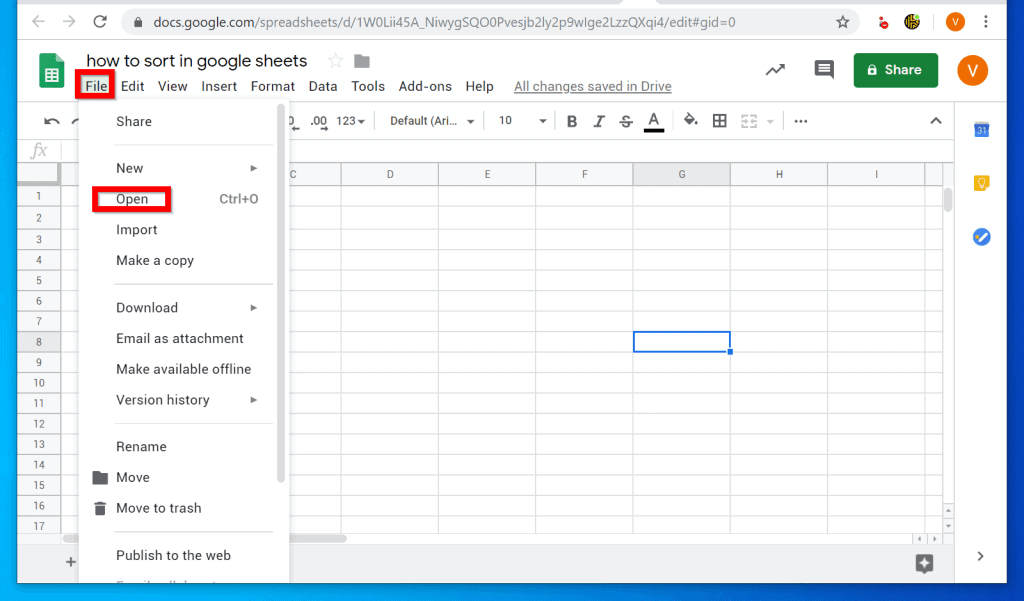
- Then open the document you want to work on. To open an existing document, on the top left of Google Sheets click File then select Open. Finally, navigate to the Google Drive location you saved the document and open it.
- To wrap a text(s) in Google Sheets, select the cell containing the text(s) by clicking on it. Then from the menu click Format, point to Text Wrapping and select Wrap.
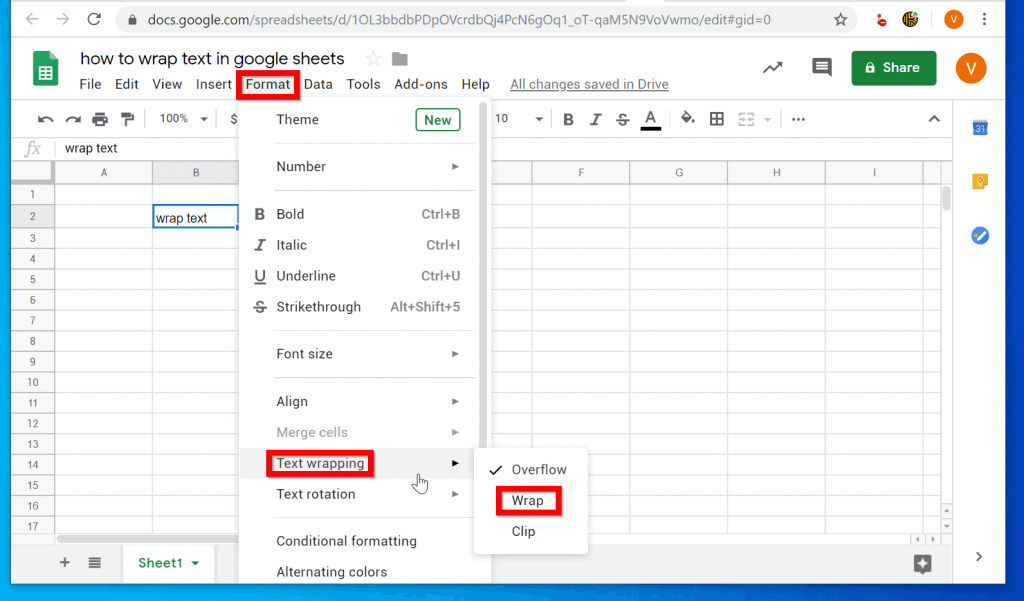
- If you now add more texts to the cell, instead of overflowing, the texts will be wrapped nicely.

Option 2: Wrap Text via the Android App
- Open Google Sheets App from your Android phone. If you have not logged in to your Google Account, login before you proceed to the next step.
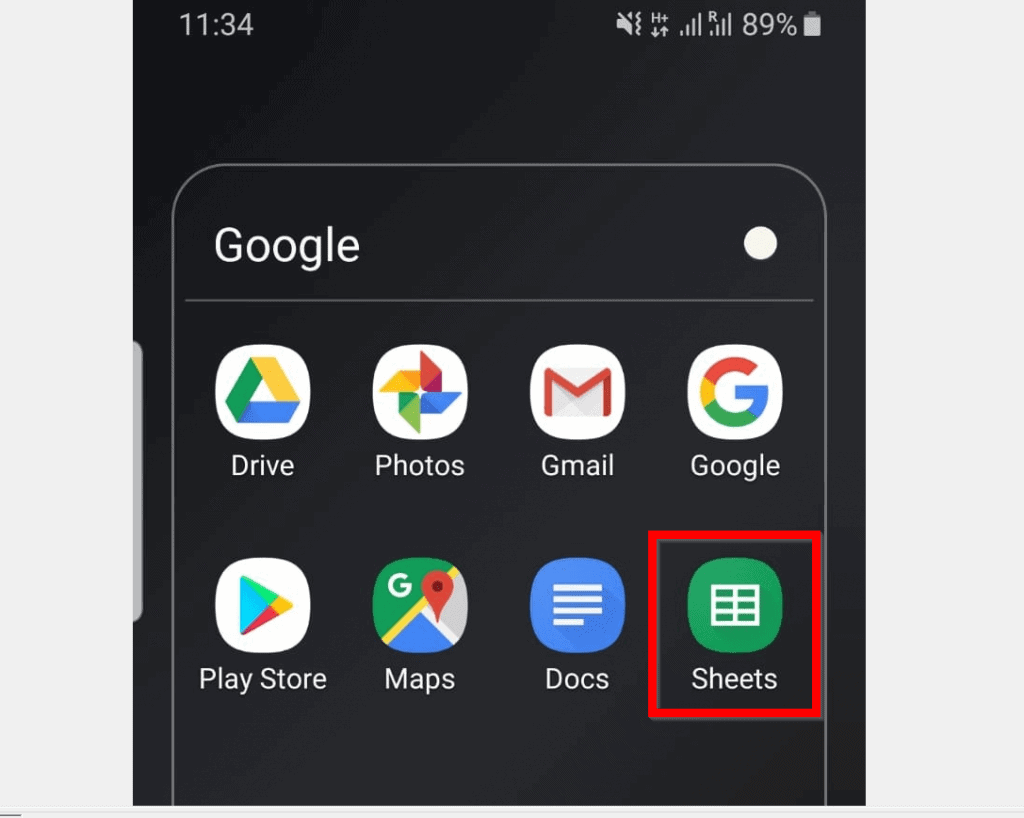
- Once the App opens, open the document you want to wrap texts on. If you opened the document recently, you will find it beneath Last opened by me.

- You could also open the Google Sheets document from Google Drive. To access Google Drive, click the folder icon on the top right of the App. Then click Google Drive.

- When the document opens, click on the cell with the text you want to wrap. Then click the A icon.

- When you click the A icon. Beneath the App, a menu with two tabs will be displayed. The Text tab is opened by default. Click the Cell tab.

- Then within the Cell tab, scroll down to Wrap text and flip the switch from Off to On.

- Once the Wrap text switch is flipped to On position, the texts in the cell will be wrapped!


Option 3: Wrap Text Through the iPhone/iPad App
- Open the Google Sheets App on your iPhone and login with your Google Account.
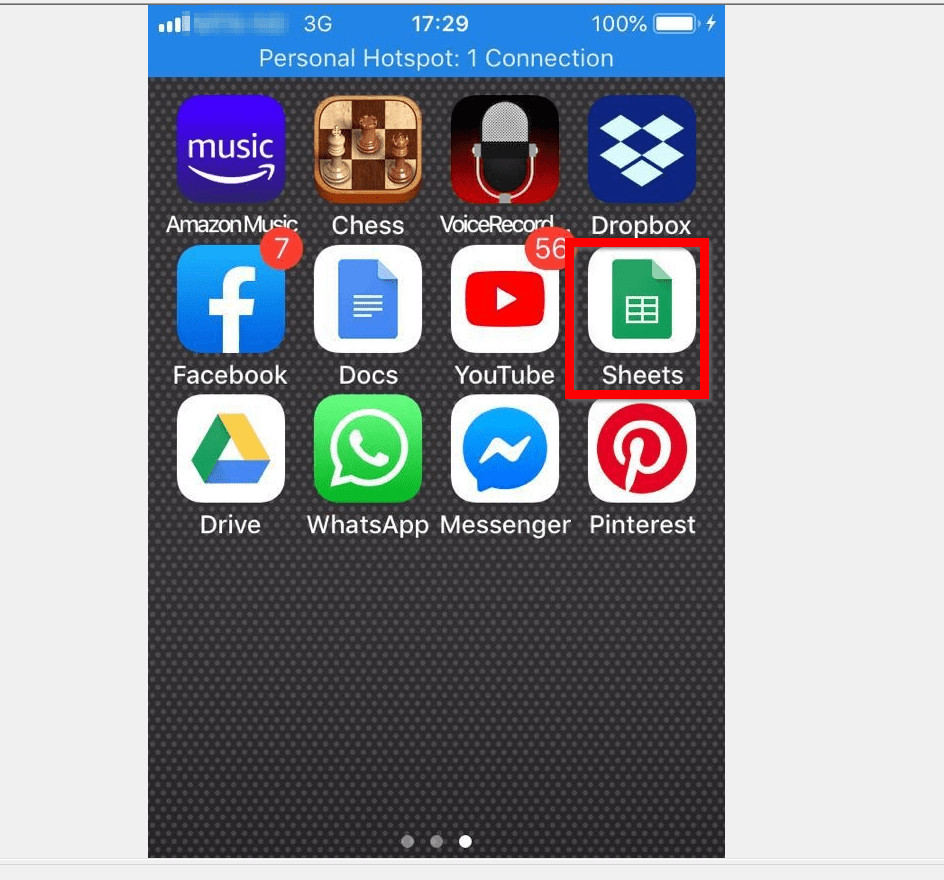
- Then open the document with the text(s) you want to wrap. You could open the document from beneath Last opened by me or directly from Google Drive. To access Google Drive from Google Sheets App, click the folder icon on the top right of the App.

- When the document opens, click the cell with the text you want to wrap in Google Sheets. Then, at the App menu click the A icon.
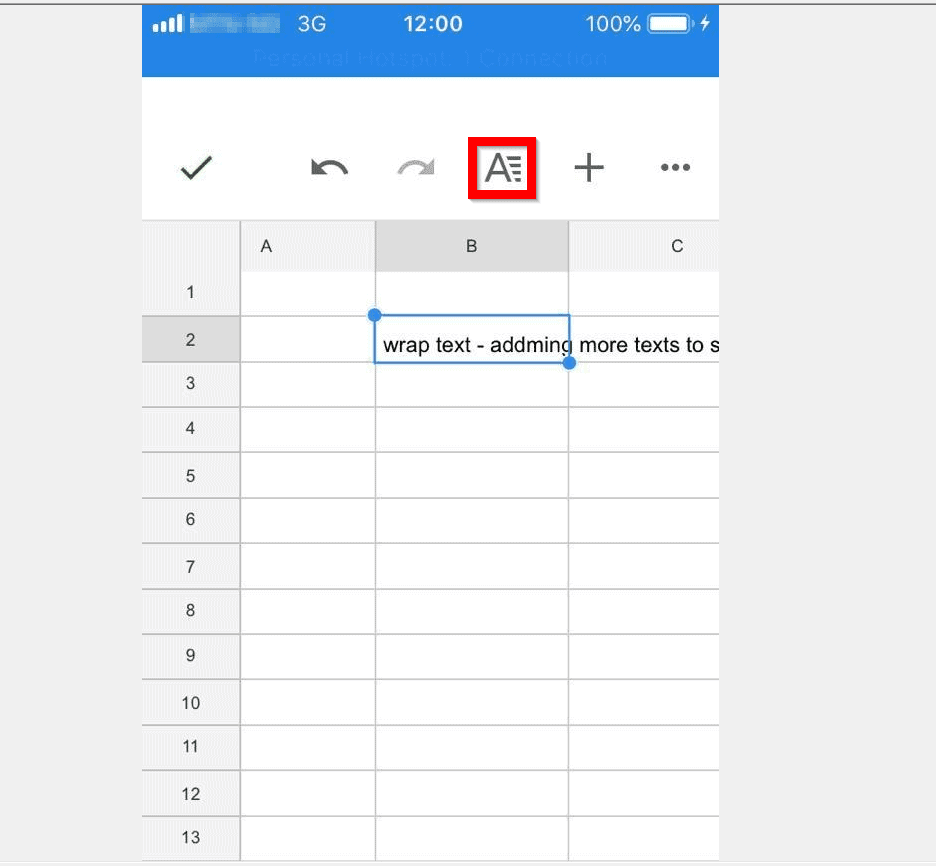
- When you click the A icon, an options menu will display beneath the App. Text tab will open by default. To wrap text in Google Sheets click the Cell tab.

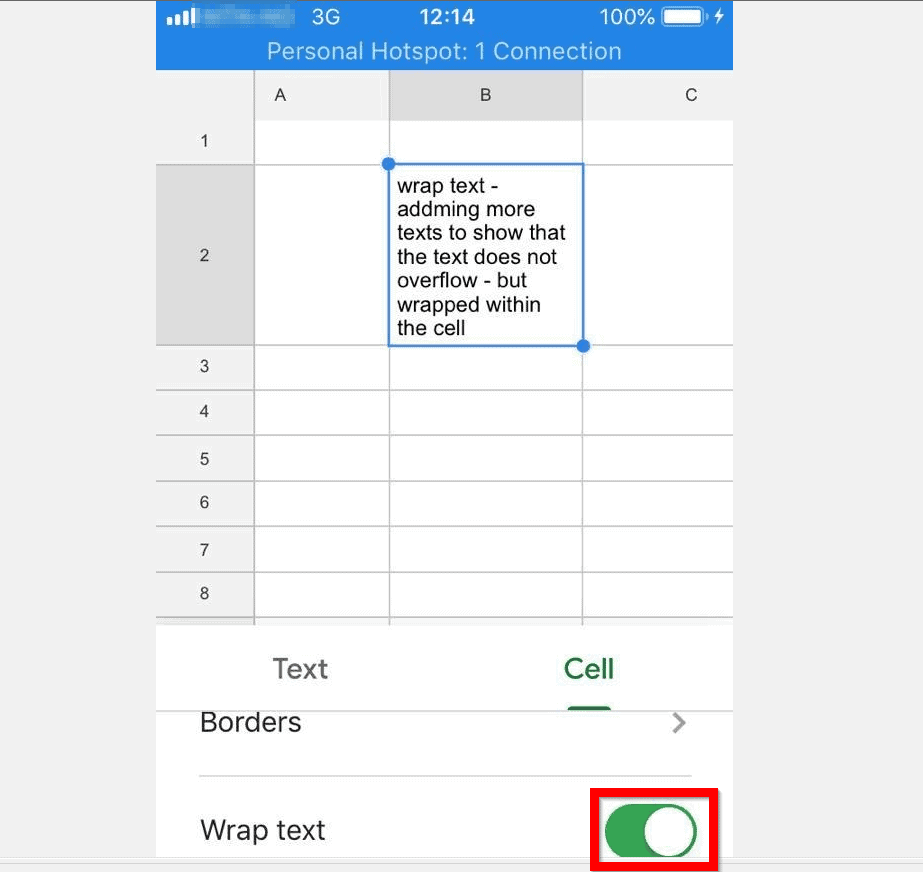
- On the Cell tab, scroll down and locate Wrap text. Then flip the switch beside it from Off to On.

- Once you flip the Wrap text switch On, the texts in the selected cell will be wrapped!
It is this easy to wrap text in Google Sheets! Whether you performed this task from a PC, Mac or a mobile phone App, I hope you found the steps easy to follow.



If you did, click on “Yes” beside the “Was this page helpful” question below. You may also express your thoughts and opinions by using the “Leave a Comment” form at the bottom of this page.
Quick wins for a faster PC:
Repair Windows errors before they cause bigger problemsFix Now →Scan for outdated or missing drivers - takes under a minuteDriver Scan →Clear out junk files and repair common Windows errorsFree Scan →For more Google guides and How Tos, visit our Google How To page.
Quick Recap
Also popular on Amazon
Also popular on Amazon
Also popular on Amazon
- hole punched
- high quality card stock
- 4 pages
- made in USA
- keyboard shortcuts



