

Do these 3 things before closing this tab:
1Repair Windows errors before they cause bigger problems2Fix the driver behind crashes, sound loss and screen glitches3Clear out junk files and repair common Windows errorsiTechGuides is reader-supported. When you buy through links on our site, we may earn an affiliate commission. As an Amazon Associate I earn from qualifying purchases. Learn more
In this Itechguide, Victor teaches you how to use LinkedIn to find a job.
Option 1: Use LinkedIn on a PC or Mac
- Open LinkedIn.com from a browser on your Mac or PC. Then, sign in with your LinkedIn account.
- On the top of the page, click Jobs.

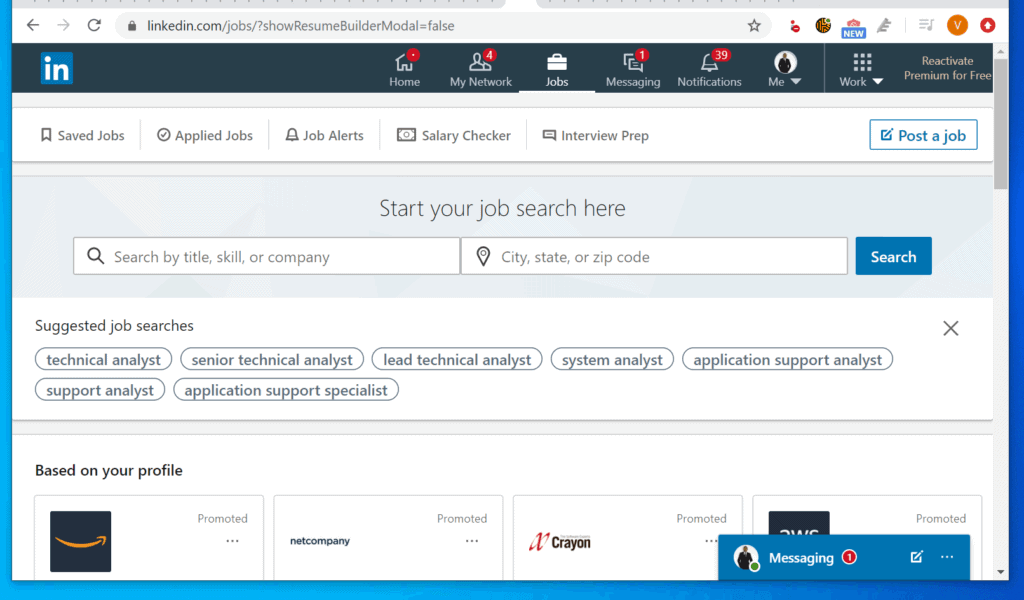
Method 1: Find a Job with “Based on your profile”
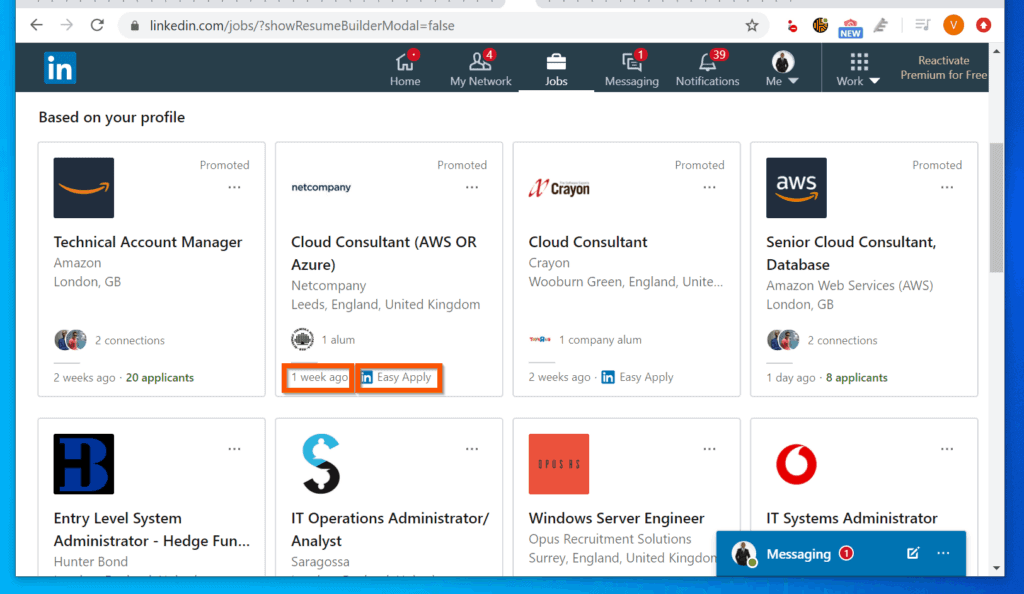
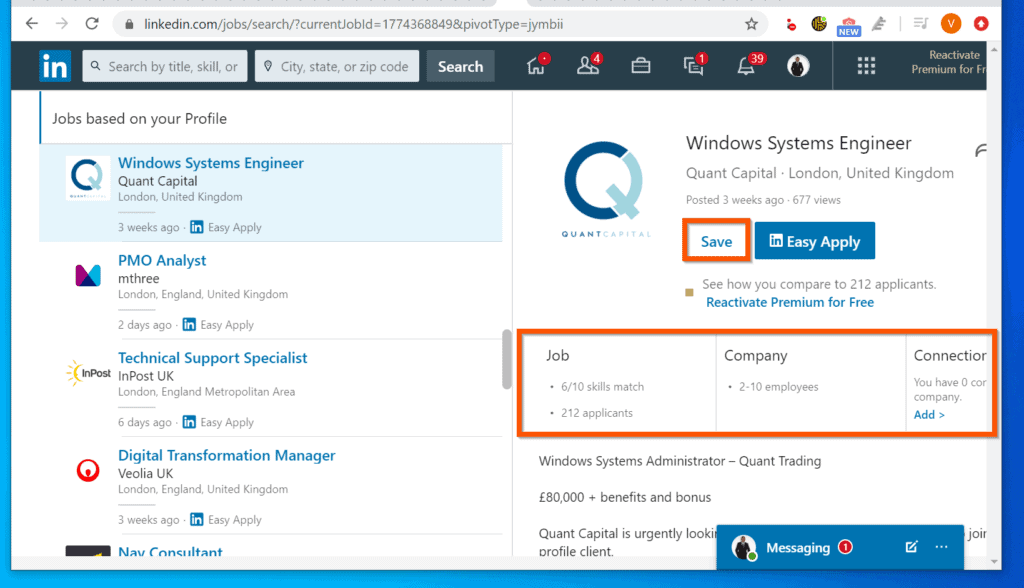
- The first place to look is the “Based on your profile” section. LinkedIn displays suggested jobs based on your profile.
- Beneath each job listing, LinkedIn displays the location of the job, when the job was posted, and whether it supports LinkedIn “Easy Apply” or not.
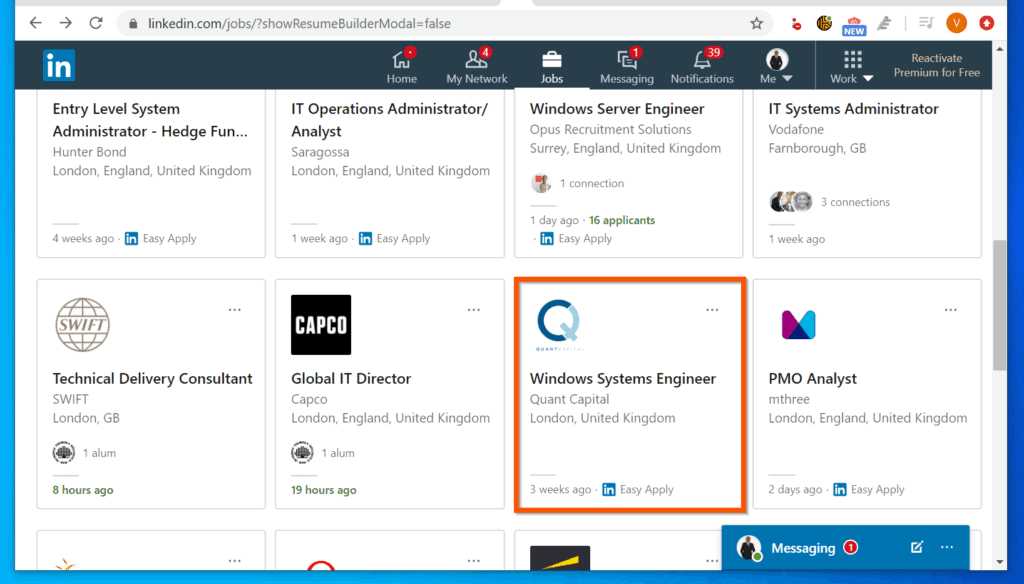
- To read the details of a job and apply for the job, click on the job.
- Then, on the right pane of the job details page, you can save the job or Apply for it.
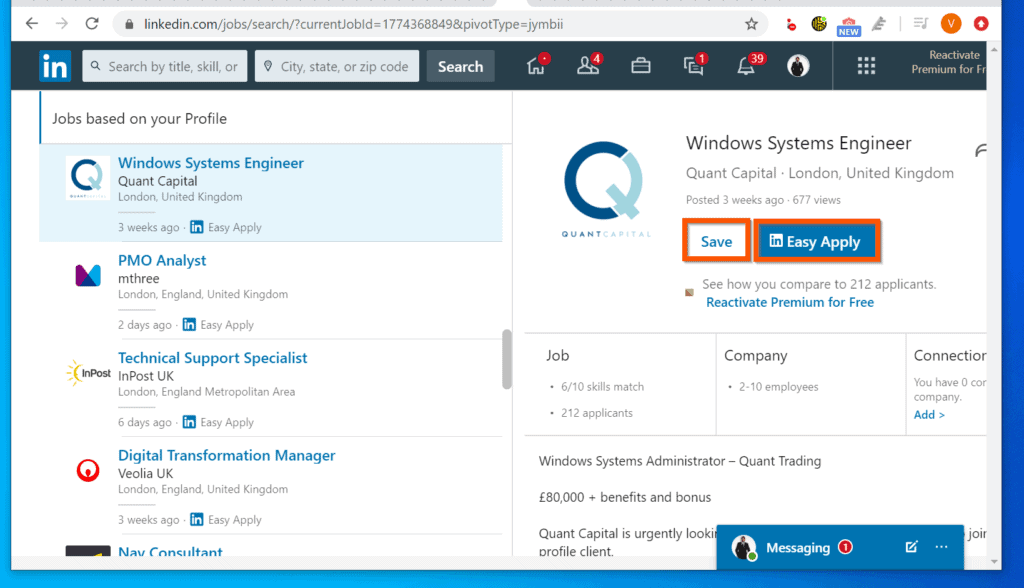
- Beneath the Save or Apply button, LinkedIn displays some very important information. From left to right – the first is Job. This displays how many of your listed skills that match the skills listed in the job advert. In this example, 6 of my skills match 10 of the listed skills.
- The next is company size. This is important as it will help you decide whether you want to work in a company of the specified size.
- Finally, in that section are the number of your LinkedIn connections that have applied for the job – this is not very important.
- To view the job details, including salary and job requirements, scroll down to the job details section.

Method 2: Find a Job with “Suggested job searches”
You can also find jobs with “suggested job searches”. This will only be useful if you completed your LinkedIn profile. To use this method to find a job:





- On the LinkedIn Job page, click on one of the “Suggested job searches” link.
- In this example, I will click on the first of my suggested searches.

- On the left pane of the job search results page, LinkedIn will display all the jobs that match the phrase you searched. The first job on the list will be selected and the details of the job will be displayed on the right pane of the page – see the image below the next point.
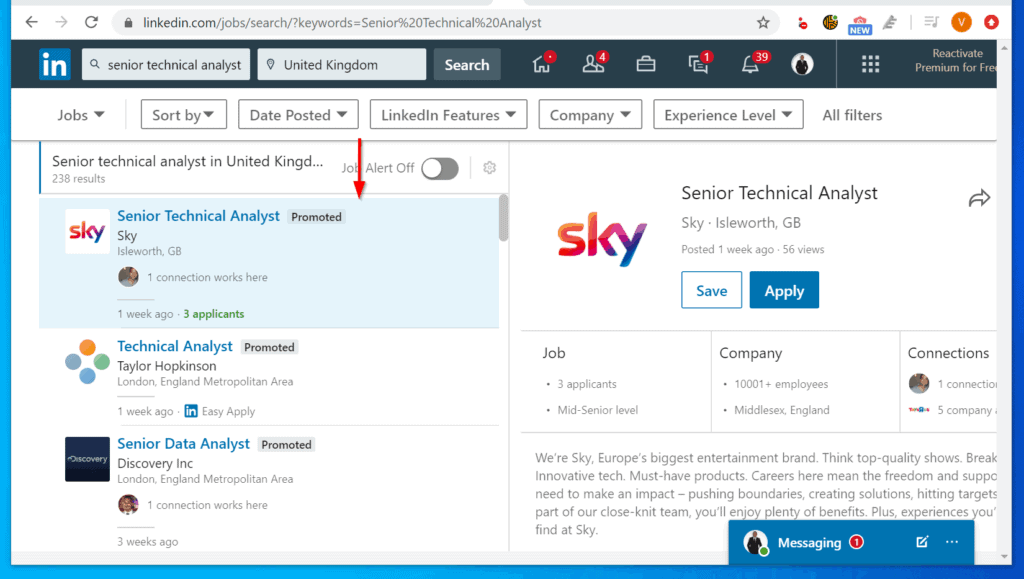
- You can view the job details, save the job and/or apply for the job.
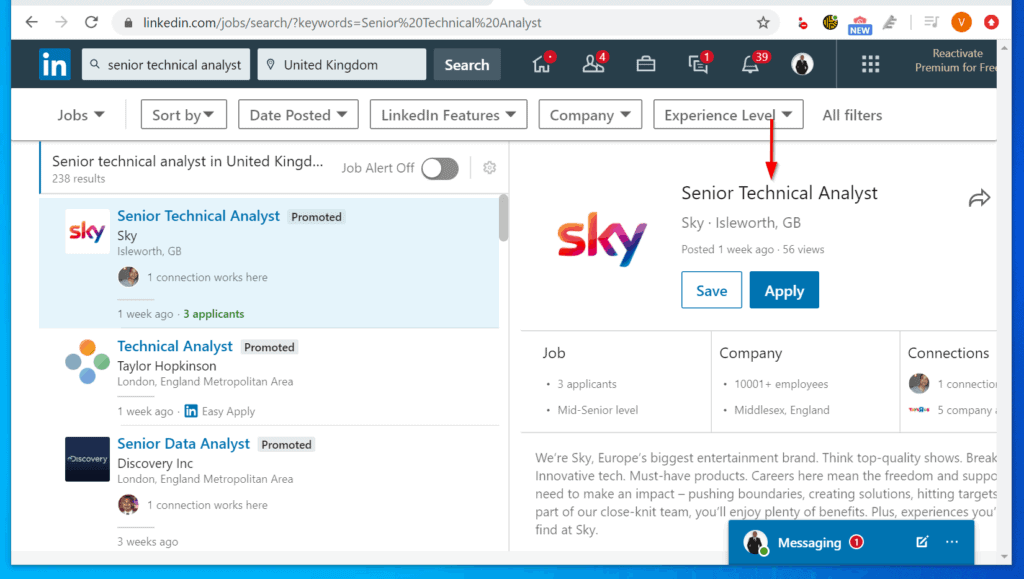
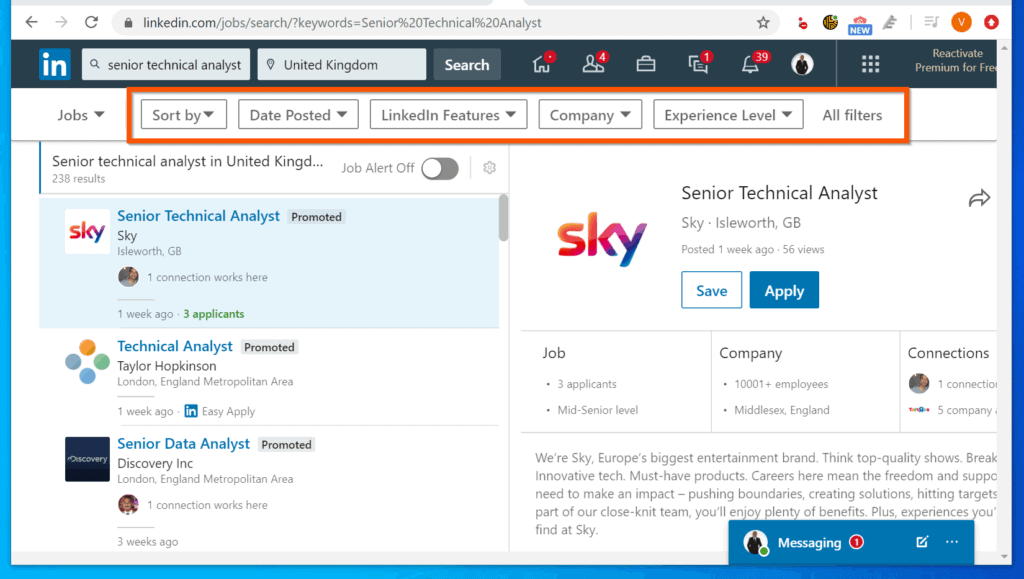
- Finally, you can make the search engine to return specific jobs – use the search filter options on top of the page to determine the type of jobs returned. More on this in the next sub-section.
Method 3: Use LinkedIn Search to Find a Job
This final sub-section teaches you how to enter your own job search terms into the LinkedIn job search field. It also covers how to use the filter options to return specific jobs and remove the rest. Here are the steps to use this feature…
Outdated Drivers Are Slowing You Down
One free scan finds every outdated or missing driver and matches the right update for your exact hardware.Free scan · exact hardware matchWindows Errors? Fix Them Before They Spread
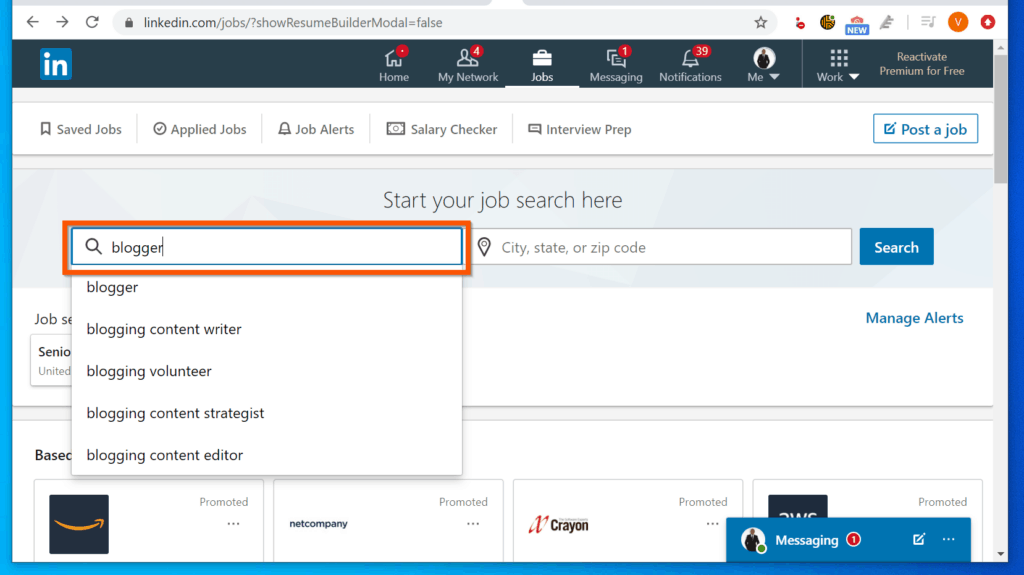
Repair common Windows errors and clear accumulated junk for a smoother, more stable PC - no reinstall needed.Free scan · no reinstall- On the LinkedIn Job page, enter the first word that describes the job you want to search for.
- In this example, I want to find a job for bloggers. I started by typing bloggers – LinkedIn job search will display suggested searches.
- Click a phrase that best matches what you want. In this example, I will click the first option.
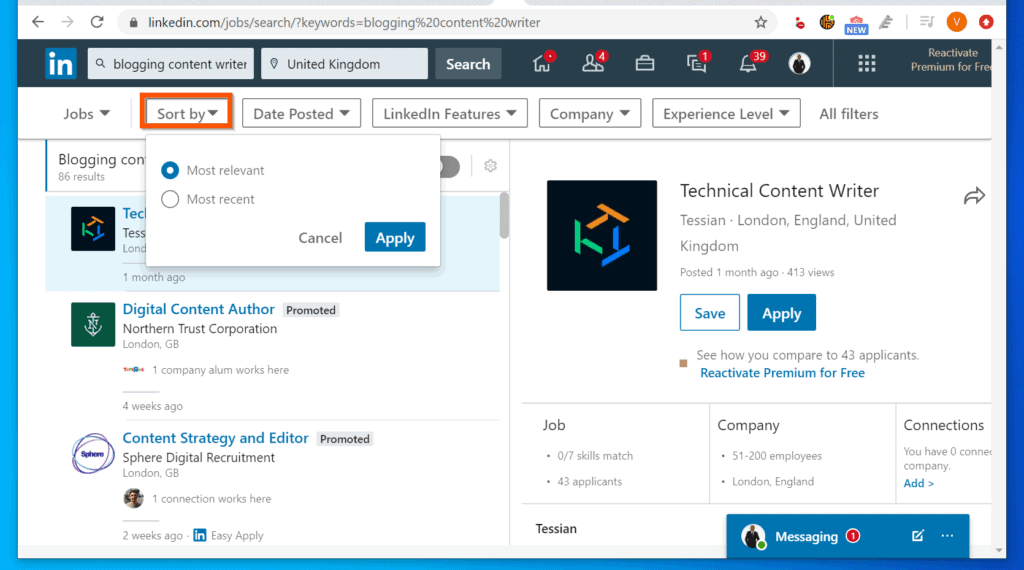
- Then, on the top right of the page, you can filter the results by Sorting, Date Posted, and LinkedIn filters.
- You can also filter by Company – select a specific company to view their jobs; or by Expereinece Level.
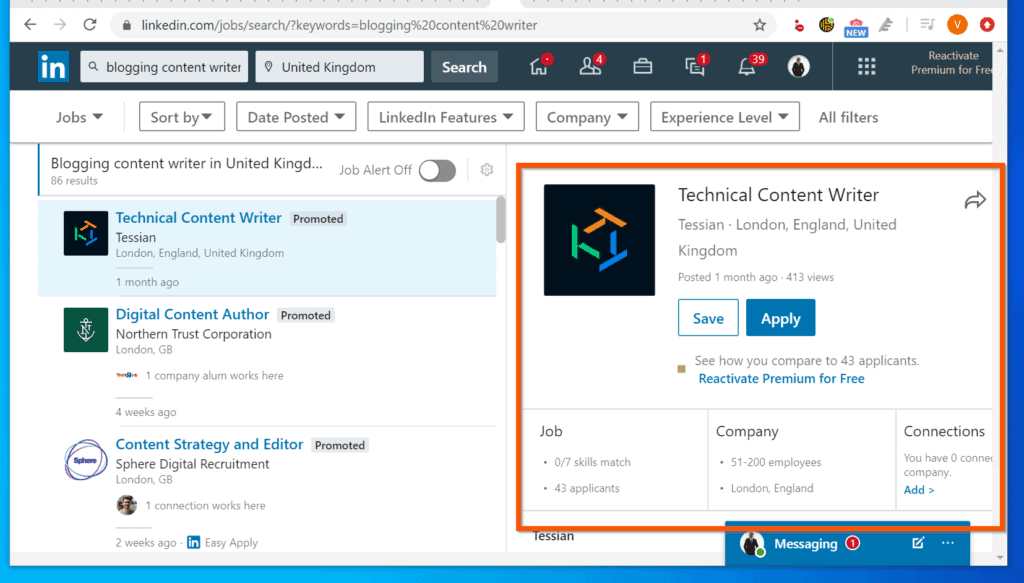
- Finally, on the right pane, the details of a selected job will be display. You can view the job details, save or apply for a job.
Option 2: Use LinkedIn Mobile App to Find a Job
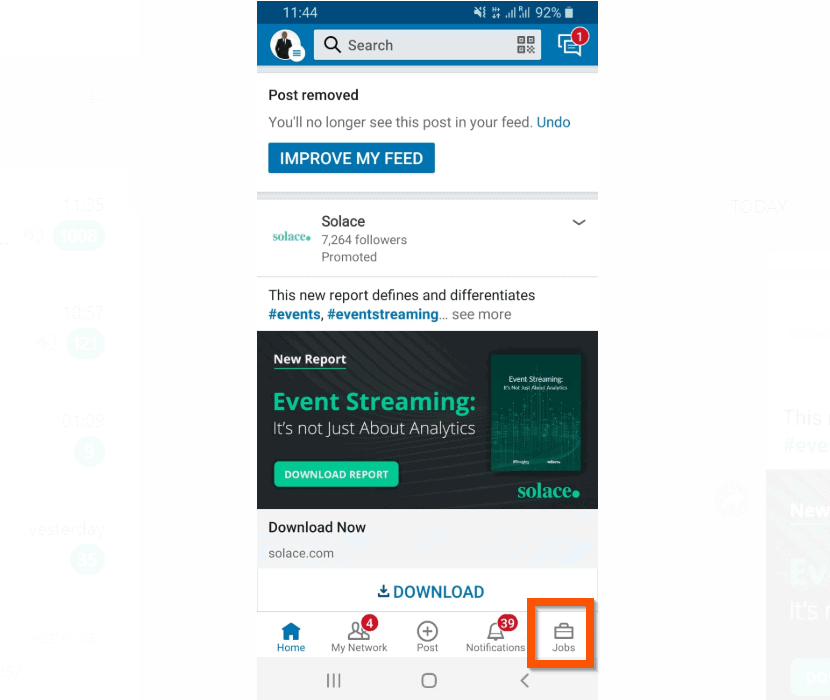
- Open the LinkedIn app on your smartphone.

- Then, on the bottom right of the app, tap the Jobs tab.
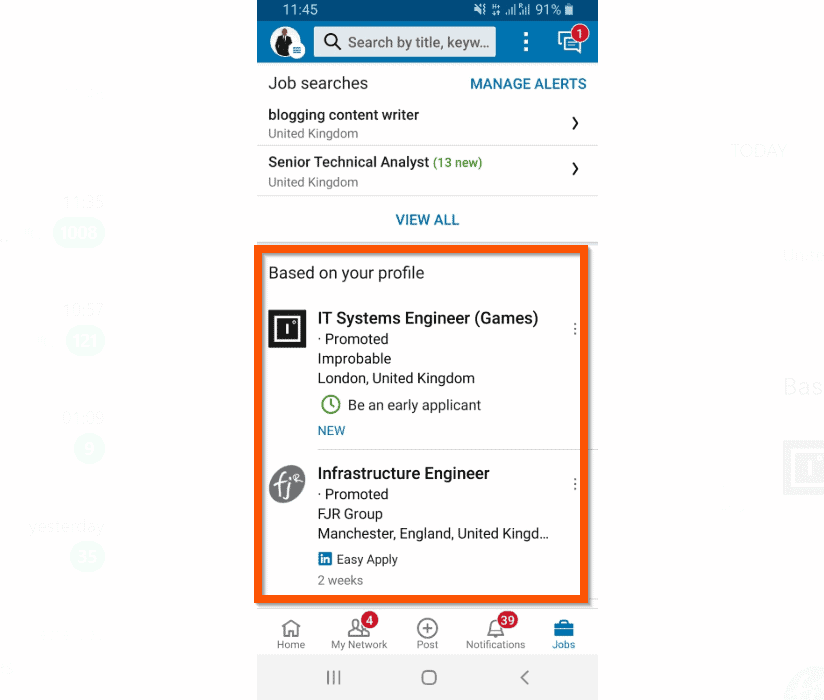
- Based on your profile, LinkedIn will displayed some jobs. You can tap any of the suggested jobs.
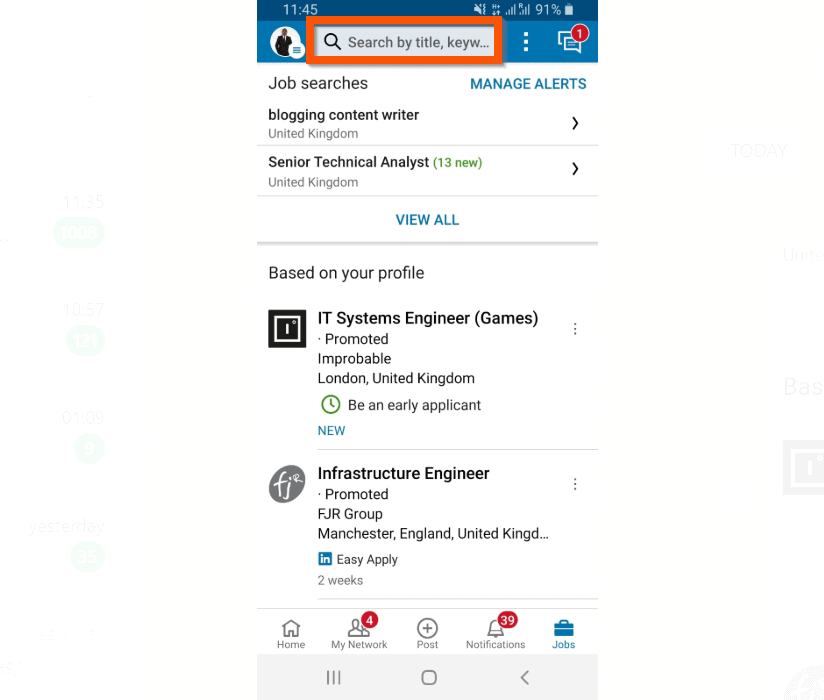
- However, on top of the Jobs tab, you can perform your own job search.
Conclusion
I hope you found this Itechguide helpful. If you did, click on “Yes” beside the “Was this page helpful” question below.
Popular on Amazon
You may also express your thoughts and opinions by using the “Leave a Comment” form at the bottom of this page.
Finally, for more job-related Itechguides, visit our Work from Home Opportunities page. You may also find our Socialize with Social Media page very helpful.
Quick Recap
Also popular on Amazon
Also popular on Amazon
Also popular on Amazon
Also popular on Amazon
Product prices and availability are accurate as of the date/time indicated and are subject to change. Any price and availability information displayed on Amazon at the time of purchase will apply.



