

Free tools Windows power users keep installed
One-click scans. No signup required.
iTechGuides is reader-supported. When you buy through links on our site, we may earn an affiliate commission. As an Amazon Associate I earn from qualifying purchases. Learn more
In this Itechguide, Victor teaches you how to tag someone on LinkedIn.
Option 1: Tag Someone on Messages
When you send a direct message to someone on LinkedIn, you can tag the person or another person on the Message. Here is how…
| # | Preview | Product | Price | |
|---|---|---|---|---|
| 1 |

|
LinkedIn For Dummies | $15.48 | Buy on Amazon |
| 2 |

|
LinkedIn For Dummies | $16.50 | Buy on Amazon |
| 3 |

|
Linkedin for Dummies | $14.30 | Buy on Amazon |
| 4 |

|
LinkedIn Profile Optimization For Dummies (For Dummies (Business & Personal Finance)) | $21.91 | Buy on Amazon |
| 5 |

|
LinkedIn For Dummies | $6.92 | Buy on Amazon |
- Open the profile of the person you want to send a direct message and click Message.

- Then, on the Message window, enter the @ sign and start typing the name of the person you want to tag.
- Based on the letters you typed, LinkedIn will display suggestions. To tag someone from the suggested list, click on the person’s name. The name will be displayed next to the @ sign. You have just tagged the person!


Option 2: Tag Someone on Comments
You can also tag when commenting on a post. Here is how…
What’s actually slowing this PC down?
Pick the symptom - the matching free tool is one click away.
- Beneath the post you want to comment on, click Comment.

- Then, on the Comment form, enter the @ sign. LinkedIn will suggest people you may mention (tag) on the post.
- From the suggested profiles, click on the person you want to tag on the Comment. The person’s name will be displayed on the Comment.
- To tag another person, type a comma (,) then type the @ sign followed by the person’s name.


Option 3: Tag Someone on Posts
- On the top middle pane of LinkedIn, click Start a post or New posts.
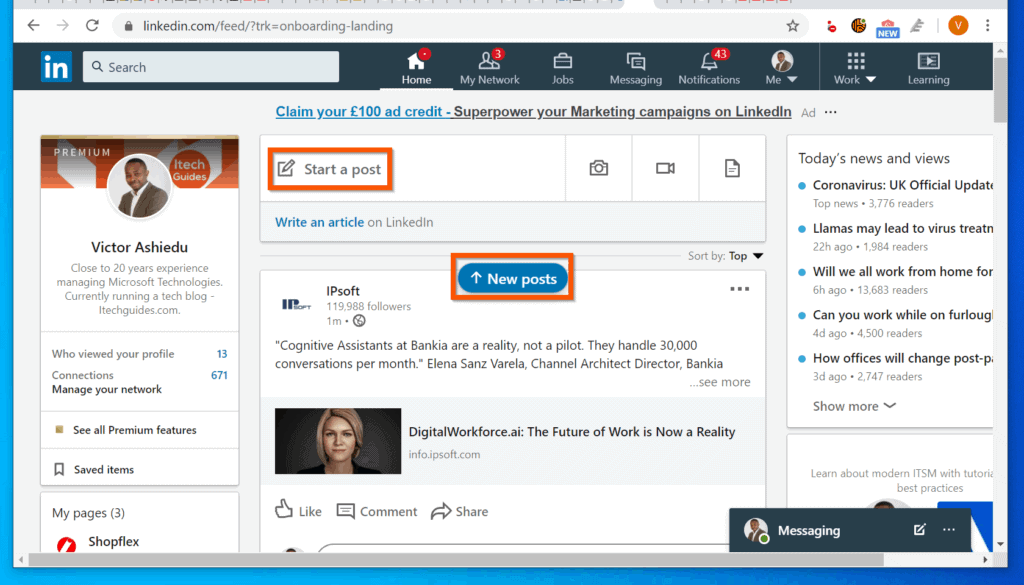
- Then, on the Create a post window, enter the @ sign. LinkedIn will display some suggested names to mention on the post. Select a person from the suggested list.


Conclusion
I hope that you found it helpful. If you did, click on “Yes” beside the “Was this page helpful” question below.
Popular on Amazon
You may also express your thoughts and opinions by using the “Leave a Comment” form at the bottom of this page.
Finally, for more Itechguides like this, visit our Social Media page. You may also find our Work from Home page very helpful.
Quick Recap
Also popular on Amazon
Also popular on Amazon
Also popular on Amazon
Also popular on Amazon
Product prices and availability are accurate as of the date/time indicated and are subject to change. Any price and availability information displayed on Amazon at the time of purchase will apply.



Thanks for sharing a nice post, If you want to use LinkedIn Messenger in your Gmail without leaving the Gmail. Then you can try our free Chrome extension: https://bit.ly/3uTuQ0y