

iTechGuides is reader-supported. When you buy through links on our site, we may earn an affiliate commission. As an Amazon Associate I earn from qualifying purchases. Learn more
Do you wish to run your programs as administrator on your Windows 11 PC? Not to worry, this guide provides steps and methods to run as an administrator on Windows 11.
How to Run Command Prompt as an Administrator
This section involves two methods to run Command Prompt as an administrator on Windows 11.


Option 1: Run Command Prompt From Search
- Click the Search icon on your Windows 11 taskbar.
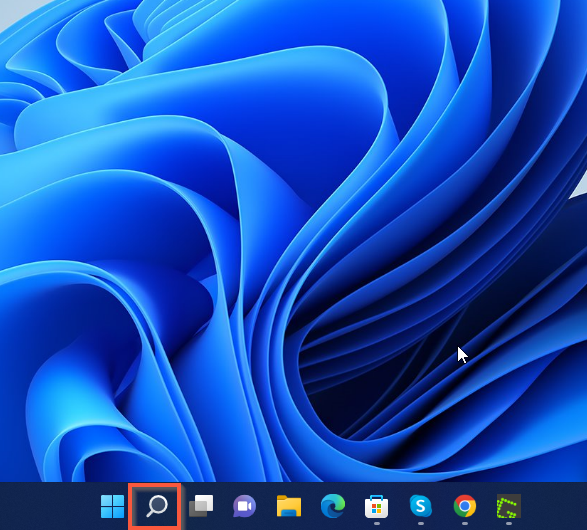
- Type “command prompt” or “cmd” on the search field that appears.
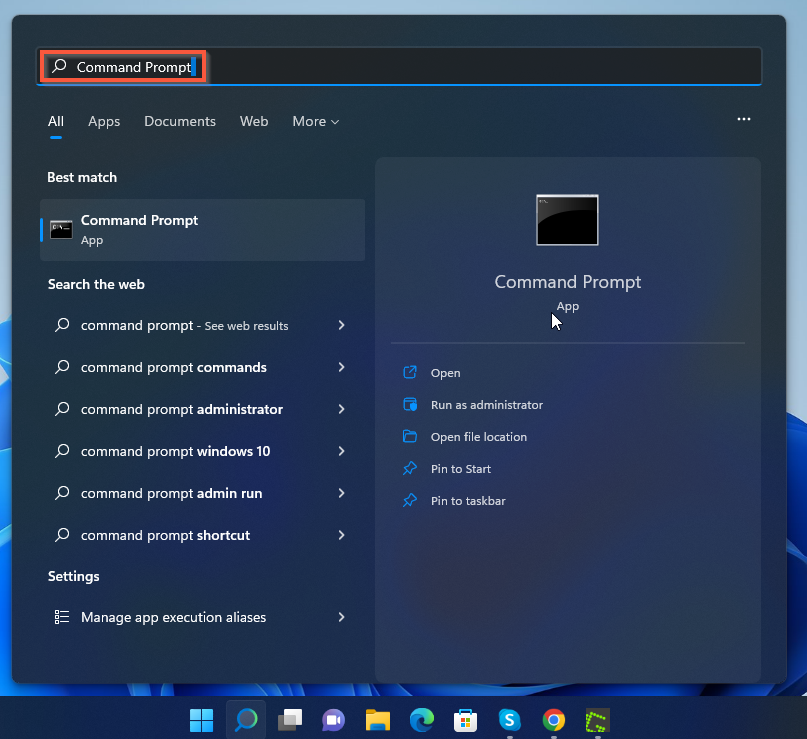
- From the search results on the left pane of the page, right-click the Command Prompt app and select Run as administrator.


- After doing that, you will receive a User Account Control prompt requesting to allow the app to make changes to your computer. Select Yes to continue.
Option 2: Run Command Prompt from System32 Folder
- Click the Search icon on your Windows 11 taskbar. Then, type %systemroot%\system32 in the search field.

- From the search result, left-click the %systemroot%\system32 folder.

- On the System32 folder, locate cmd. Then, right-click cmd and select Run as administrator.

- As expected, after selecting Run as administrator, you will receive a User Account Control prompt. This prompt will request to allow the application to make changes to your computer – click Yes to continue.
How to Run Programs or Apps as an Administrator
This section covers two steps to run programs or applications as an administrator on Windows 11.
Free tools Windows power users keep installed
One-click scans. No signup required.
Option 1: Open a Program From Search
- Click the Search icon on the Windows 11 taskbar and enter the name of the program you wish to run as an administrator. For example, I wish to run the nltest program as an administrator, according to the screenshot below.

- If the program is installed on your computer, Windows 11 will find and select it. So, to run the program as administrator, select Run as administrator on the right pane of the options below the program’s icon.


- After you have selected Run as administrator, you will receive a User Account Control prompt. This prompt will request to allow the program to make changes to your computer – select Yes to continue.
Option 2: Run an Application From System32 Folder
- Click the Windows 11 Search Icon on the taskbar. In the Windows 11 search field, type %systemroot%\system32 and select the %systemroot%\system32 folder from the search result.

- When the folder opens, locate and right-click the program you wish to run as administrator, then select Run as administrator. For example, according to the screenshot below, I wish to run the nltest program as administrator.

- After doing that, you will receive a User Account Control prompt requesting permission to allow the app to make changes to the computer. Click Yes to continue.
How to Run PowerShell as an Administrator
Like other sections I have previously discussed in this guide, this section covers two methods to run PowerShell as an administrator.
Popular on Amazon
Option 1: Run PowerShell from Search
- Click the Windows 11 Search icon on the taskbar and type PowerShell in the search field. Then, on the right pane of the search result, select Run as administrator underneath the Windows PowerShell application icon.


- By doing that, a User Account Control prompt will appear requesting to allow the app to make changes to the computer – click Yes to proceed.
Option 2: Access PowerShell From the UserProfile Folder
- Click the Search icon on the Windows 11 taskbar and type %userprofile%\AppData\Roaming\Microsoft\Windows\Start Menu\Programs\Windows PowerShell in the search field. Then, select the folder that appears in the search result.

- When the folder opens, right-click the PowerShell shortcut you wish to run as Administrator and select Run as Administrator.

- After that, you will be receive a User Account Control prompt requesting permission to allow the app to make changes to the computer. So, to continue, select Yes.
Frequently Asked Questions
Follow the steps below to run File Explorer as administrator on your Windows 11 PC.
1. Right-click Start many and select File Explorer.
2. Select This PC on the left pane of the File Explorer window.
3. Then, under Devices and drives, double-click Local Disk (c:)
4. After that, locate and select Windows.
5. In the Windows folder, right-click explorer and select Run as administrator.
6. Finally, you will receive a User Account Control prompt requesting permission to allow the app to make changes to the computer – select Yes to continue.
Sure, you can. To do so, follow the steps below.
1. Click the Search icon on the Windows 11 taskbar and type “cmd” in the search field.
2. From the search result, right-click the Command Prompt application and select Run as administrator.
3. When you do that, a User Account Control prompt should appear requesting permission to allow the app to make changes to your PC – click Yes to proceed.
Also popular on Amazon
To open Command Prompt without the search feature on Windows 11, follow the steps below.
1. Press Windows + R keys on your keyboard
2. After that, type “cmd”. Then, press Ctrl + Shift + Enter to open Command Prompt as administrator.
3. As expected, a User Account Control prompt will appear requesting permission to allow the app to make changes to your PC – click Yes to continue.
The Tool Desk
Outbyte Driver Updater FREEScan for outdated or missing drivers - takes under a minuteDriver Scan →Outbyte PC Repair FREEClear out junk files and repair common Windows errorsFree Scan →Yes, you can set a password on your computer’s administrator account. To set a password for the administrator account on your Windows 11 PC, follow the steps below:
i) Right-click the start menu and select Computer Management
ii) Then, on the left pane of Computer Management, expand Local Users and Groups and click the Users node.
iii) Finally, right-click Administrator and select Set Password.
Not necessarily. Whether you run a program as an administrator or not, it will not prevent virus attacks.
Conclusion
Running as an administrator on your Windows 11 PC has lots of advantages. However, some people don’t know how to do that.
Also popular on Amazon
Thankfully, this guide provided steps on how to run Command Prompt and PowerShell as an administrator on Windows 11. That’s not all; we also discussed how to run programs or applications as an administrator on Windows 11.
However, if you are not an administrator on the computer, you won’t be able to do all of these.
Also popular on Amazon
I hope this guide was helpful to you. If it was, click on “Yes” beside the “Was this page helpful” question below.
You may also express your thoughts and opinions by using the “Leave a Comment” form at the bottom of this page.
Finally, for more Windows 10 fix-it guides, visit our Windows 10 Fix-it guides page.
Quick Recap
Product prices and availability are accurate as of the date/time indicated and are subject to change. Any price and availability information displayed on Amazon at the time of purchase will apply.



